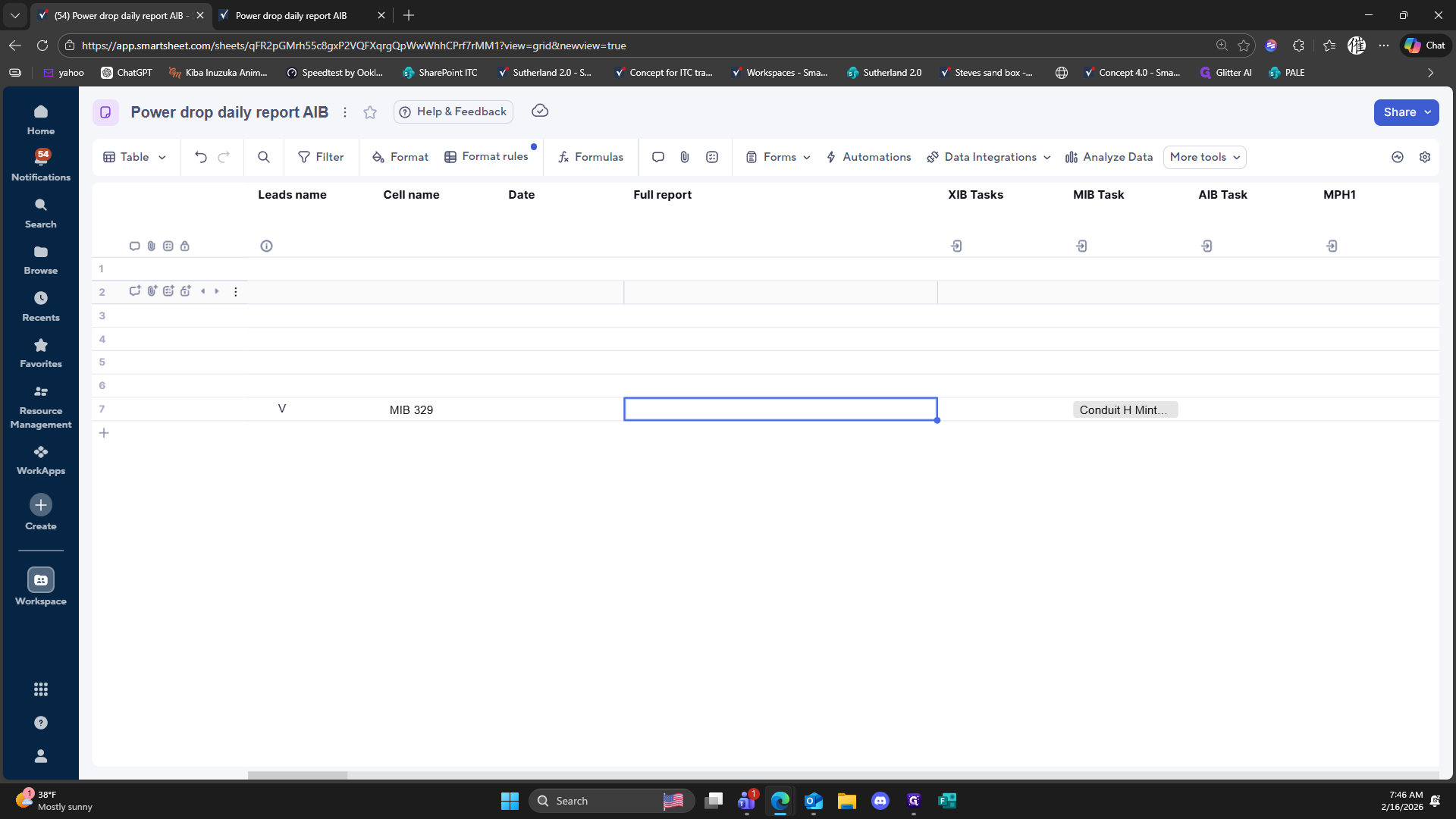
How to Use Helper Sheets and Main Tracker for Automated Reporting
Learn step-by-step how to use helper sheets from the main tracker, link data, update reports, and automate task management using logic columns. This guide covers linking sheets, managing tasks, and optimizing daily reporting workflows.
By Drew Stewart
In this guide, we'll learn how to create and manage helper sheets from a main tracker, link data between sheets, and ensure updates are reflected in reports using set logic. This process helps organize tasks, track progress, and keep information consistent across different sheets.
We'll also cover how to use dropdown lists, link values, and adjust formulas to match specific needs. By following these steps, you can streamline your workflow and maintain accurate records.
Let's get started
1
Drag here
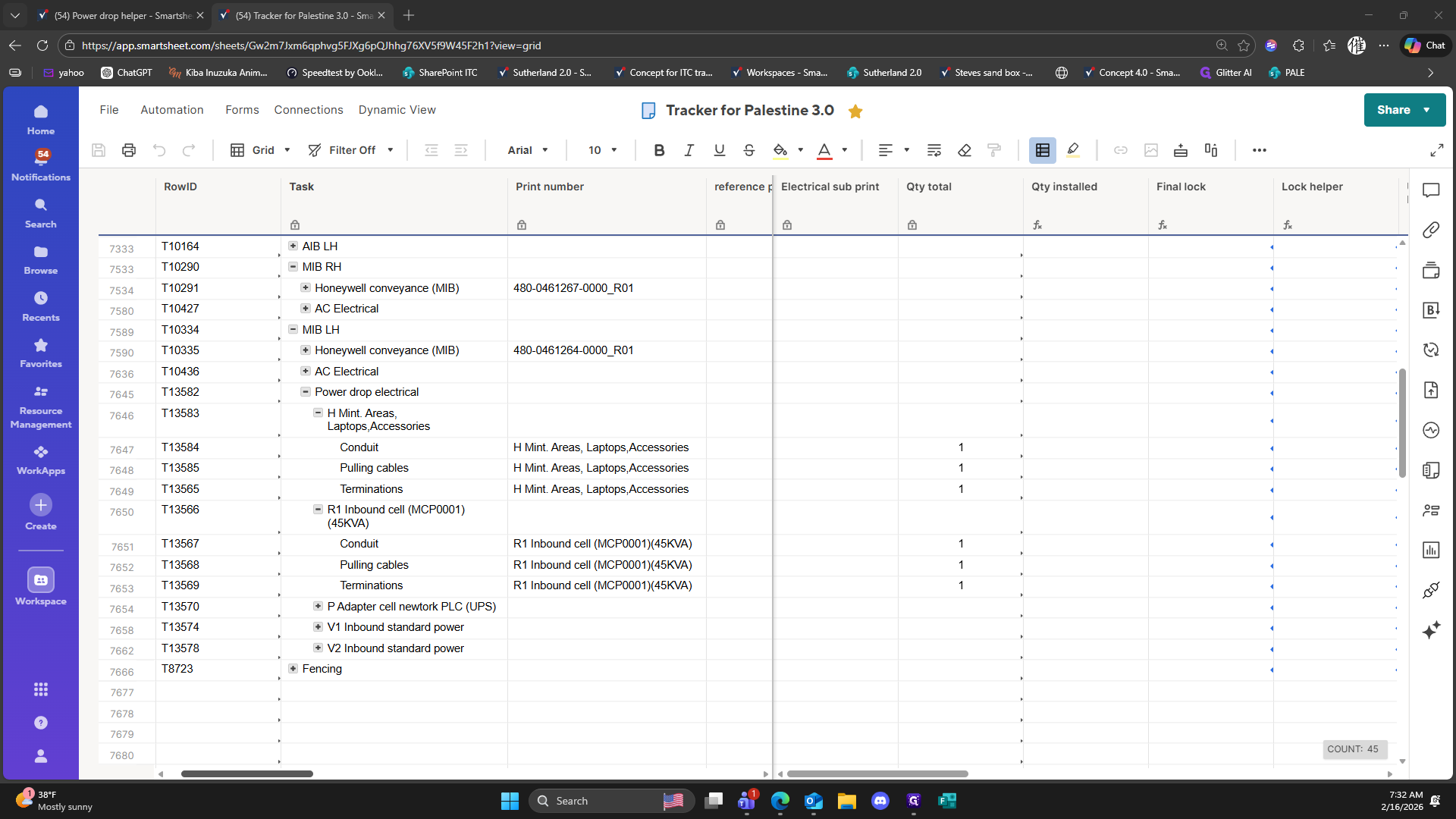
2
Click here
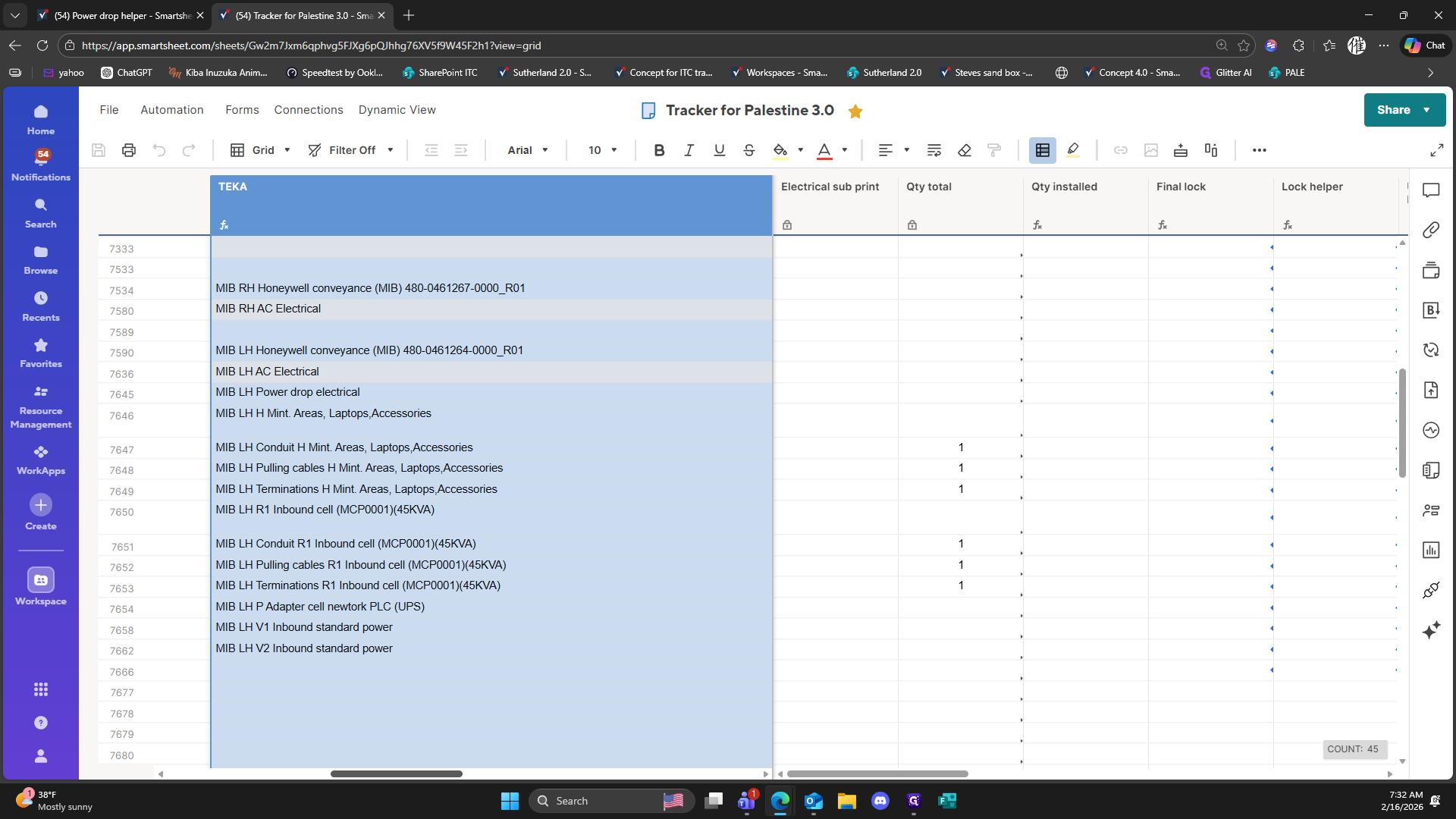
3
Drag "cell"
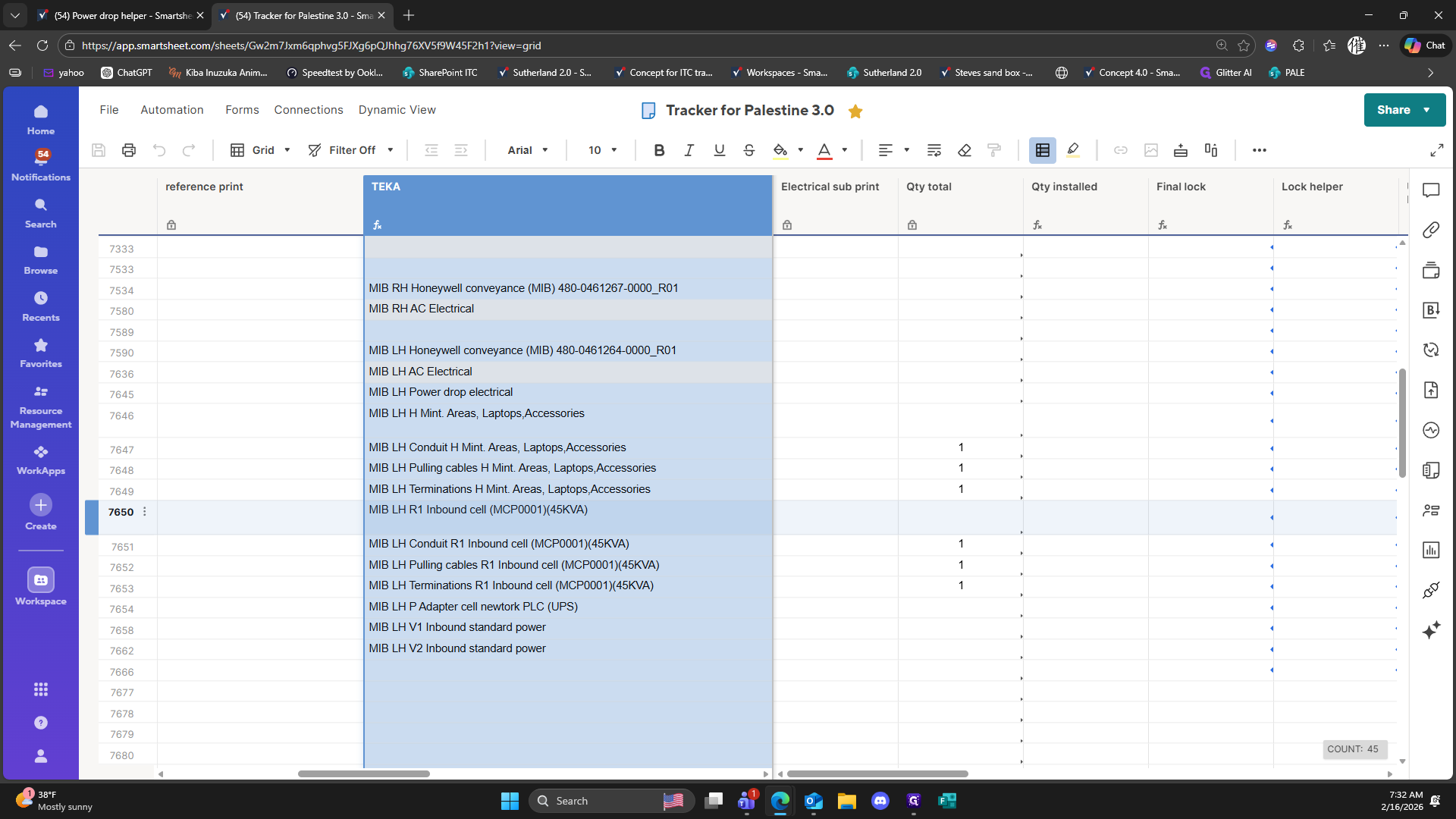
4
Click here
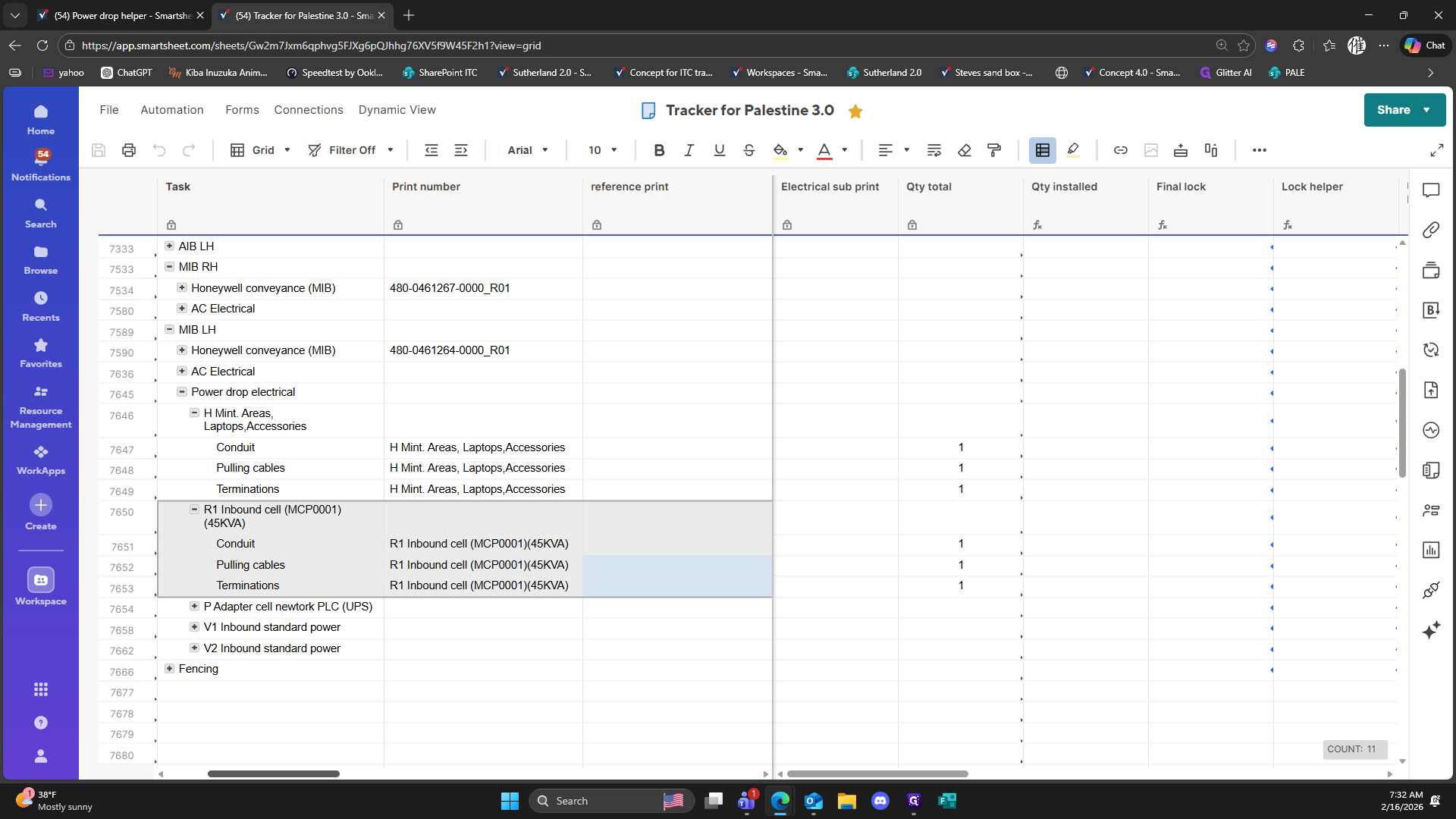
5
Click on "( 54 ) Power drop helper - Smartshe X"
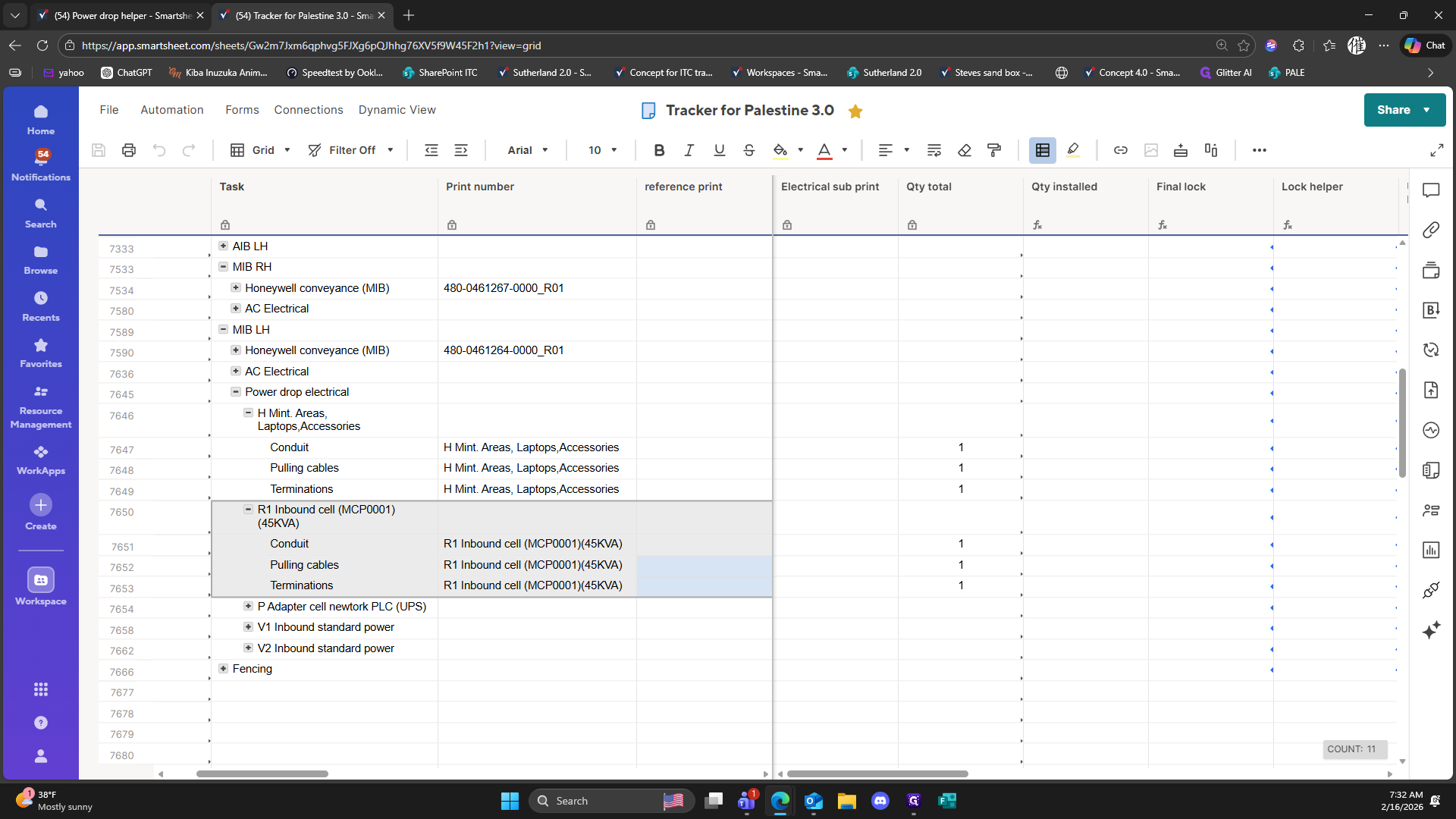
6
Click here
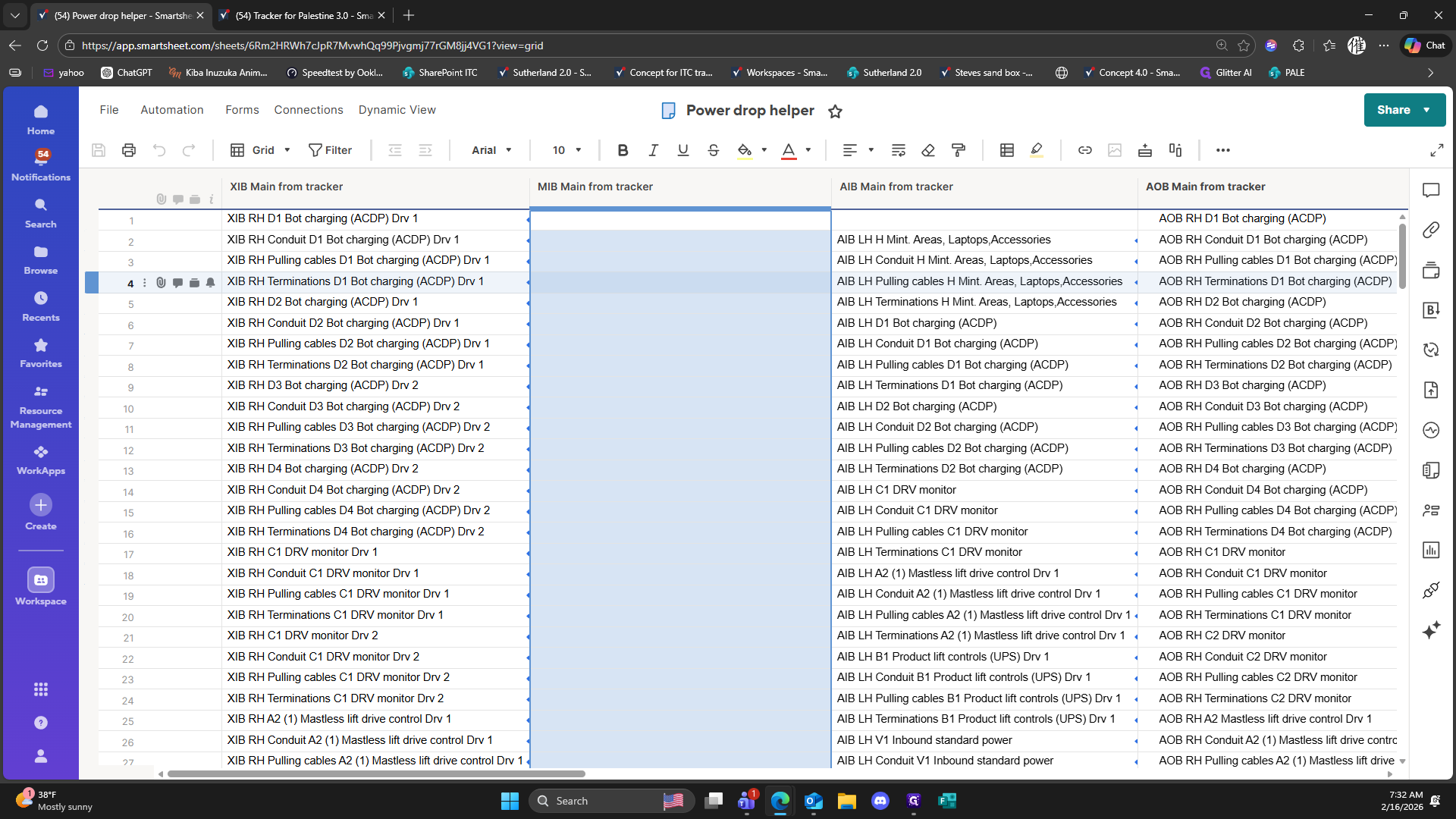
7
Drag here
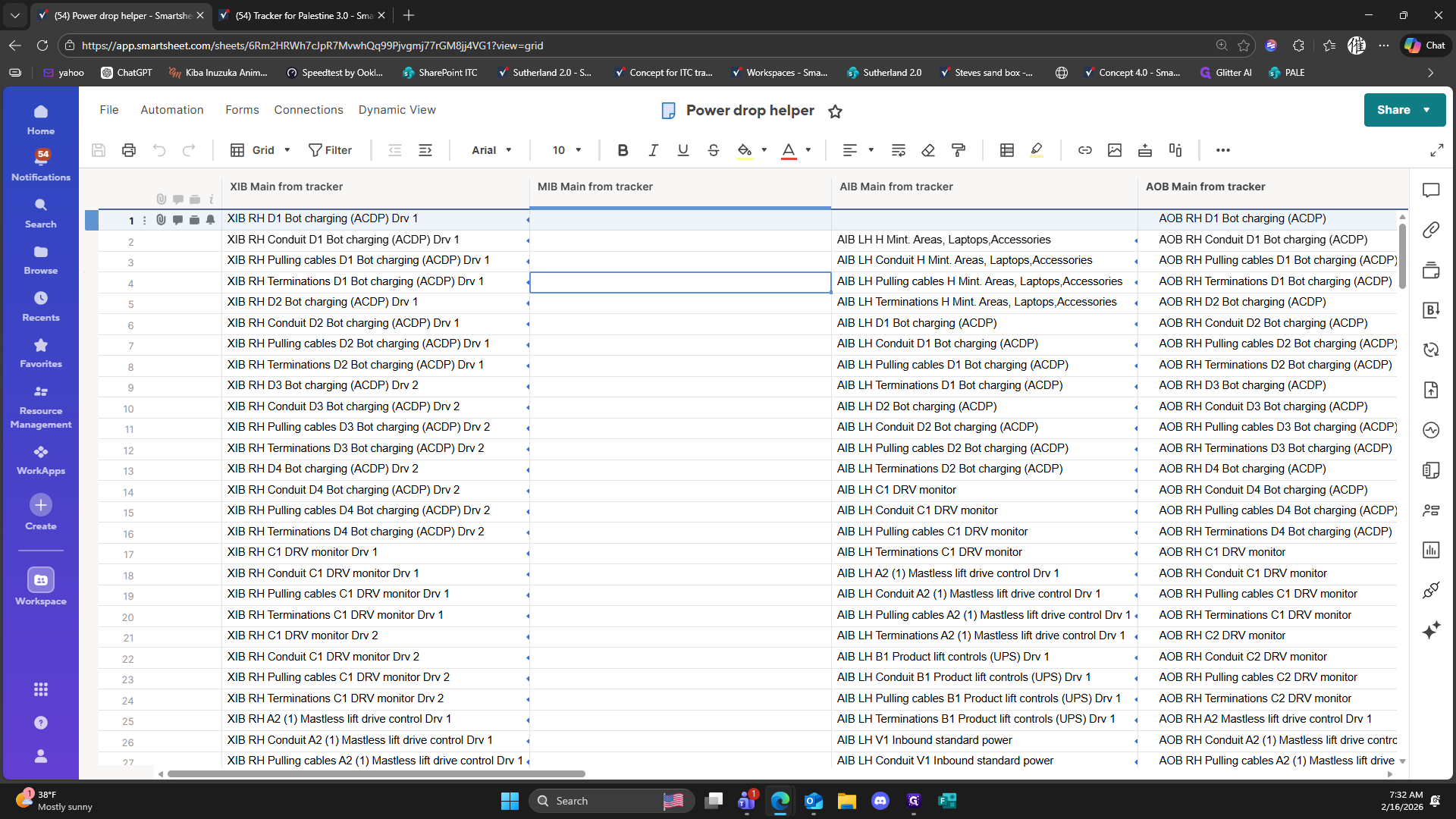
8
Right-click here
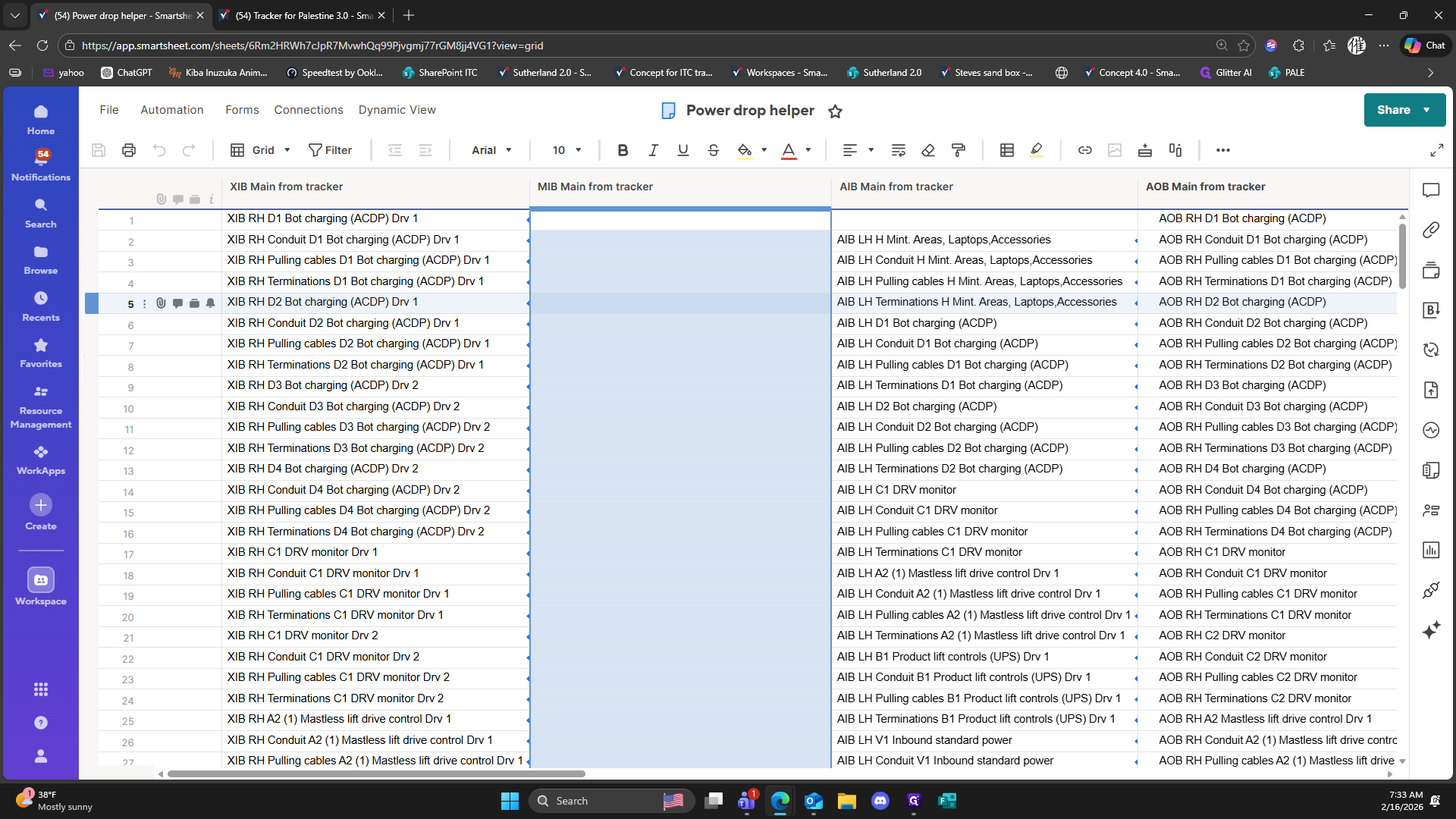
9
Click on "Link from Cell in Other Sheet"
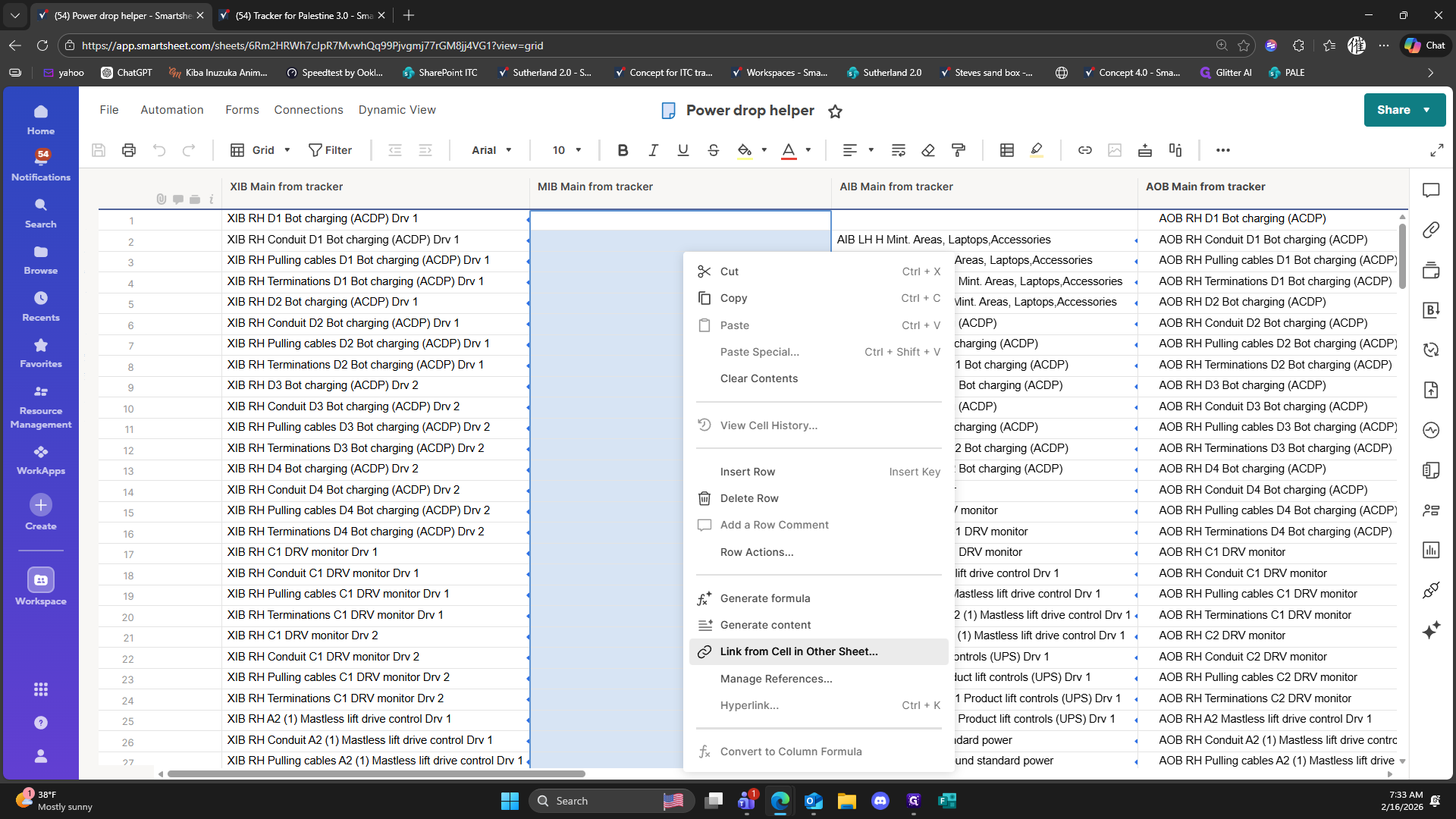
10
Click on "+ MIB LH"
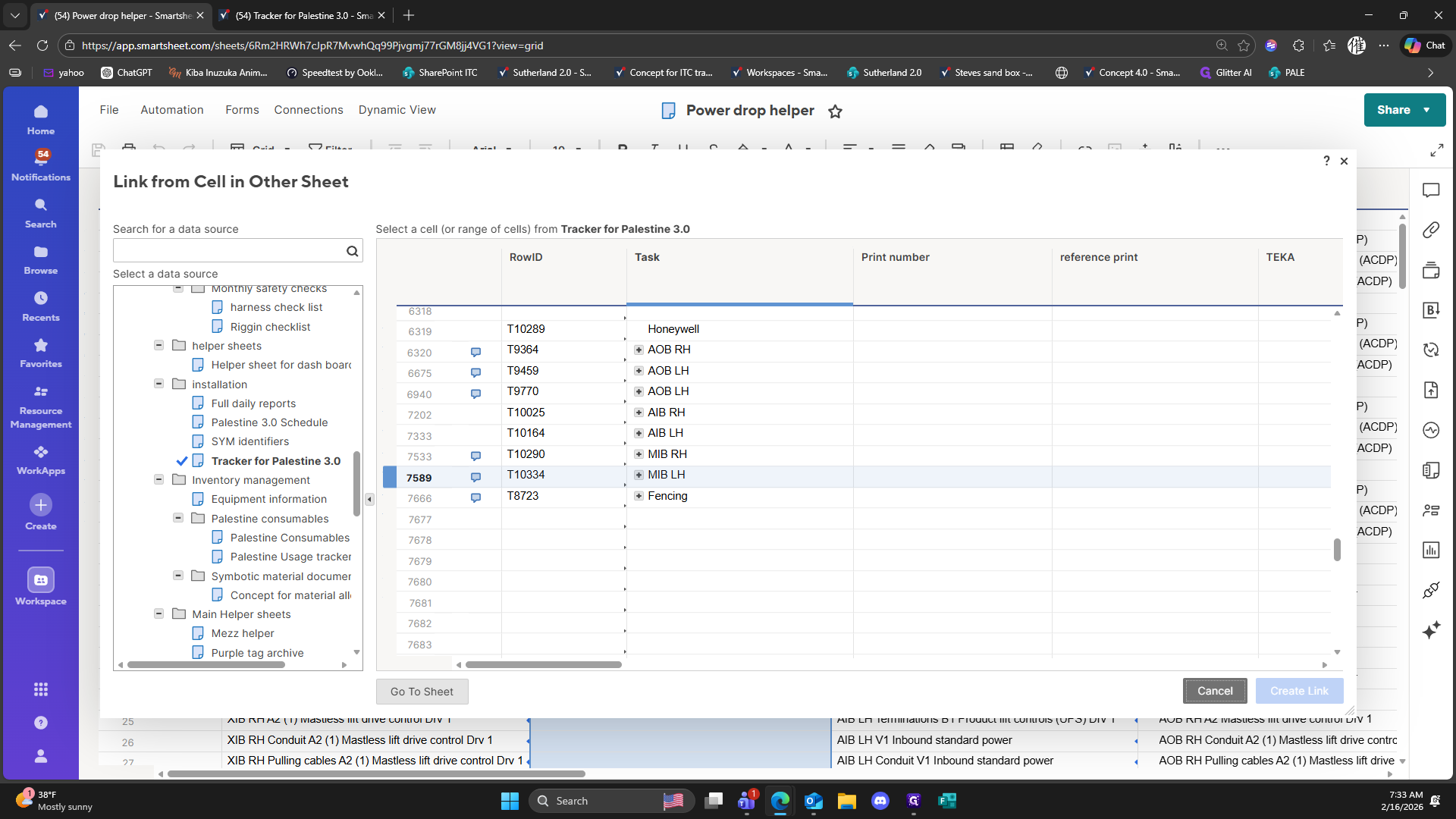
11
Click on "+ Power drop electrical"
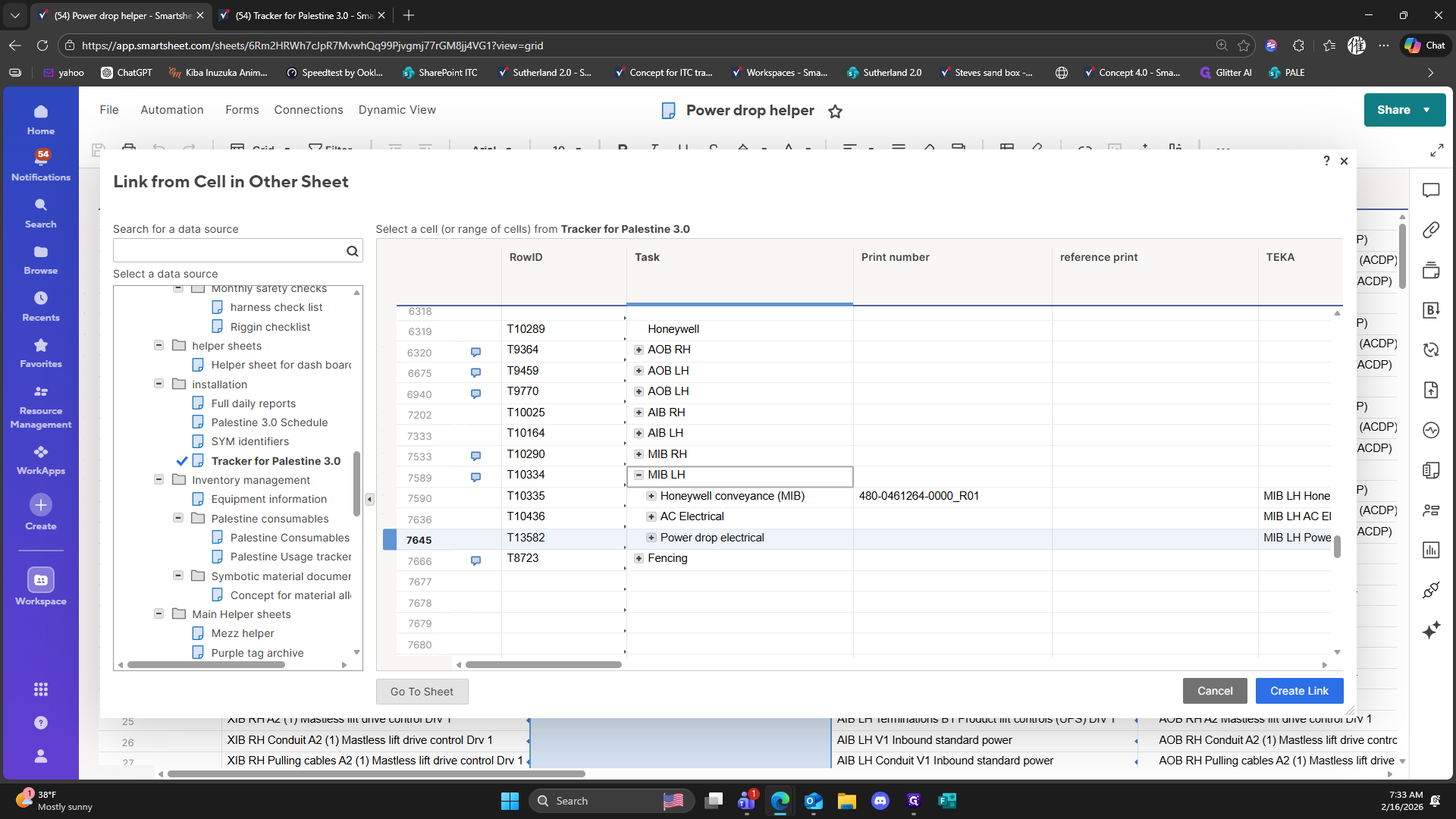
12
Click on "+ V2 Inbound standard power"
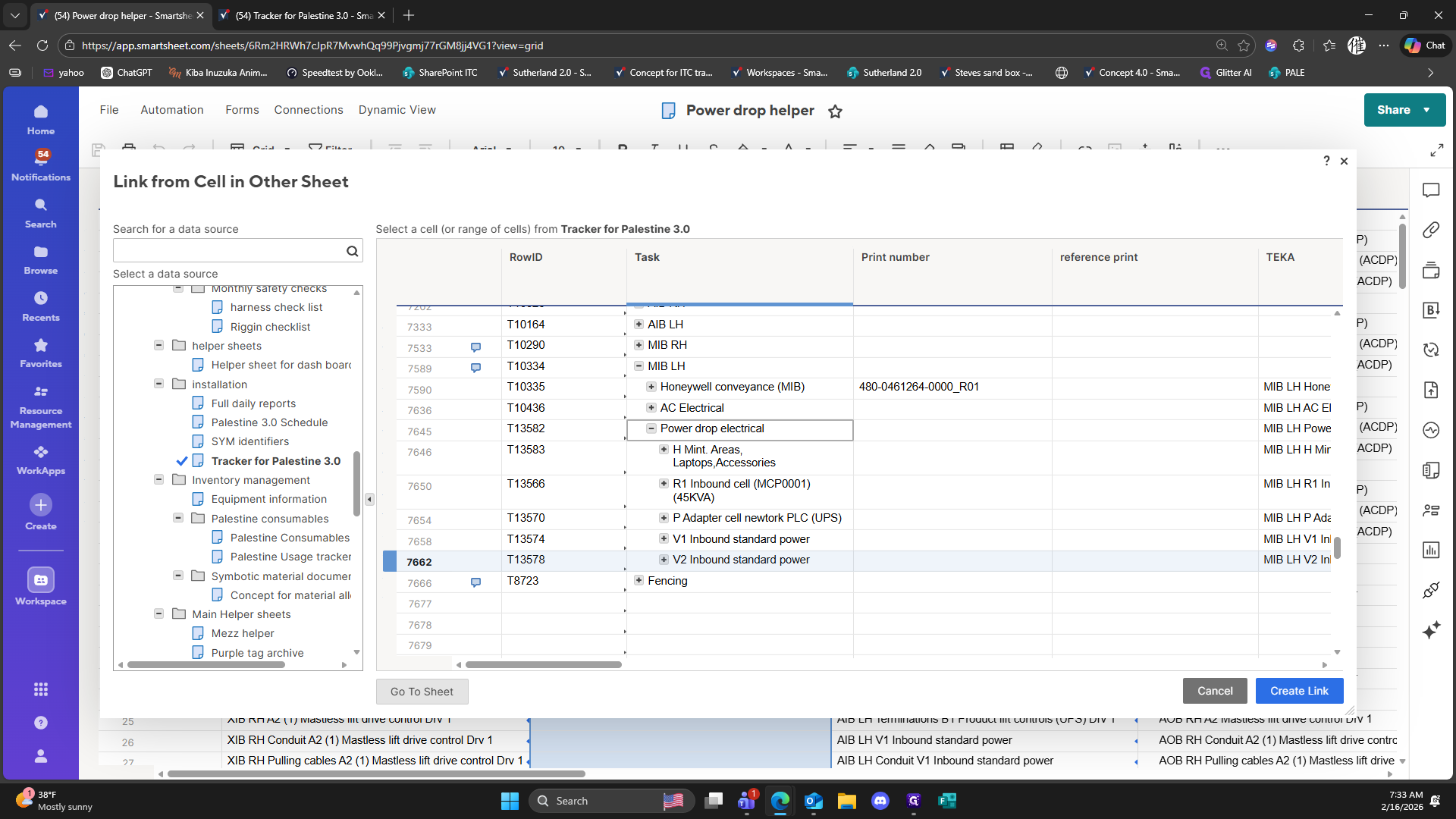
13
Click on "+ V1 Inbound standard power"
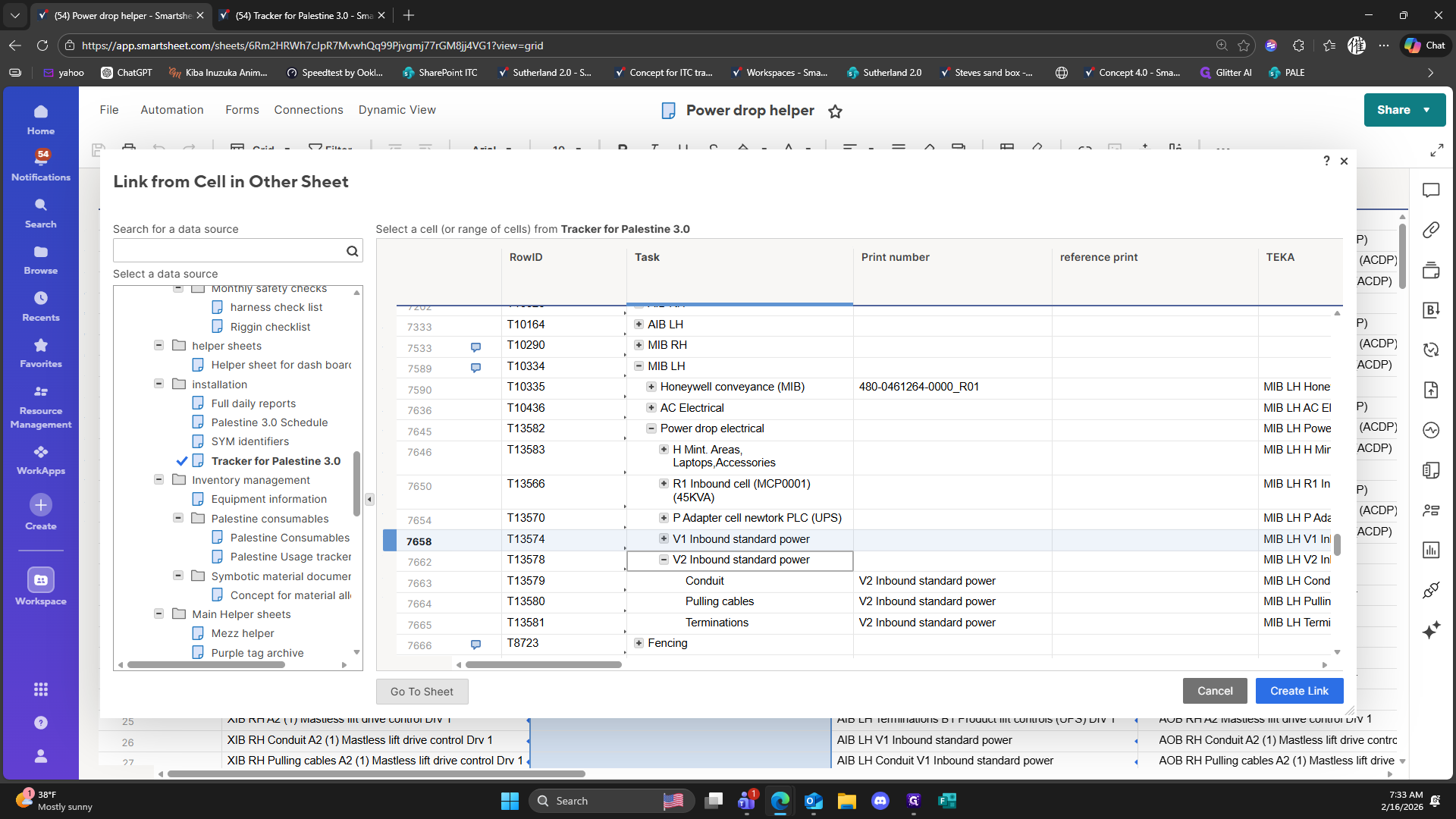
14
Click on "+ P Adapter cell newtork PLC ( UPS )"
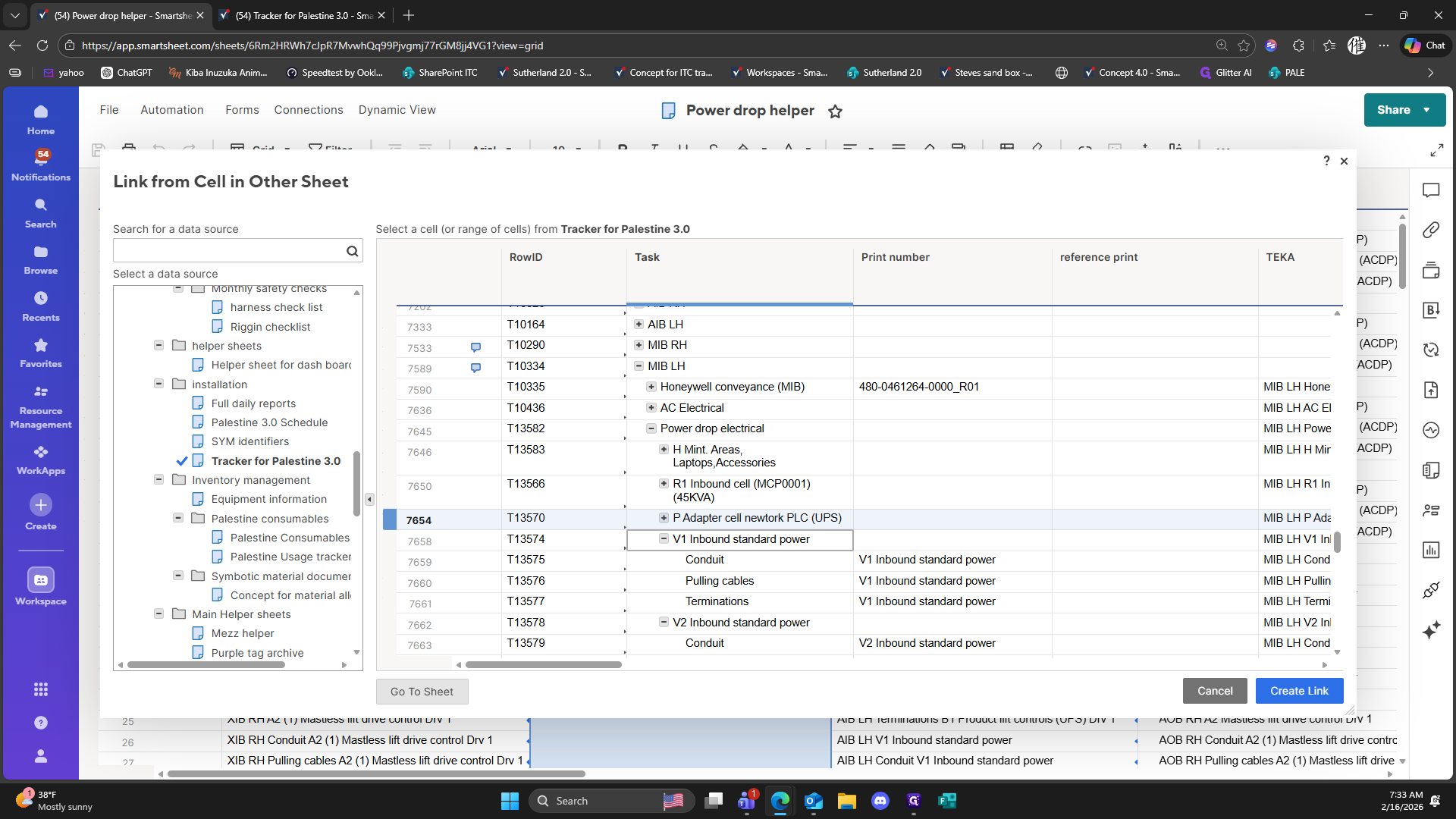
15
Click on "( 45KVA )"
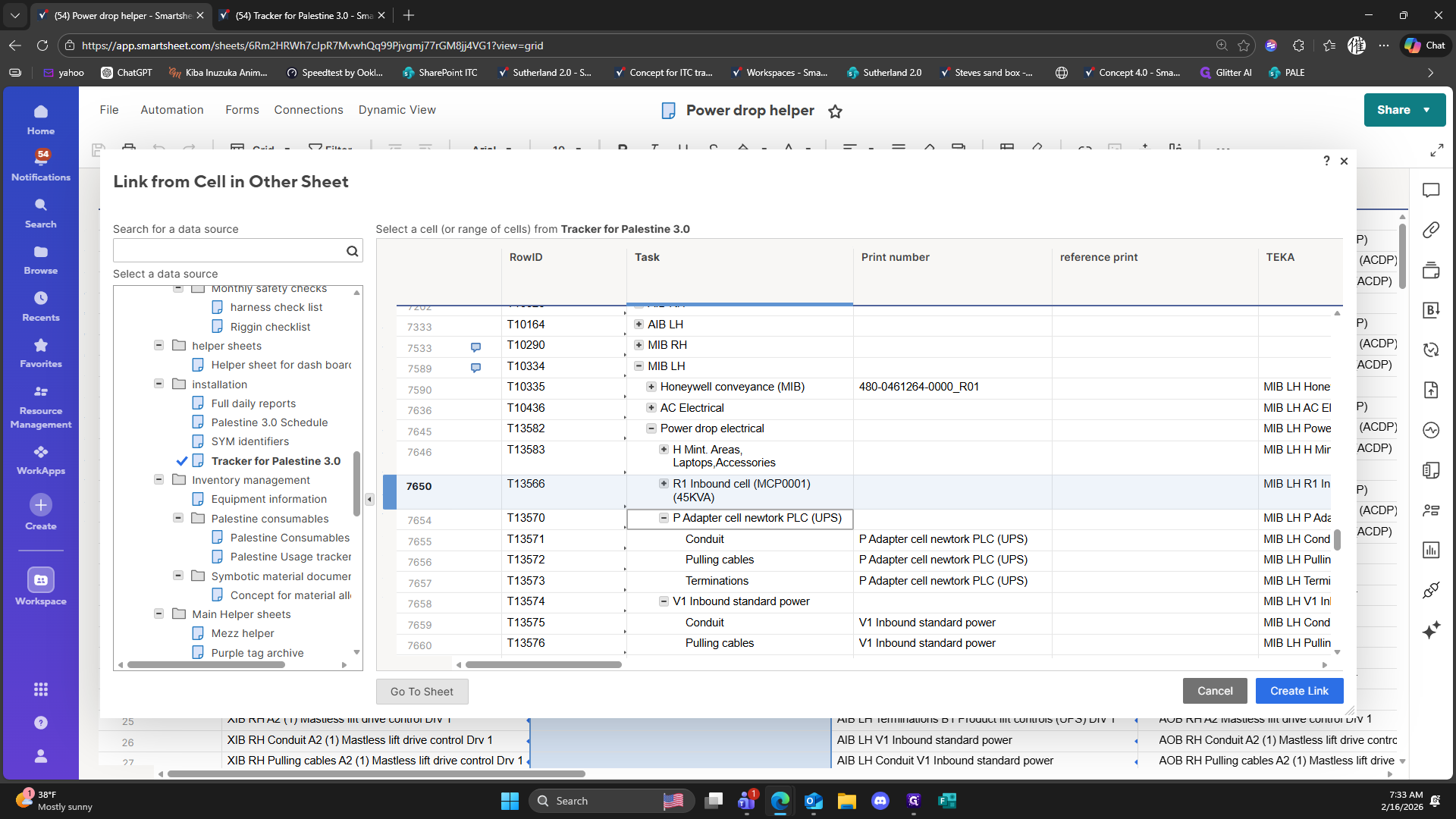
16
Click on "+ H Mint"
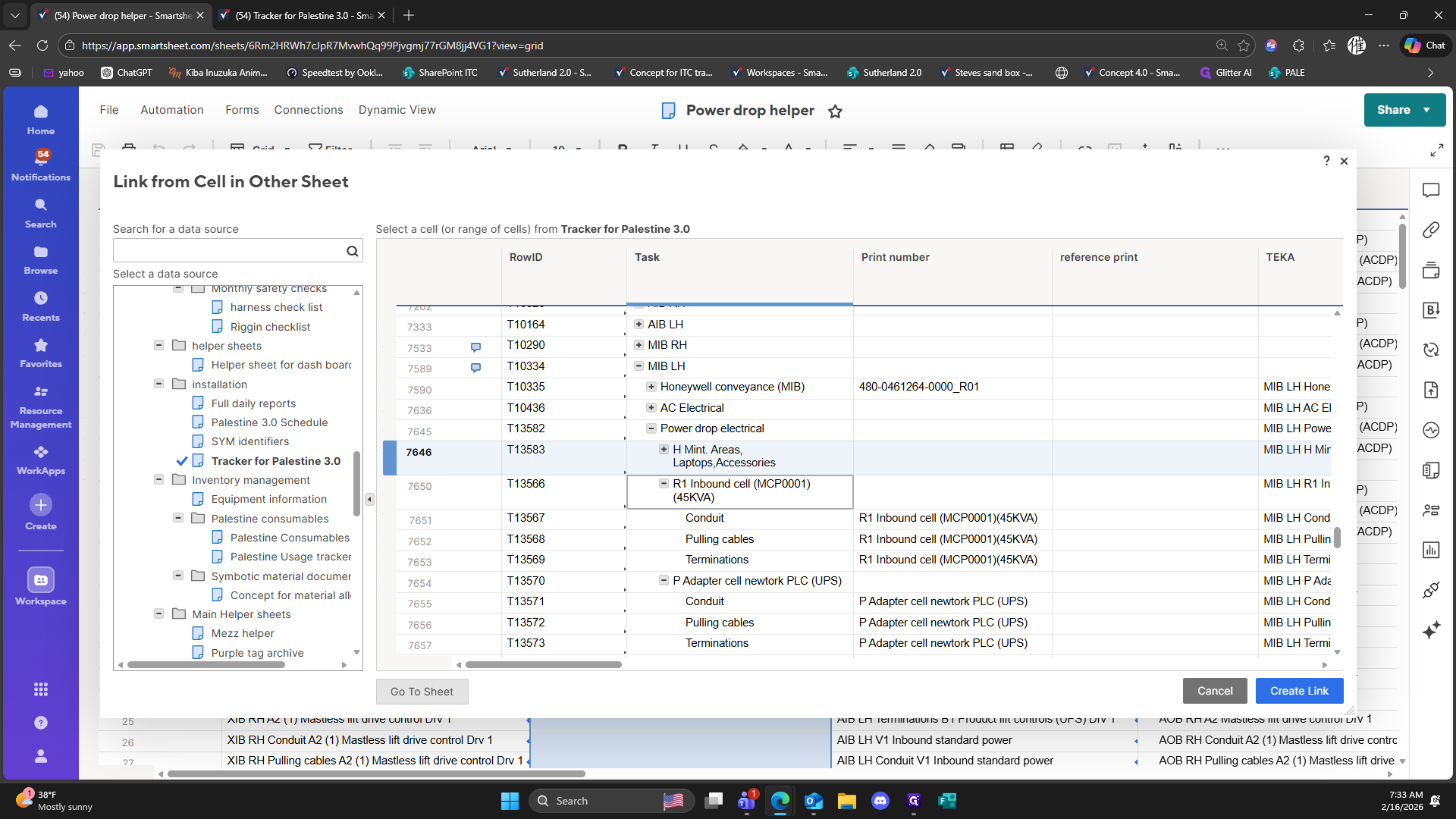
17
Drag here
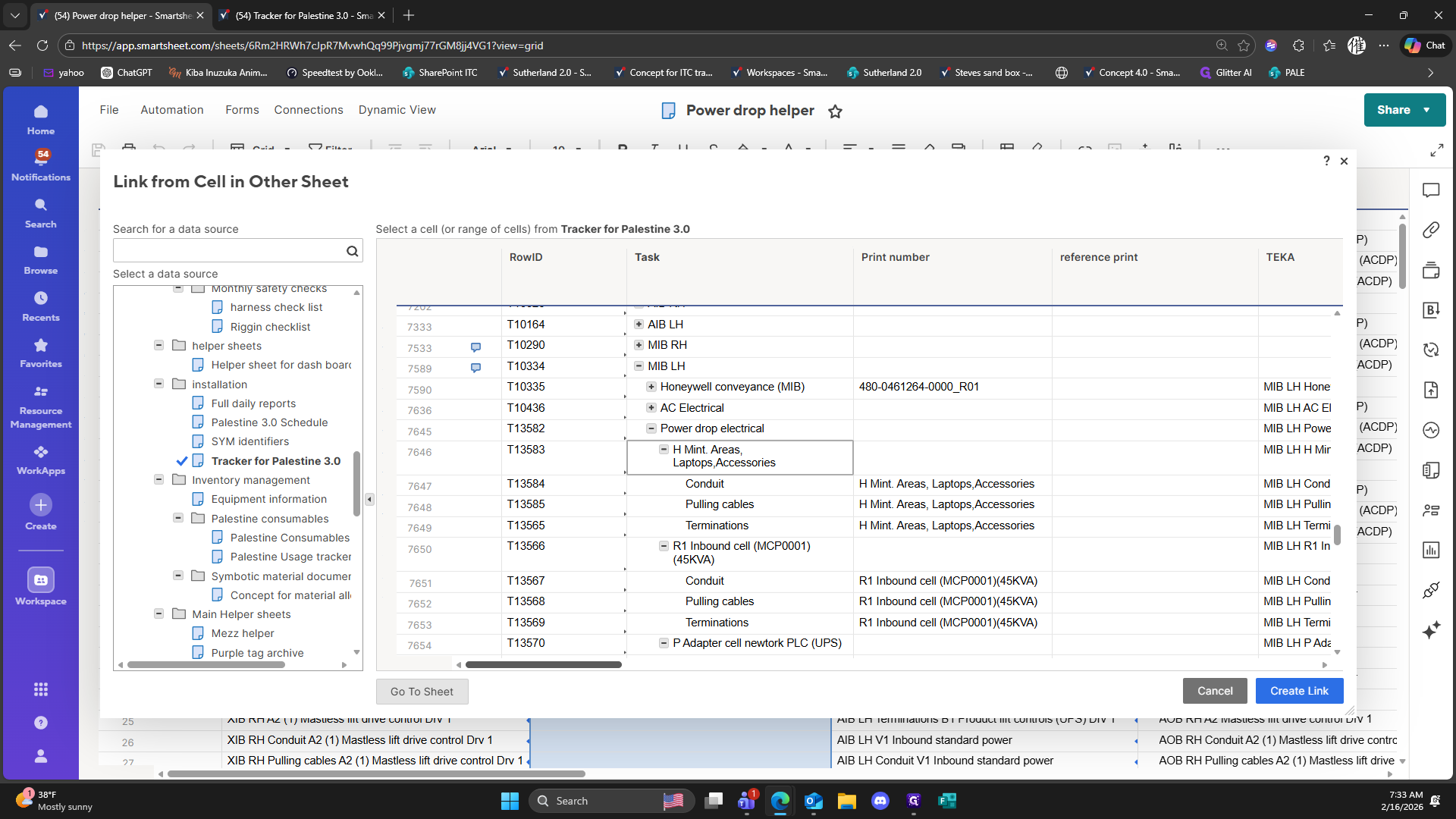
18
Drag ","
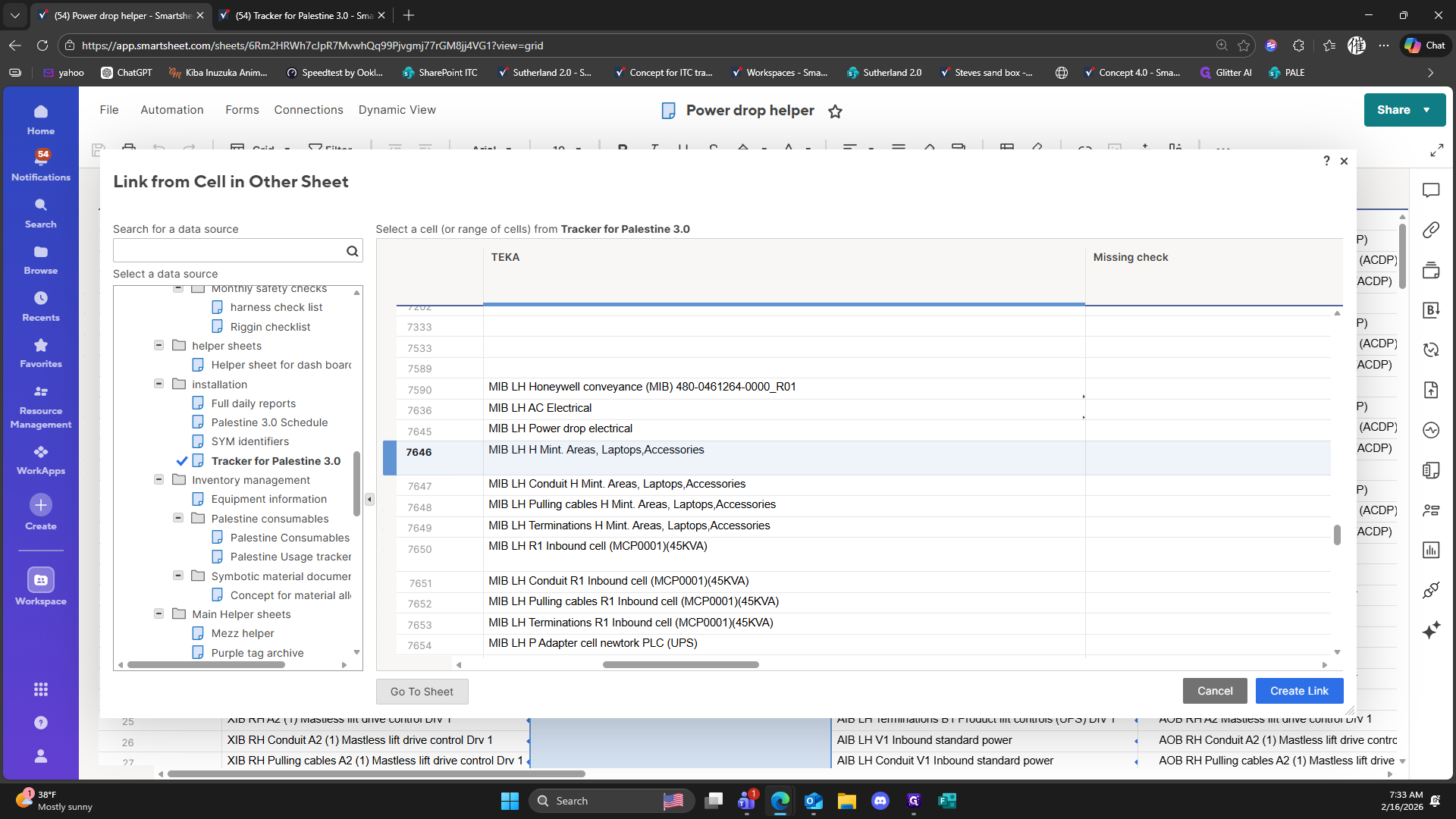
19
Click on "Create Link"
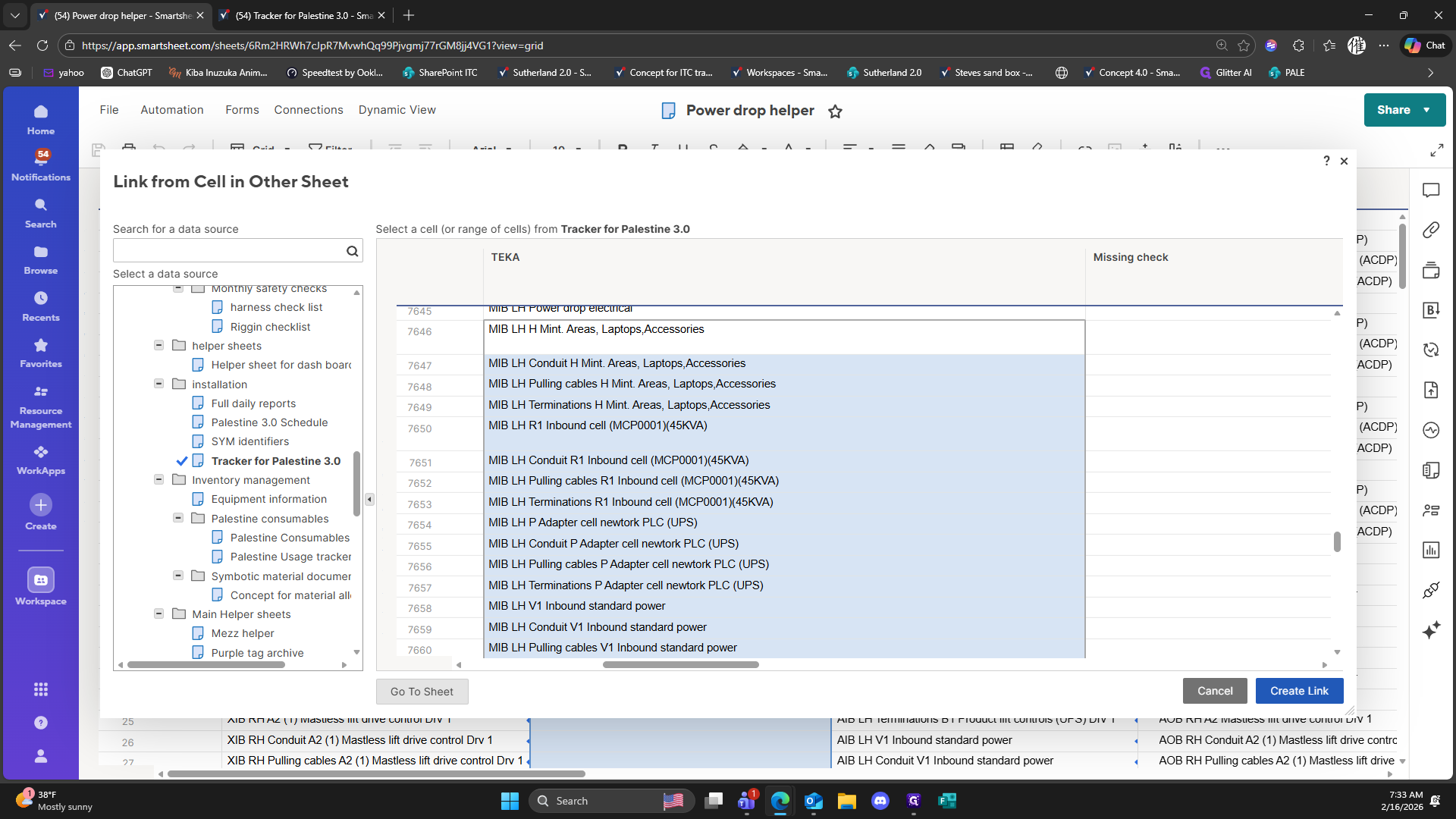
20
Click on "Refresh x"
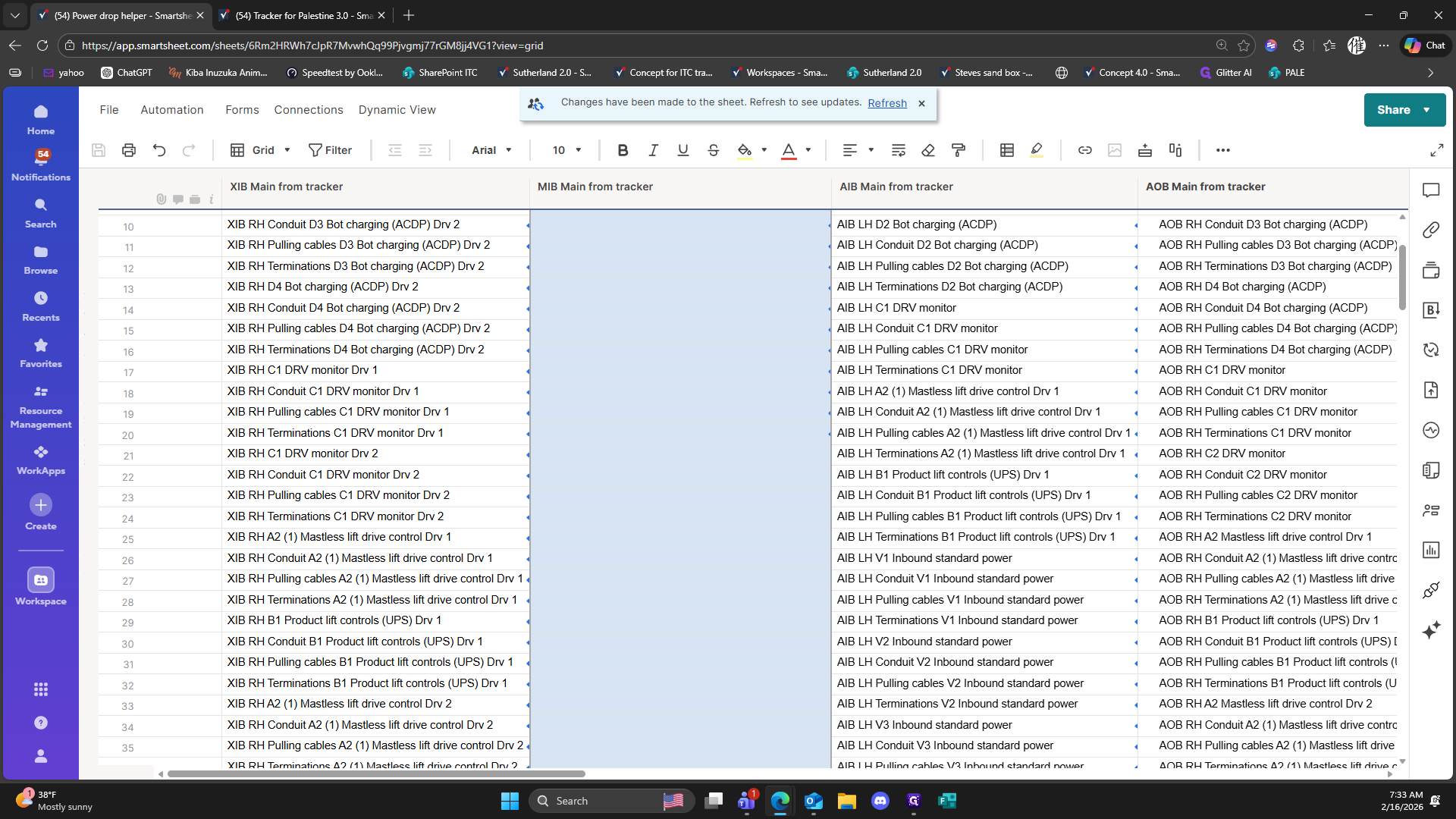
21
Click on "C"
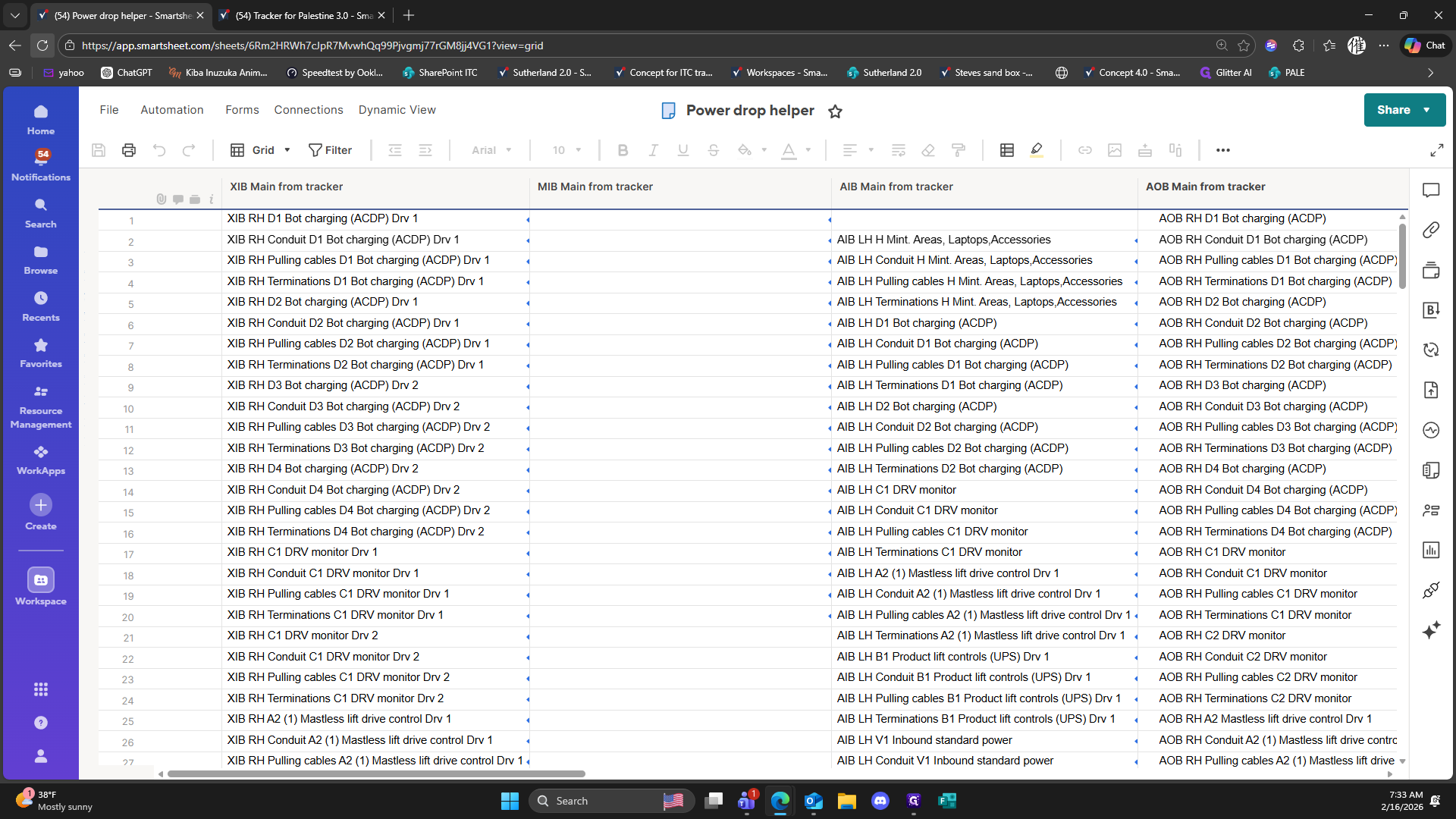
22
Click on "Accessories"
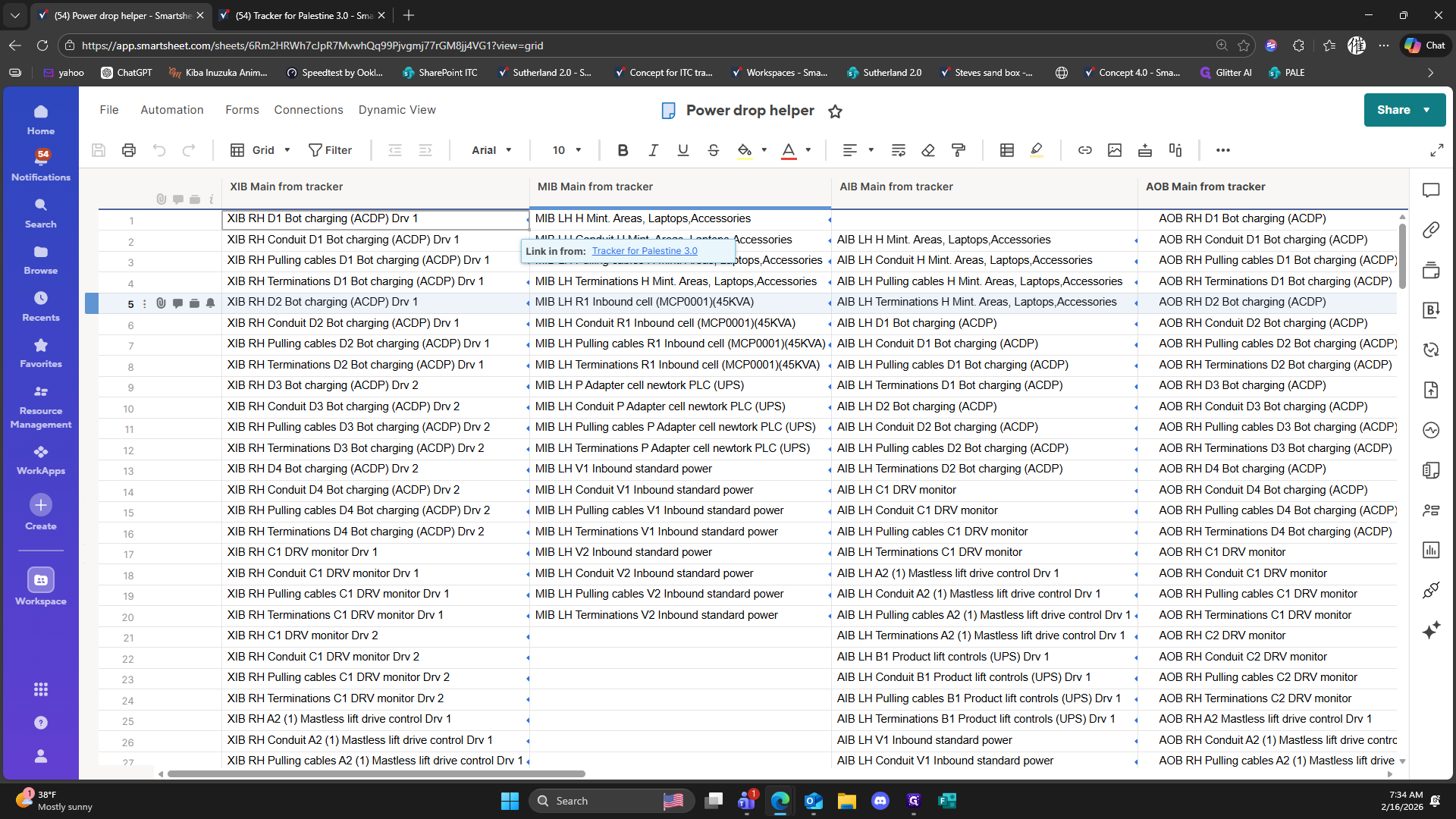
23
Click on "( 54 ) Tracker for Palestine 3.0 - Sma X"
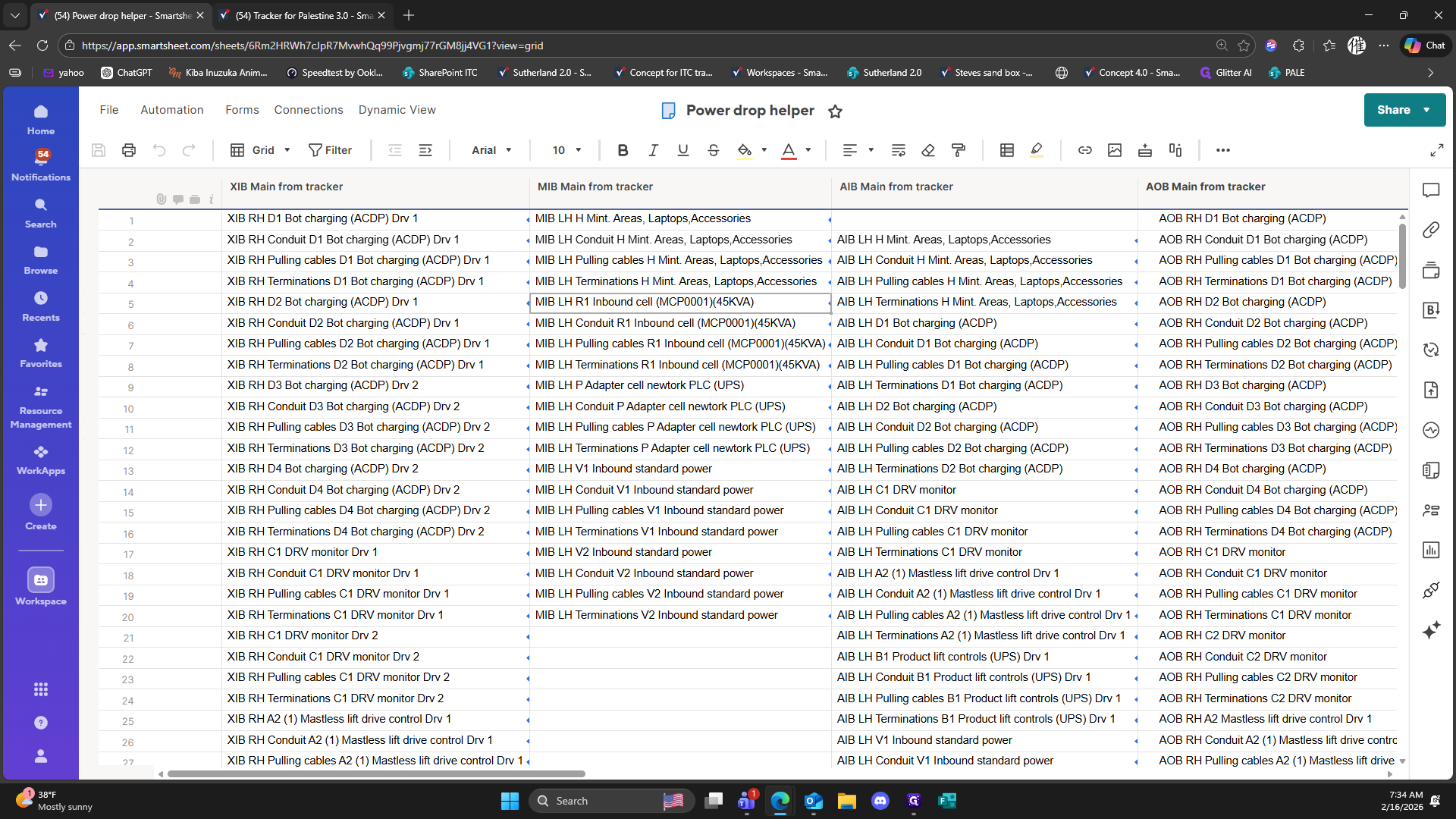
24
Click on "( 54 ) Power drop helper - Smartshe X"
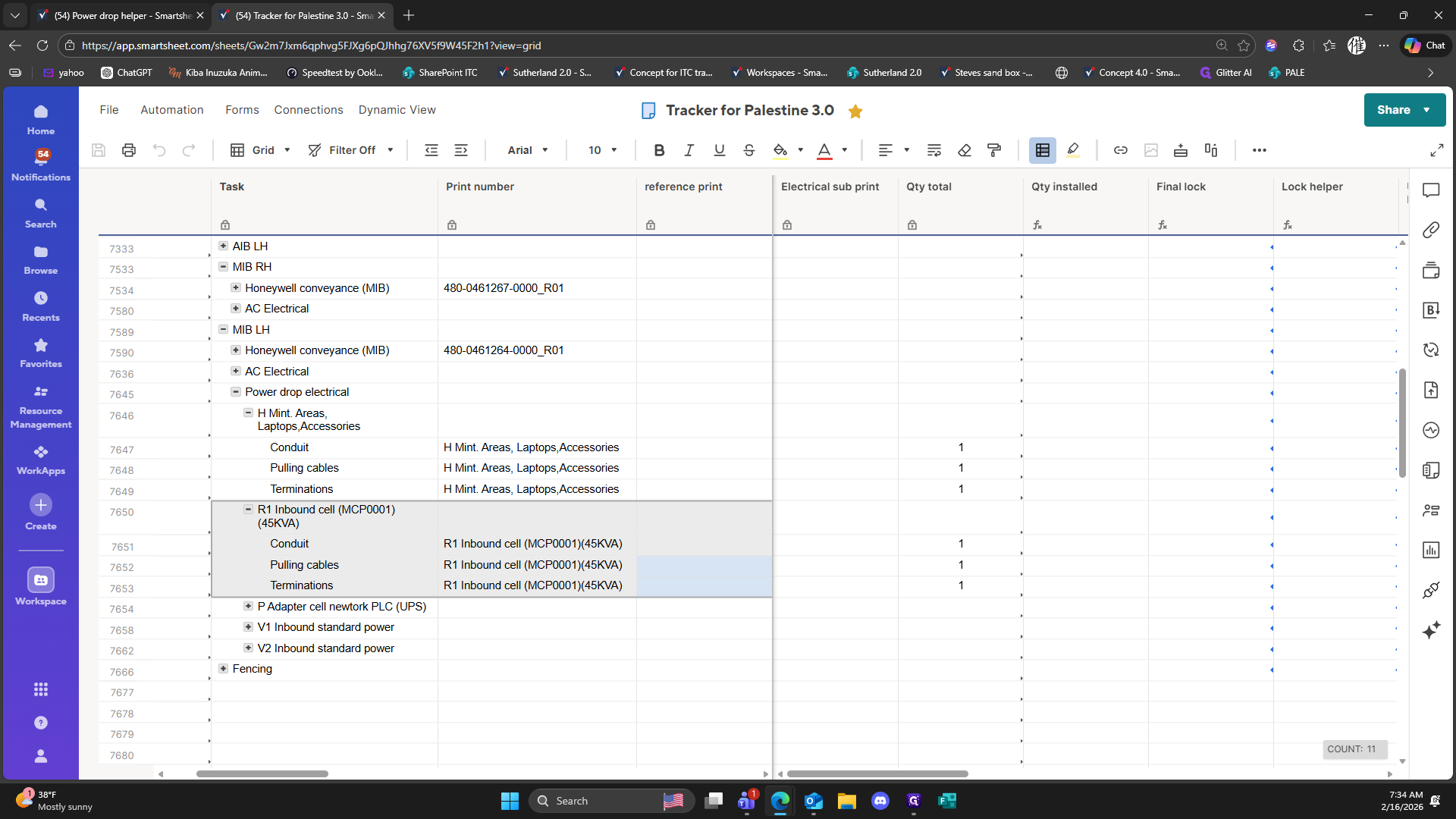
25
Drag "drive control Drv 1"
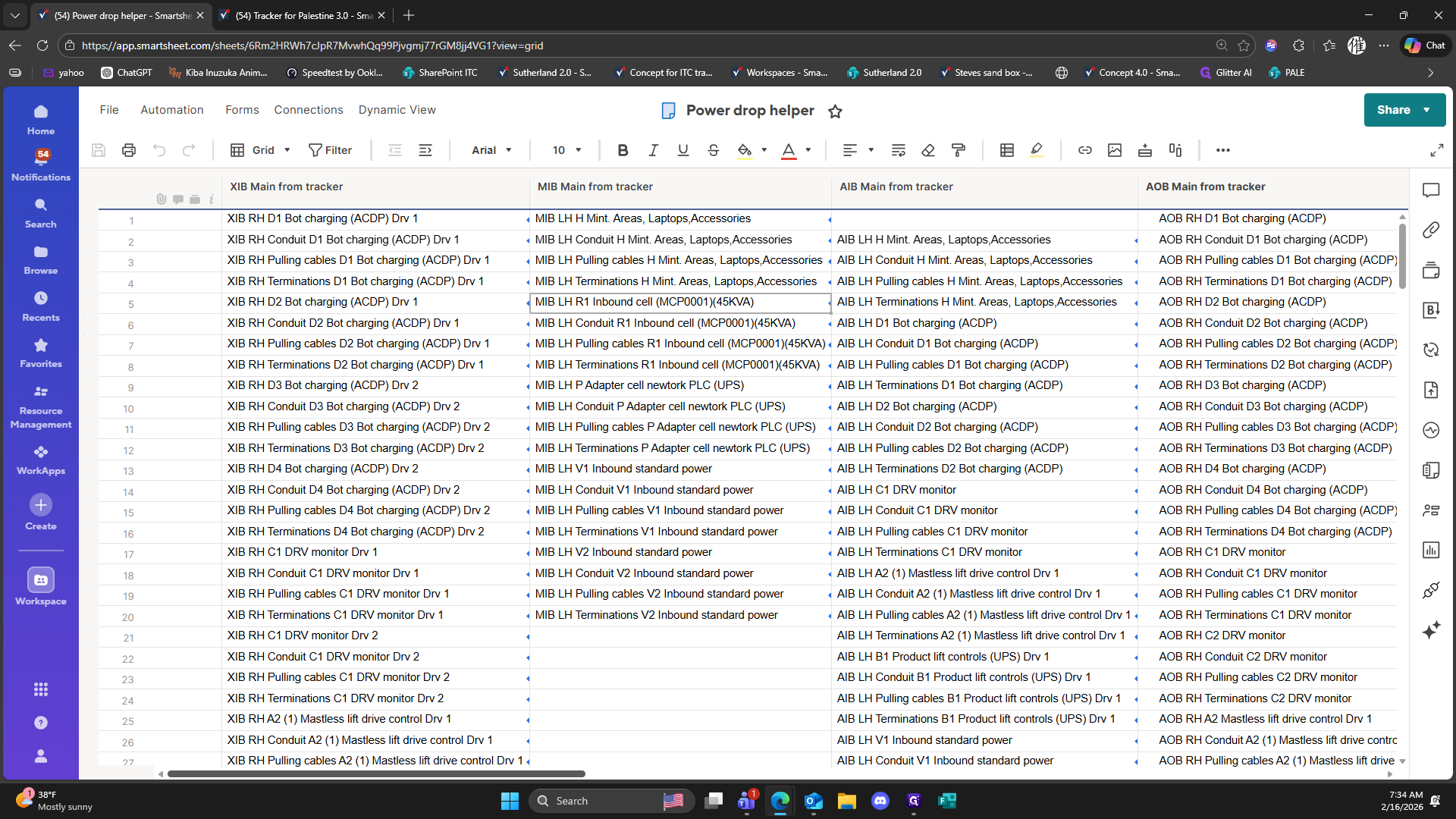
26
Click on "Laptops"
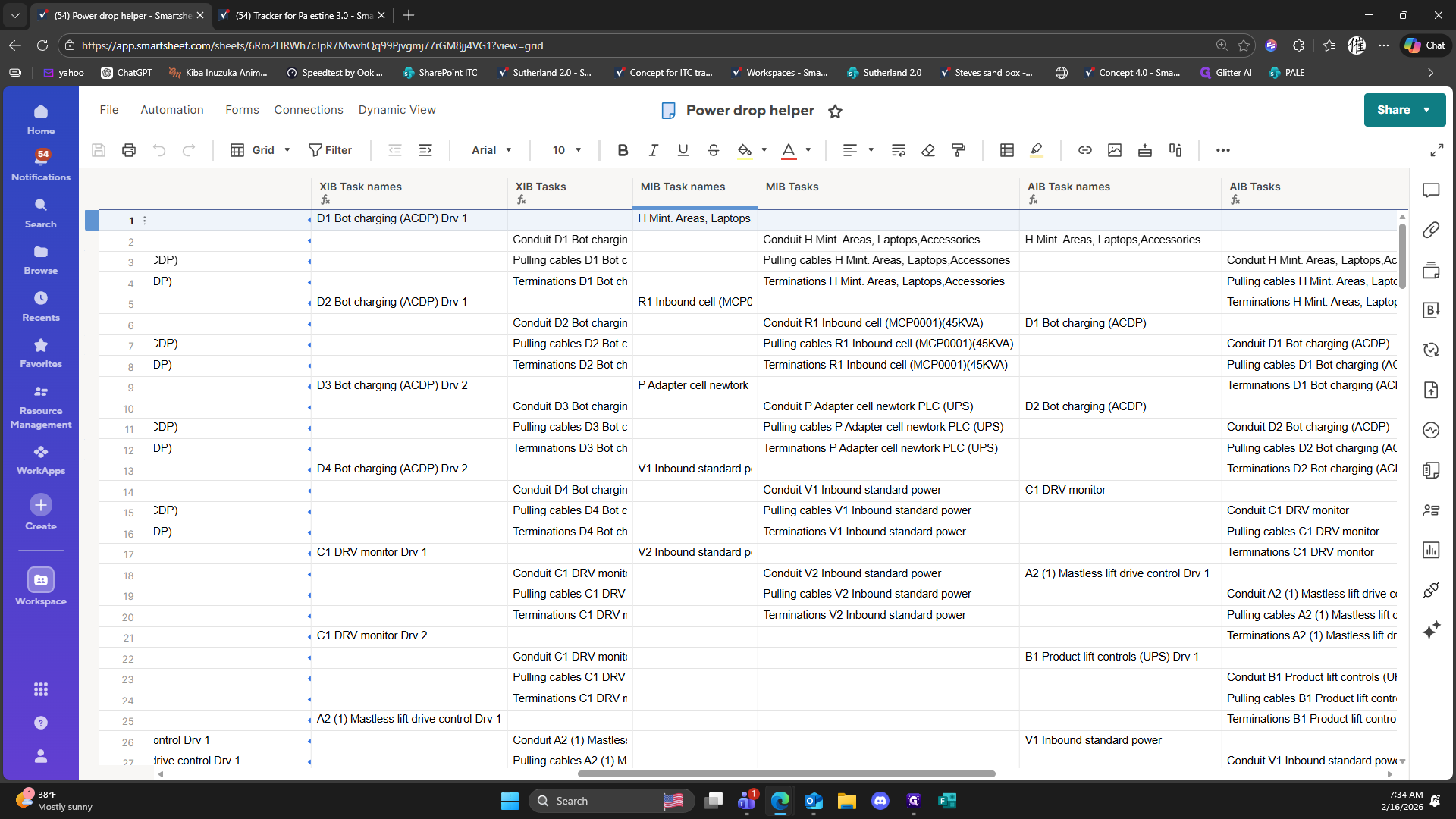
27
Click on "MIB Task names"
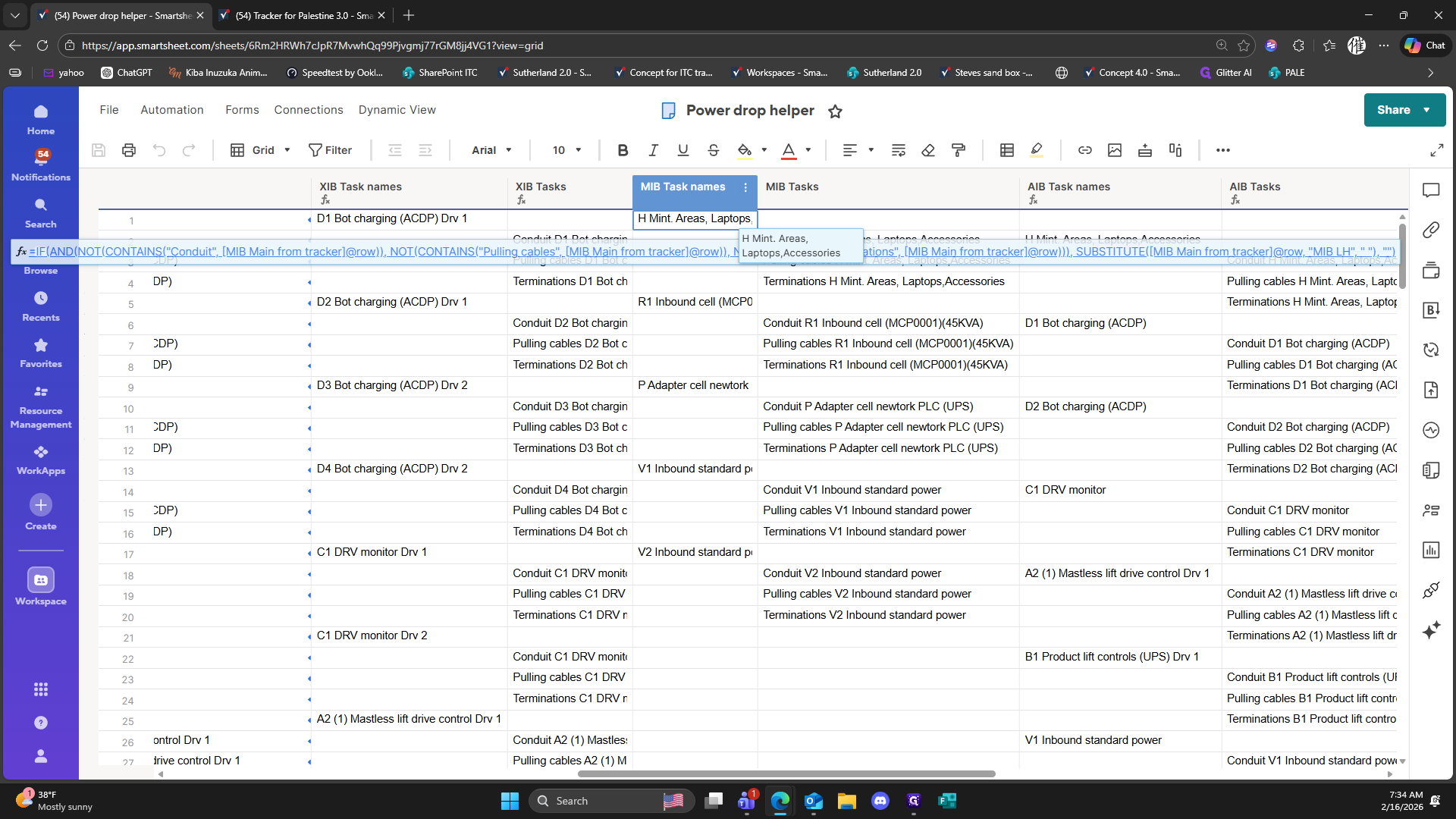
28
Click here
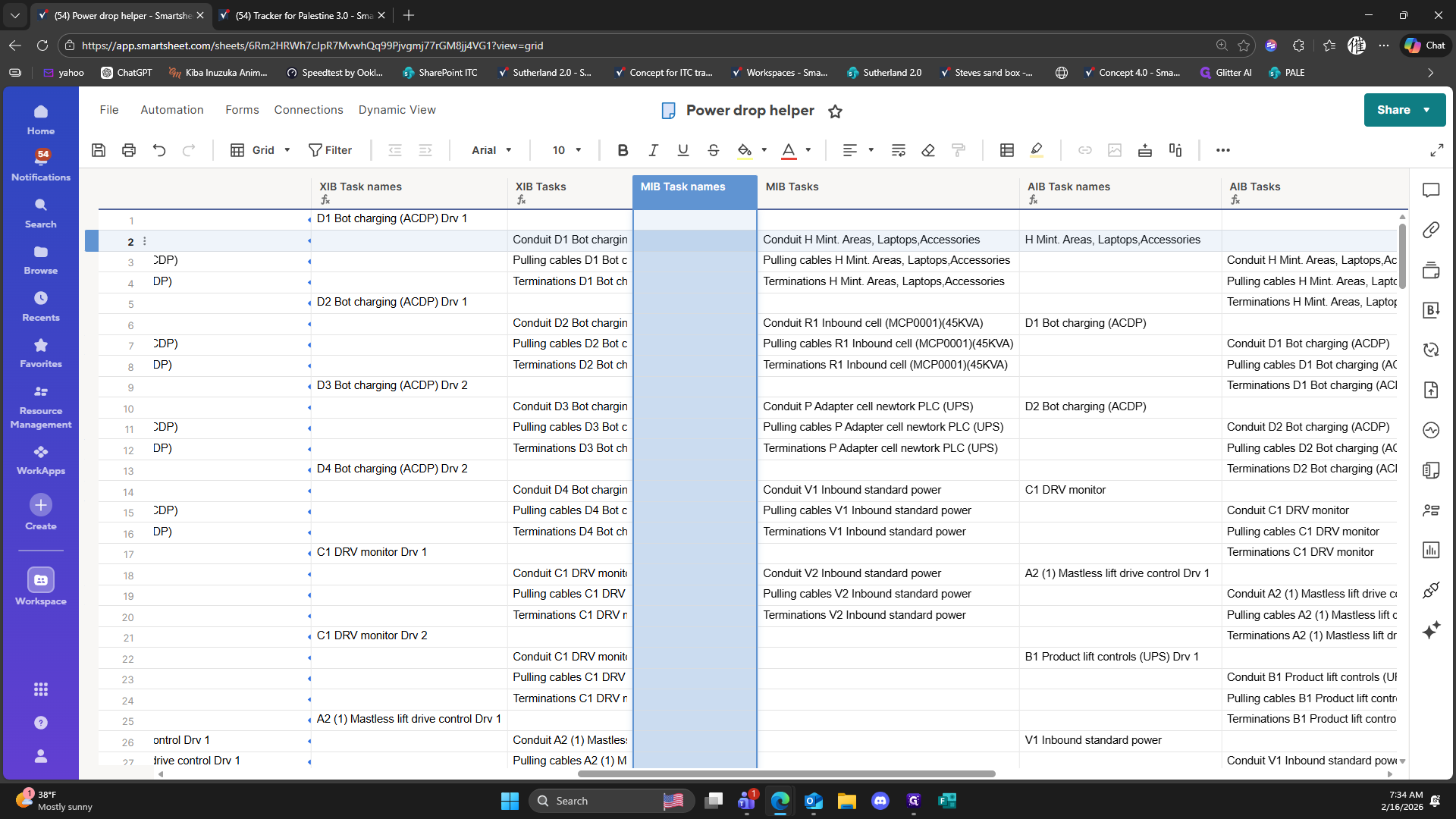
29
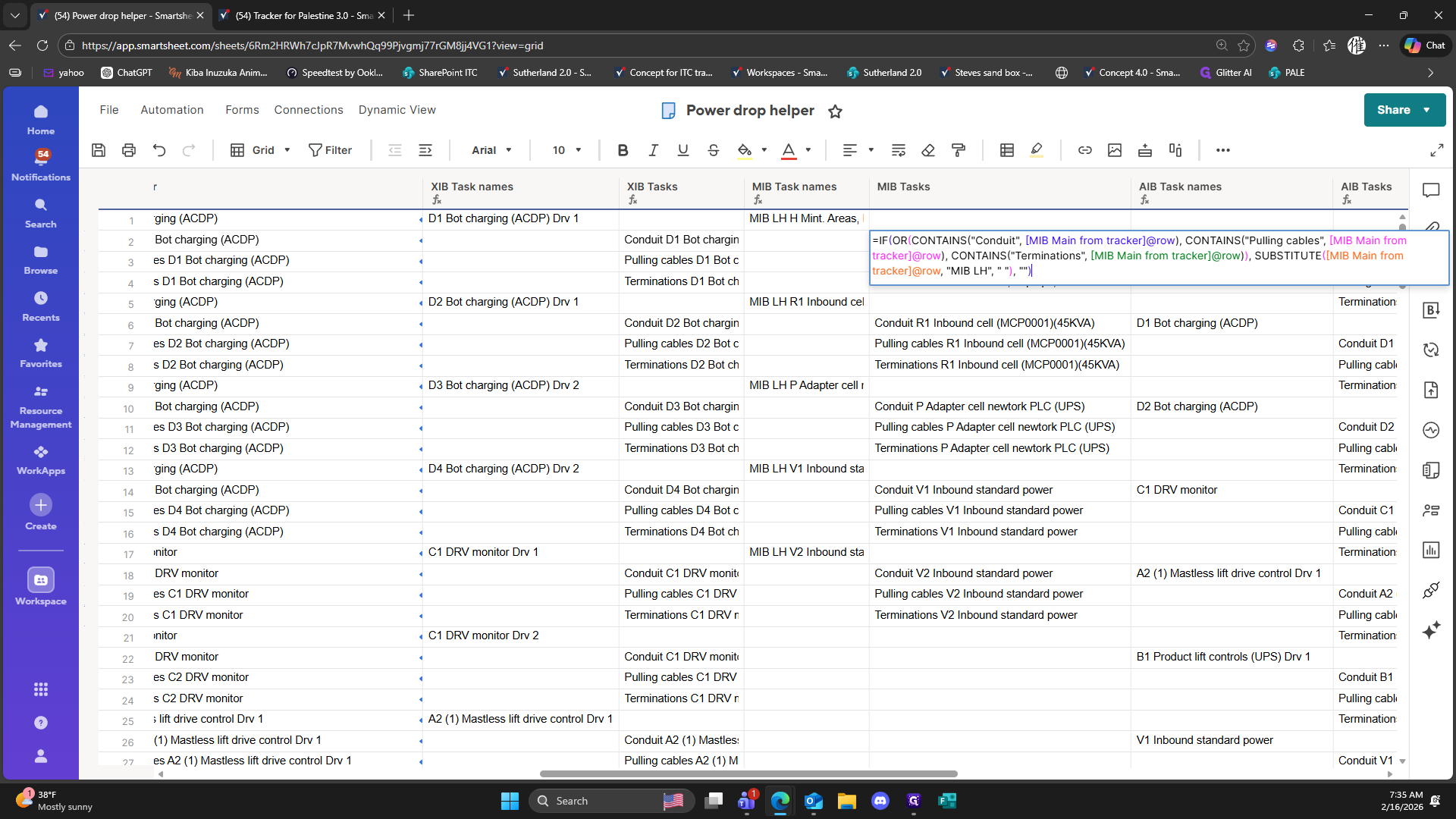
Click on "ACDP ) Drv 1"
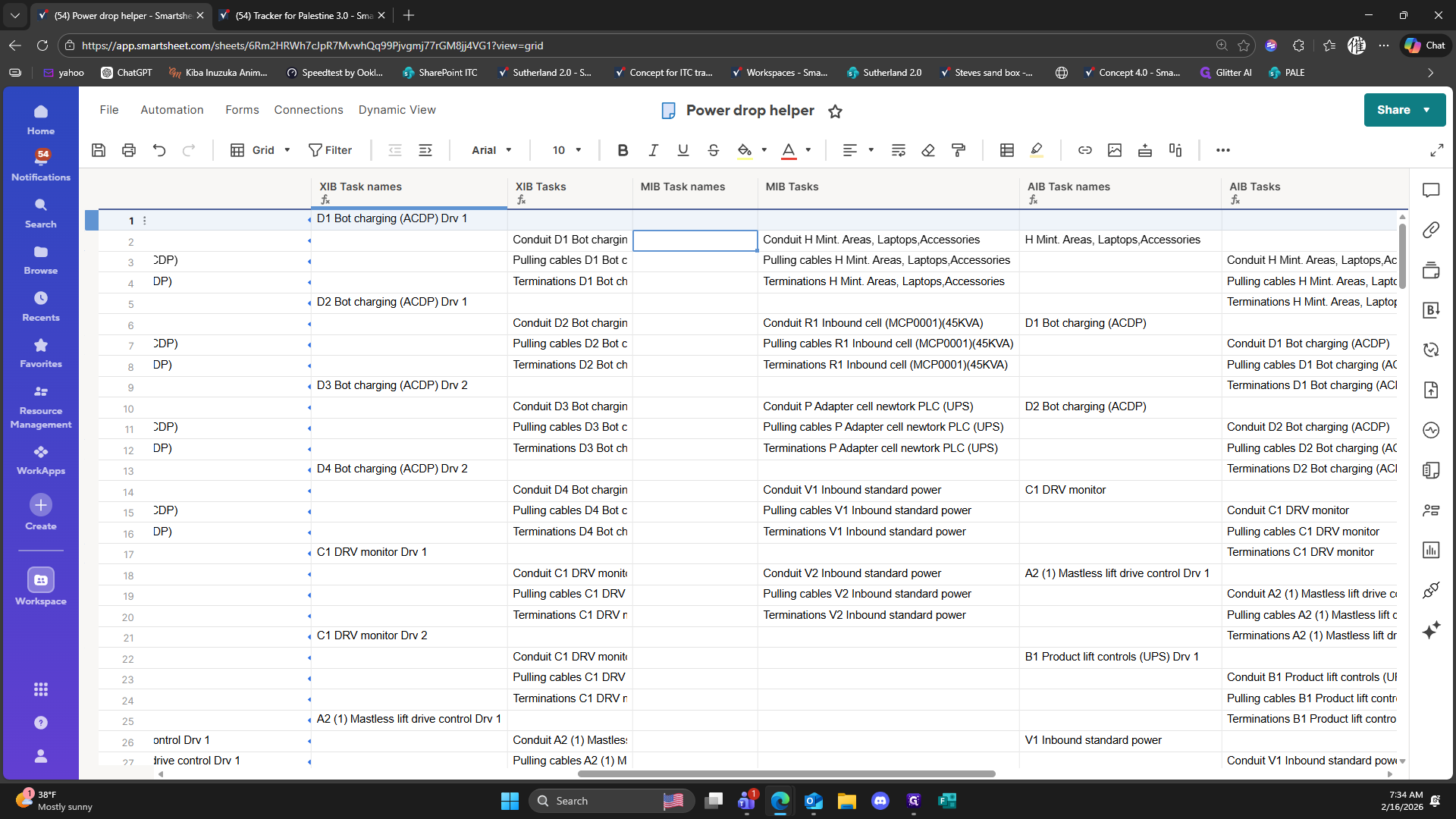
30
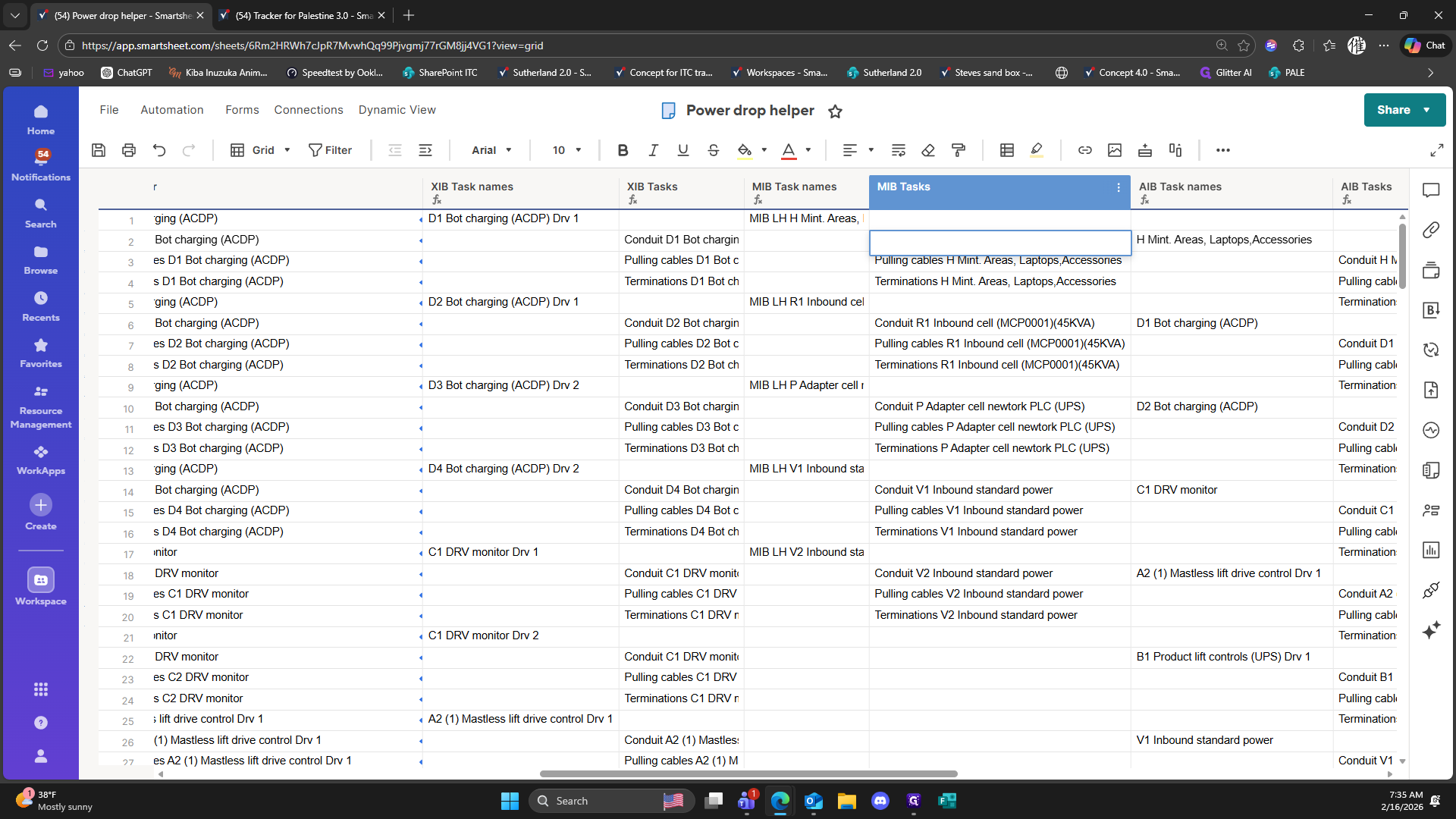
Right-click on "ACDP ) Drv 1"
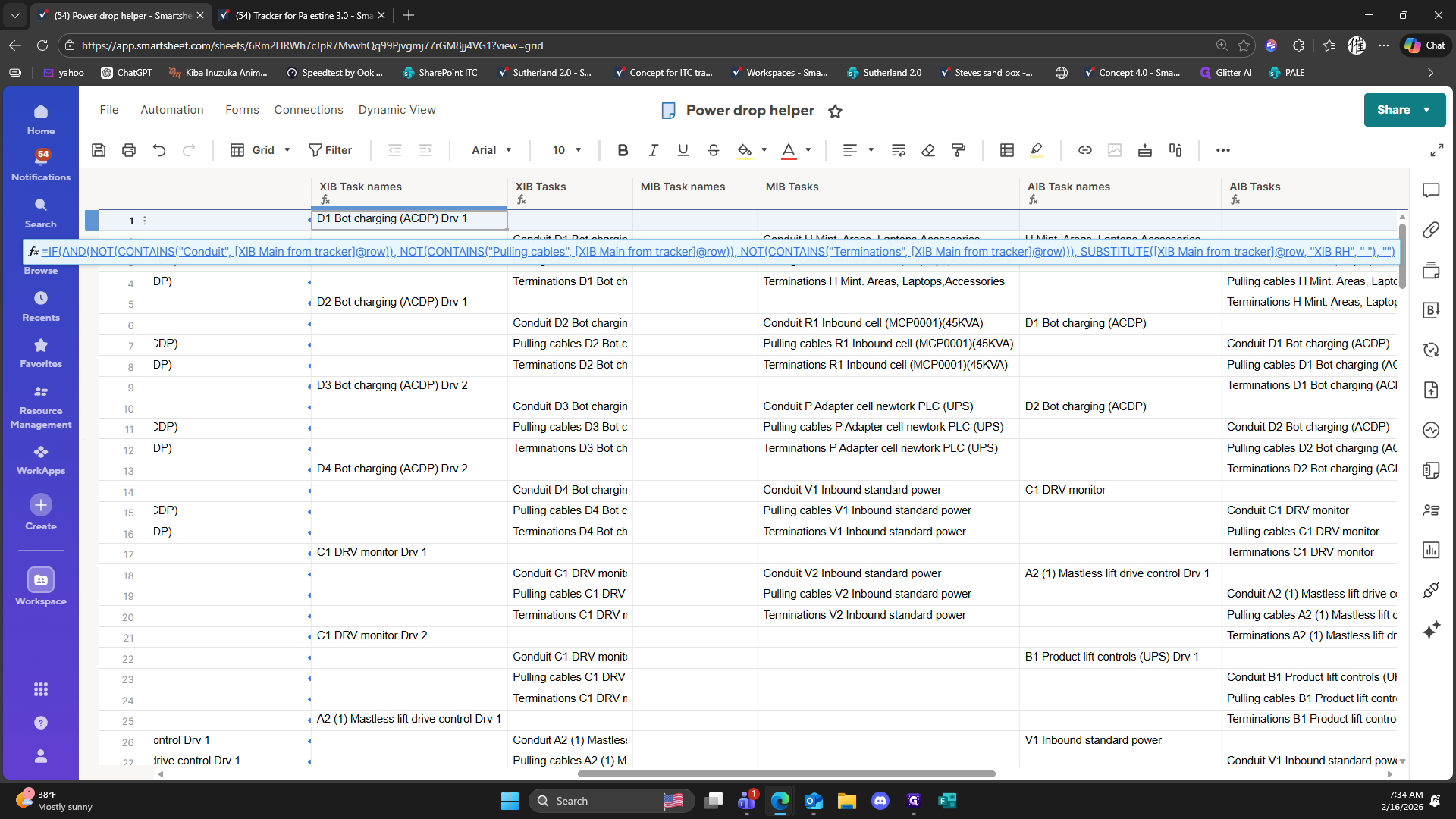
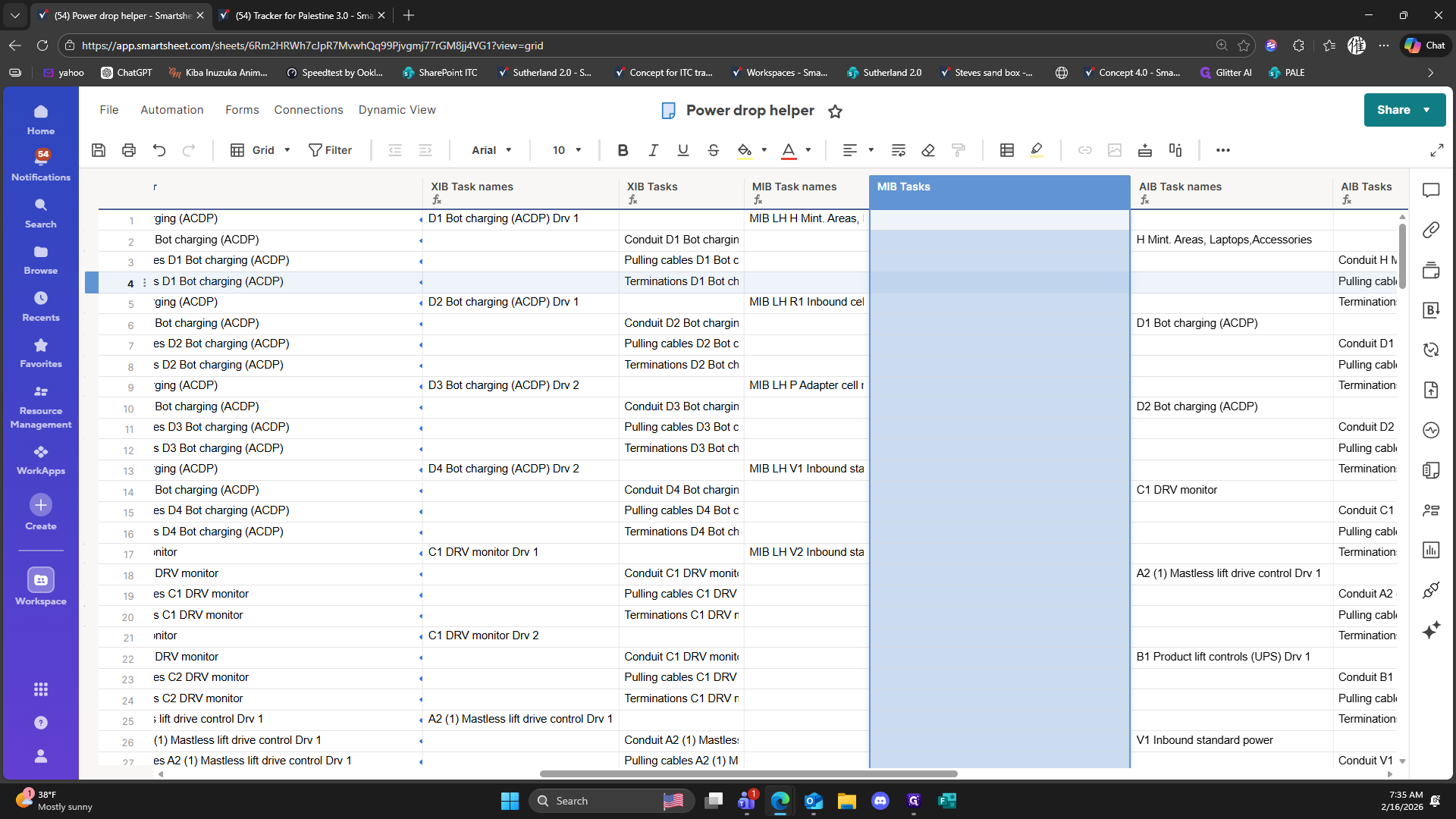
31
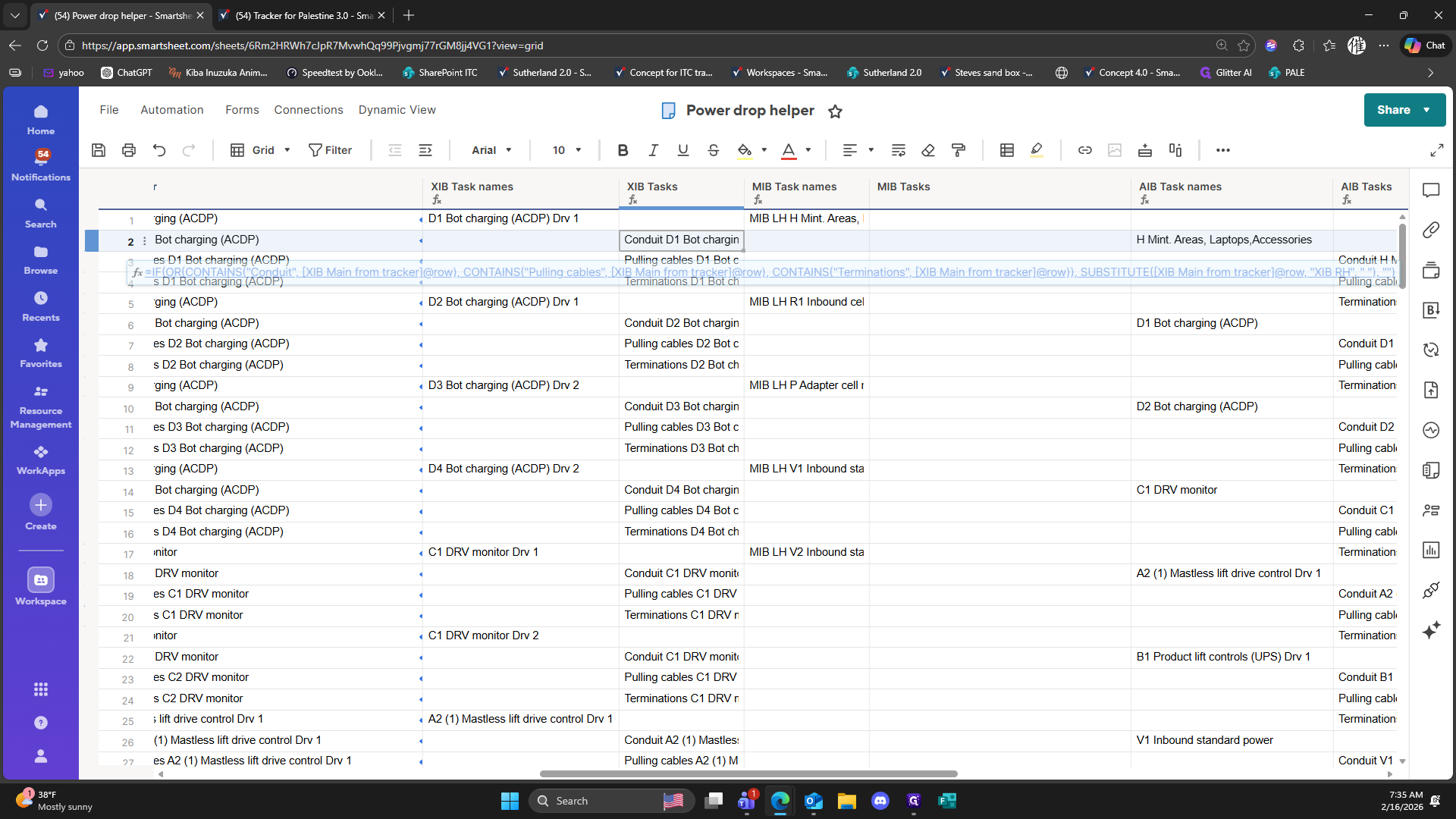
Click on "Edit Column Formula"
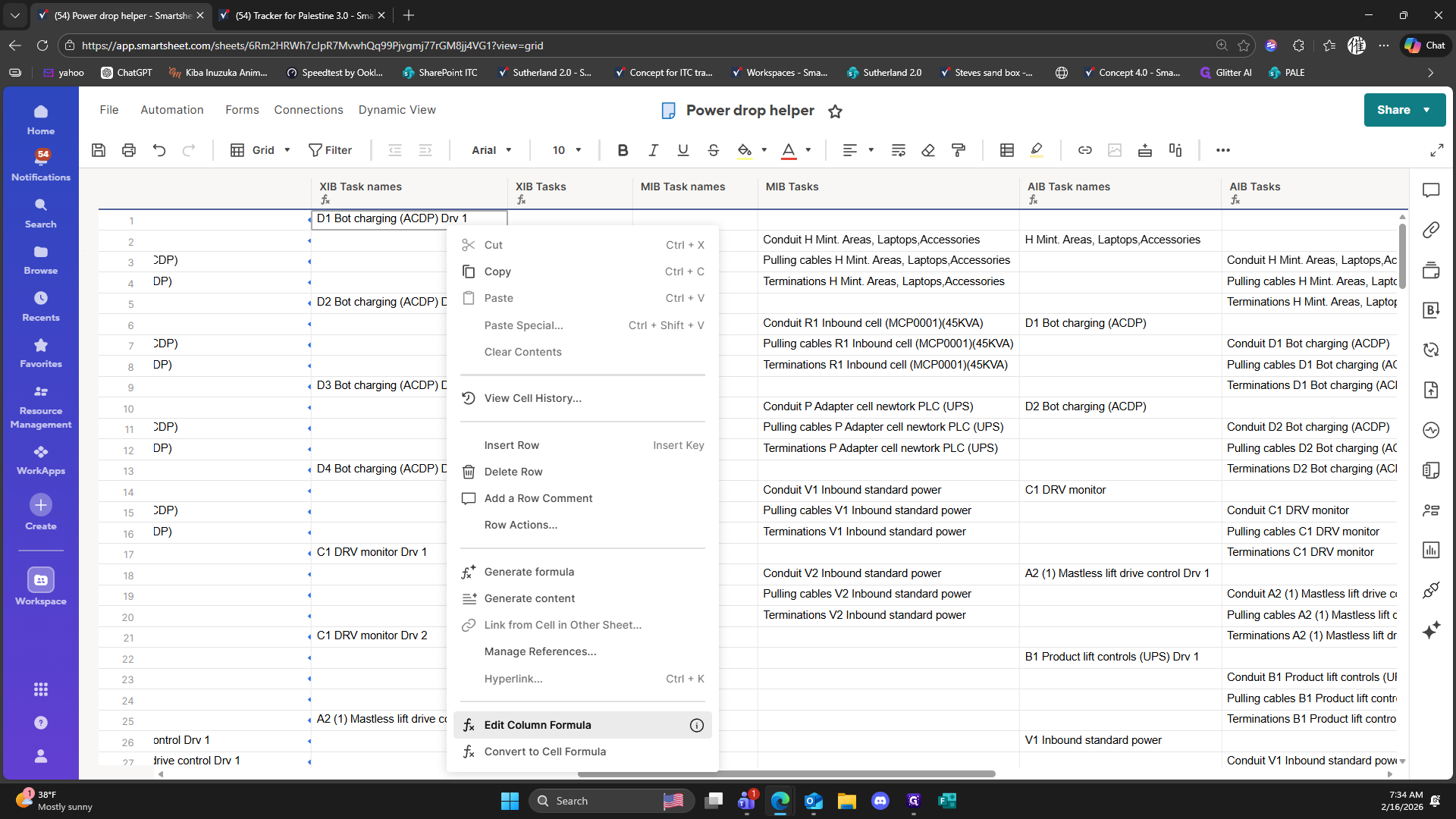
32
Drag ")"
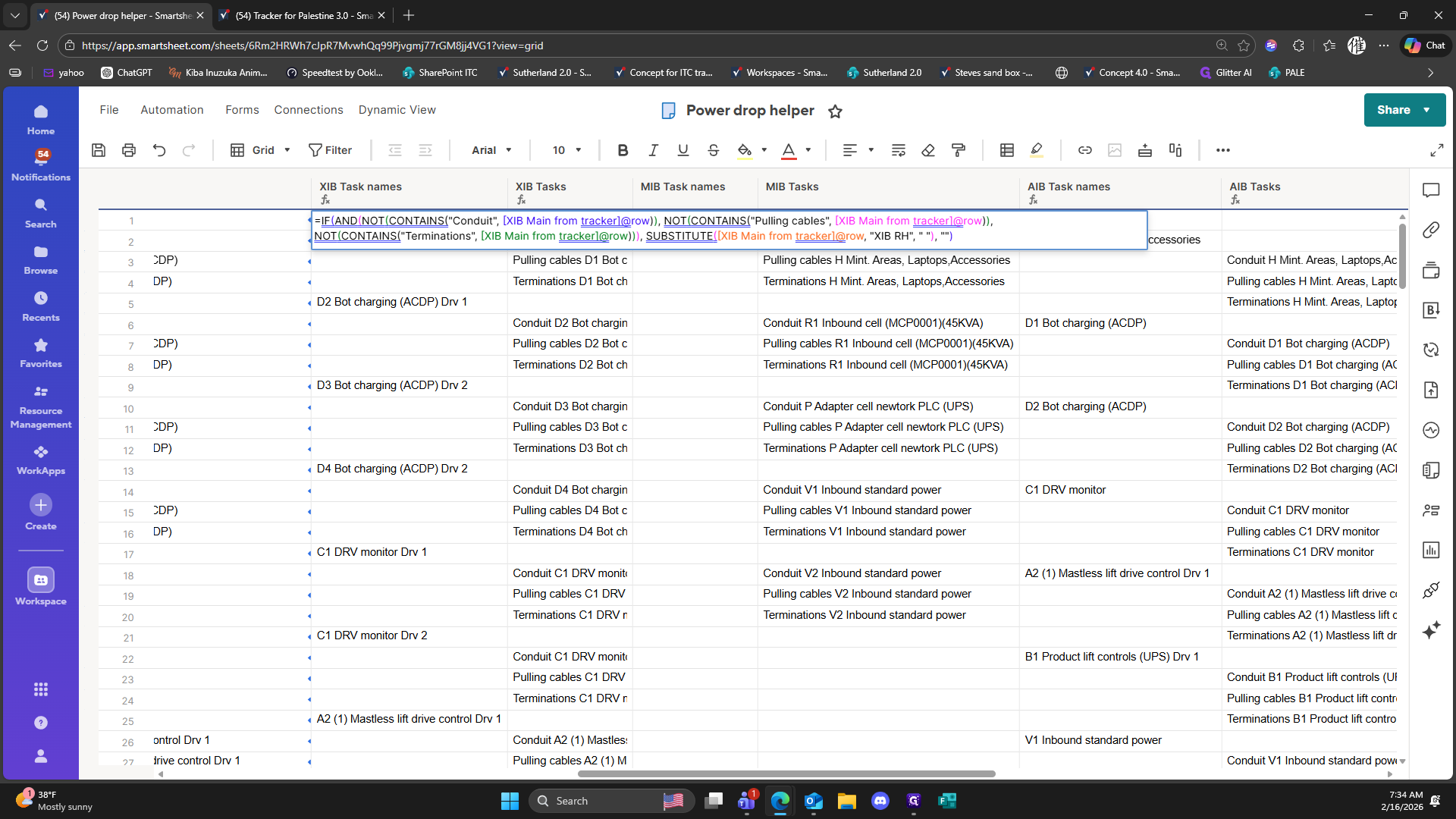
33
Type "Ctrl + C"
34
Type "Ctrl + C"
35
Type "Ctrl + C"
36
Type "Ctrl + C"
37
Type "Ctrl + C"
38
Type "Ctrl + C"
39
Click here
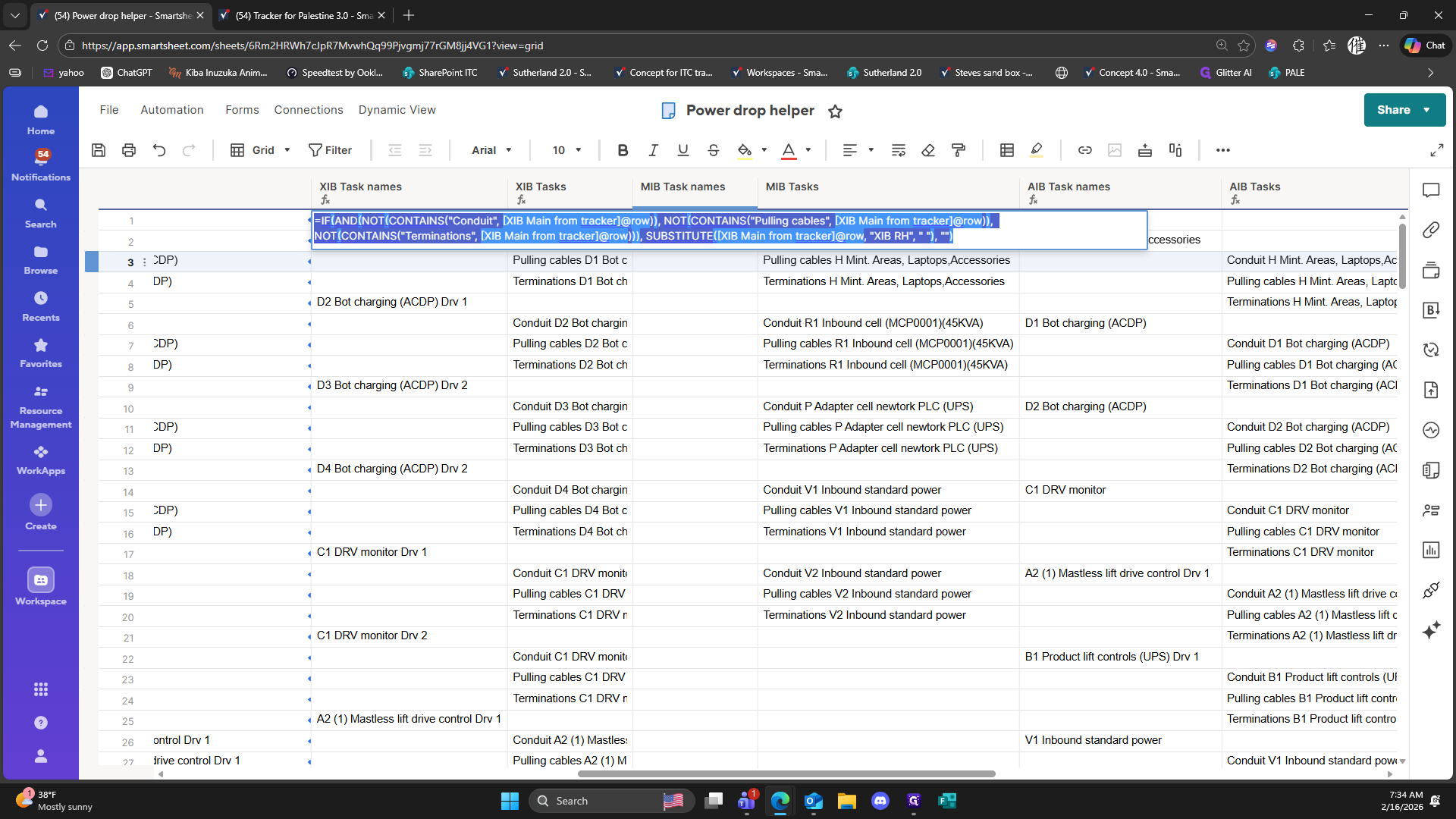
40
Right-click here
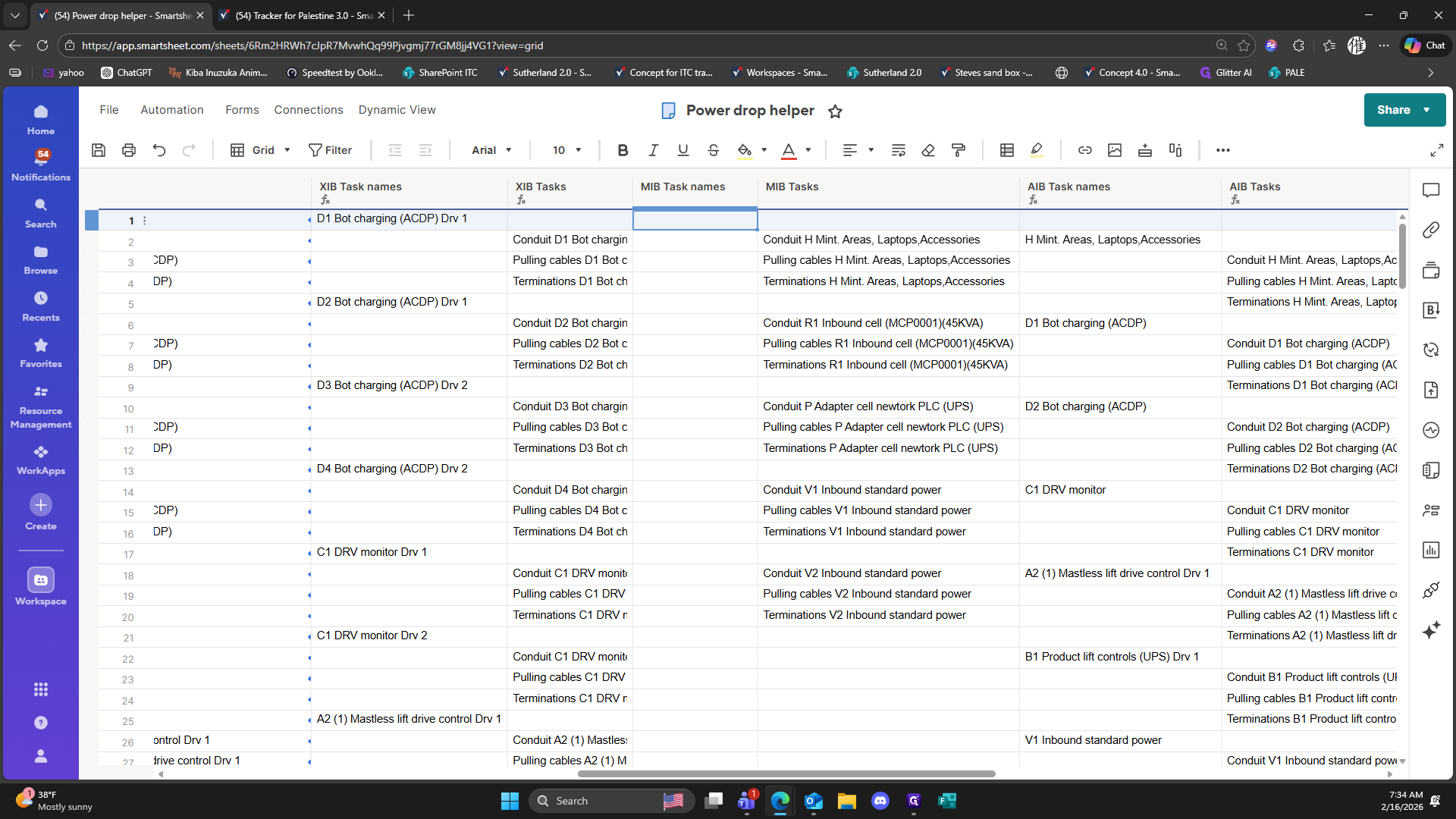
41
Double-click here
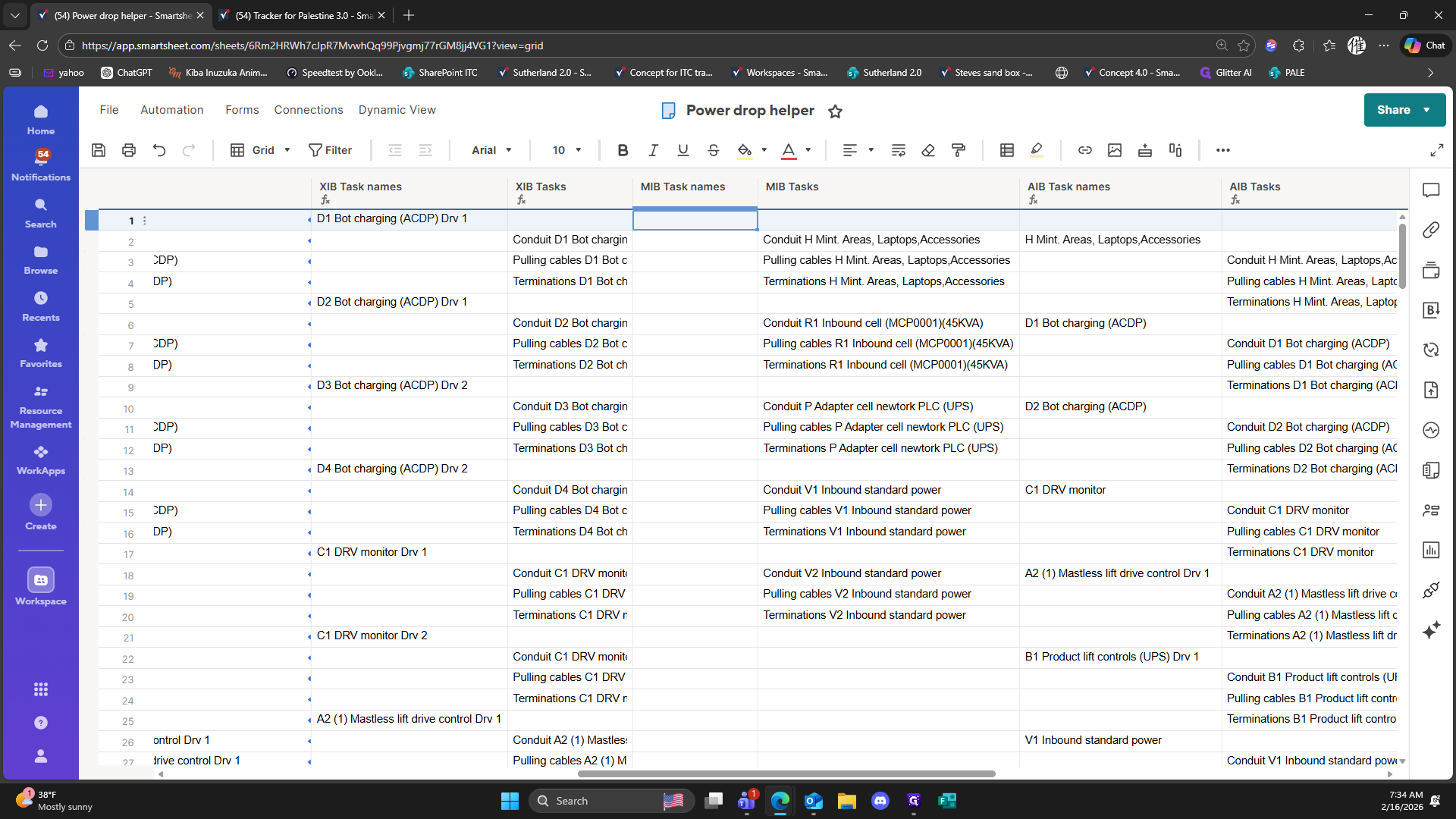
42
Type "Ctrl + V"
43
Click on "| = IF"
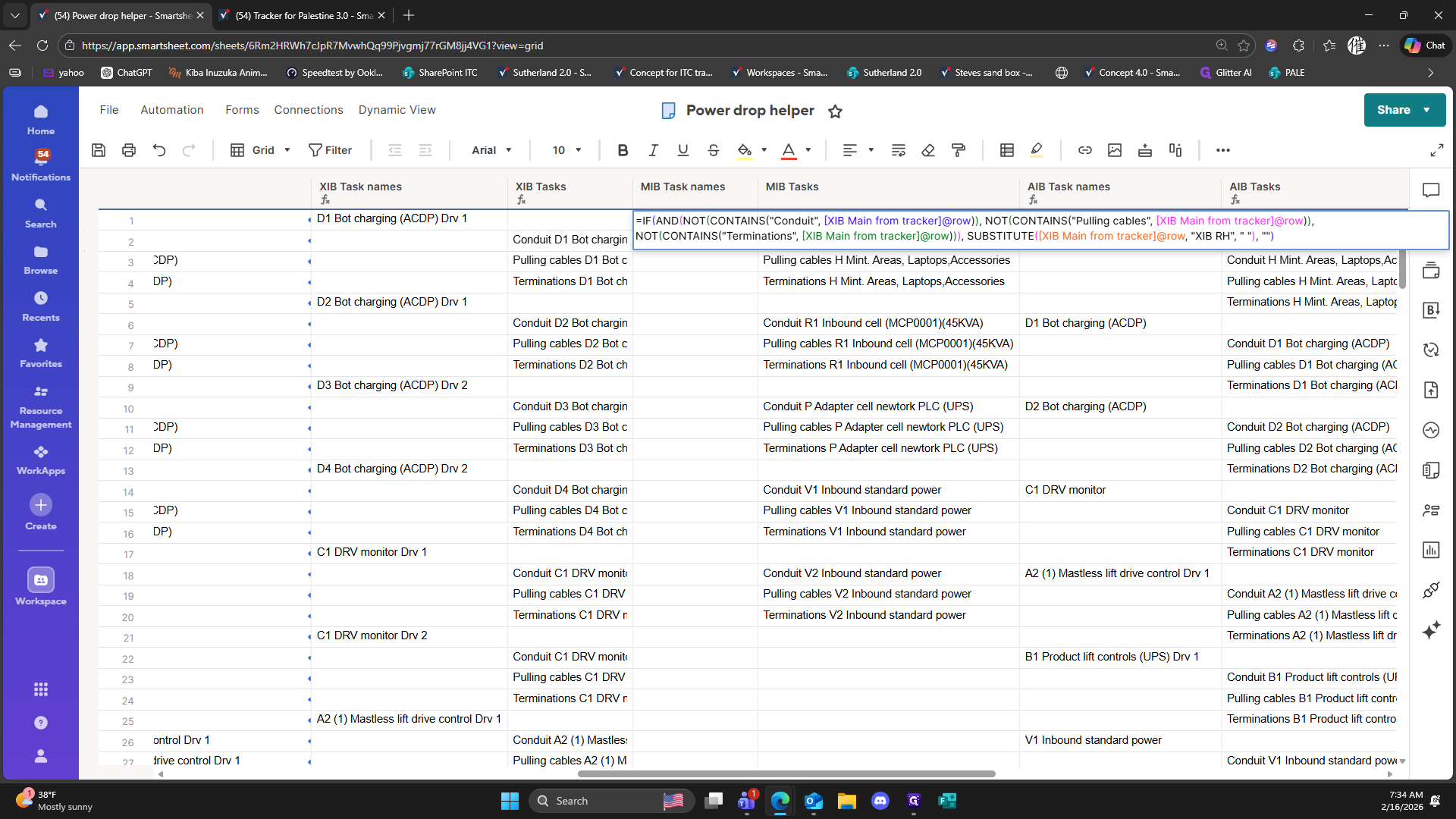
44
Type "Backspace"
45
Click here
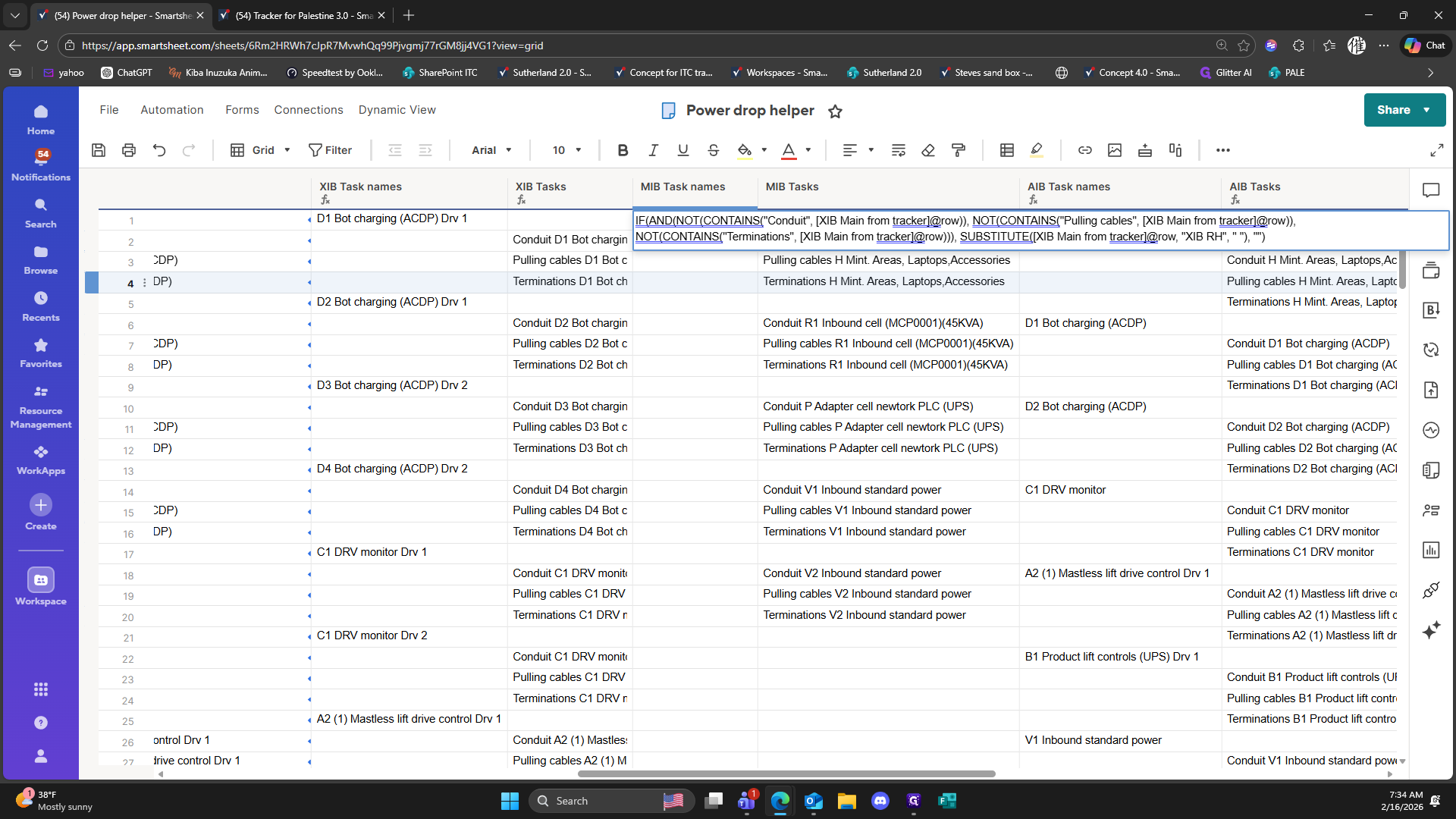
46
Click on "( AND"
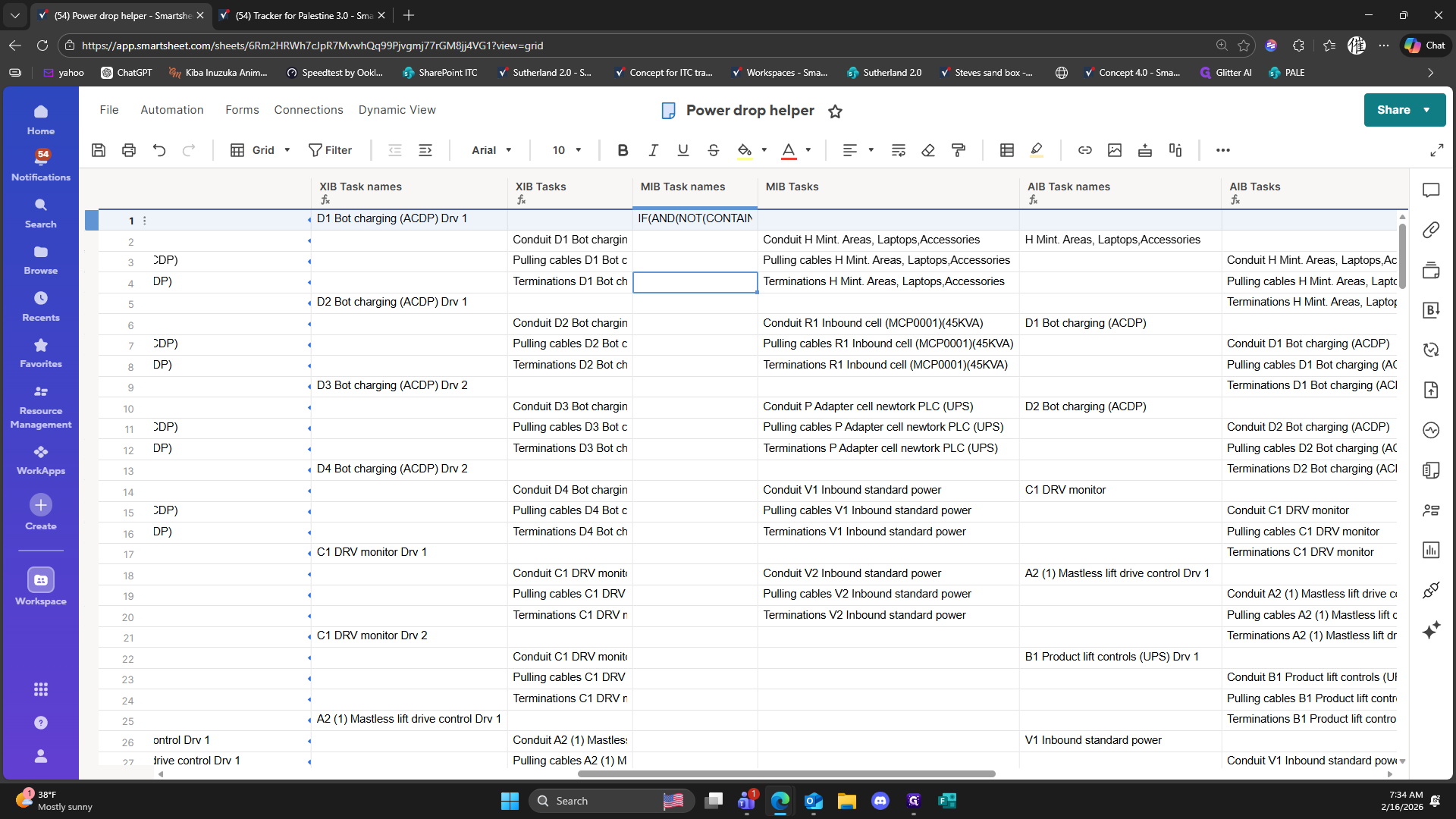
47
Type "Ctrl + F"
48
Type "XIB + TabMIB"
49
Click on "Replace All"
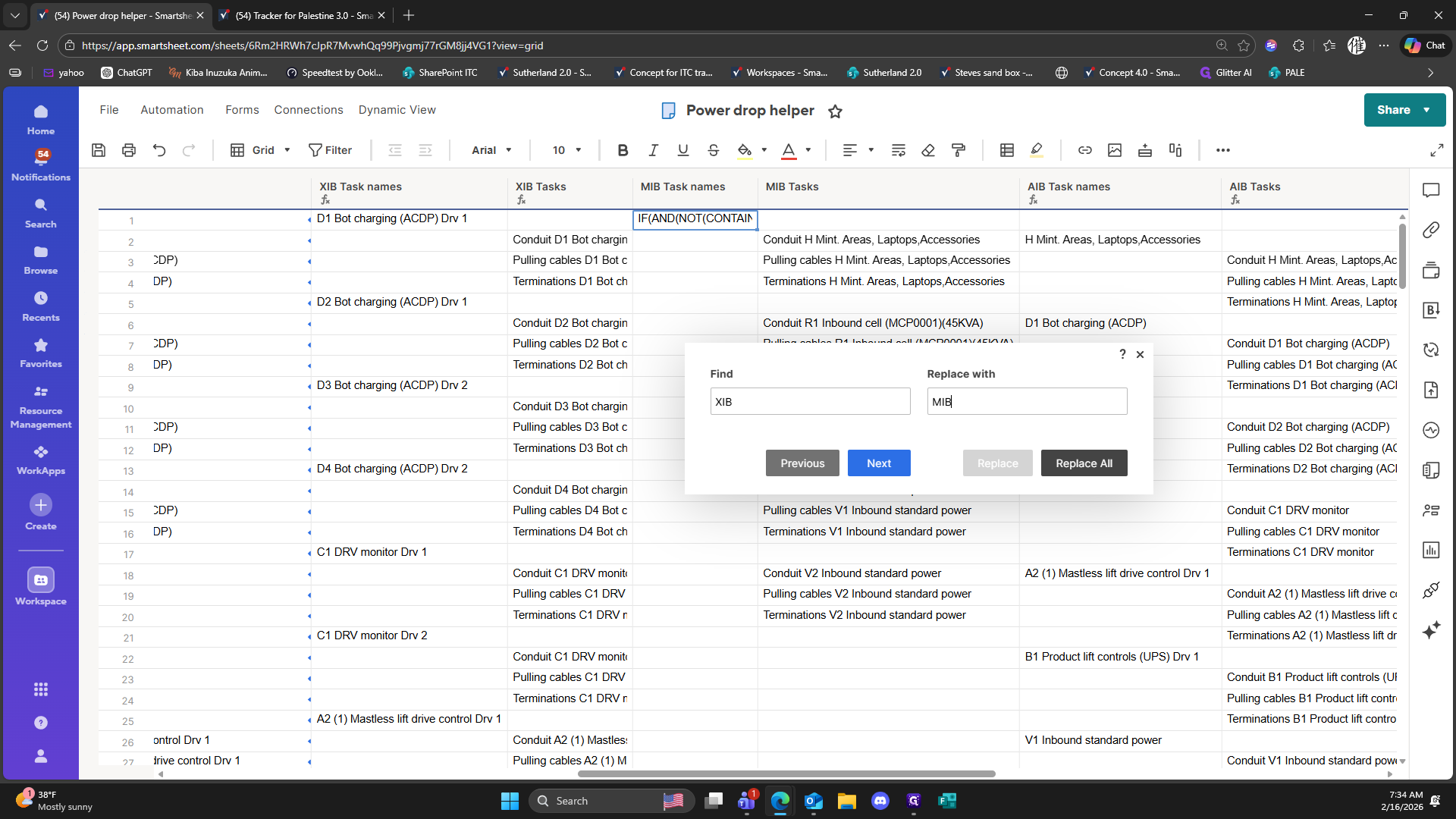
50
Click on "? ×"
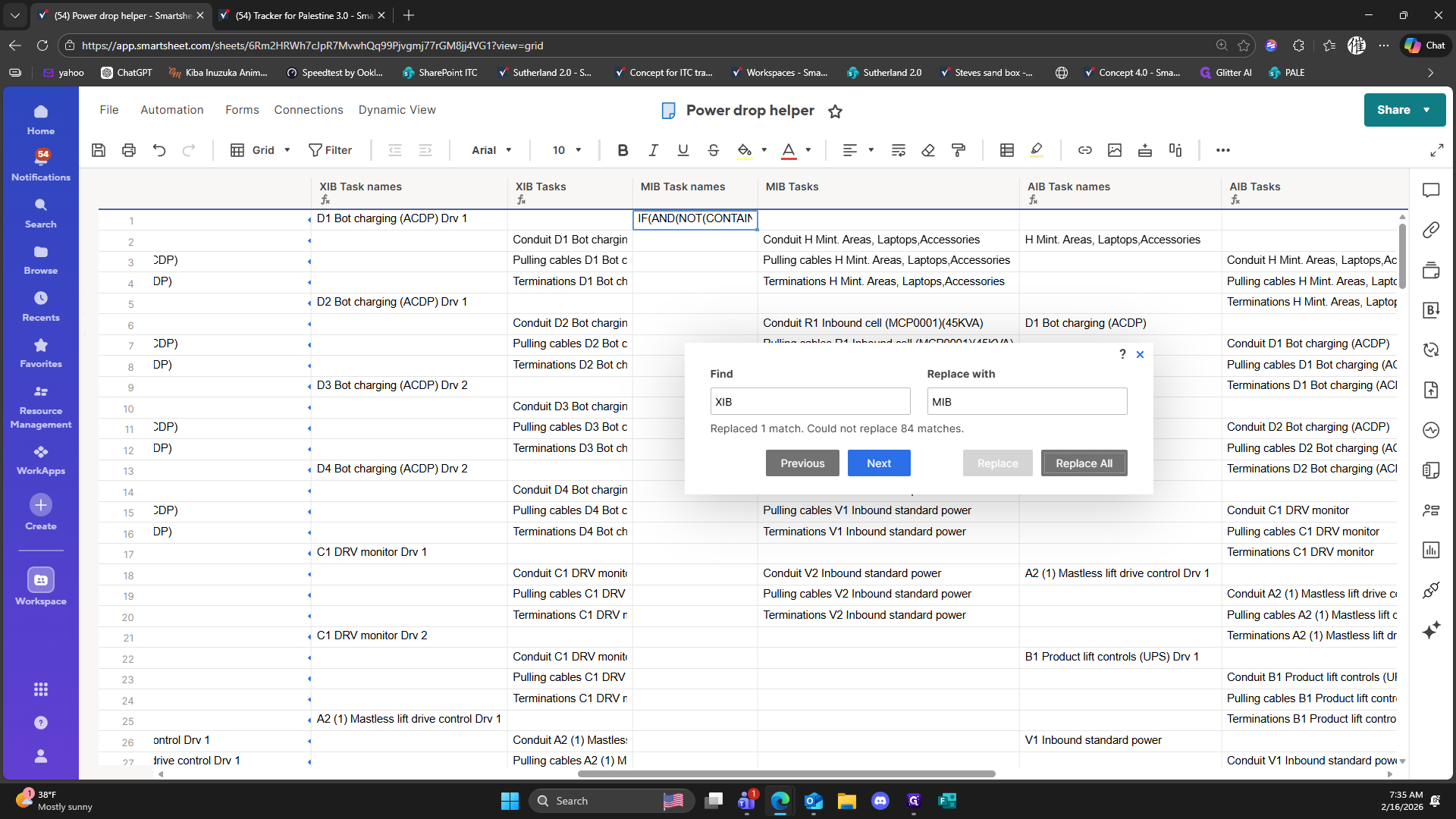
51
Double-click on "("
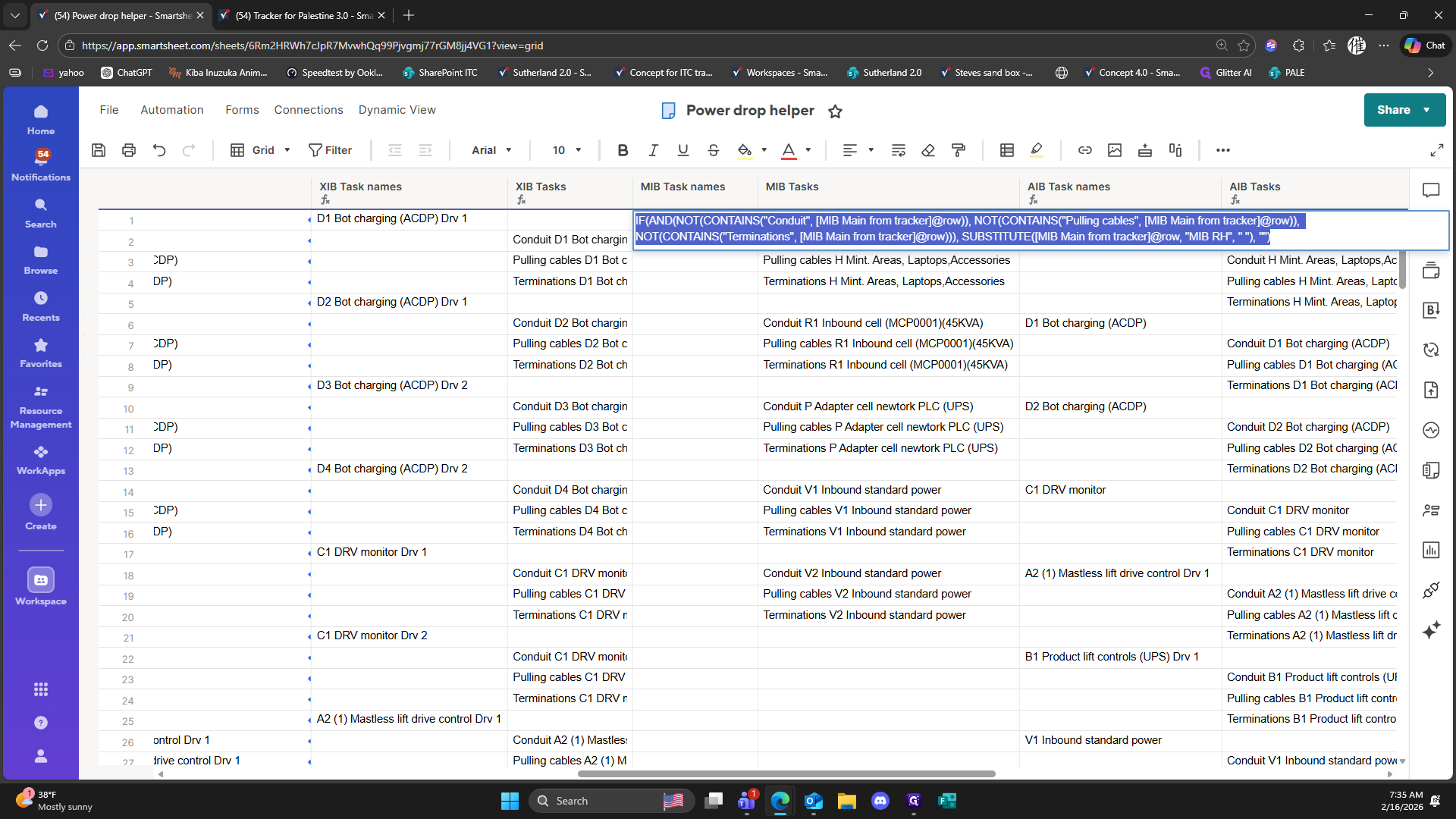
52
Click on "IF"
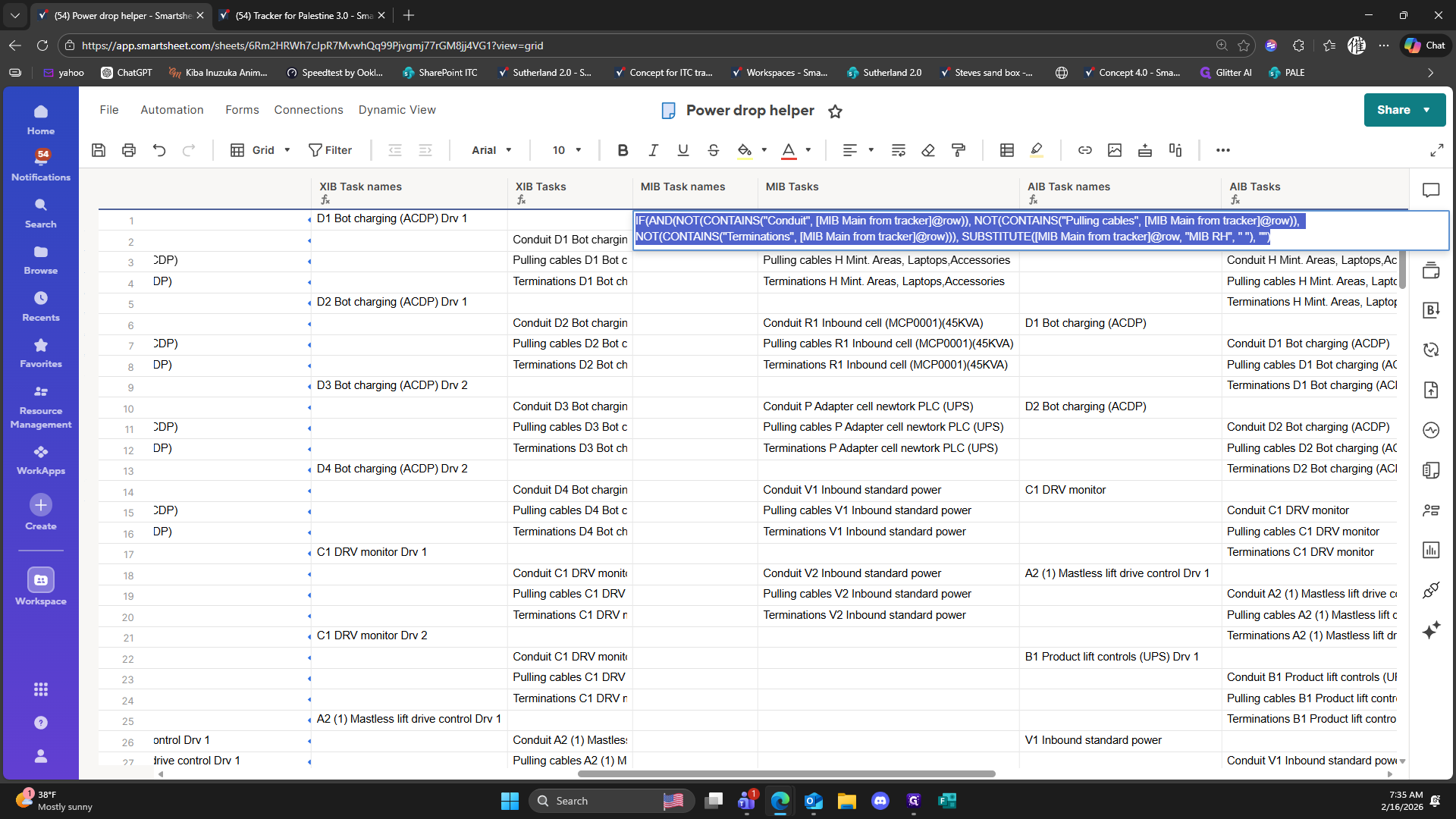
53
Click on "IF"
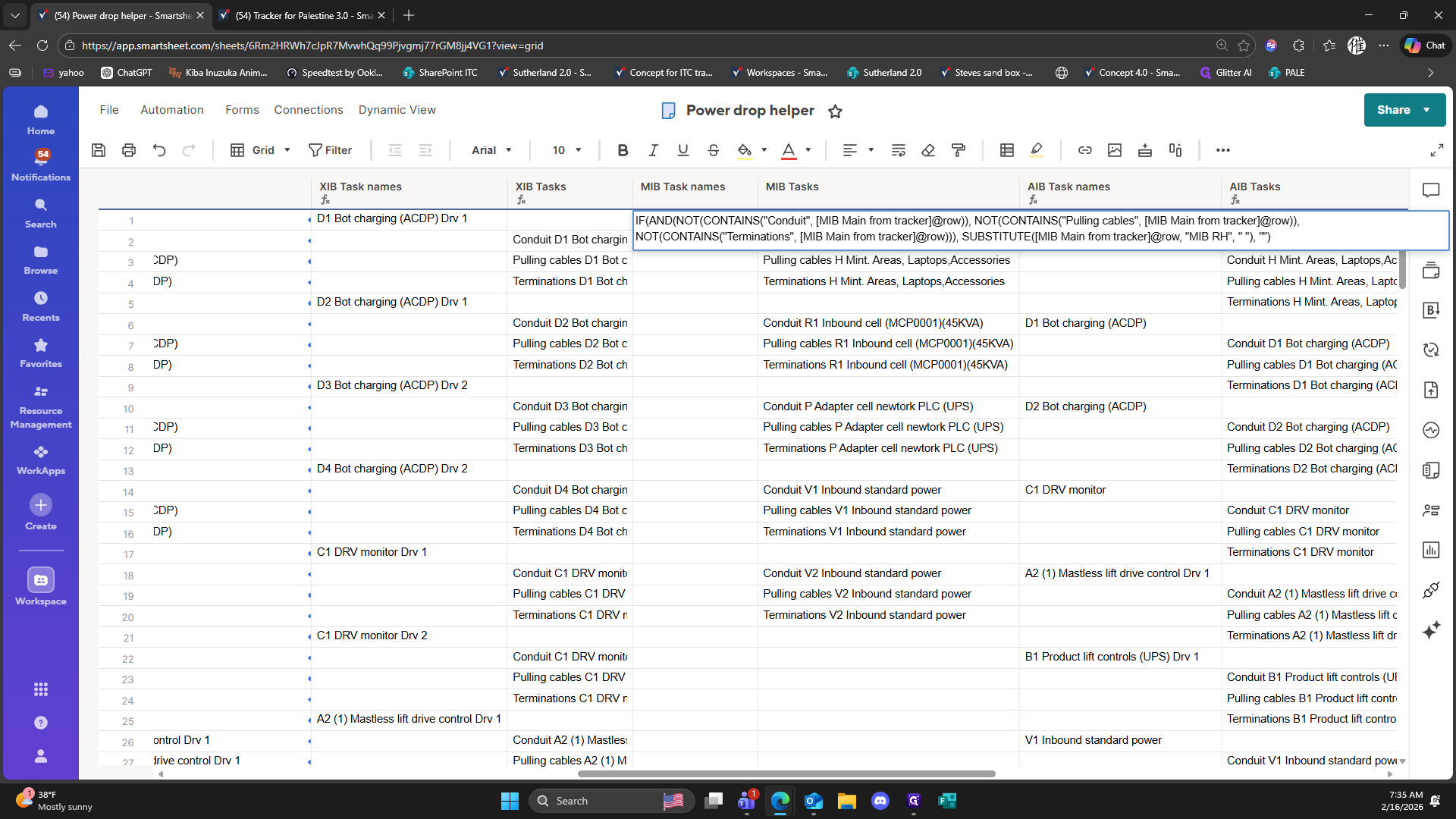
54
Click on "IF"
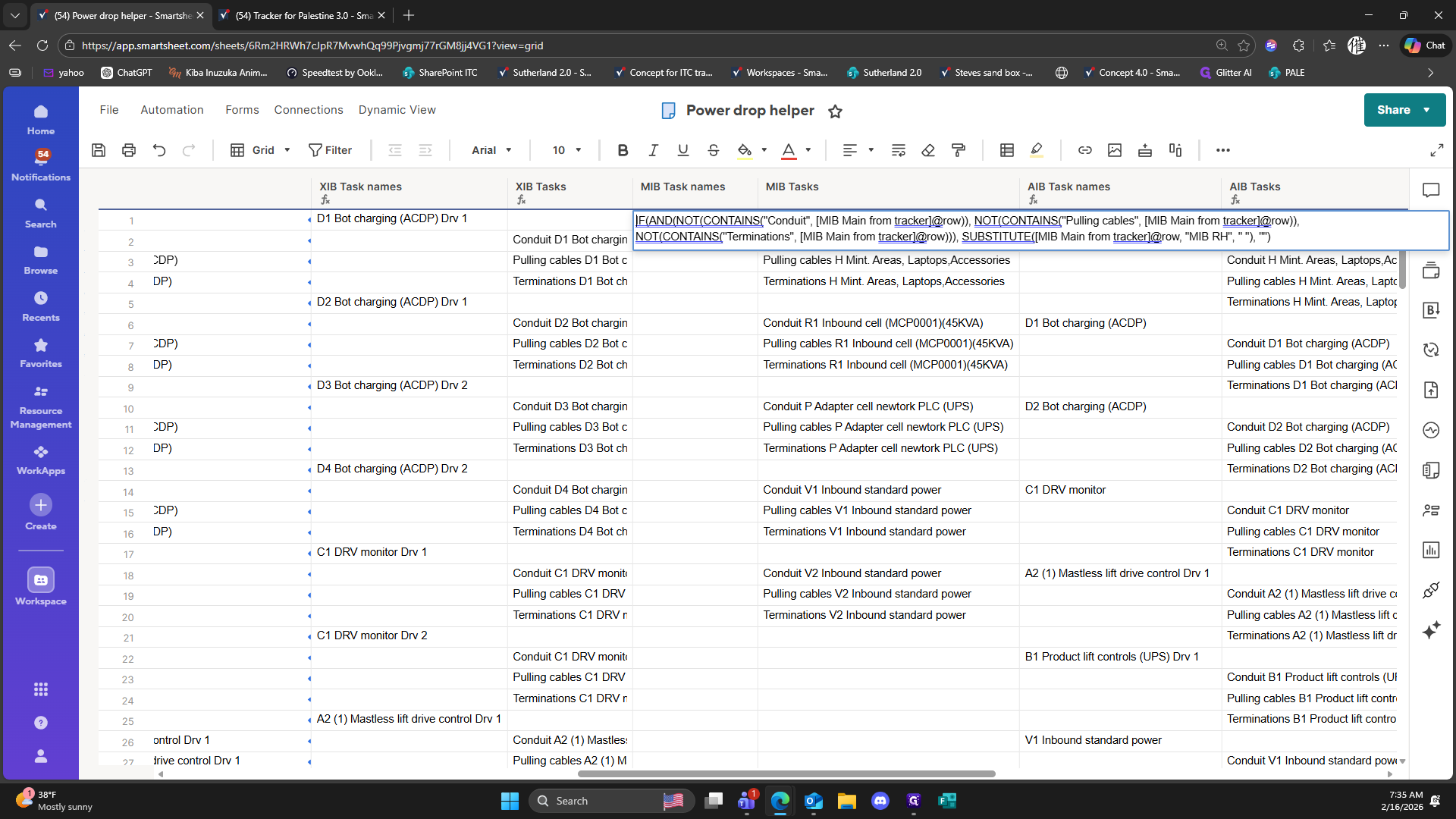
55
Type "= + Enter"
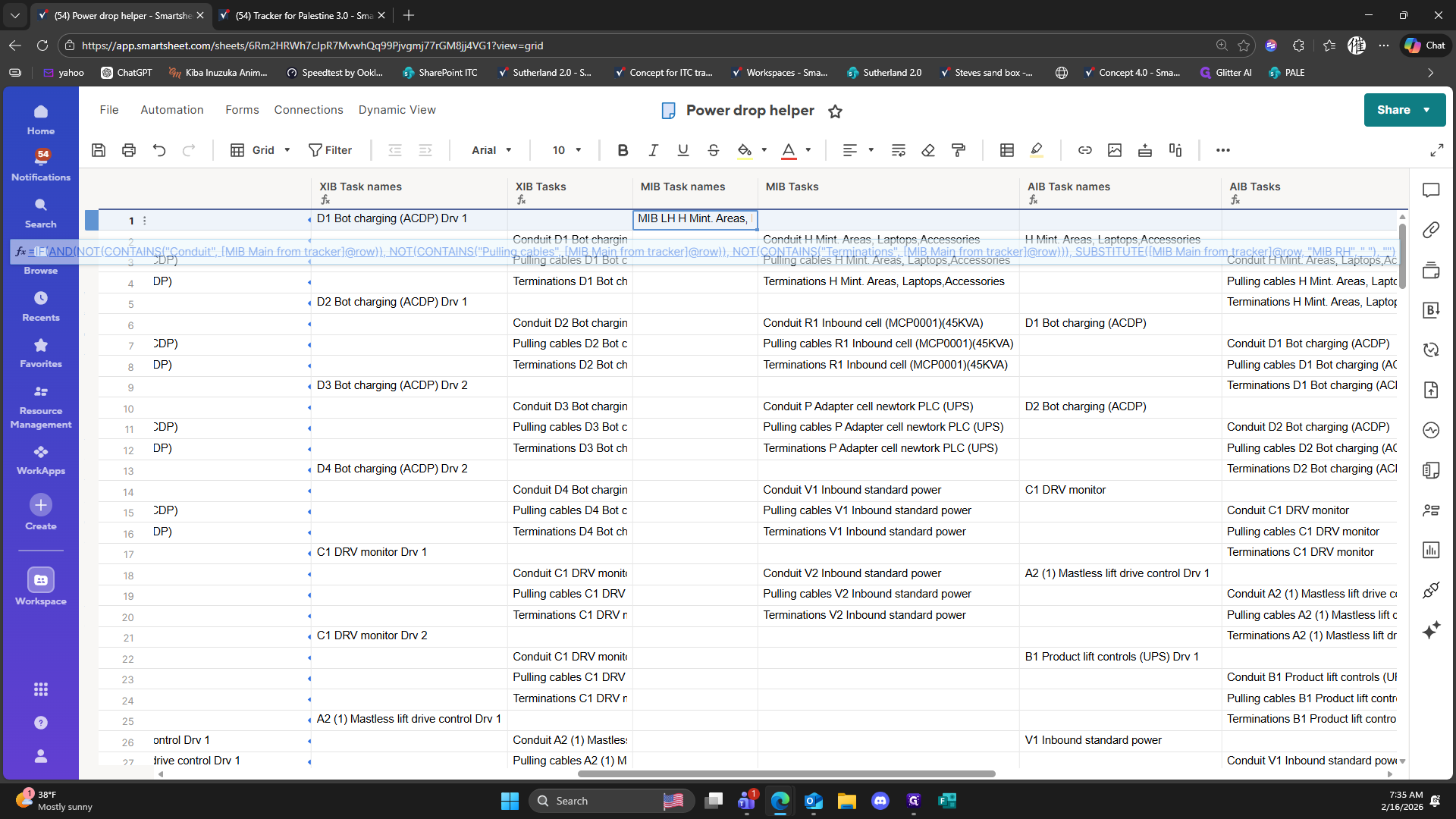
56
Right-click on "MIB LH H Mint"
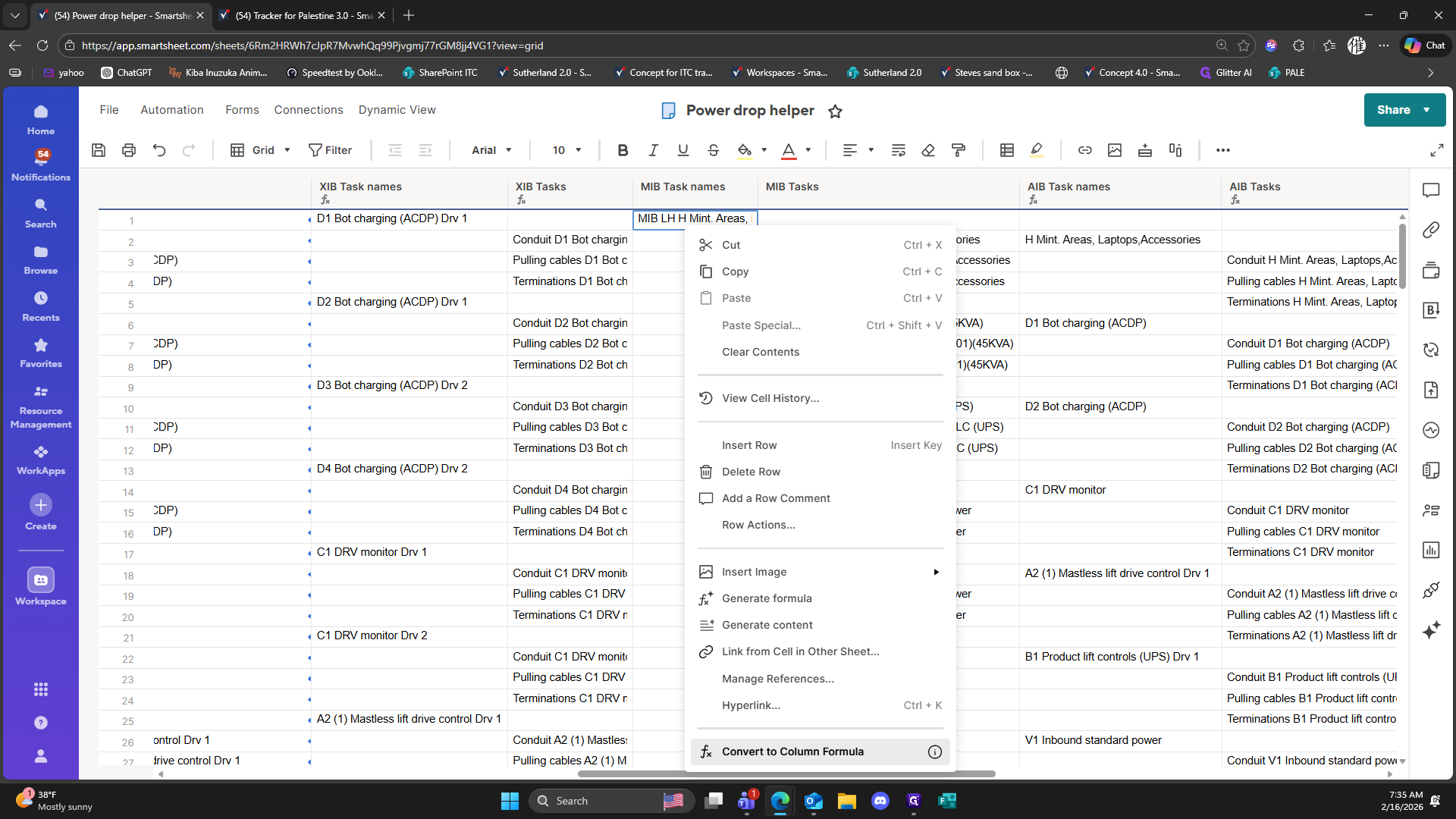
57
Click on "Convert to Column Formula"
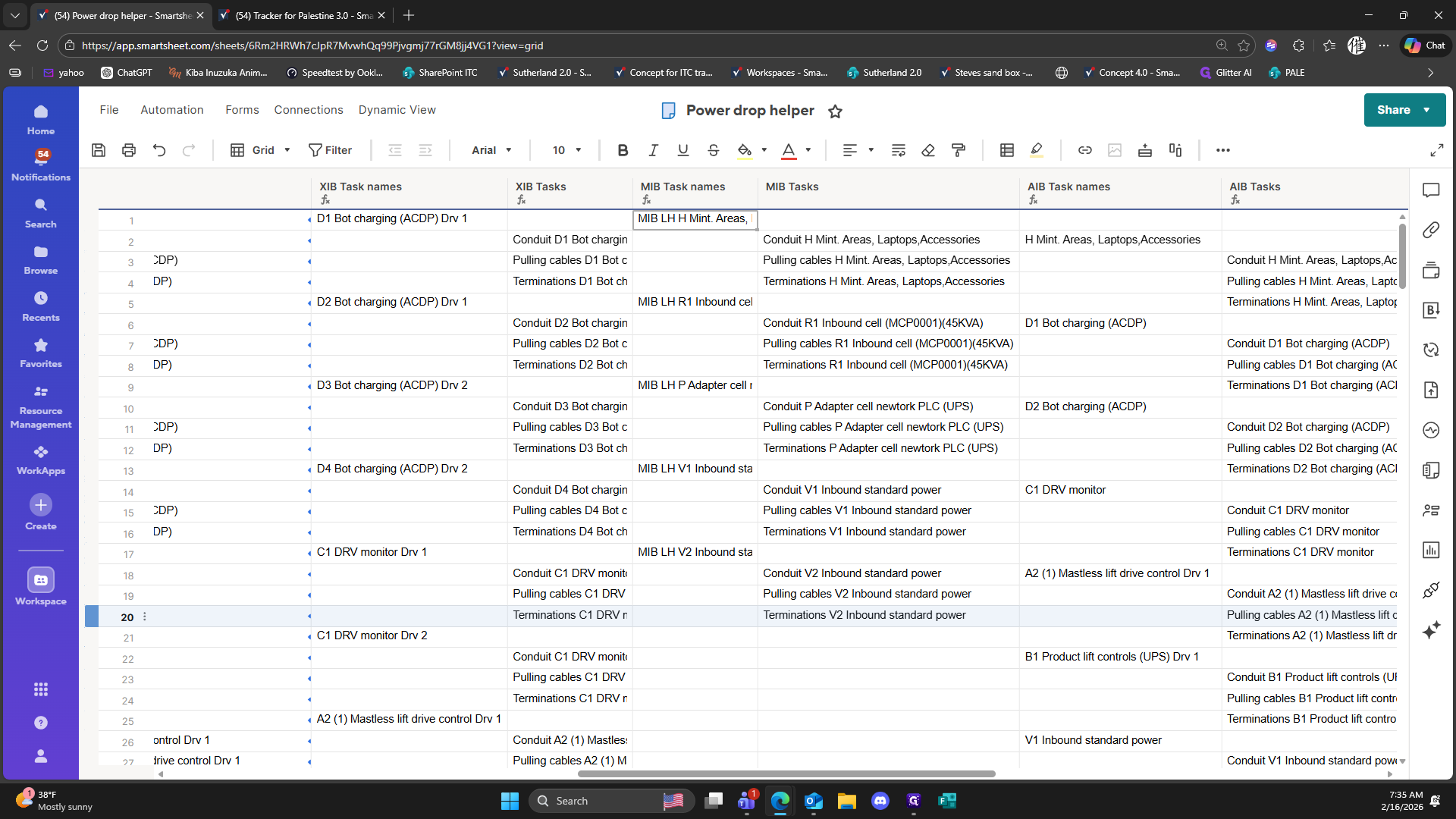
58
Click on "20"
59
Click here
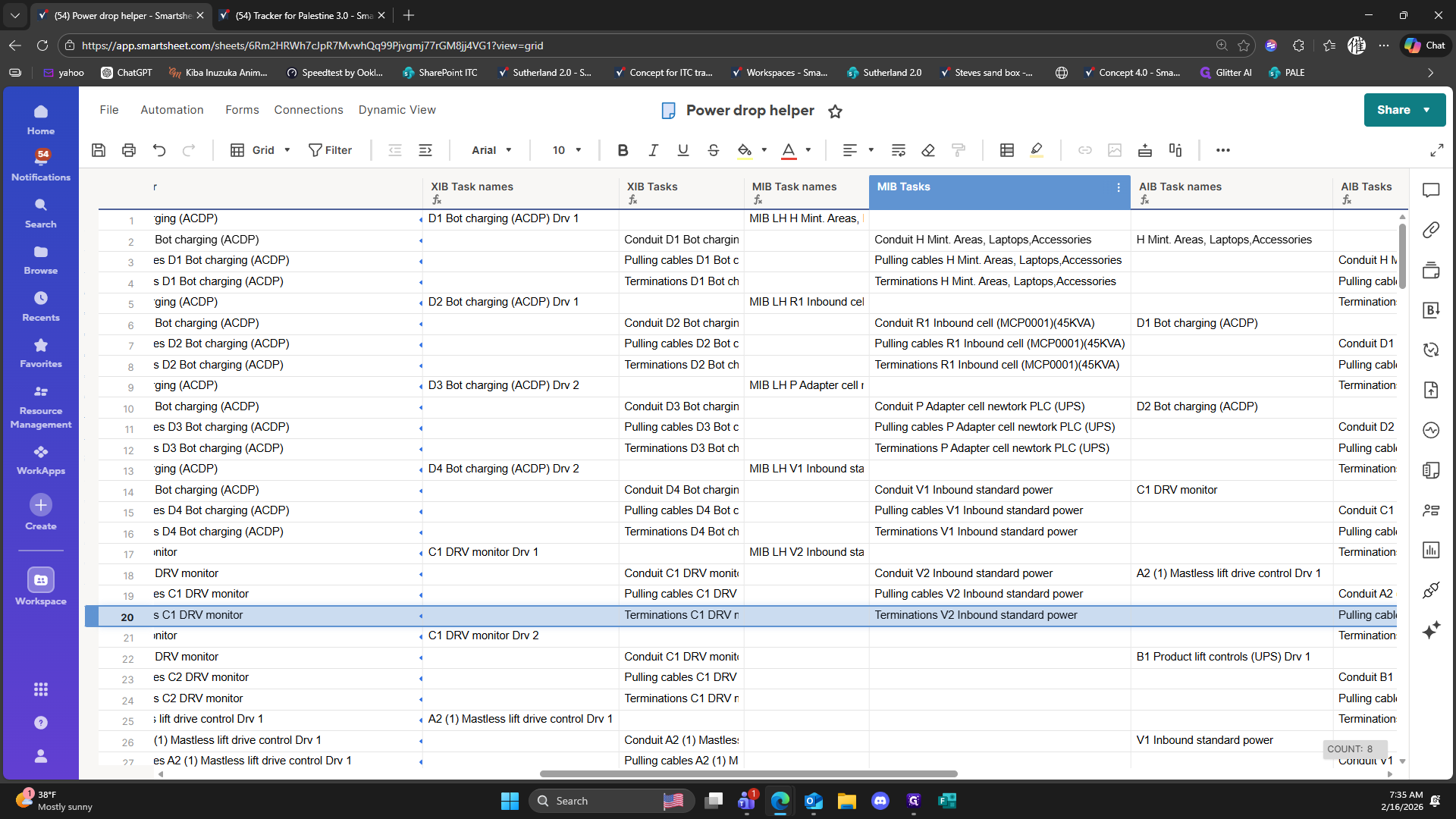
60
Click on "Conduit H Mint"
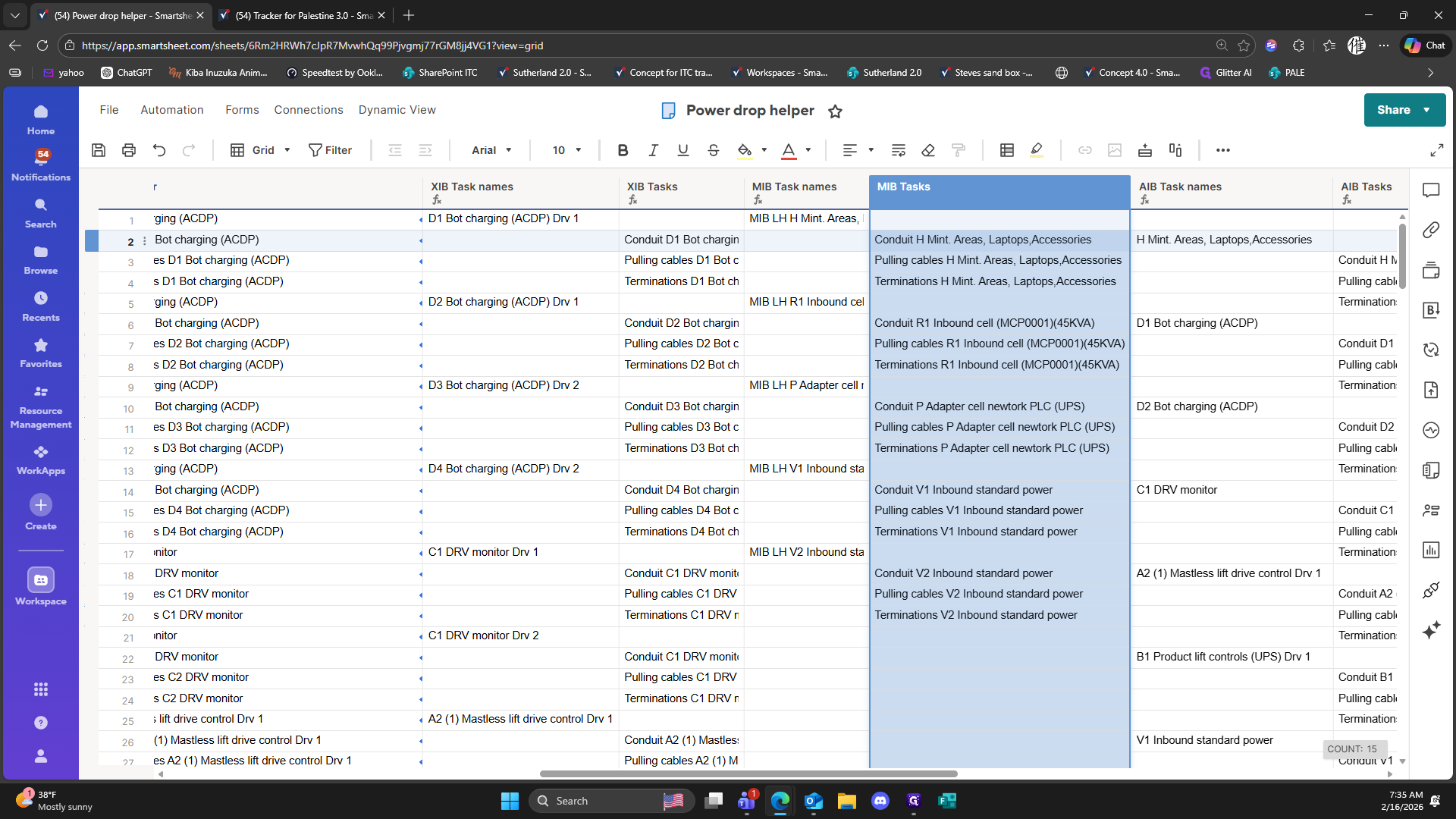
61
Double-click on "MIB Tasks"
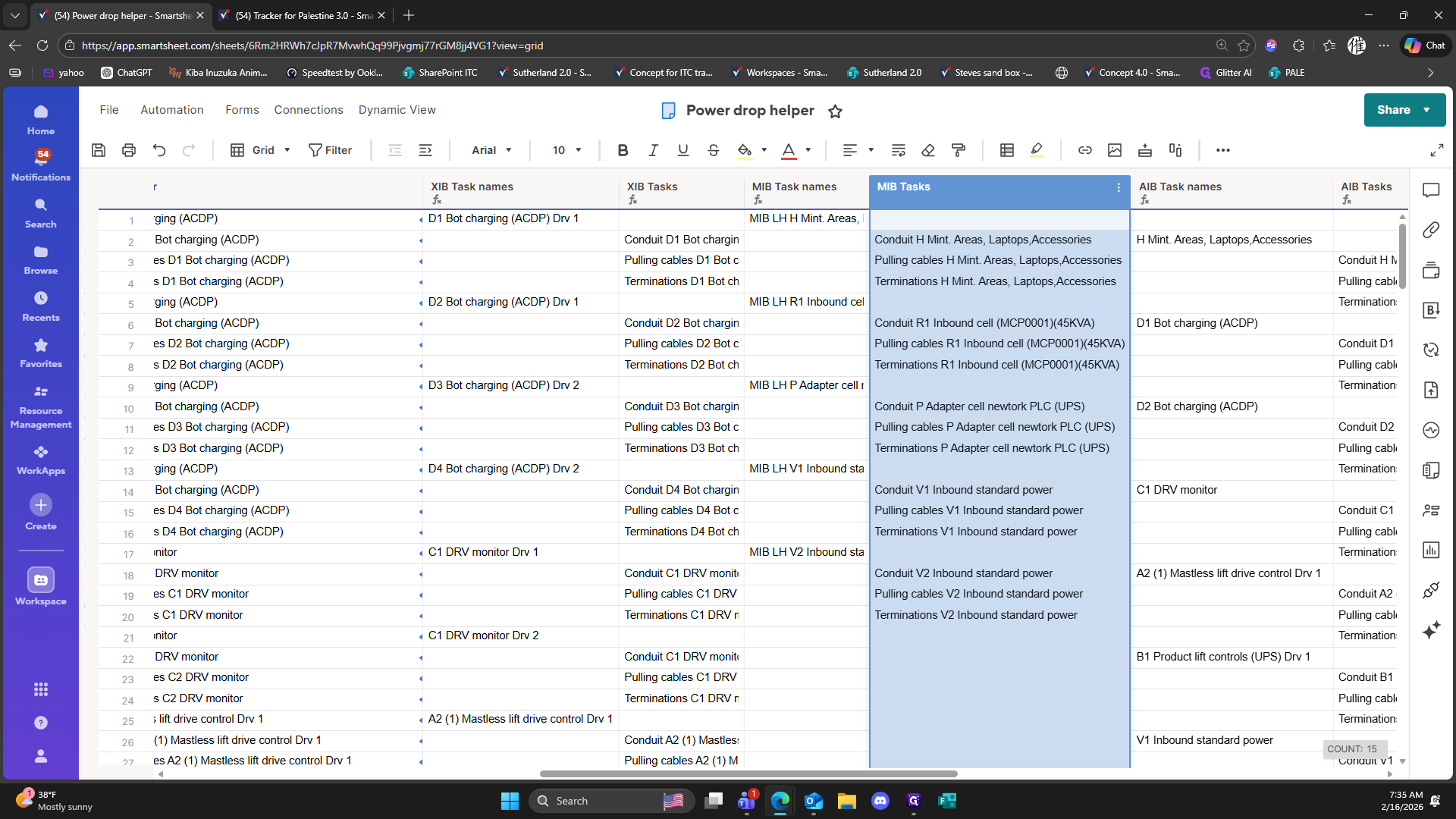
62
Click on "Adapter cell newtork PLC ( UPS )"
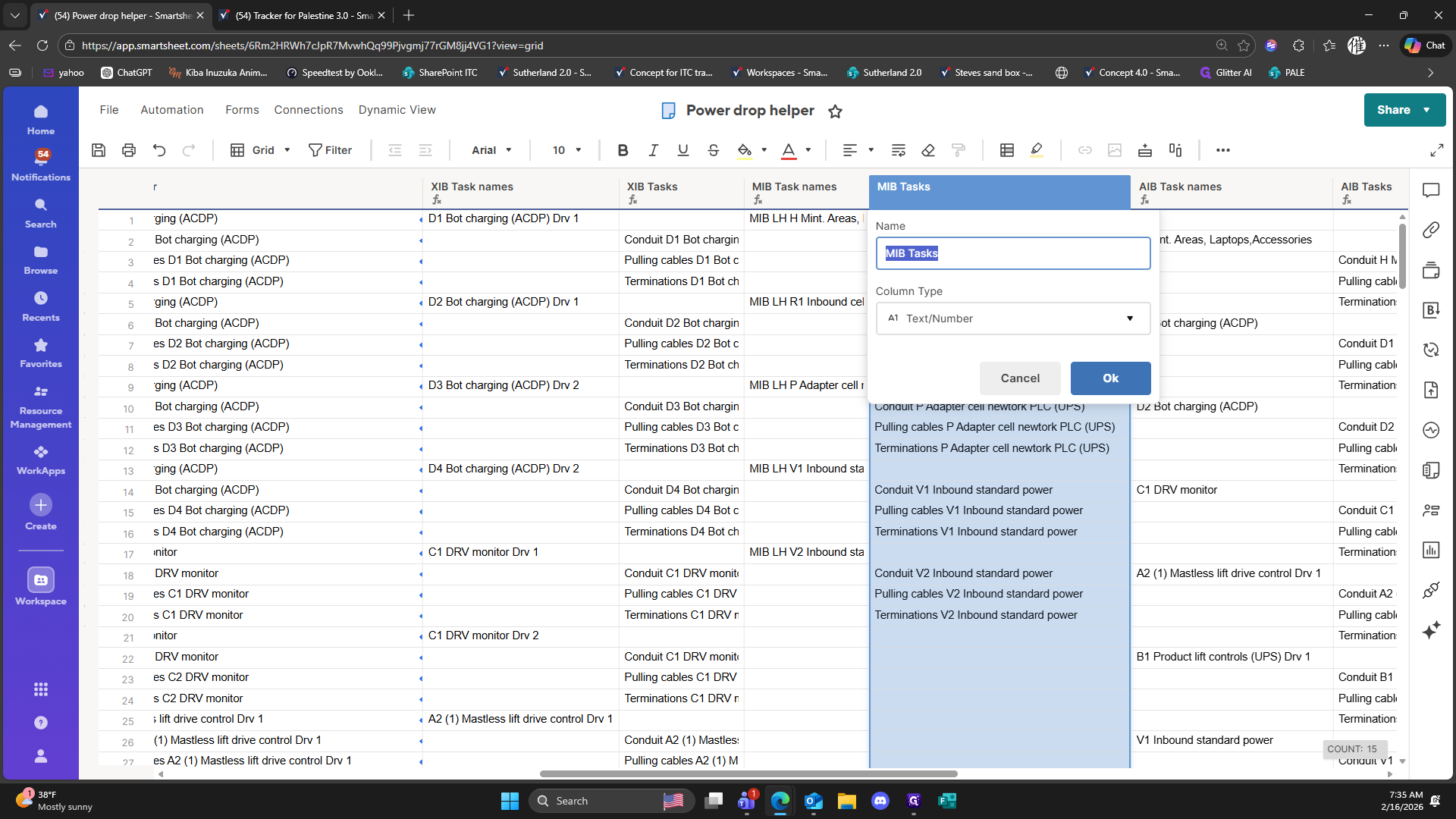
63
Double-click on "( OR ( CONTAINS ("
64
Type "Backspace"
65
Click here
66
Click here
67
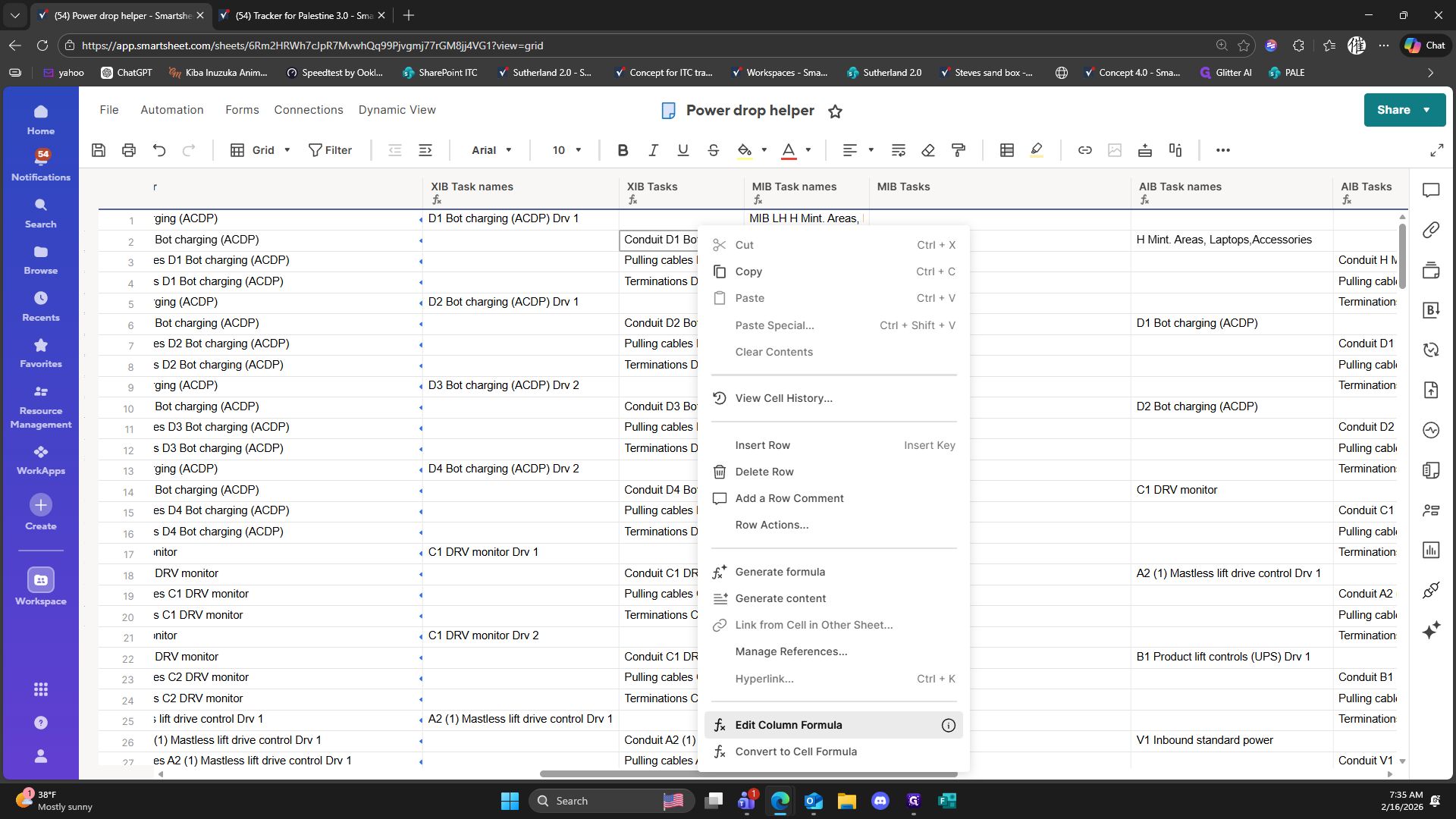
Right-click on "Conduit D1 Bot chargin"
68
Click on "Edit Column Formula"
69
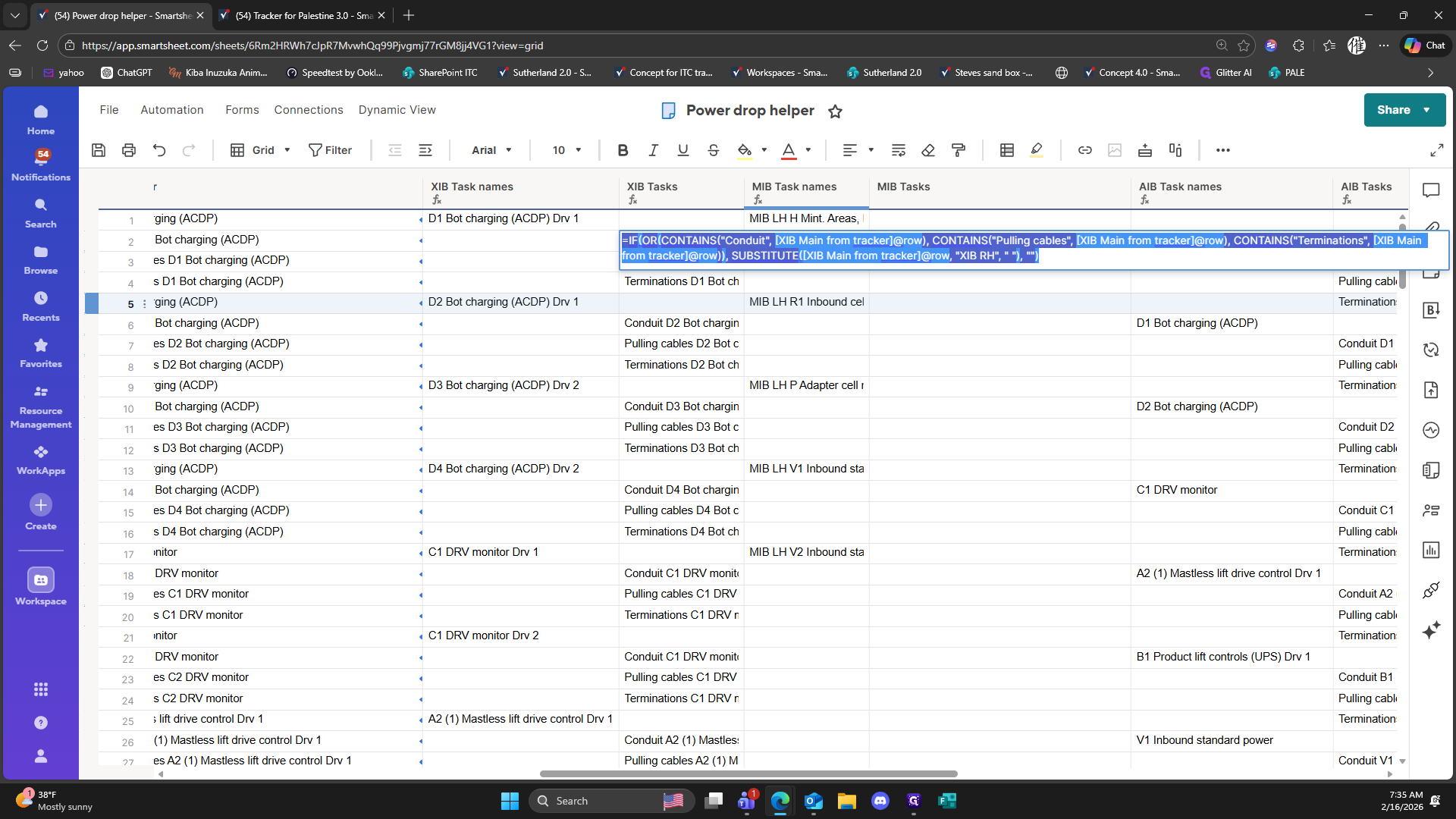
Drag "TAINS ( " Conduit " , [ XIB Main from tracker ] @row ) , CONTAINS ( " Pulling cables " , [ XIB Main from tracker ] @row ) , CONTAINS ( " Terminations " , [ XIB Main 1 @ row ) ) , SUBSTITUTE ( [ XIB Main from tracker ] @row , " XIB RH " , " " ) , " " ) |"
![Step #69: Drag "TAINS ( " Conduit " , [ XIB Main from tracker ] @row ) , CONTAINS ( " Pulling cables " , [ XIB Main from tracker ] @row ) , CONTAINS ( " Terminations " , [ XIB Main 1 @ row ) ) , SUBSTITUTE ( [ XIB Main from tracker ] @row , " XIB RH " , " " ) , " " ) |"](https://di8mn0rali2ic.cloudfront.net/uploads/80276c41-6916-4767-920c-3d3b7599c557/75bac9b9-1772-4674-bbe0-1f47a9996d56.png)
70
Type "Ctrl + C"
71
Type "Ctrl + C"
72
Click on "MIB LH R1 Inbound cel"
73
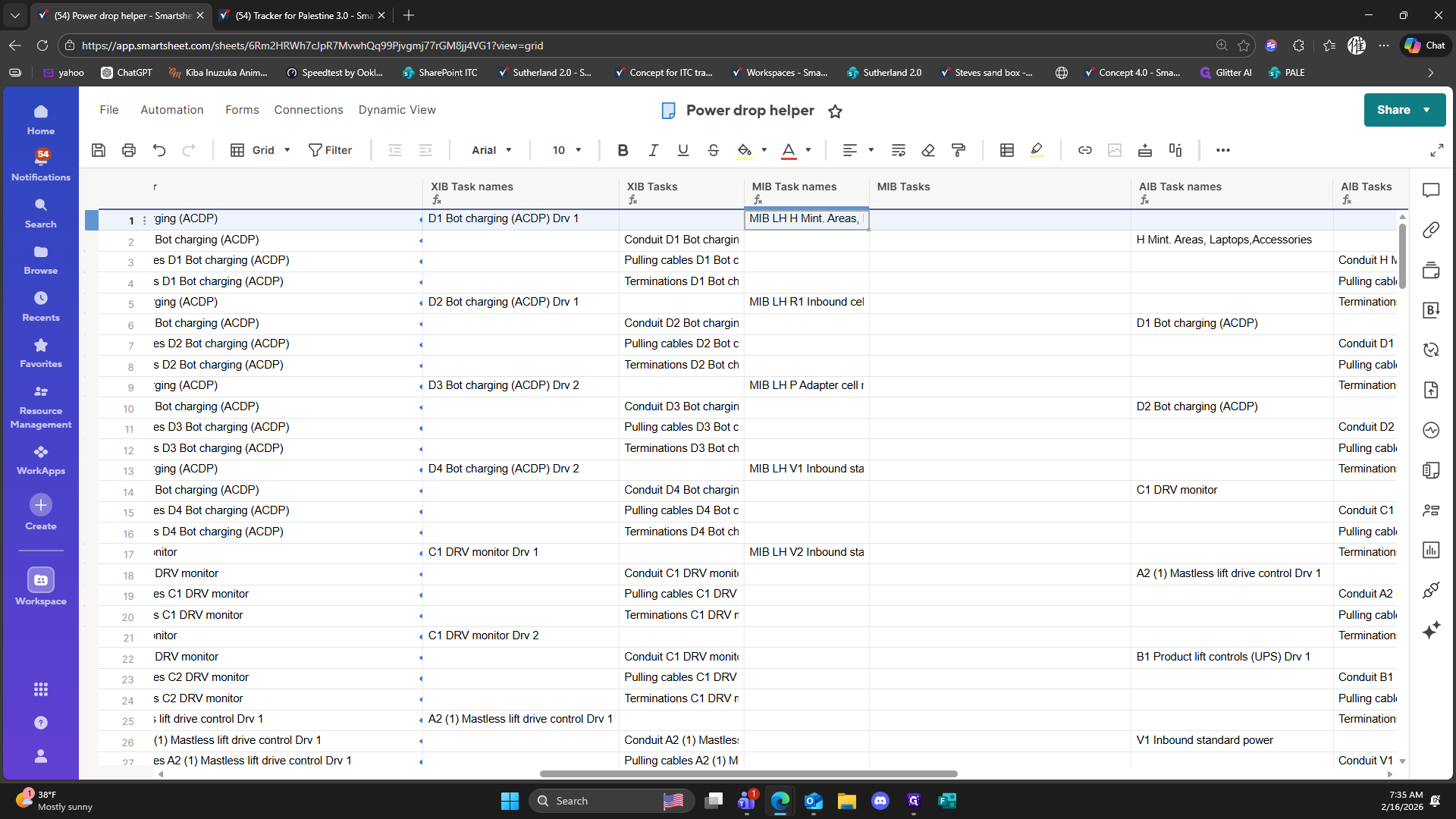
Right-click on "MIB LH H Mint"
74
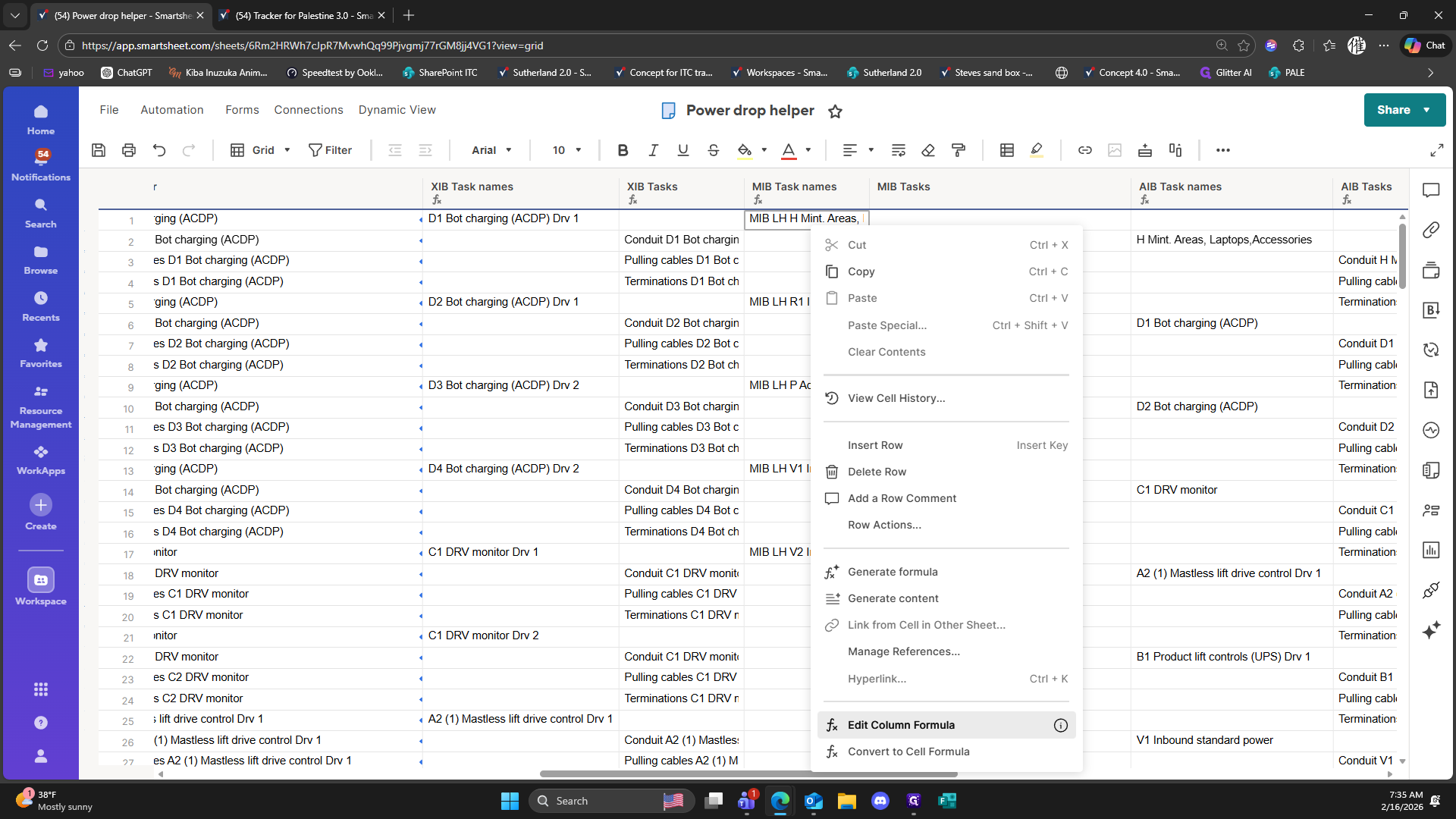
Click on "Edit Column Formula"
75
Click on ","
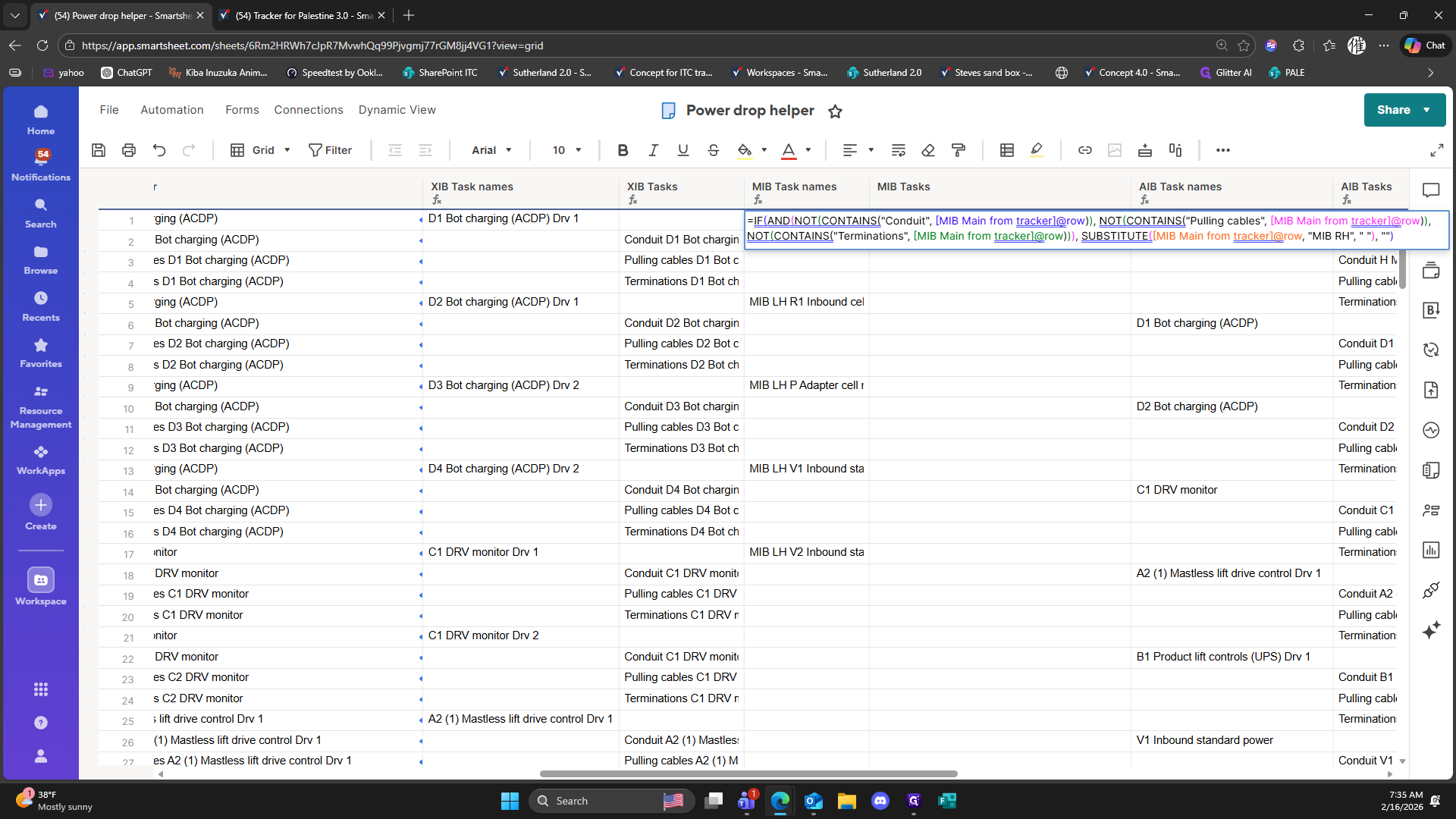
76
Type "Backspace"
77
Type "L + Enter"
78
Double-click here
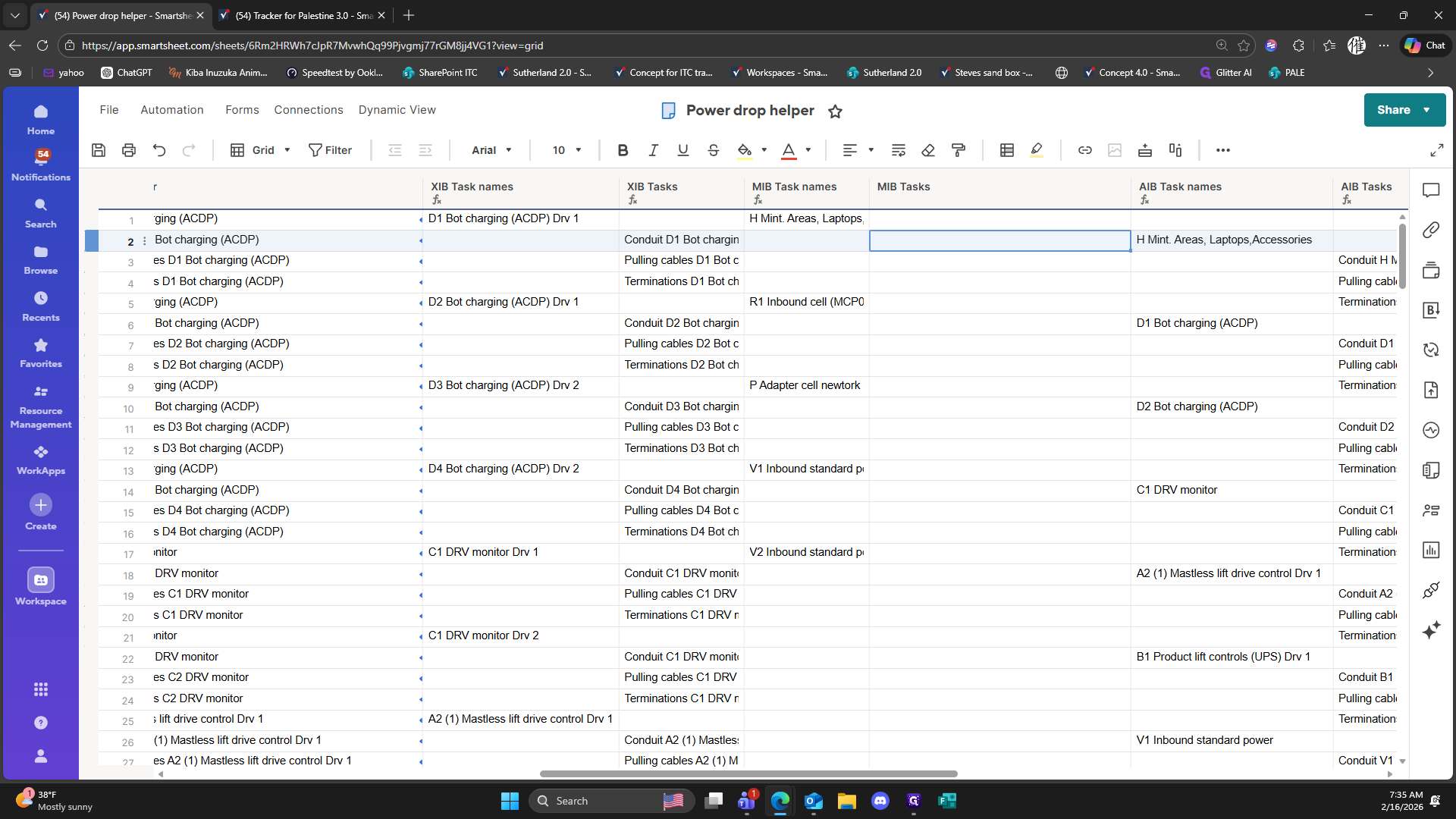
79
Double-click here
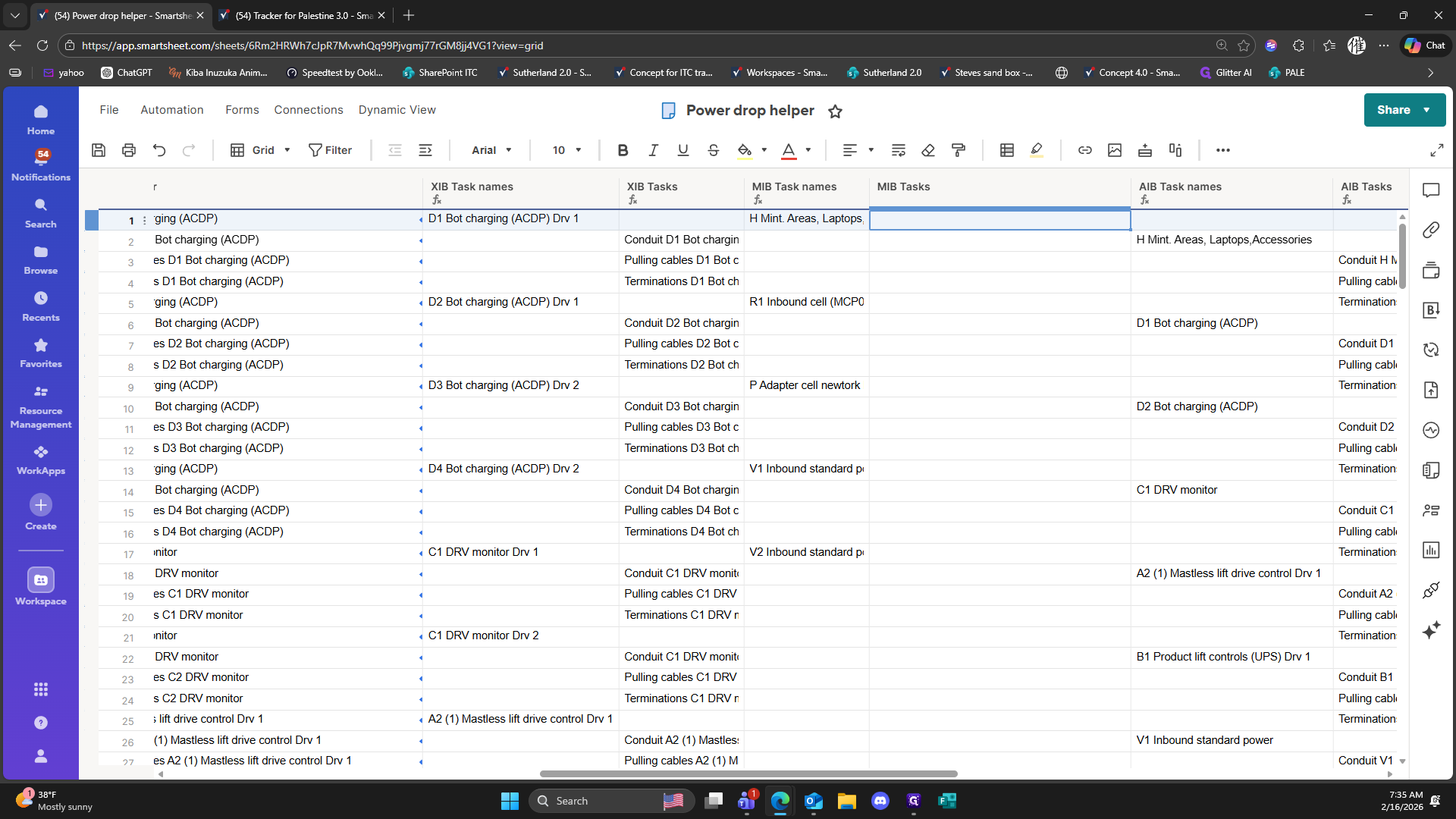
80
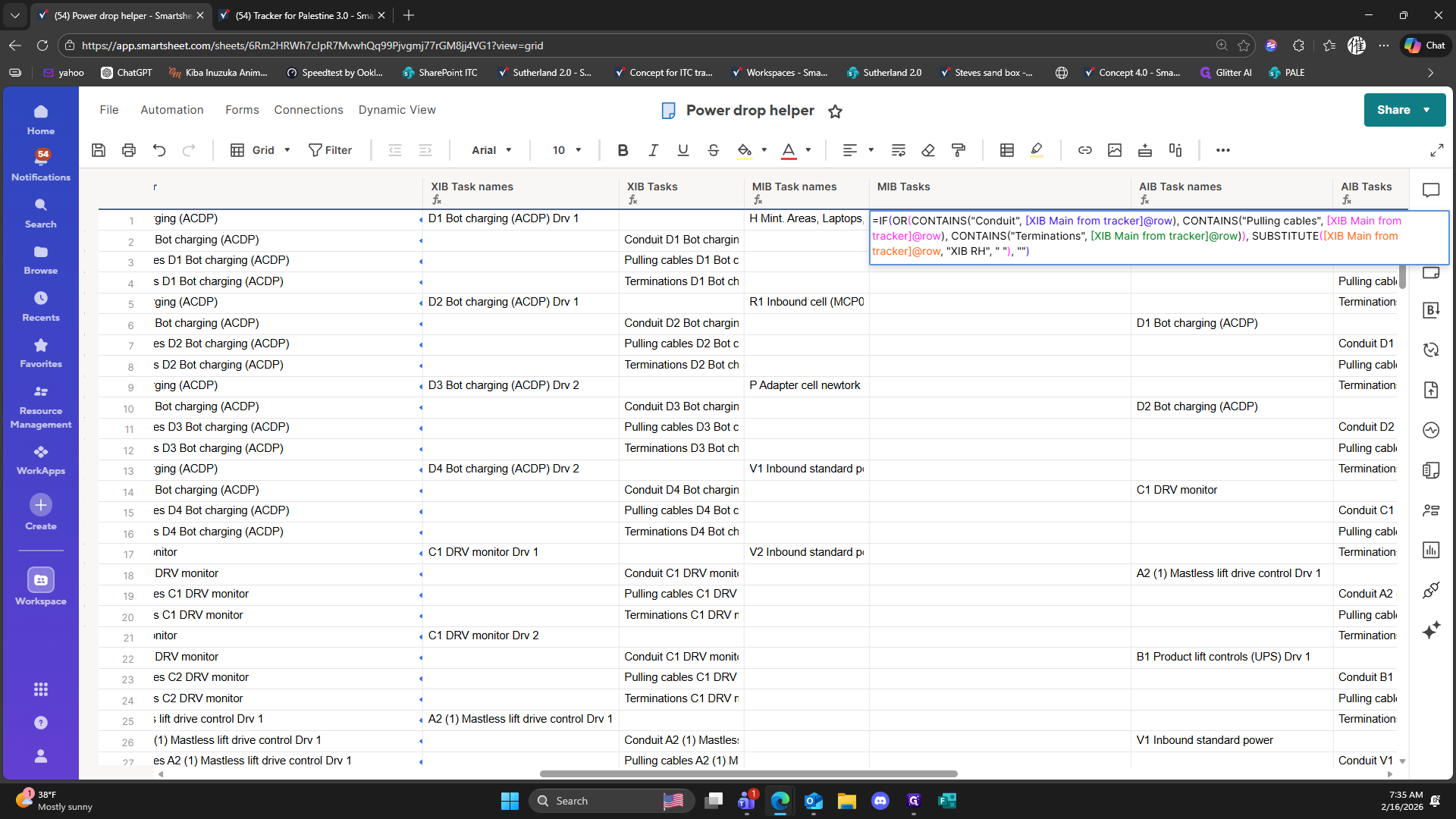
Type "Ctrl + V"
81
Click on "= IF"
82
Type "Backspace"
83
Double-click on """
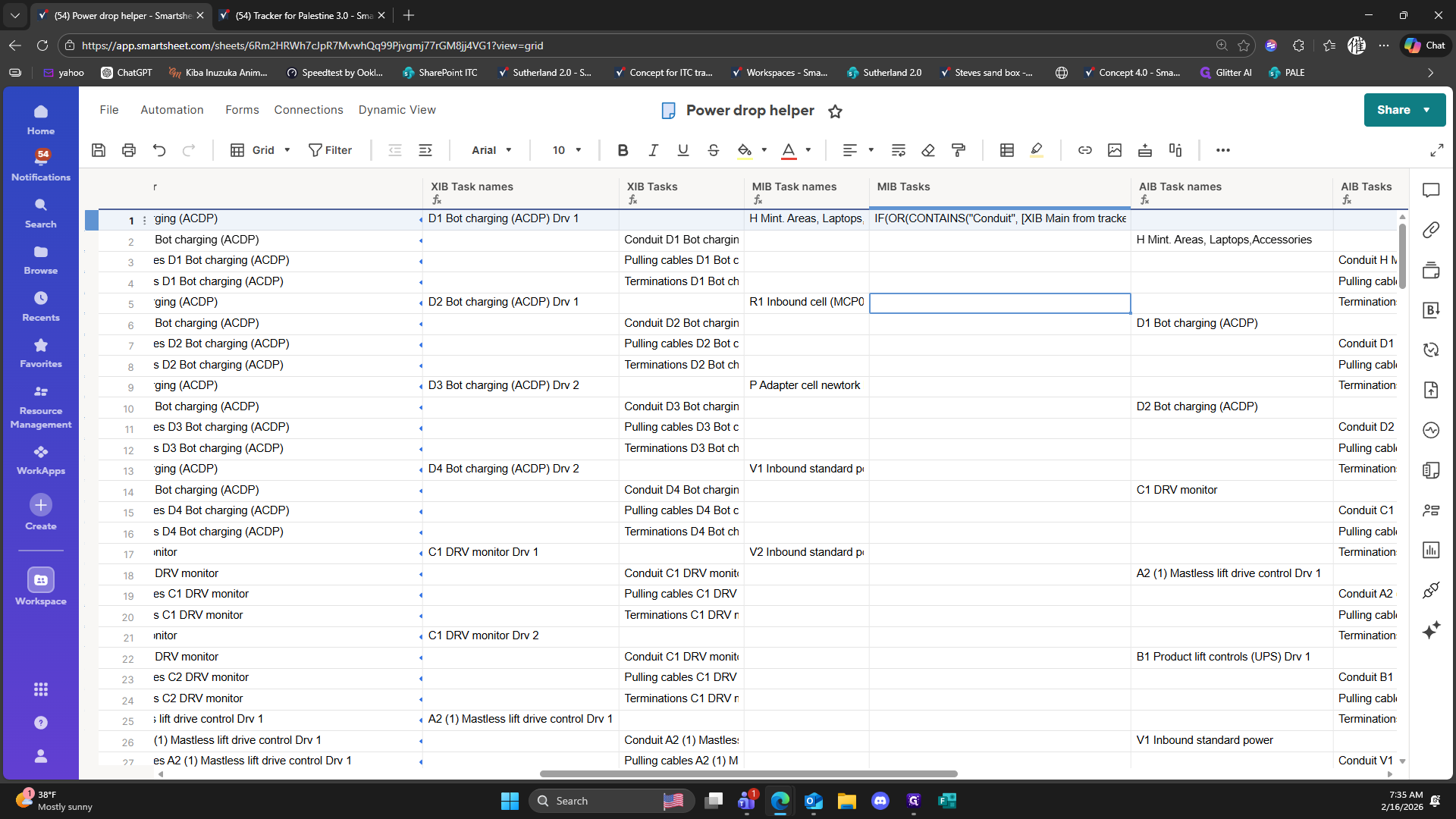
84
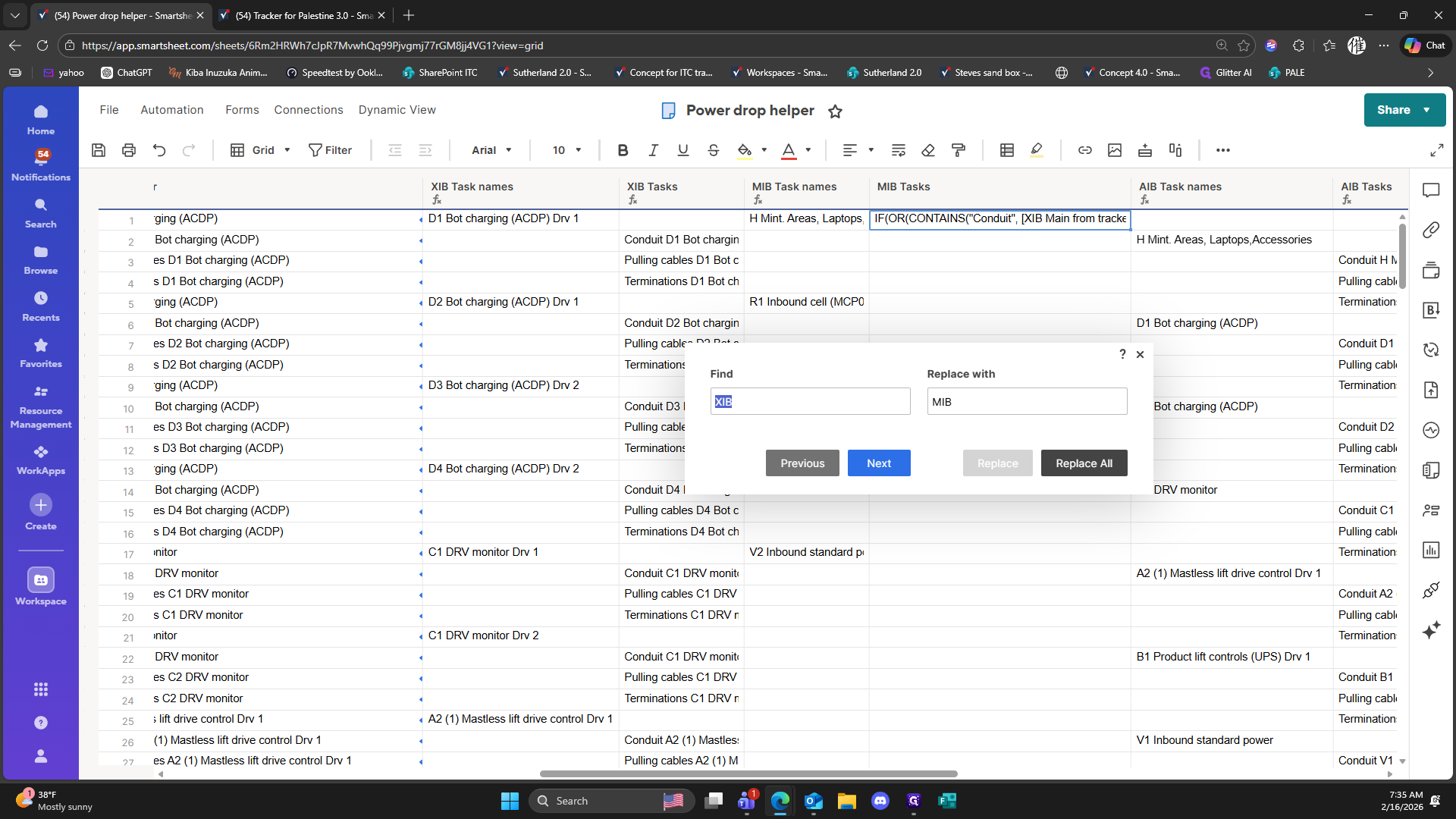
Type "Ctrl + F"
85
Click on "Replace All"
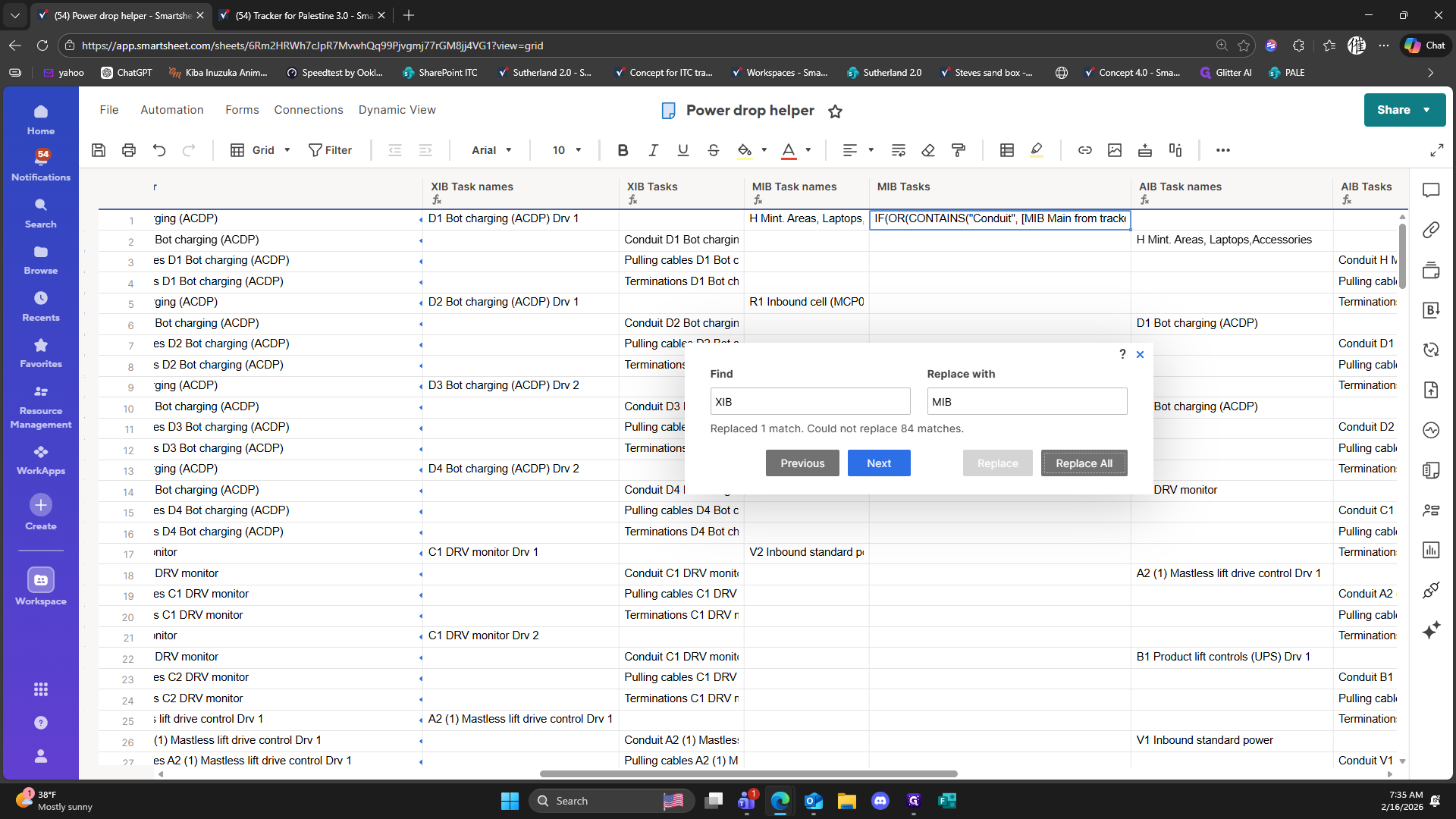
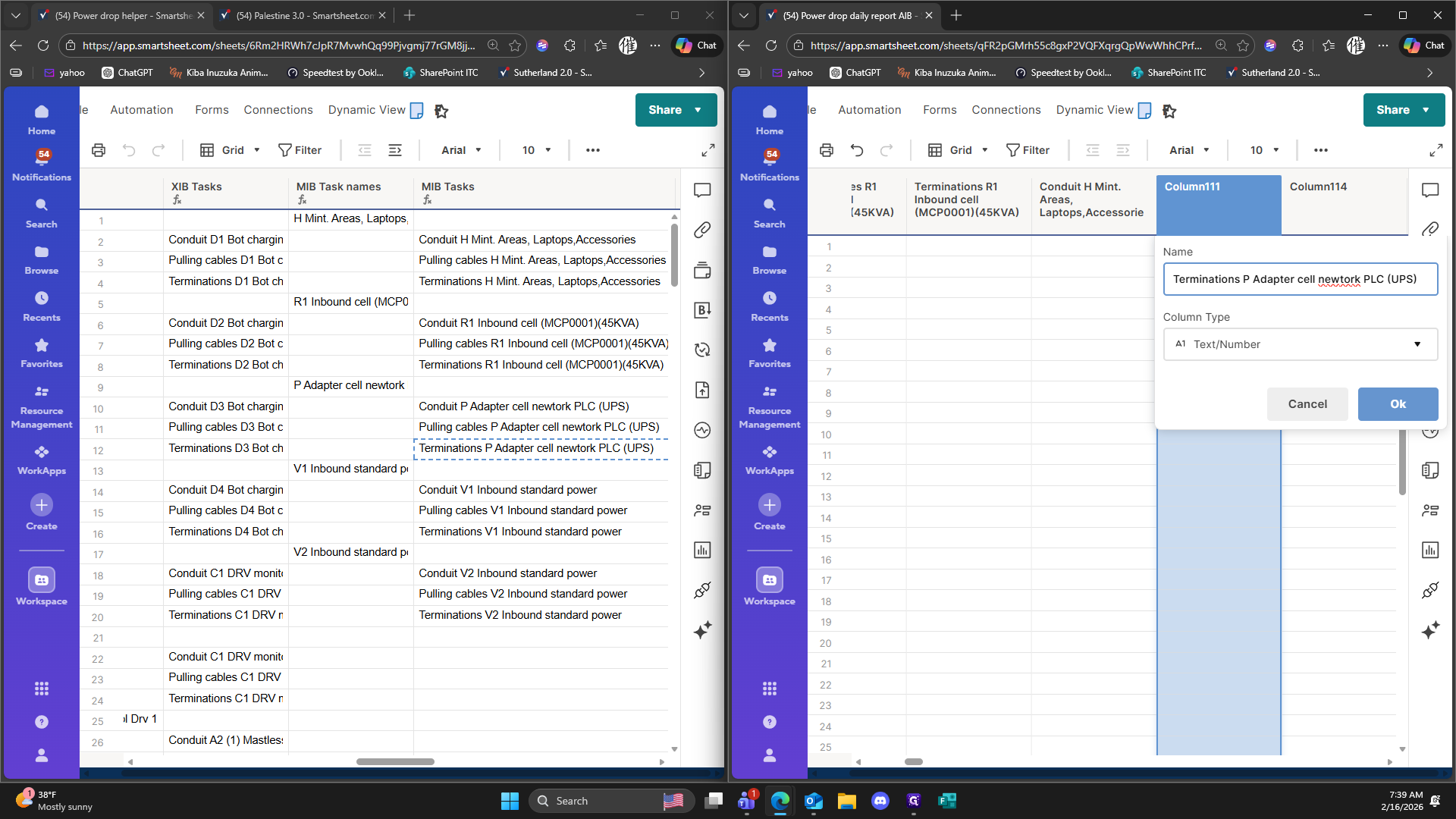
86
Click on "? ×"
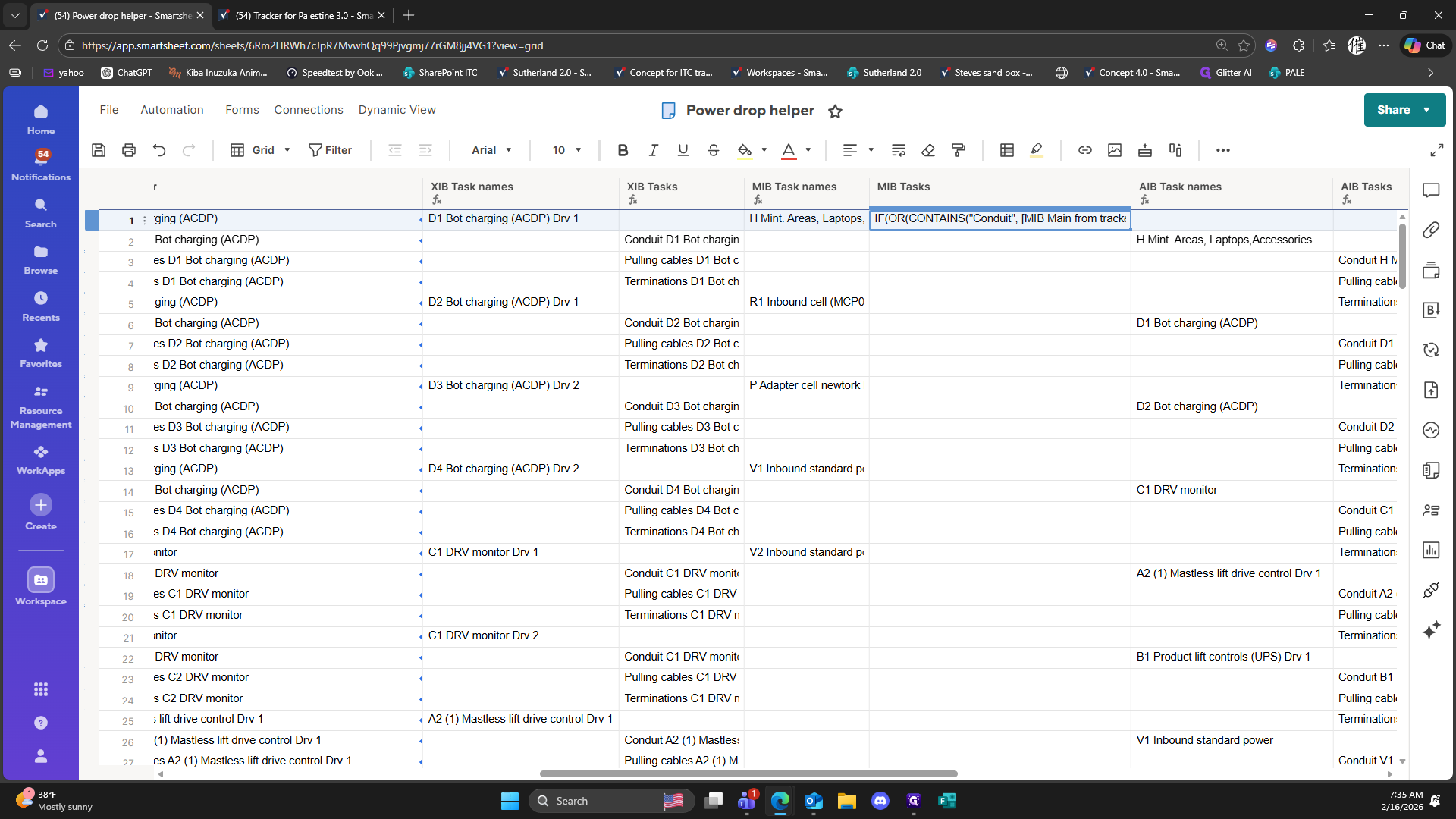
87
Double-click on """
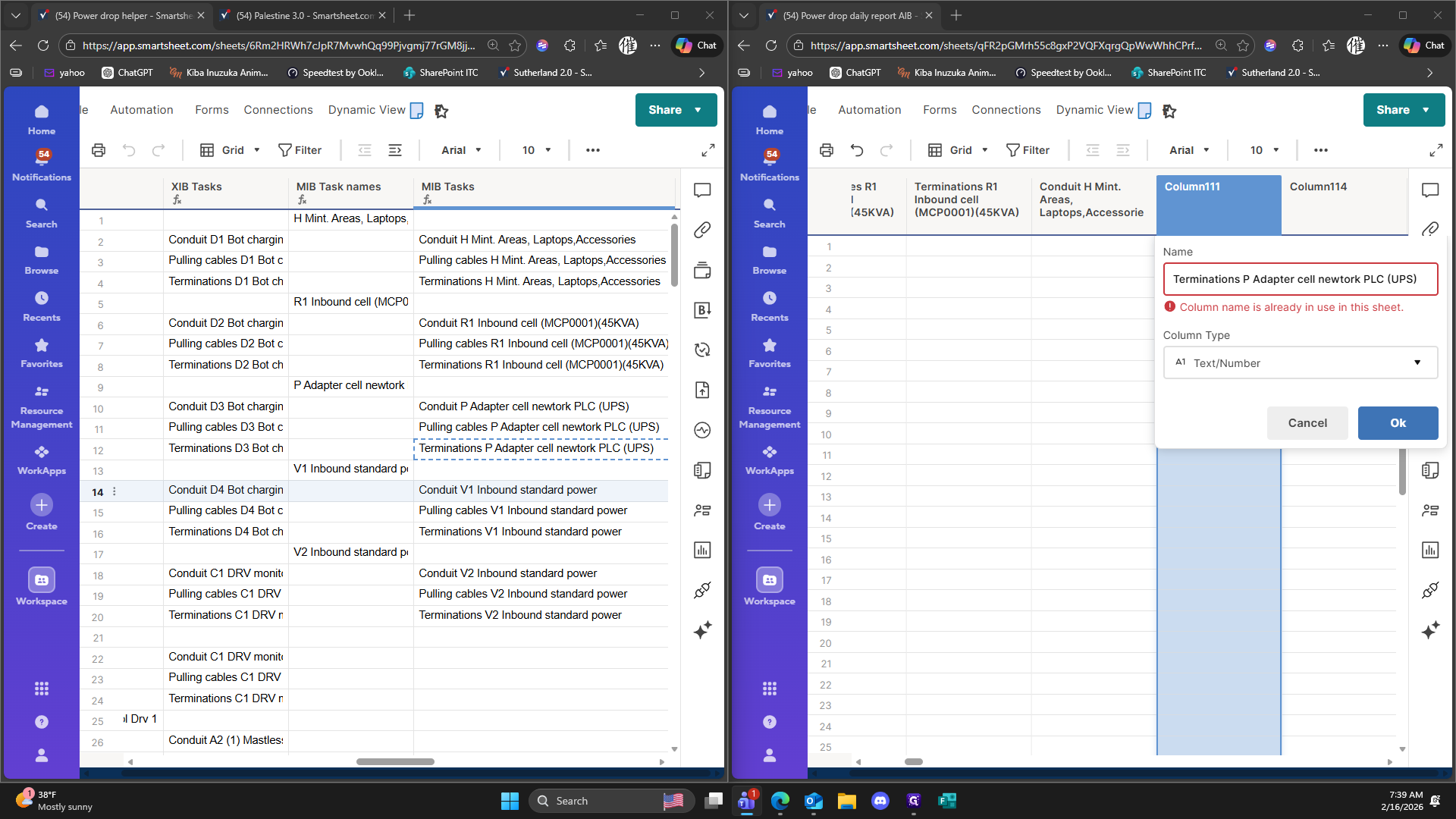
88
Click on ","
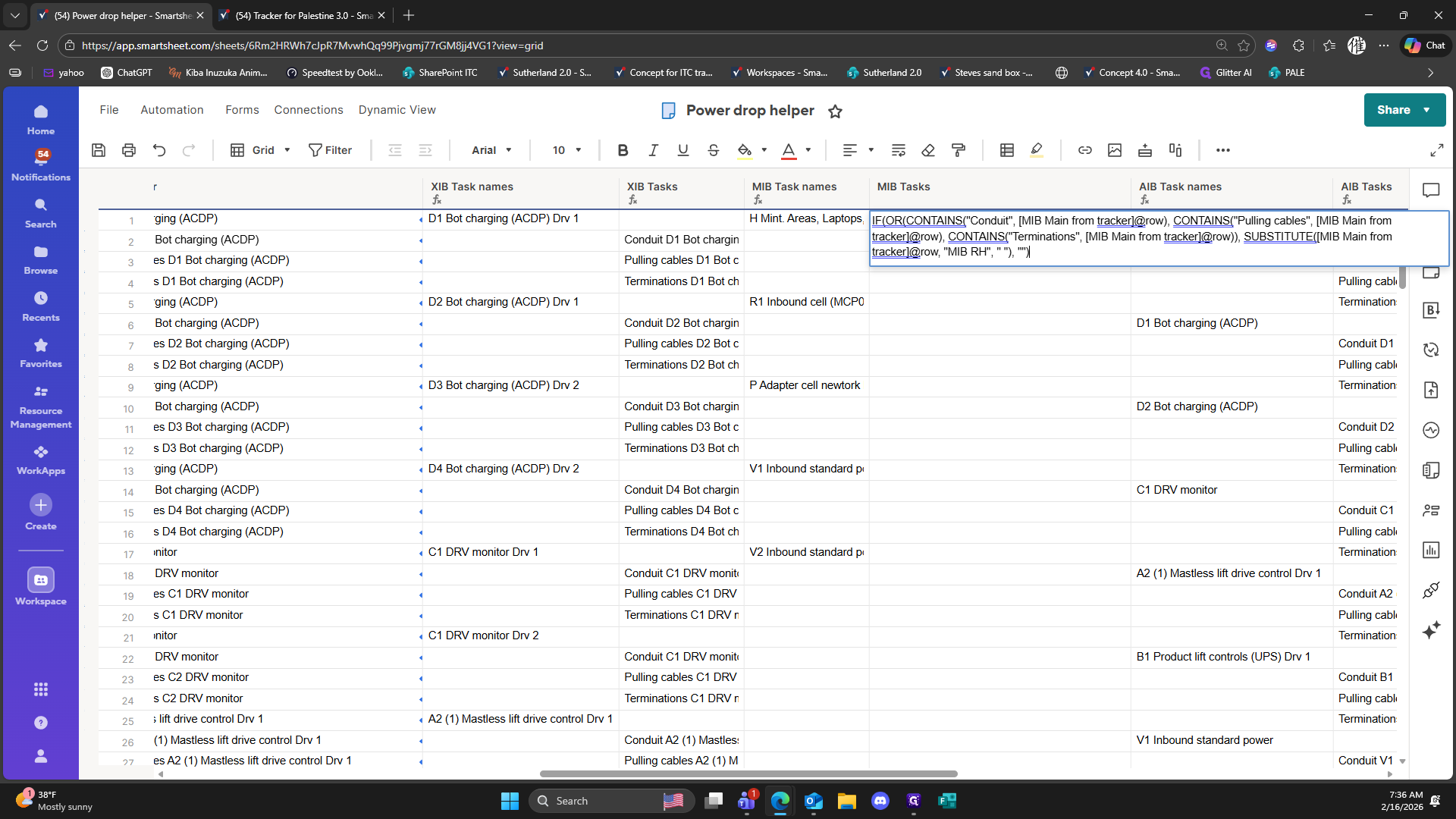
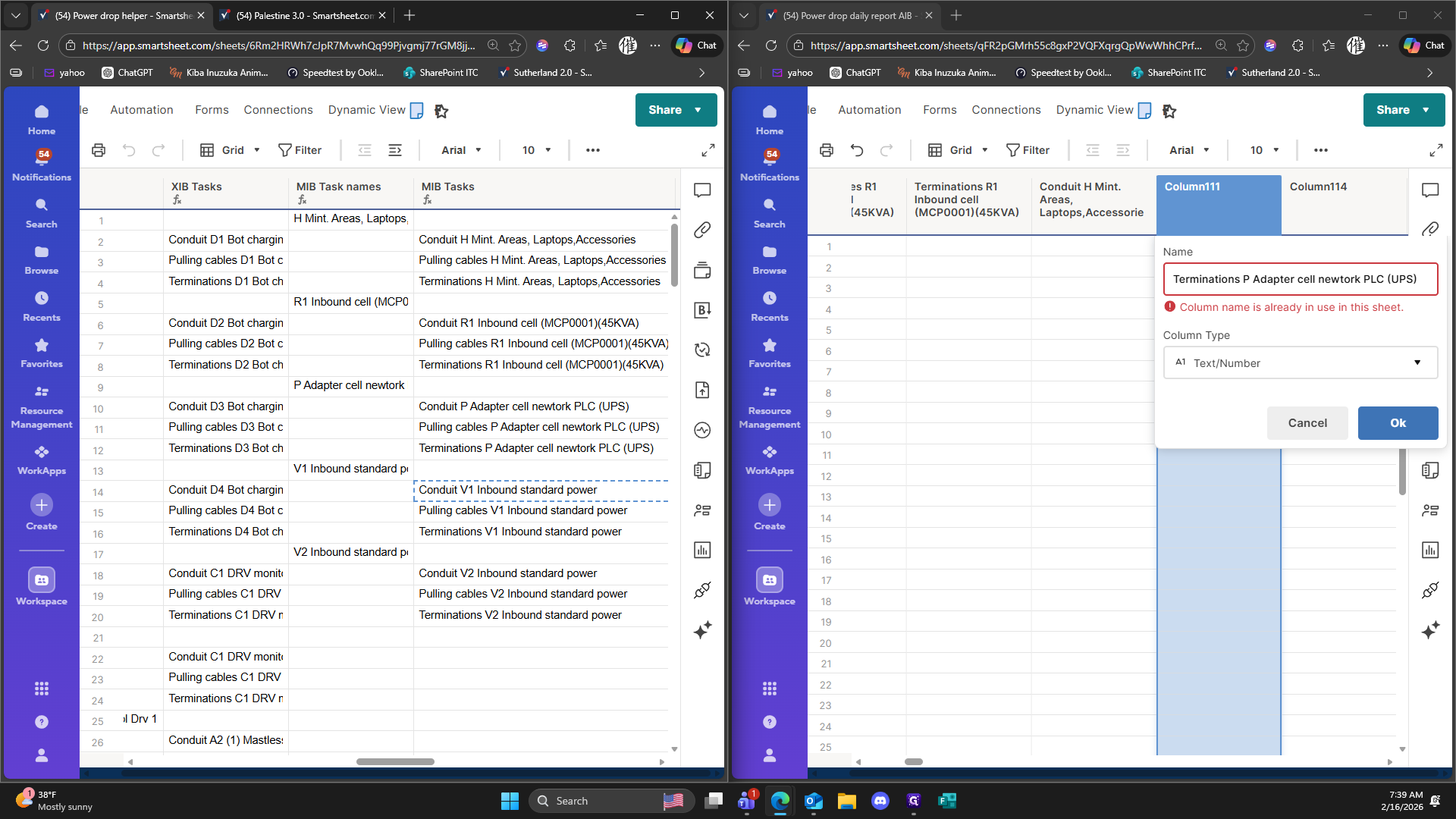
89
Type "Backspace"
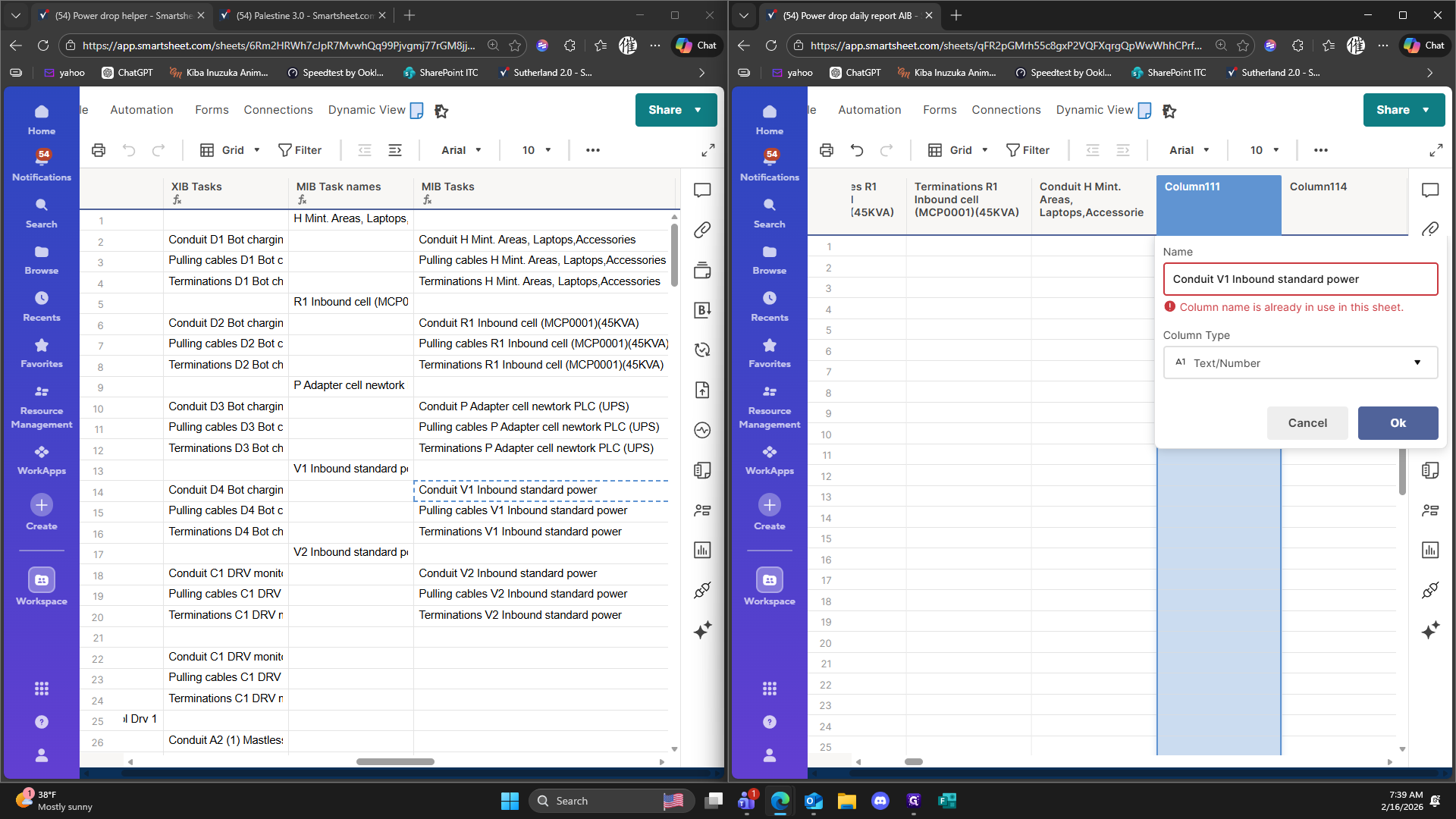
90
Type "L"
91
Click on "IF"
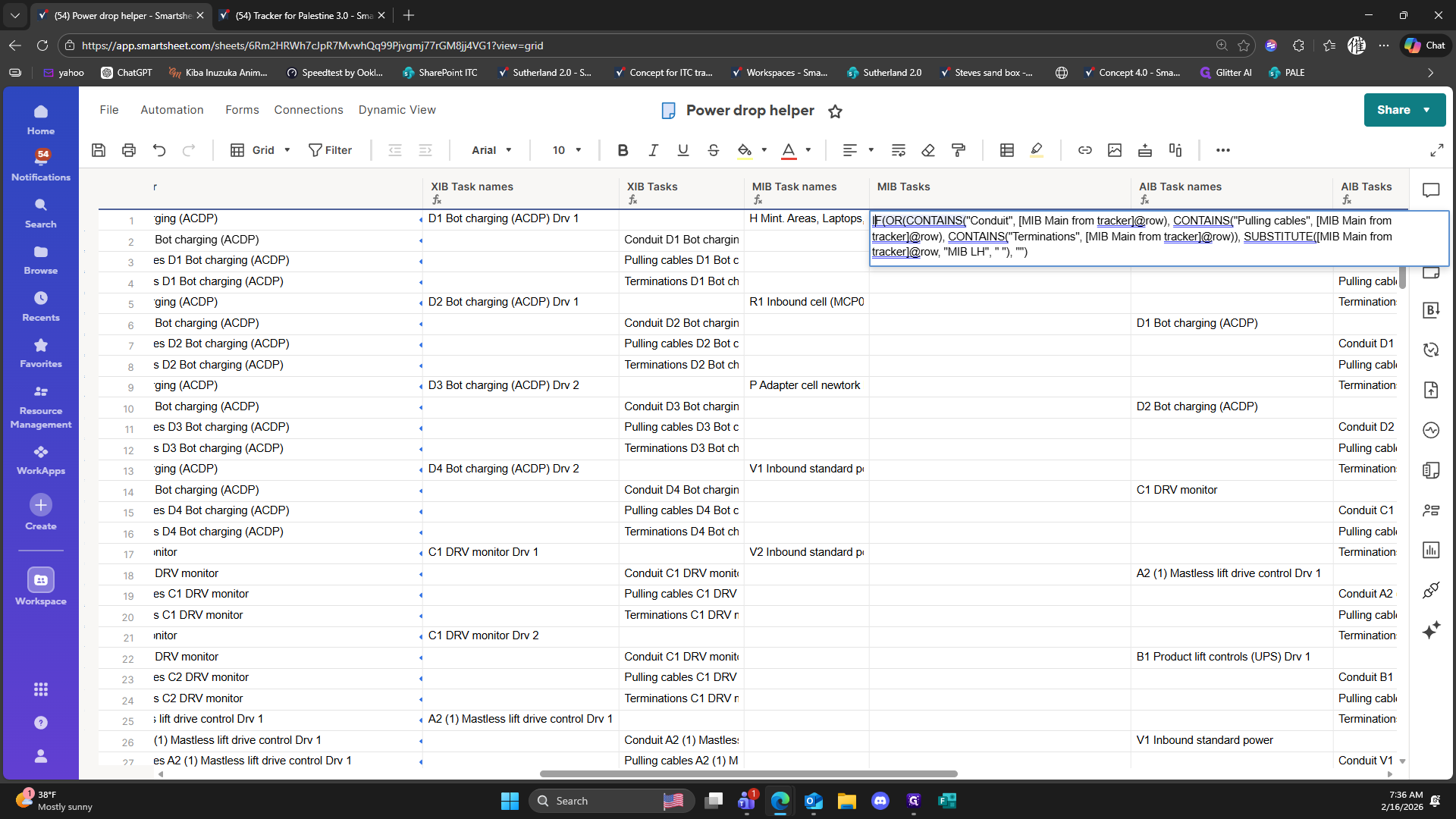
92
Type "= + Enter"
93
Double-click here
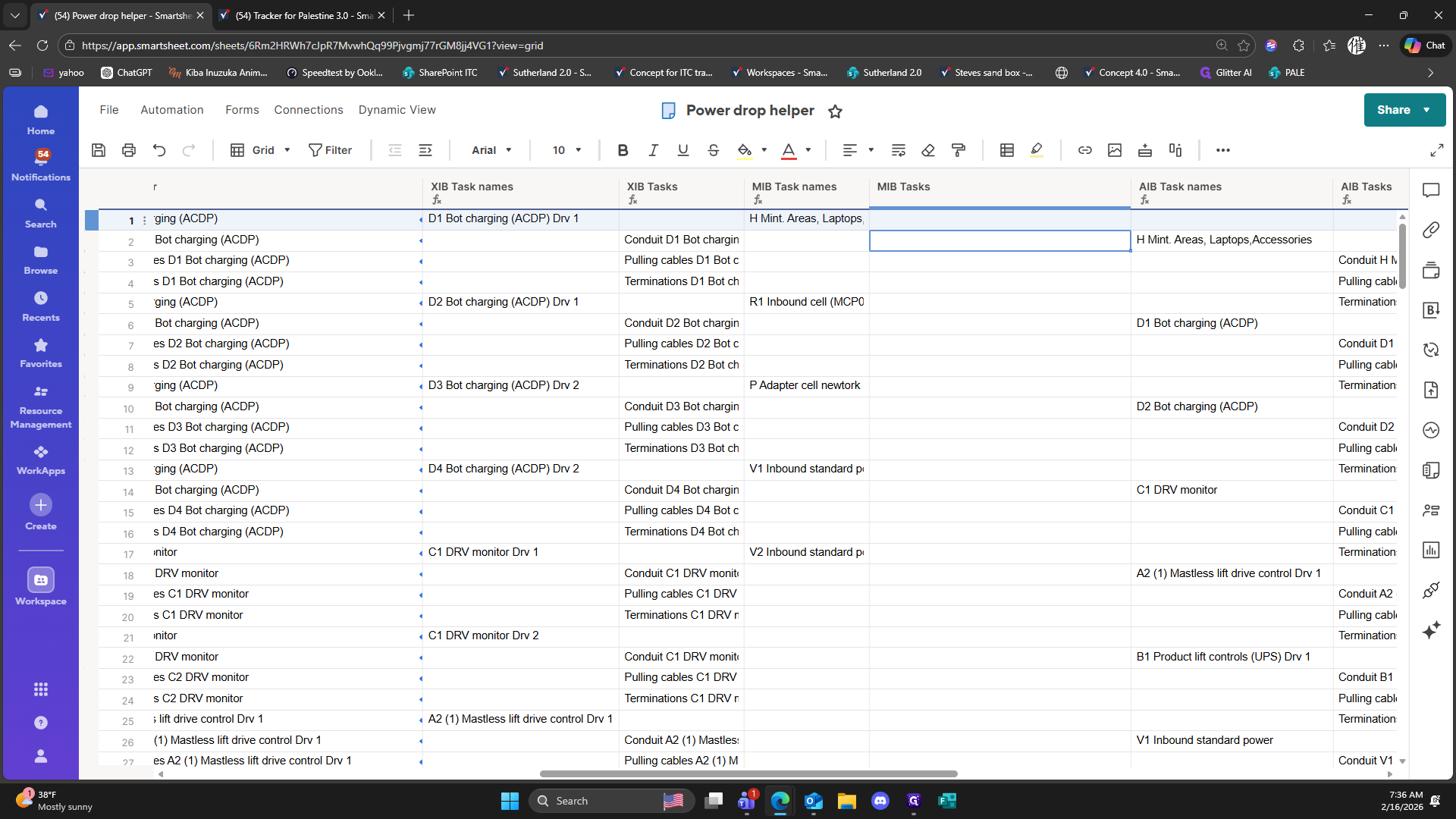
94
Right-click here
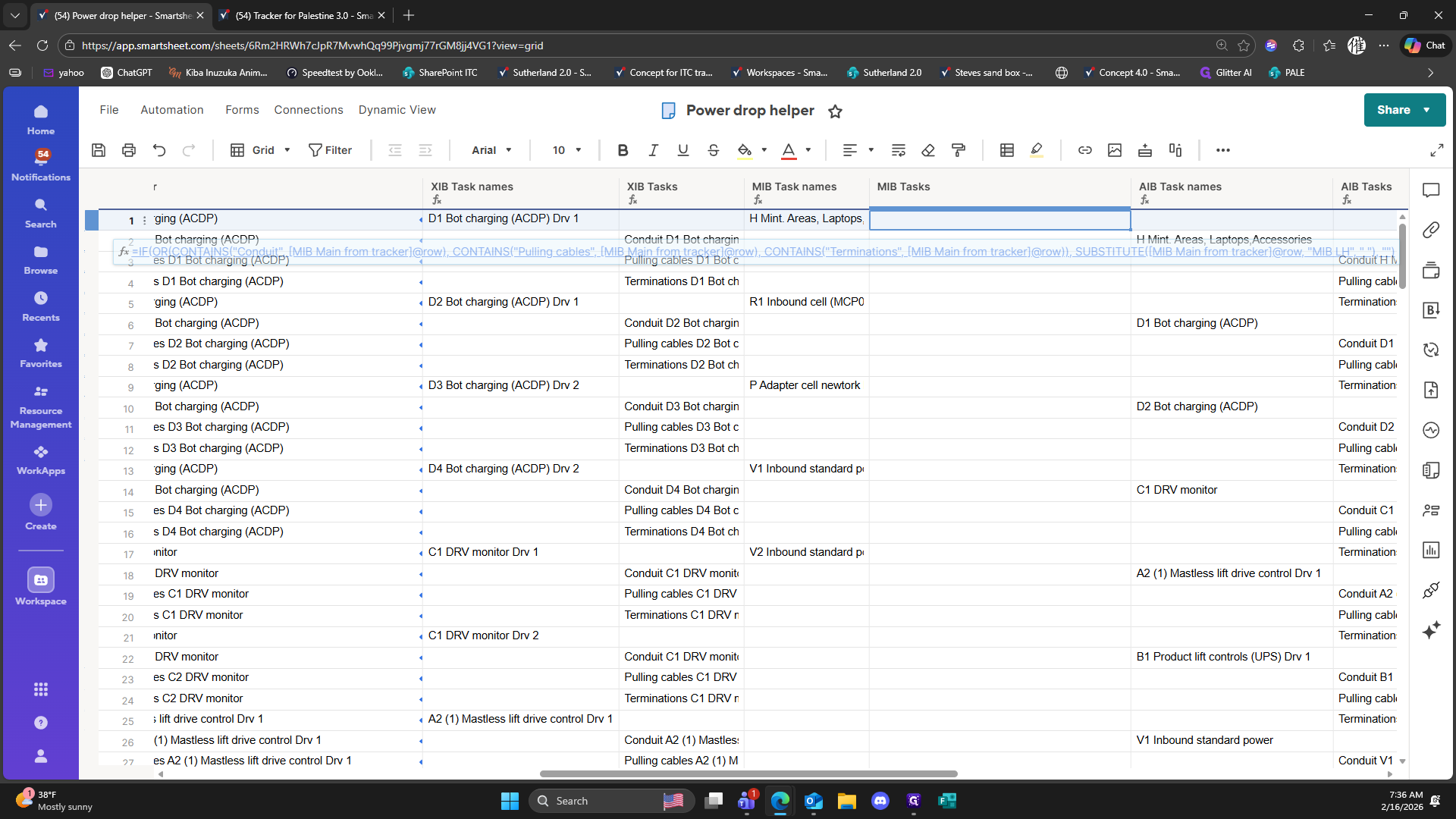
95
Click on "fx Convert to Column Formula"
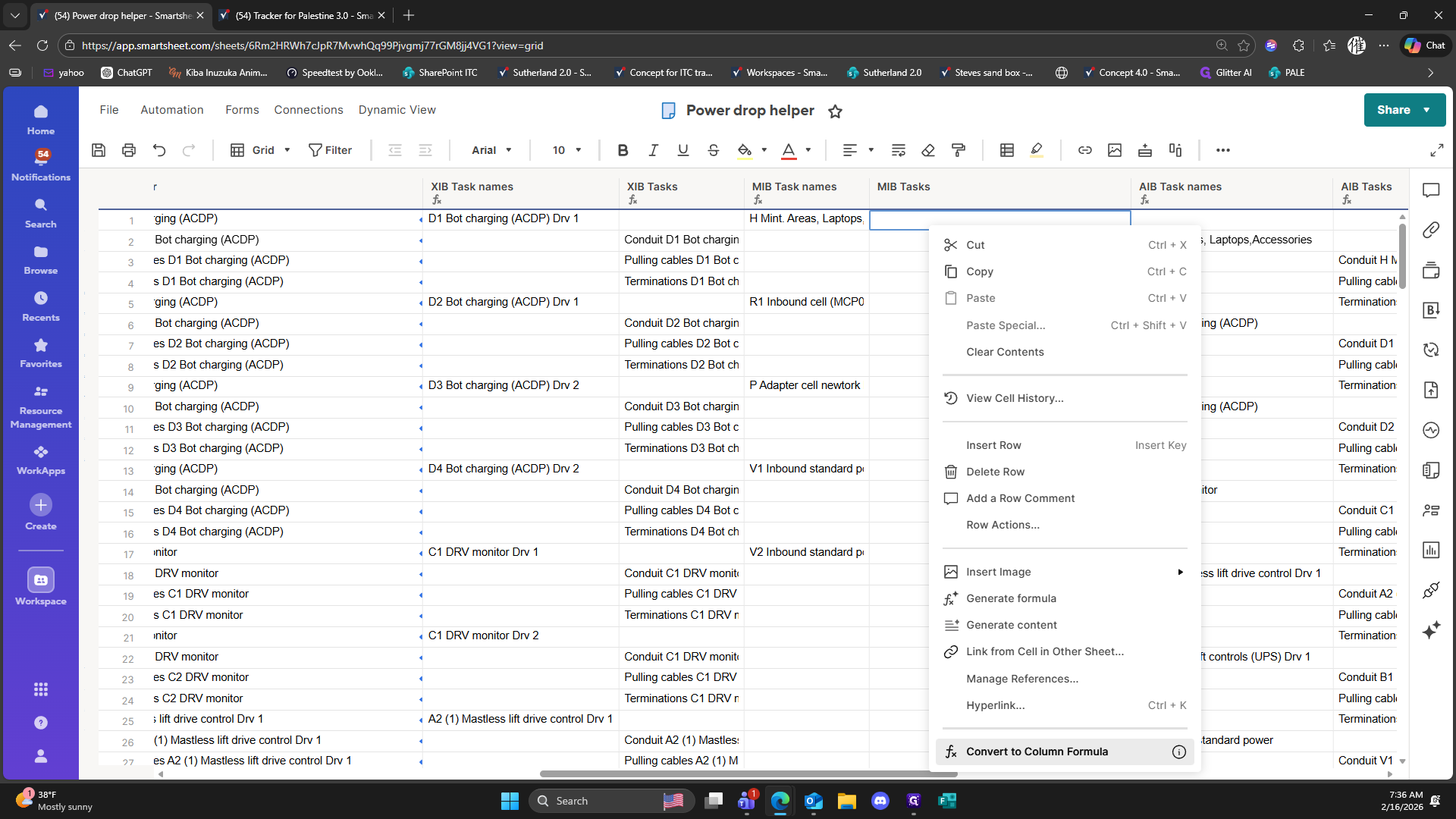
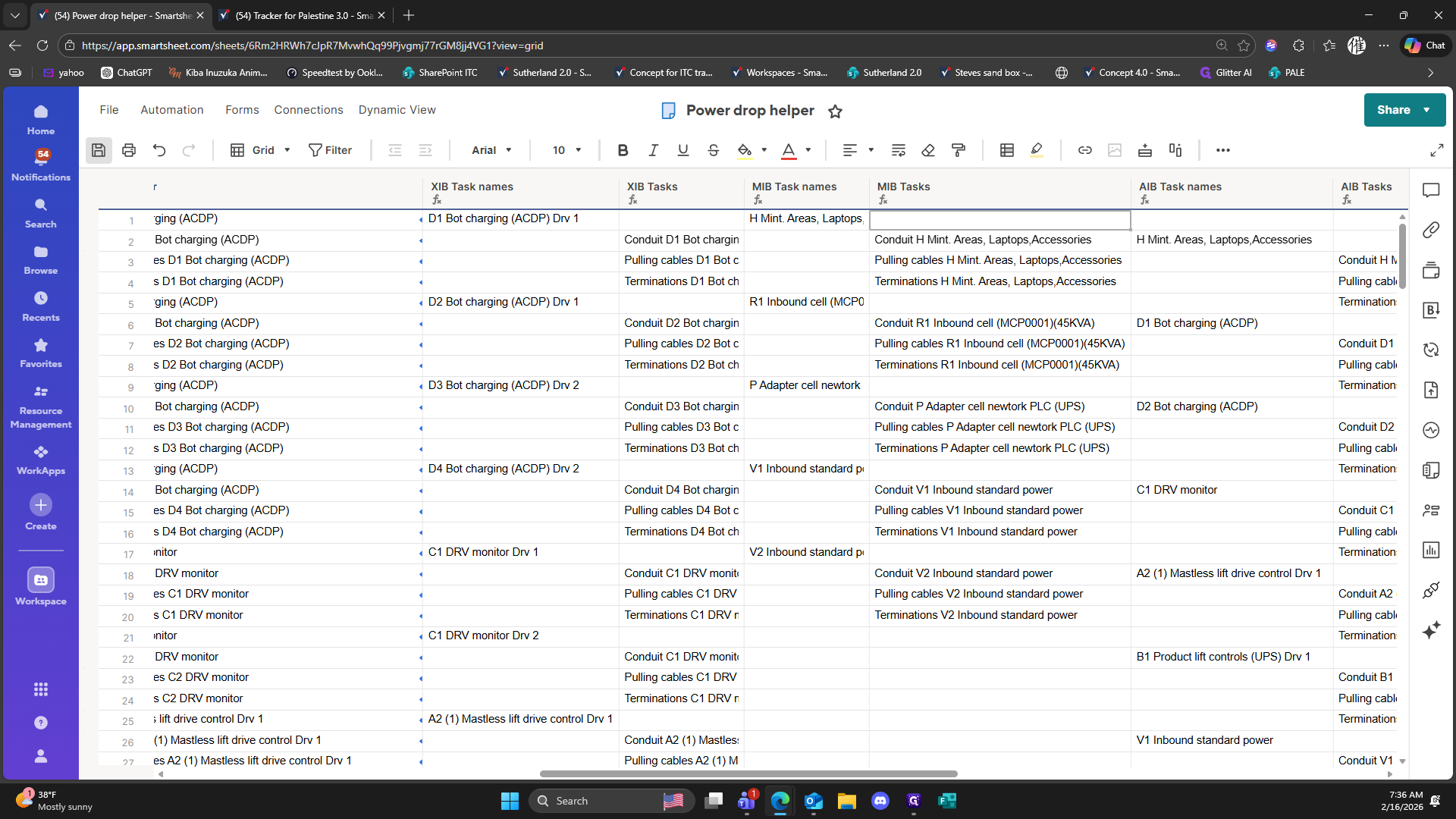
96
Click here
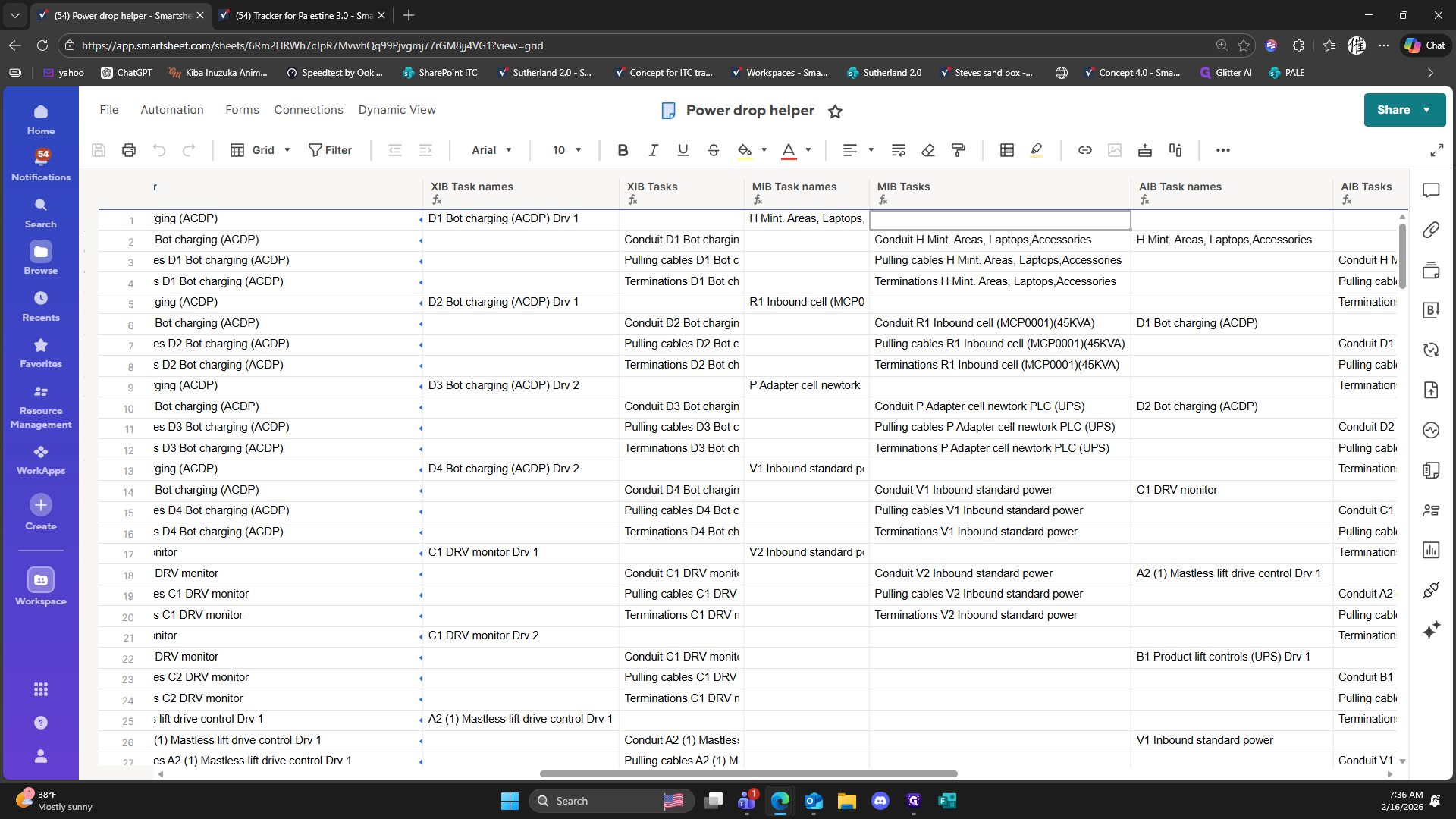
97
Click on "Browse"
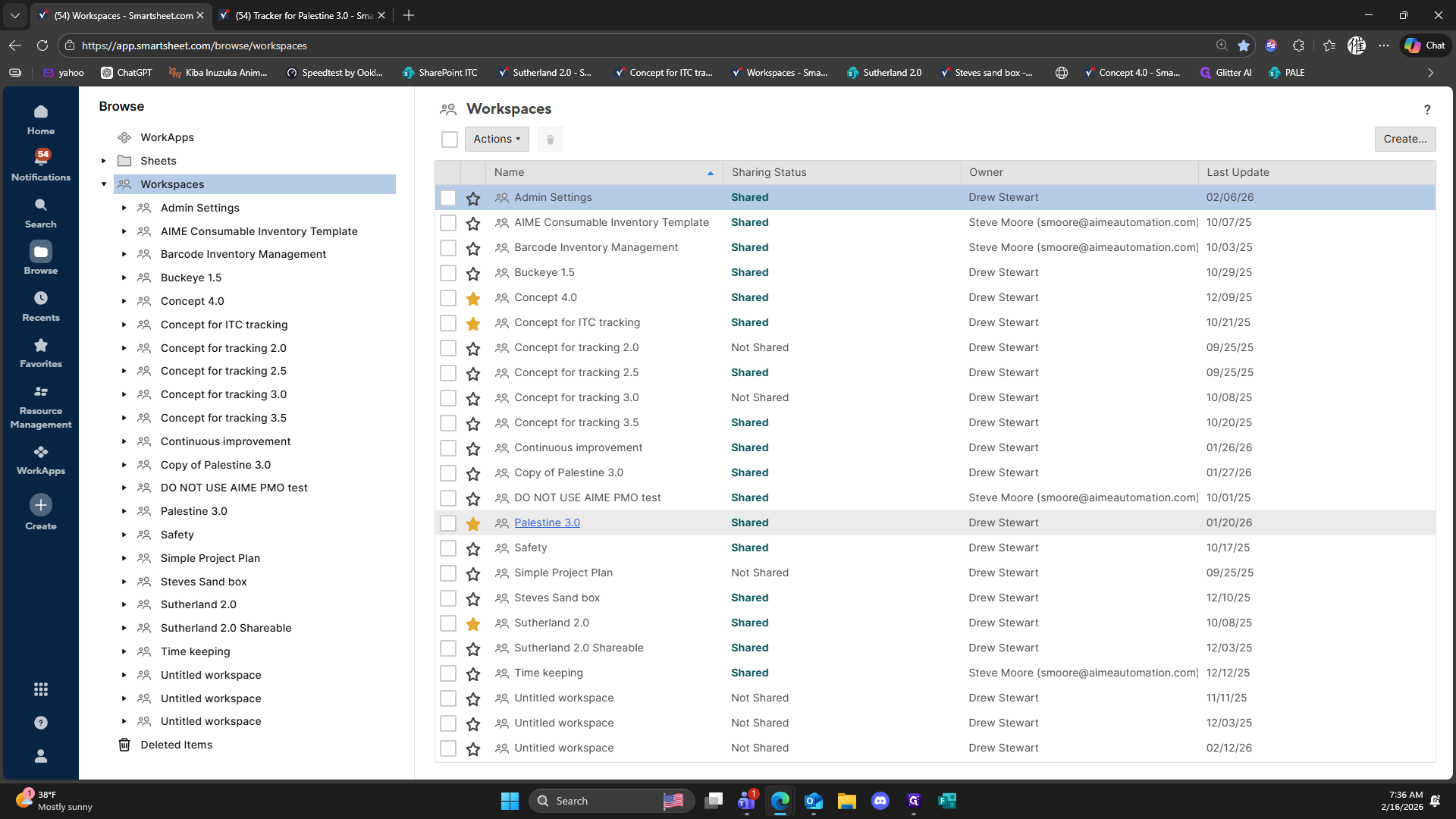
98
Click on "Palestine 3.0"
99
Click on "Daily reporting"
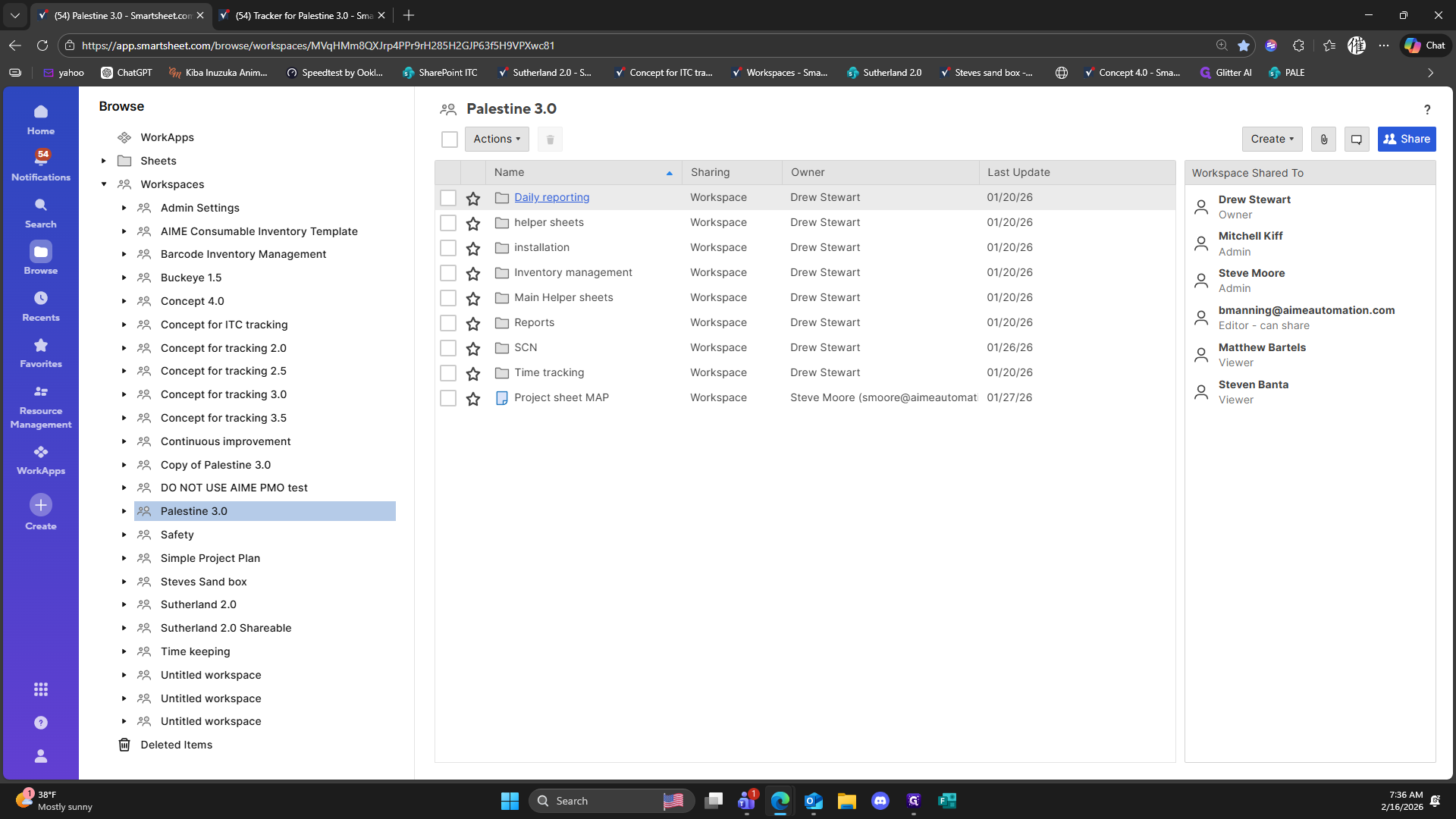
100
Click on "Power drop daily report AIB"
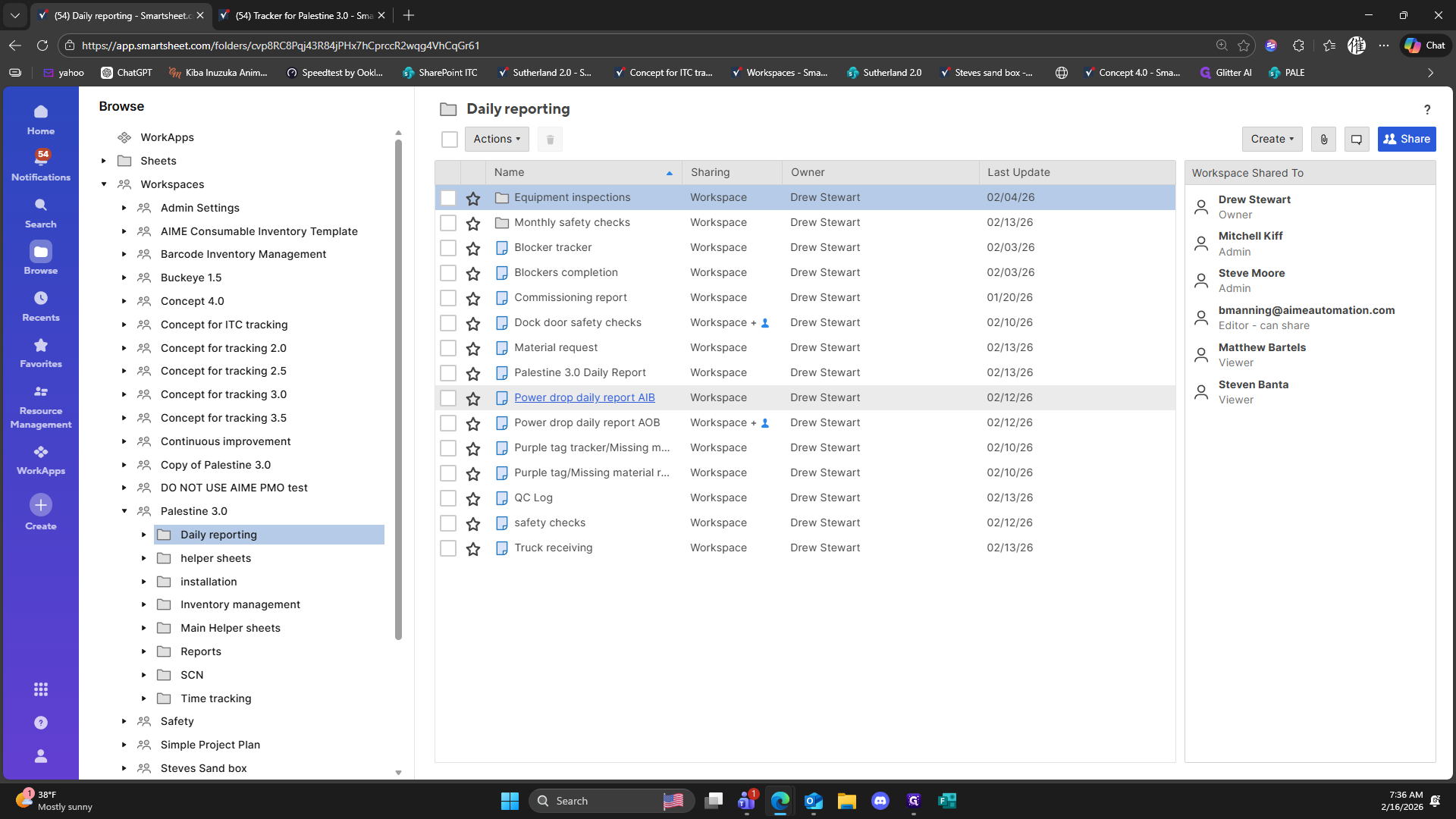
101
Click here
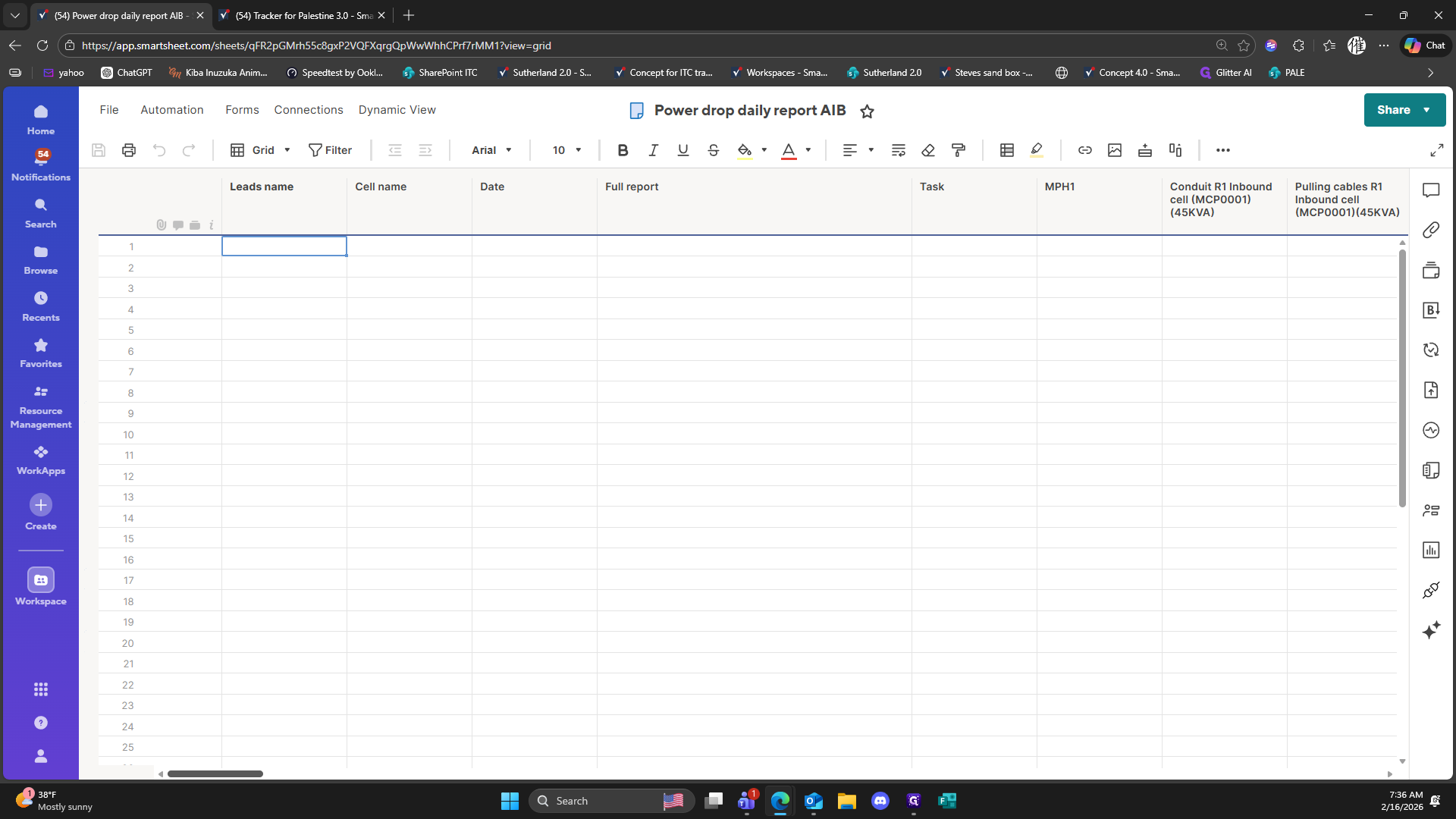
102
Drag here
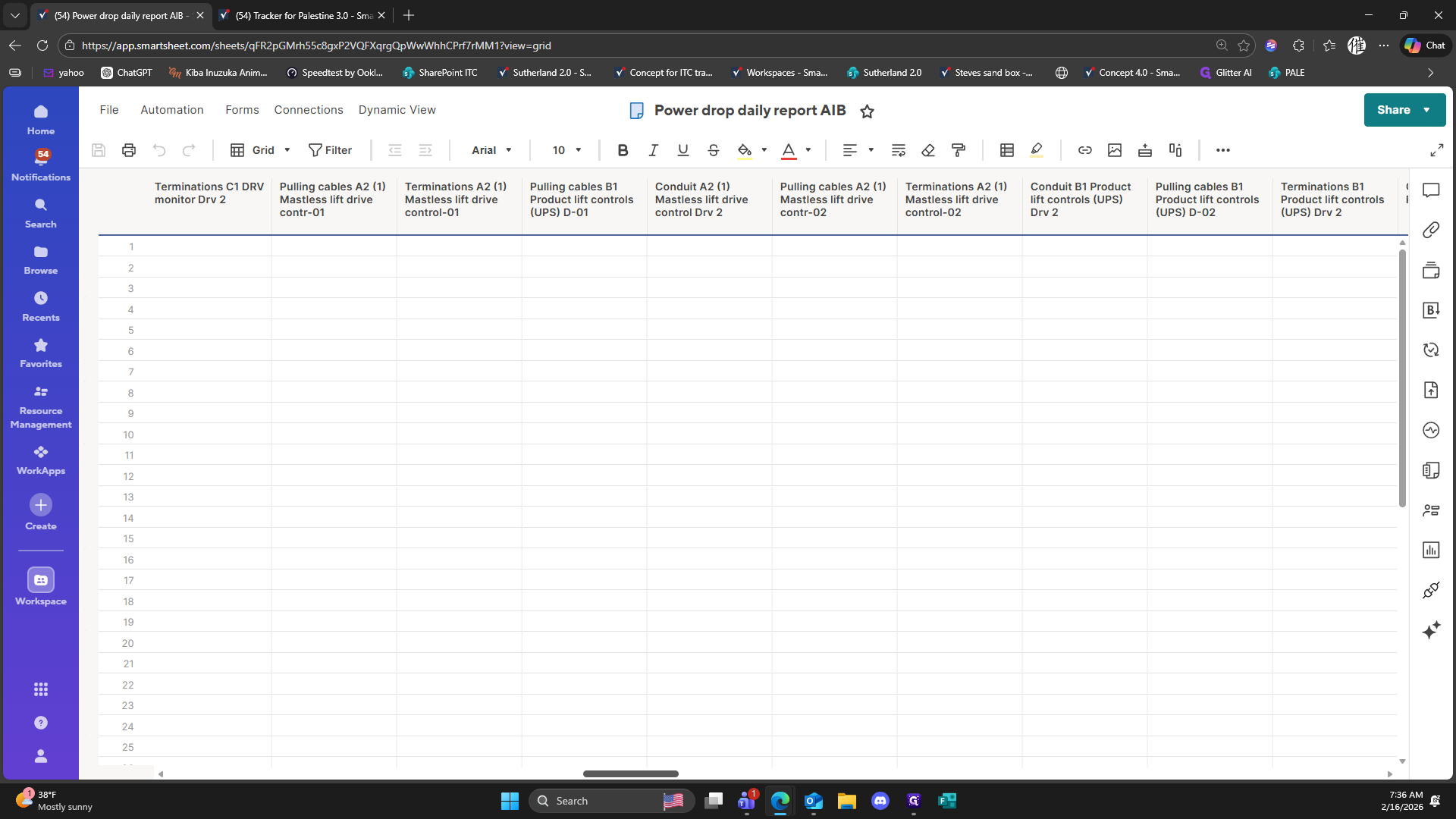
103
Click on "✓ ( 54 ) Tracker for Palestine 3.0 - Sma × +"
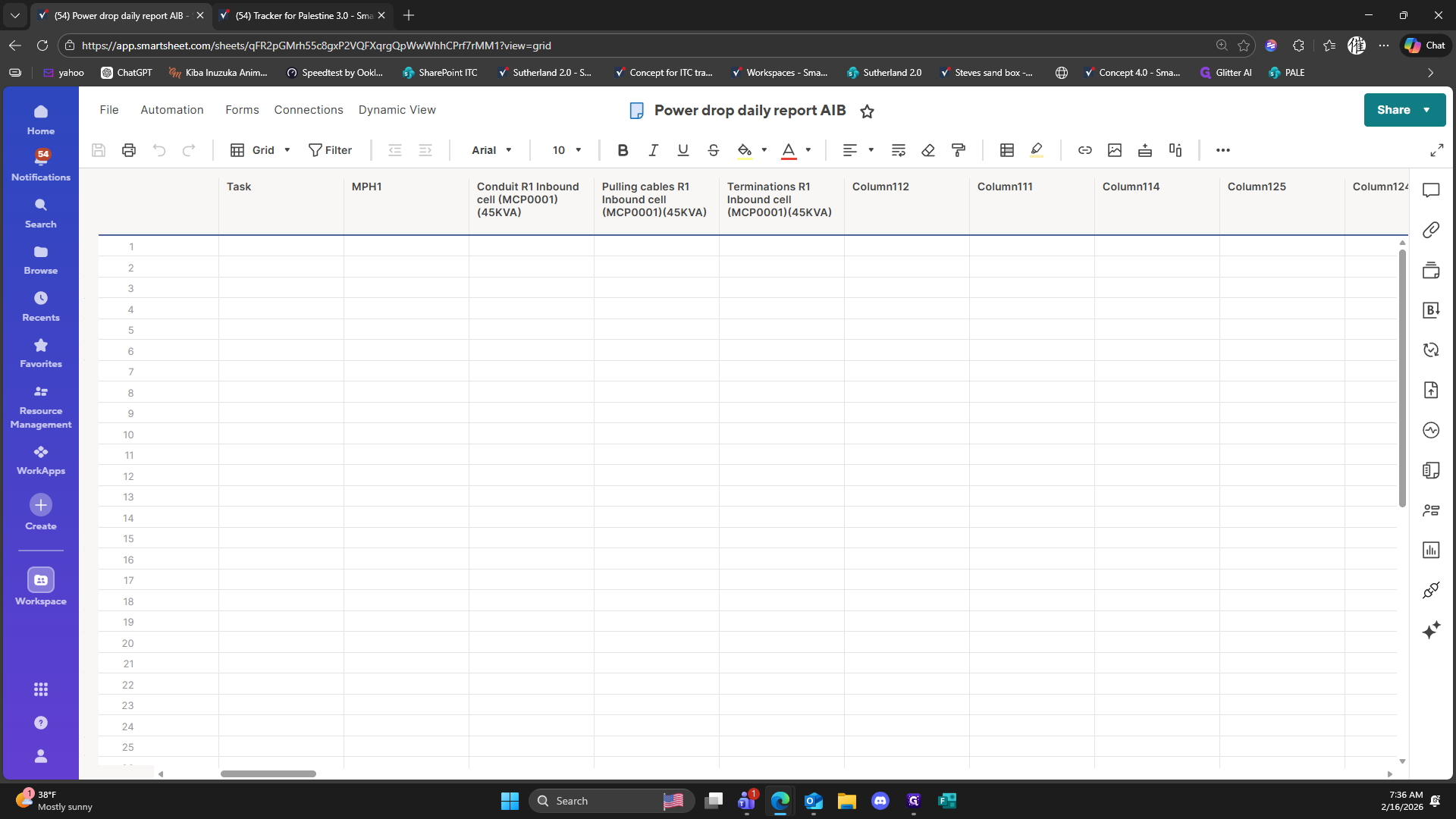
104
Click on "-R1 Inbound"
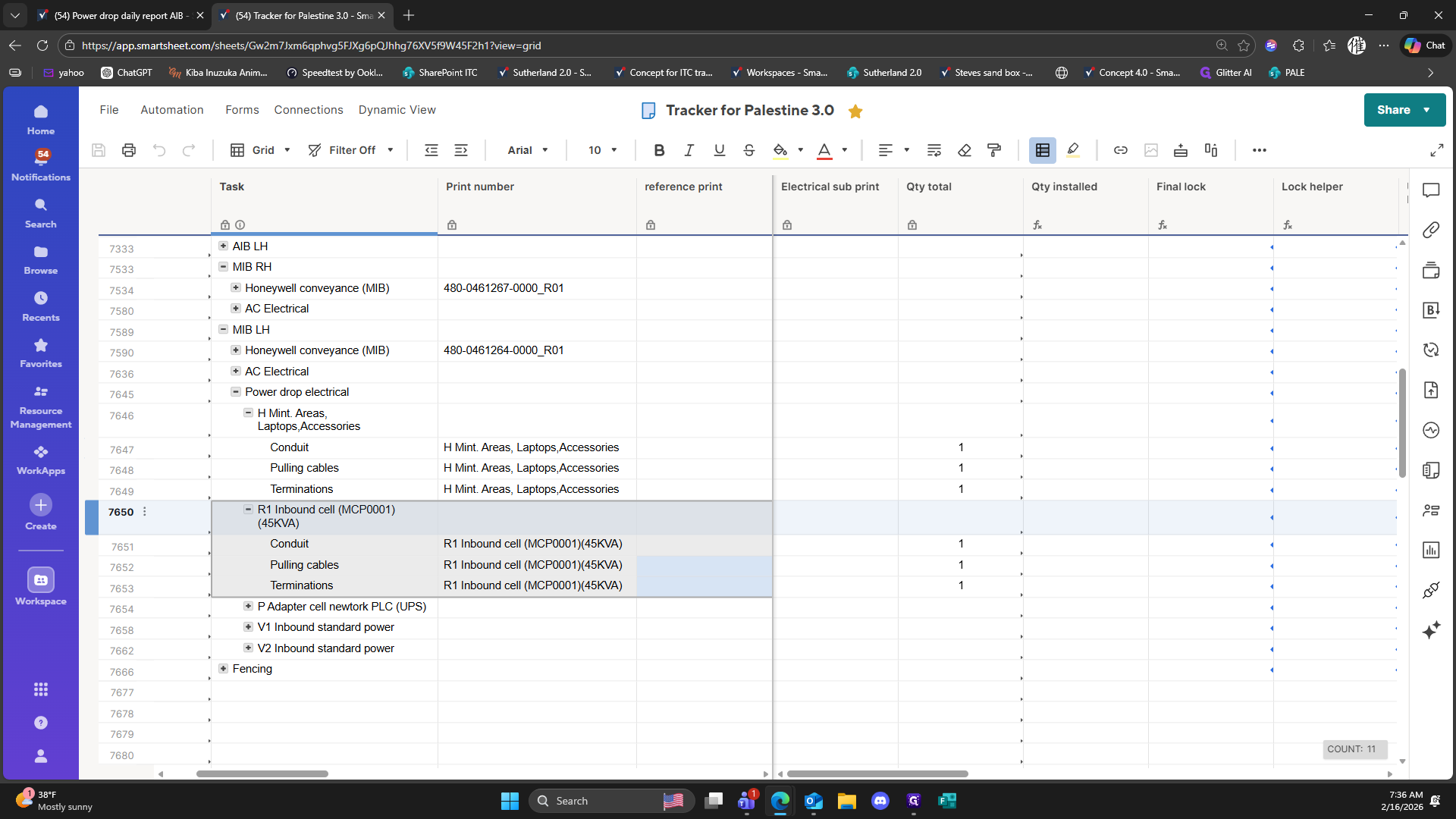
105
Click on "-H"
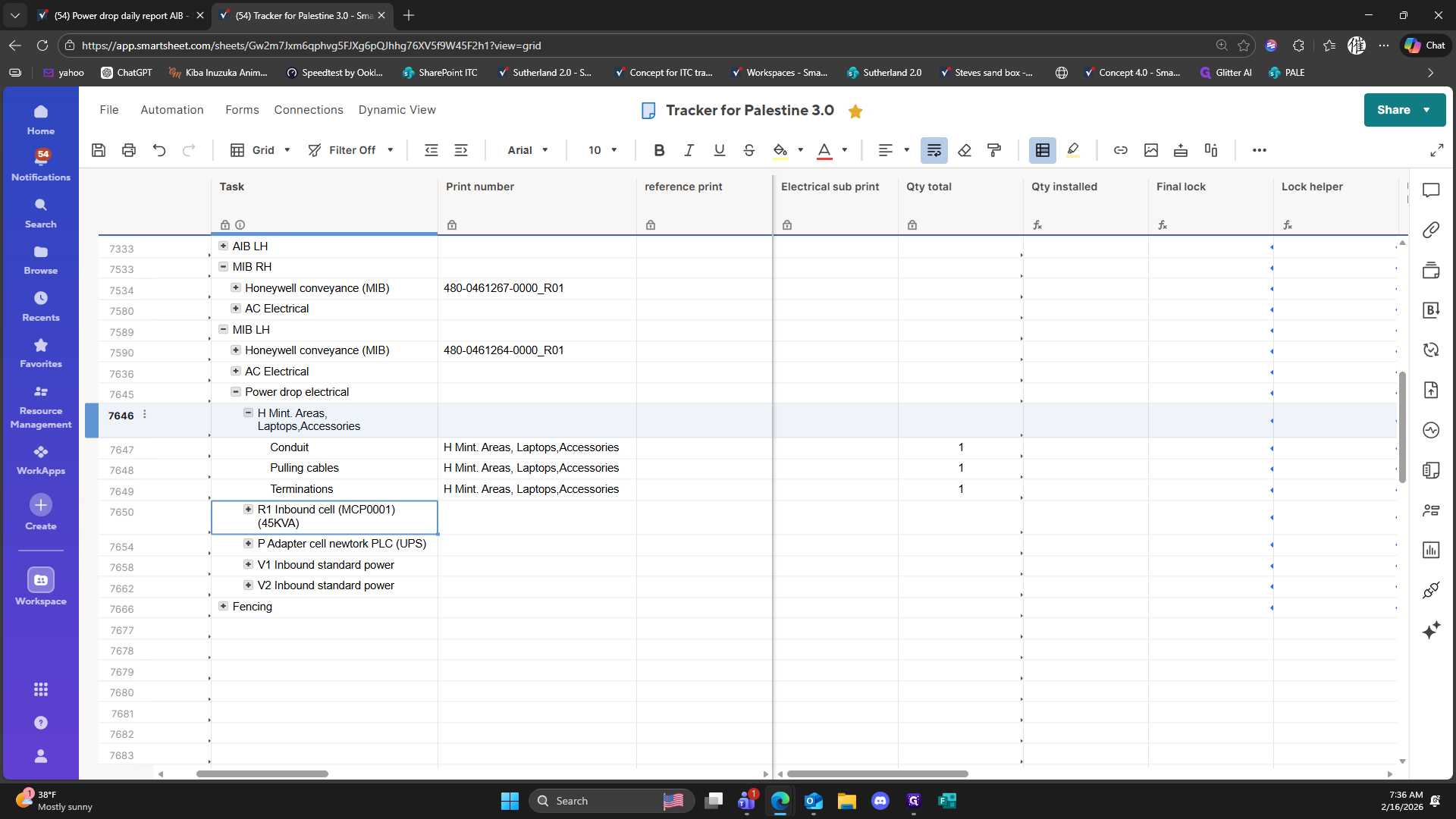
106
Drag "Accessories"
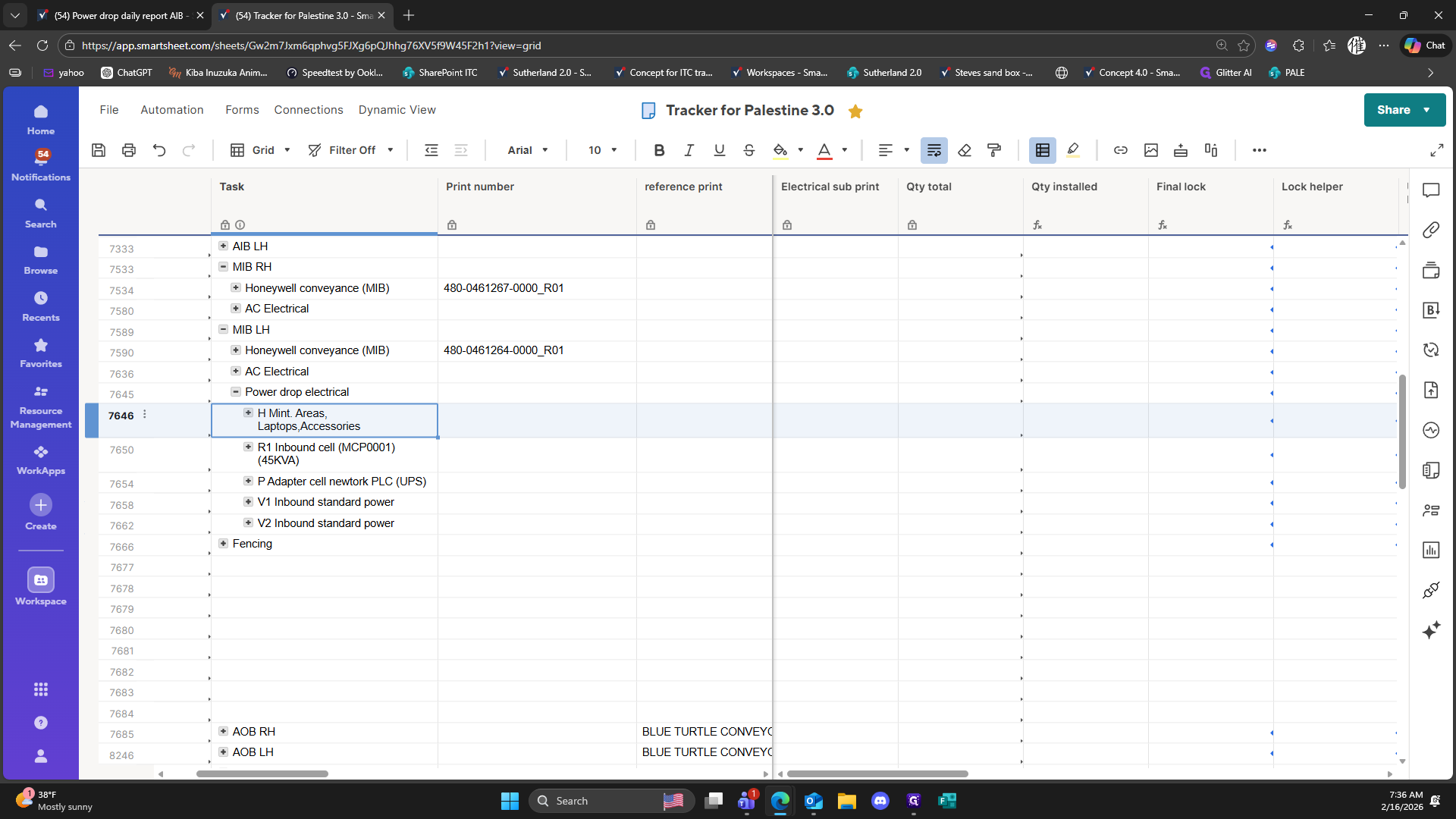
107
Drag "( 54 ) Tracker for Palestine 3.0 - Sma X"
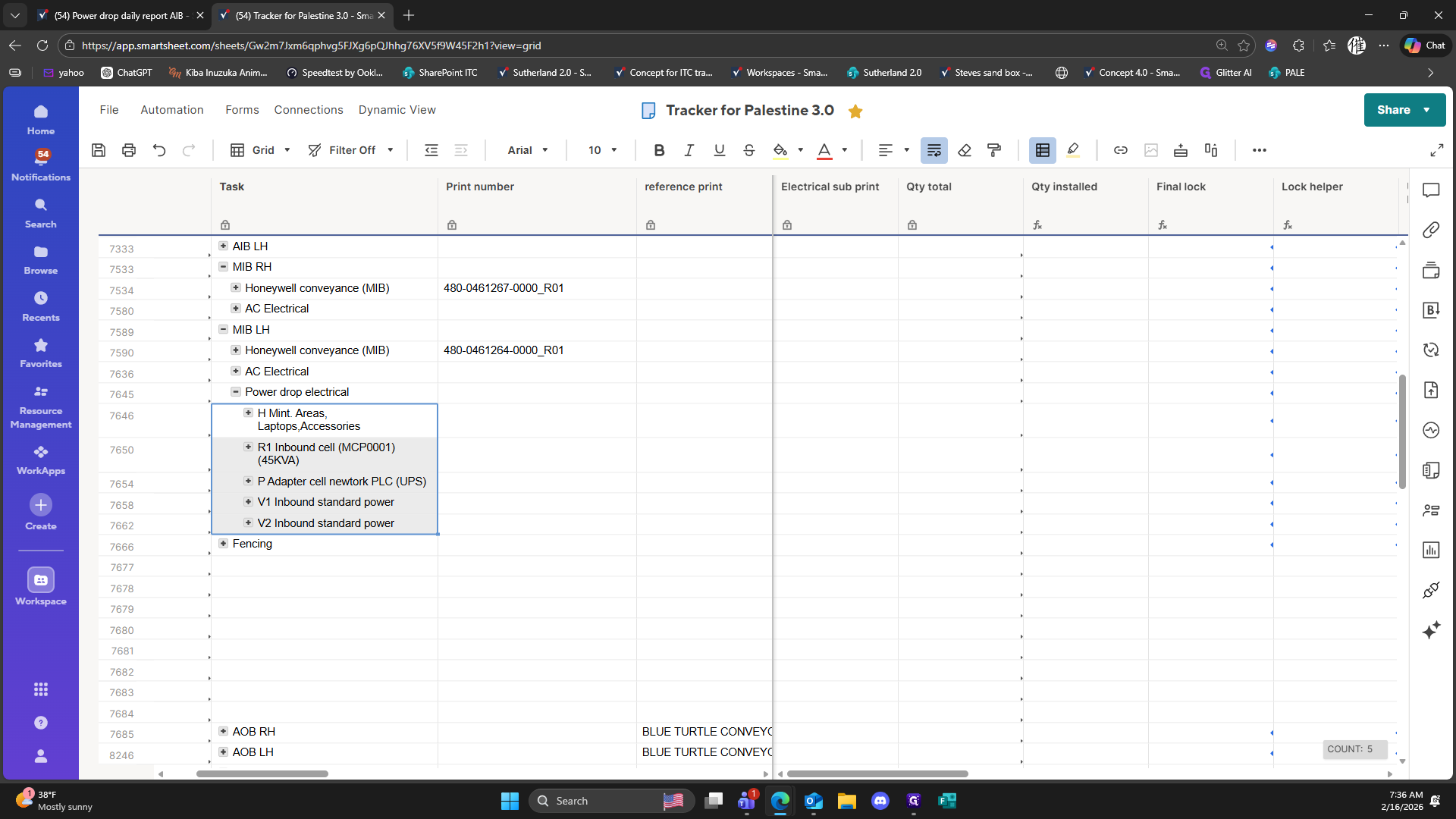
108
Click here
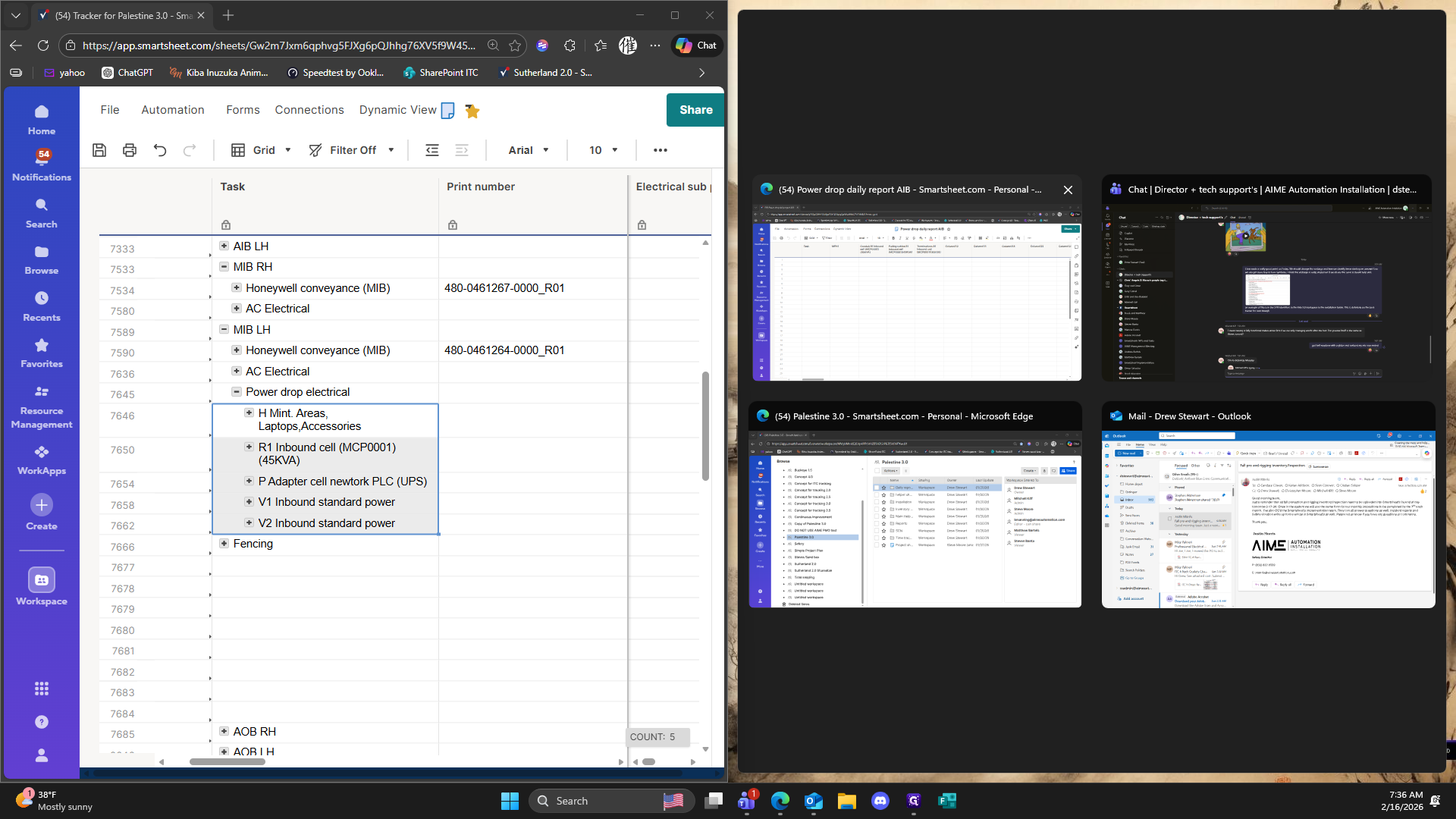
109
Click on "( MCP0001 )"
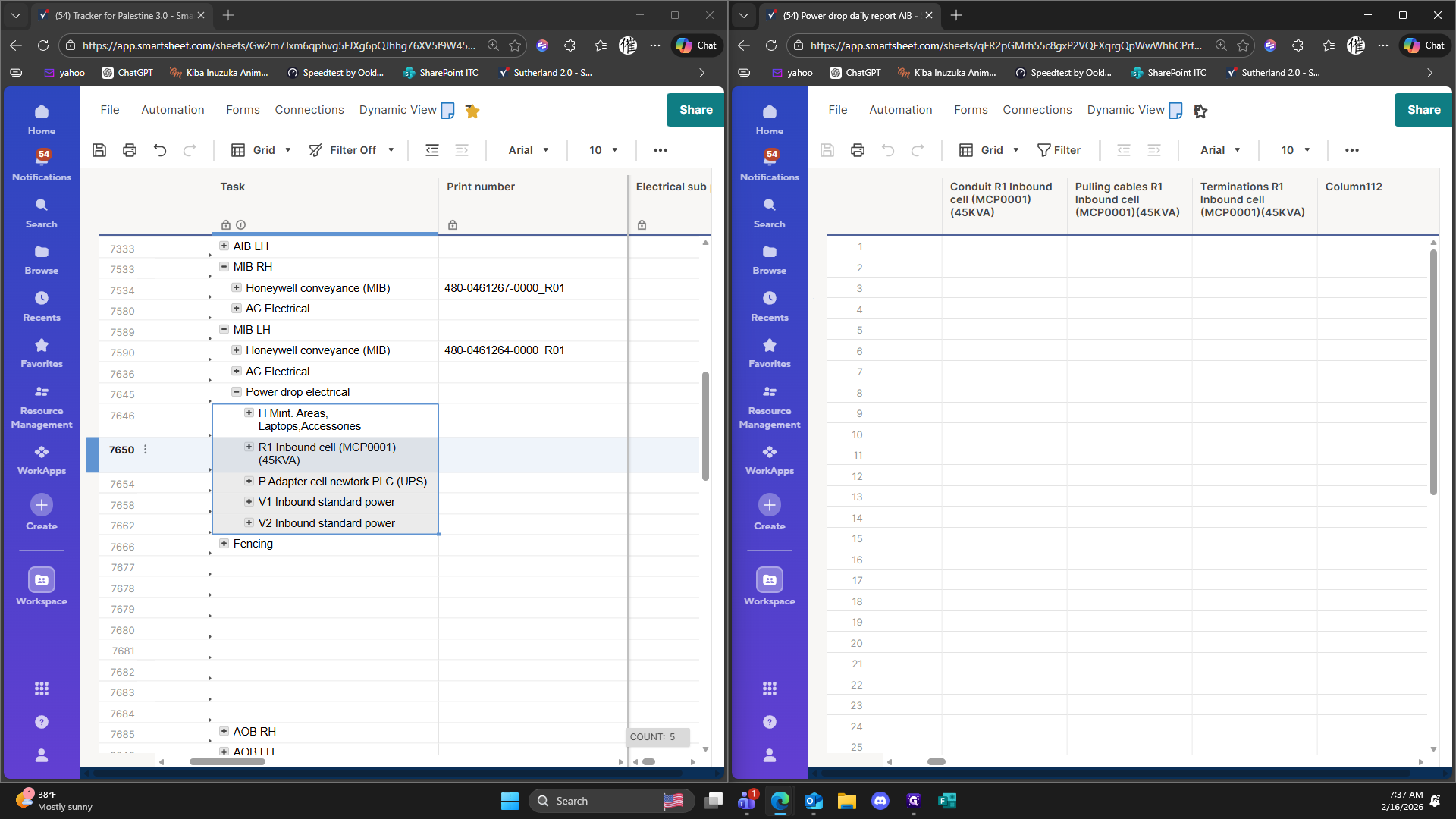
110
Click on "+ H Mint"
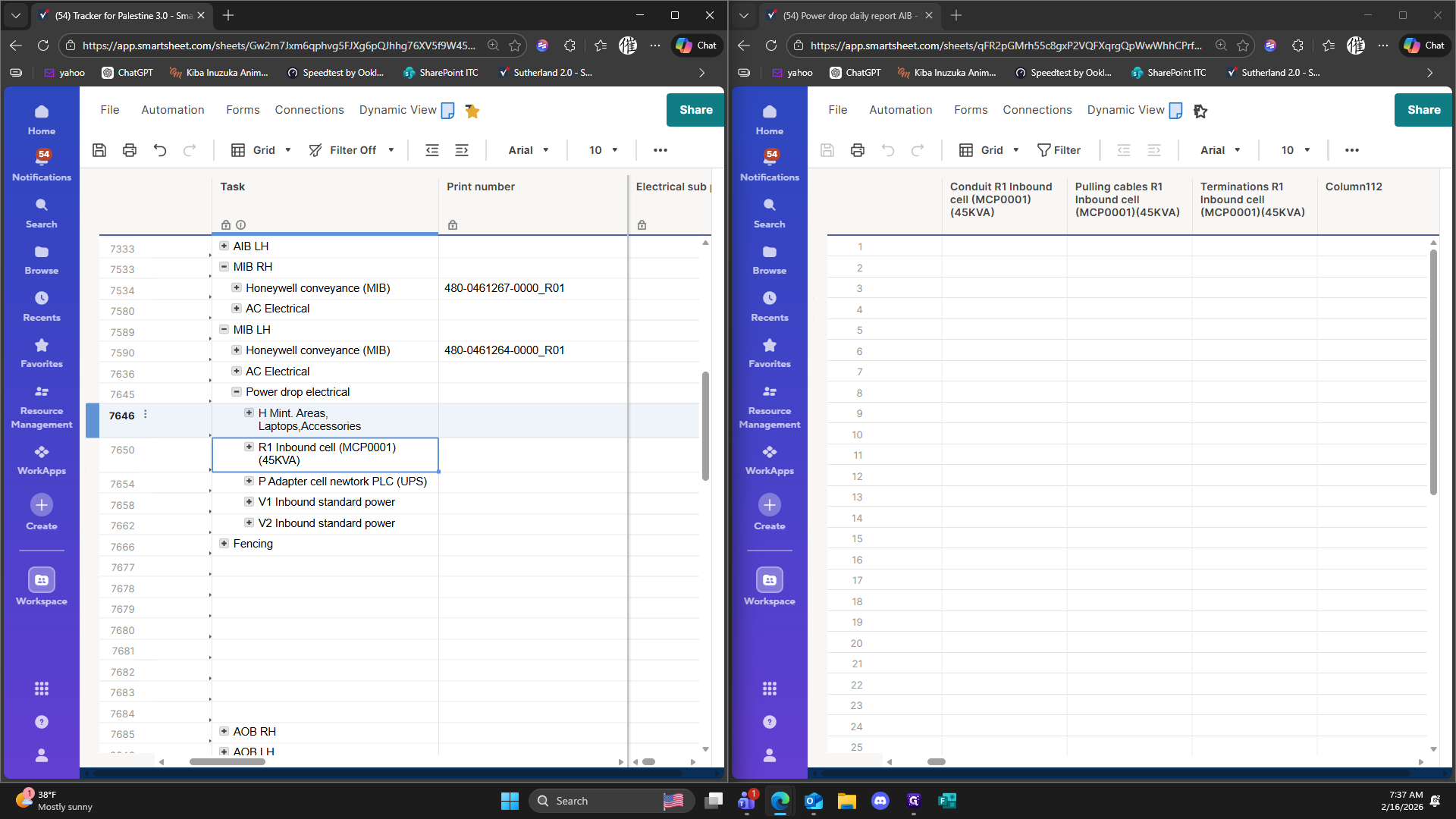
111
Click on ","
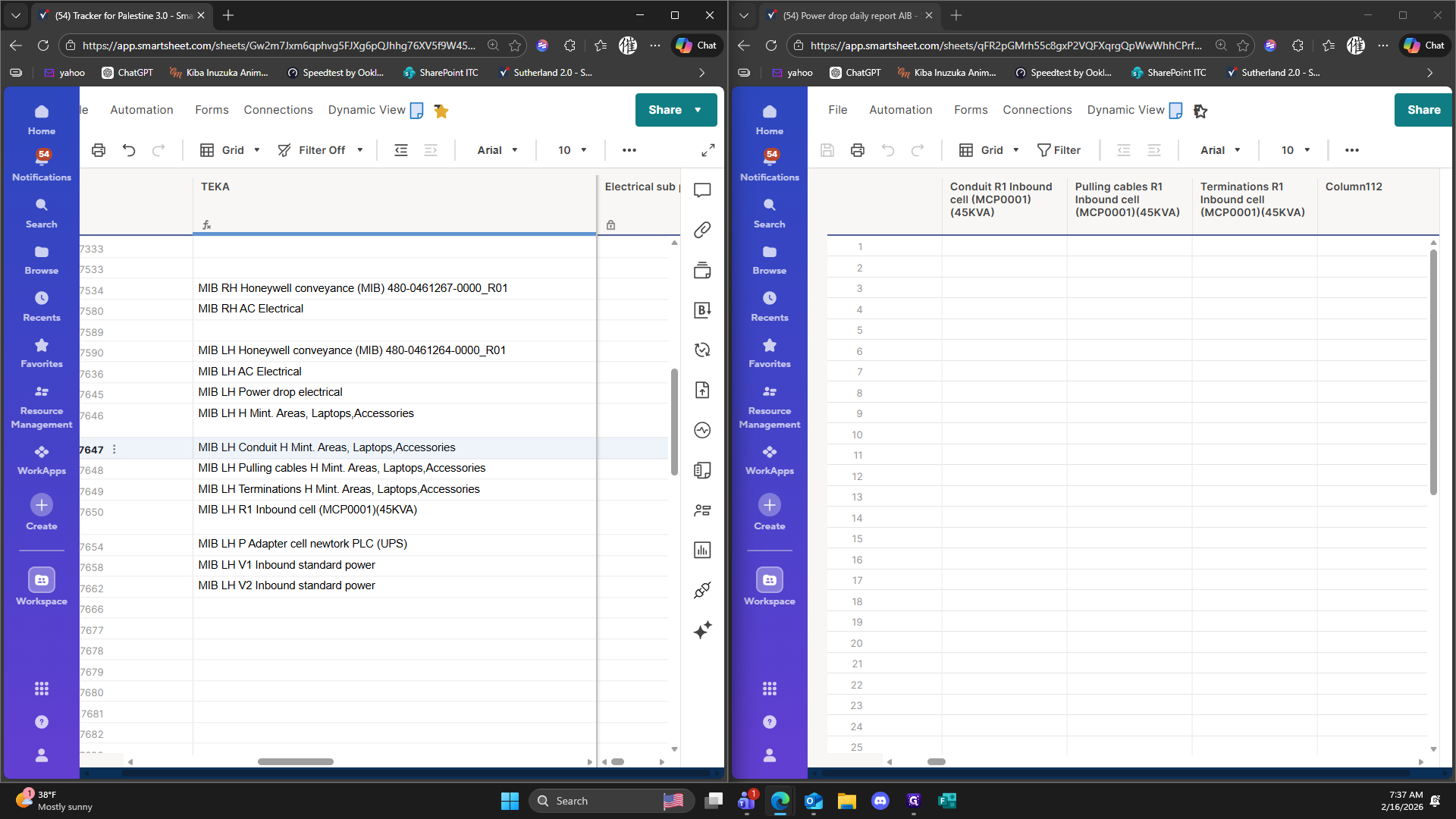
112
Click here
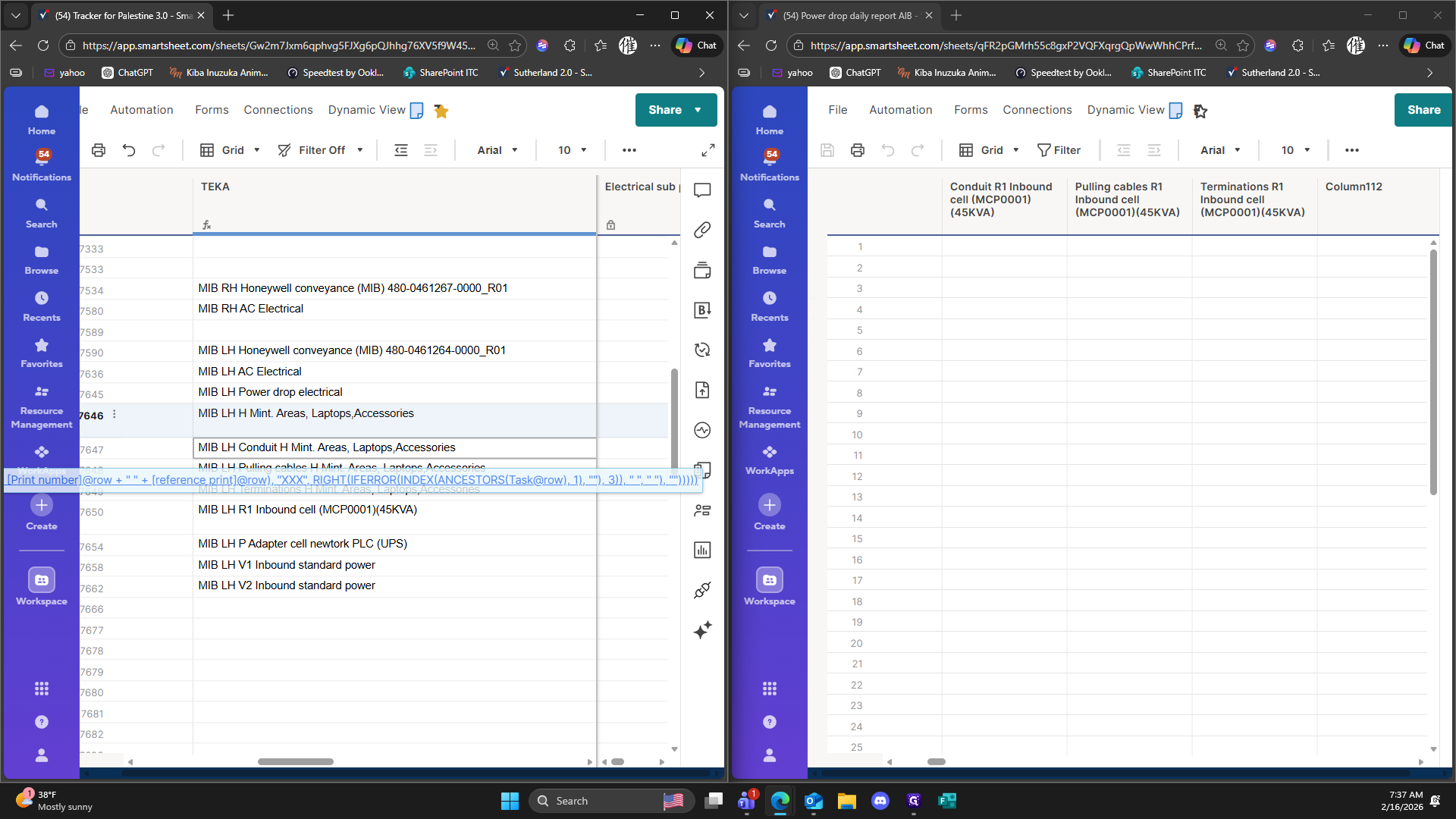
113
Click here
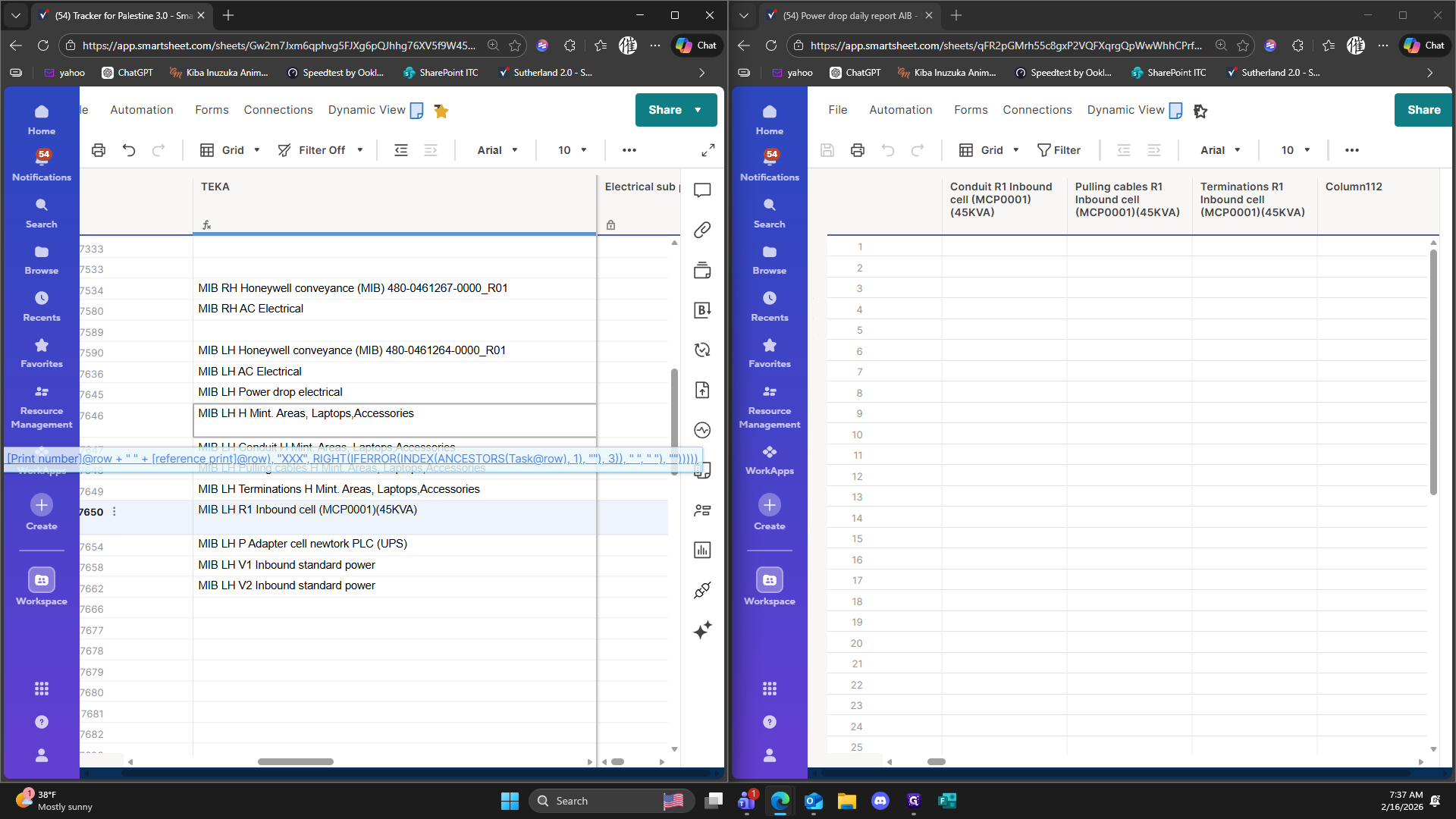
114
Click on "Laptops"
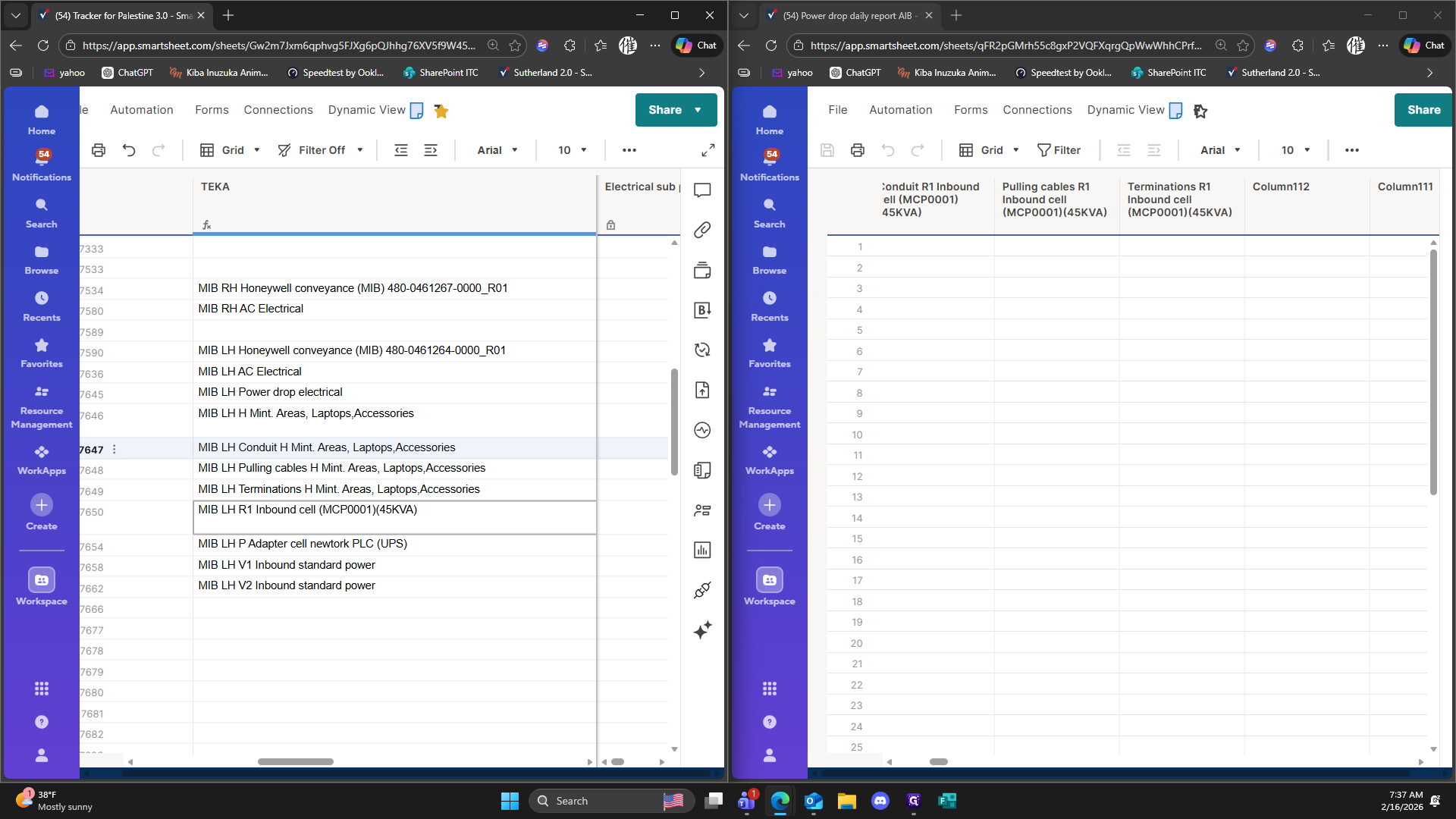
115
Type "Ctrl + C"
116
Type "Ctrl + C"
117
Double-click here
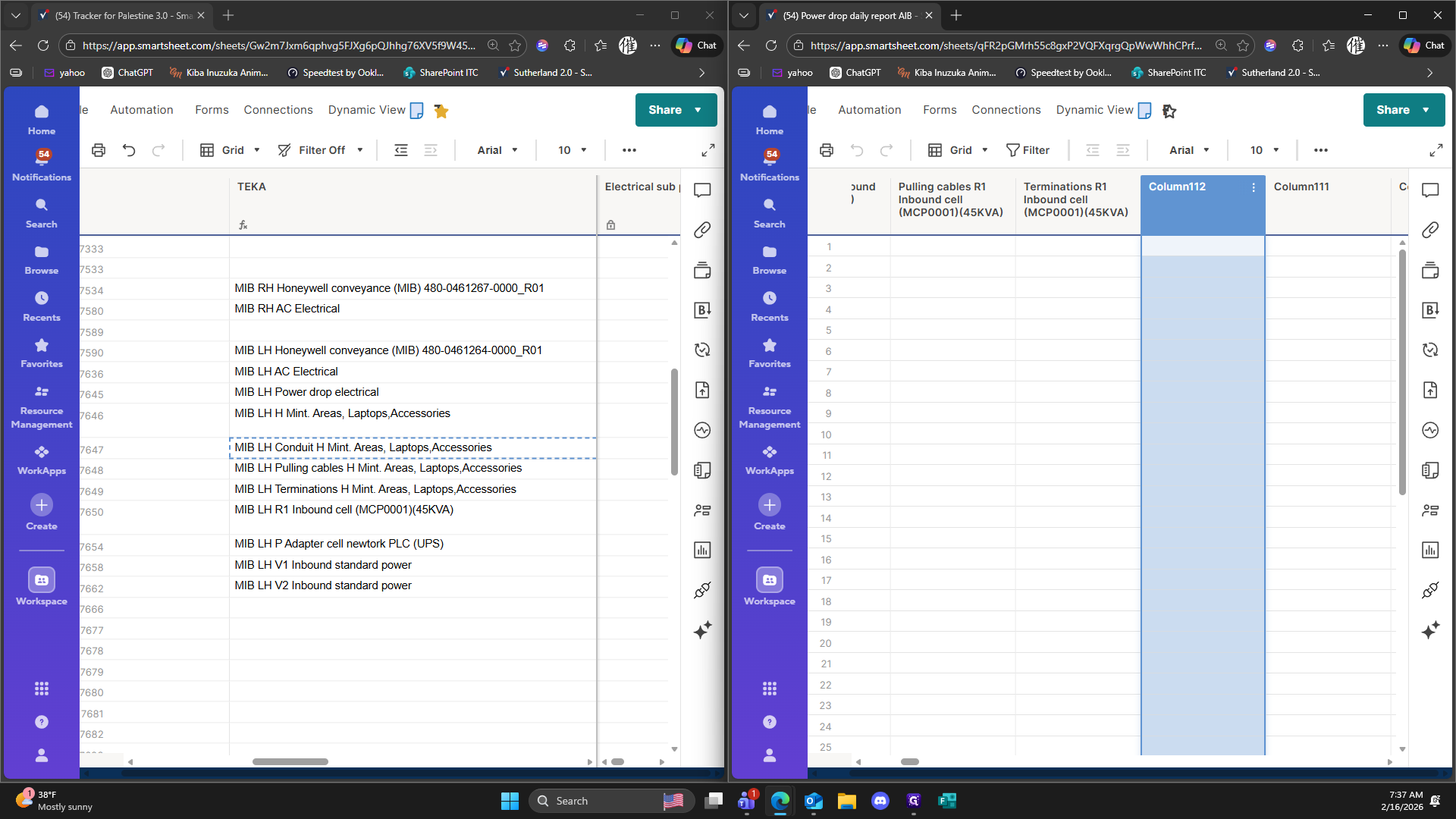
118
Click here
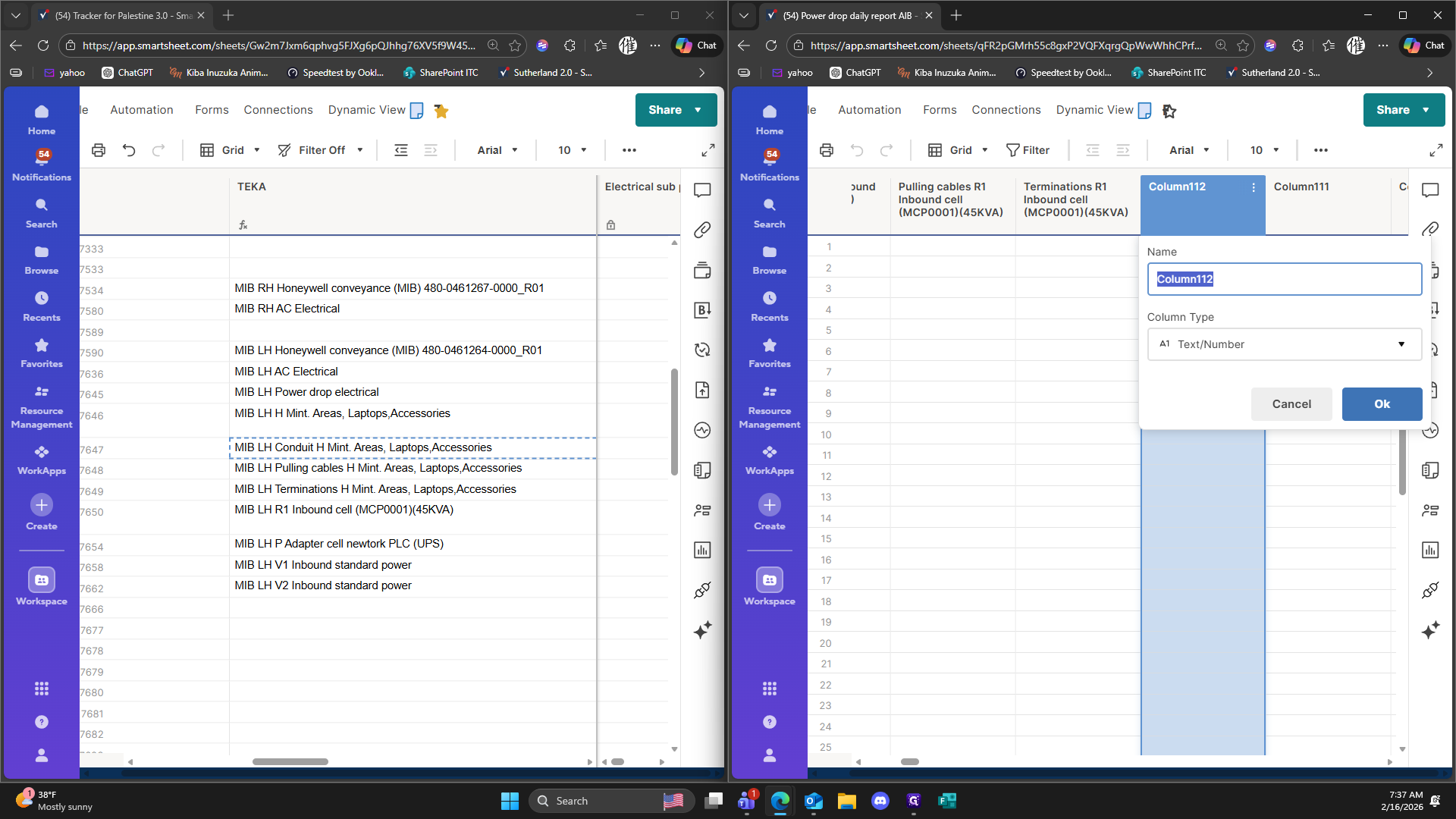
119
Type "Ctrl + V"
120
Double-click on "Column112"
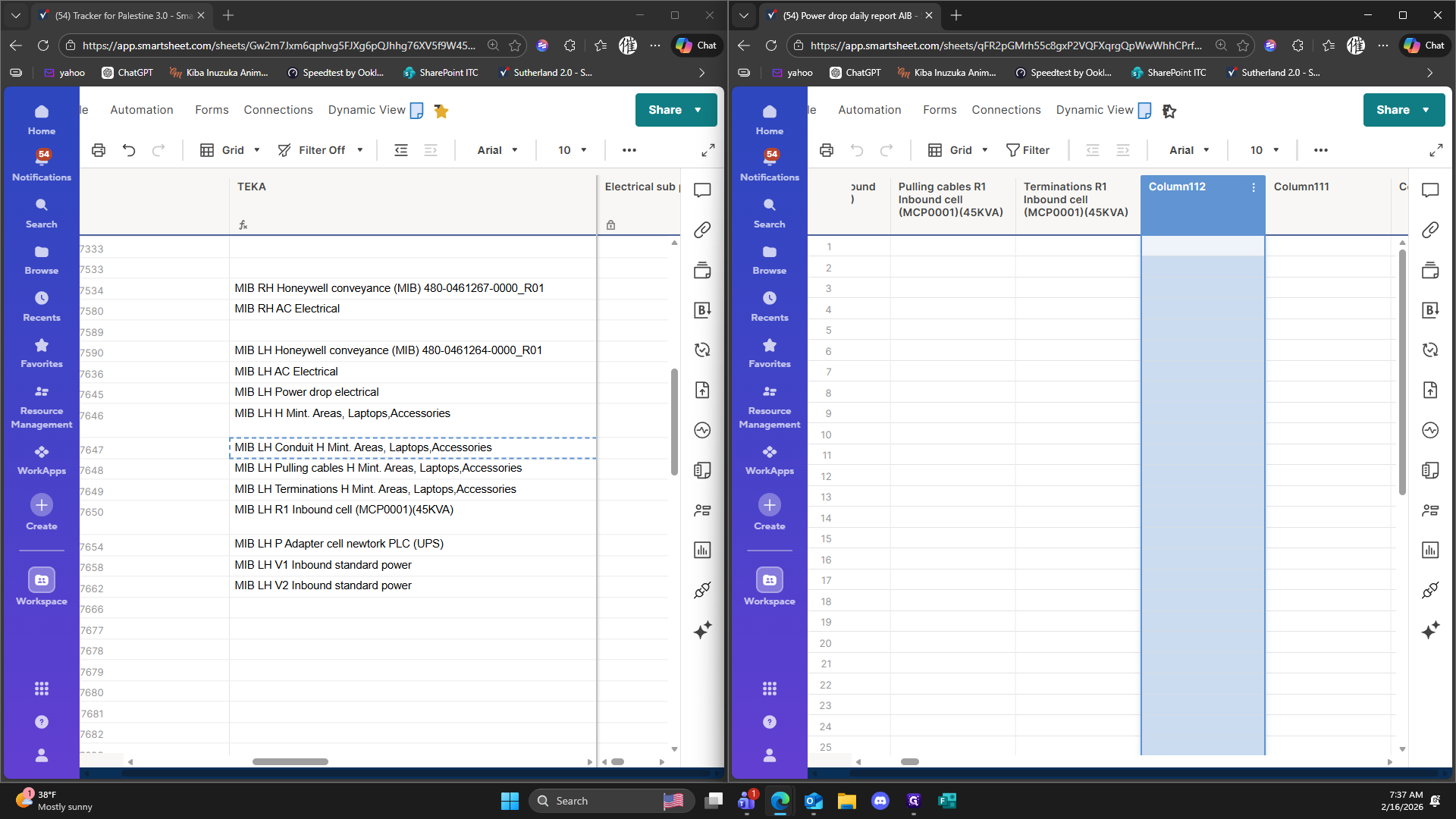
121
Type "Ctrl + V"
122
Click on "B LH Conduit H Mint"
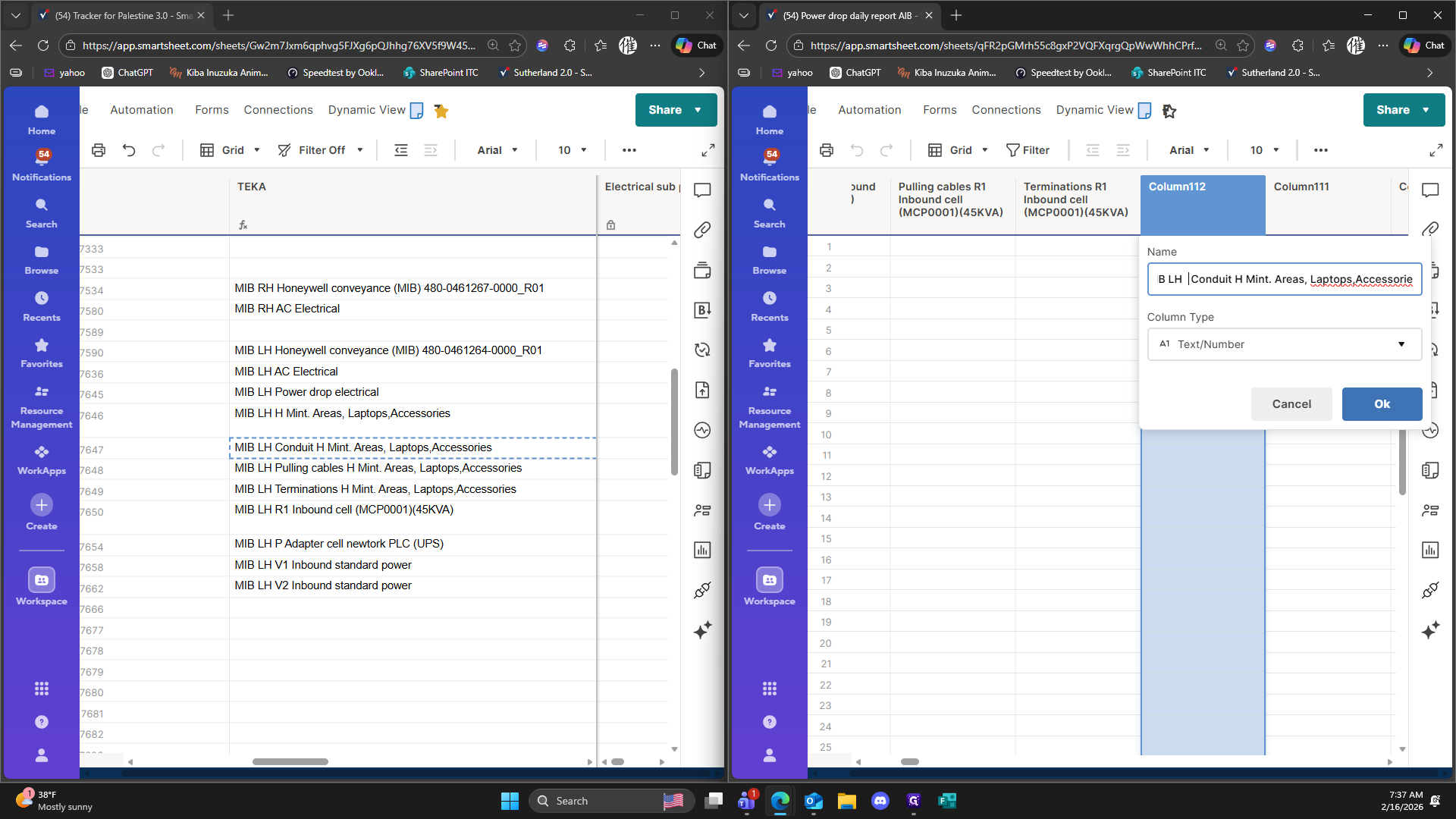
123
Type "Backspace"
124
Type "Backspace"
125
Type "Backspace"
126
Type "Backspace"
127
Type "Backspace"
128
Type "Backspace"
129
Click here
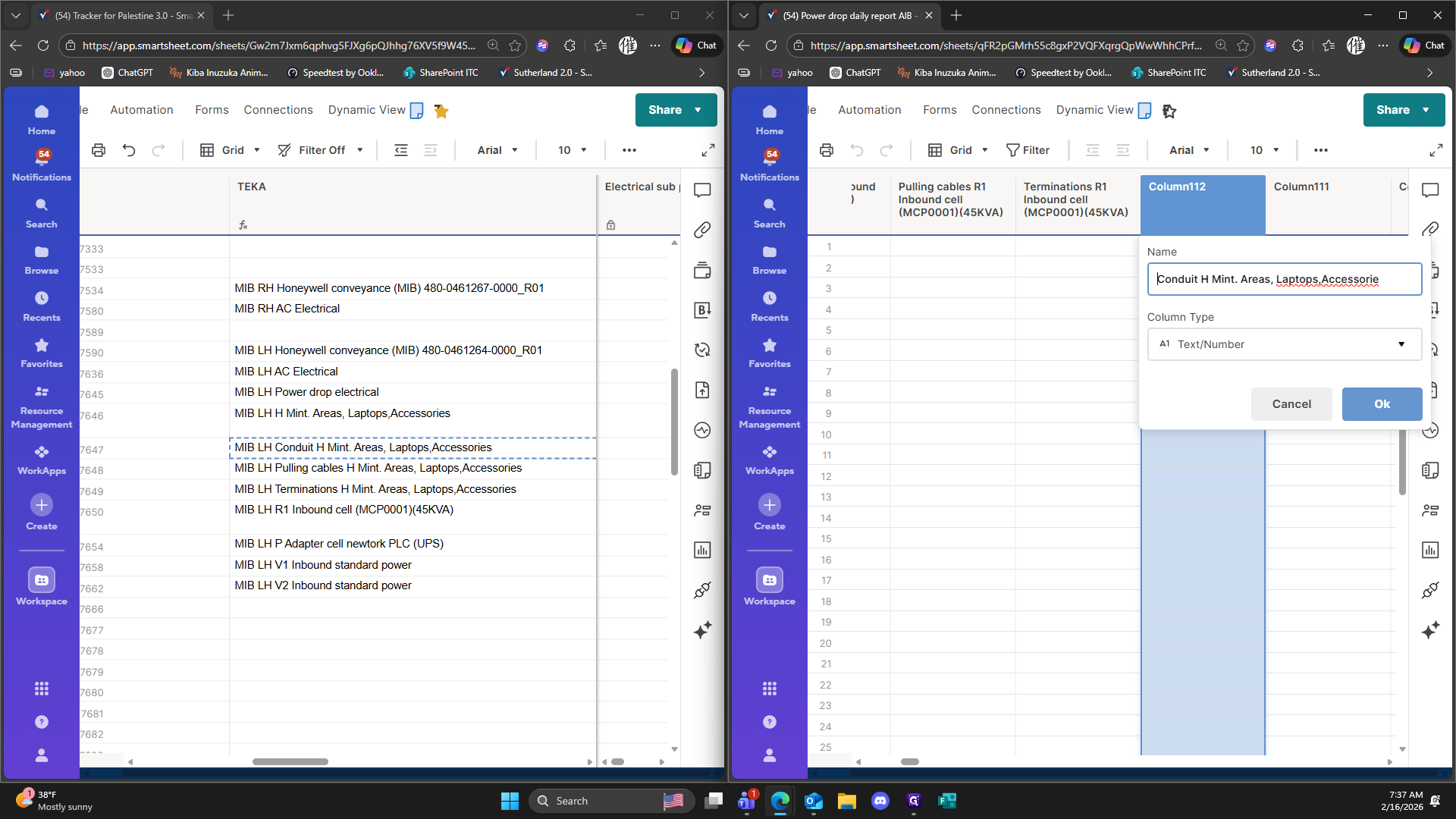
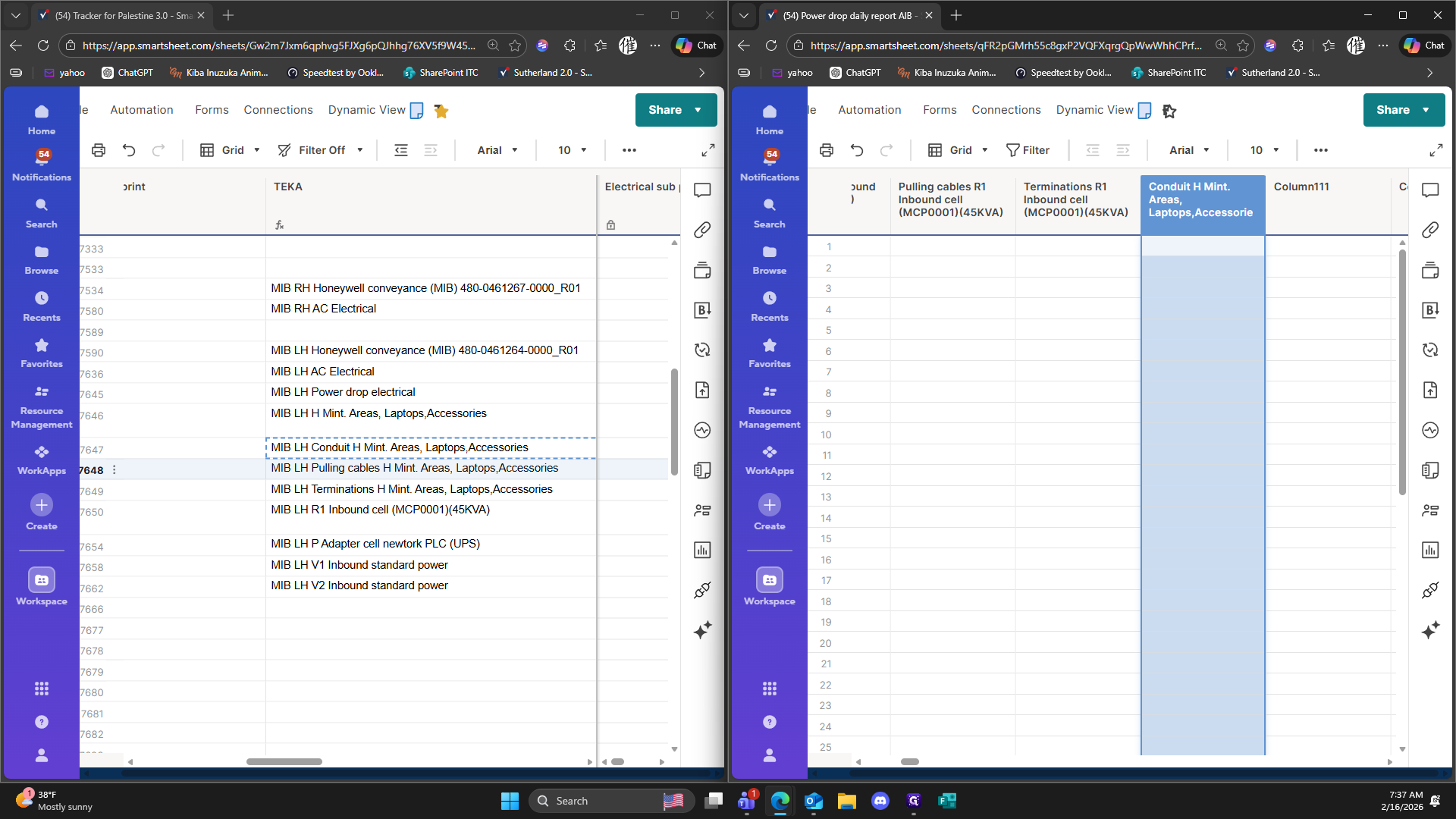
130
Click on "MIB LH Terminations H Mint"
131
Click here
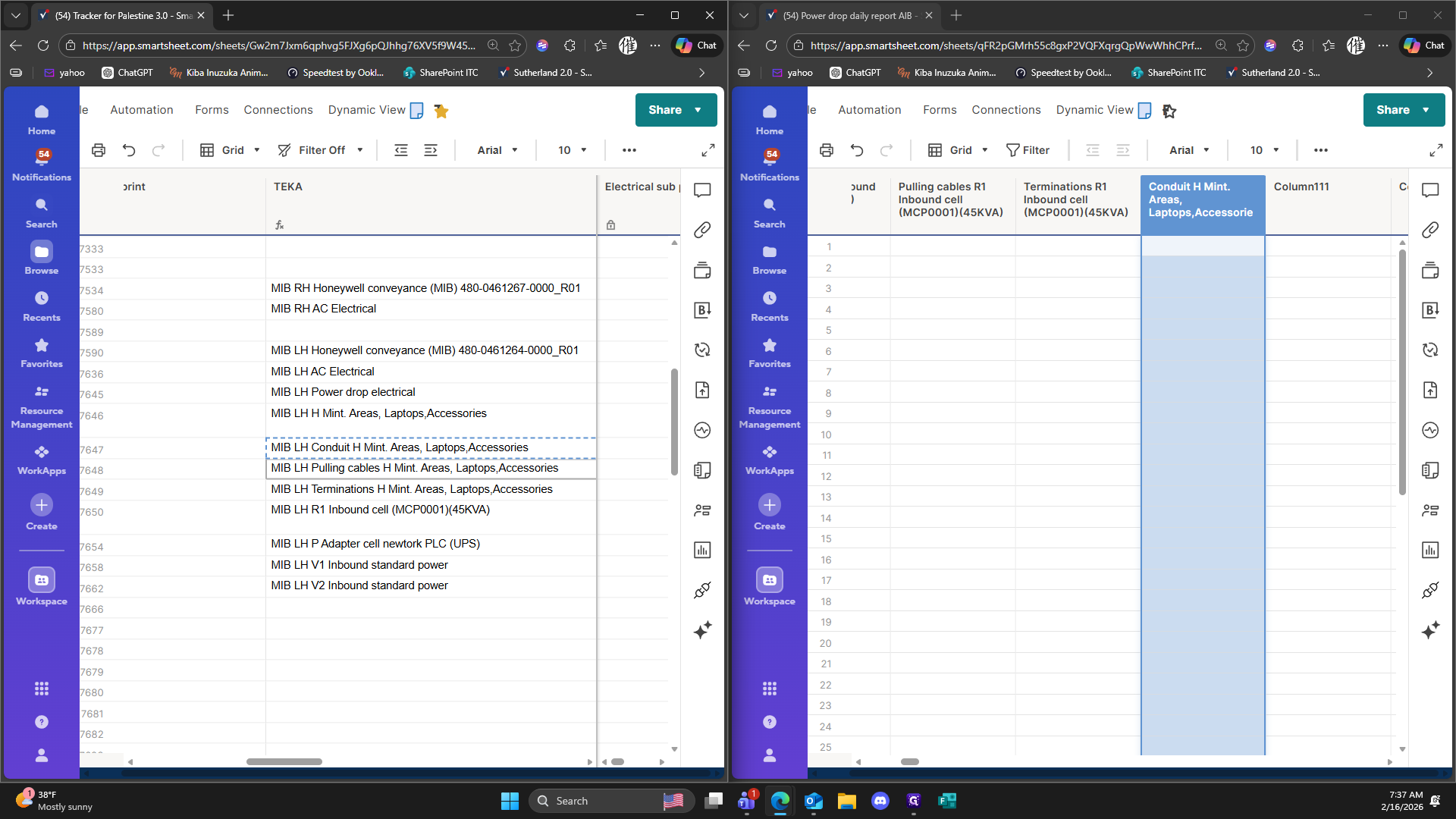
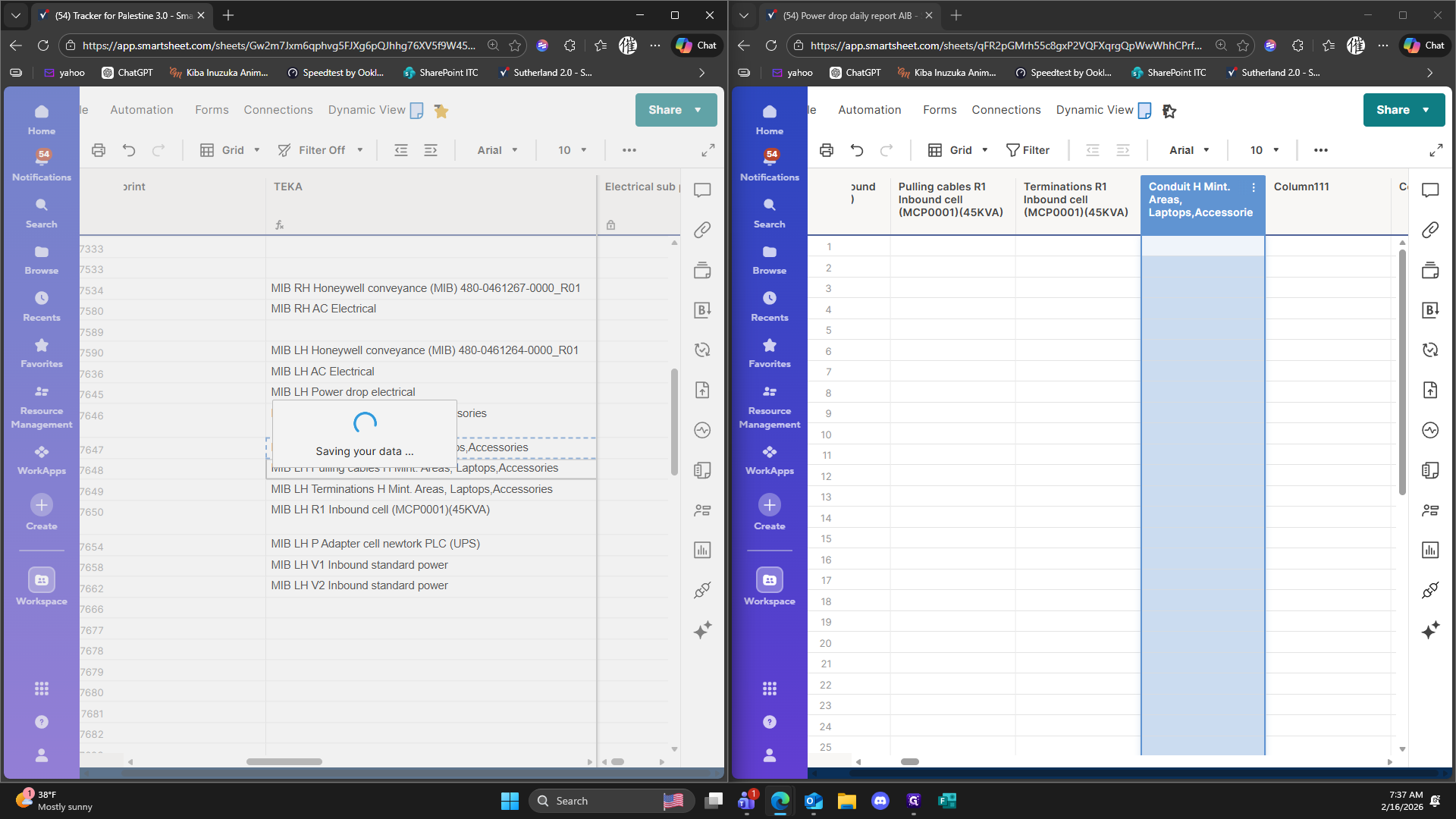
132
Click on "Conduit H Mint . Areas , Laptops , Accessorie"
133
Click on "+"
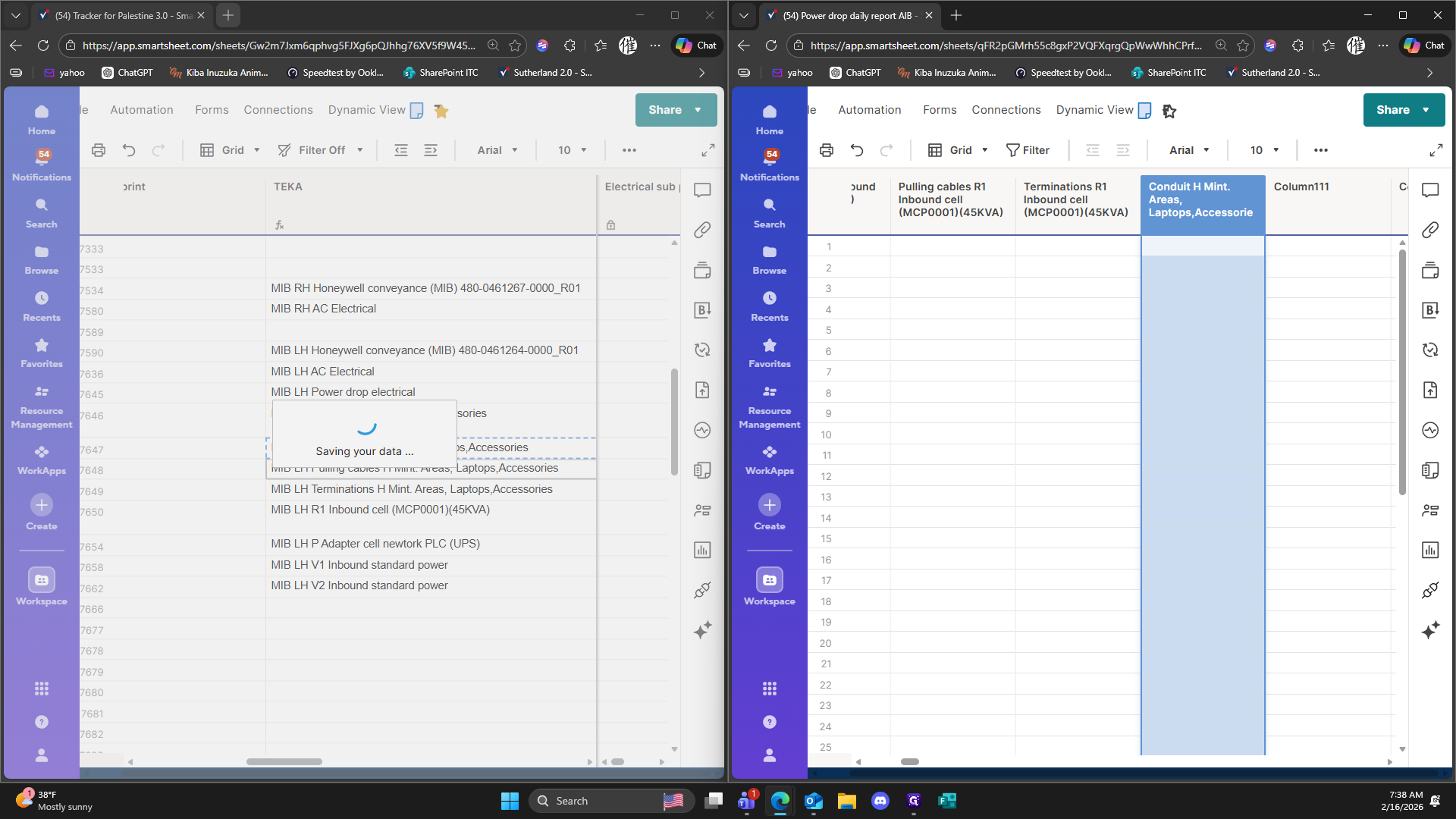
134
Click on ">"
135
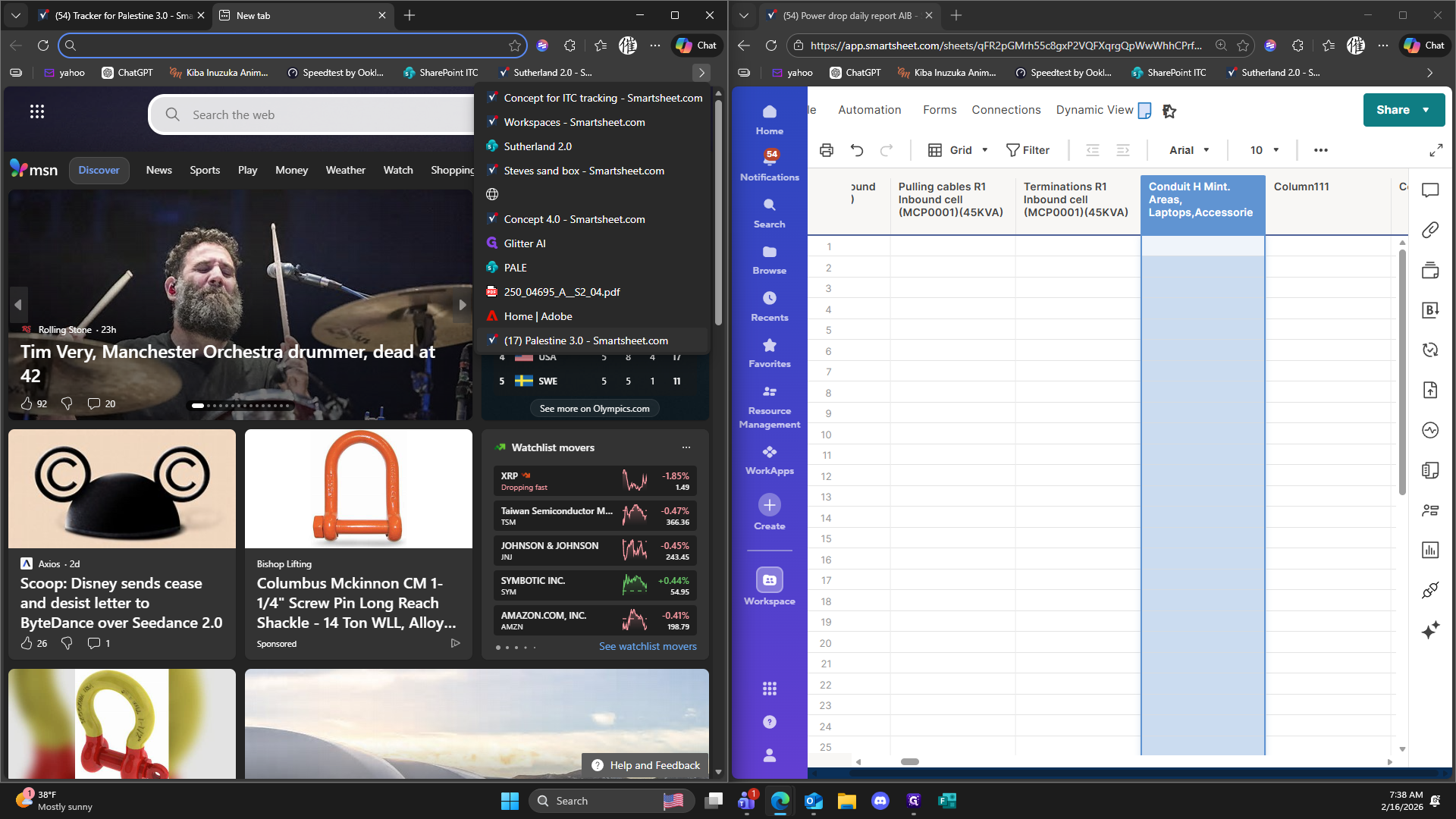
Click on "( 17 ) Palestine 3.0 - Smartsheet.com"
136
Click on "Tracker for Palestine 3.0 - Sma X"
137
Click on "Smartsheet"
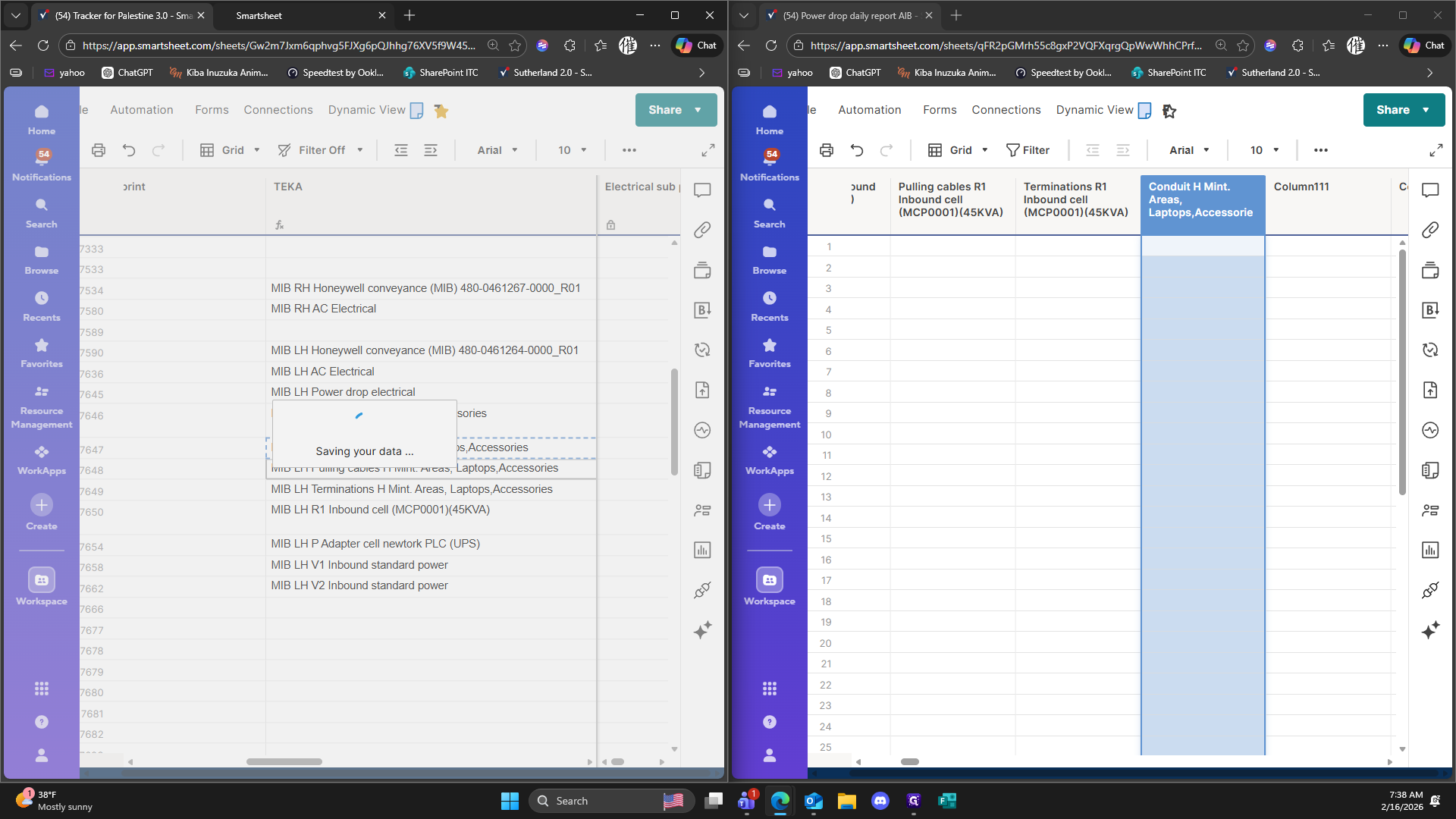
138
Click on "Palestine 3.0 - Smartsheet.com X"
139
Click on "☐"
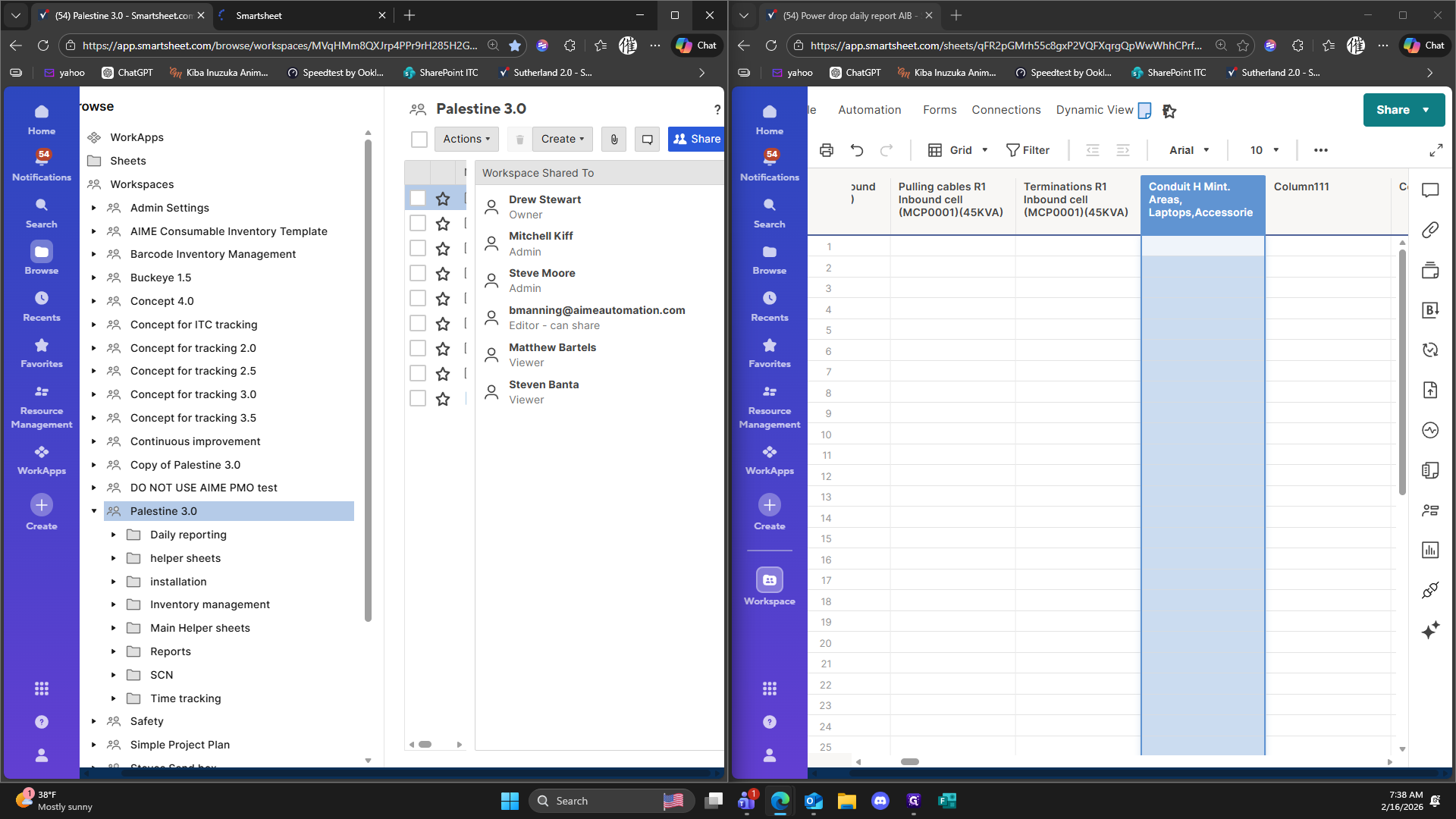
140
Click on "Main Helper sheets"
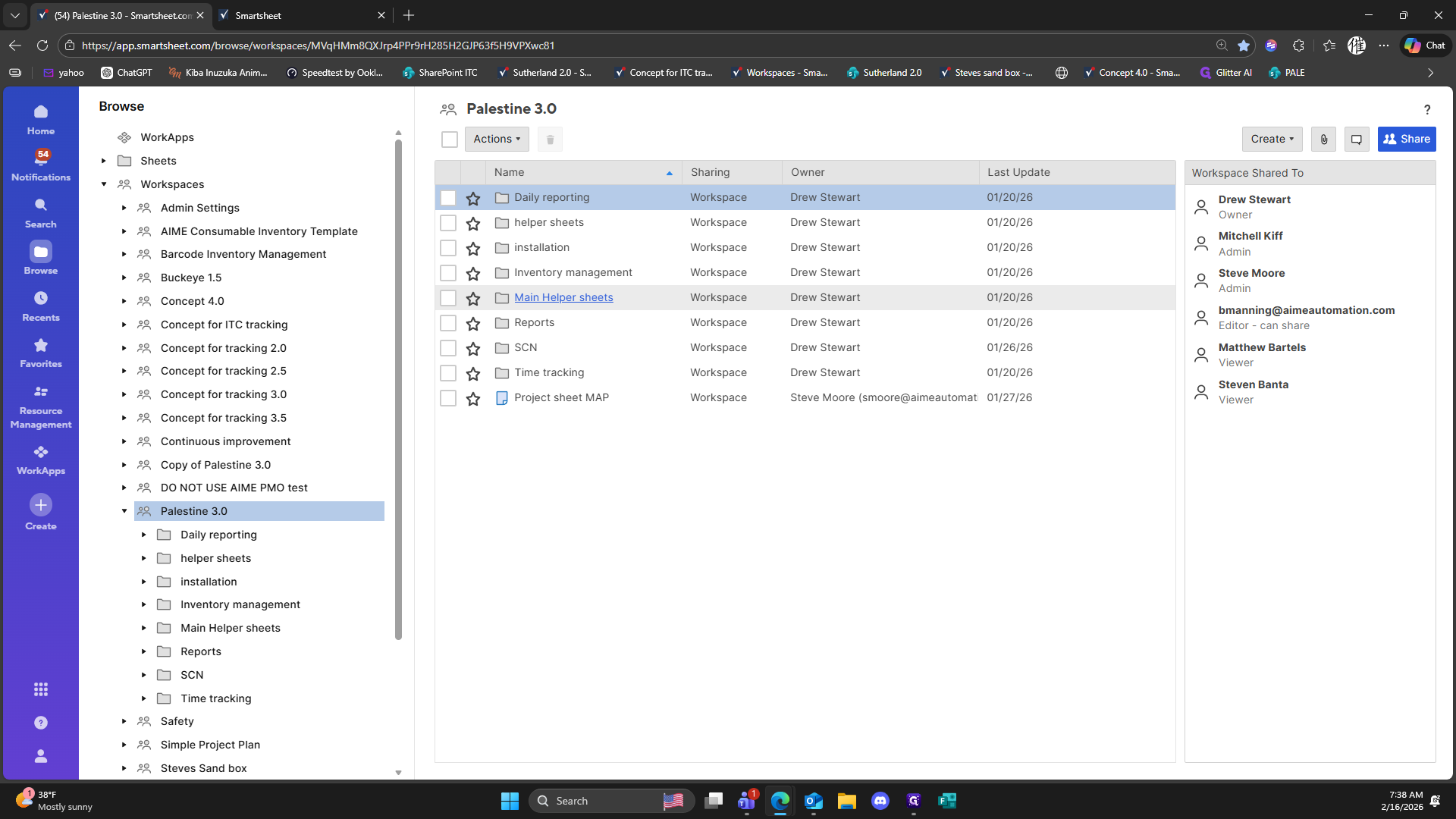
141
Click on "Power drop helper"
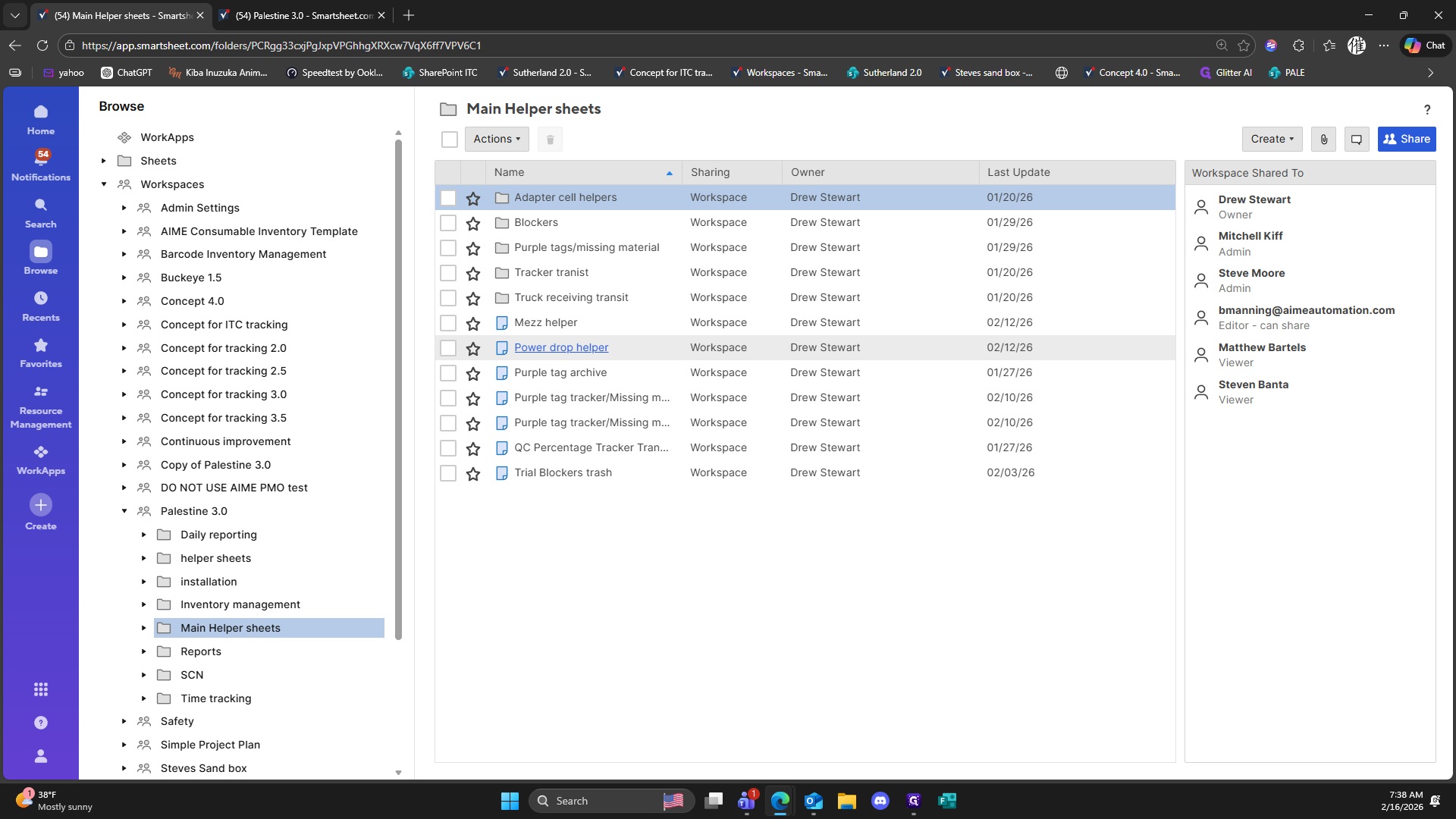
142
Drag here
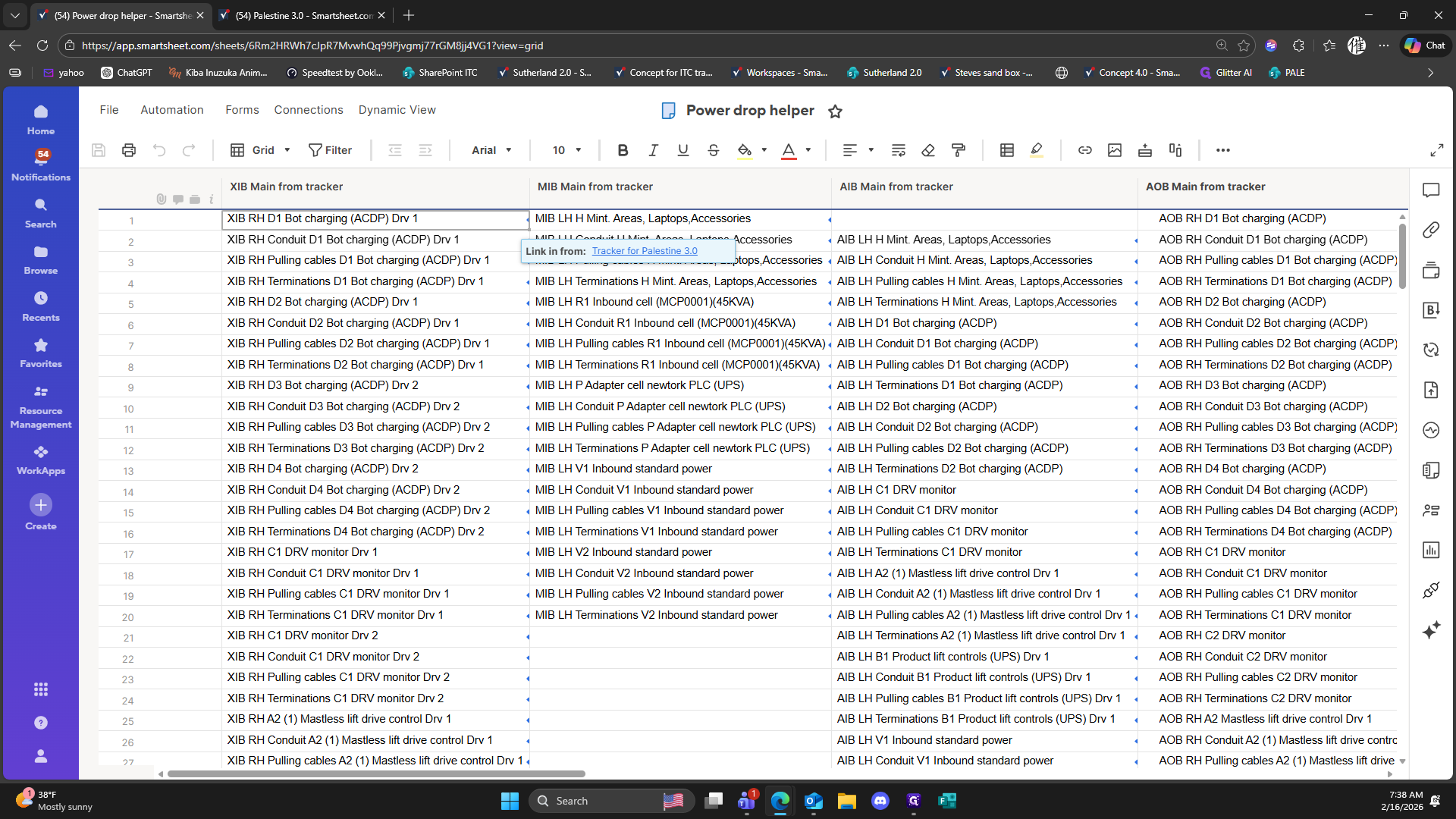
143
Double-click on "."
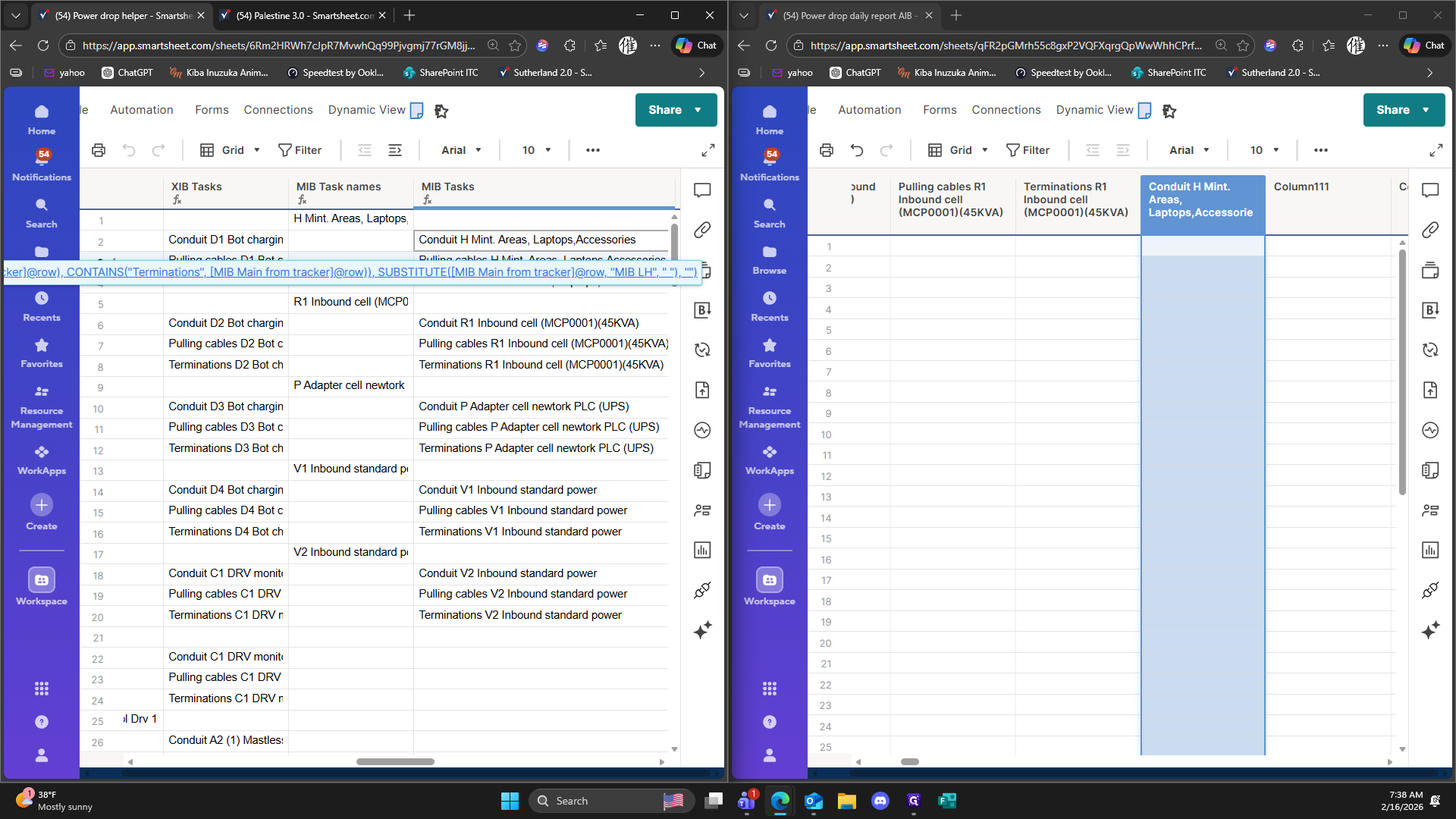
144
Type "Ctrl + C"
145
Type "Ctrl + C"
146
Type "Ctrl + C"
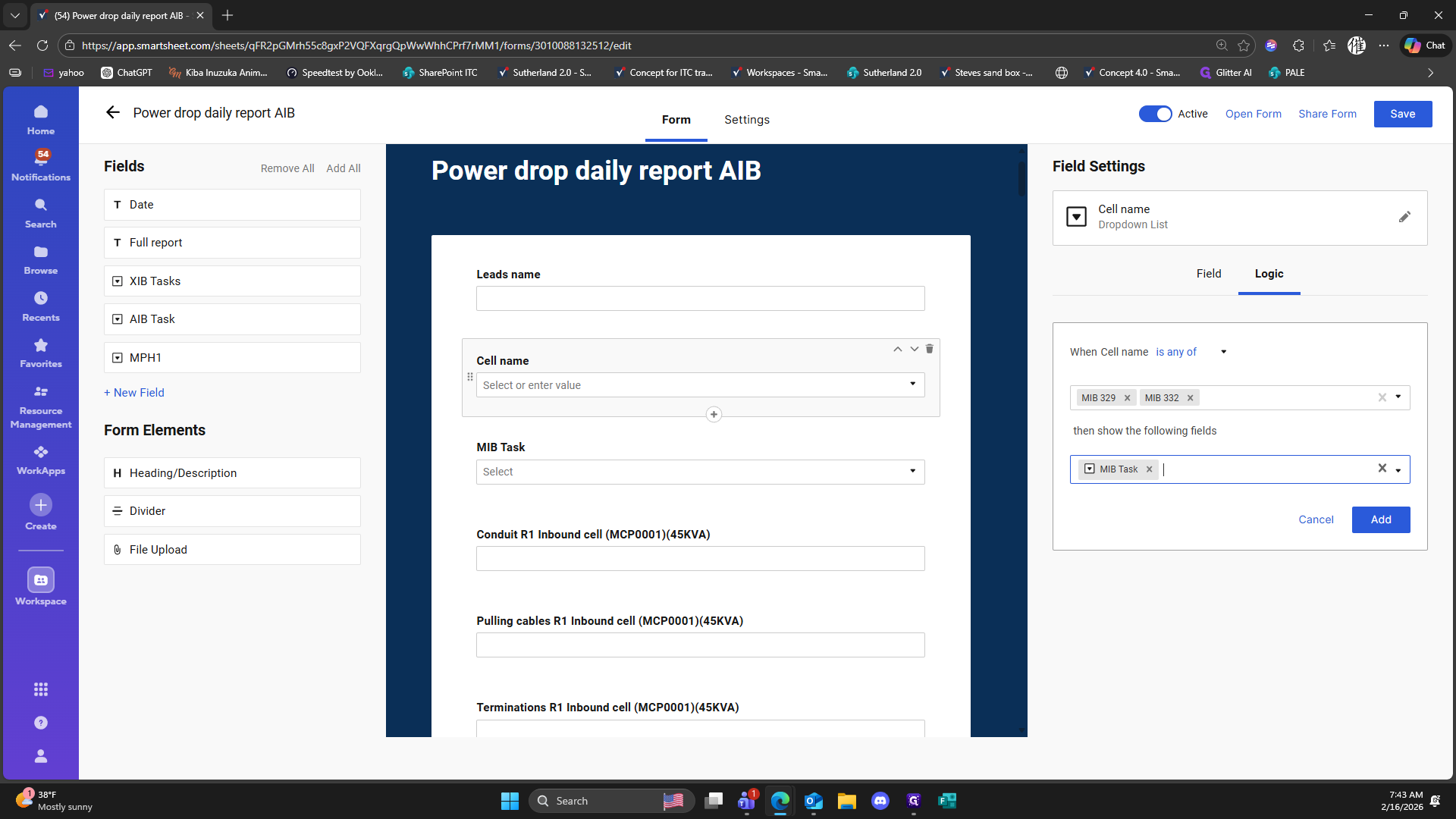
147
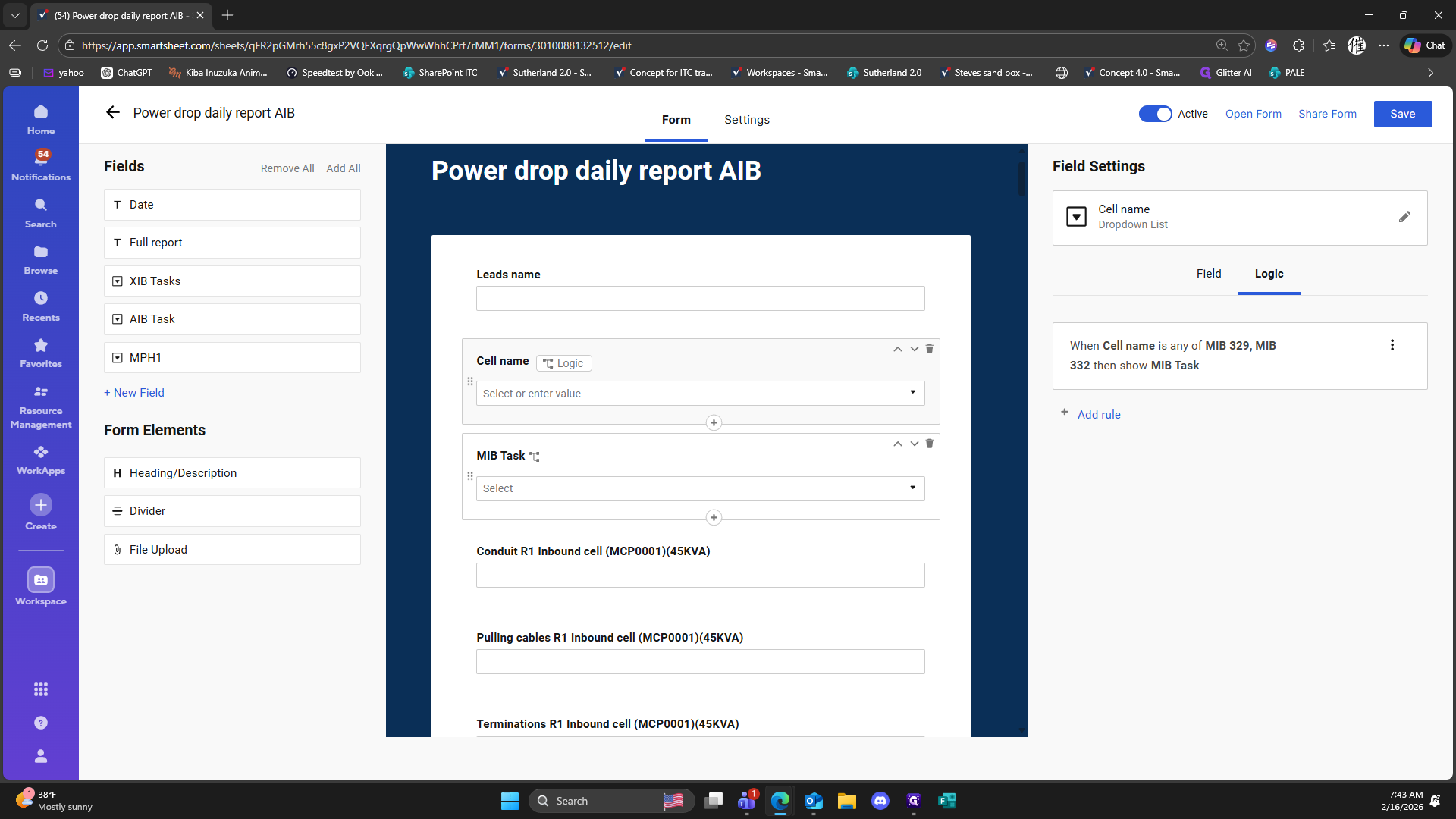
Double-click on "Column111"
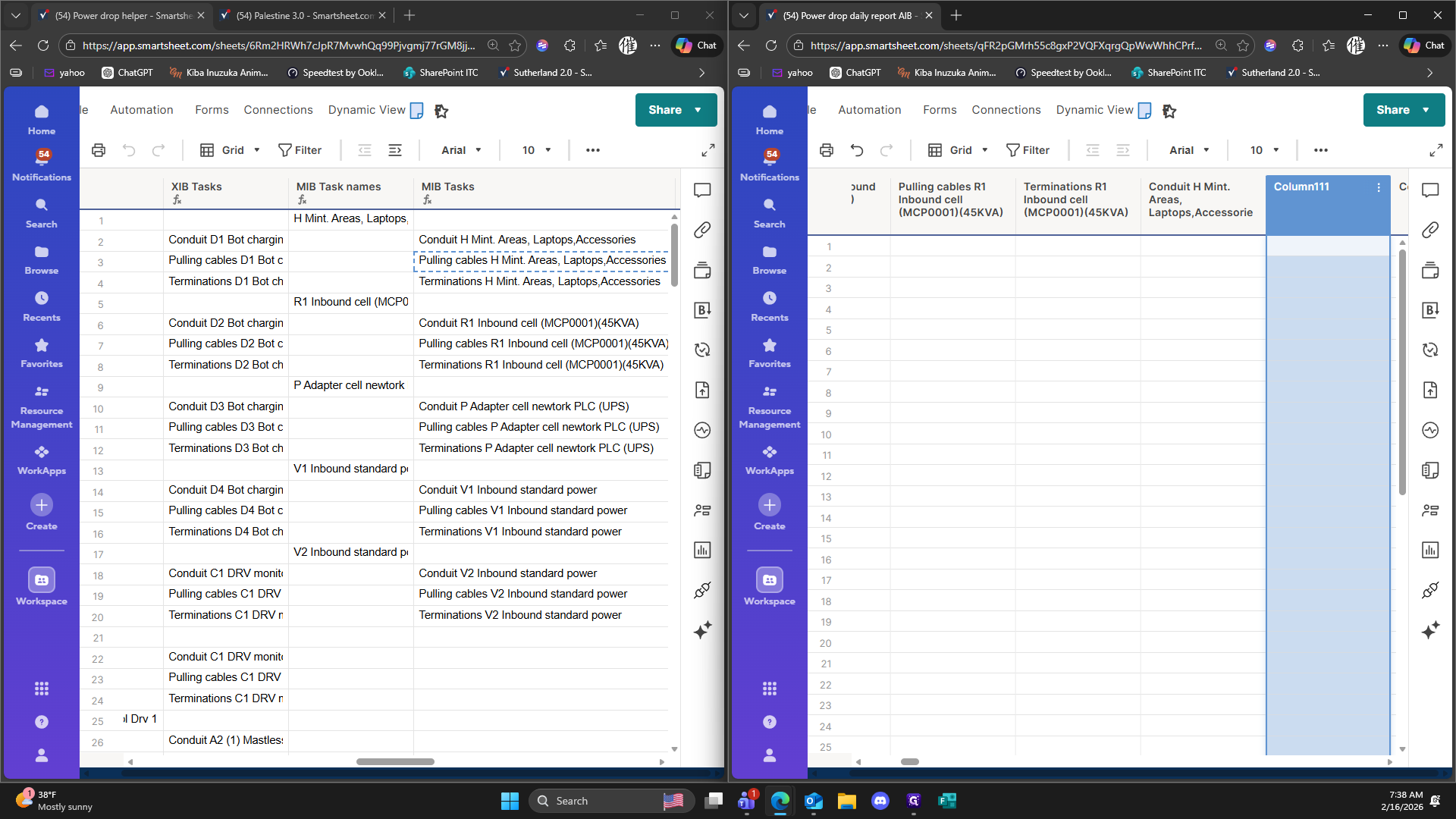
148
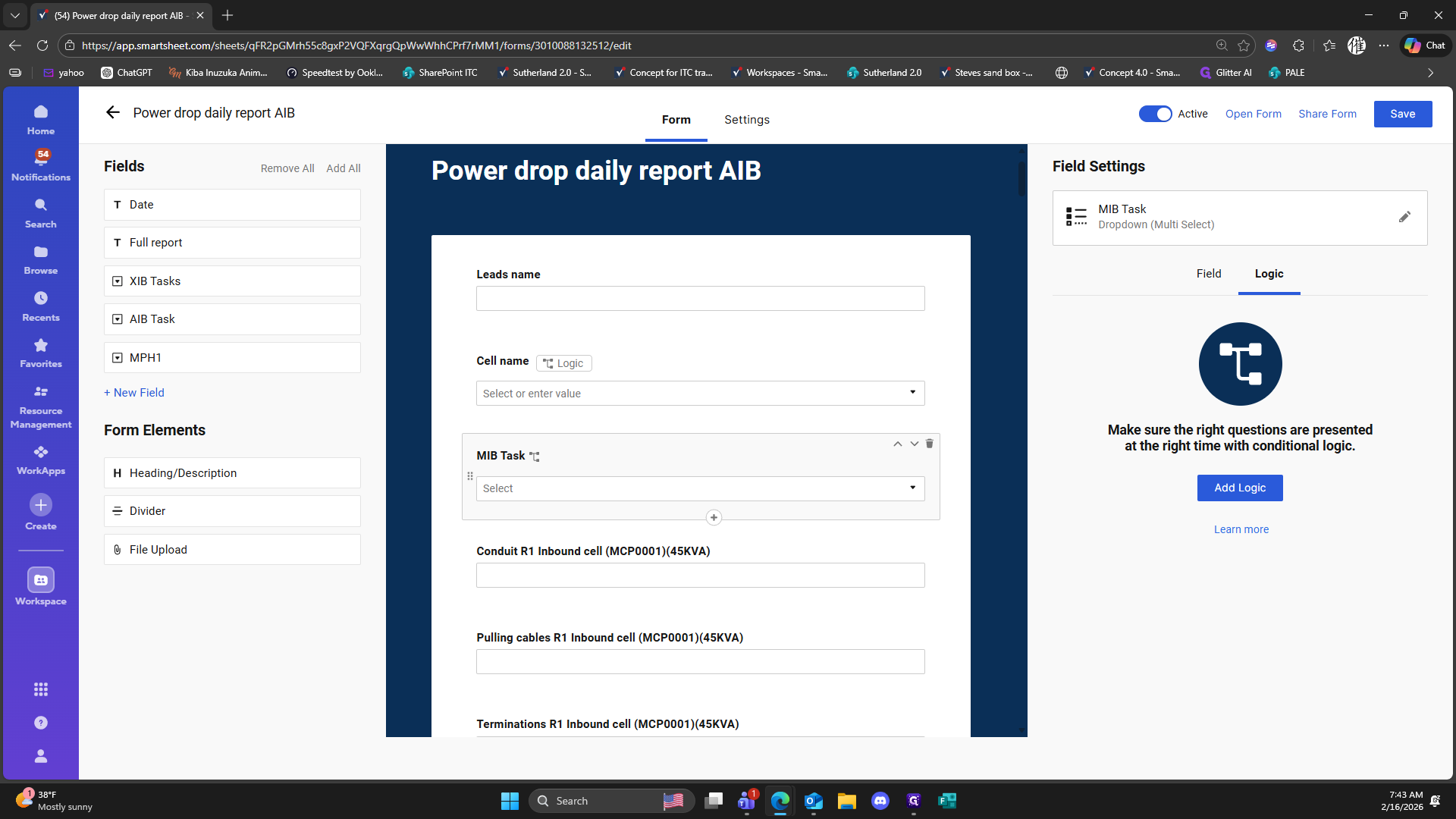
Type "Ctrl + V"
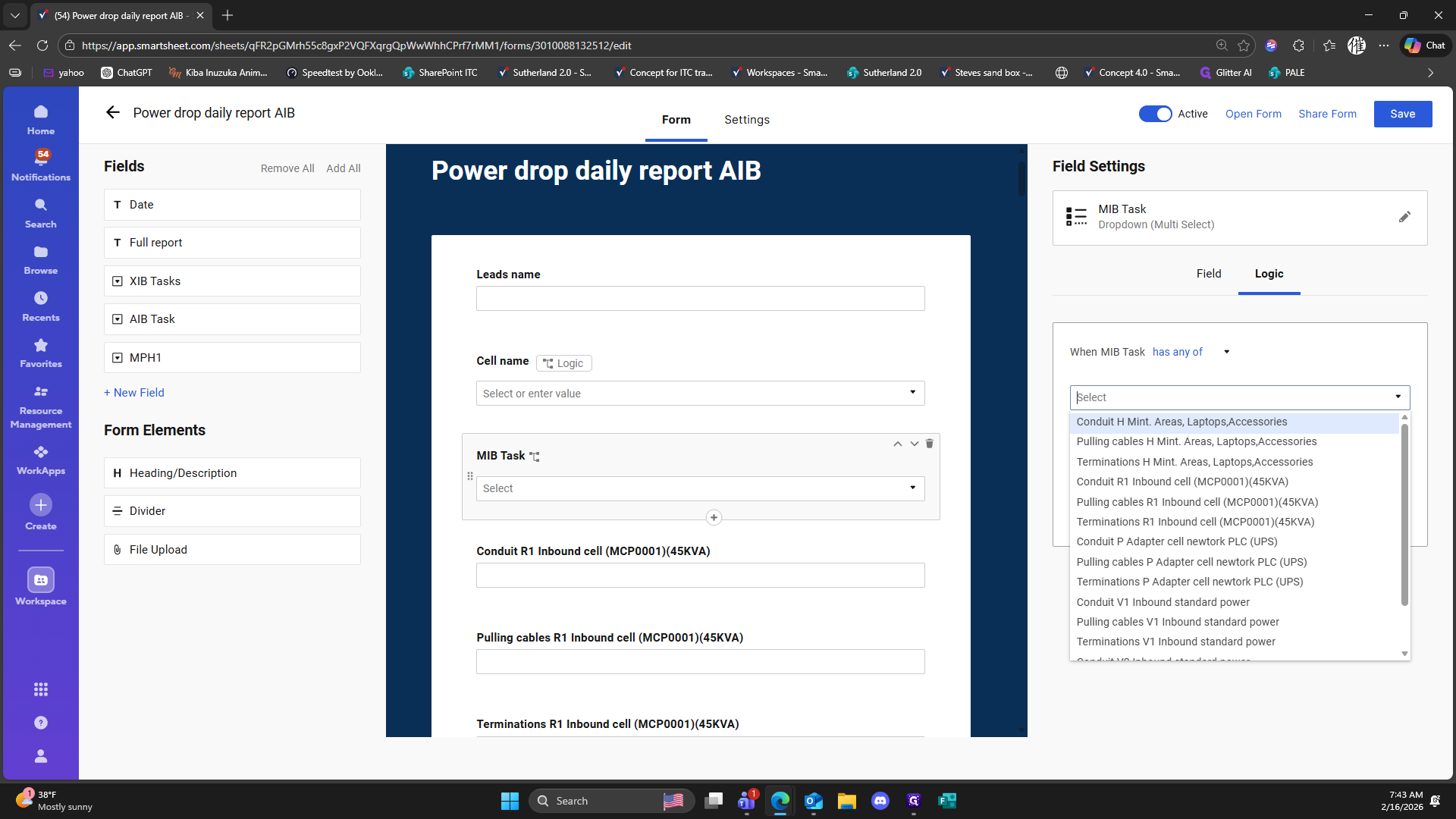
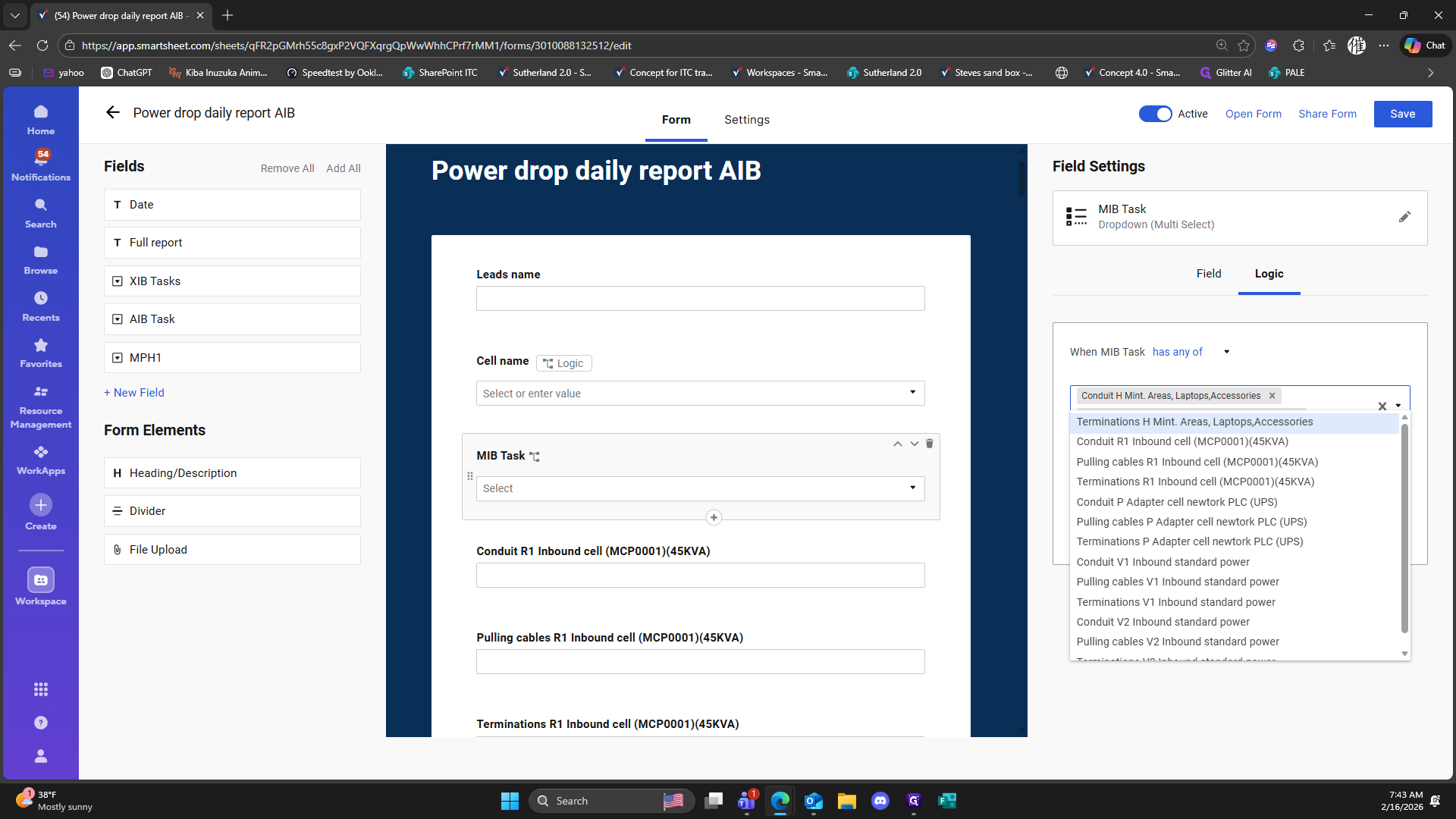
149
Click here
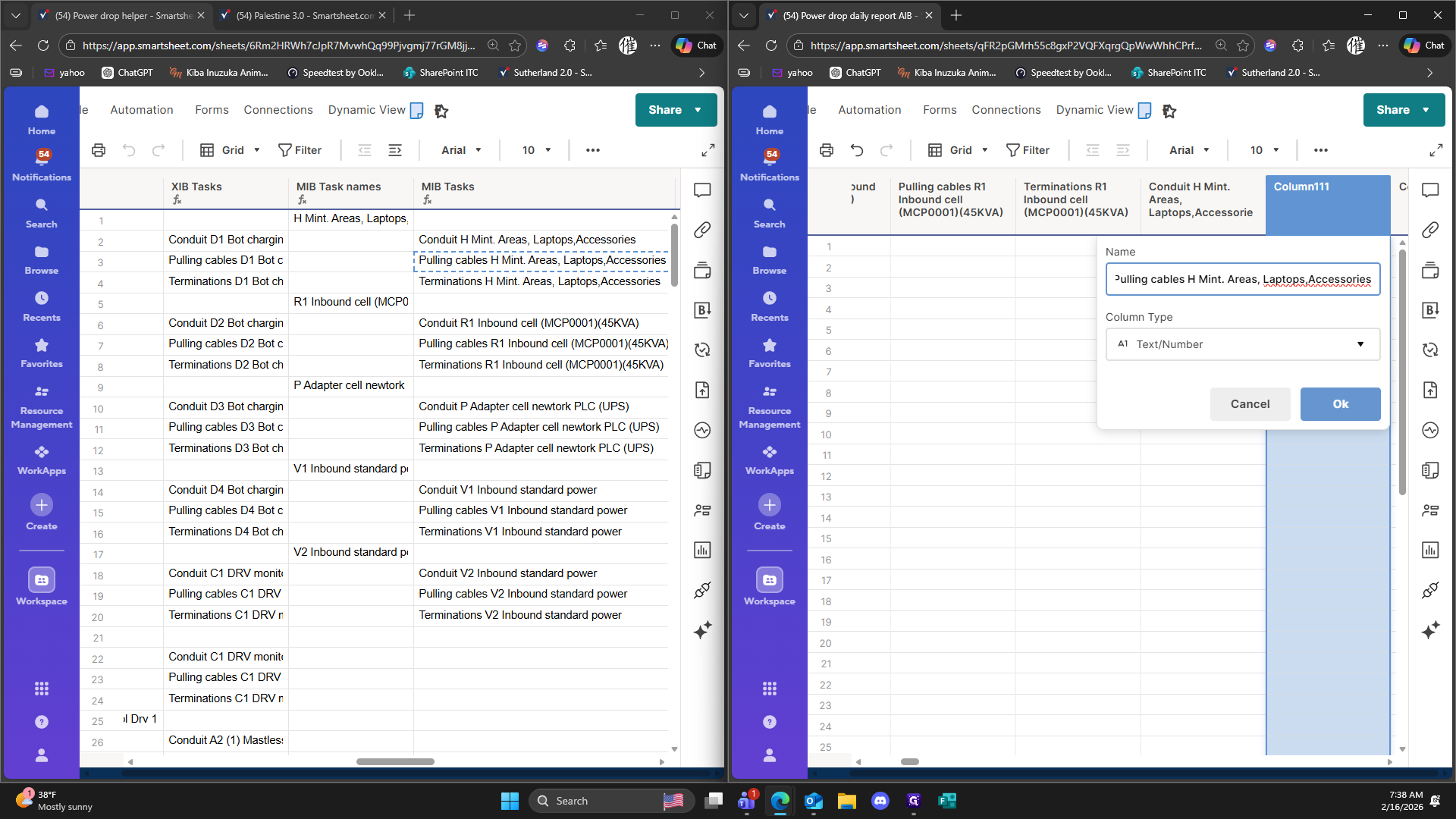
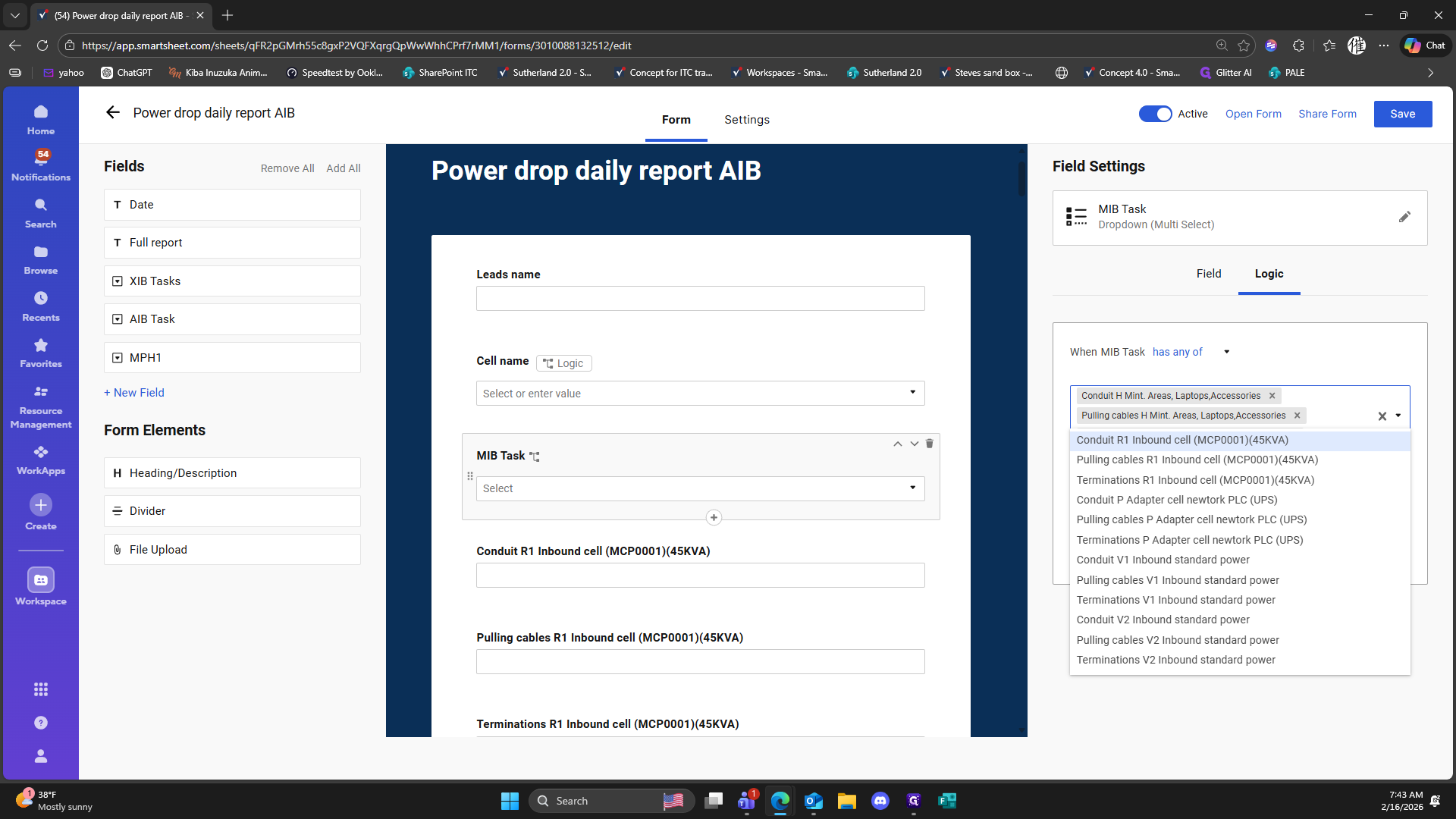
150
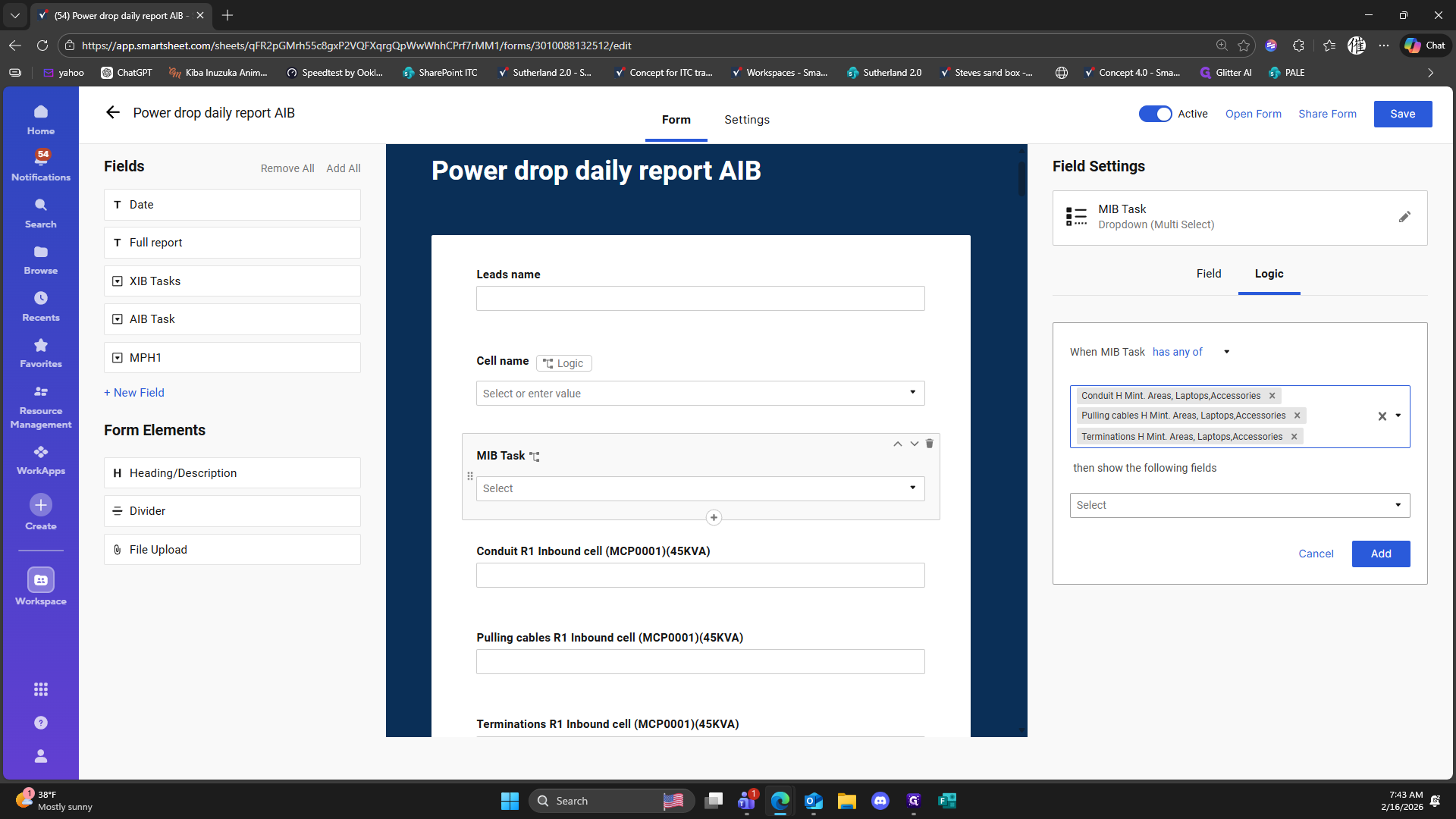
Click here
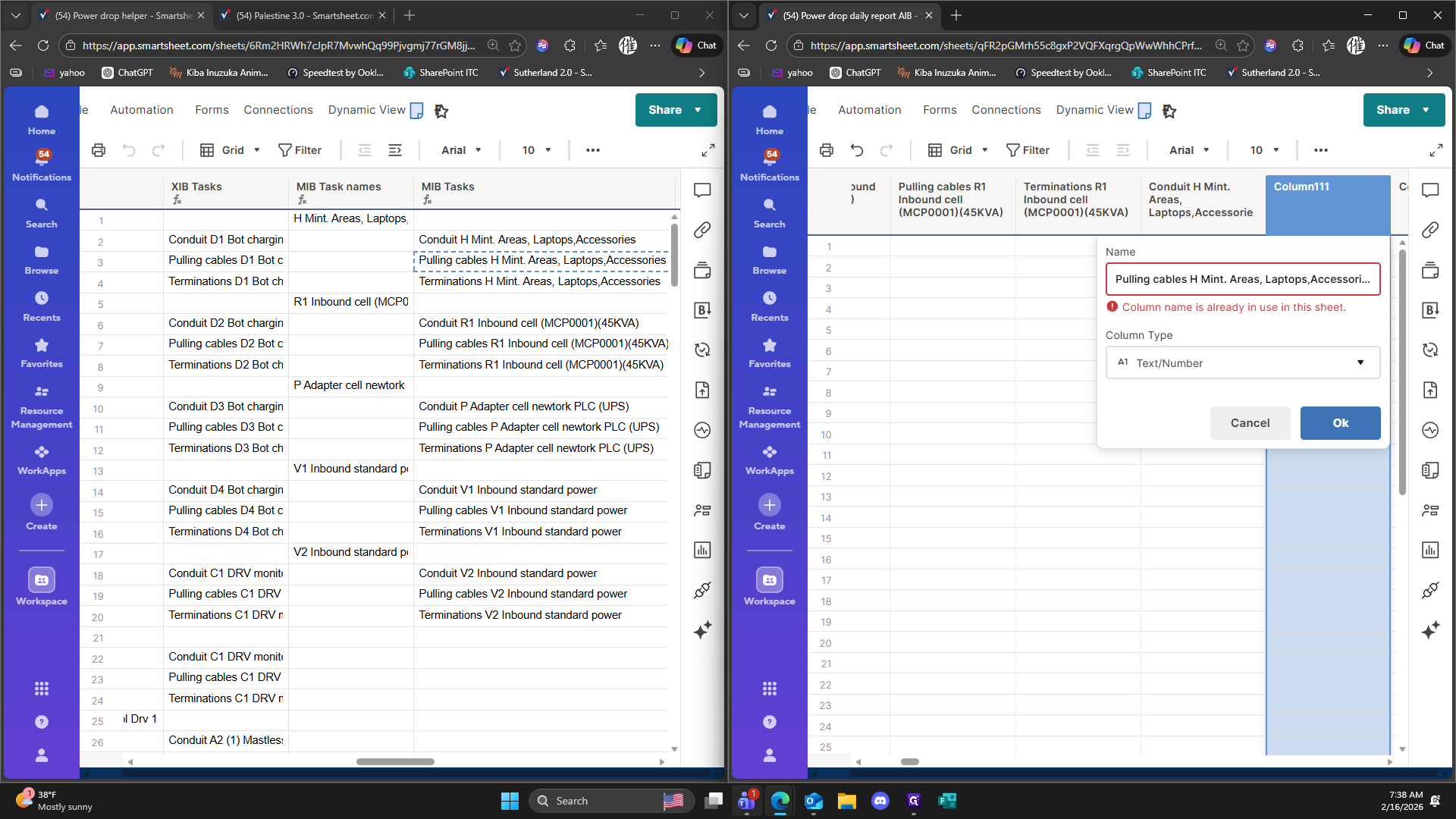
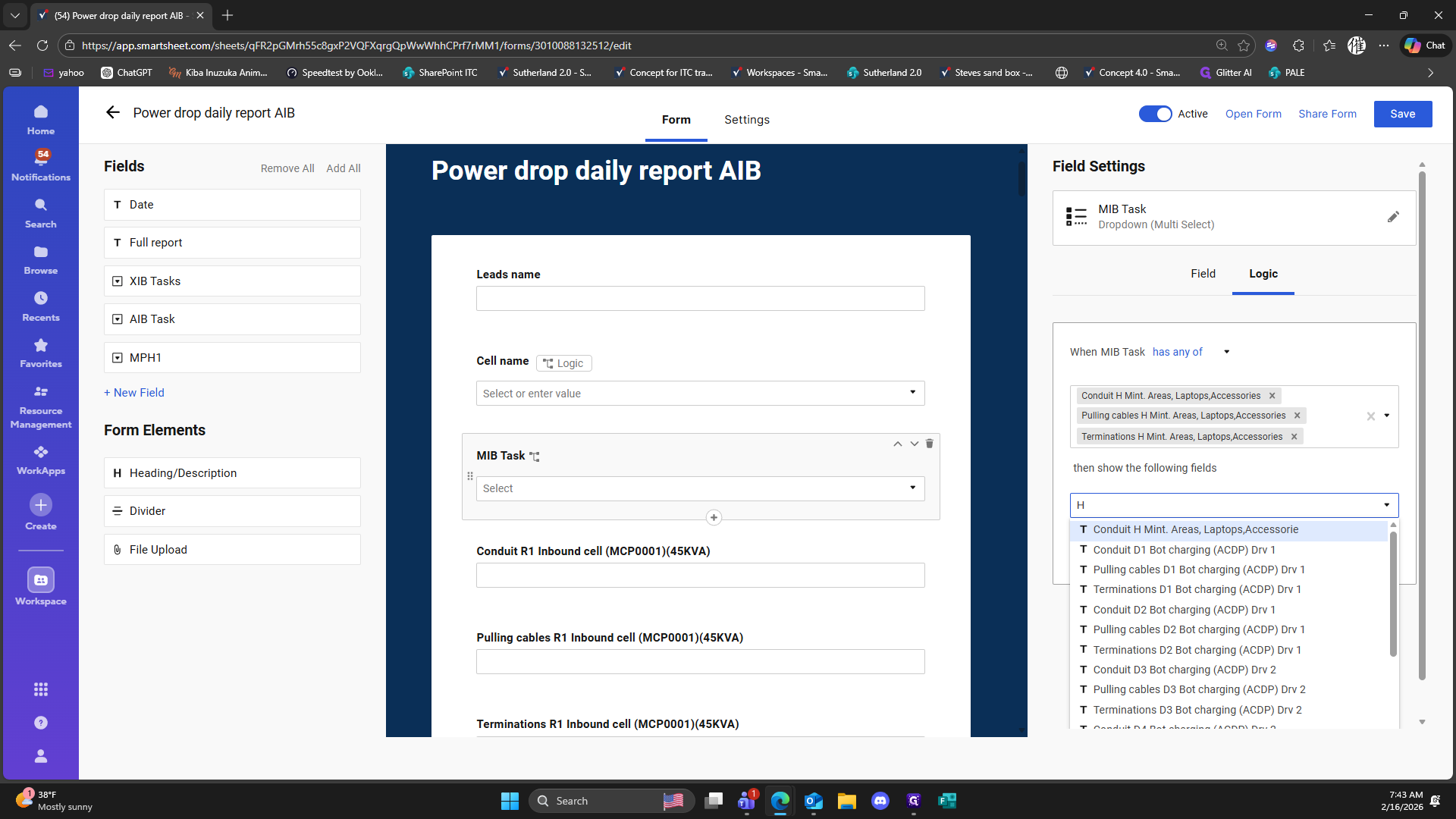
151
Click here
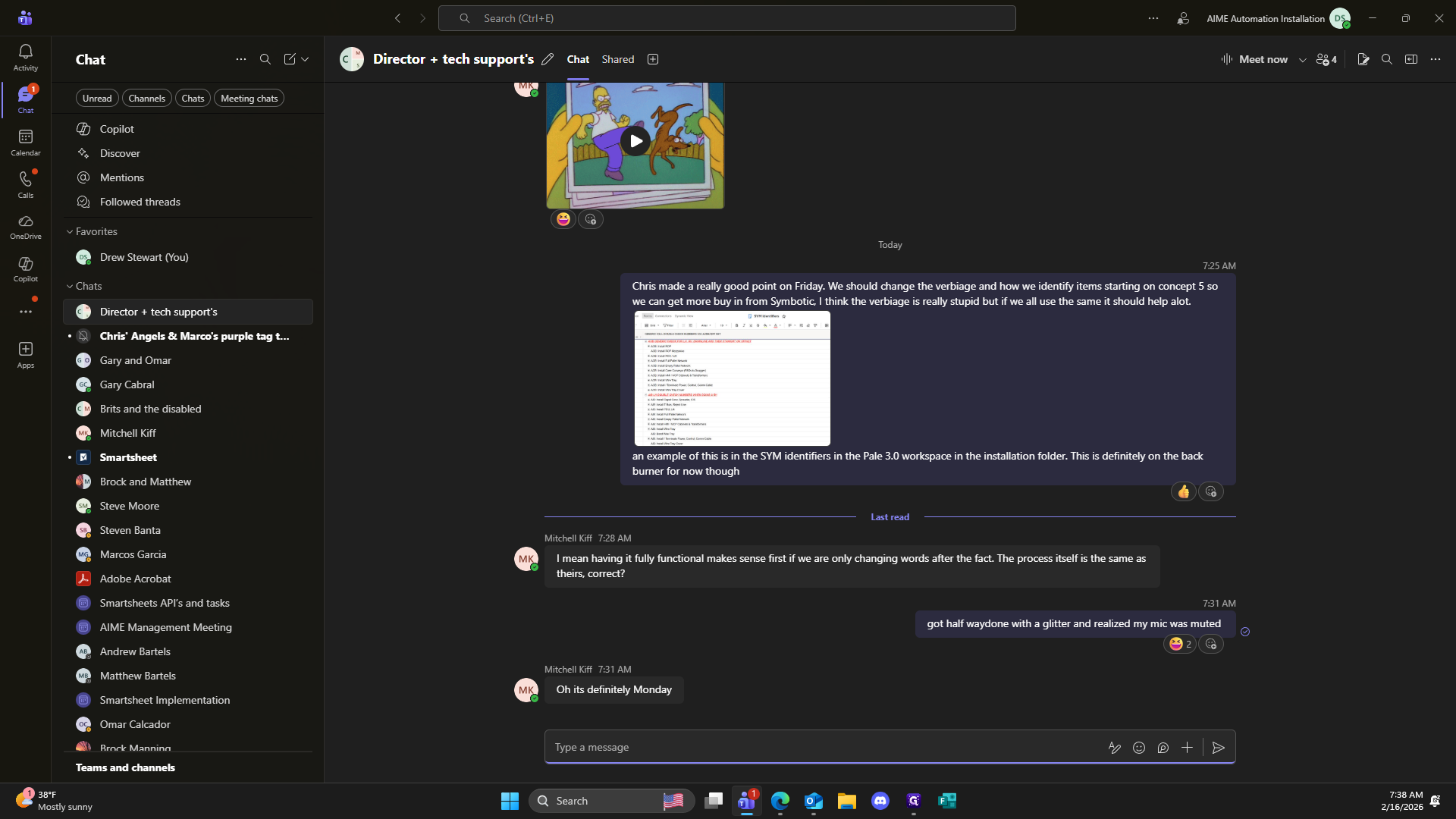
152
Type "Ctrl + V"
153
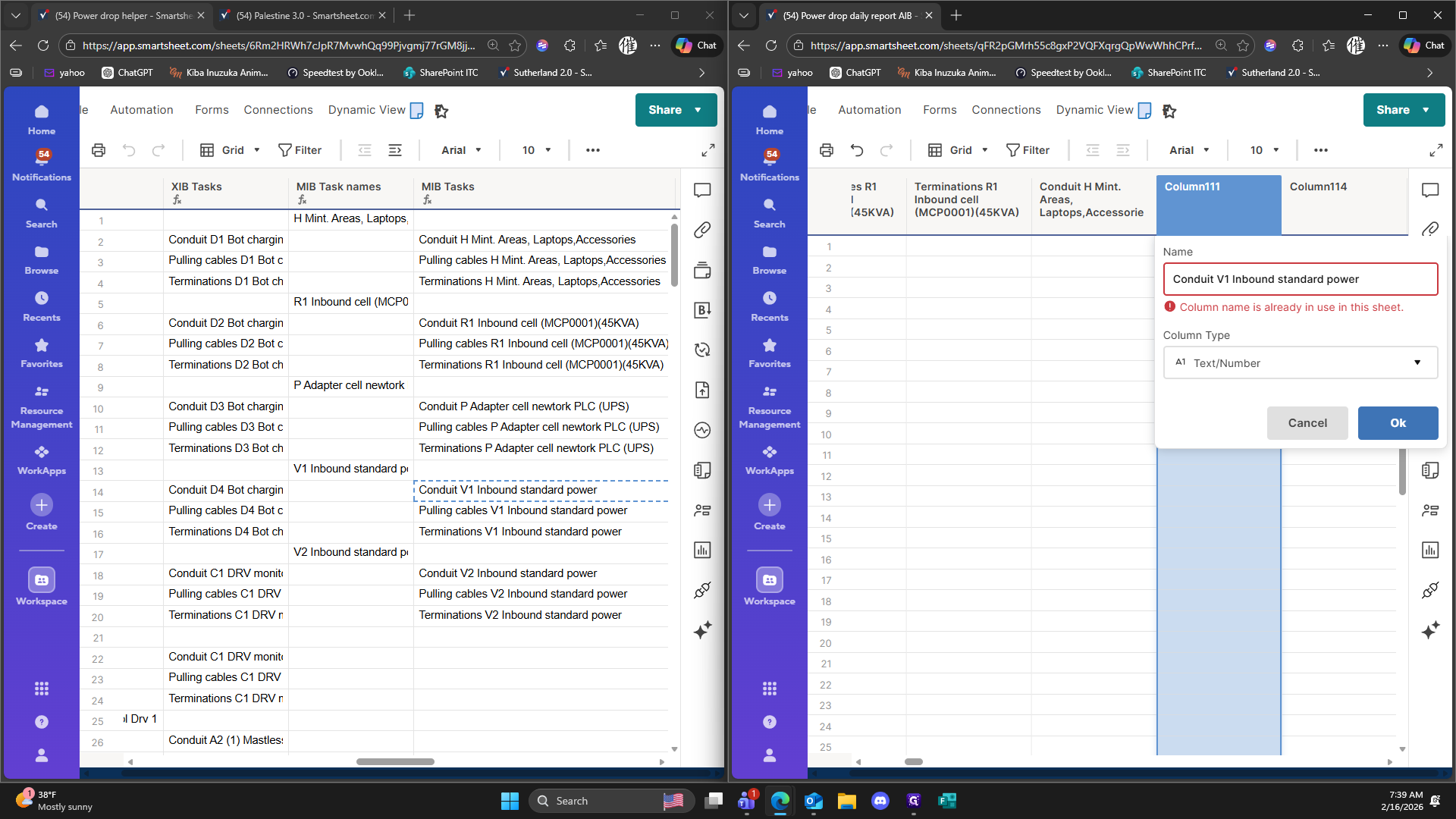
Type " exists"
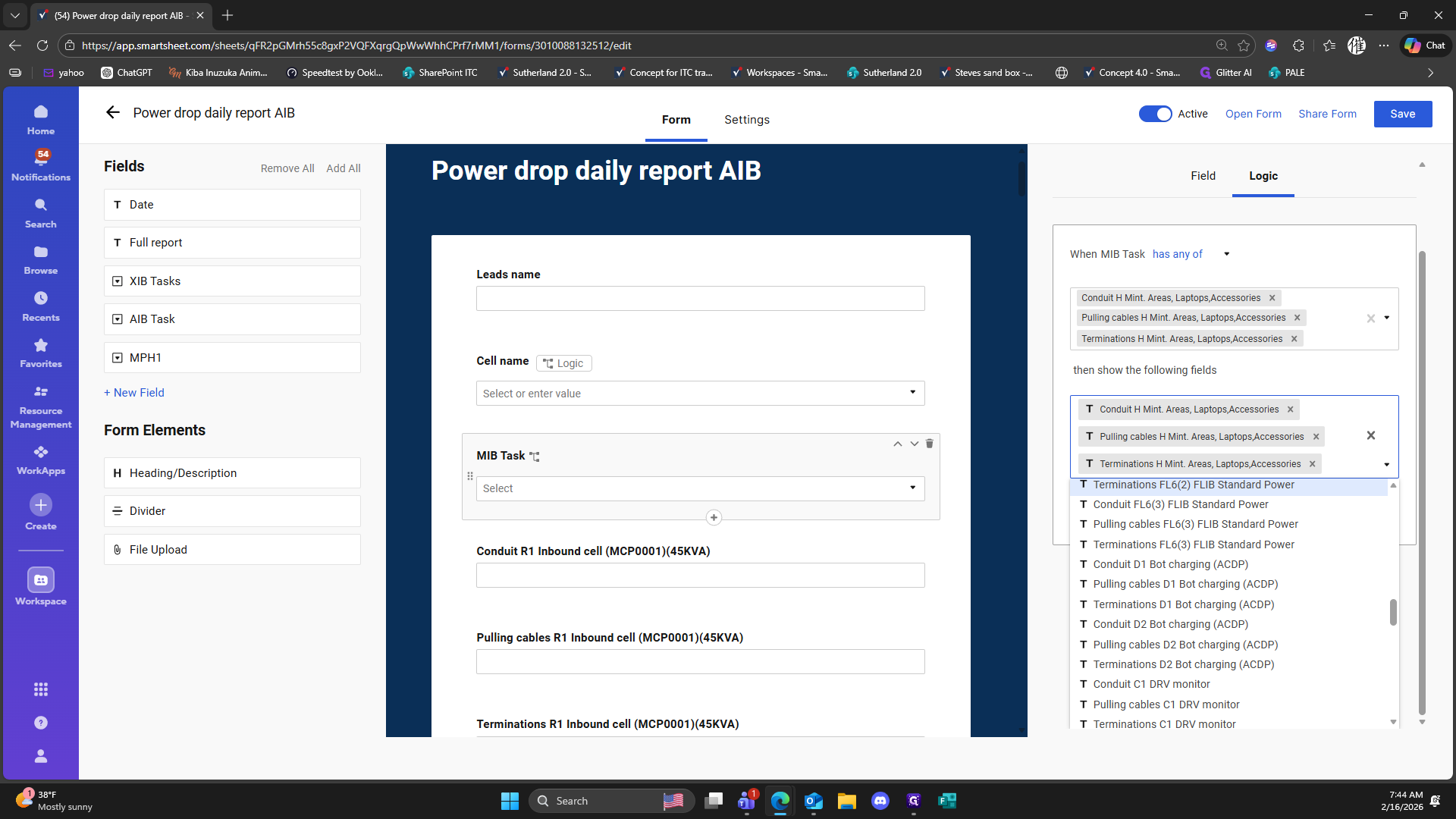
154
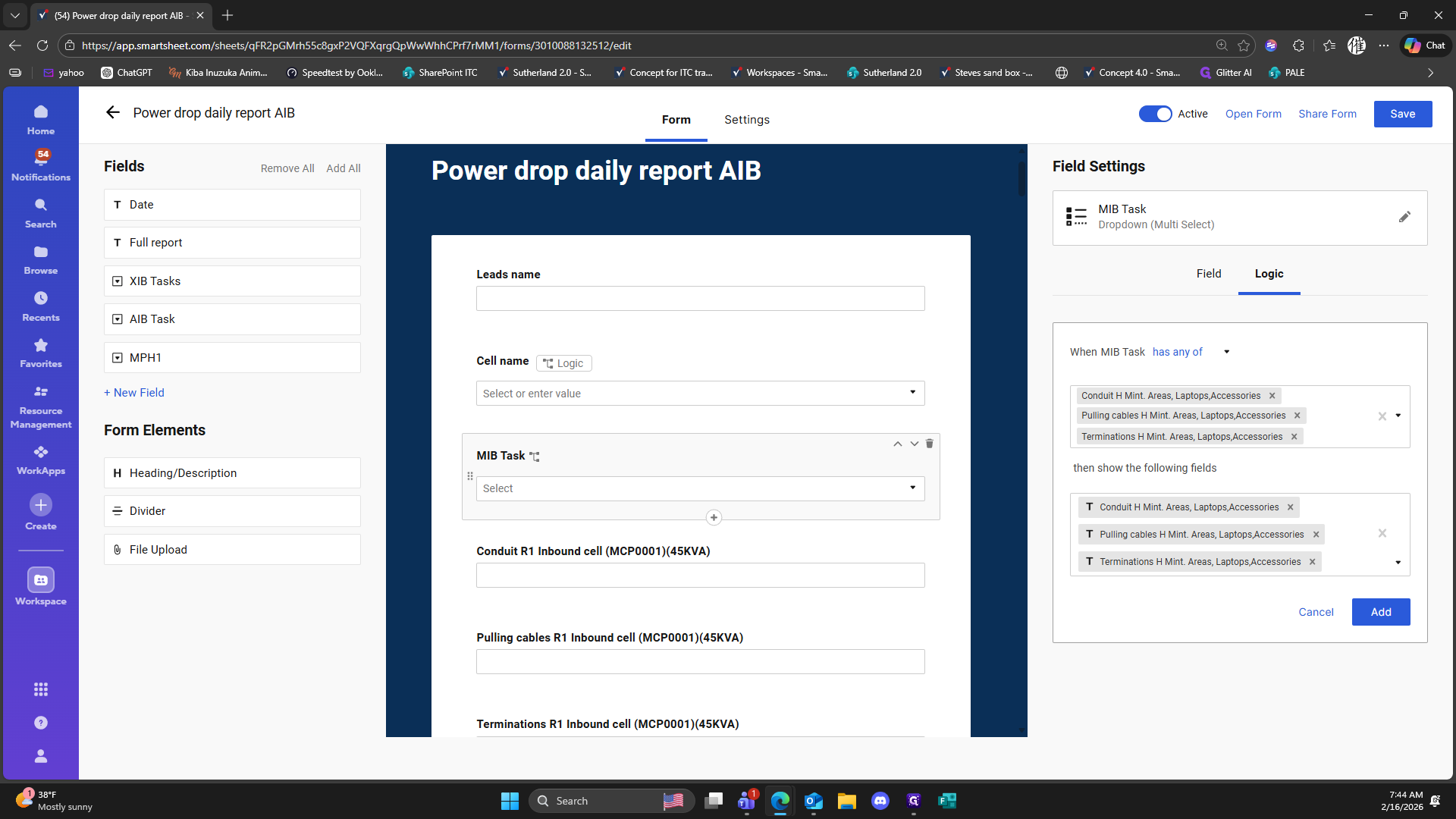
Click on "Cancel"
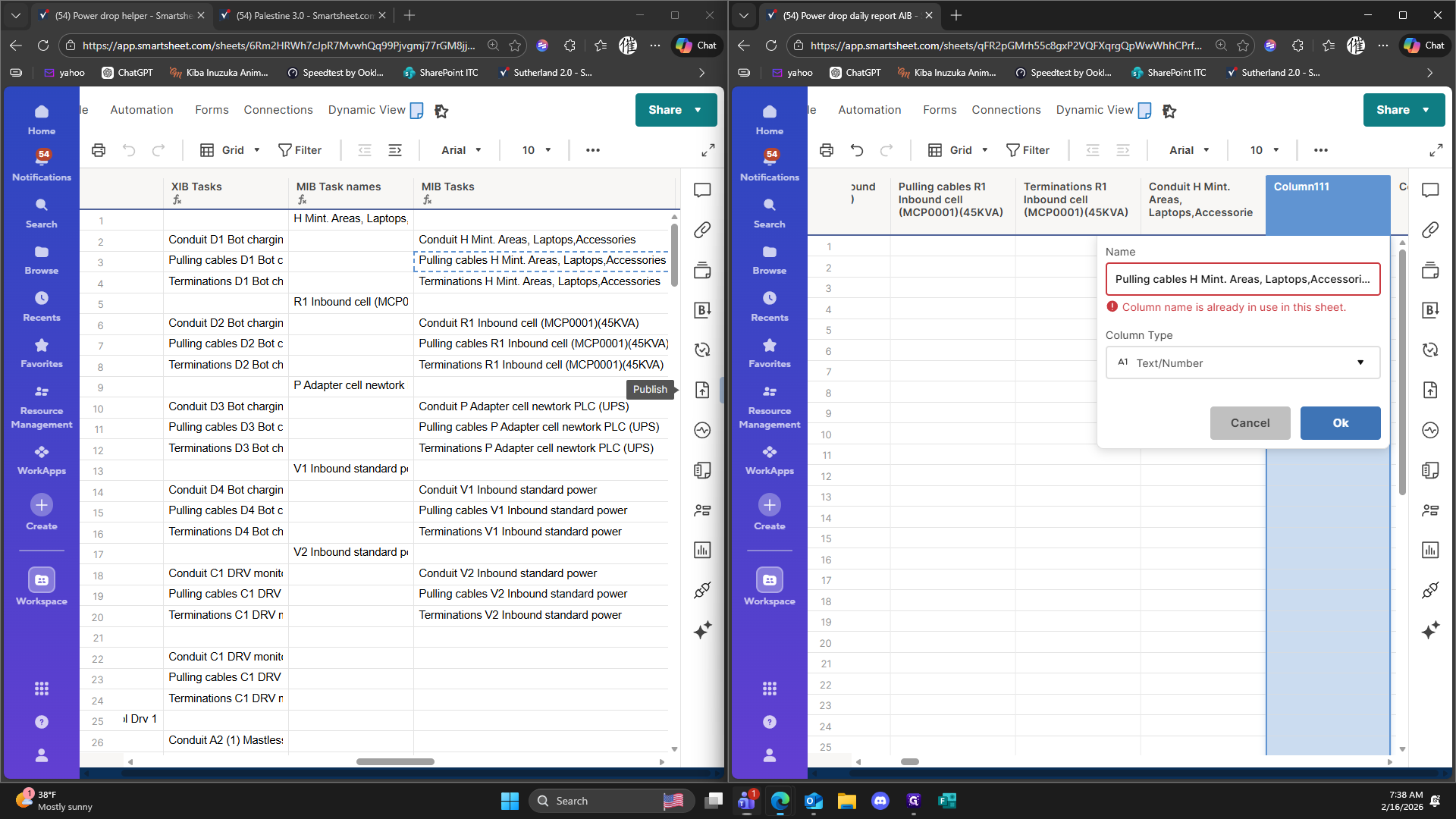
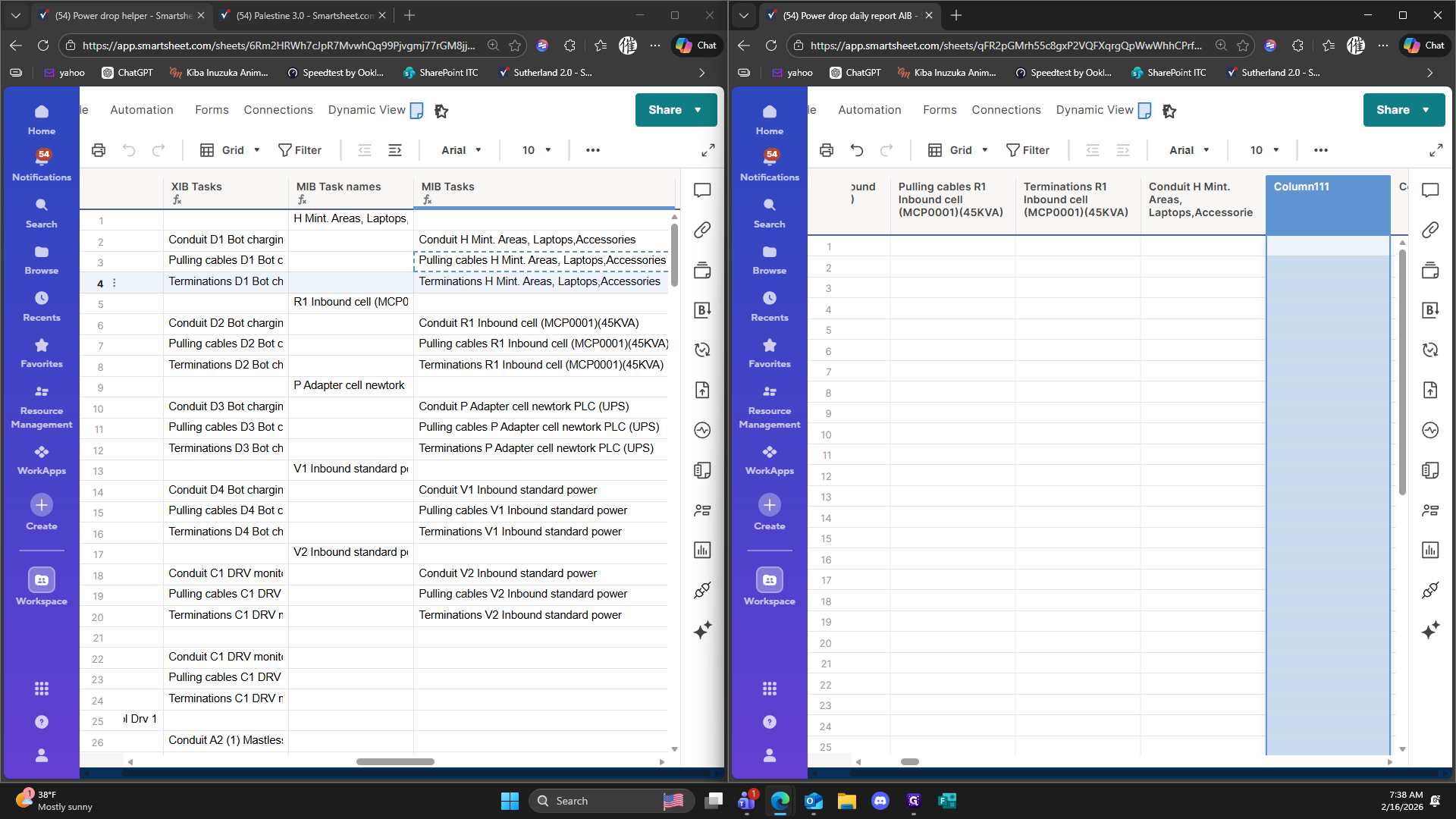
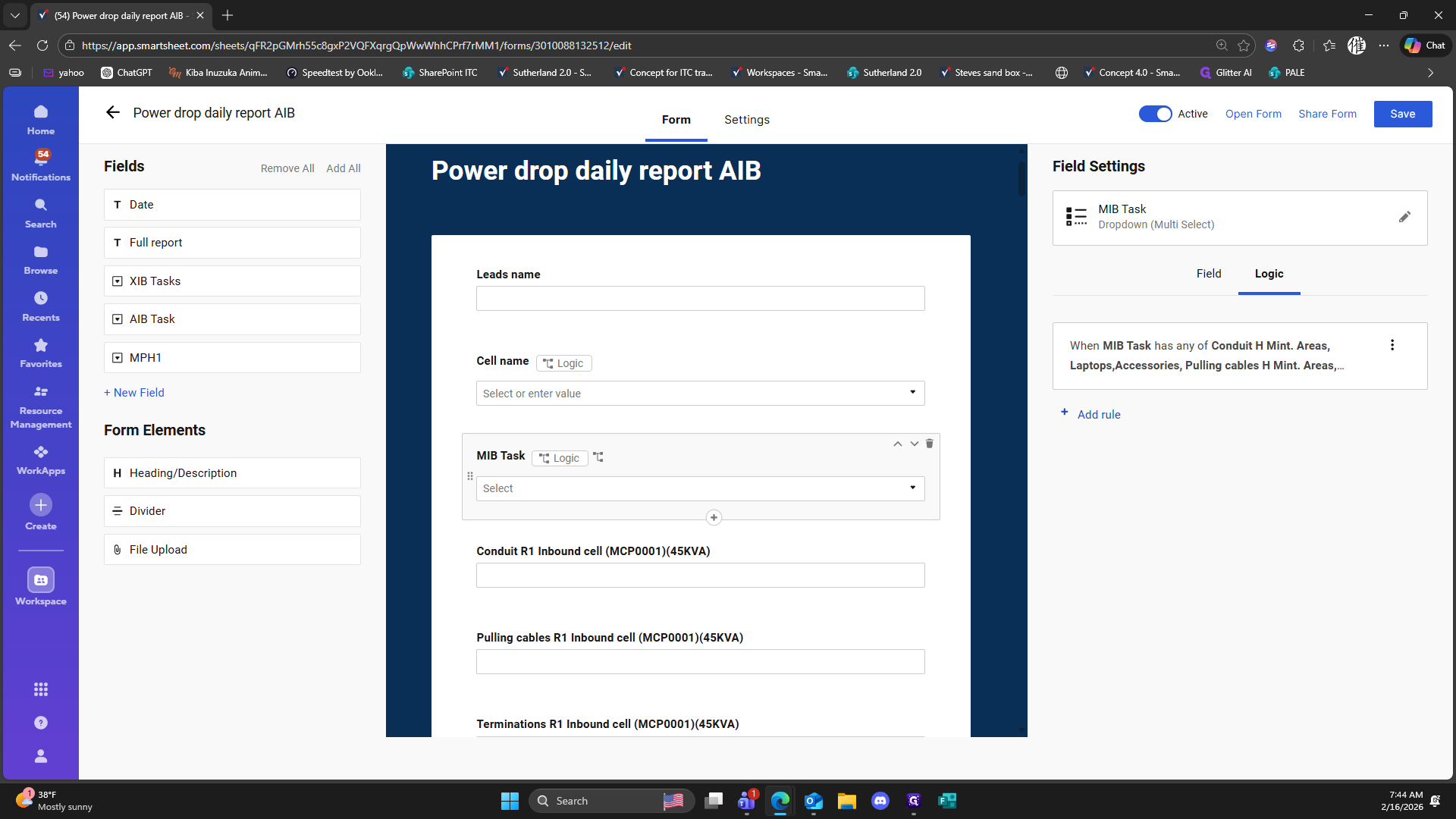
155
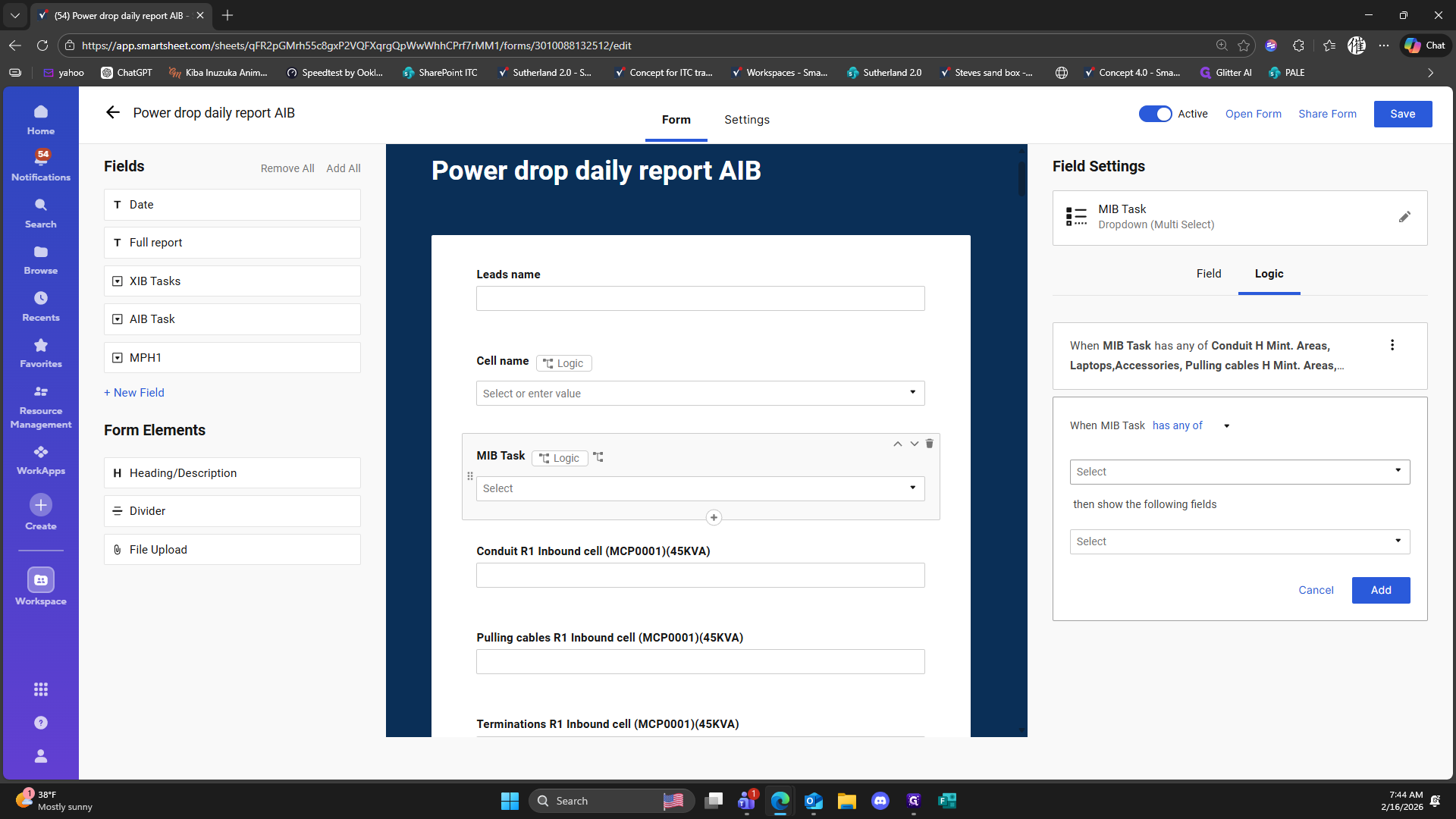
Click on "Laptops"
156
Type "Ctrl + C"
157
Type "Ctrl + C"
158
Double-click here
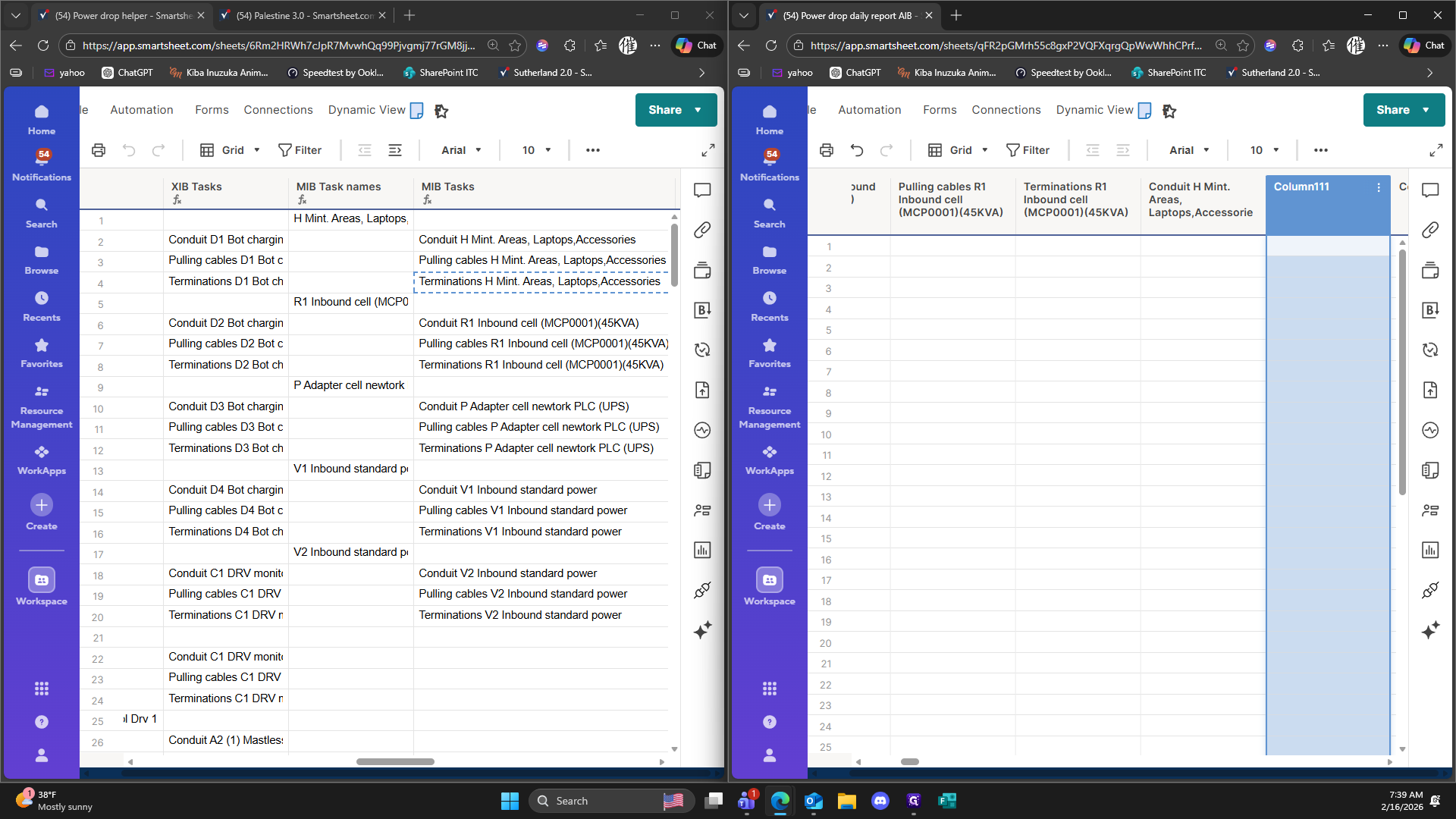
159
Type "Ctrl + V"
160
Click on "Ok"
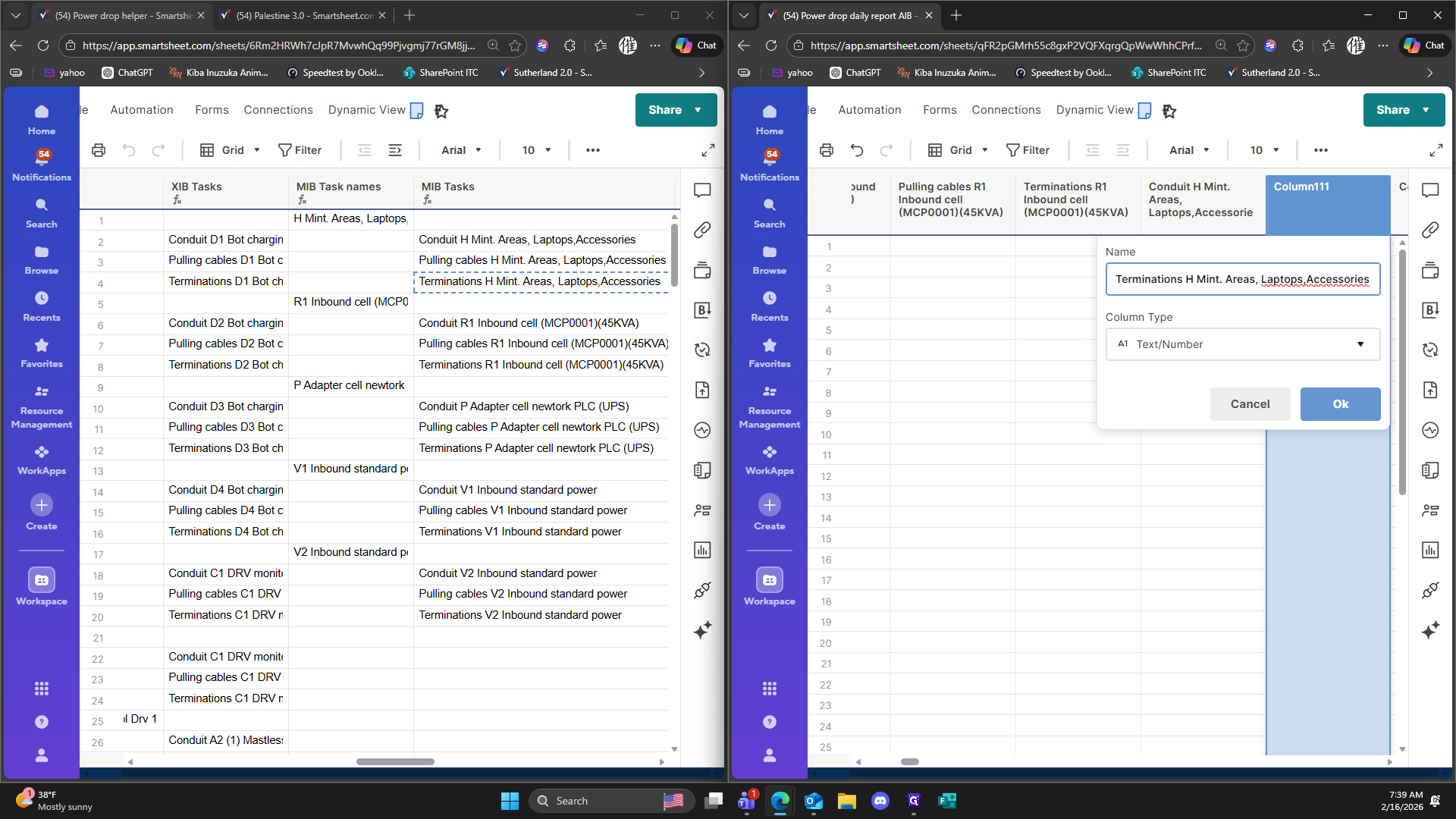
161
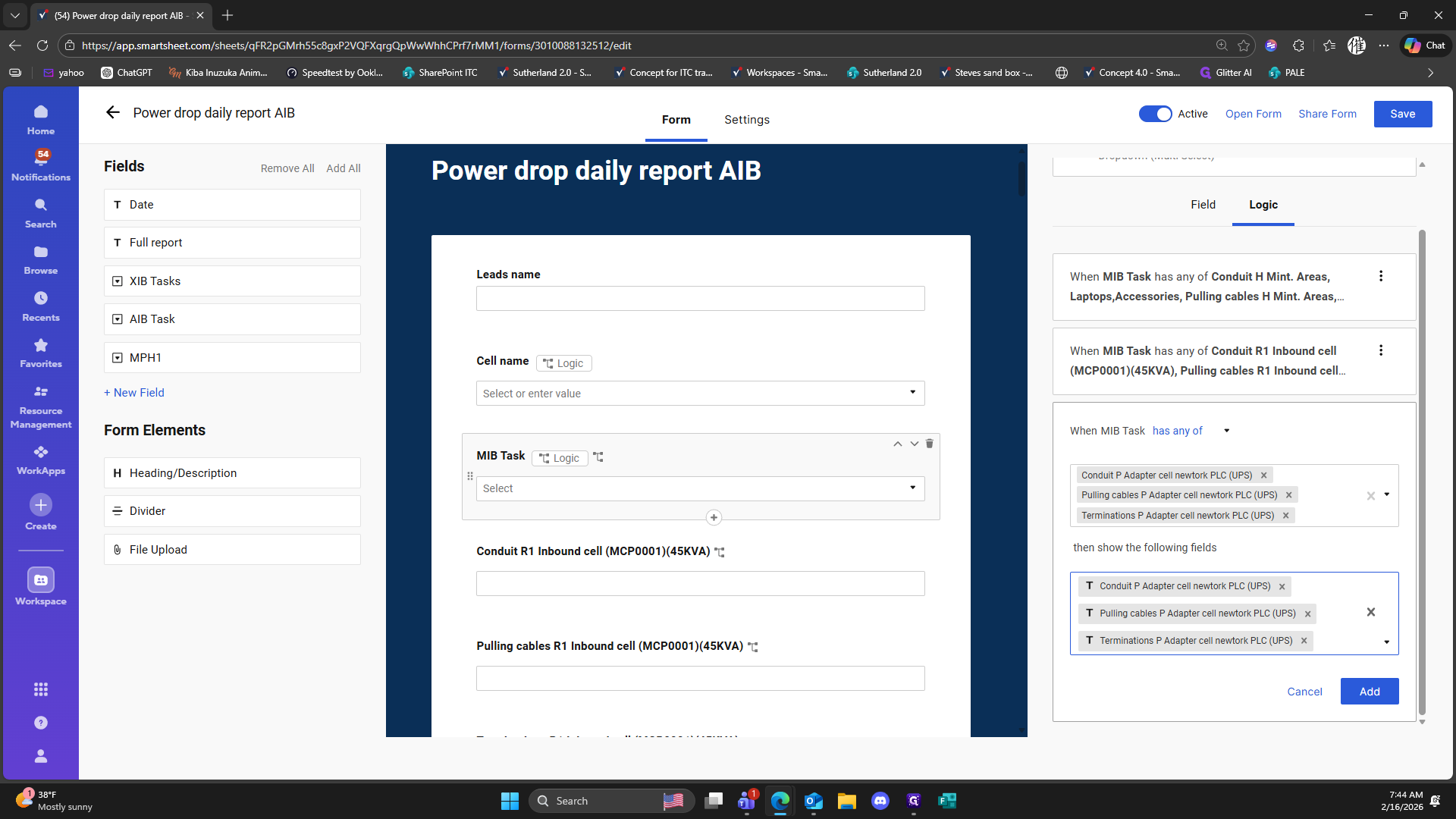
Type " "
162
Type "Ctrl + V"
163
Click on "( MCP0001 )"
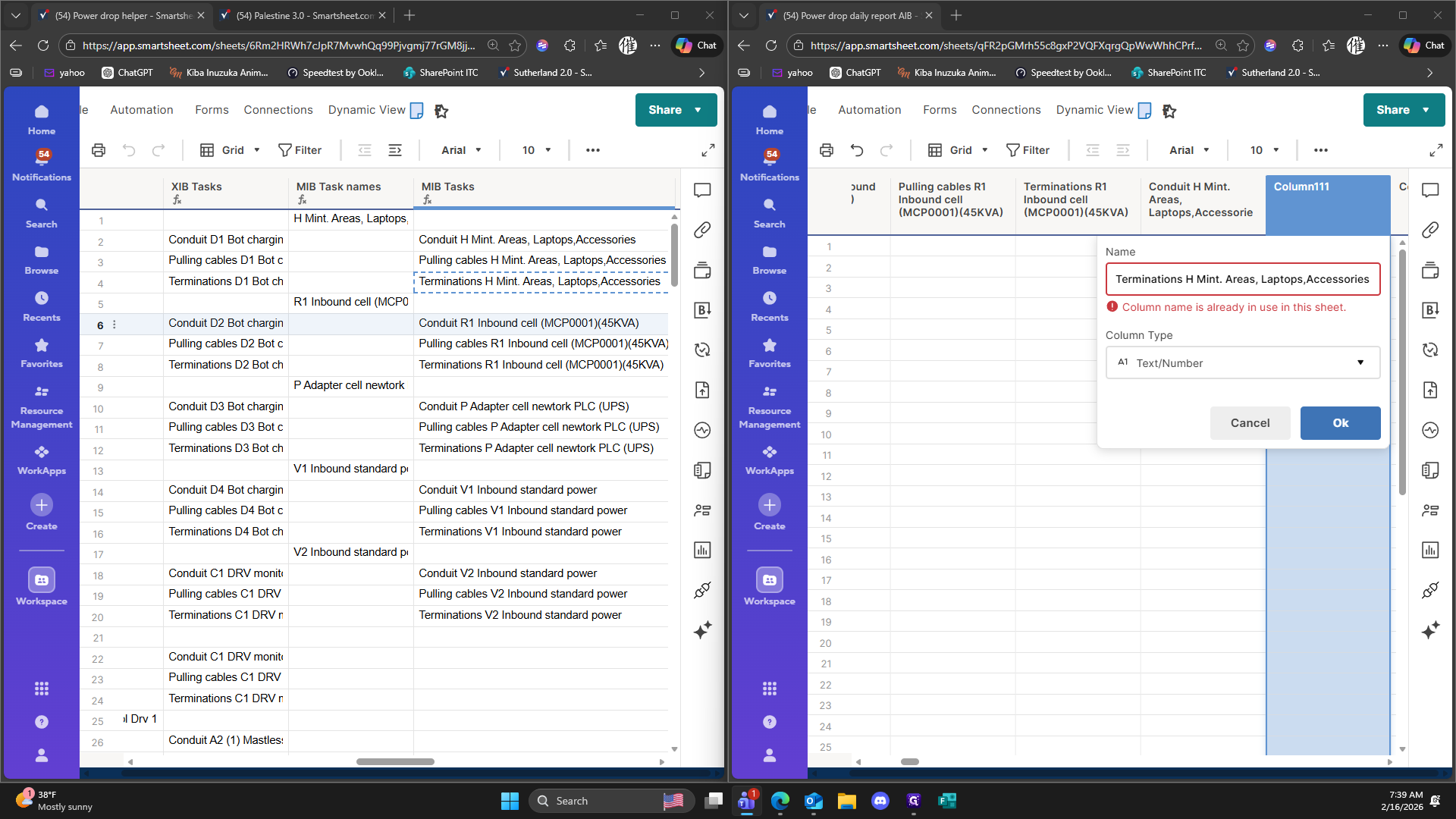
164
Click on "Cancel"
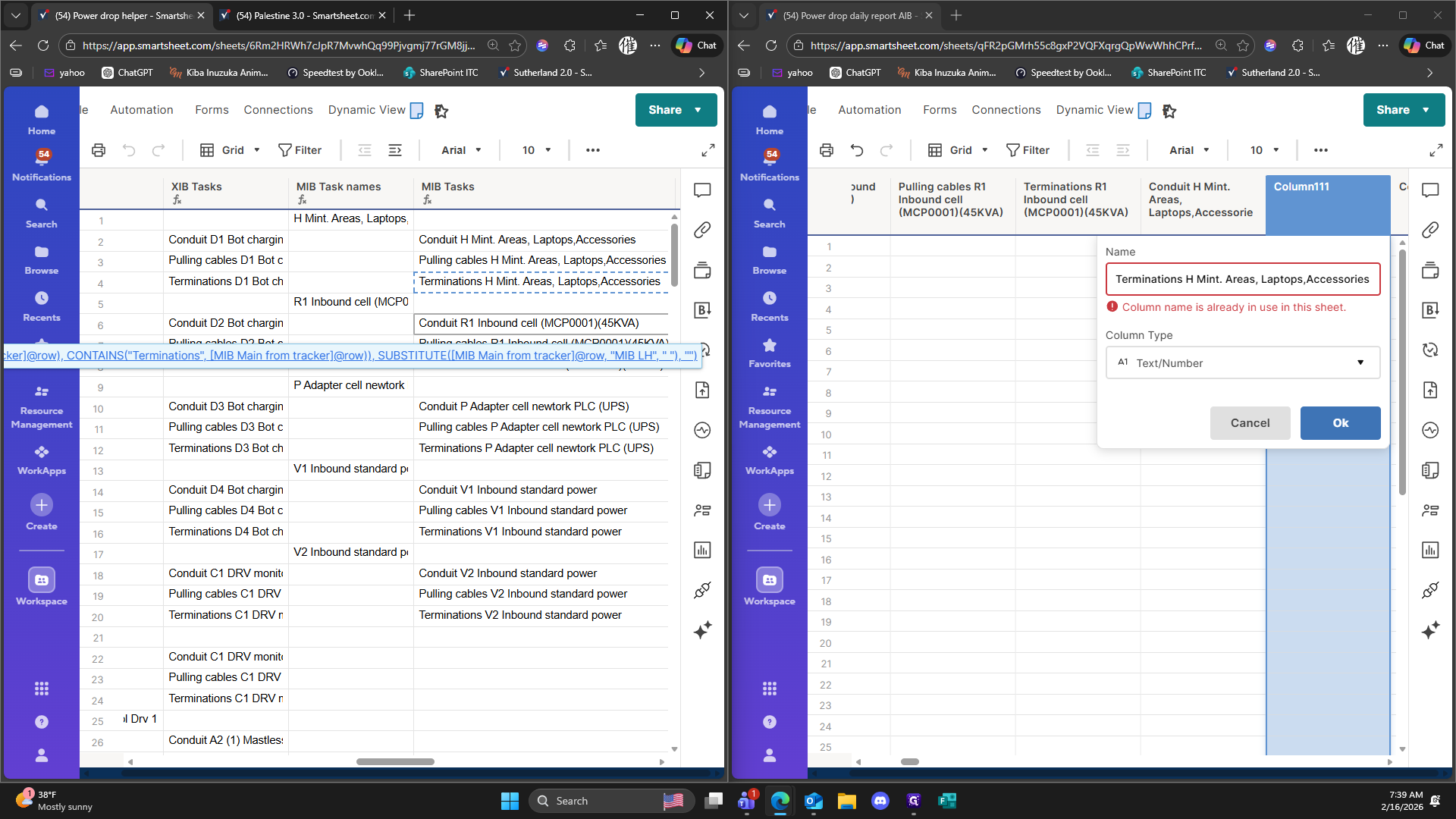
165
Drag "cell"
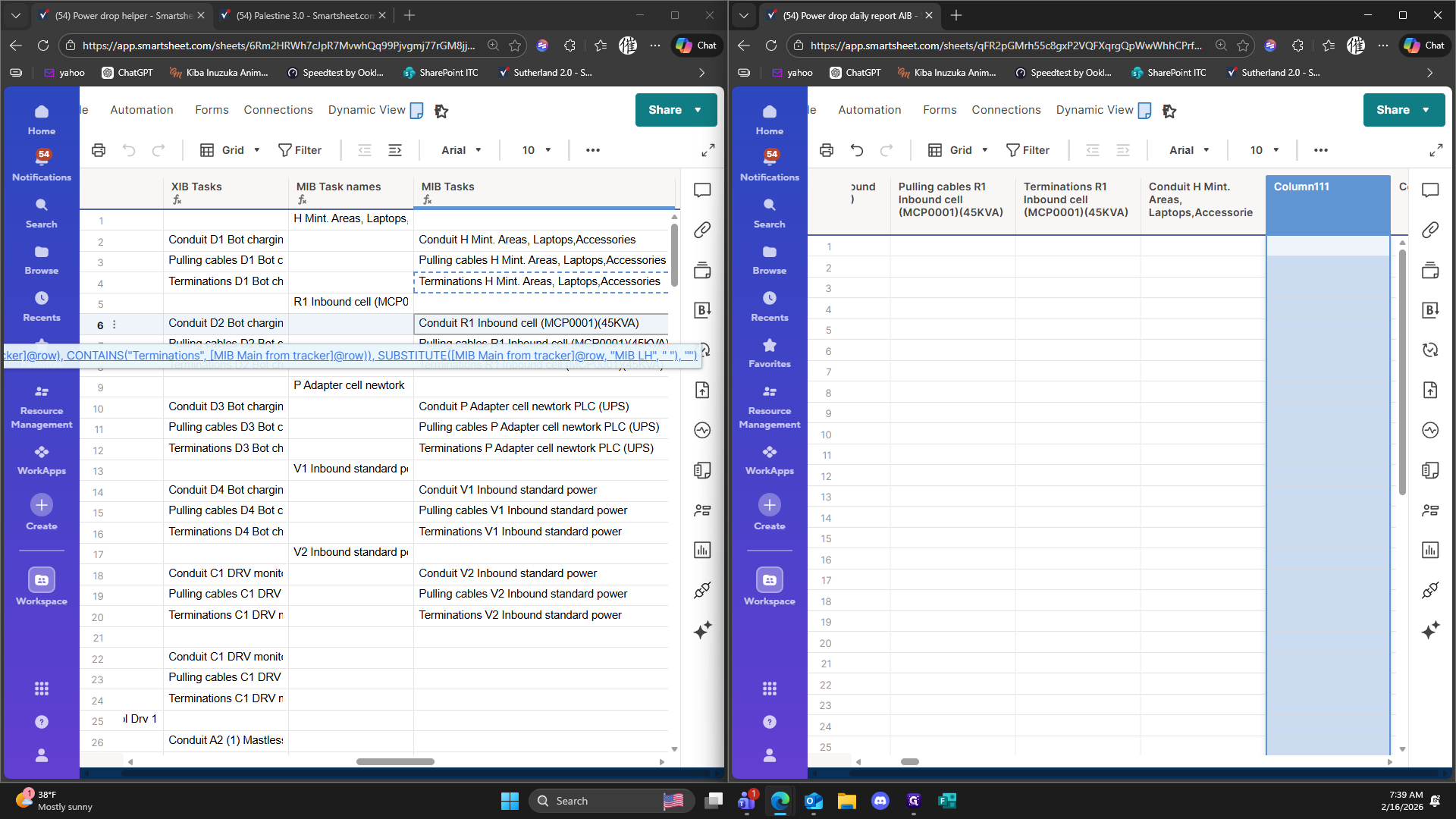
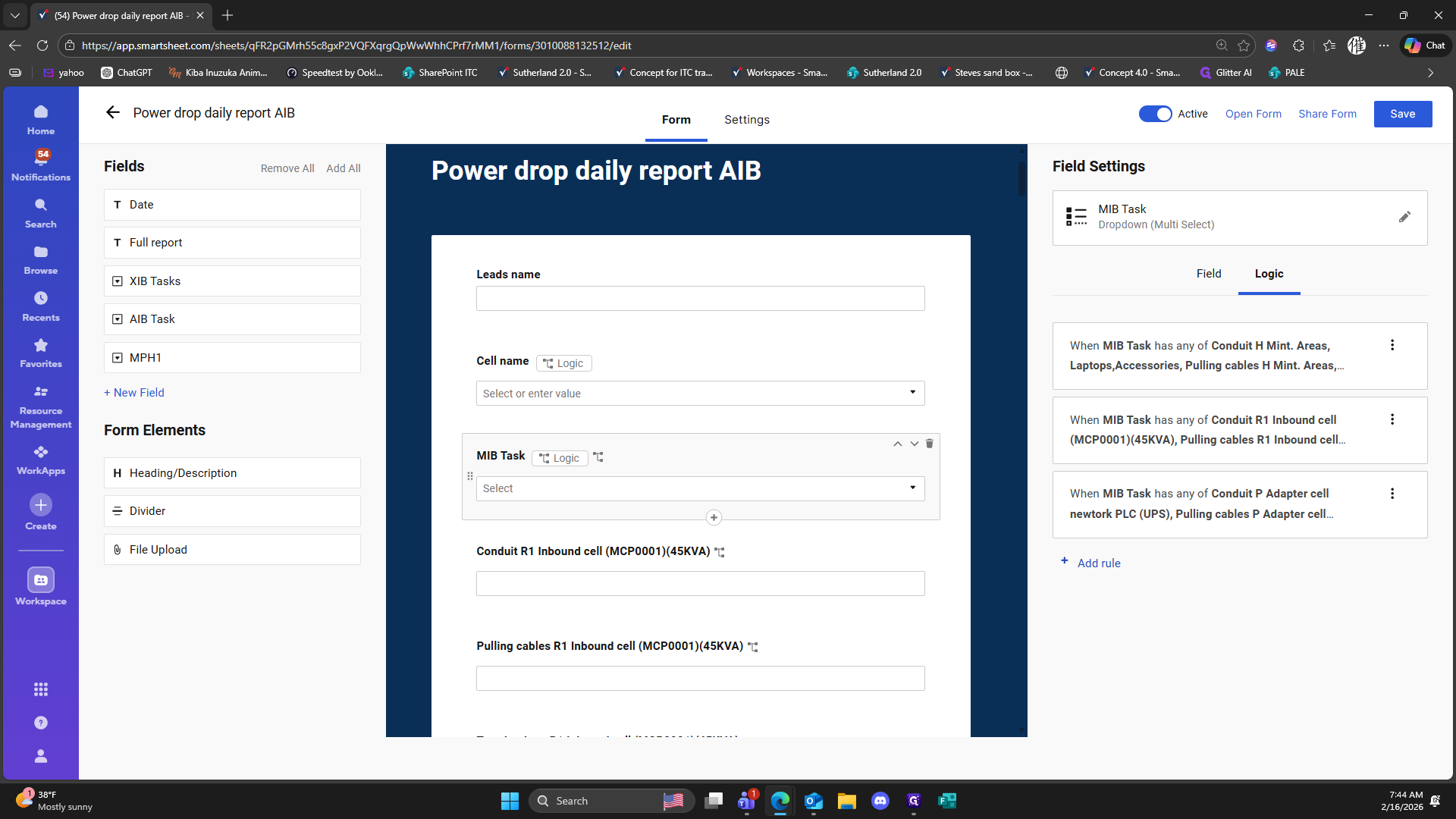
166
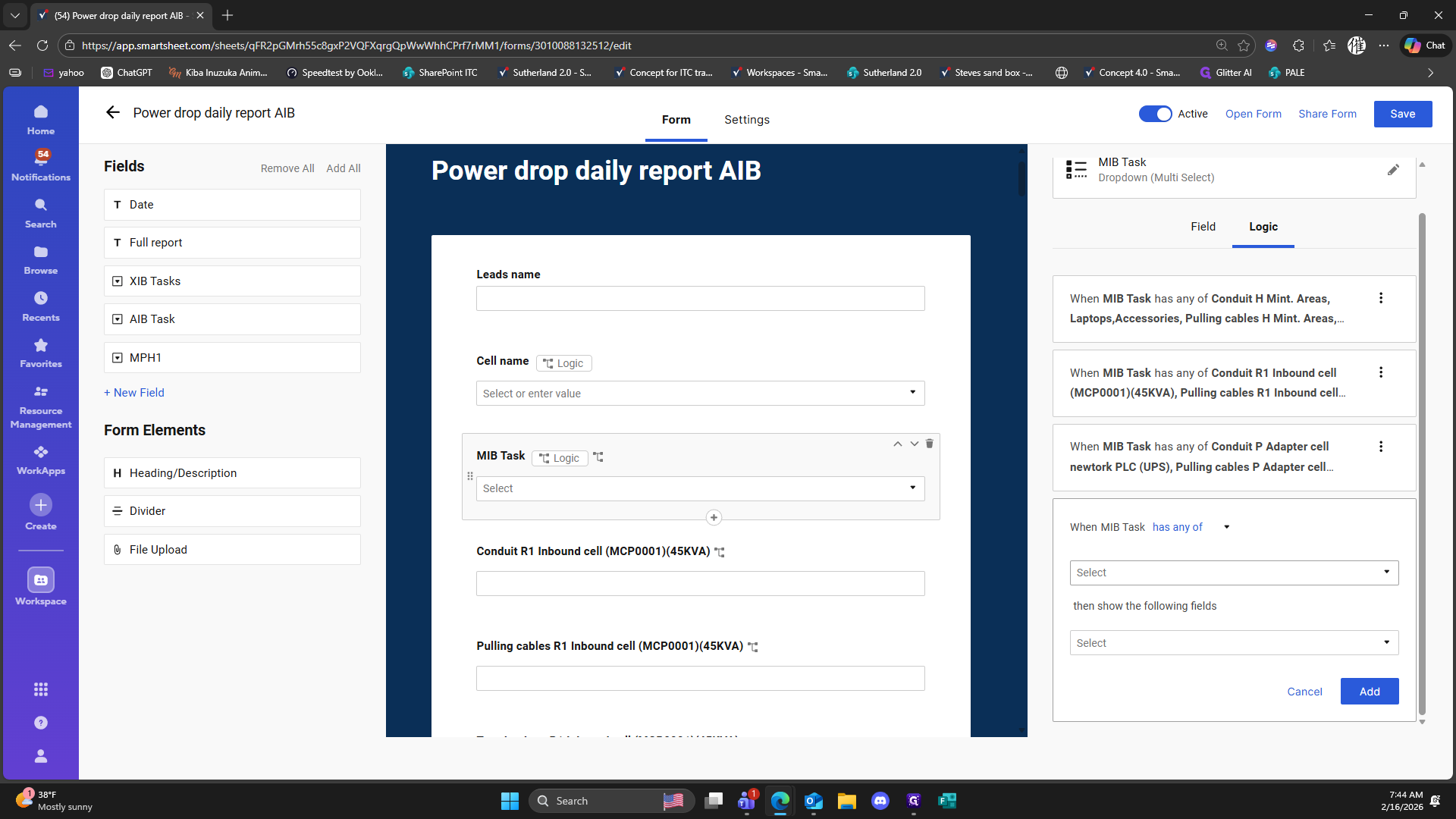
Click on "cell"
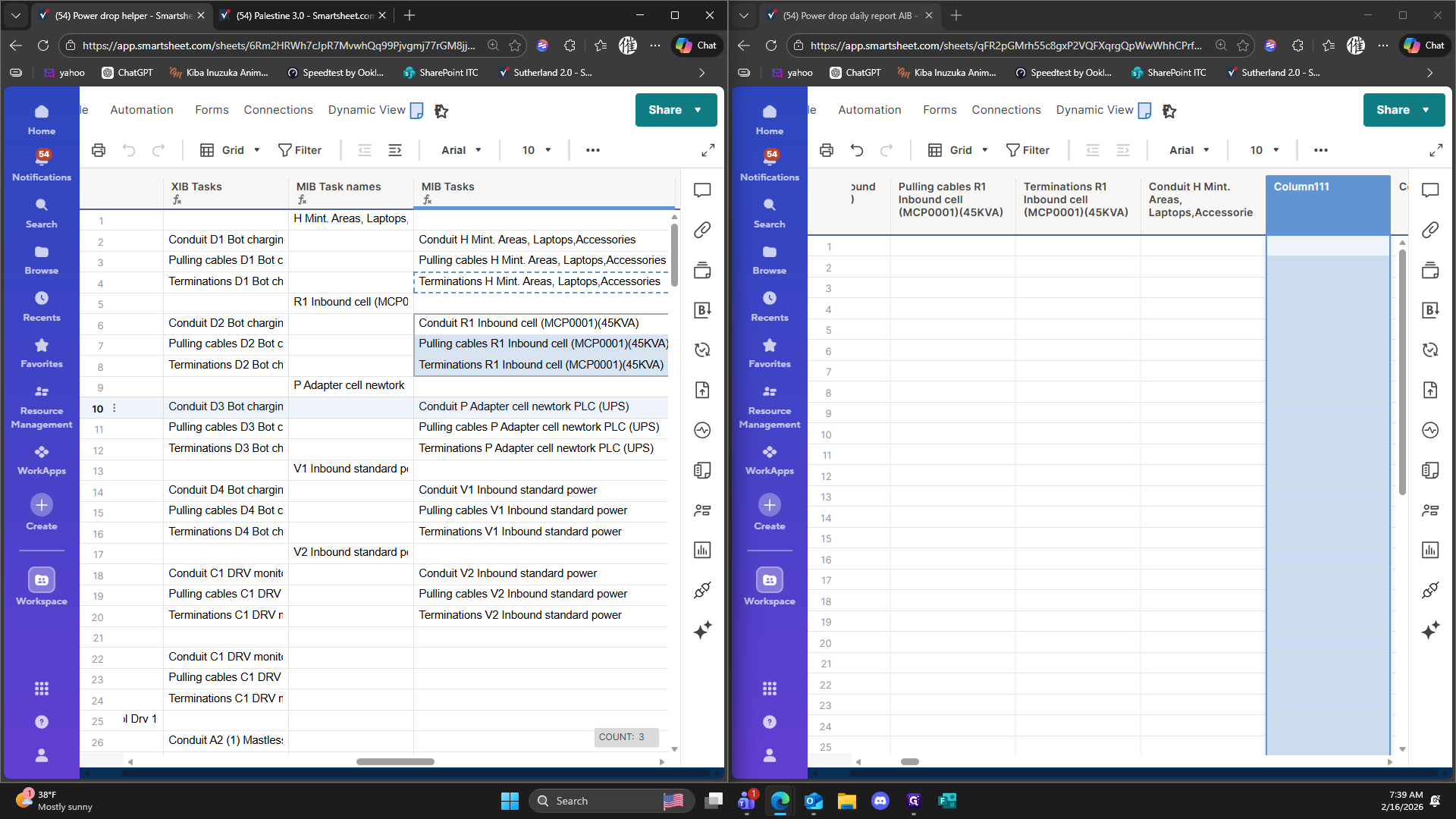
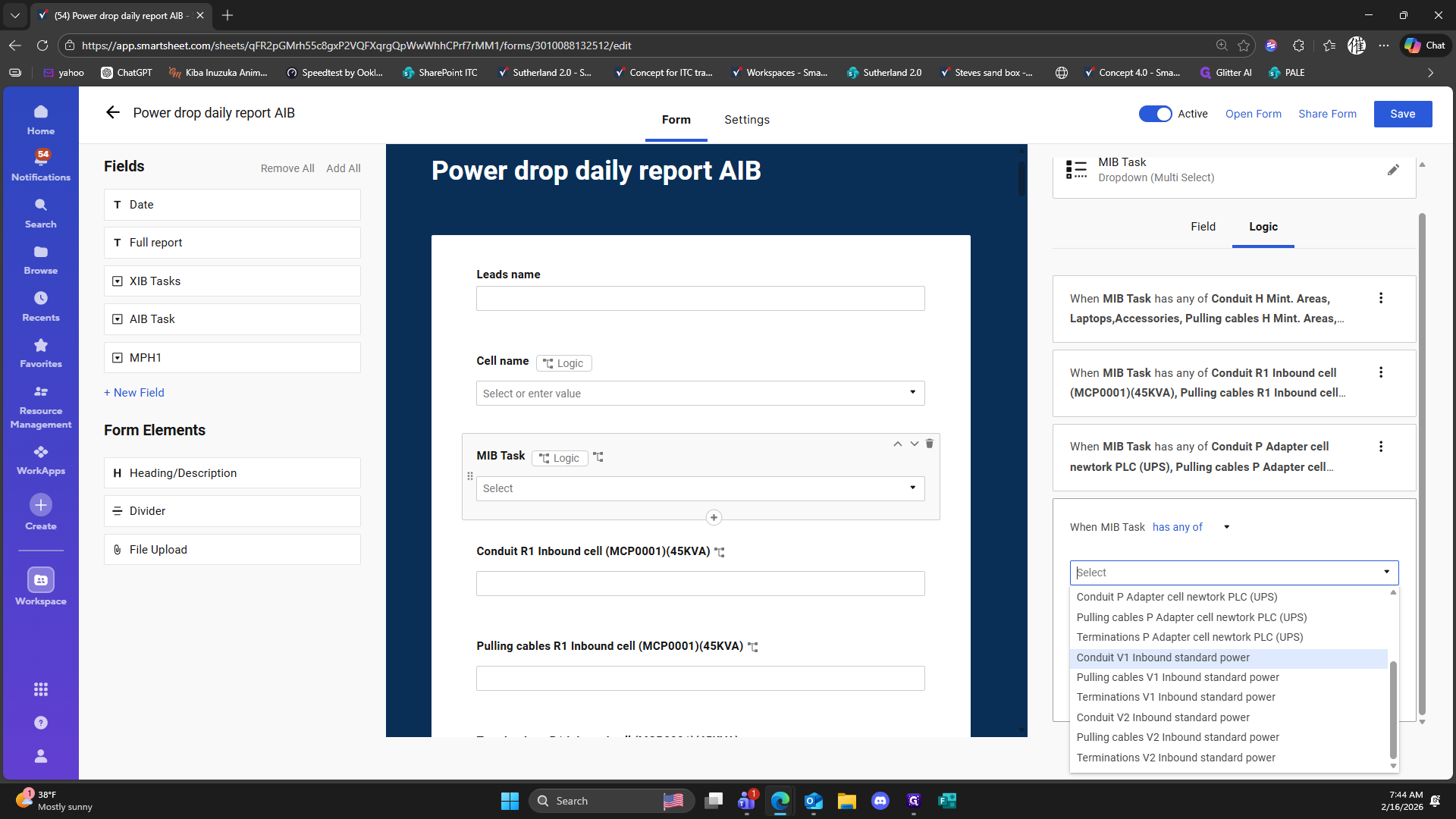
167
Type "Ctrl + C"
168
Type "Ctrl + C"
169
Type "Ctrl + C"
170
Double-click here
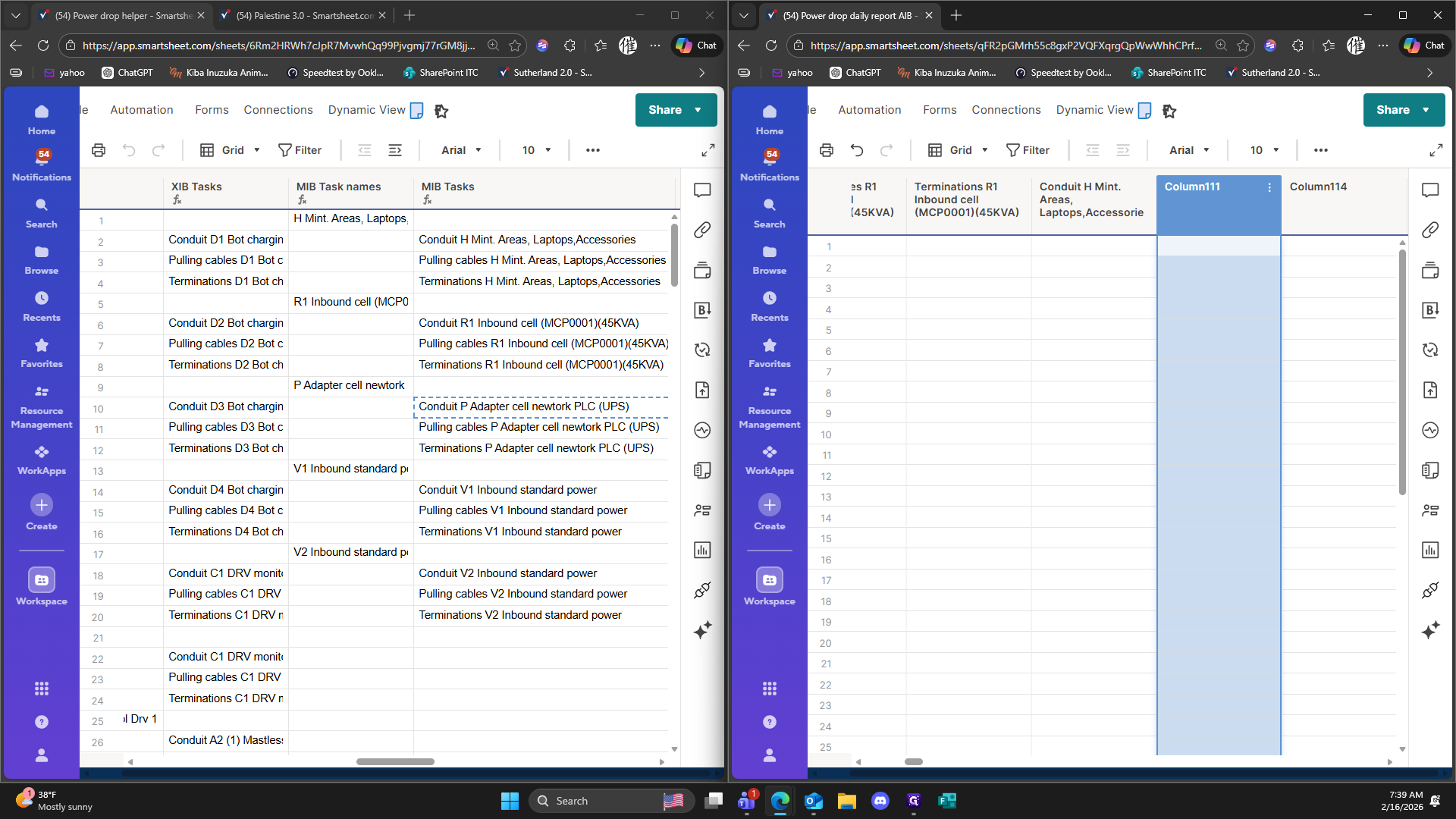
171
Type "Ctrl + V"
172
Click on "Ok"
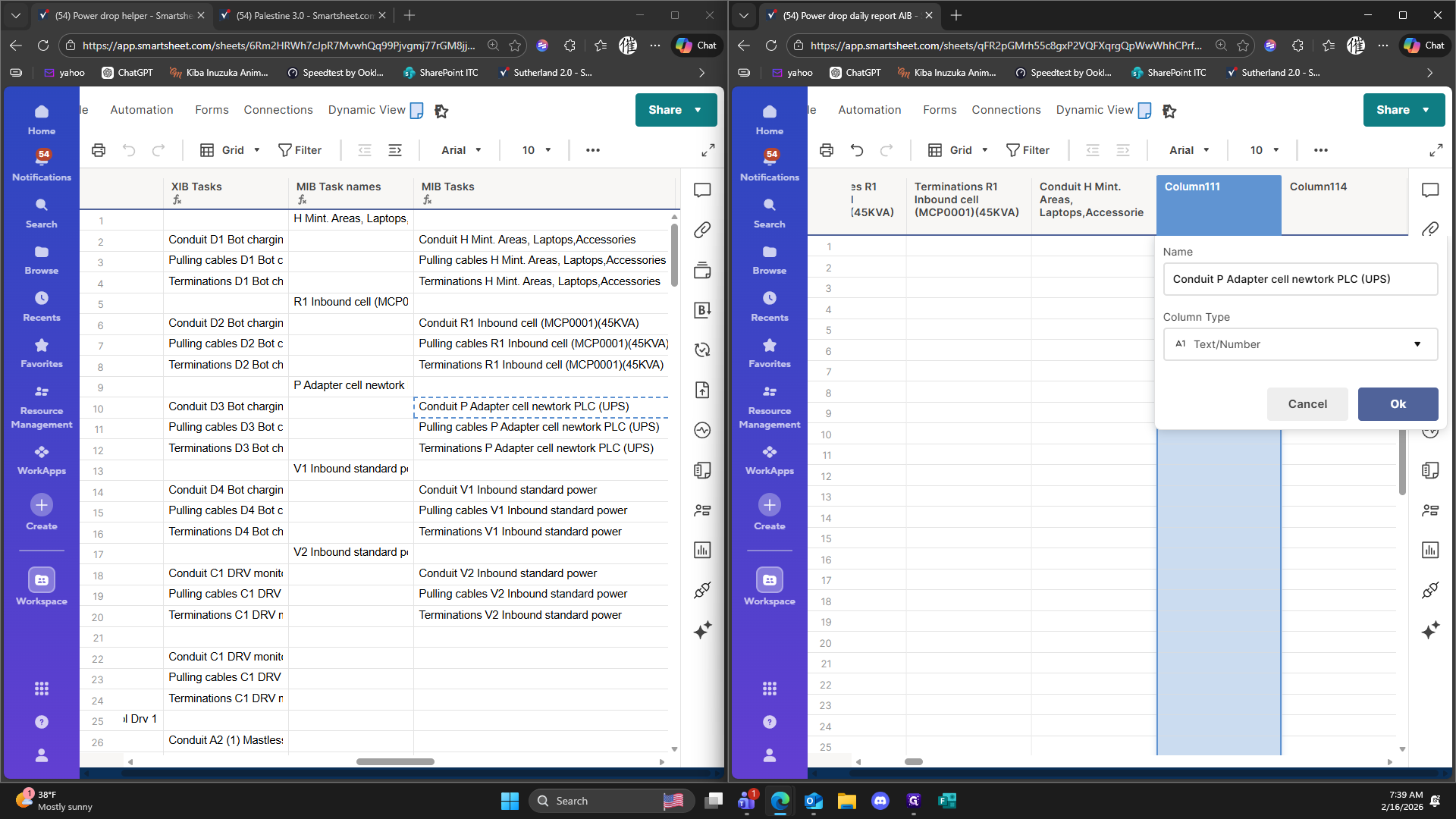
173
Click on "Terminations P Adapter cell"
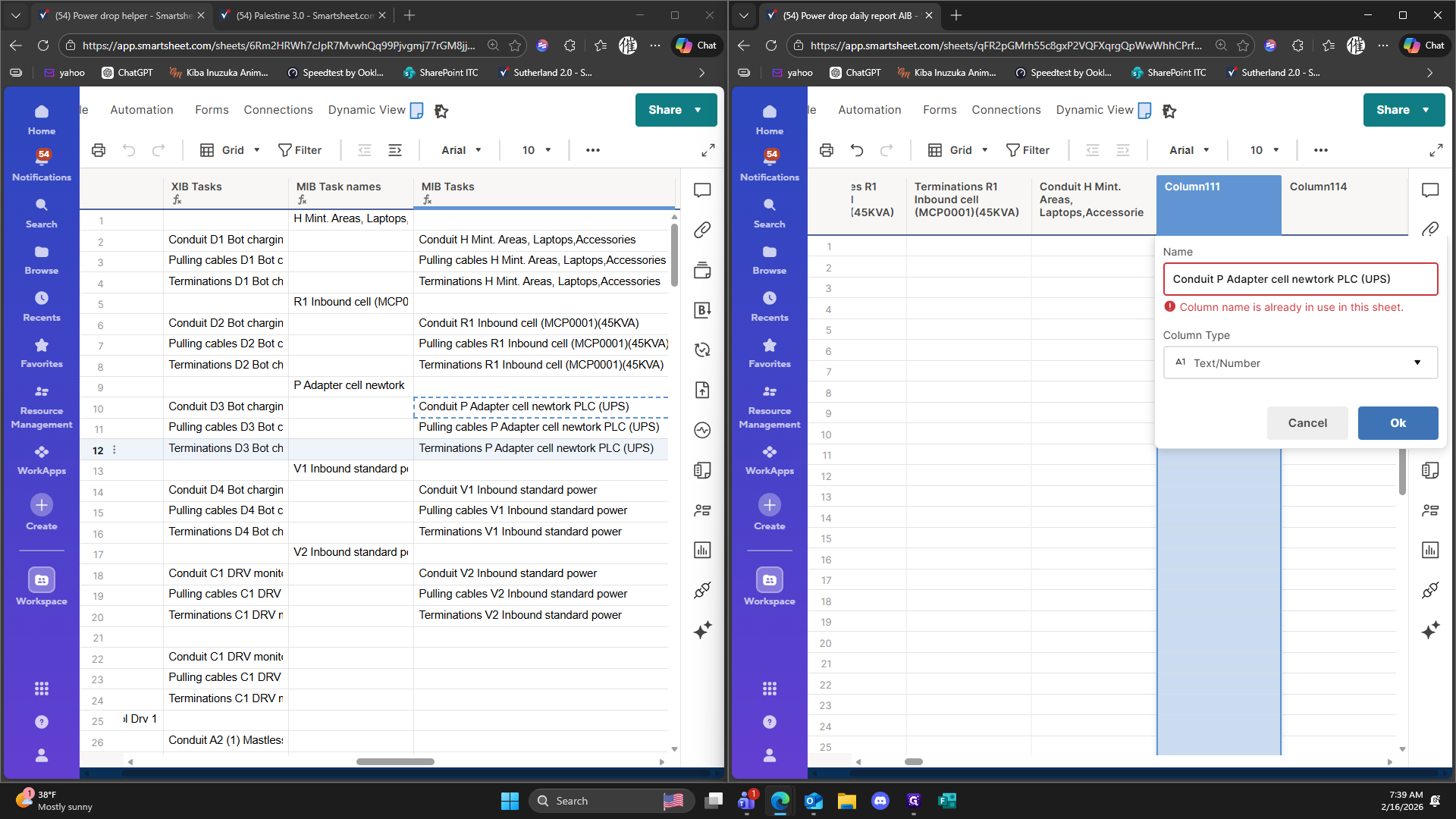
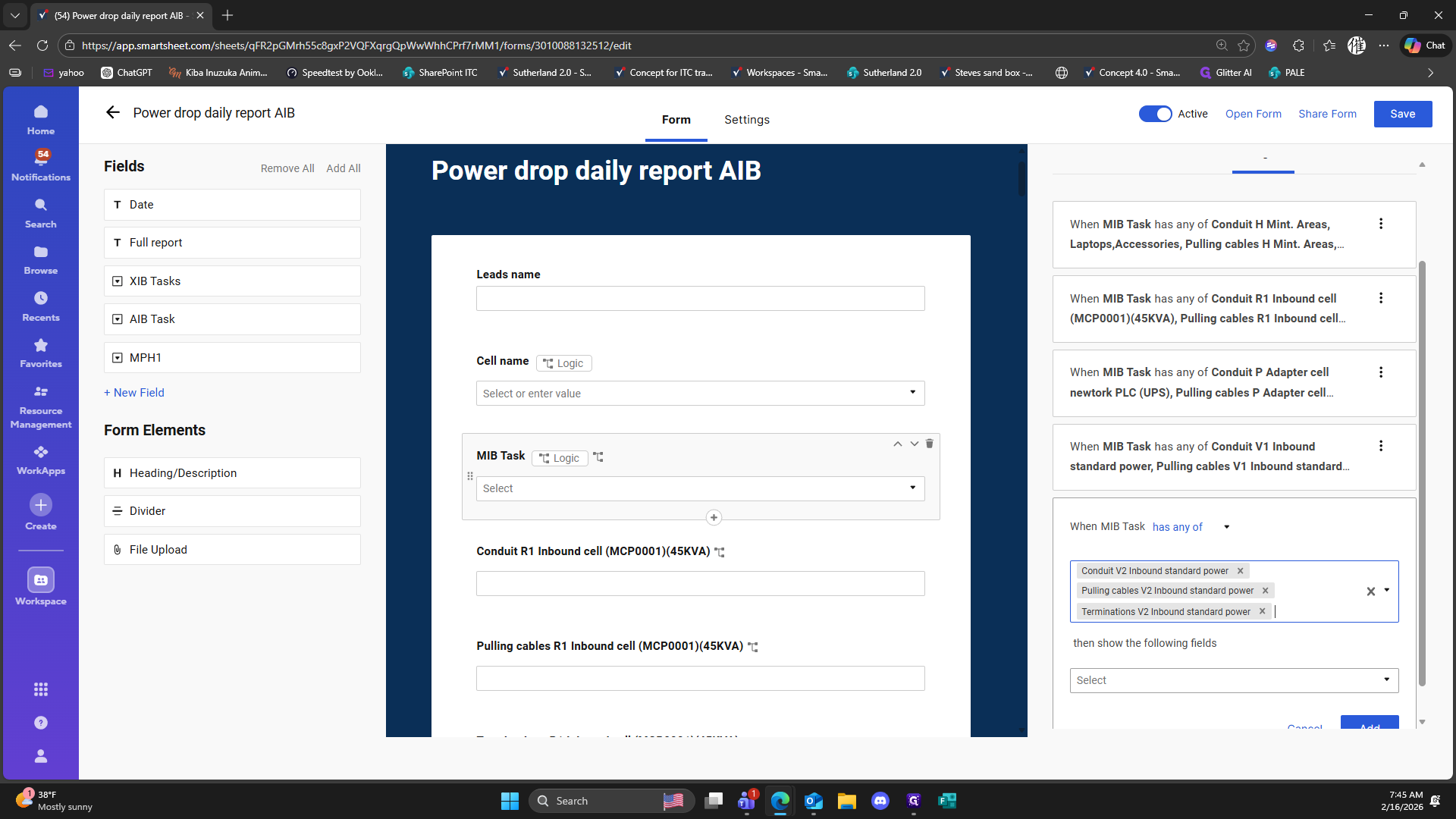
174
Type "Ctrl + C"
175
Drag here
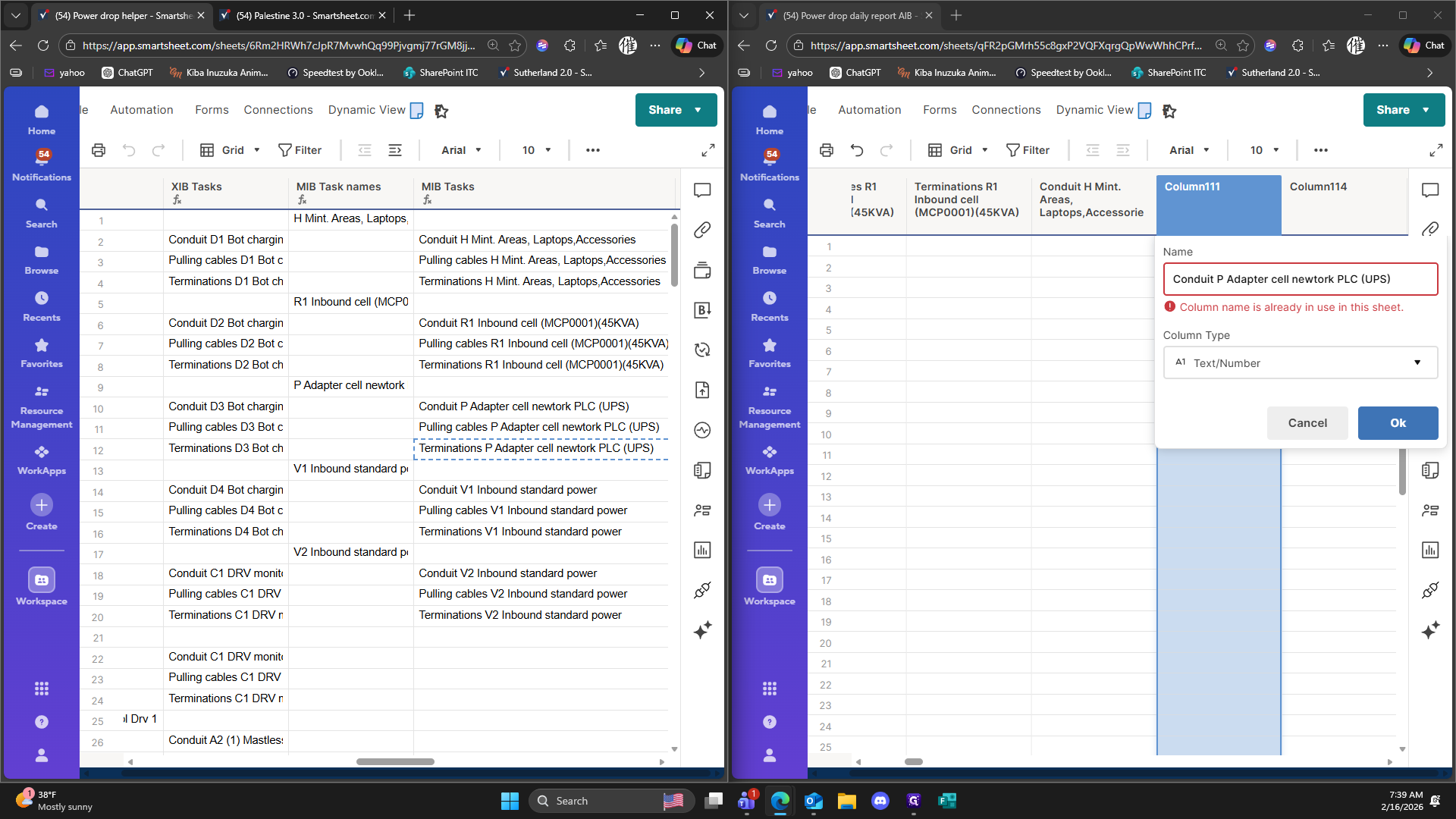
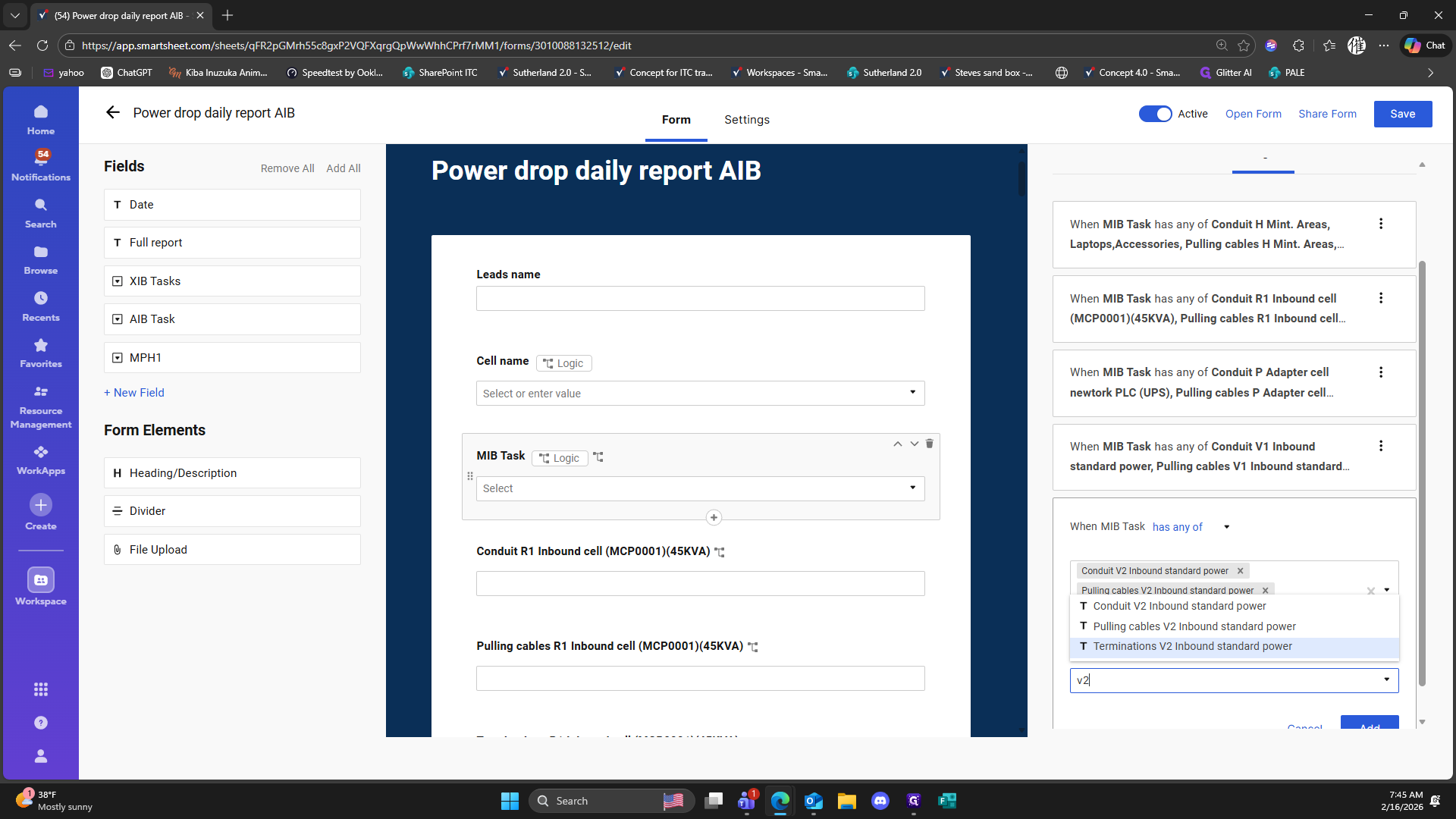
176
Type "Ctrl + V"
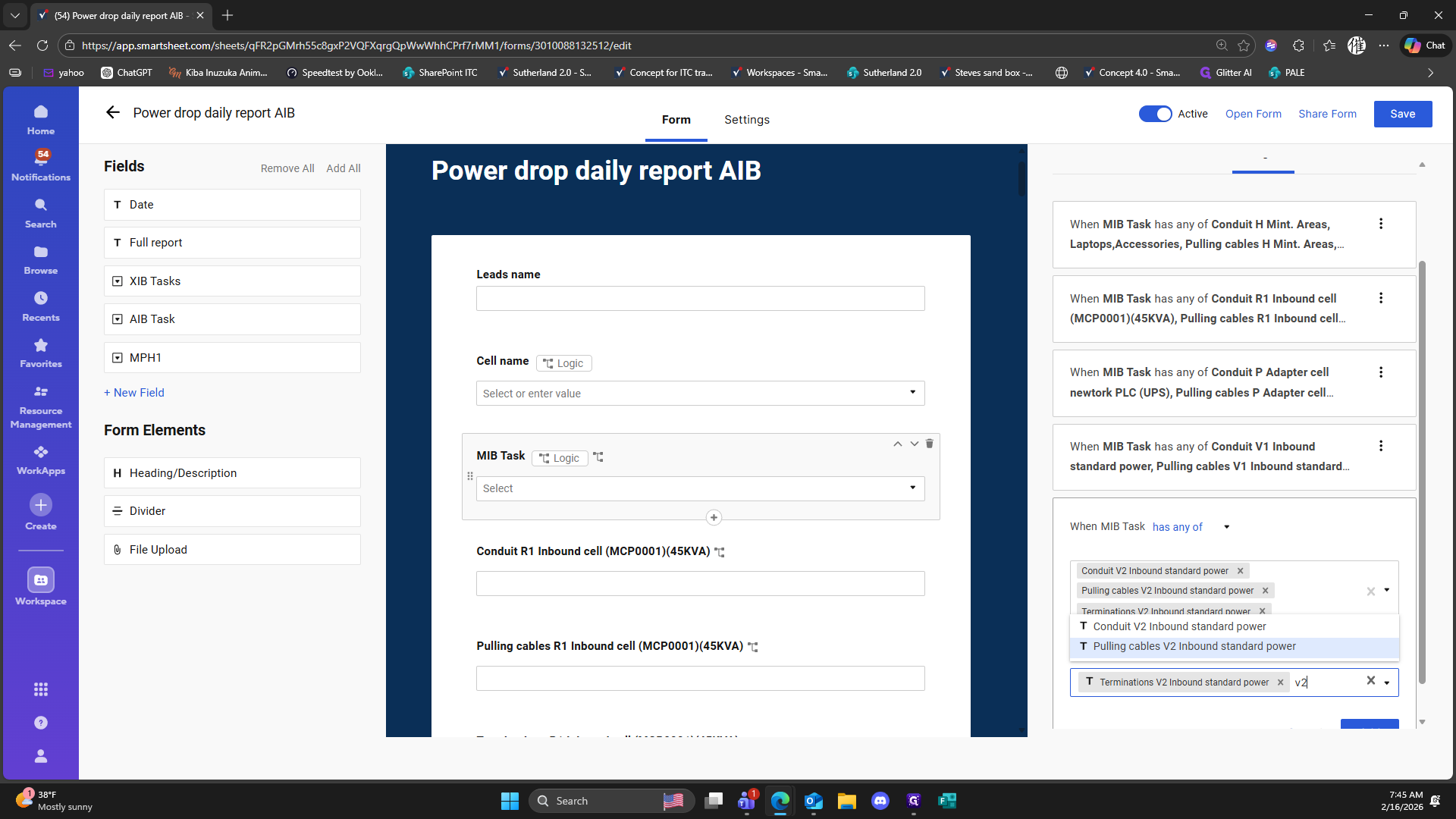
177
Double-click on "Column111"
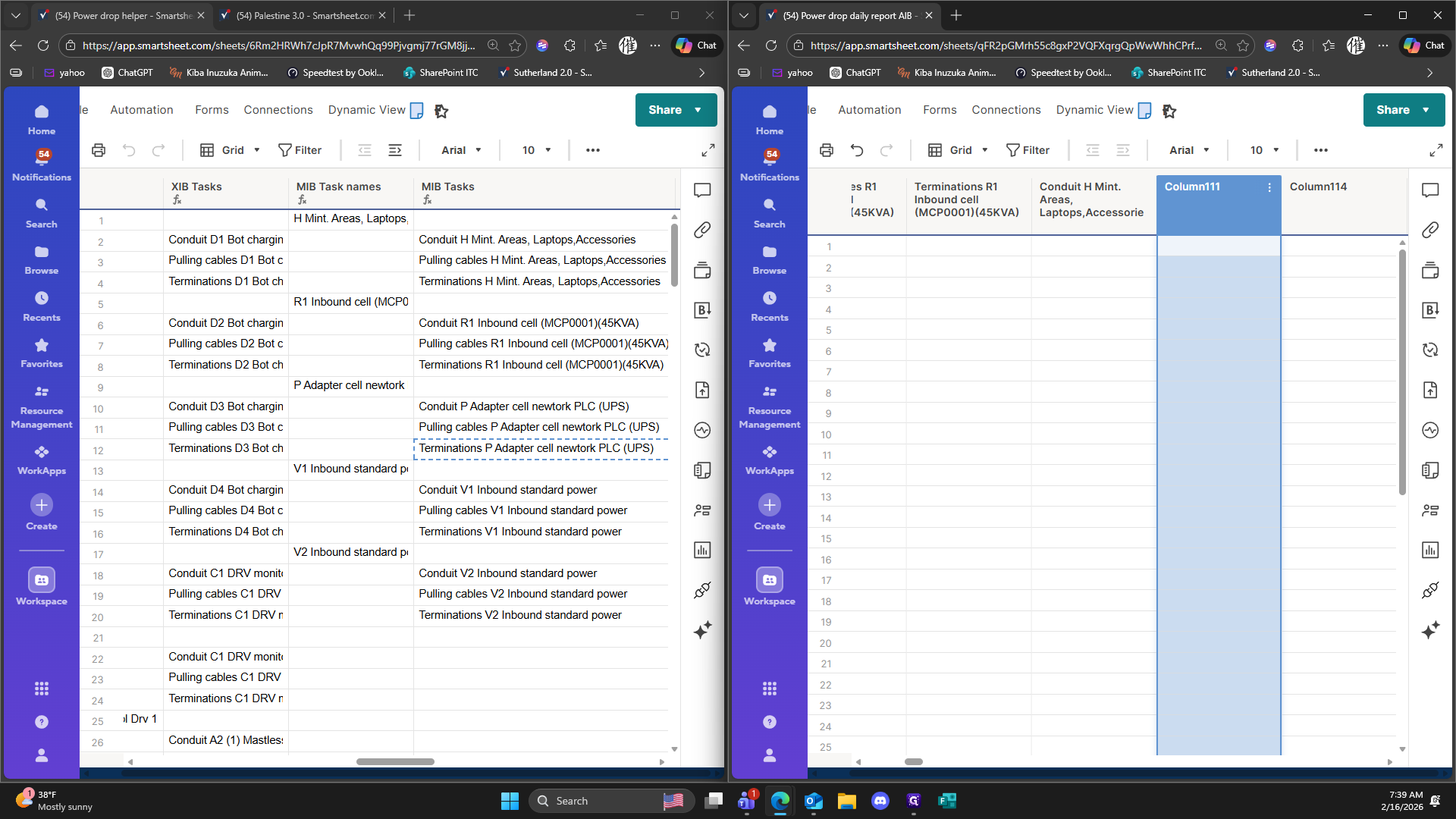
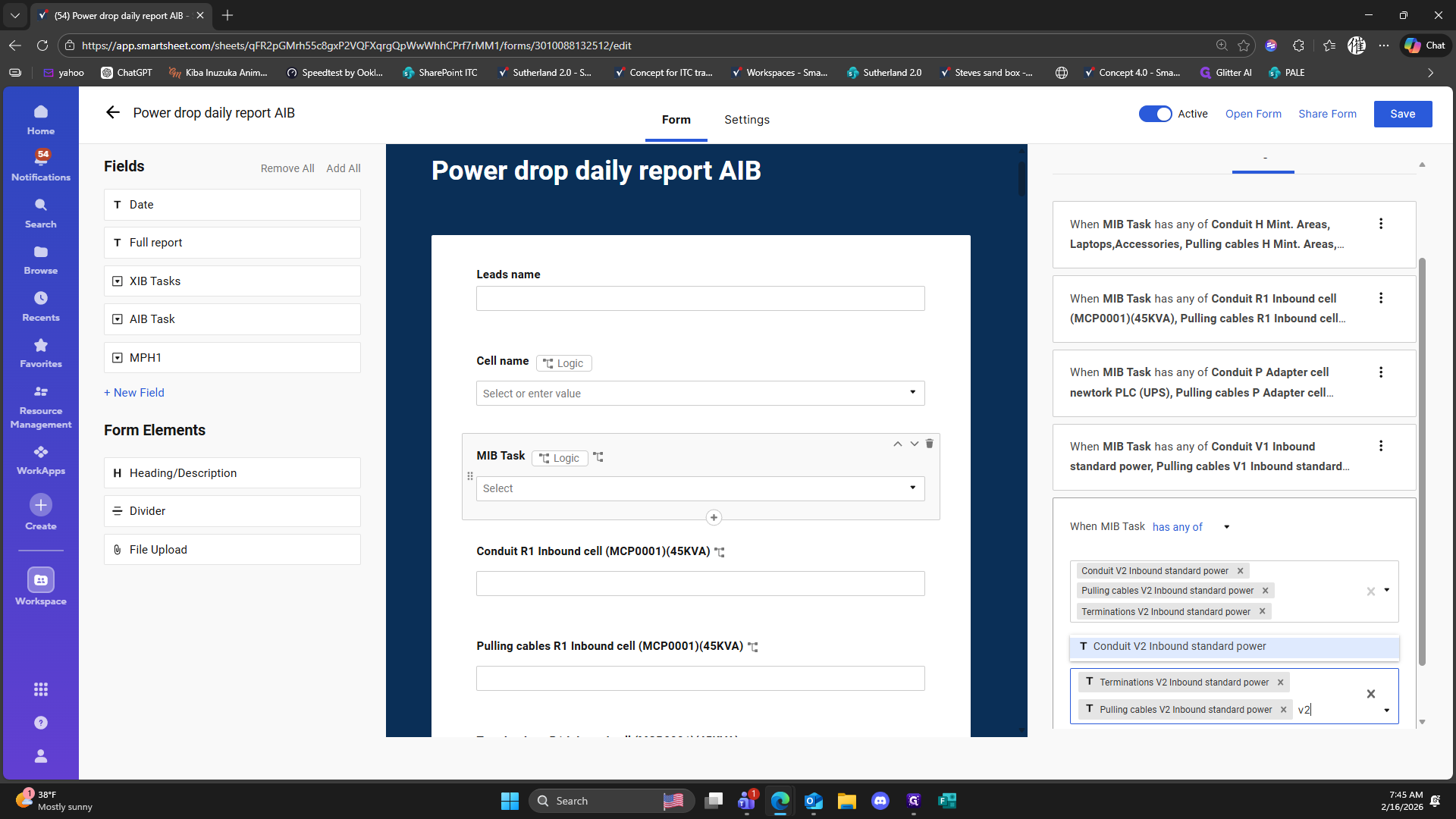
178
Type "Ctrl + V"
179
Click here
180
Type " "
181
Type "Ctrl + V"
182
Click on "Conduit V1 Inbound standard power"
183
Type "Ctrl + C"
184
Drag "Terminations P Adapter cell newtork PLC ( UPS )"
185
Type "Ctrl + V"
186
Click here
187
Click here
188
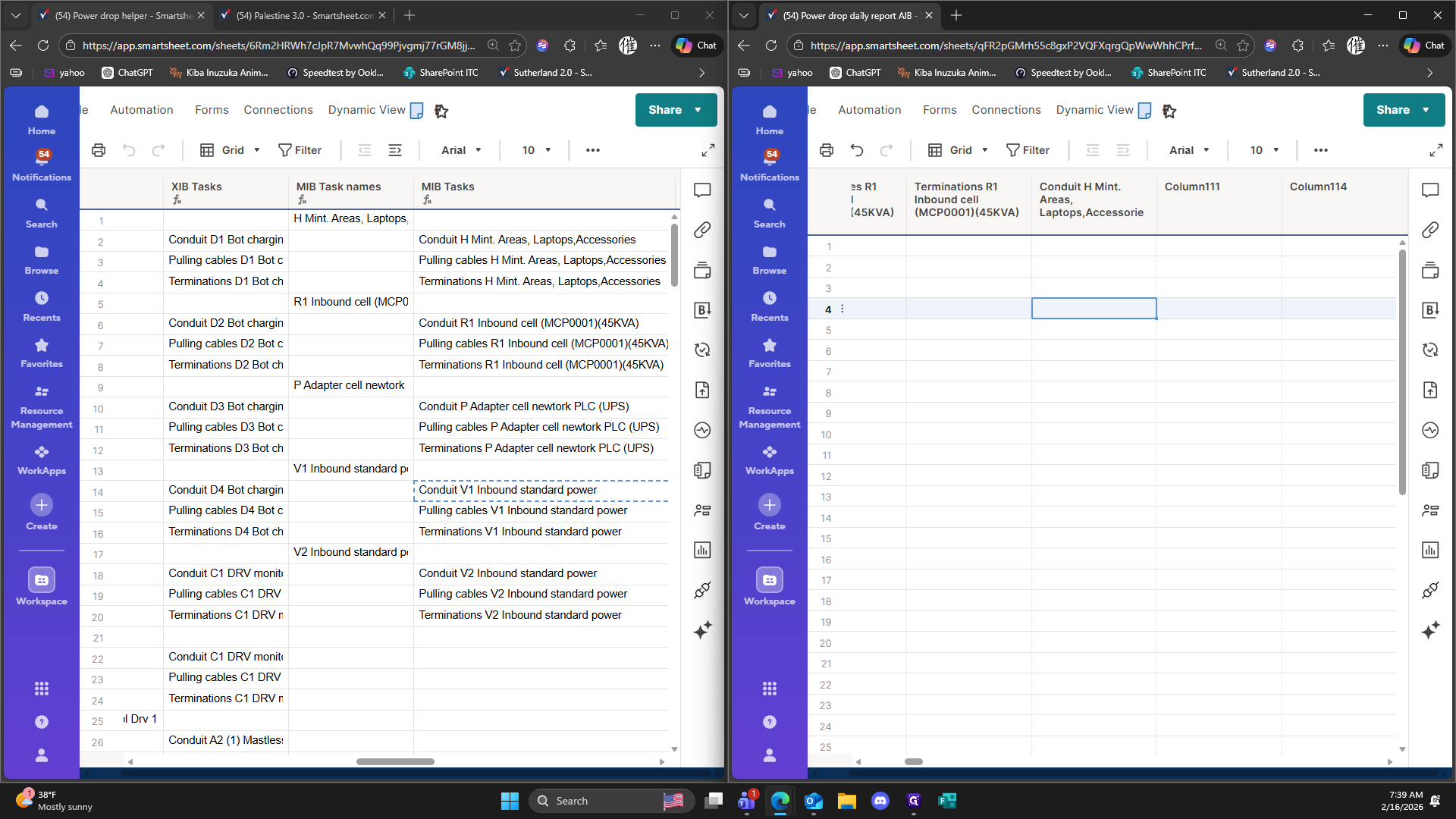
Double-click here
189
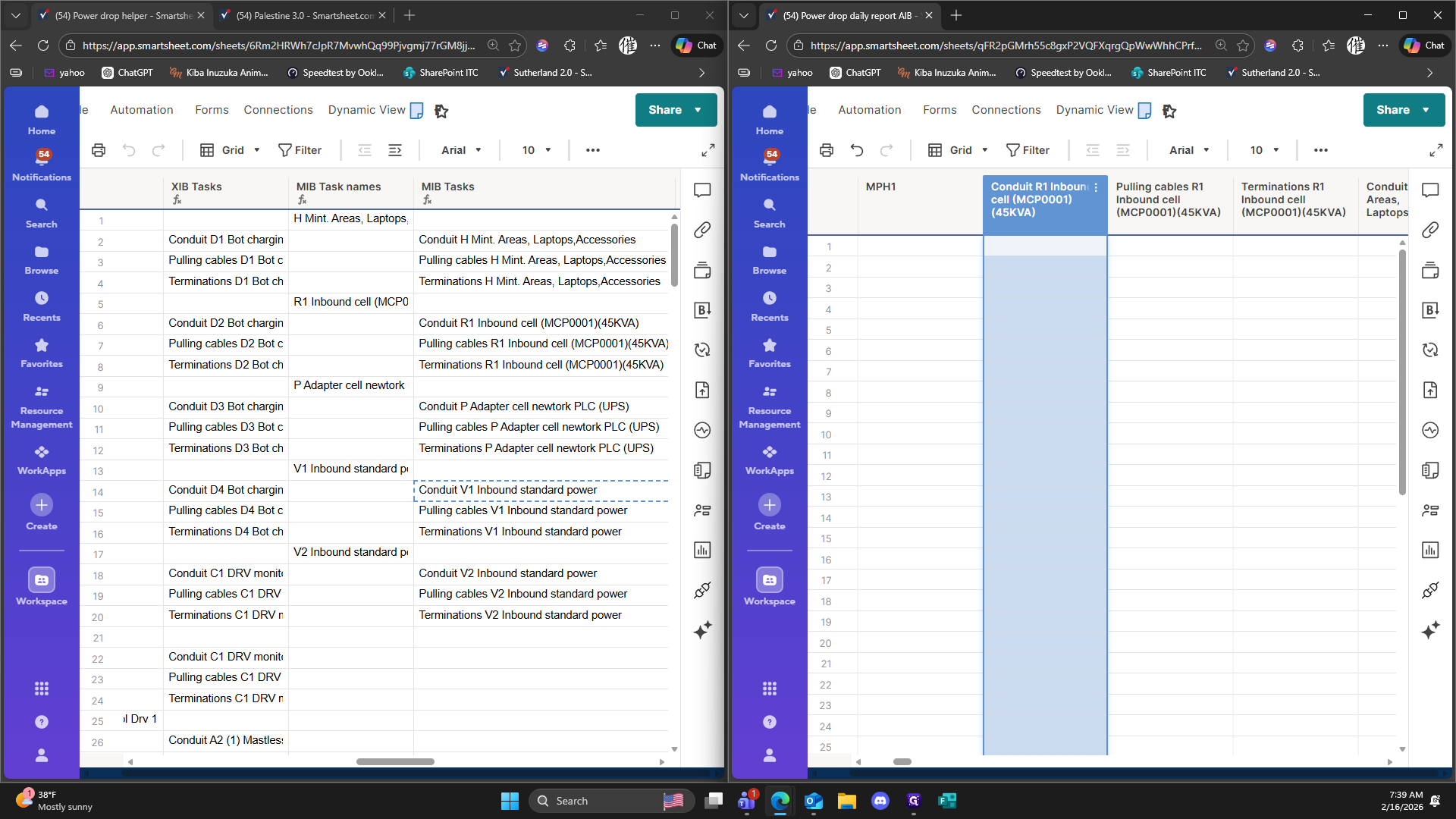
Double-click on "( MCP0001 )"
190
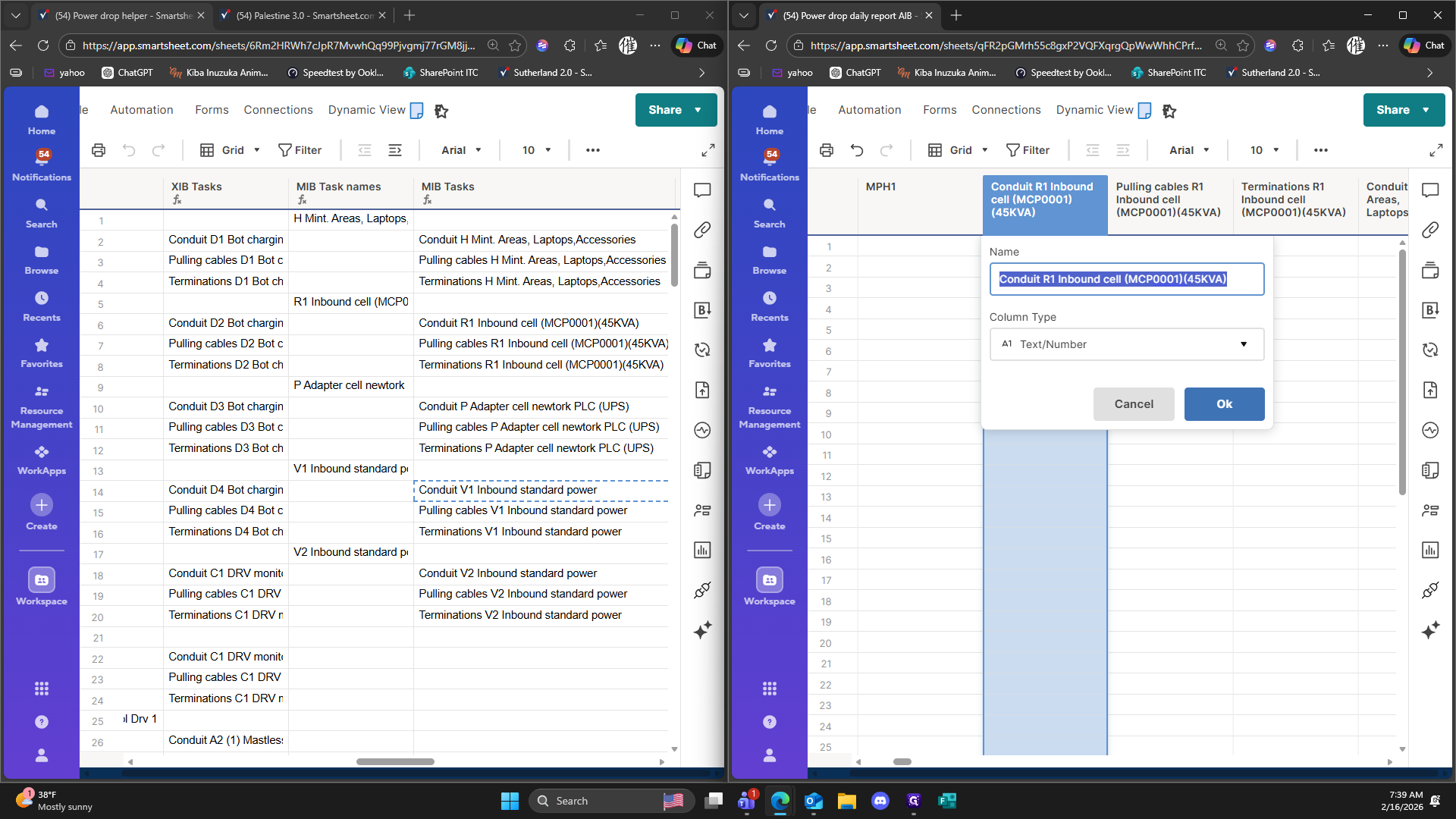
Click on "Cancel"
191
Click on "☐"
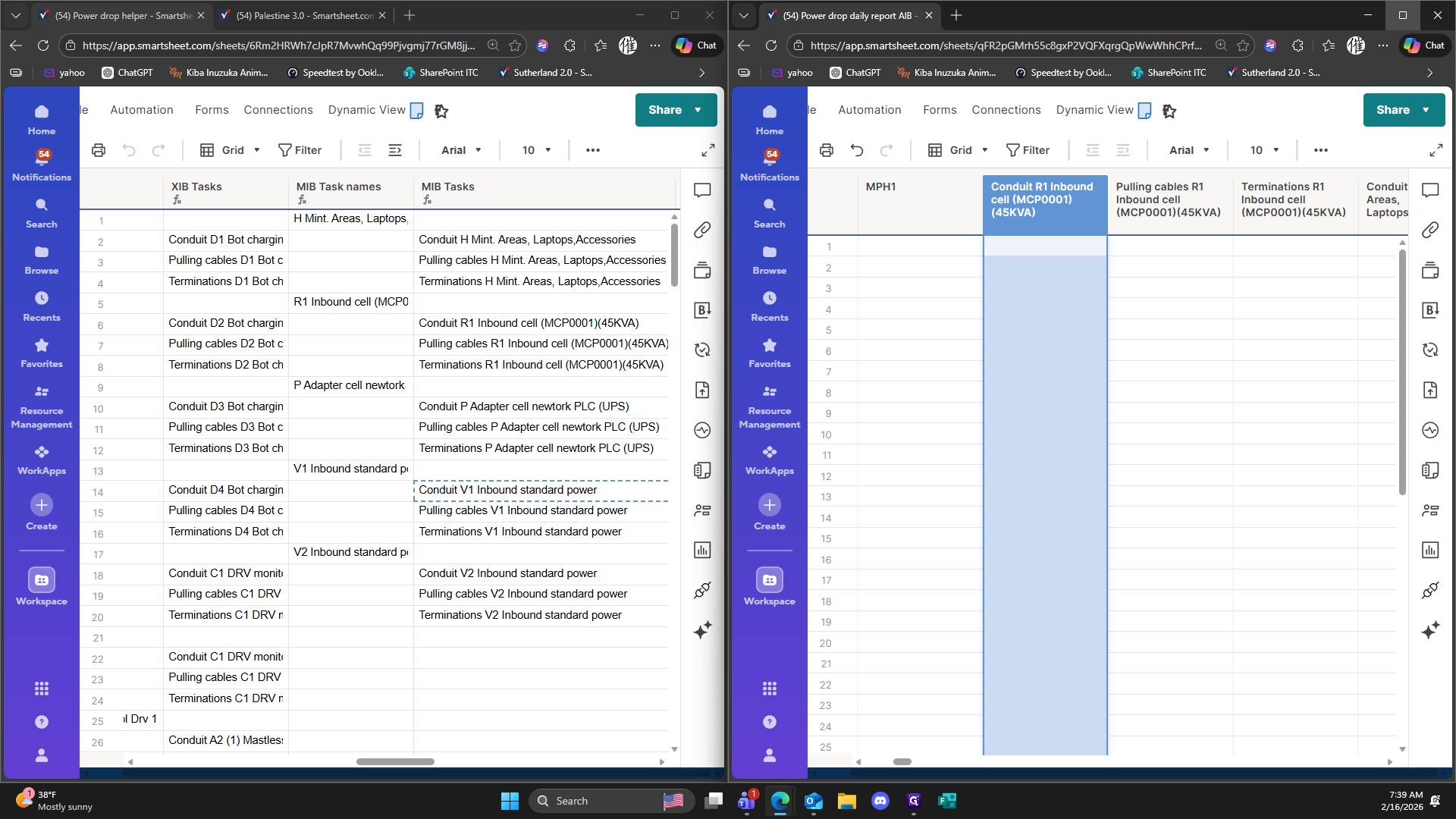
192
Click here
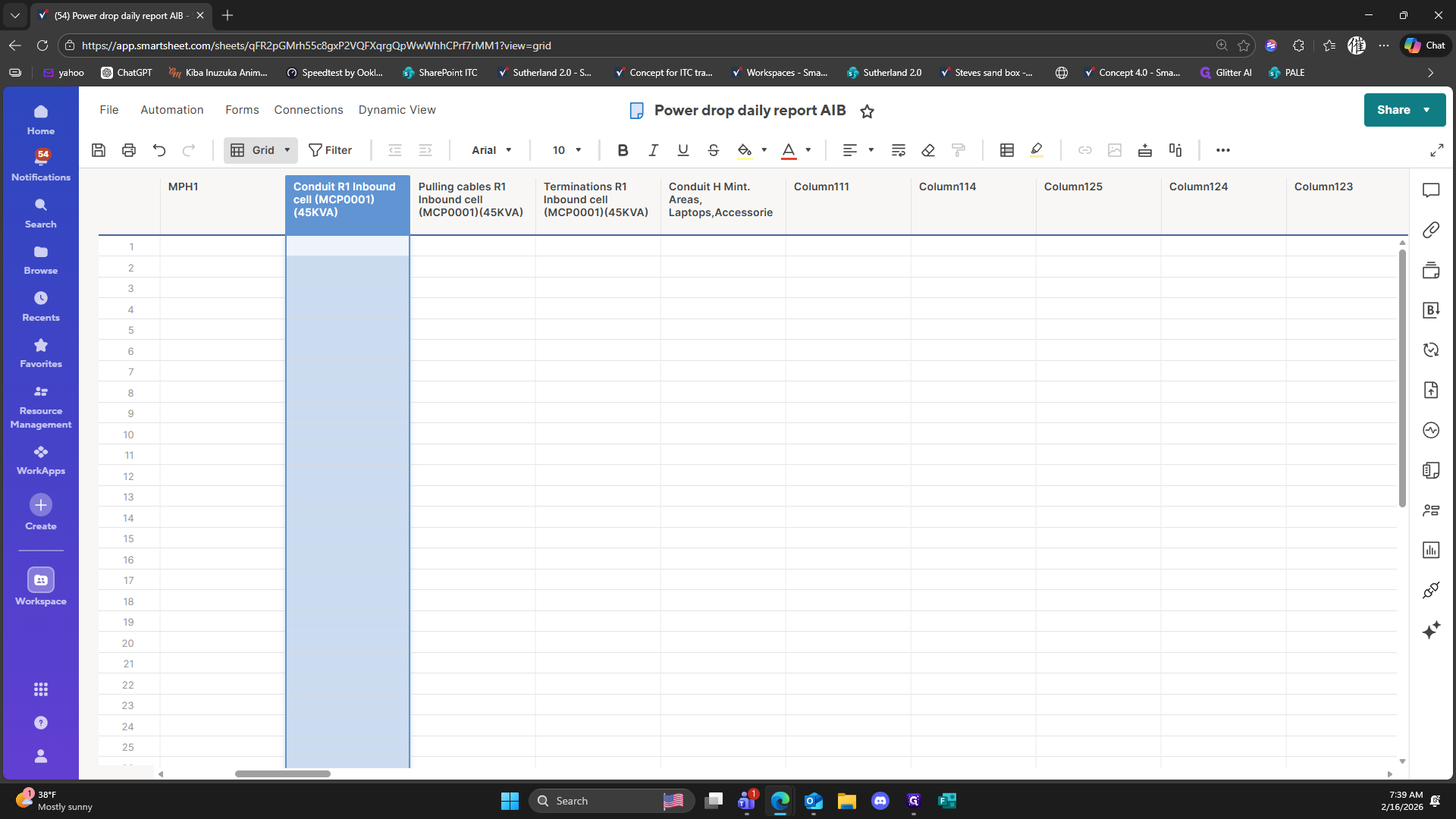
193
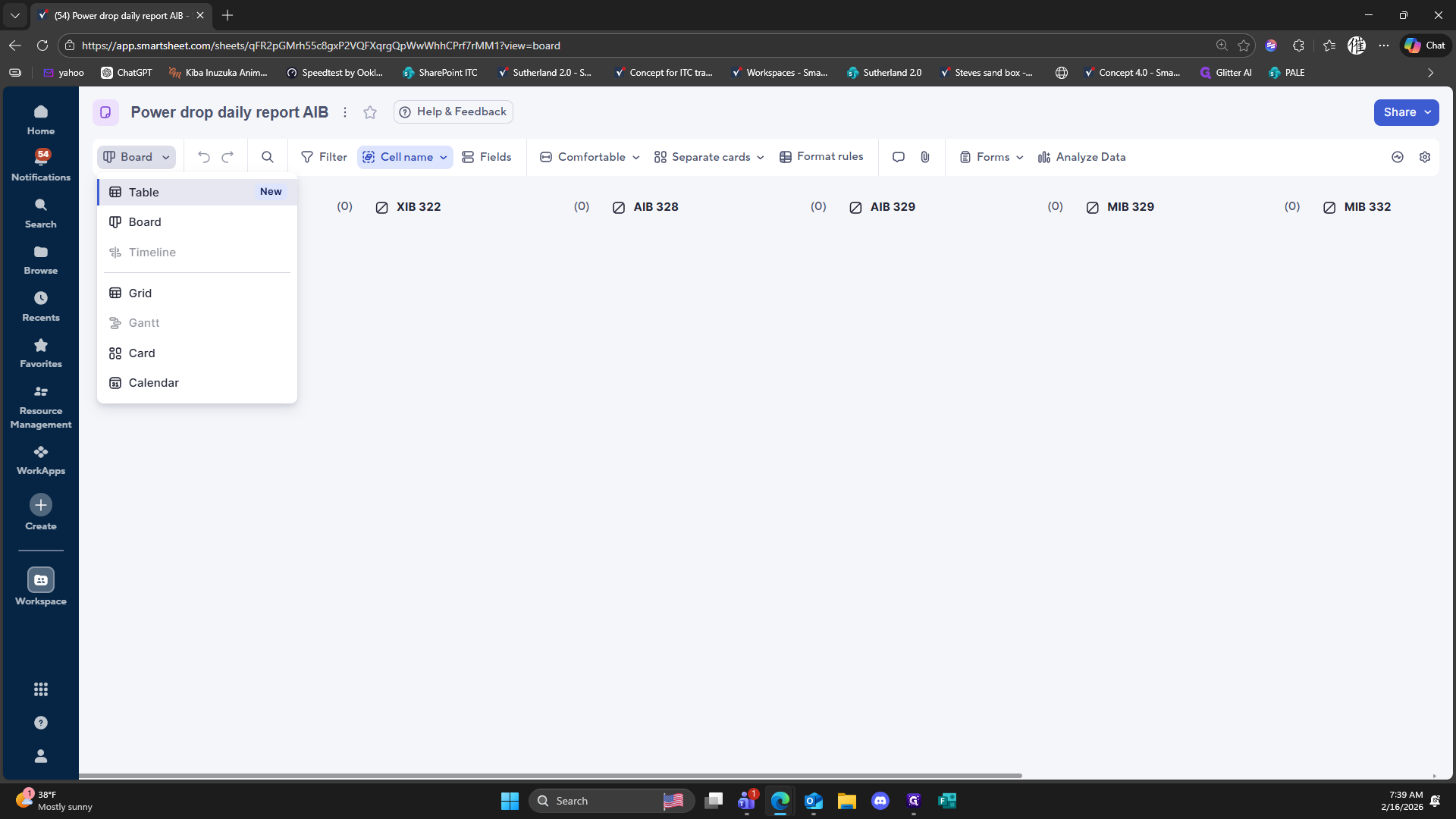
Click on "Board"
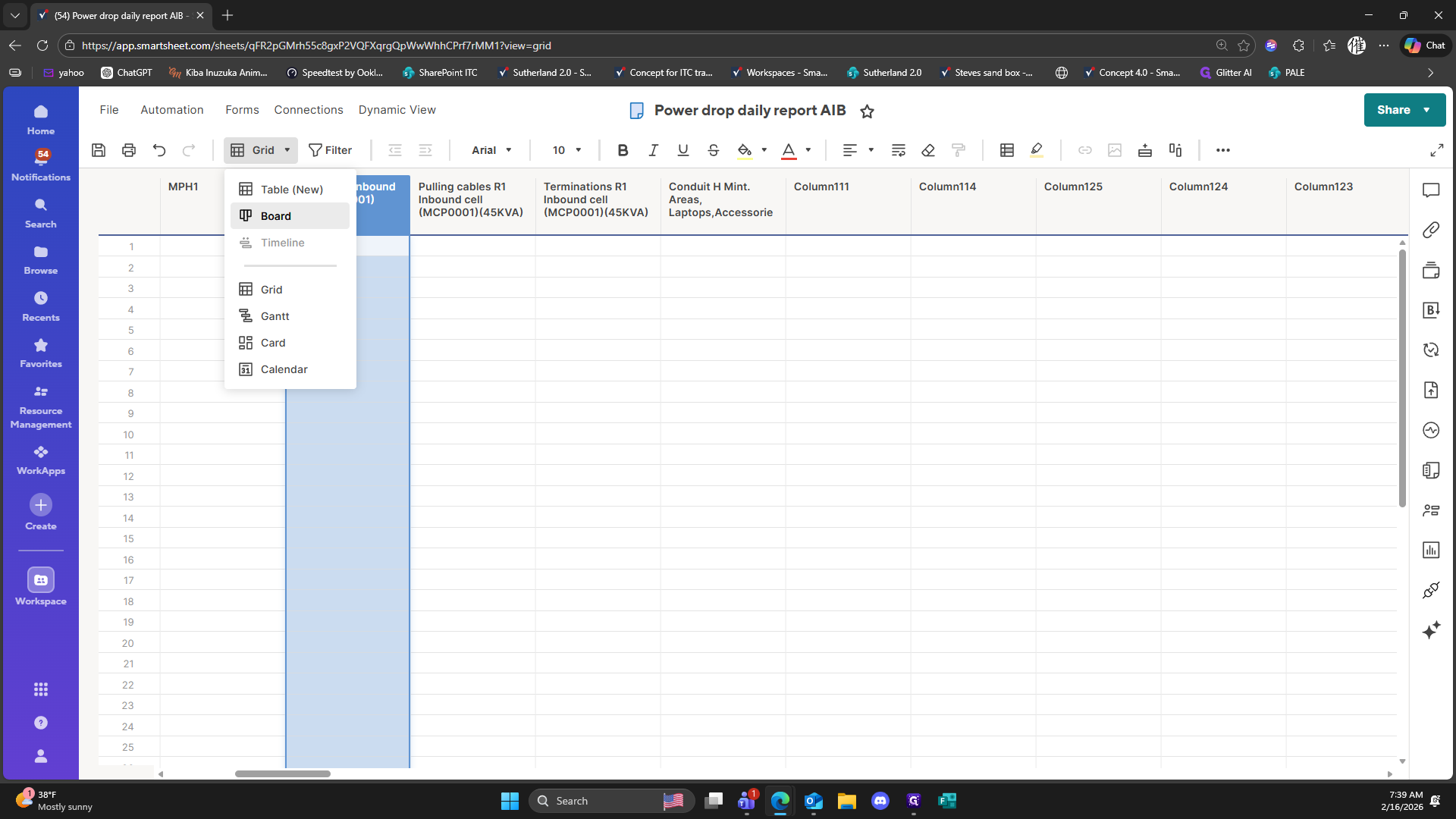
194
Click on "Board"
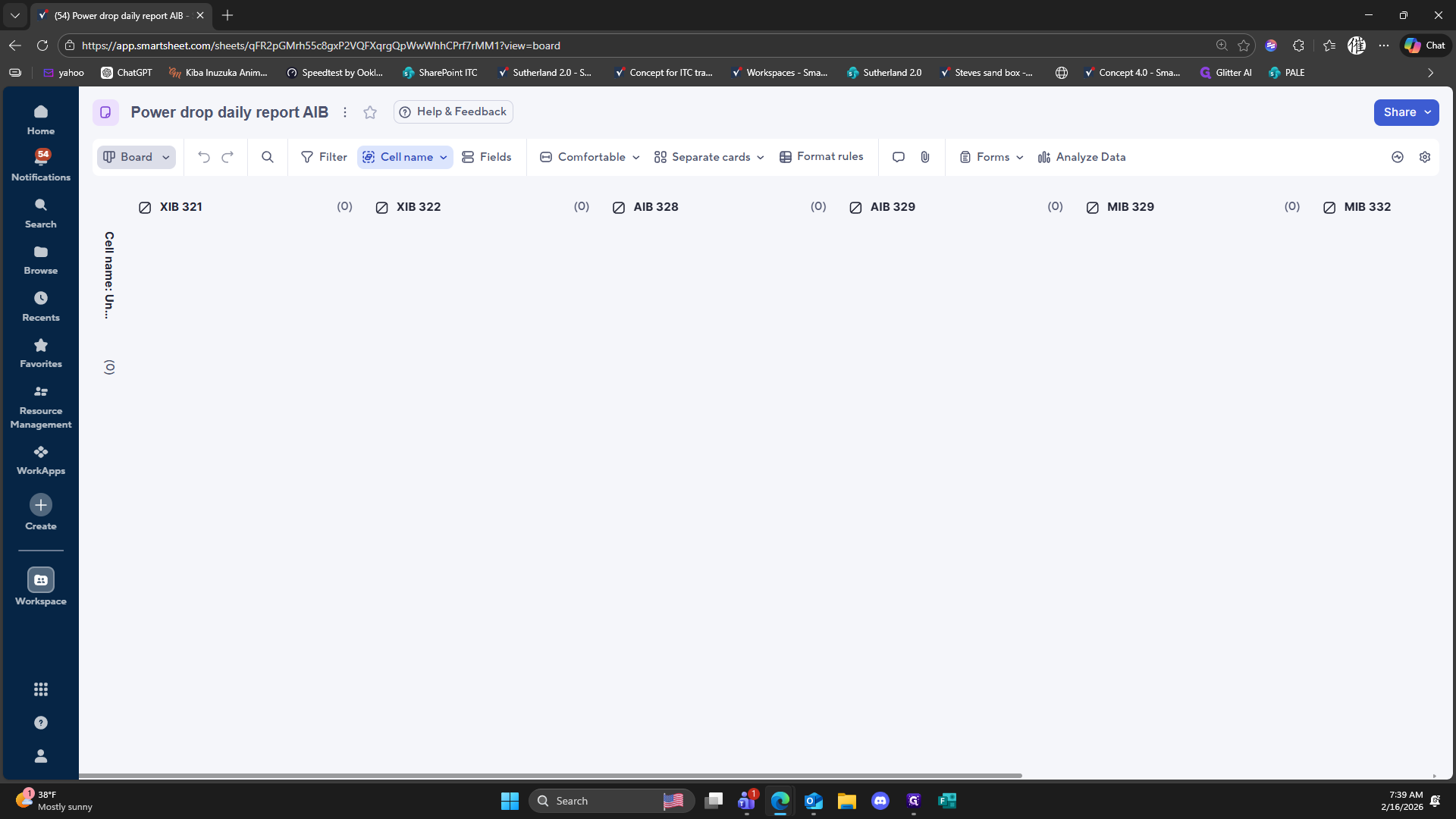
195
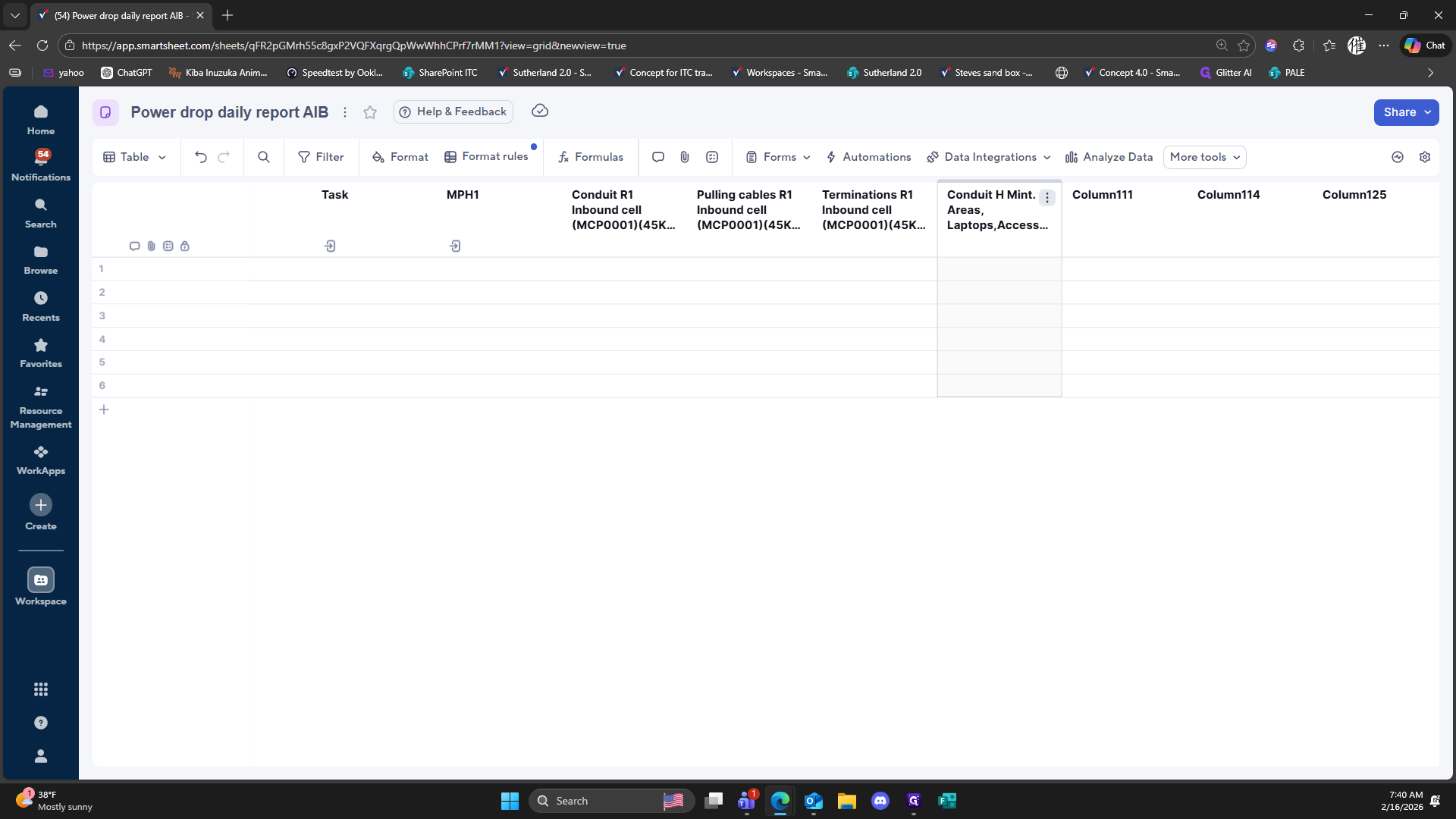
Click here
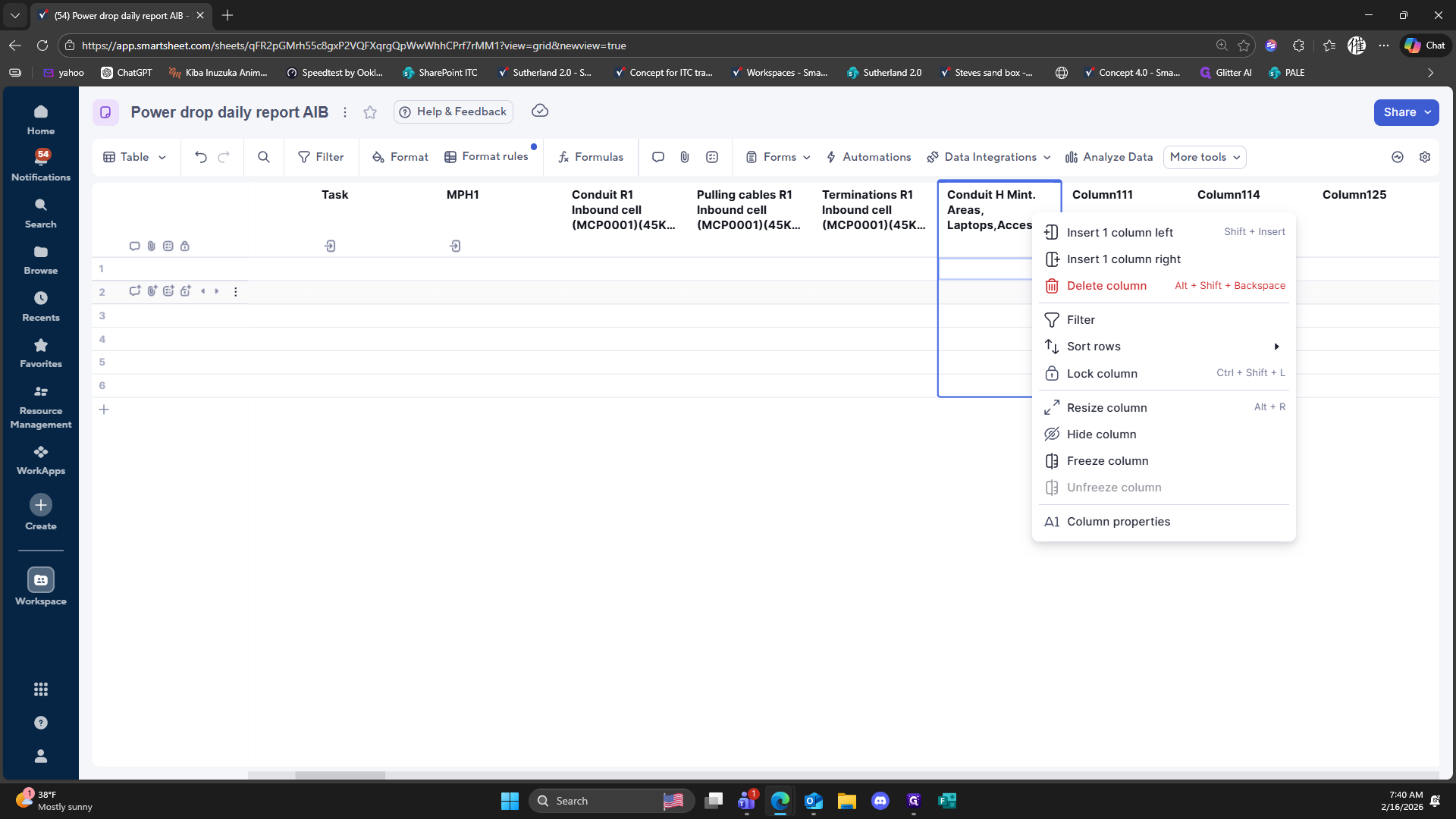
196
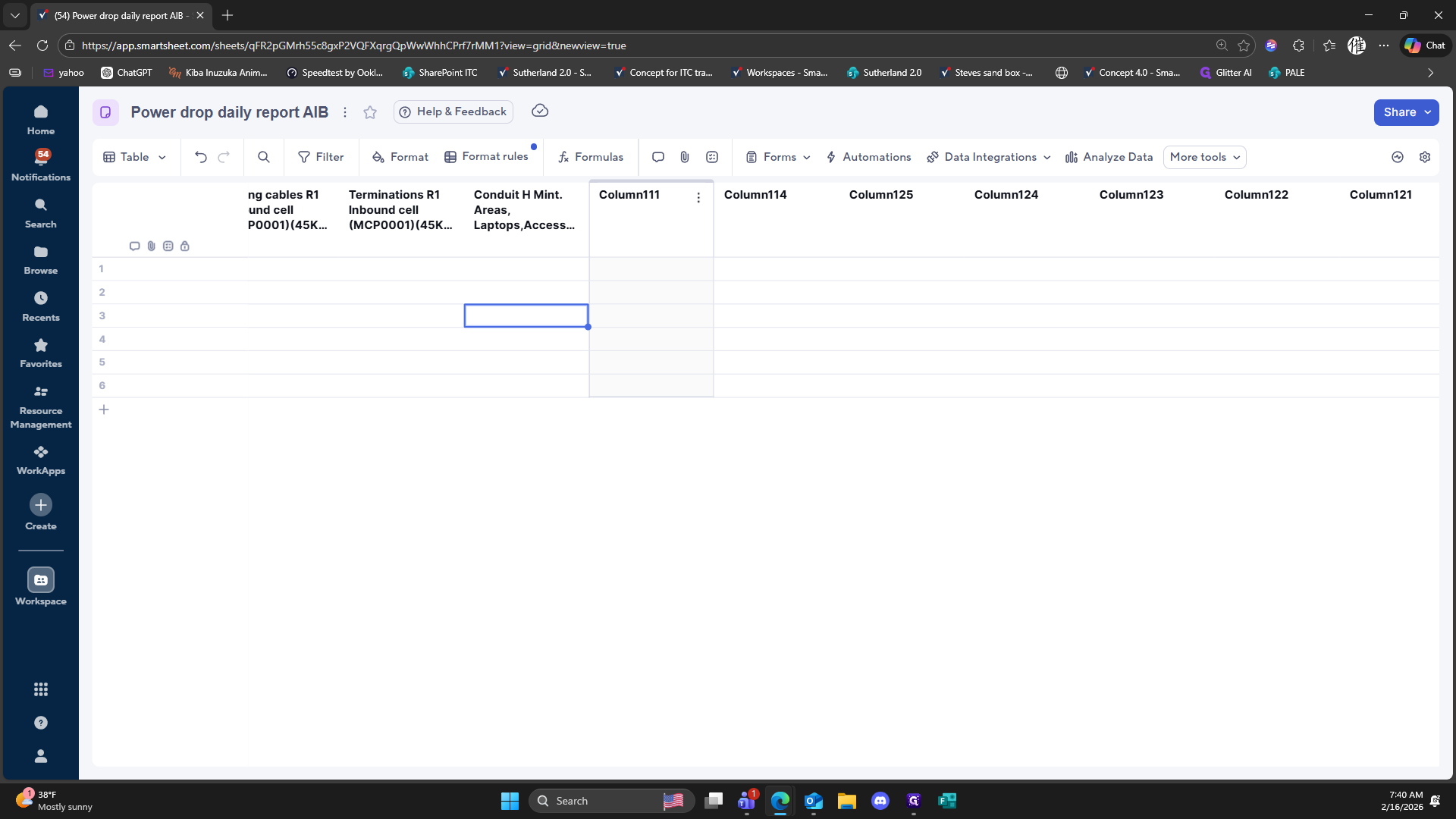
Click here
197
Click here
198
Click here
199
Click here
200
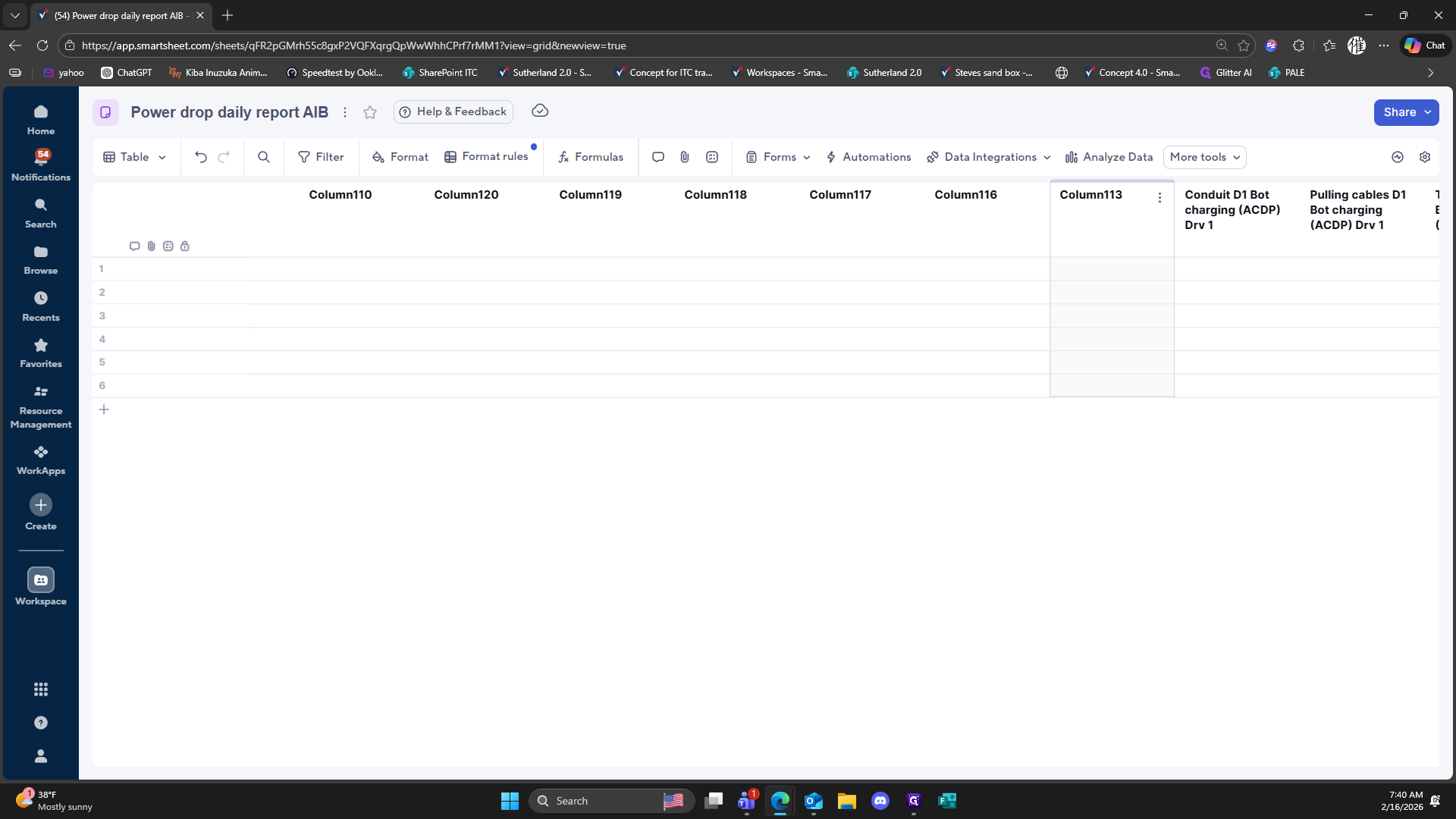
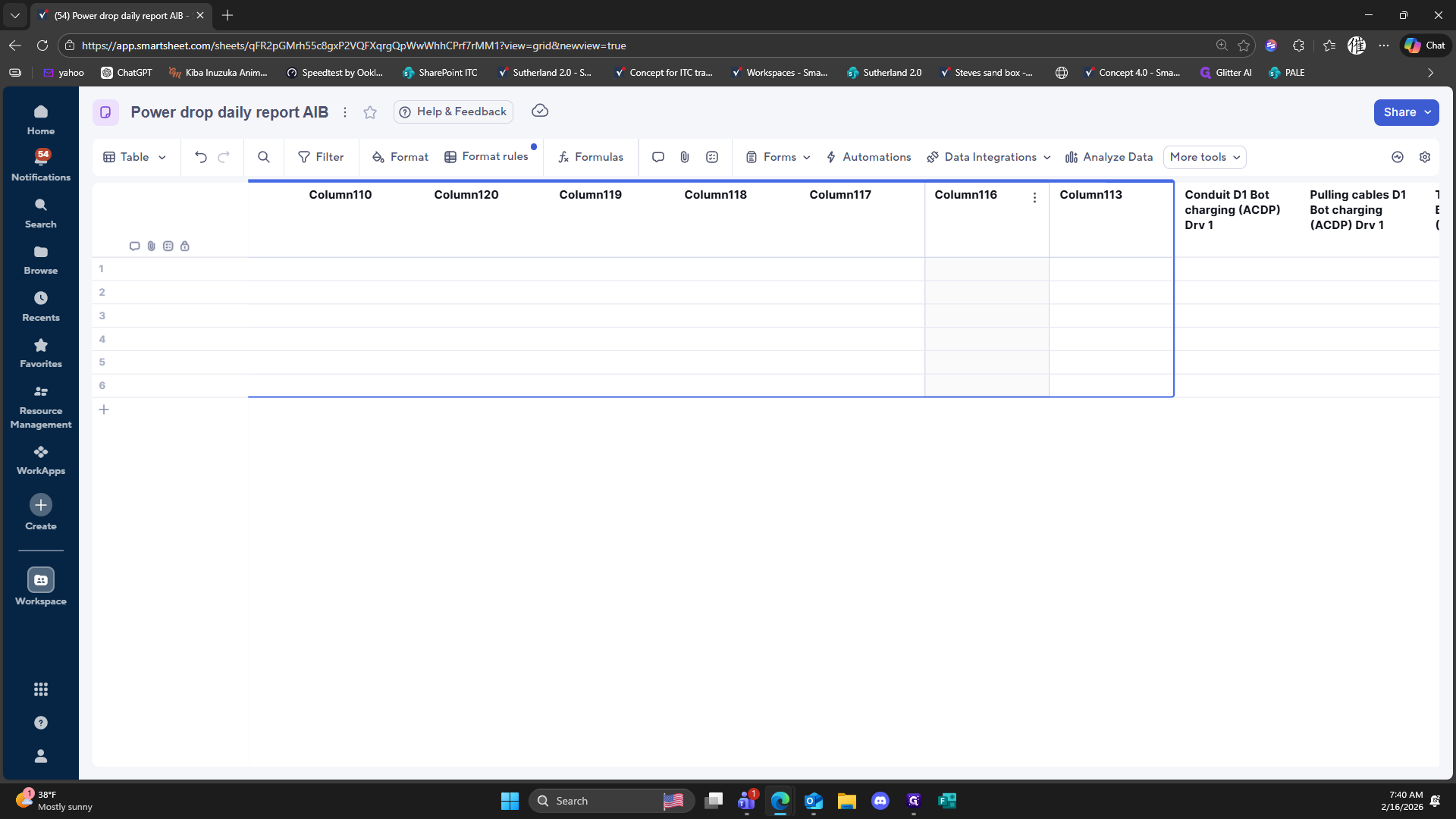
Right-click here
201
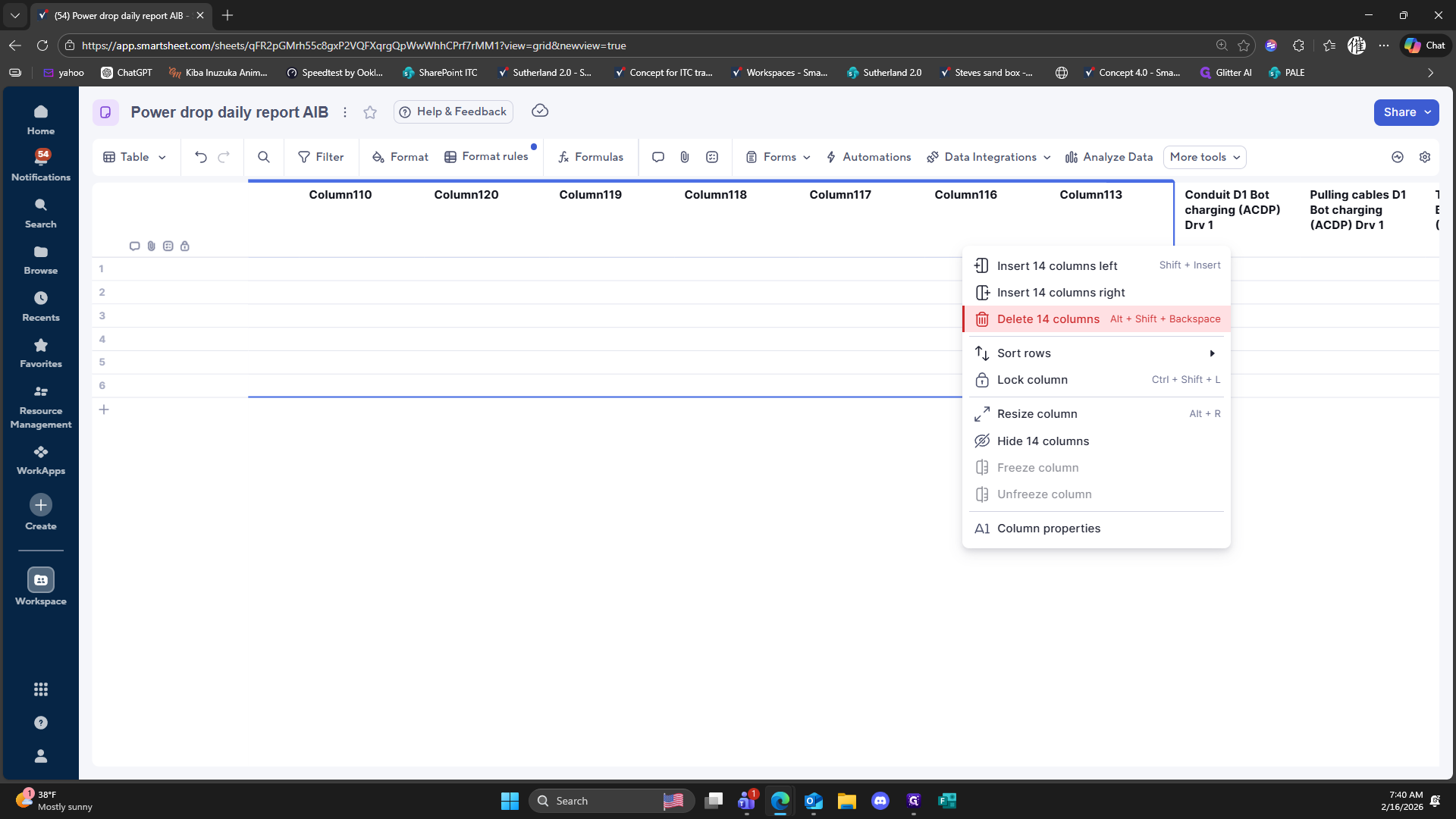
Click on "Delete 14 columns"
202
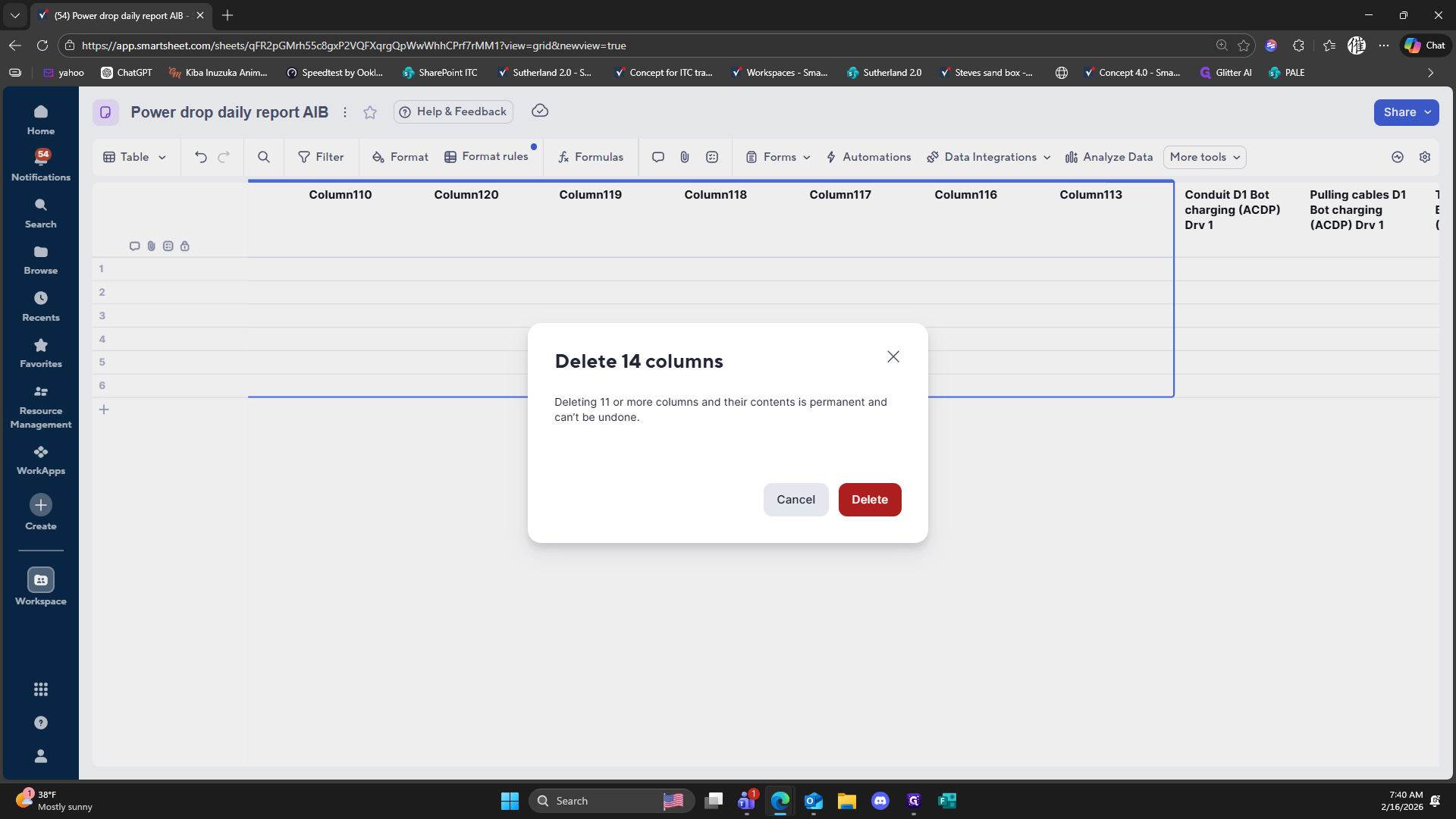
Click on "Delete"
203
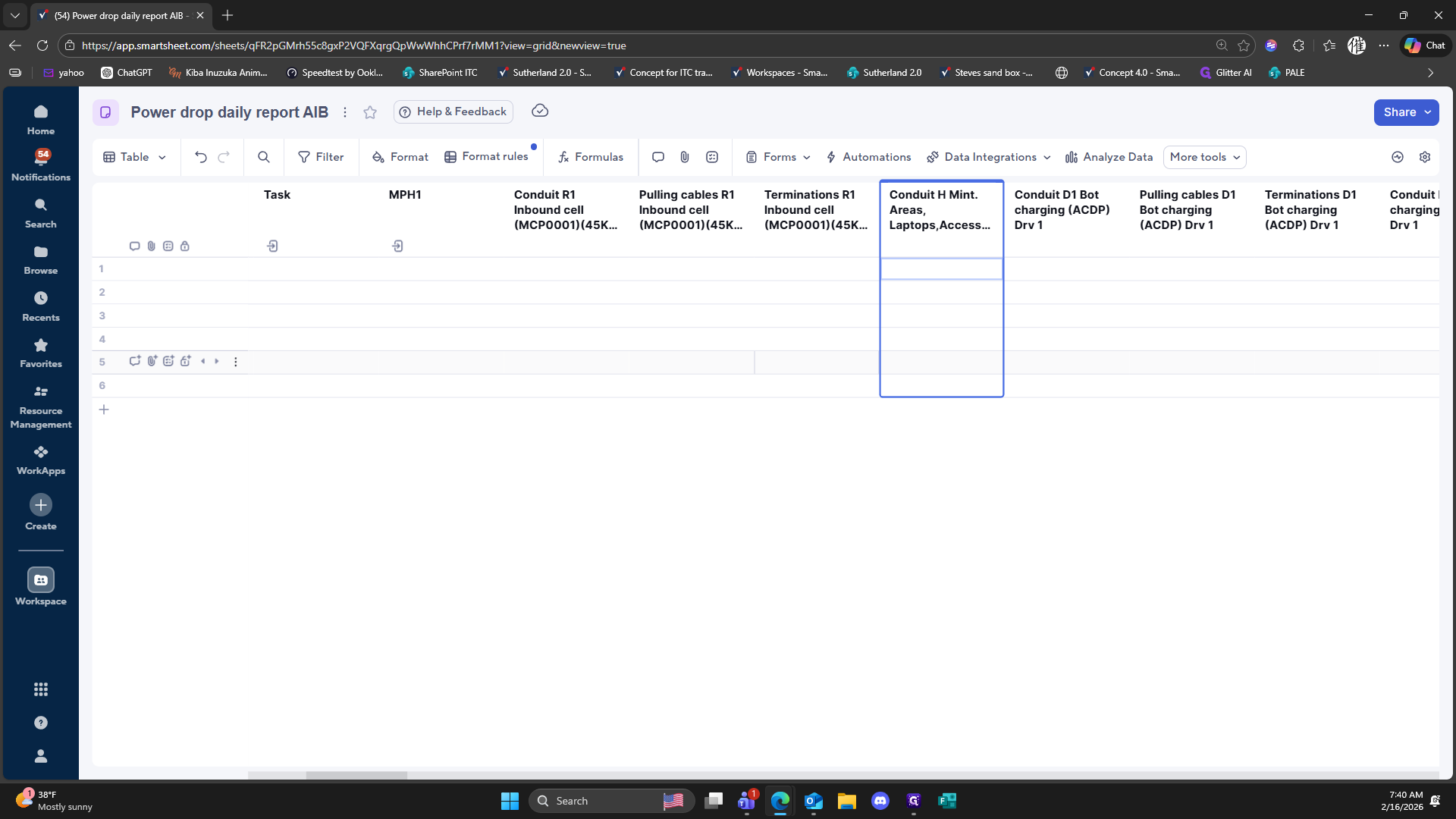
Click here
204
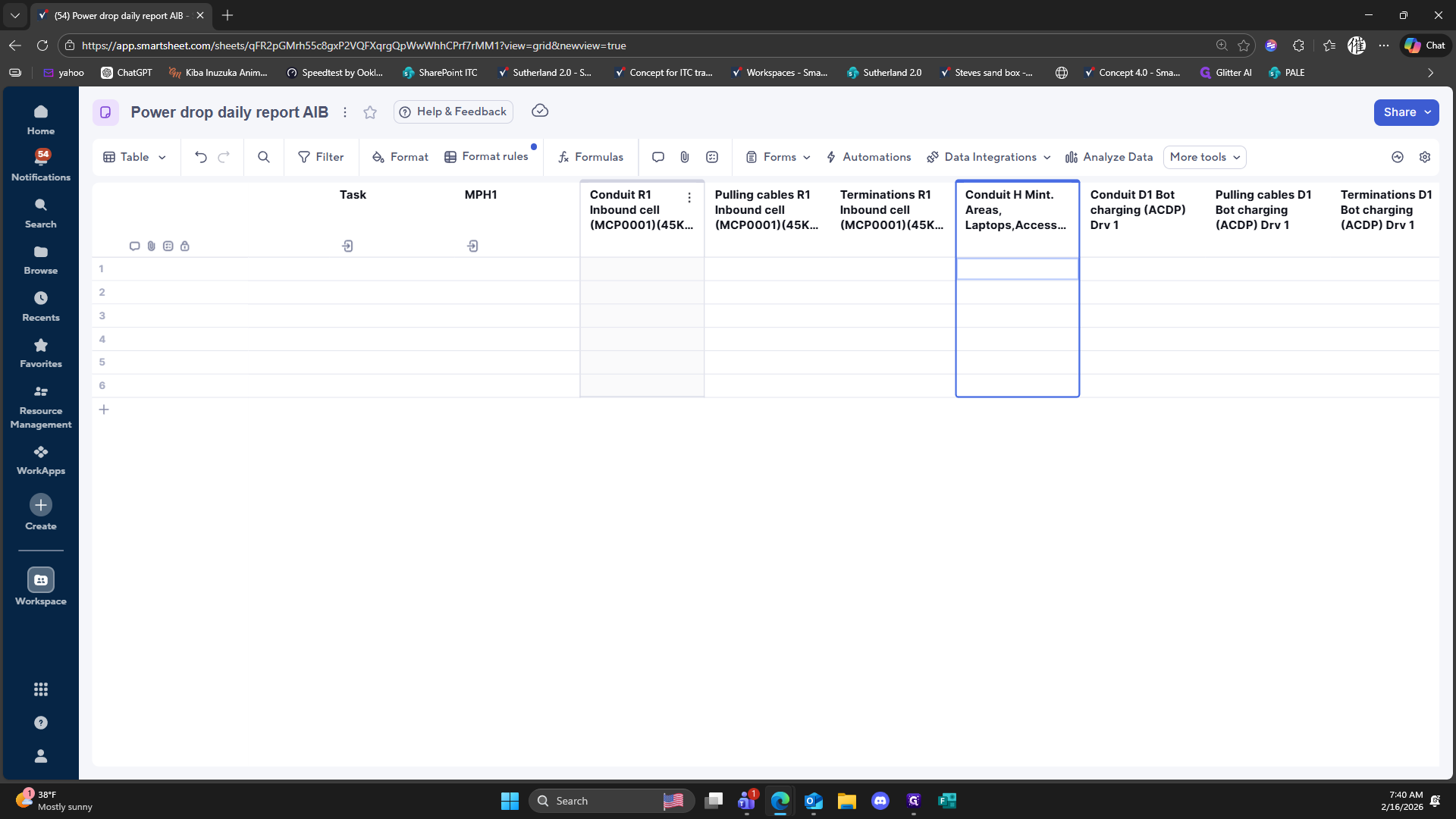
Click on "( 45K ..."
205
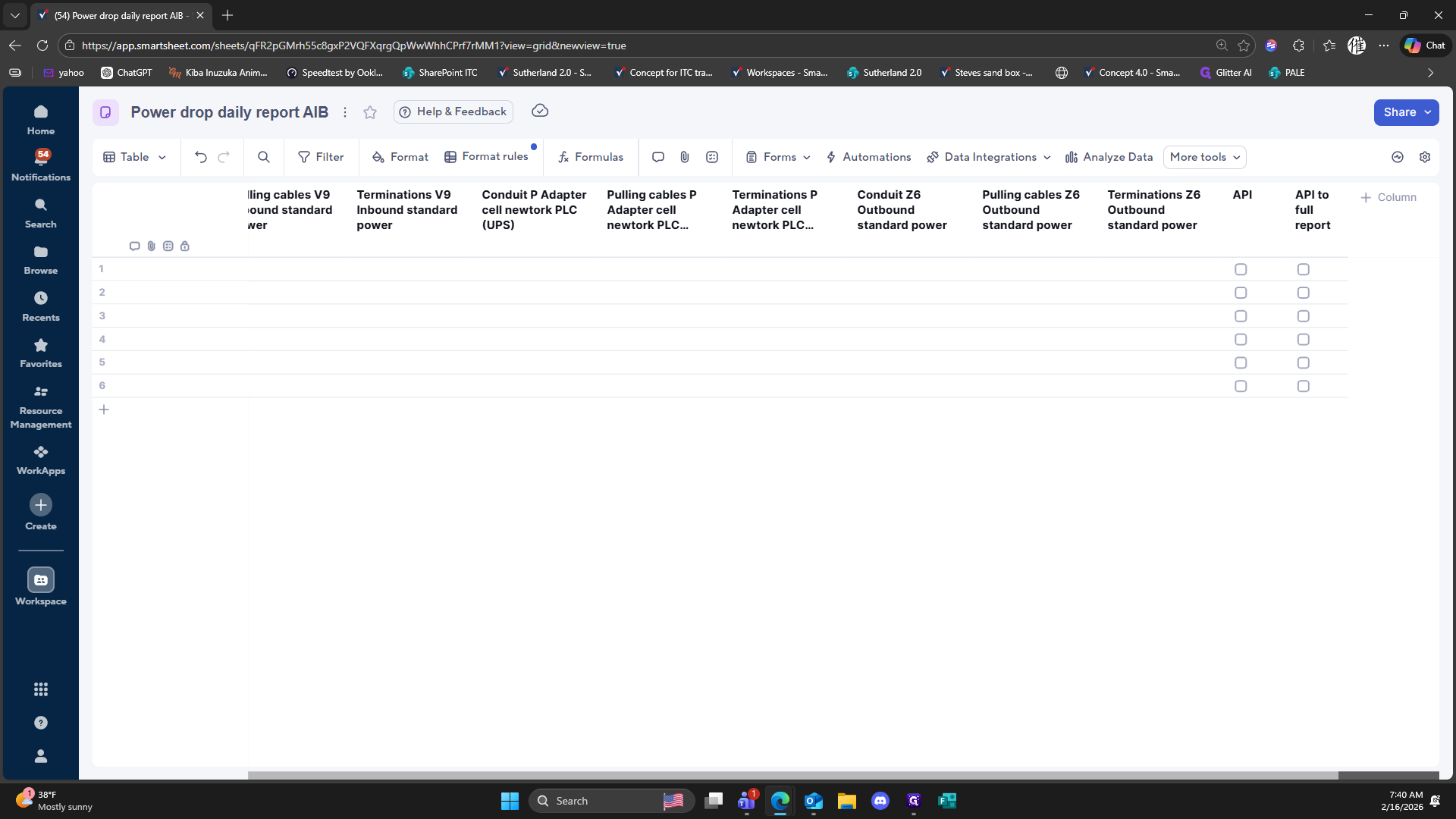
Drag here
206
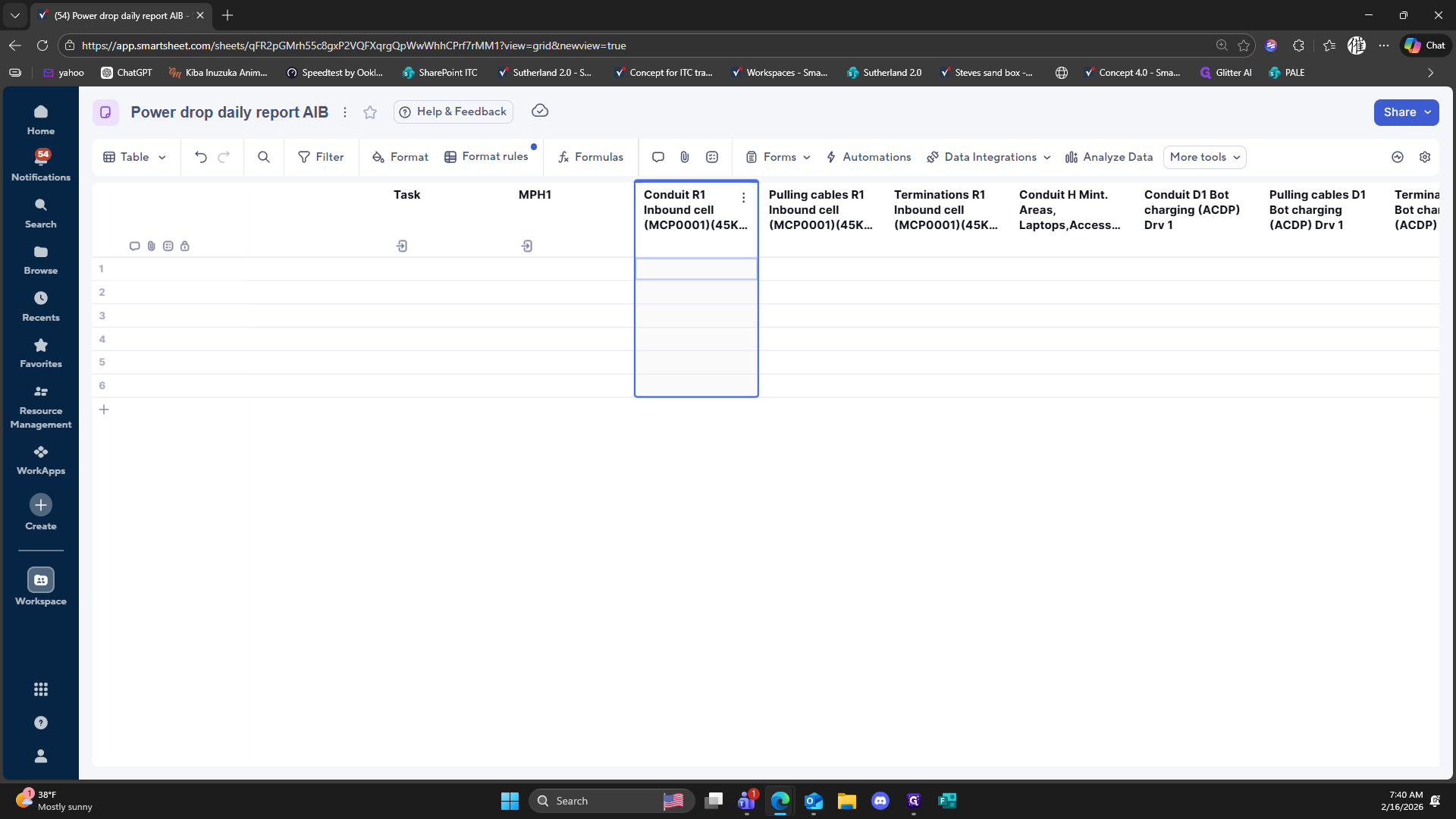
Double-click on "Conduit R1 Inbound cell ( MCP0001 ) ( 45K ..."
207
Double-click here
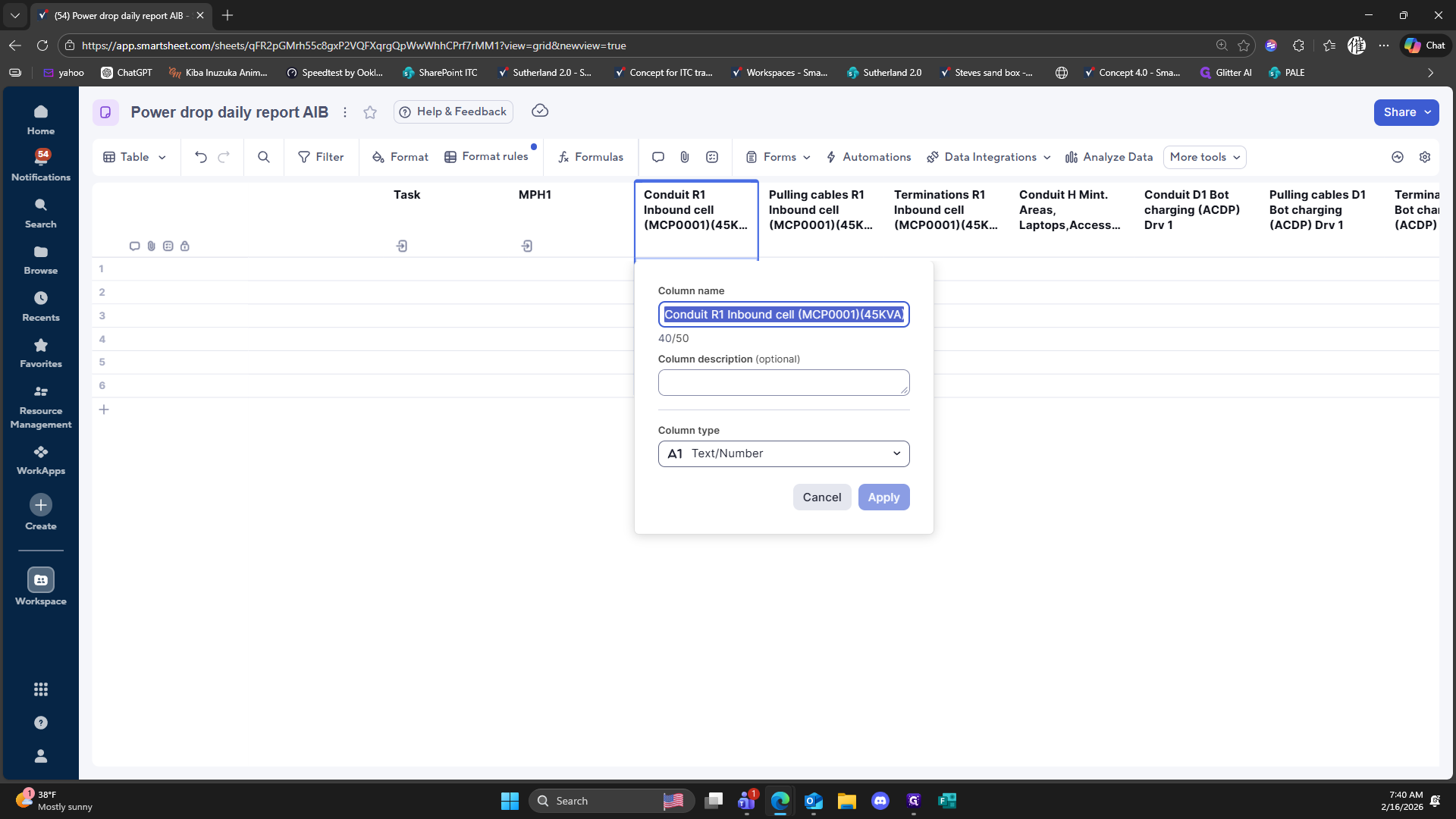
208
Click here
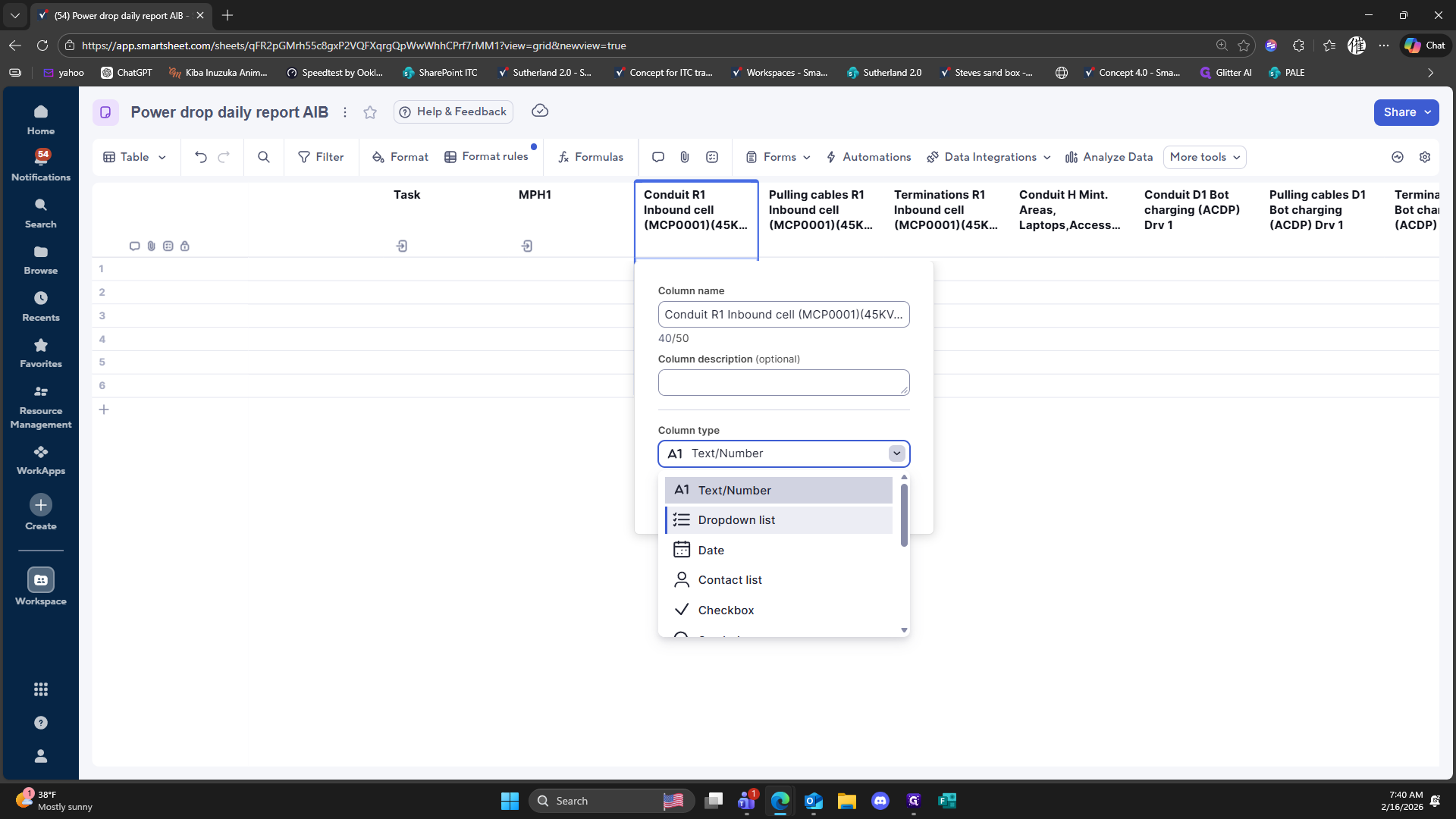
209
Click here
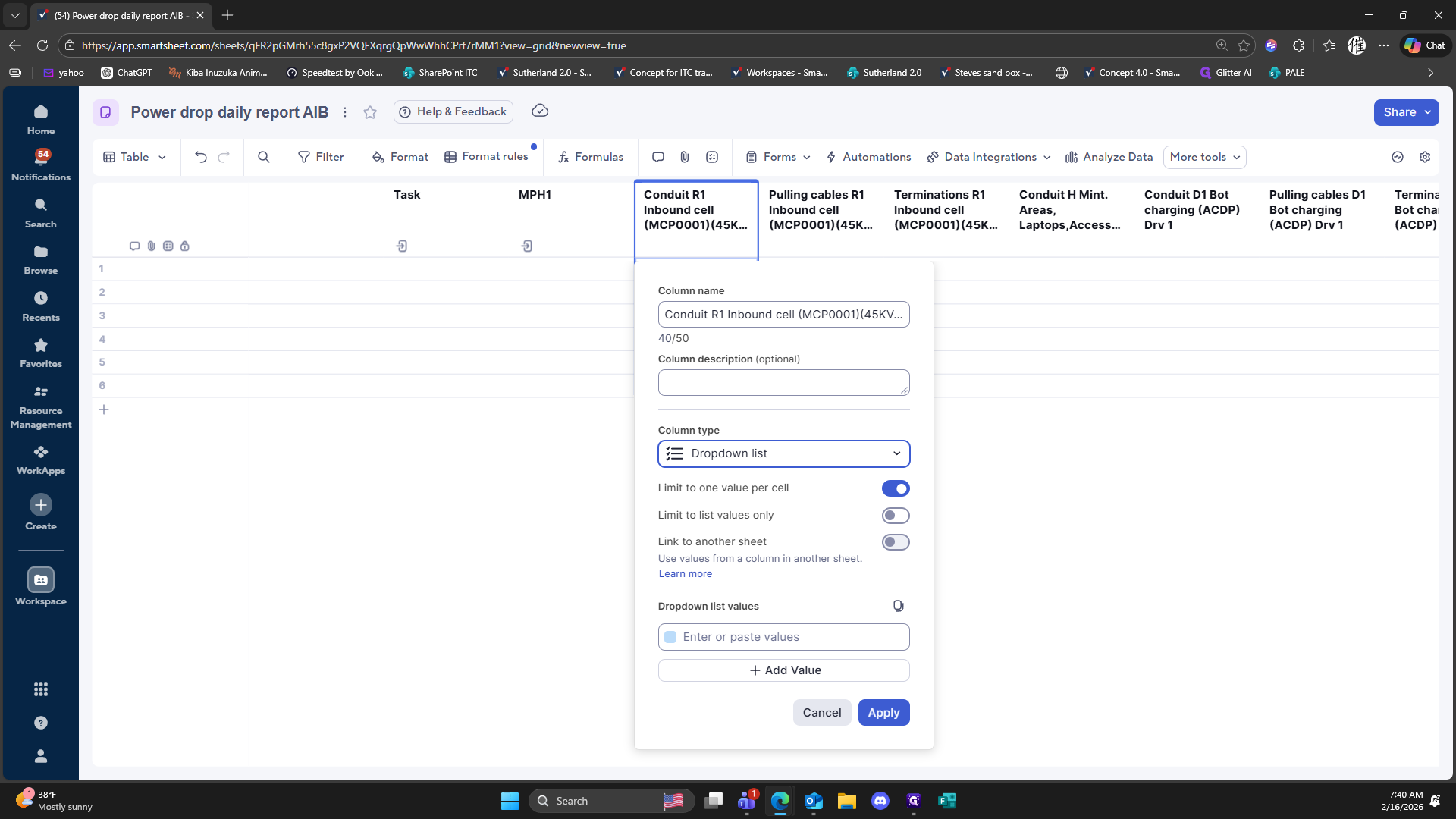
210
Click here
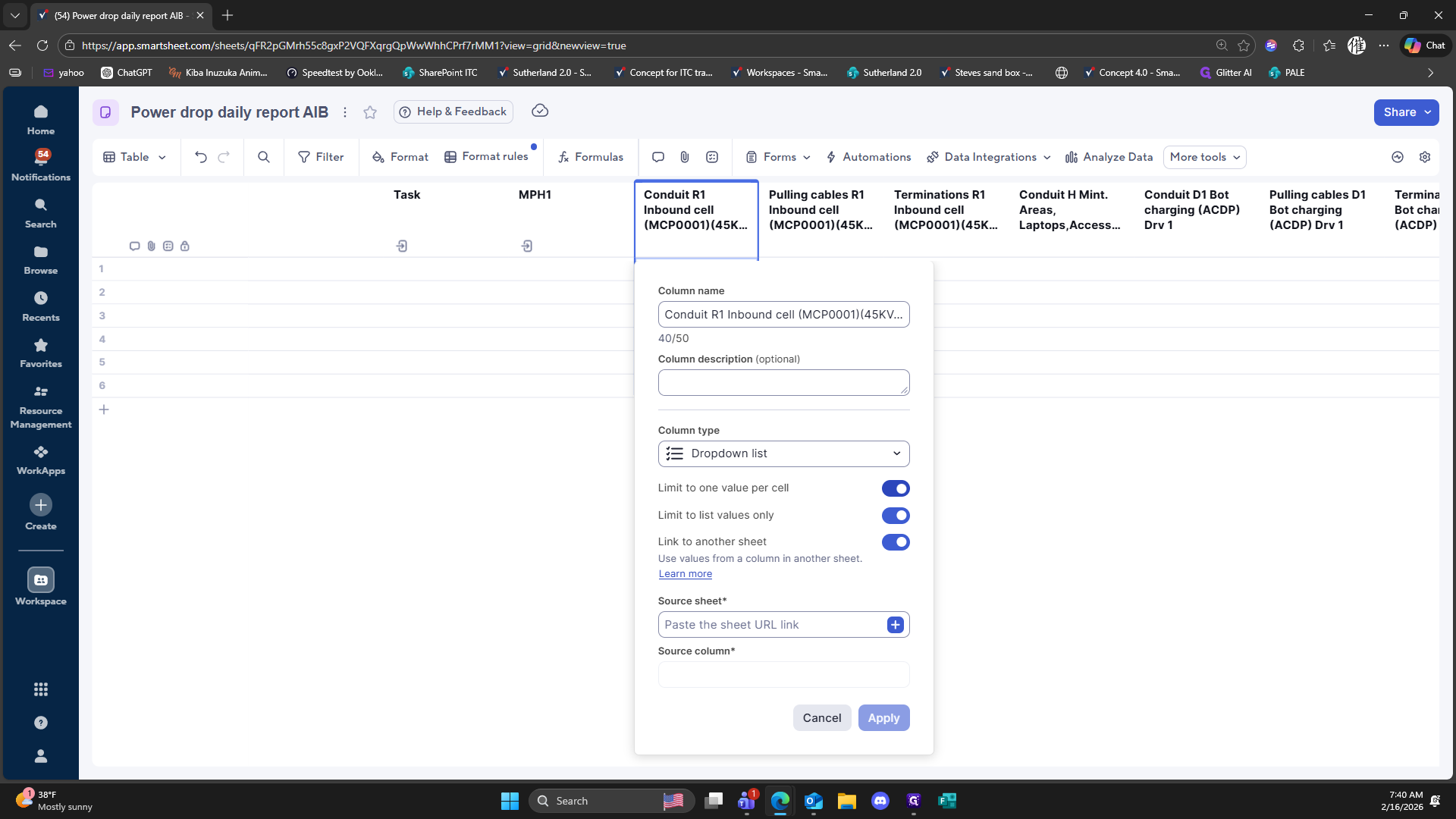
211
Click on "+"
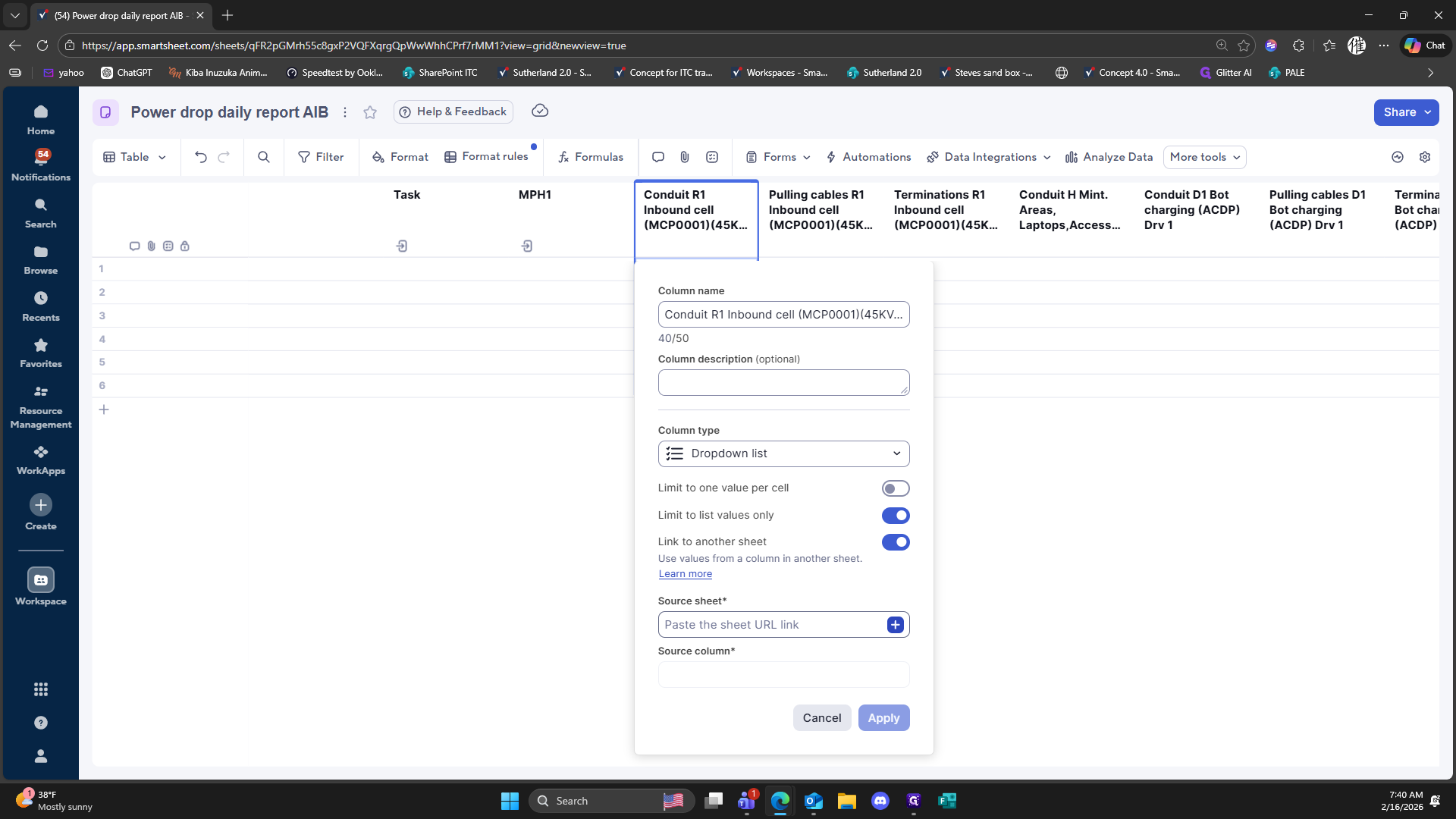
212
Click on ">"
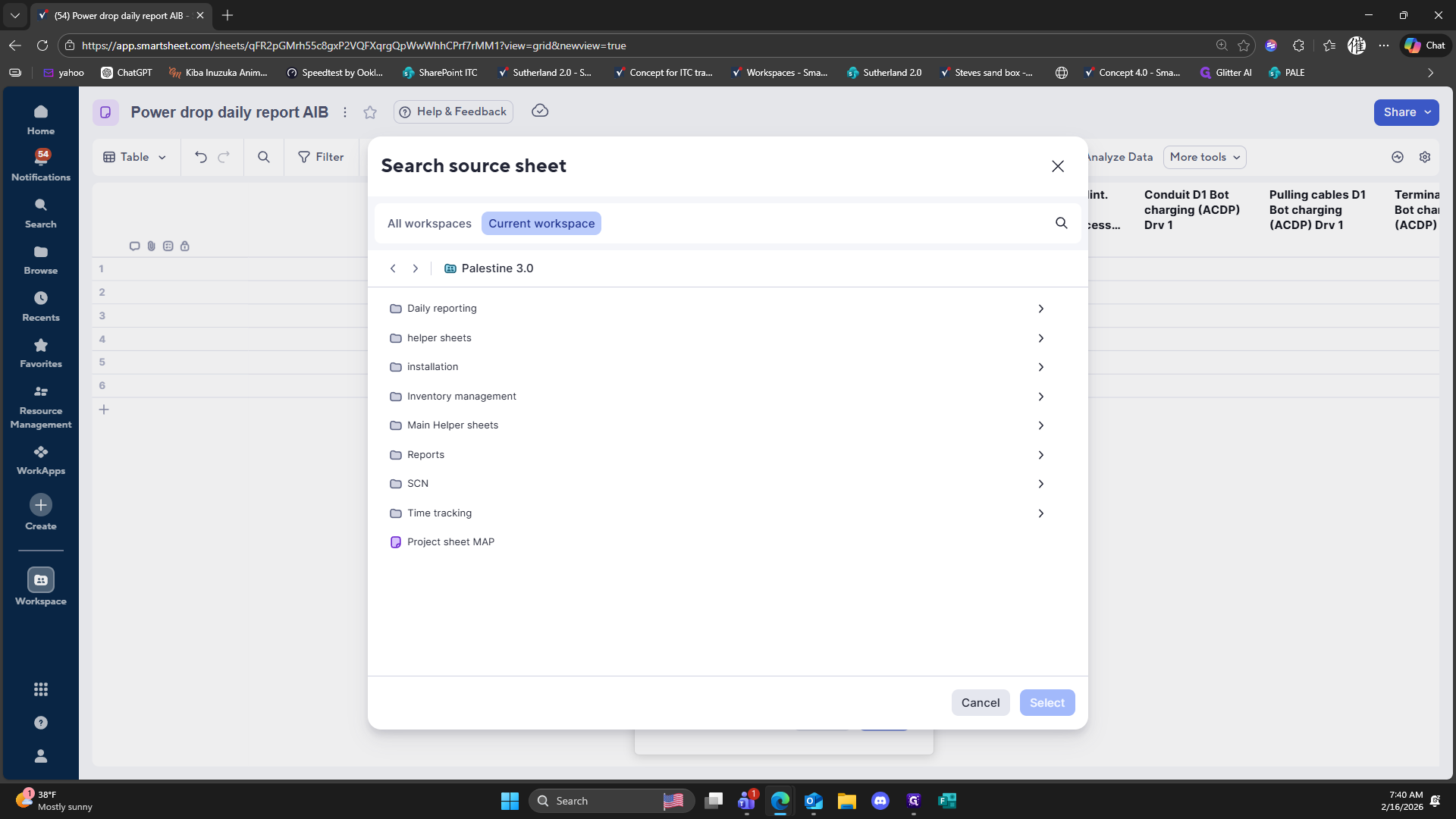
213
Click here
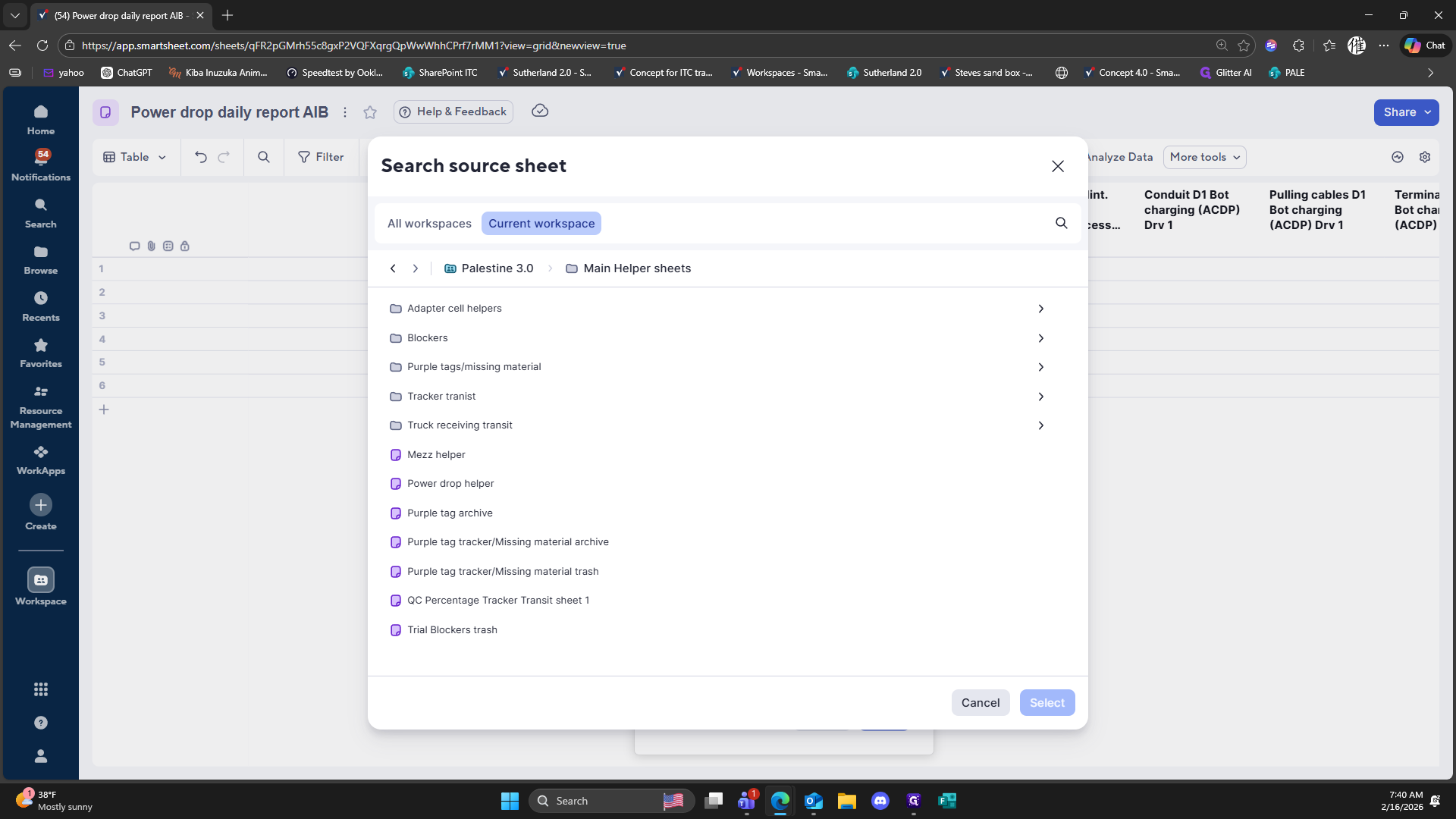
214
Click on "Select"
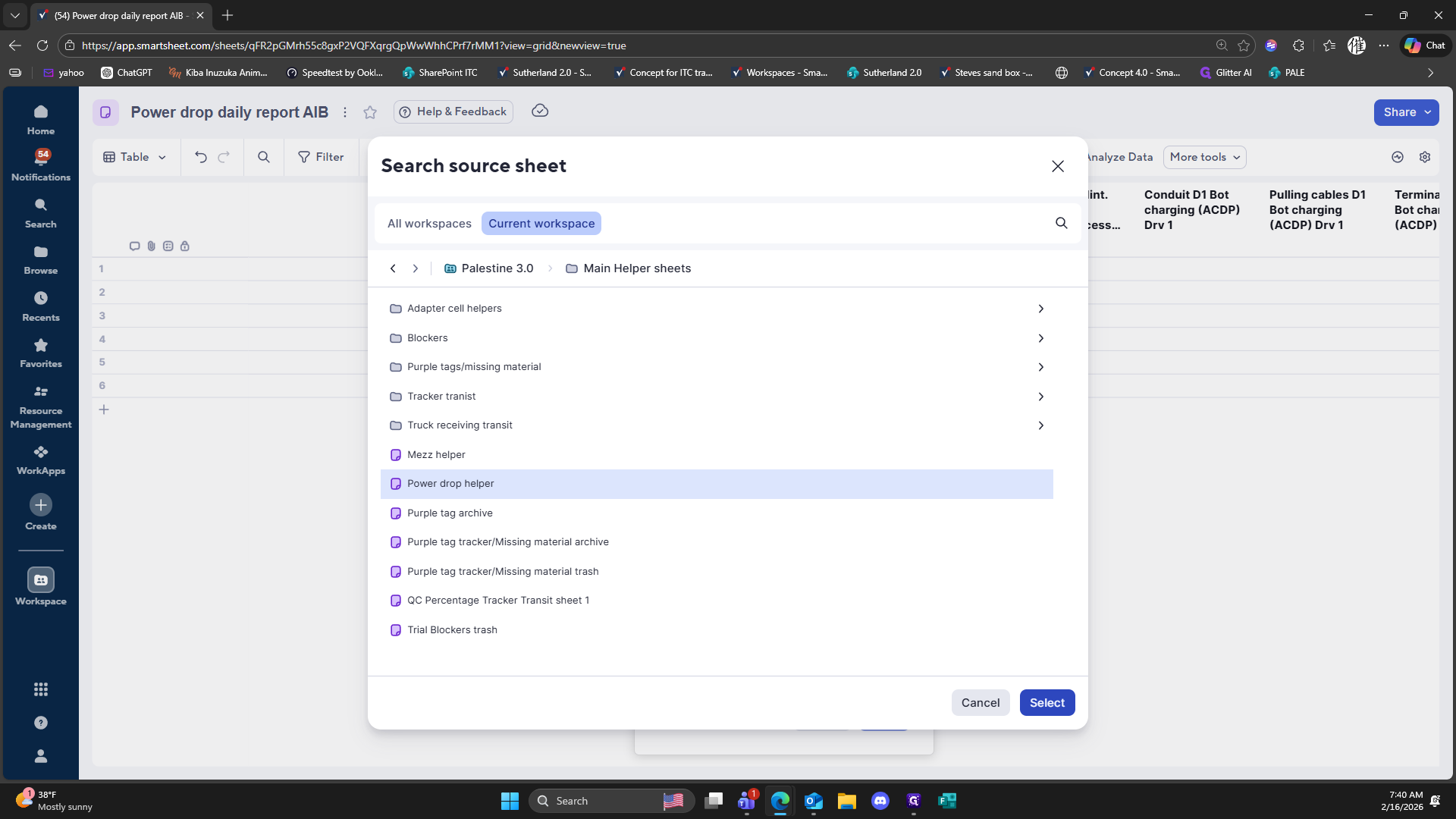
215
Click here
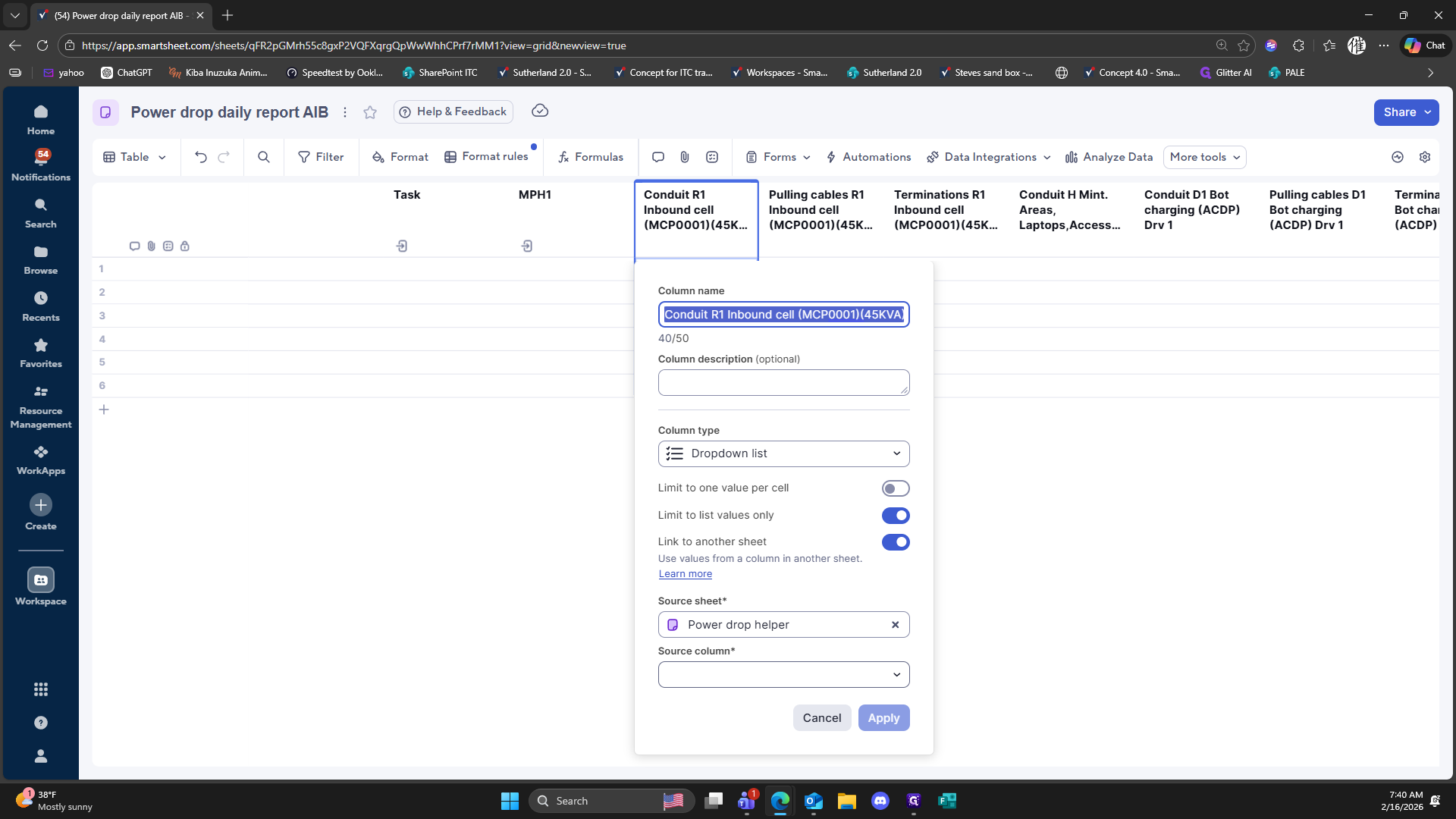
216
Double-click here
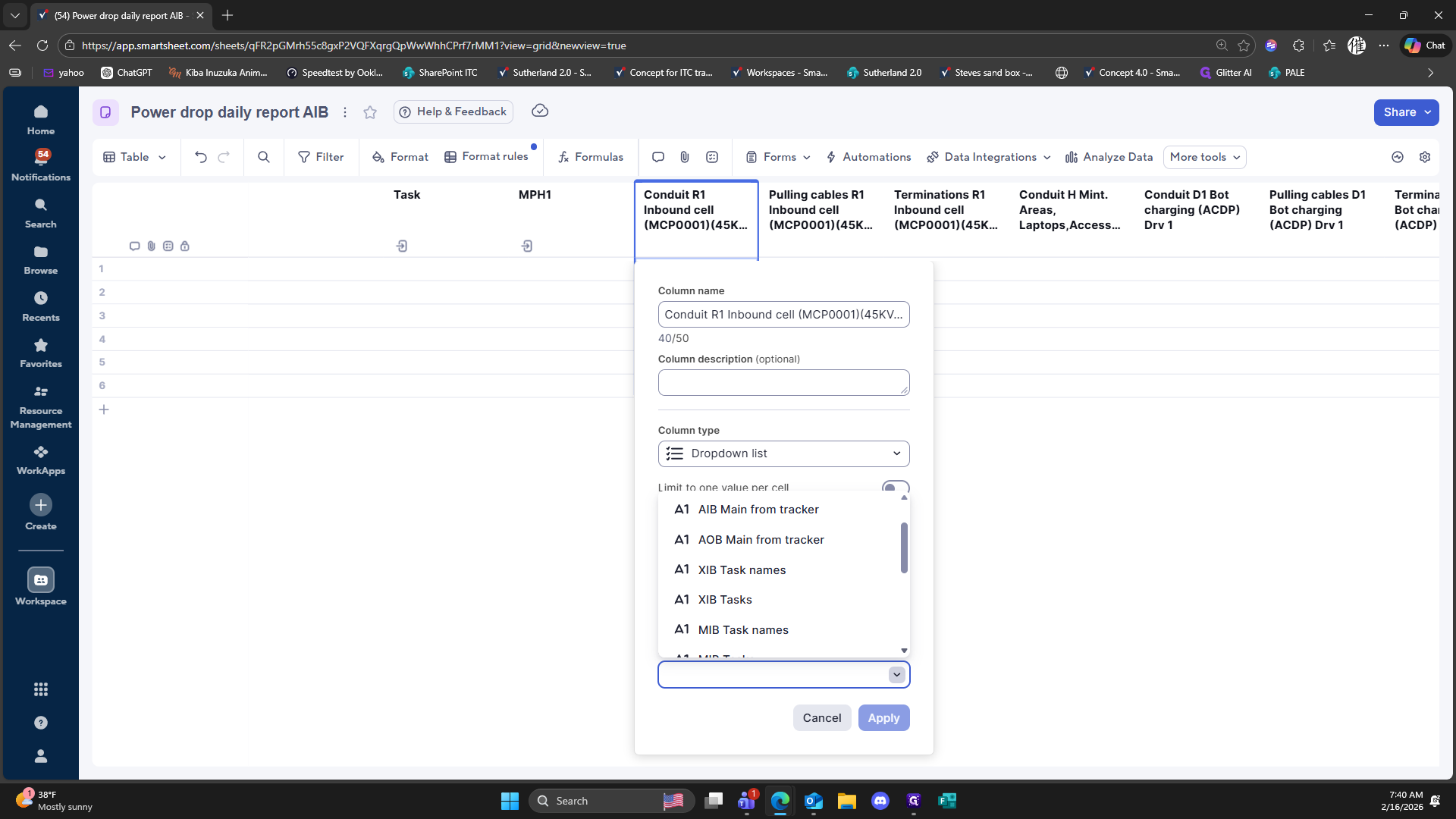
217
Double-click here
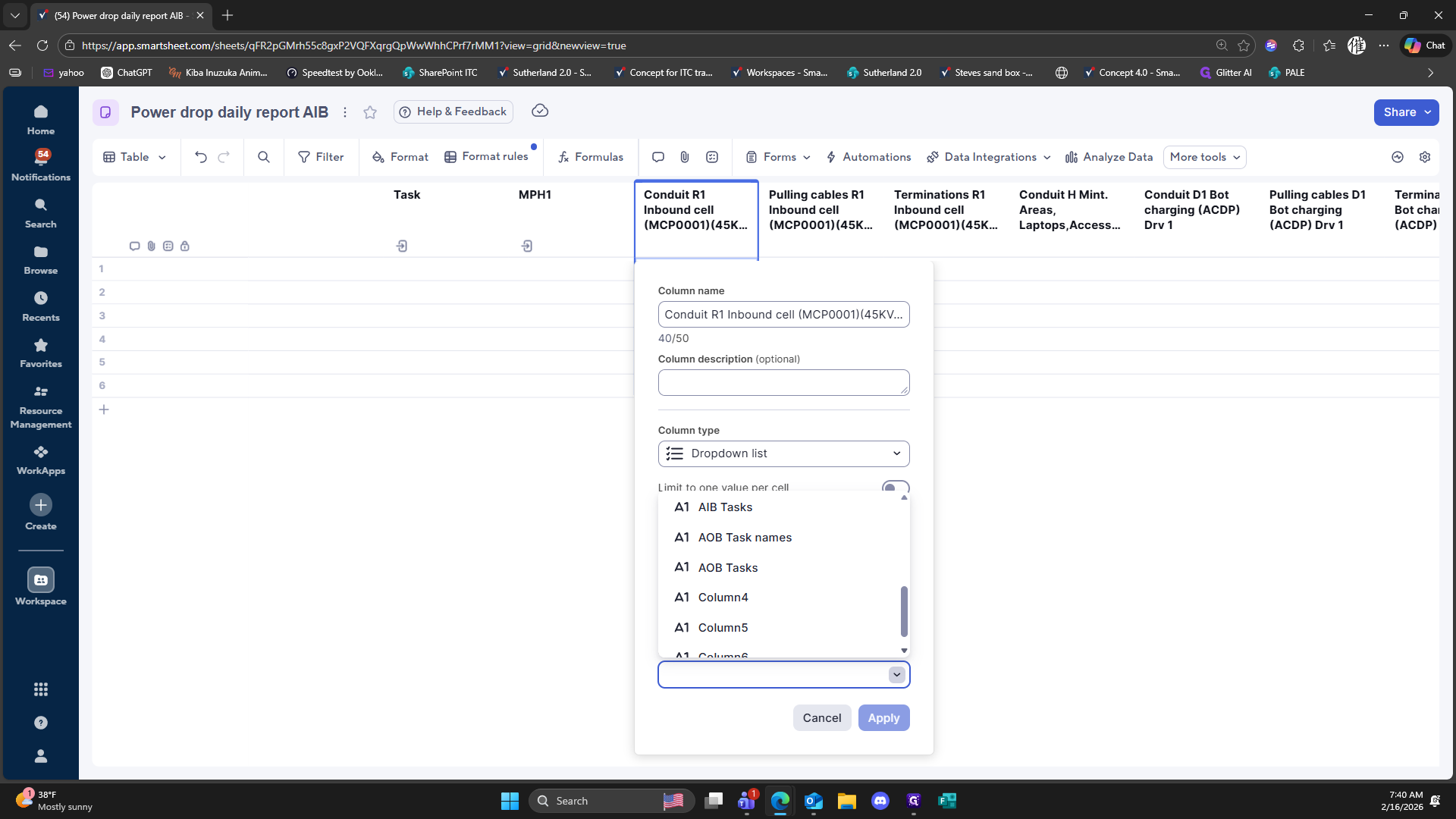
218
Double-click here
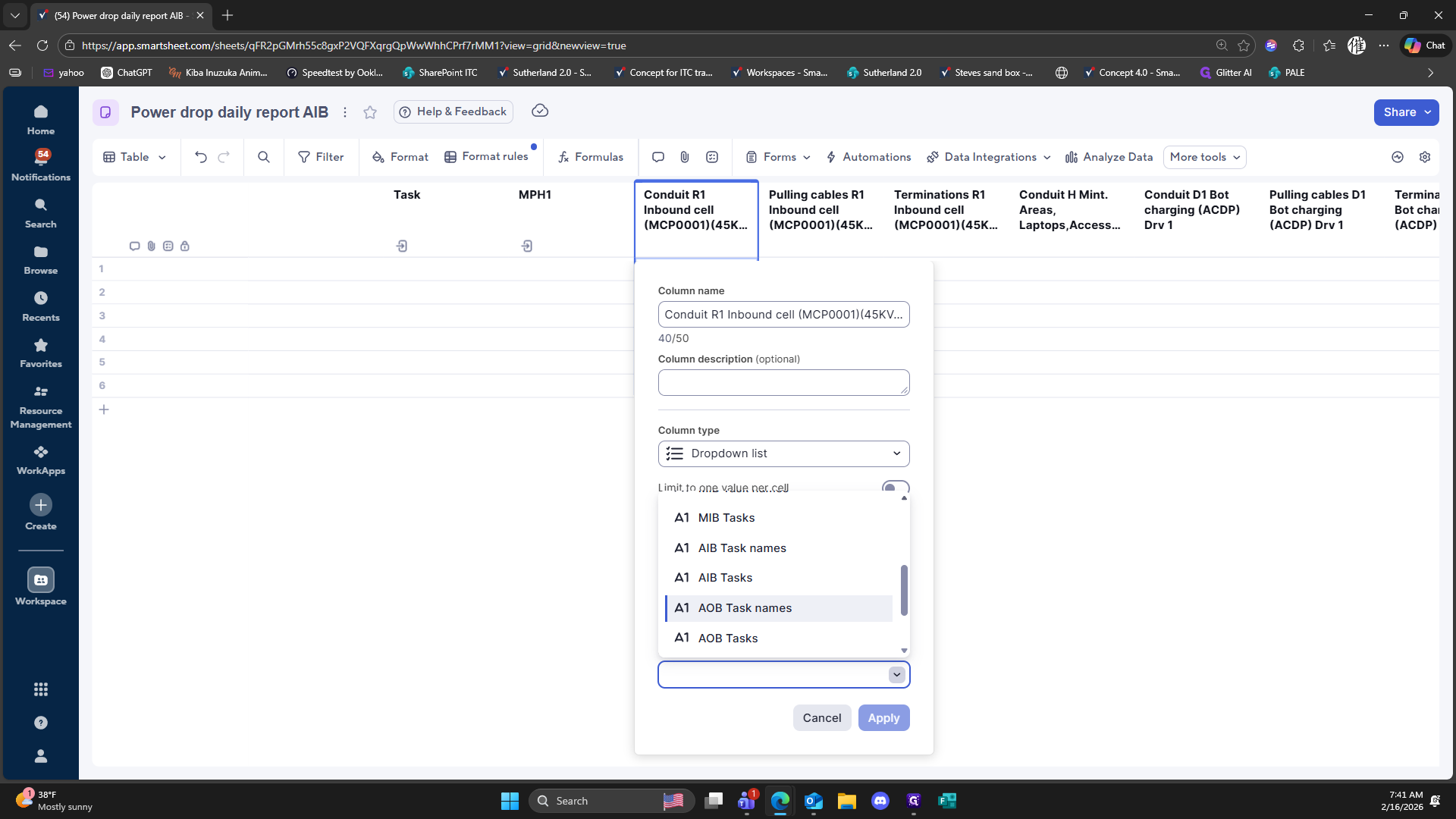
219
Double-click here
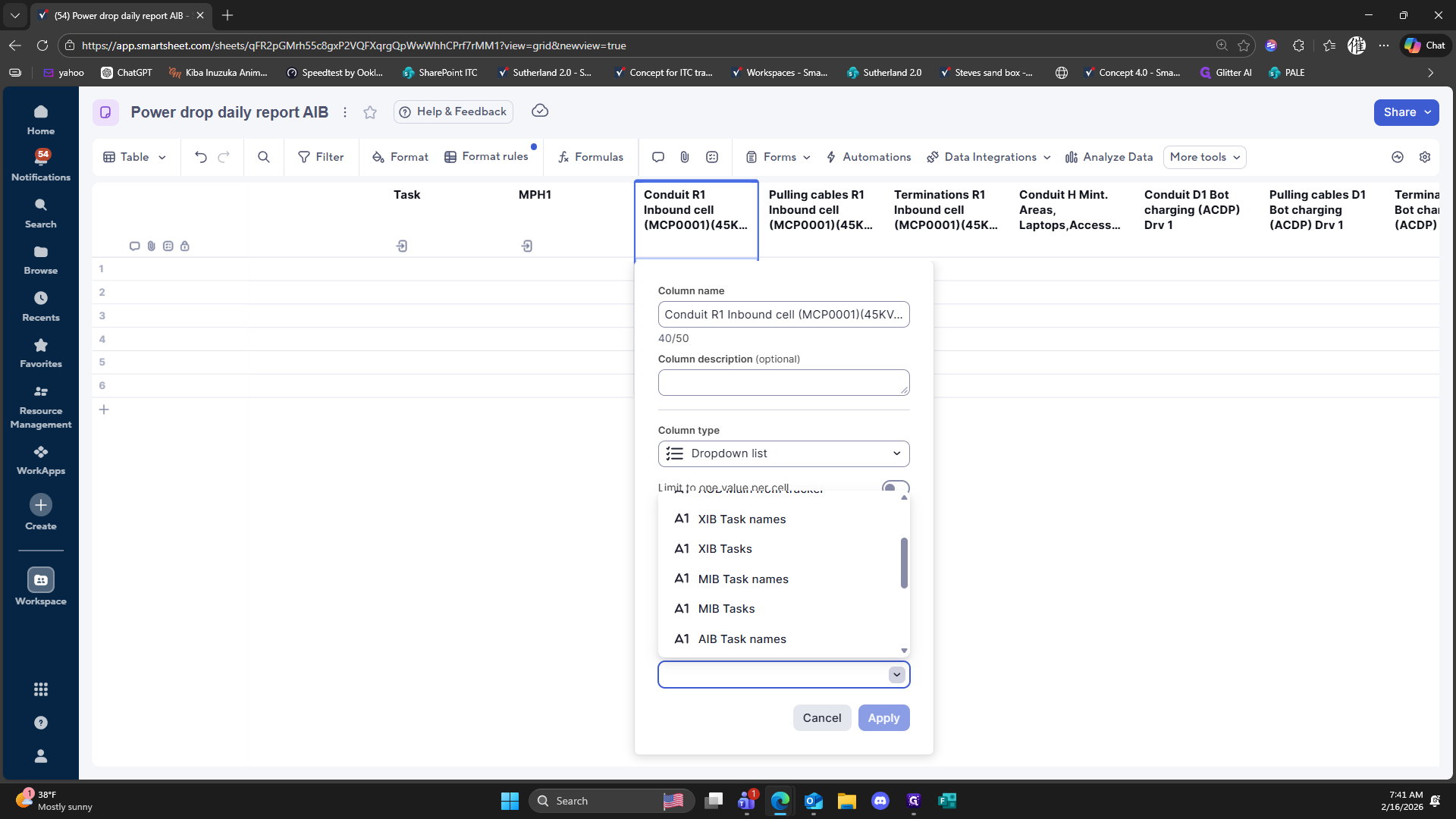
220
Double-click on "Cancel"
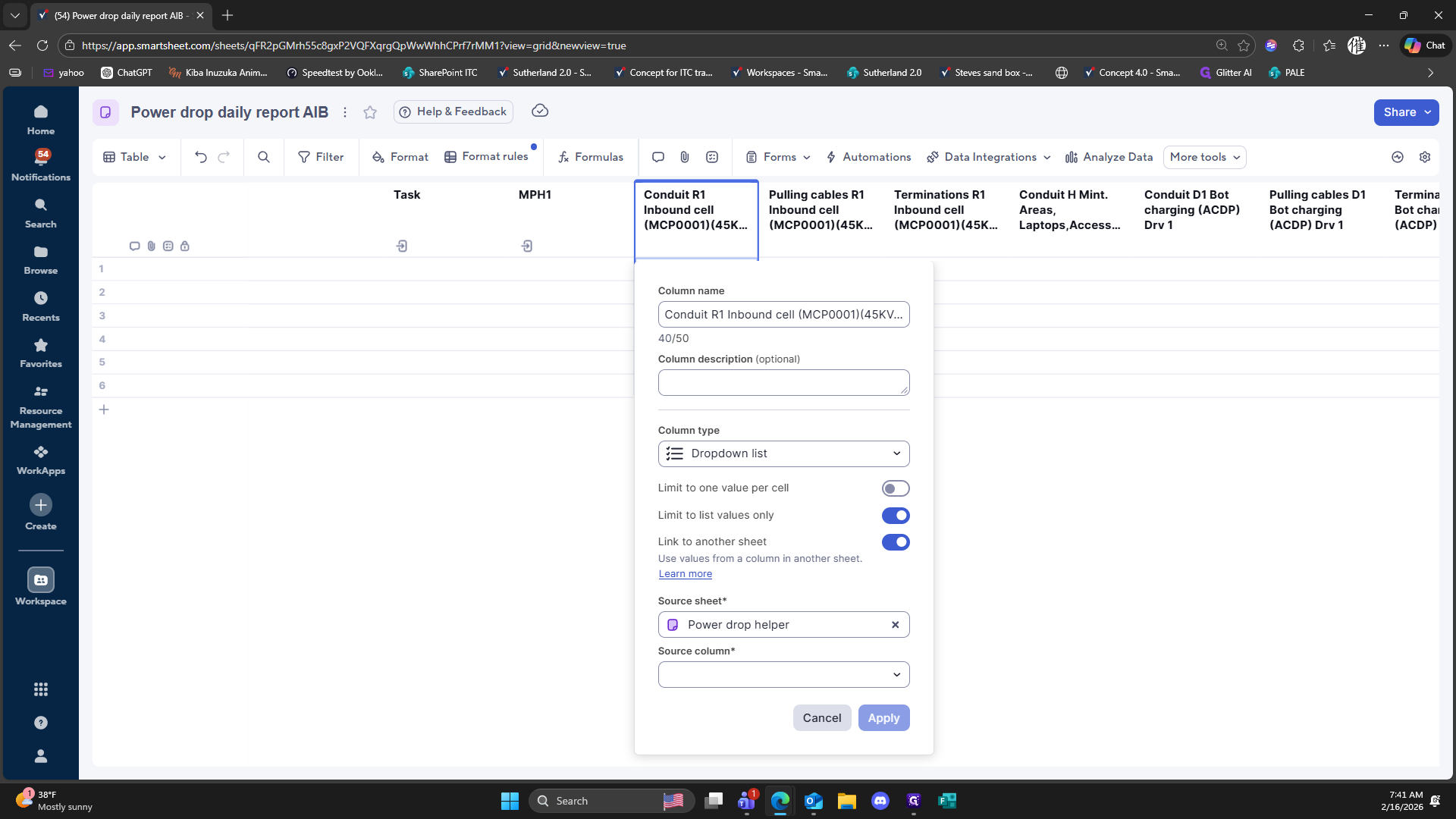
221
Double-click here
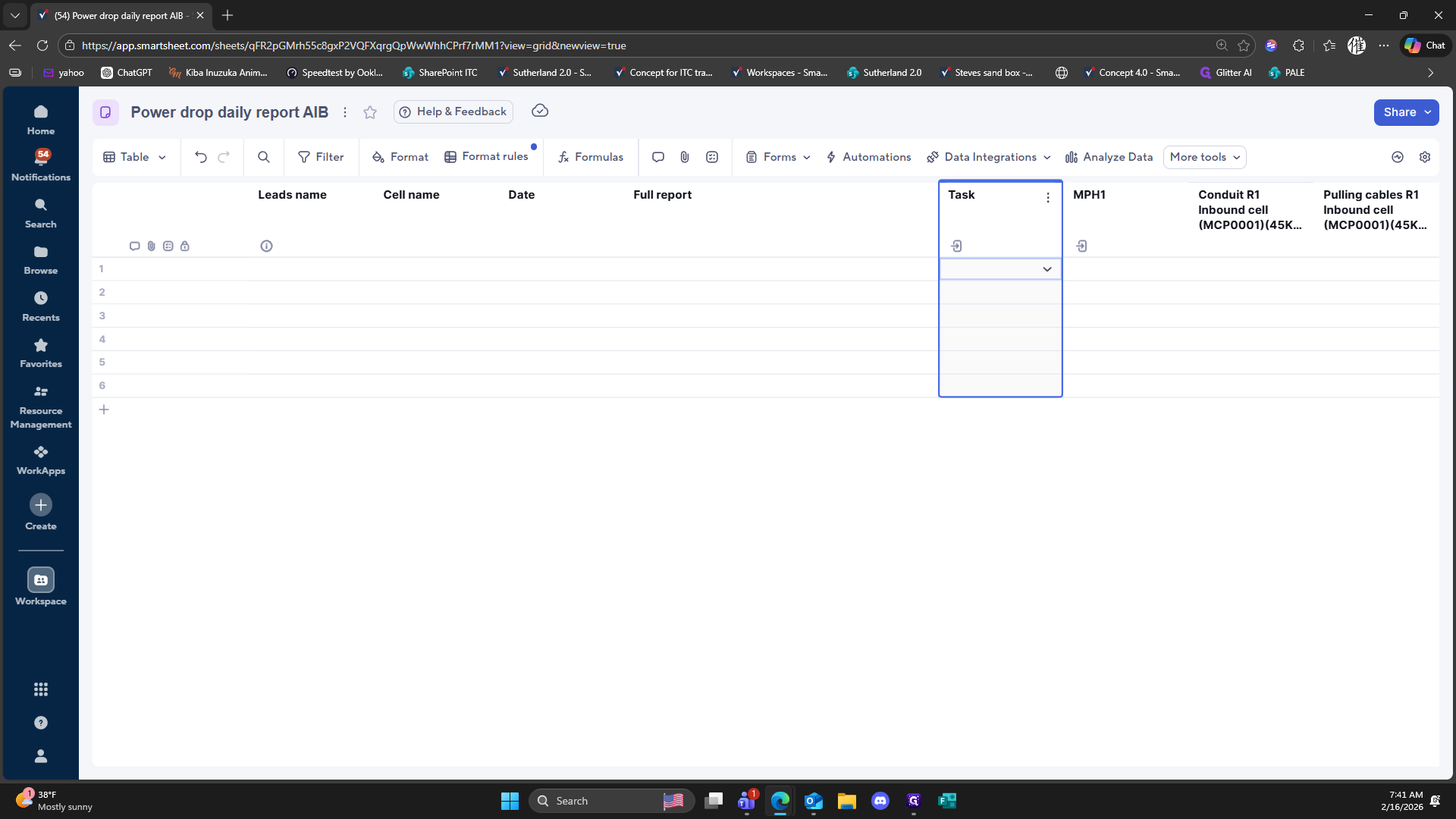
222
Double-click here
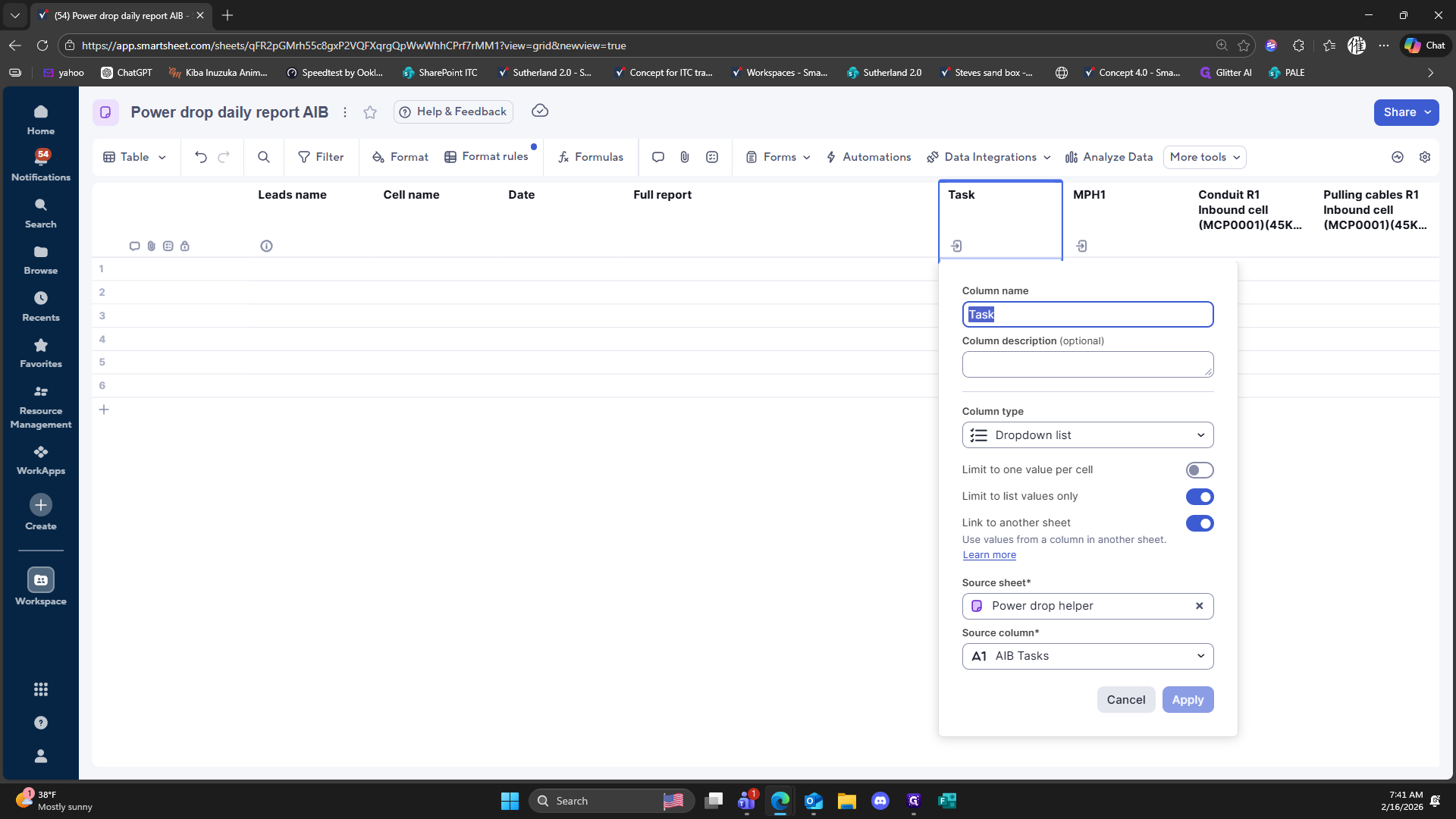
223
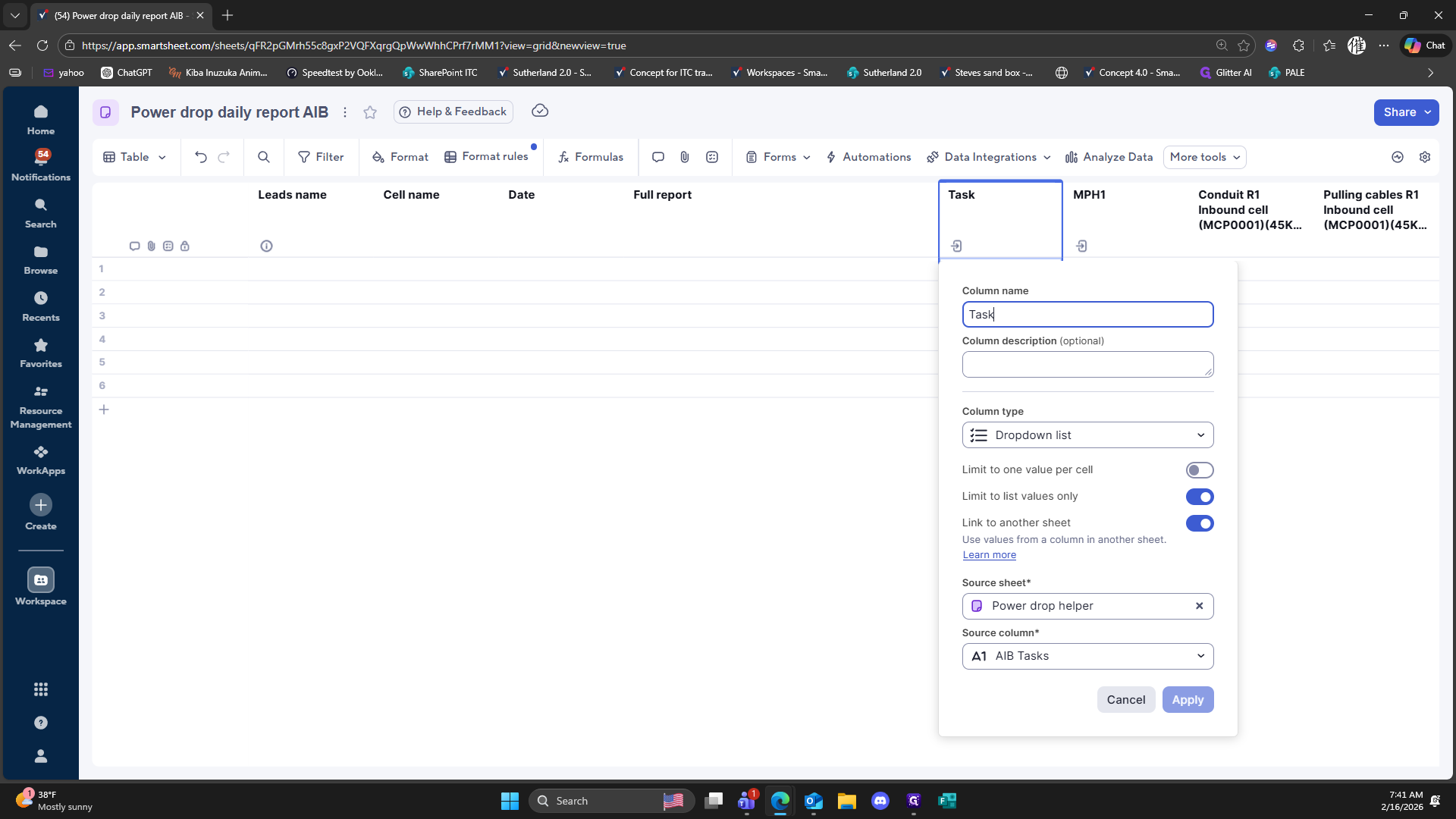
Click on "Task"
224
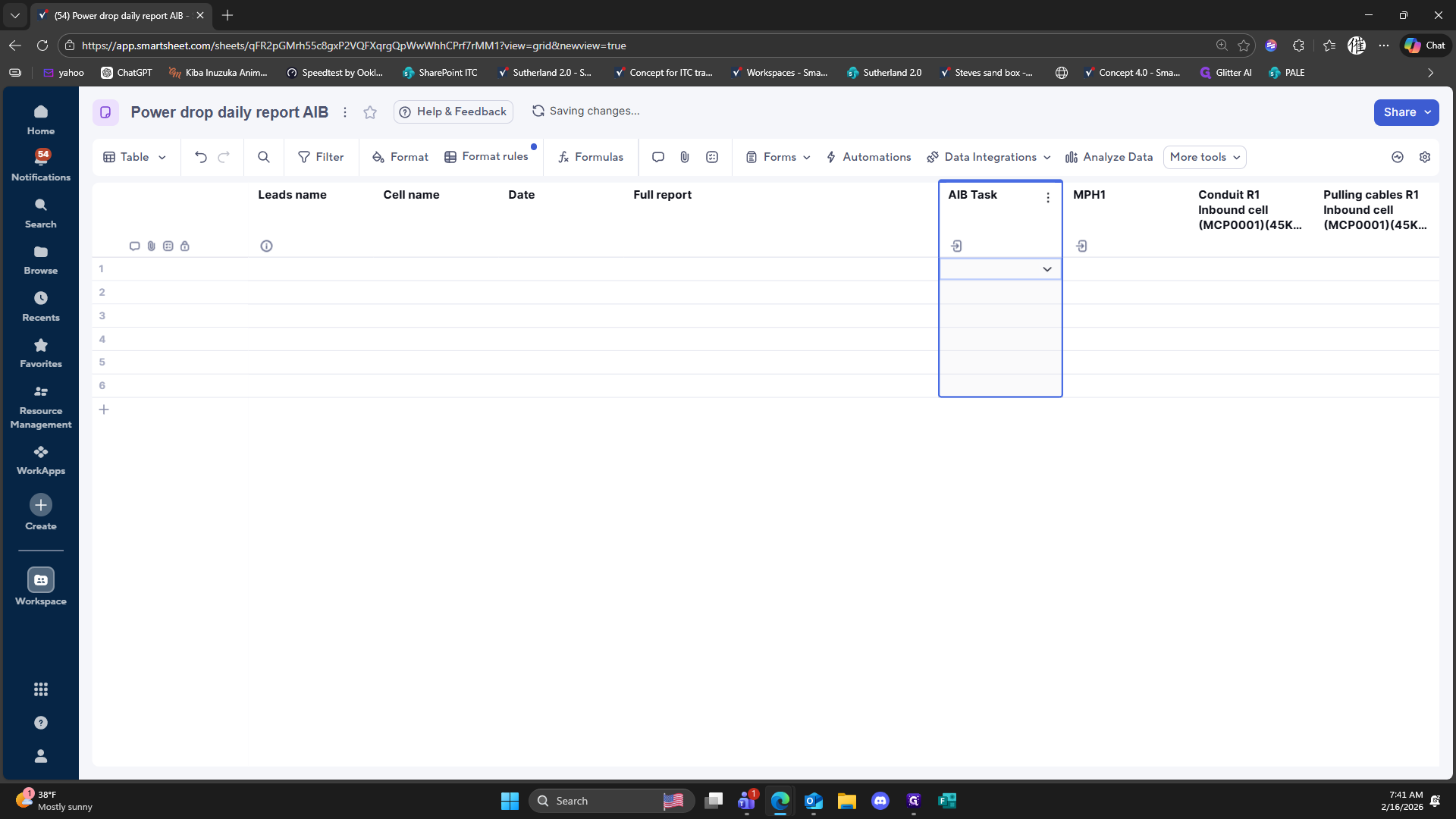
Type "AIB + Enter"
225
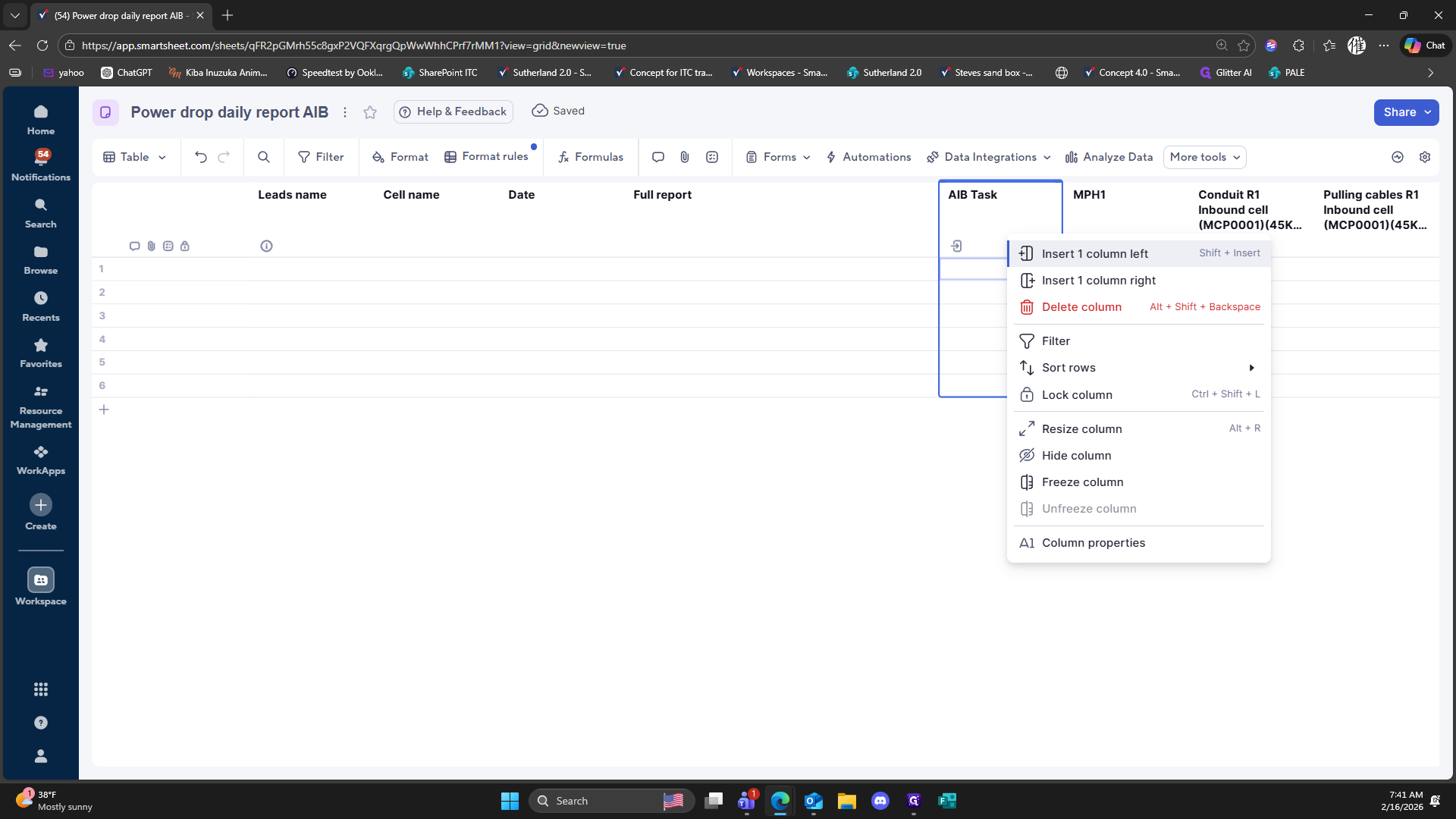
Right-click here
226
Click on "Insert 1 column left"
227
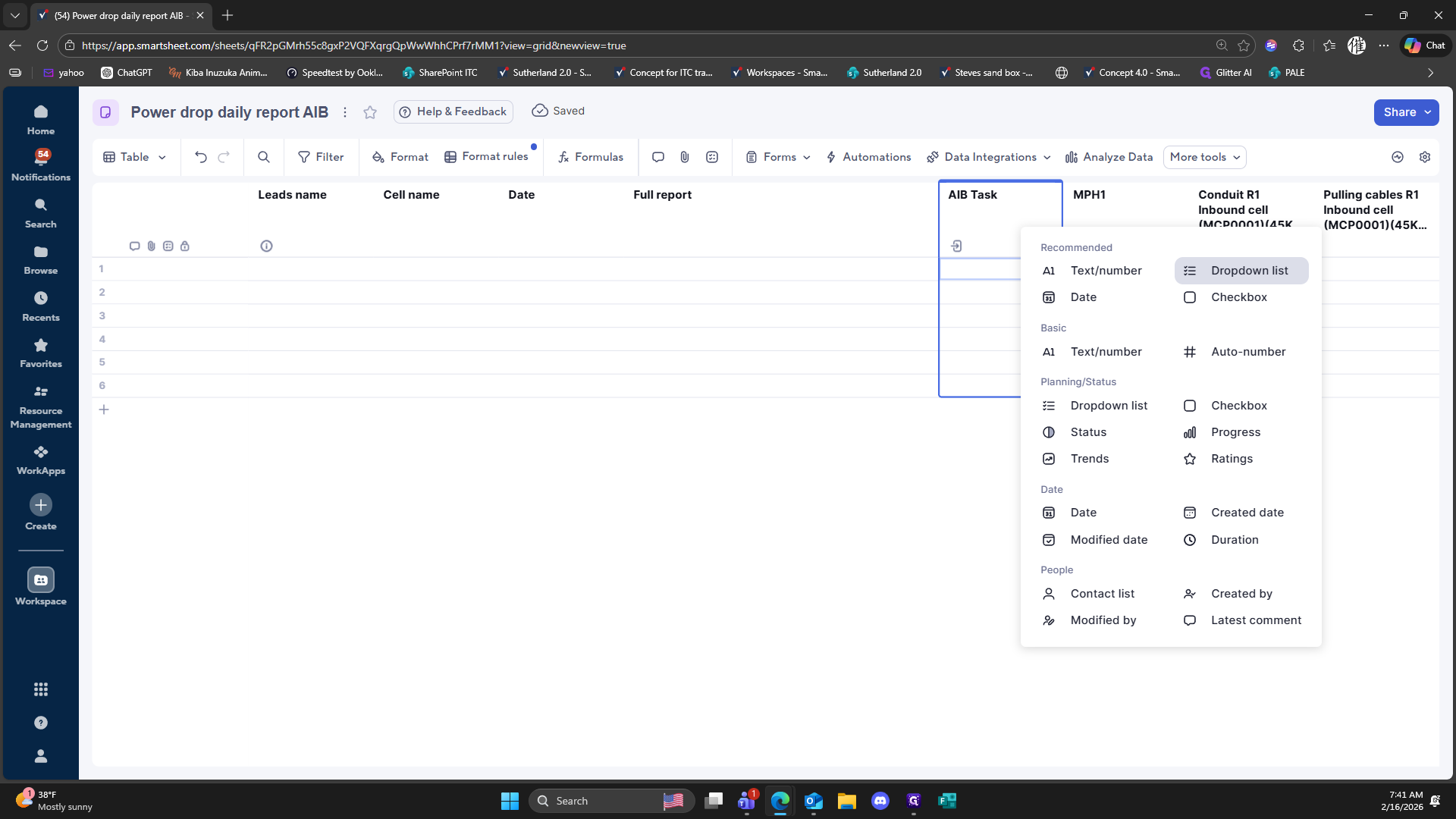
Click on "三"
228
Click on "Enter or paste values"
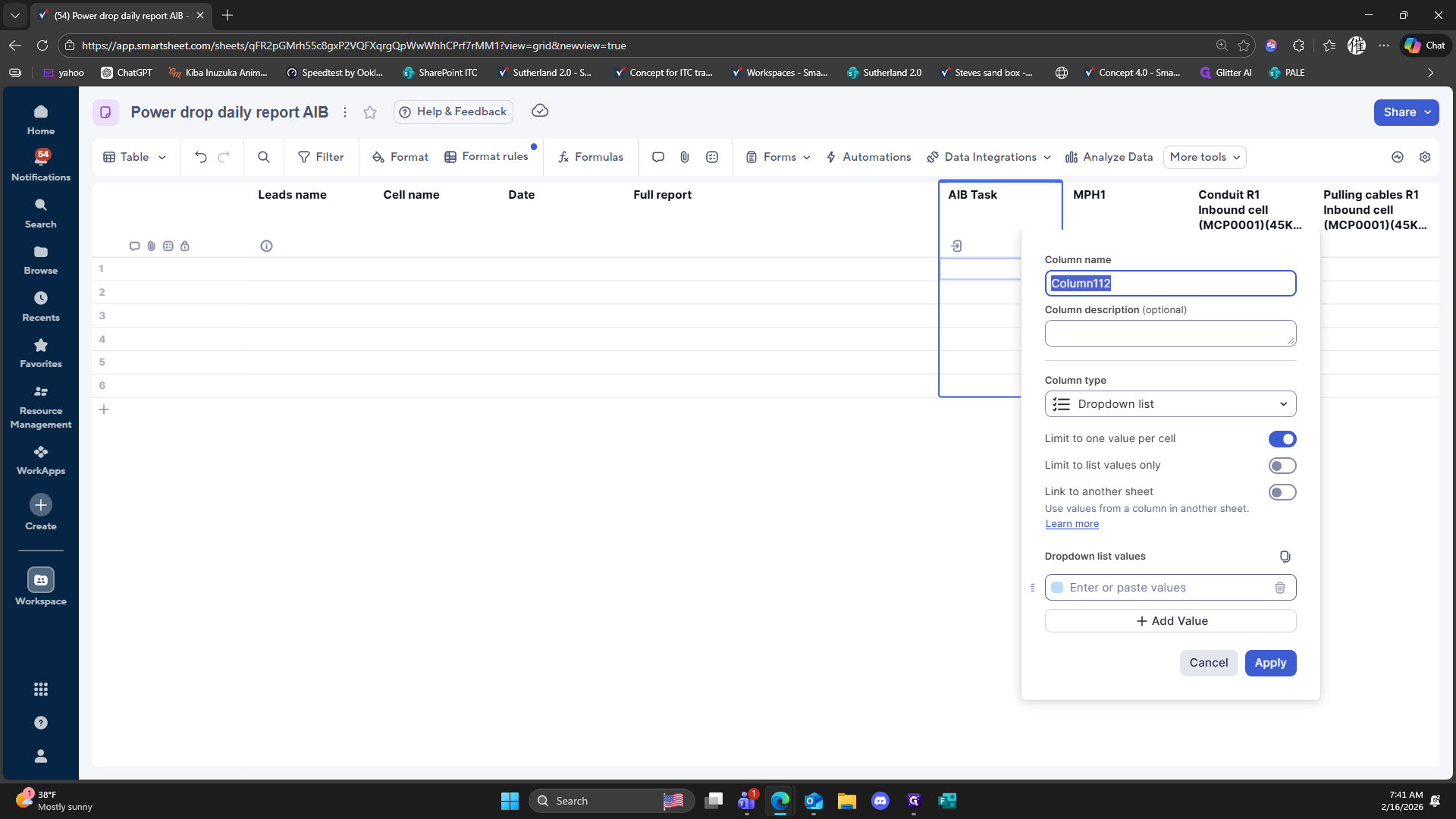
229
Double-click here
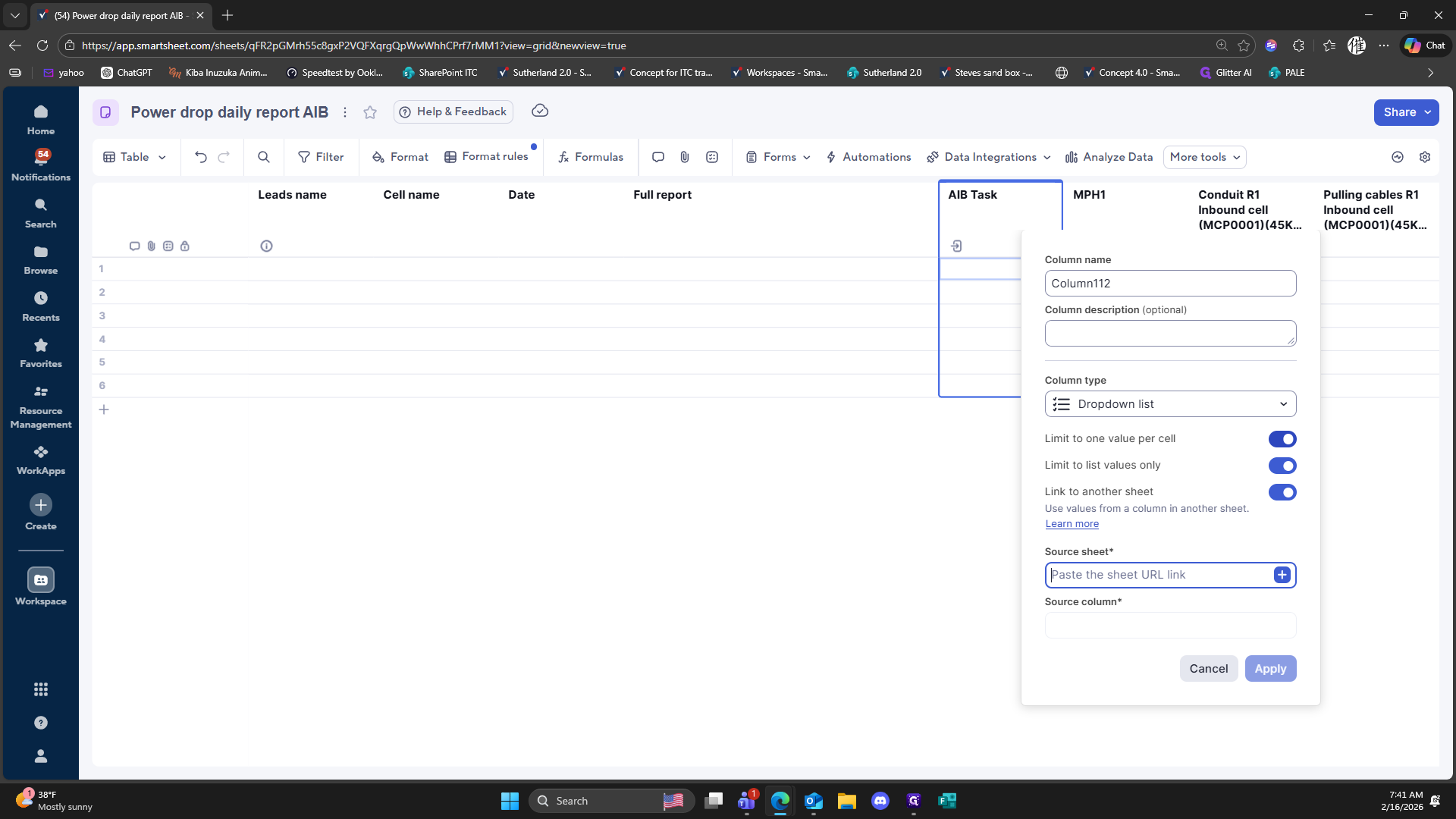
230
Click on "+"
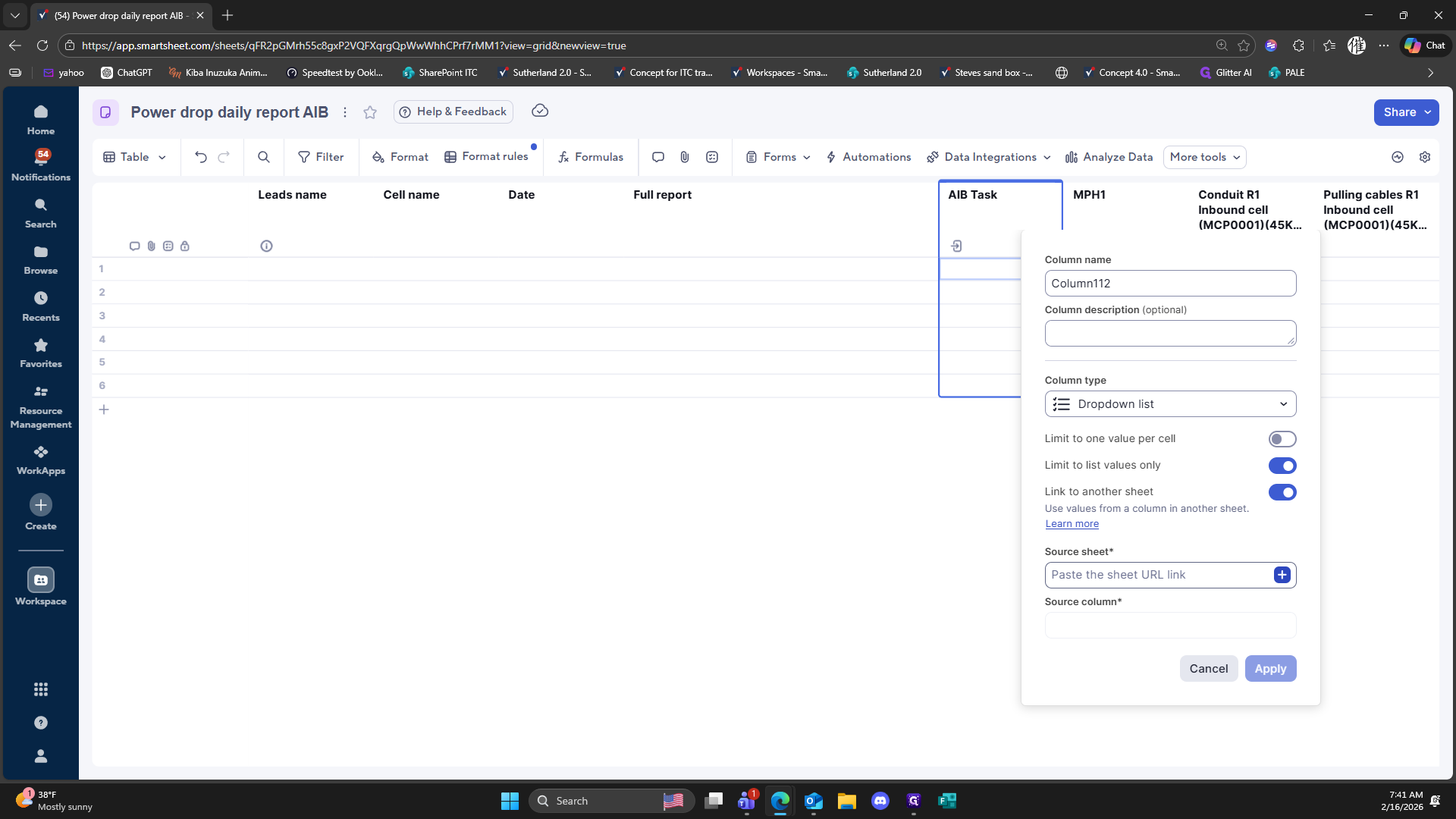
231
Click here
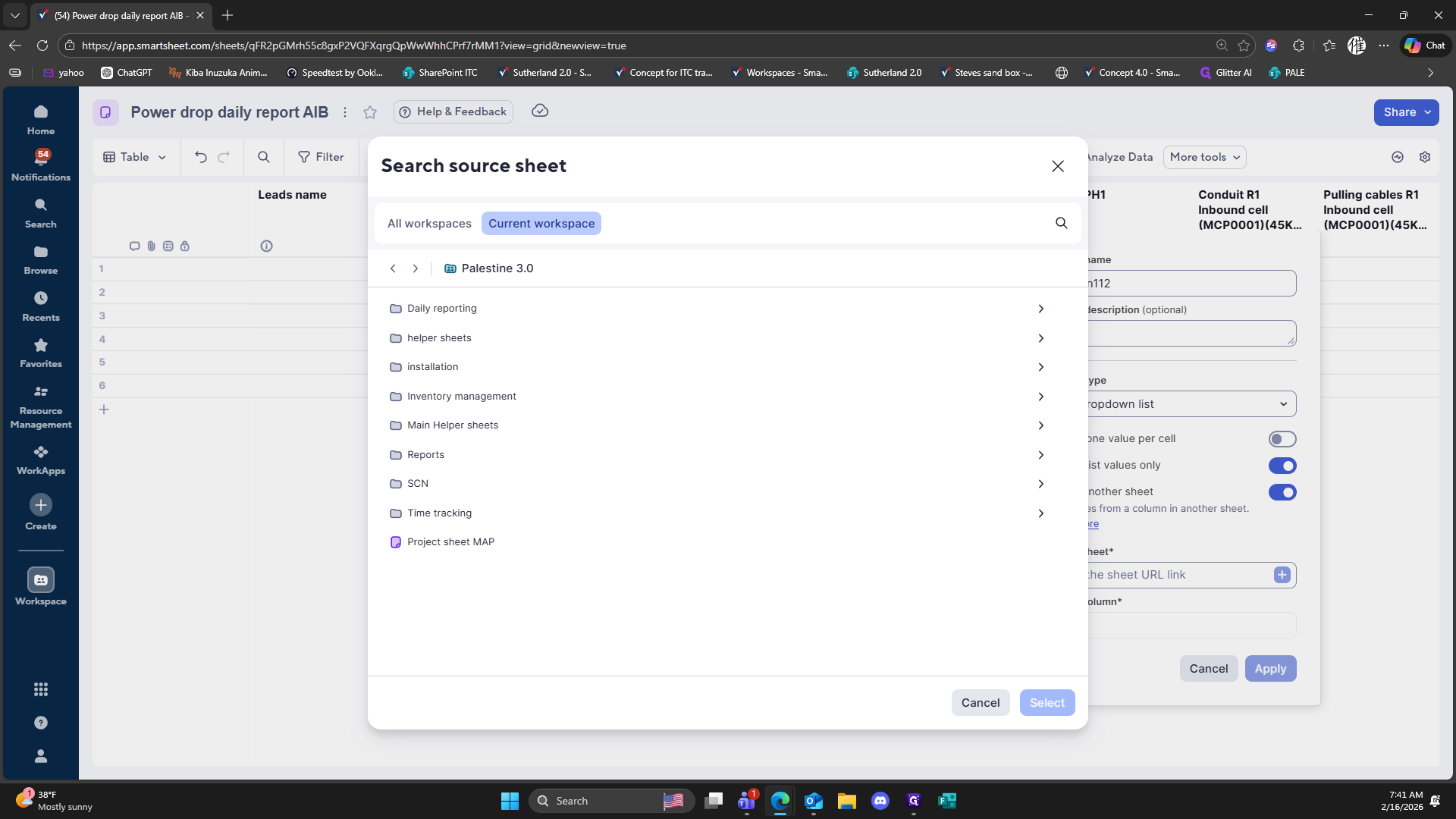
232
Click on "<"
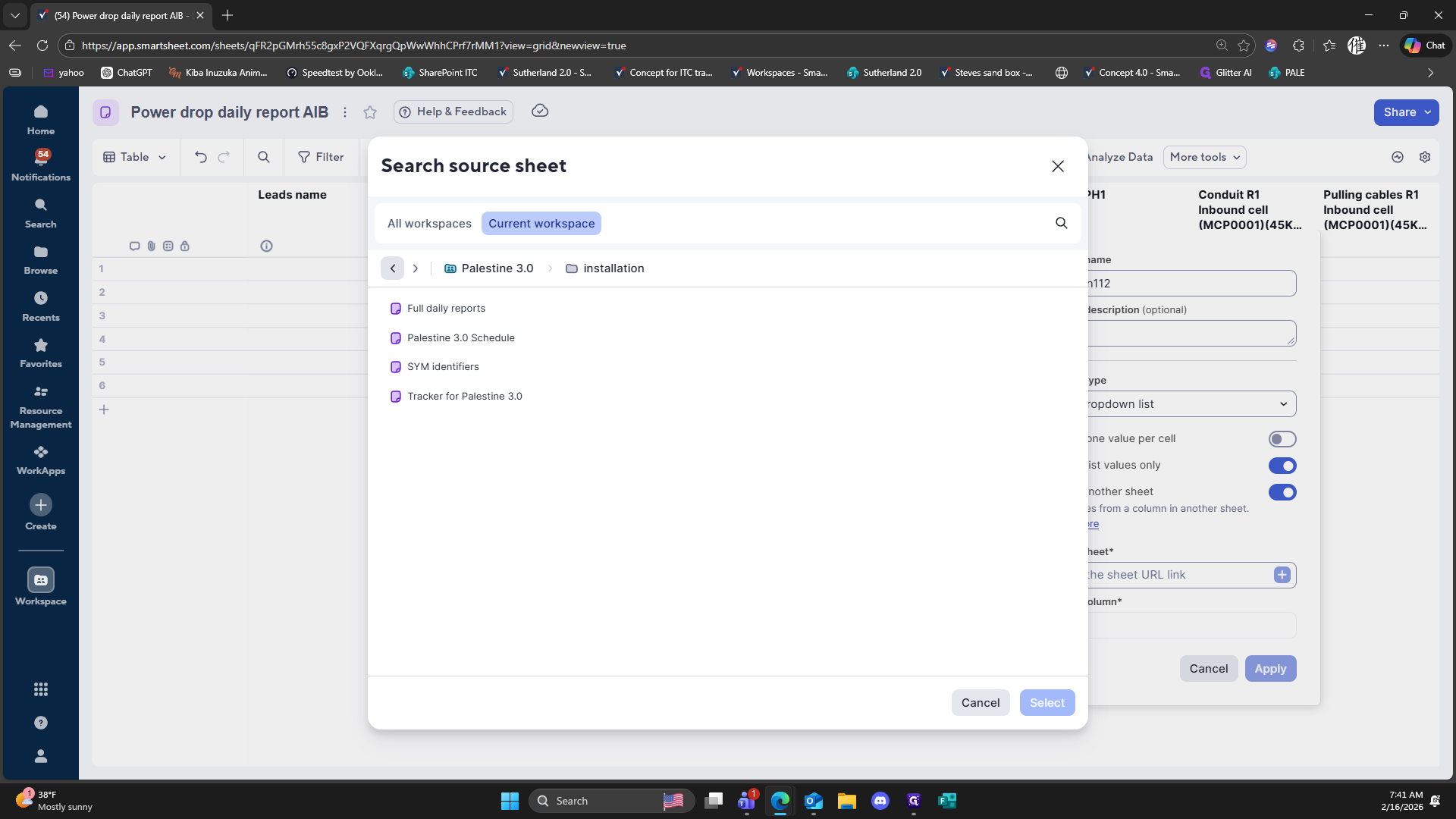
233
Click on "Main Helper sheets"
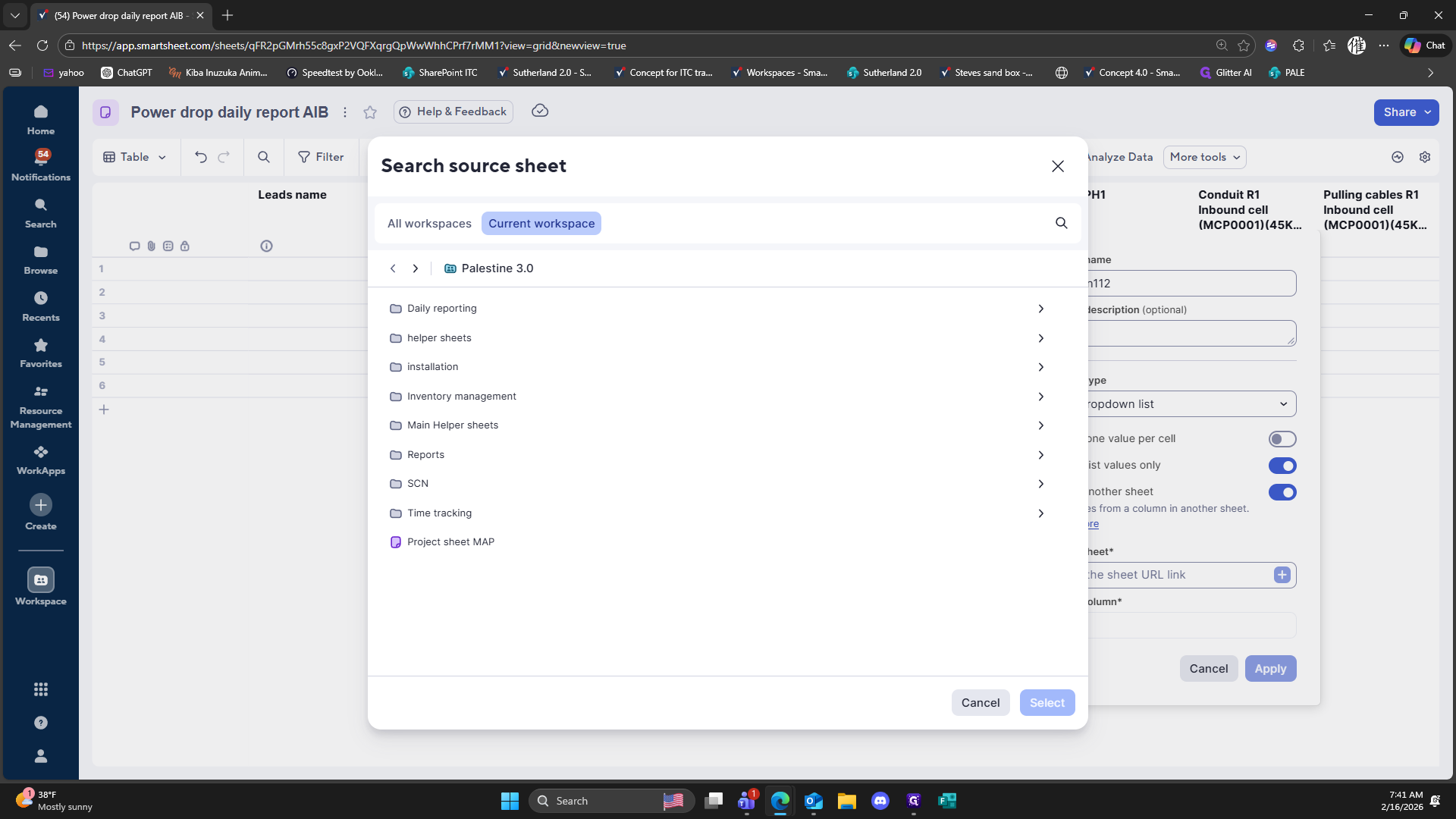
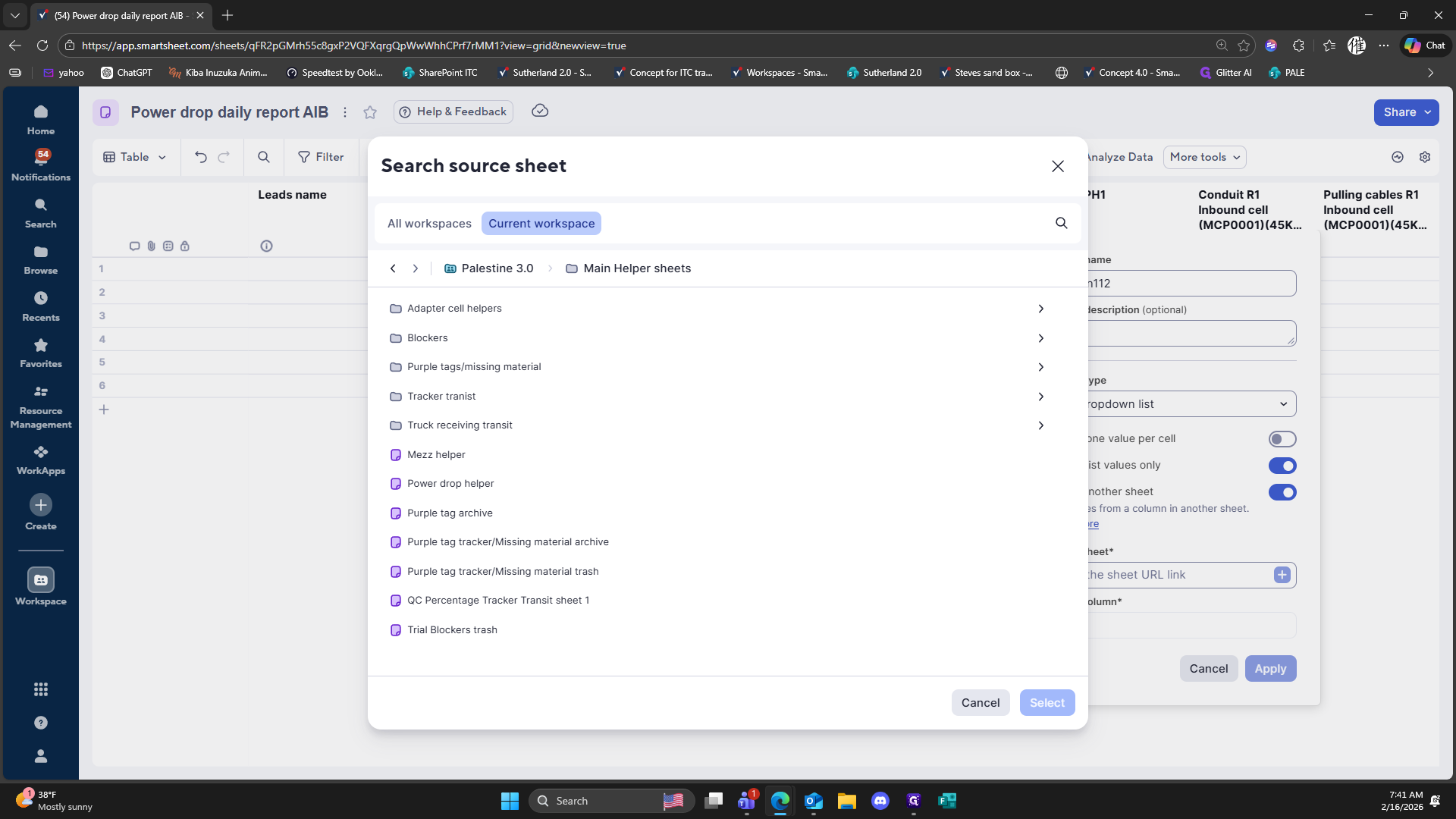
234
Click on "Power drop helper"
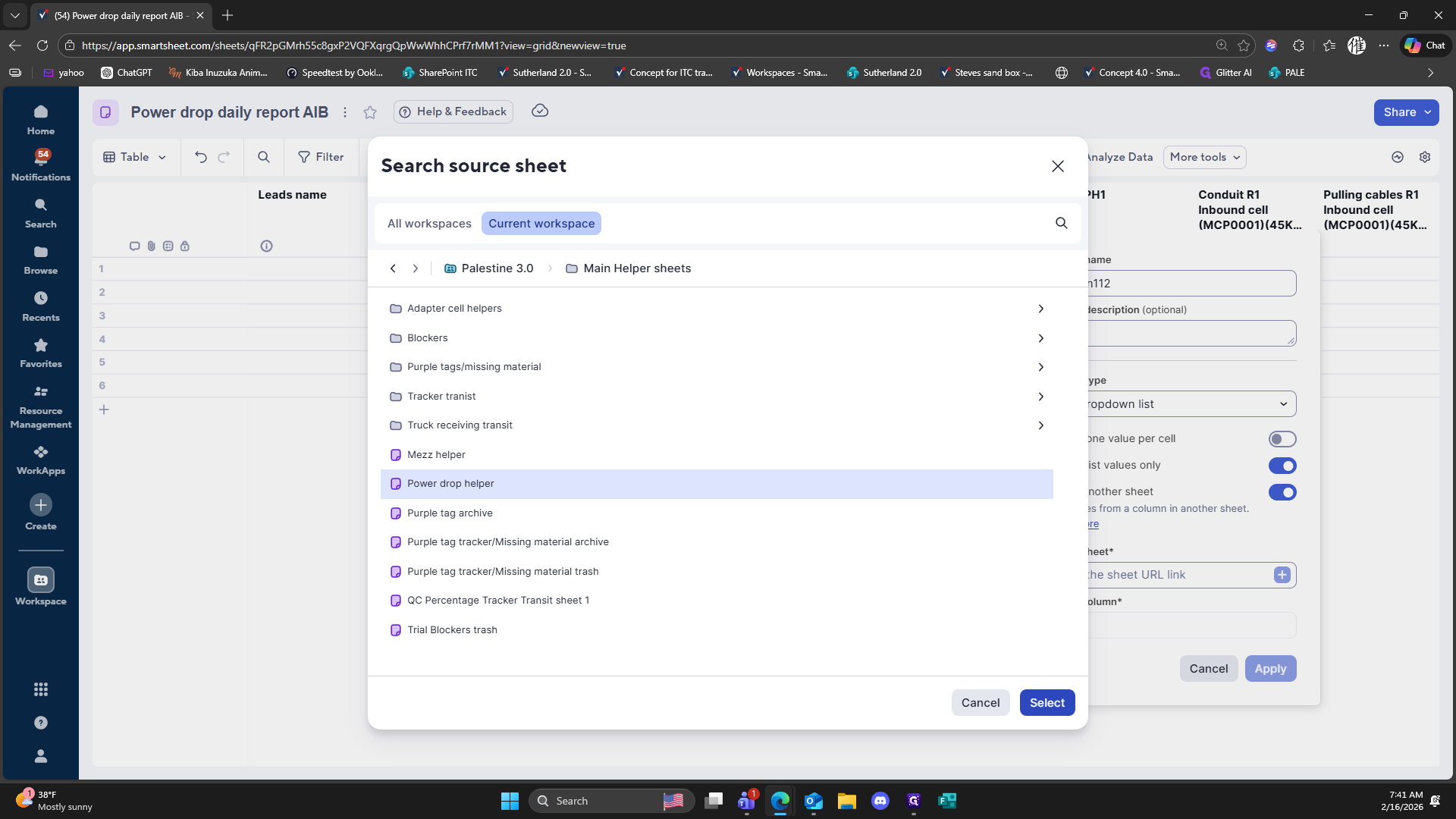
235
Click on "Select"
236
Type "MIB Task"
237
Click here
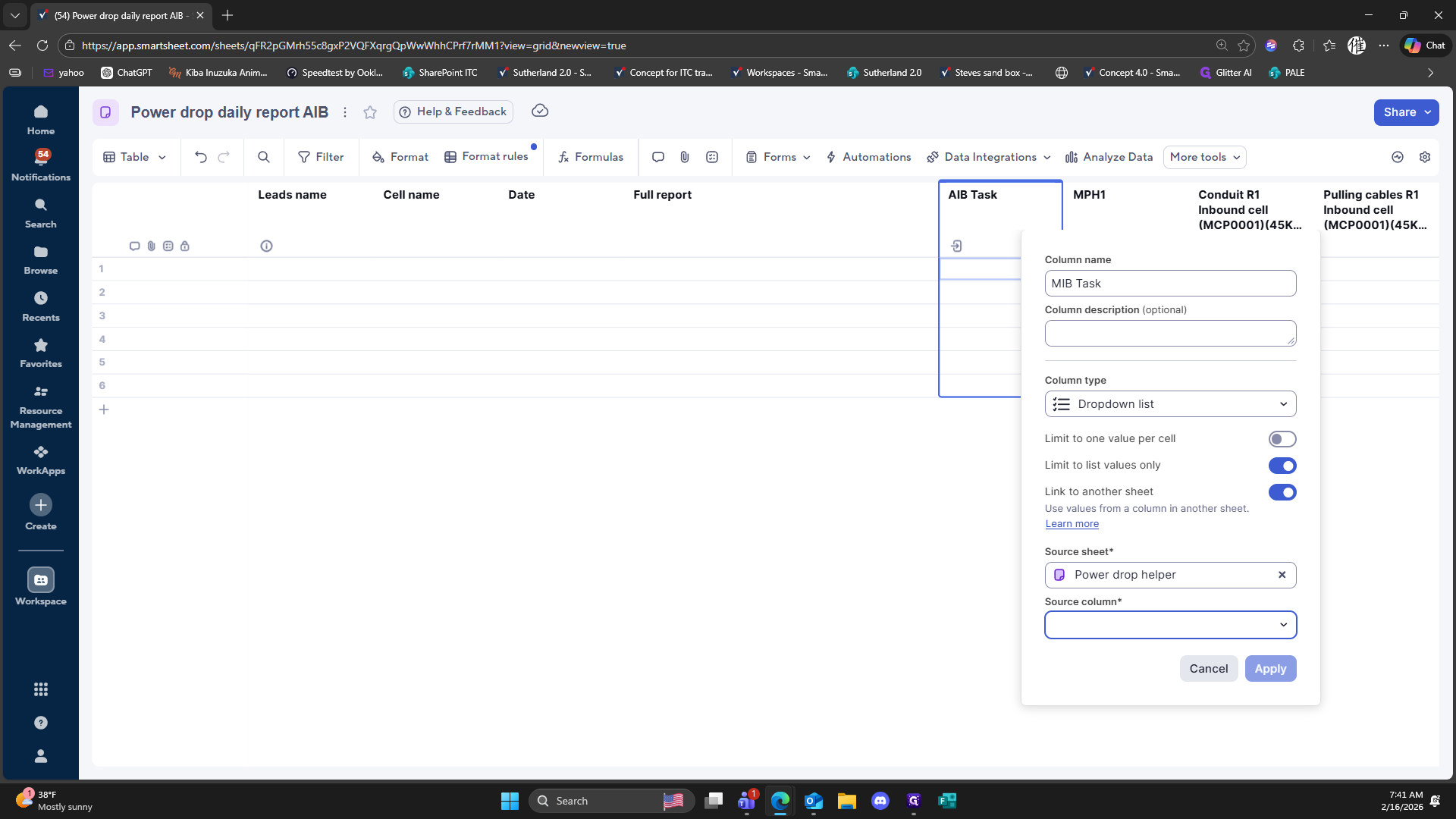
238
Double-click here
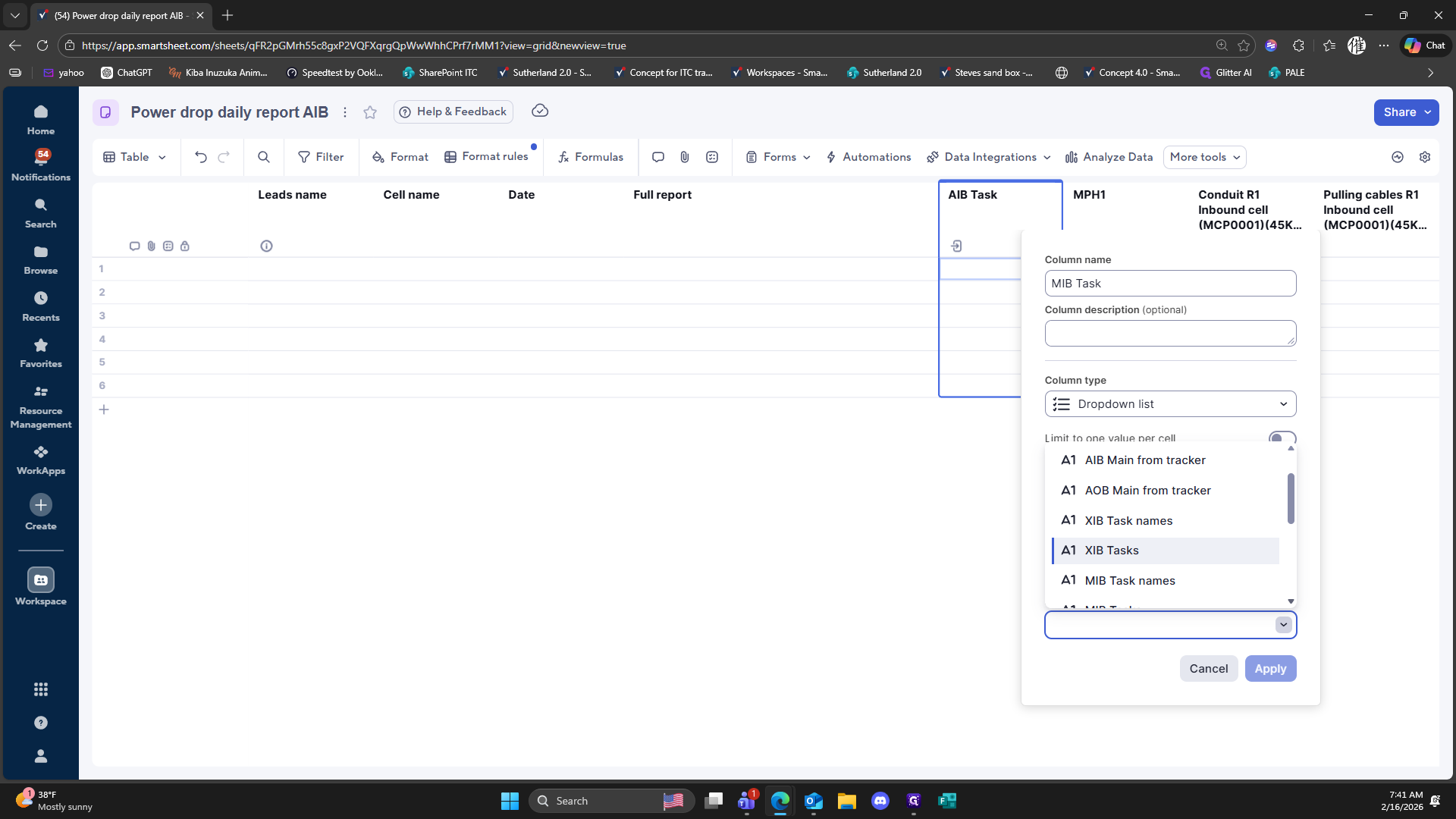
239
Click here
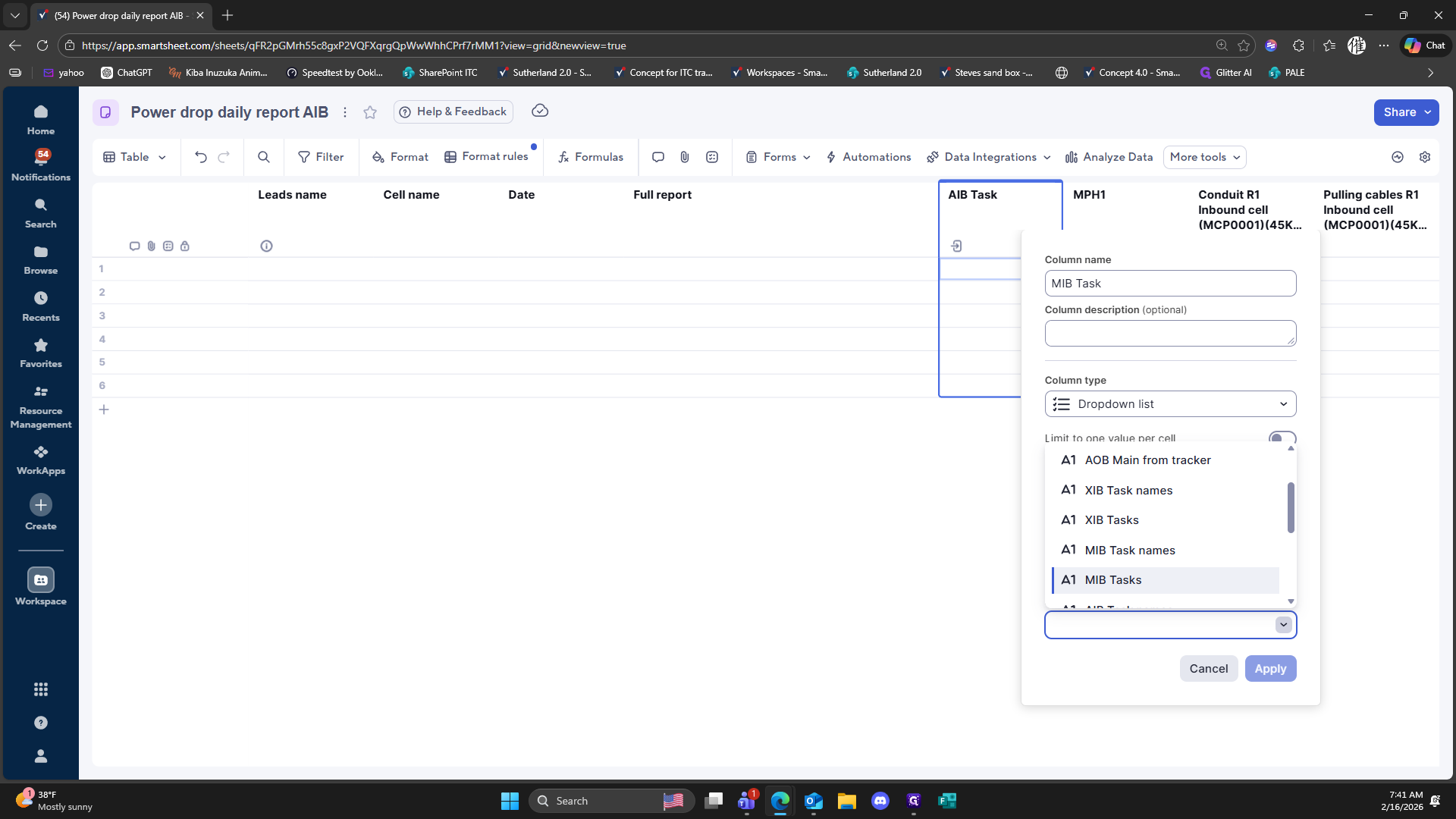
240
Click on "Apply"
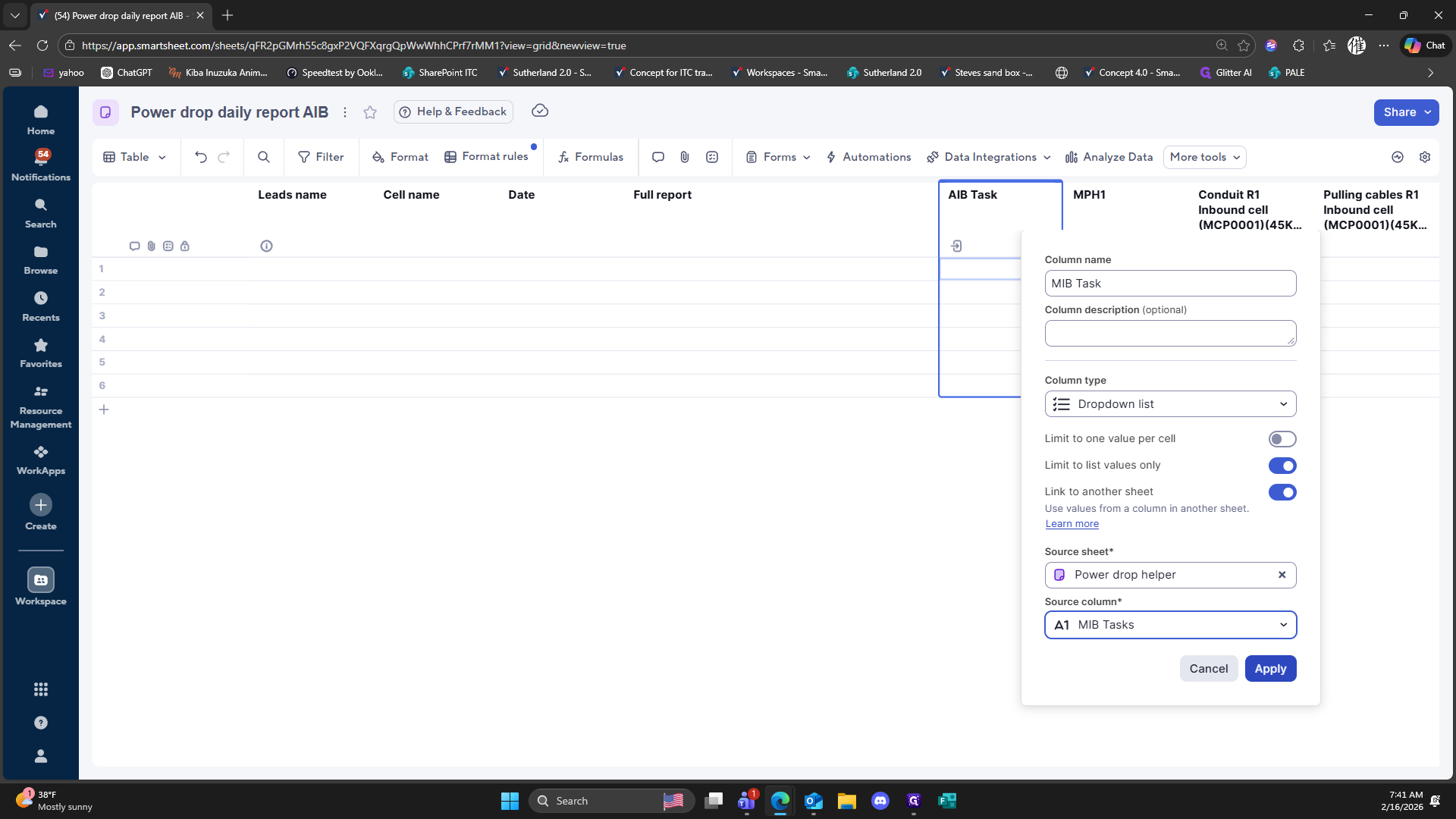
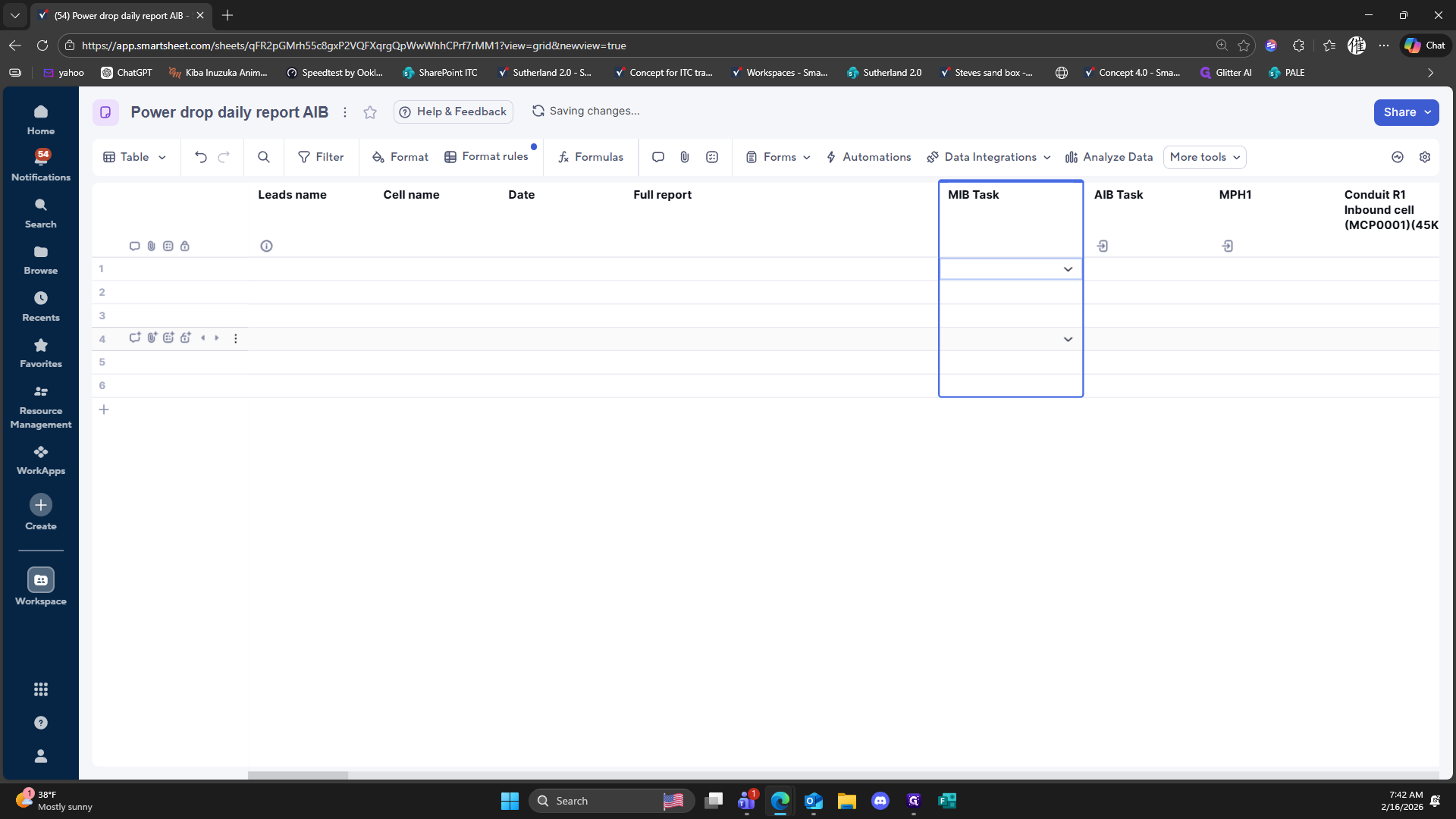
241
Right-click here
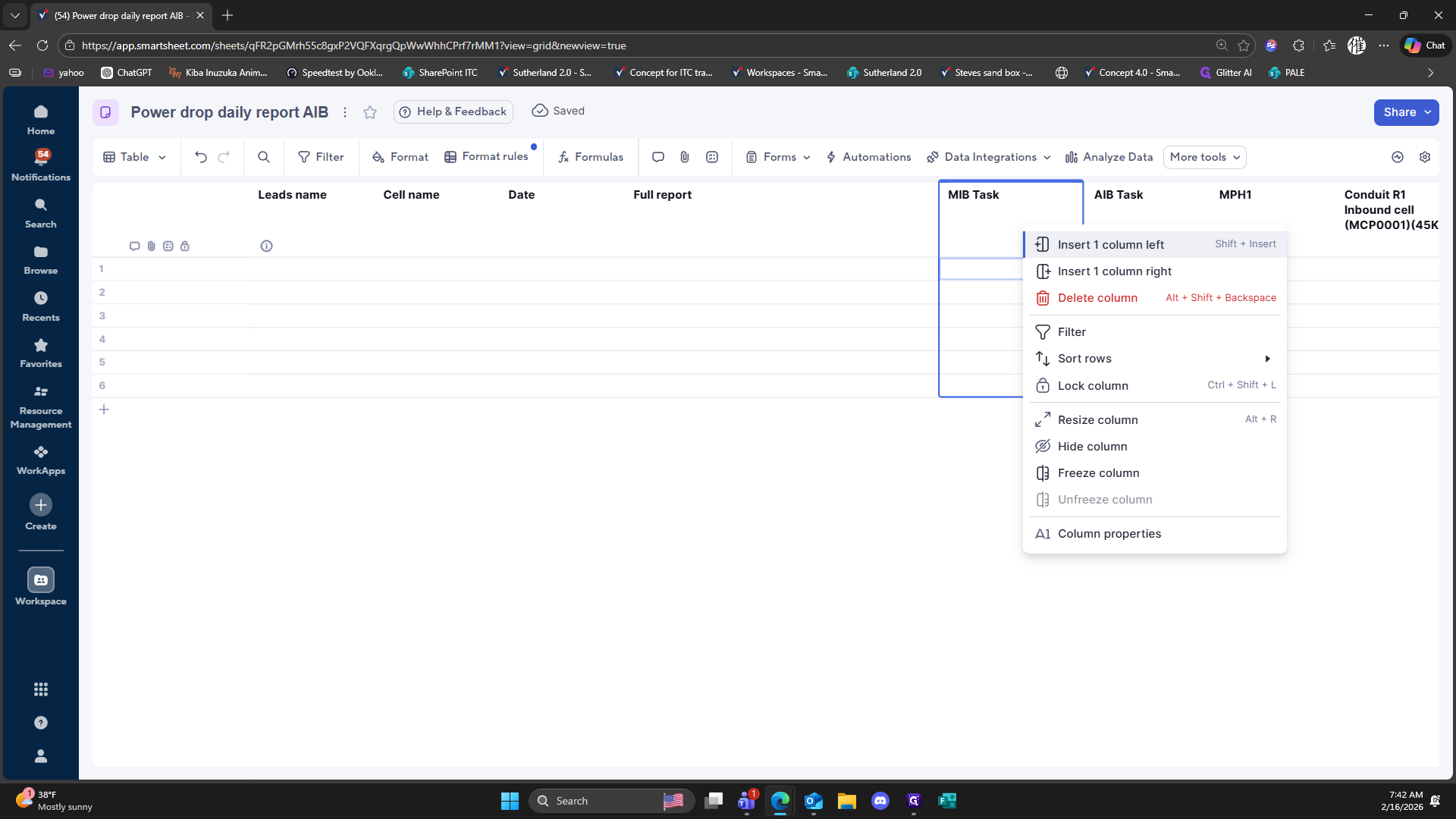
242
Click on "1"
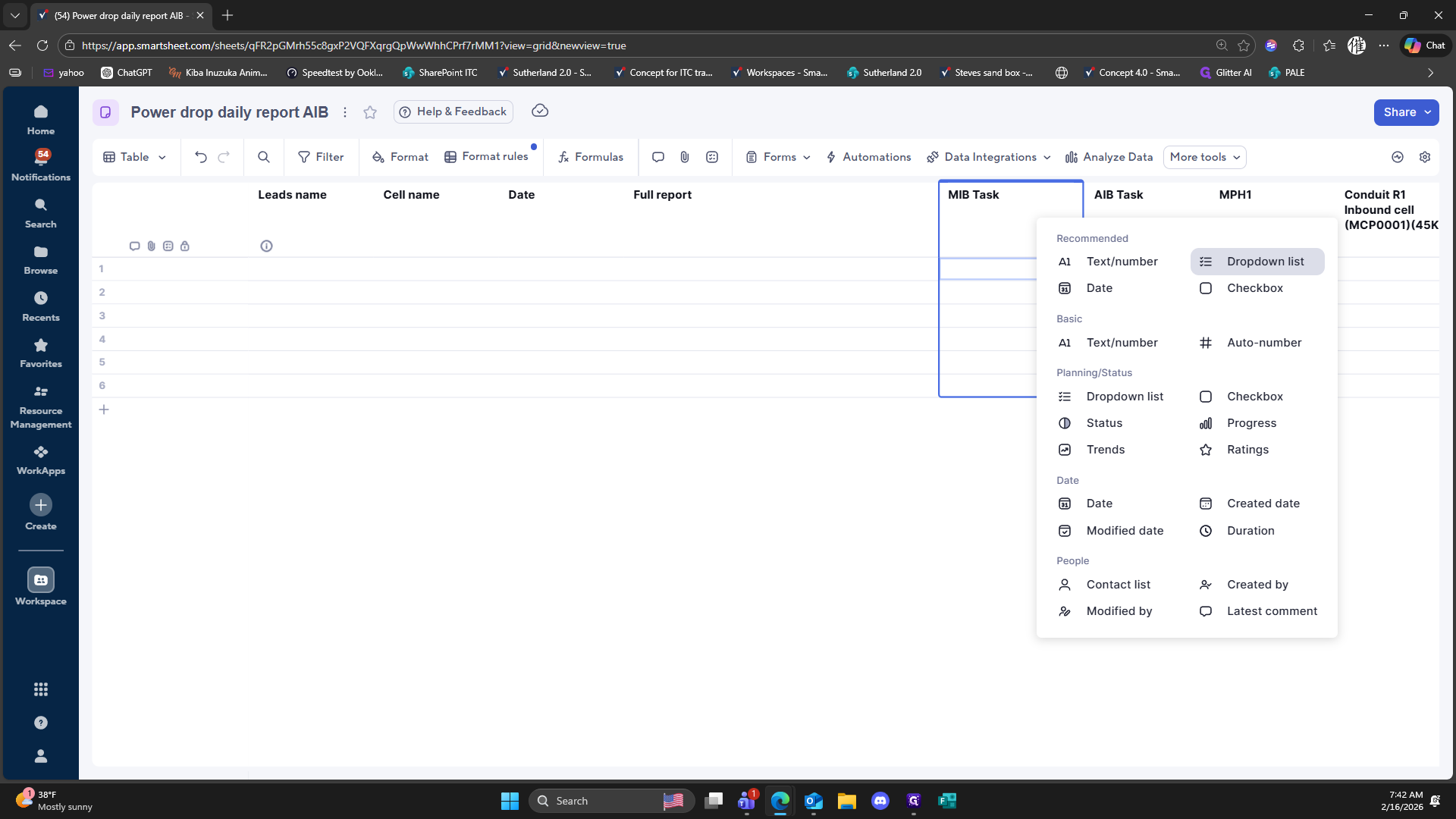
243
Click on "Dropdown list"
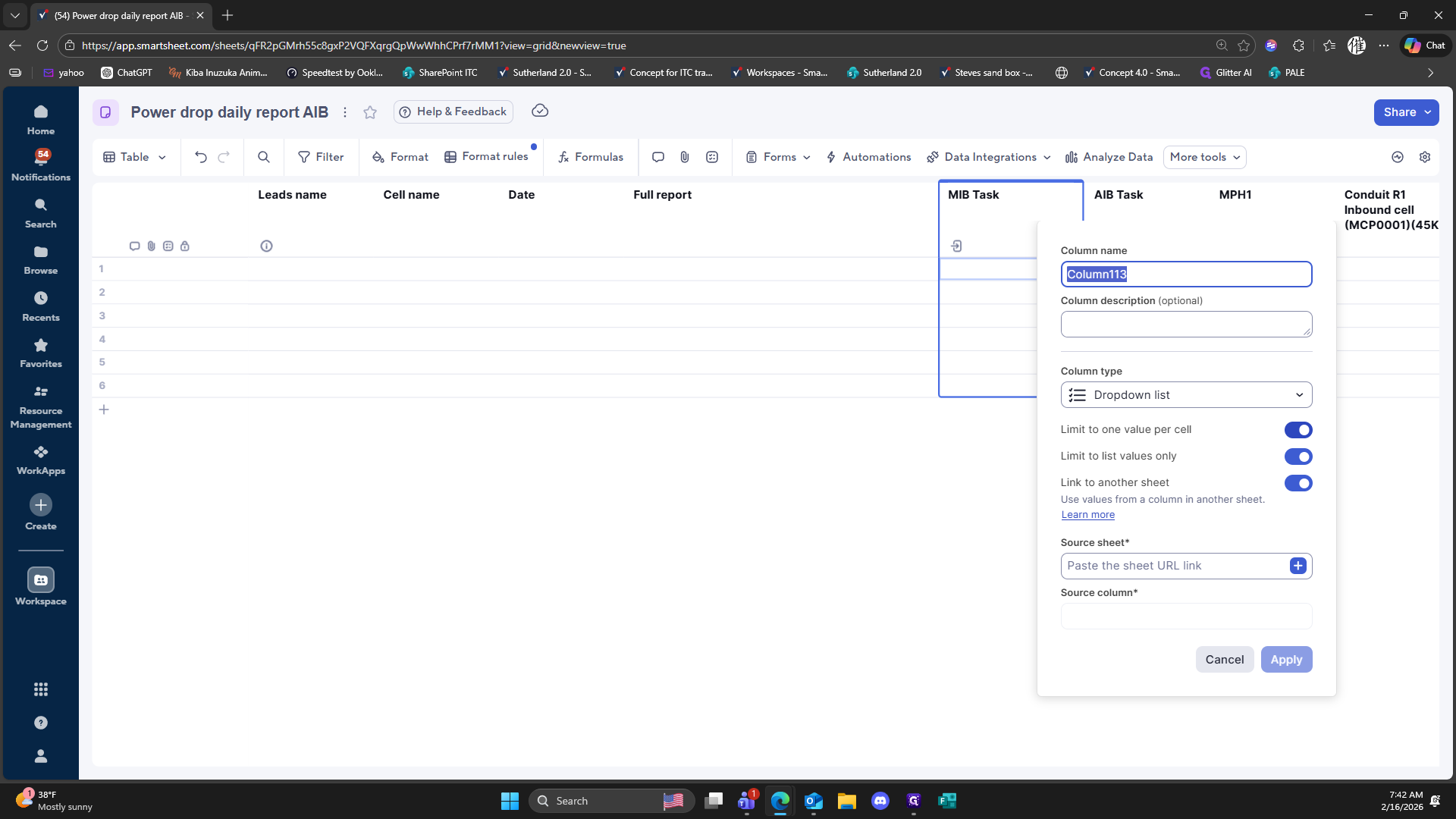
244
Double-click here
245
Click on "+"
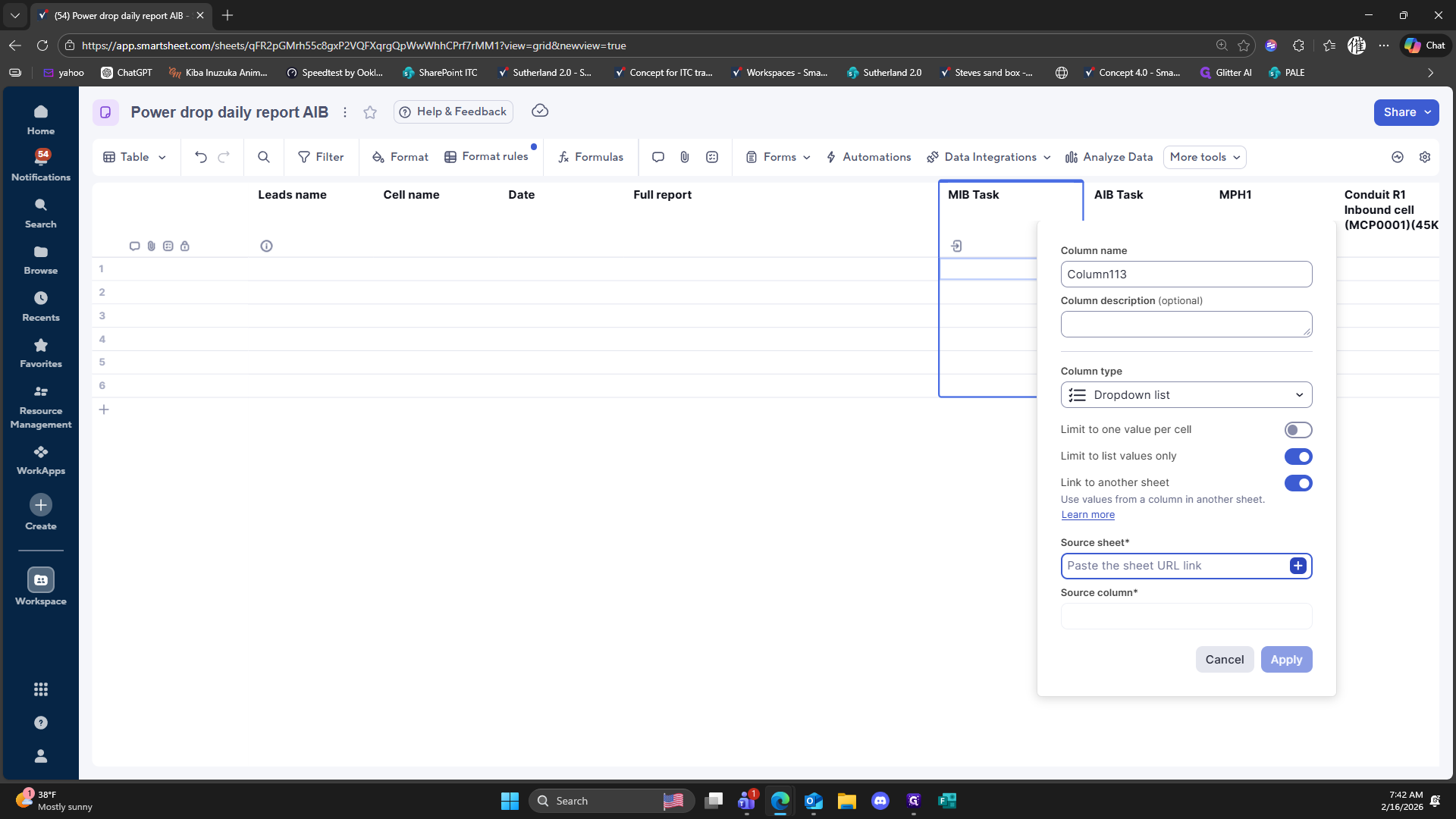
246
Click here
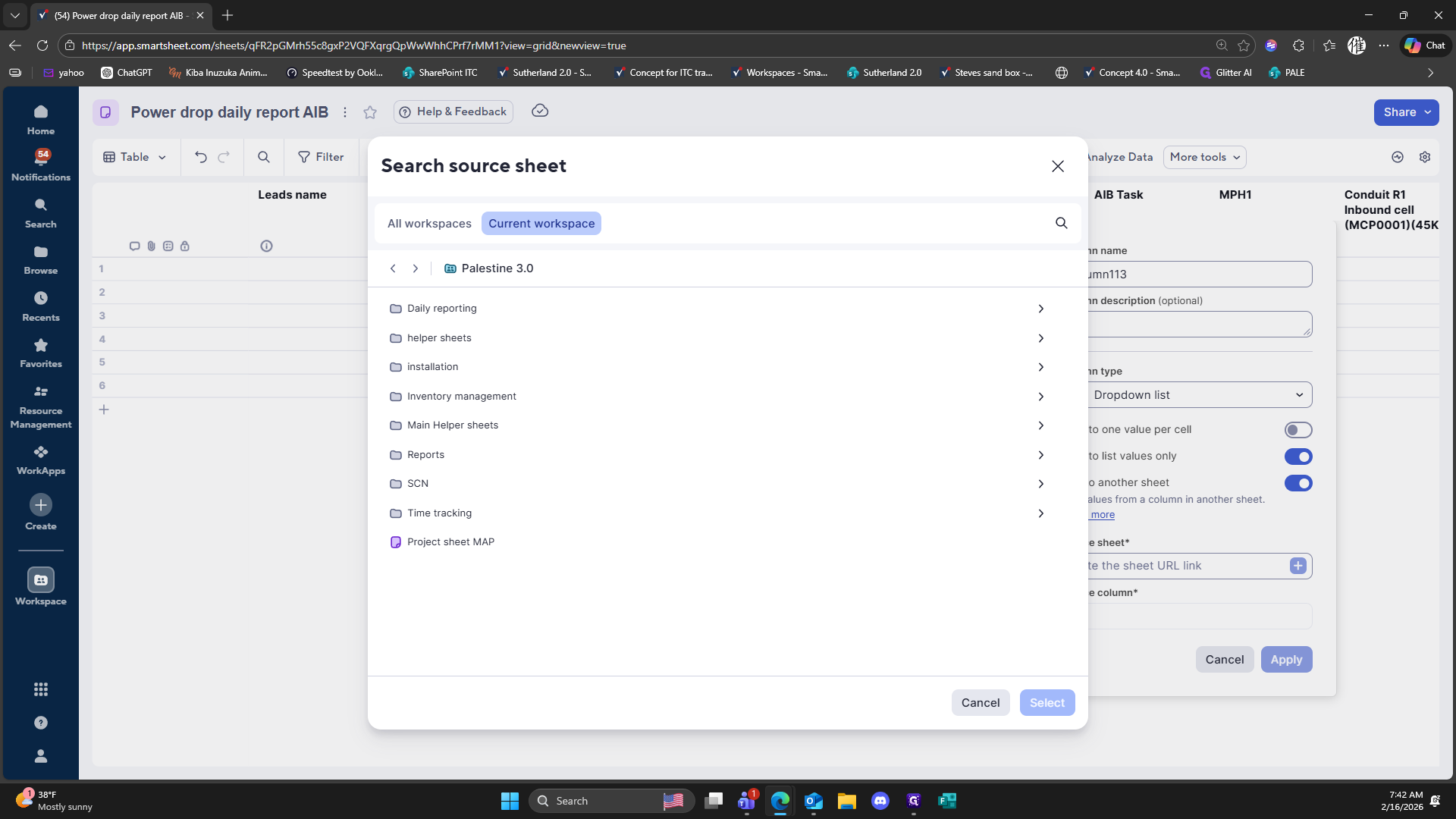
247
Click here
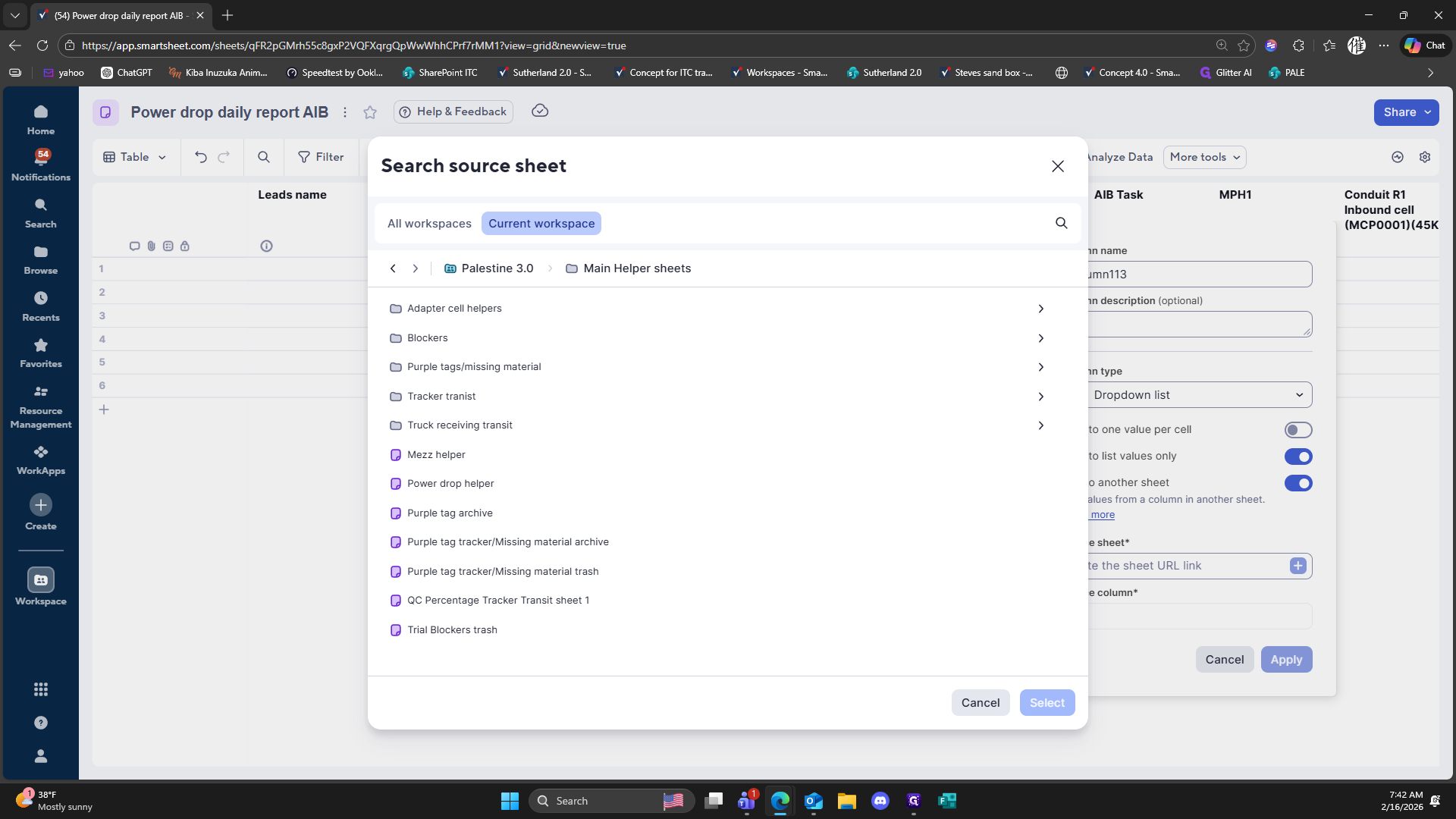
248
Click on "Select"
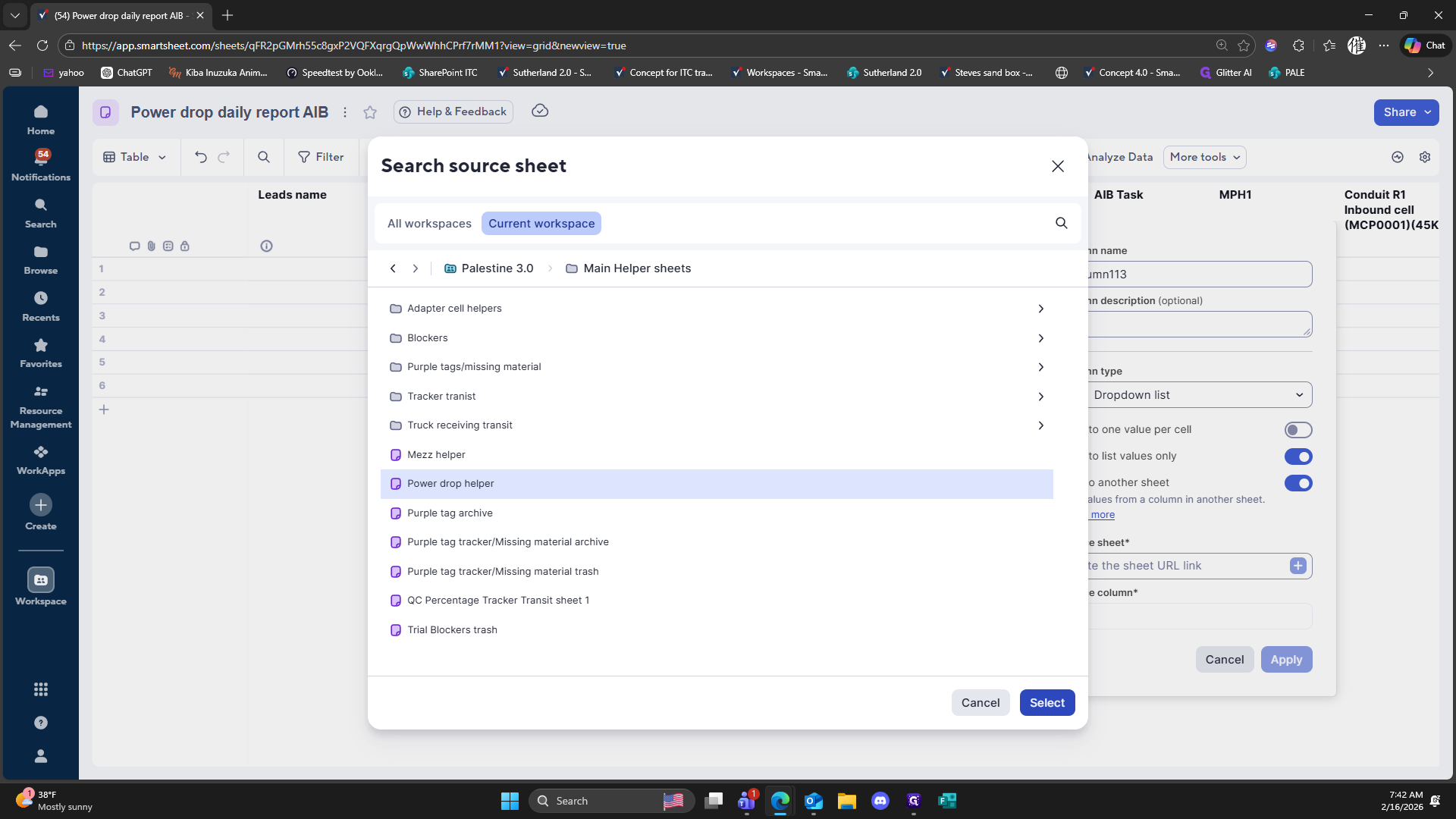
249
Type "XIB Tasks"
250
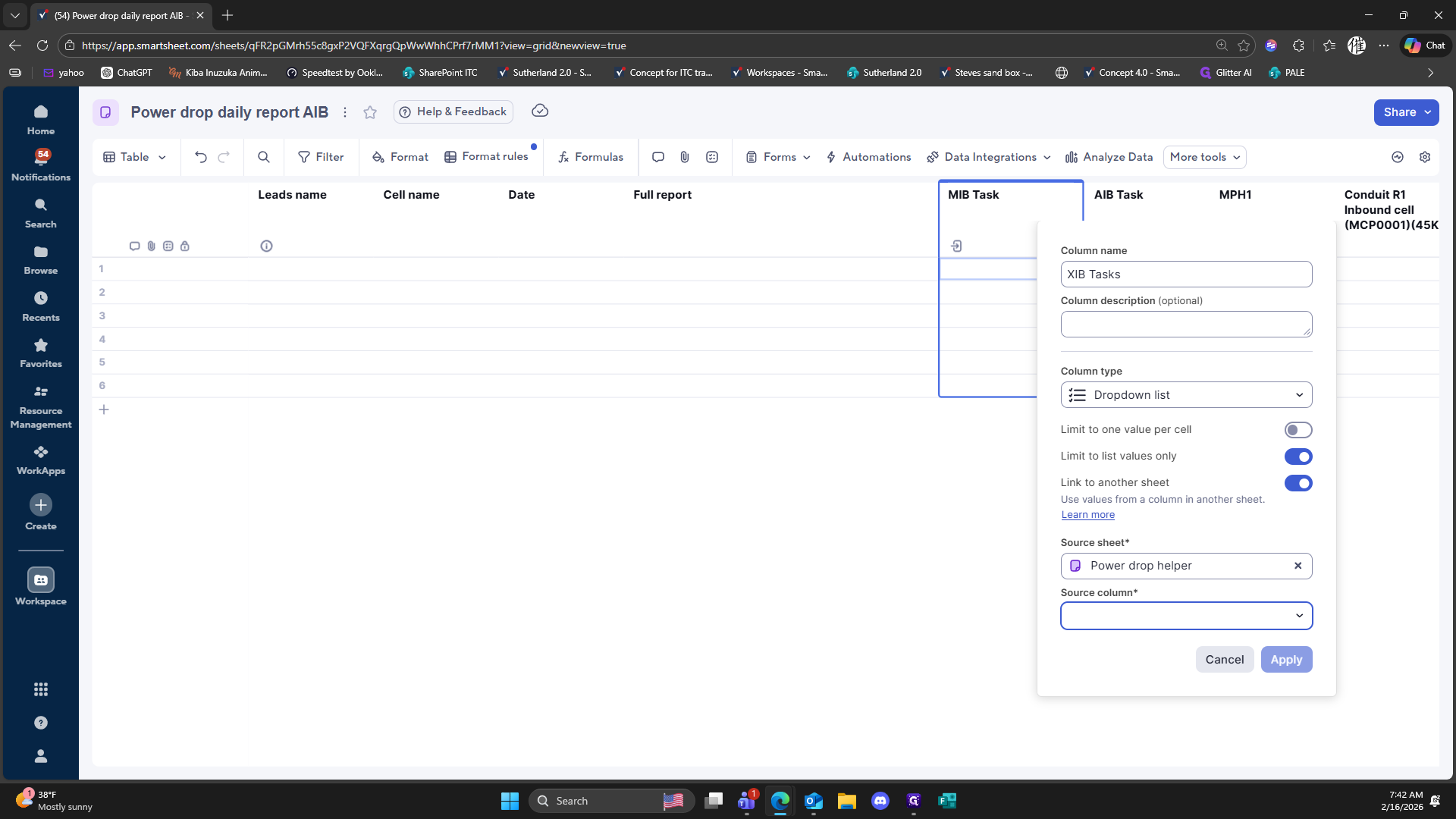
Click here
251
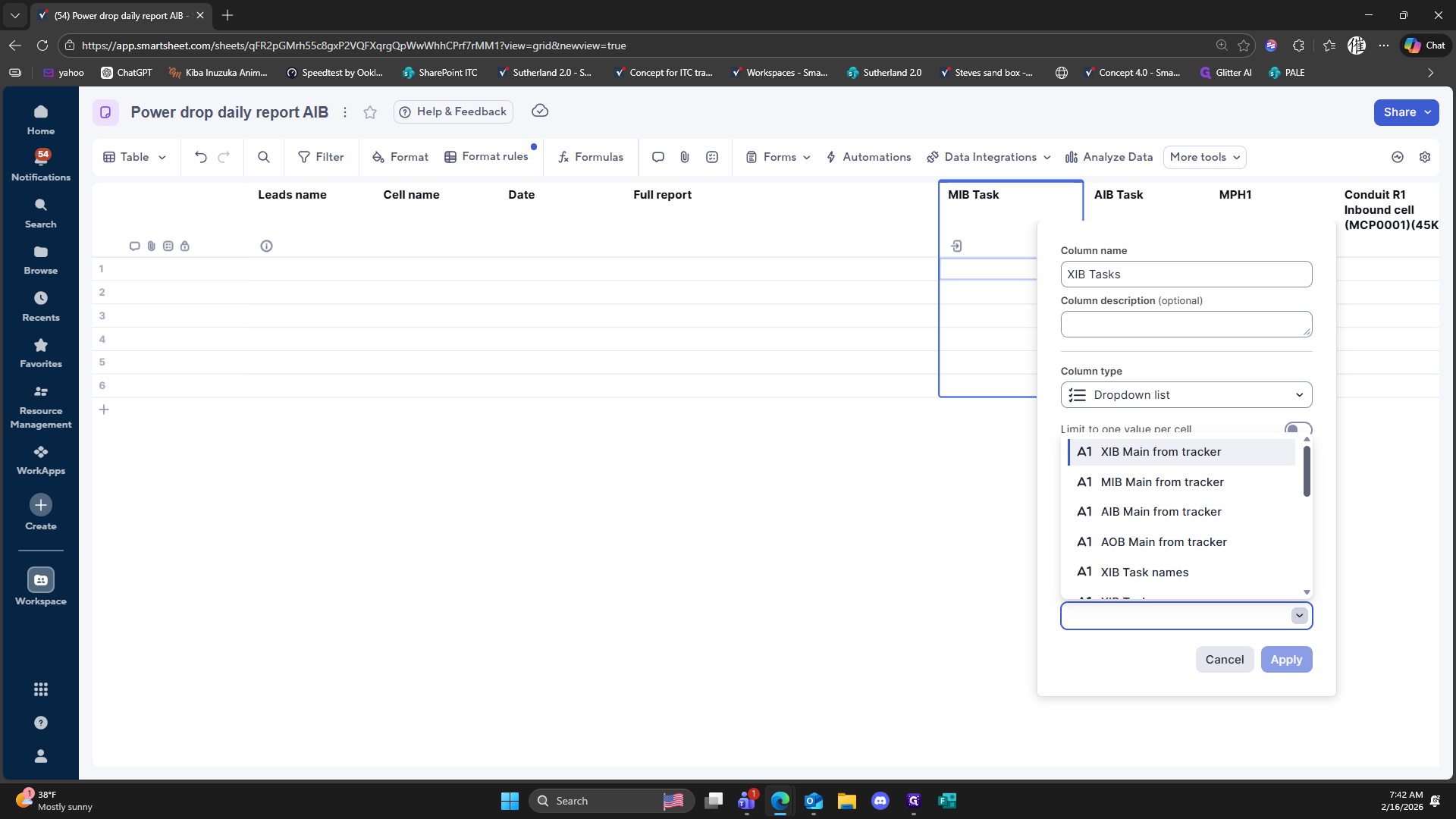
Click here
252
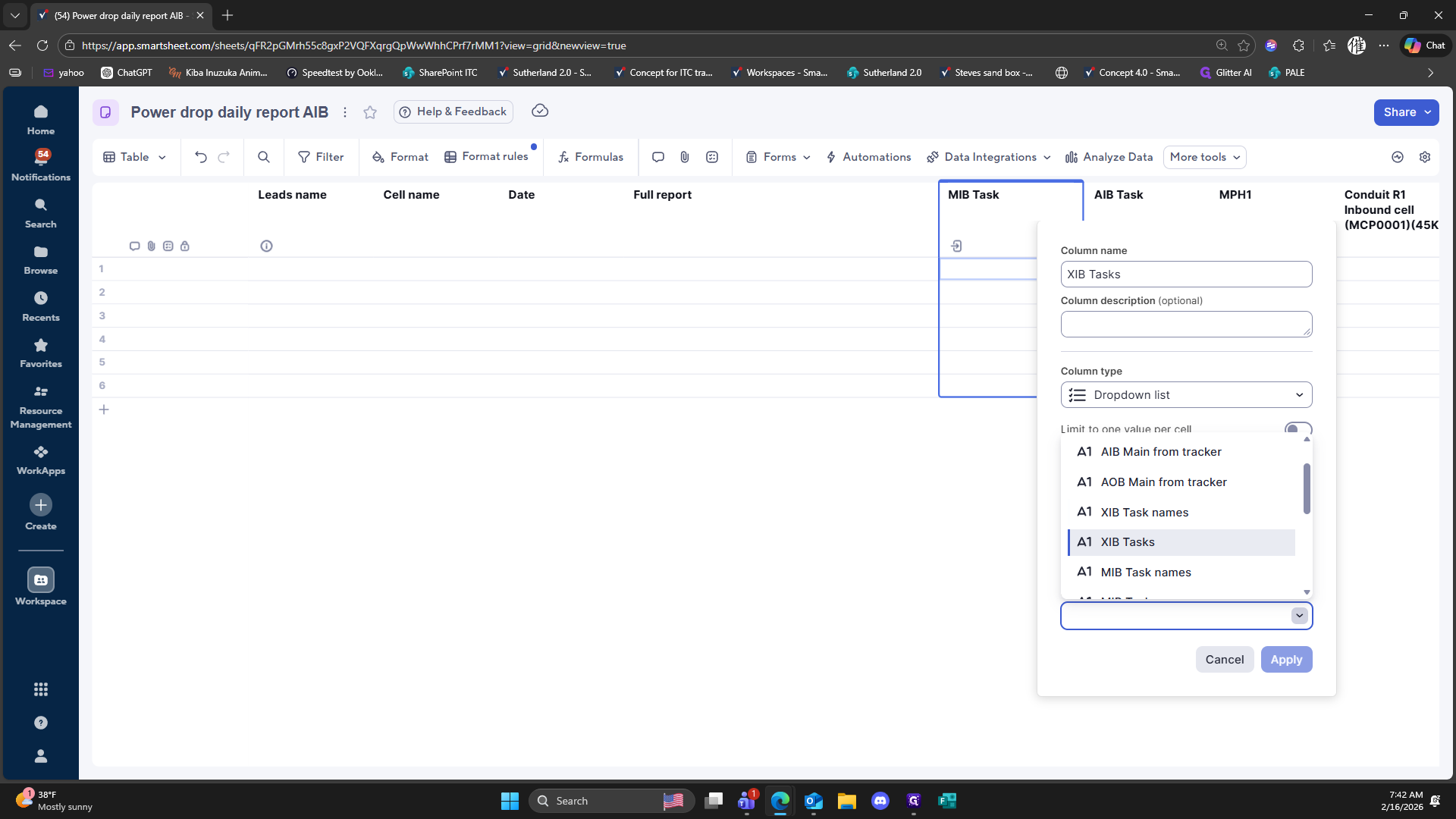
Click on "A1 XIB Tasks"
253
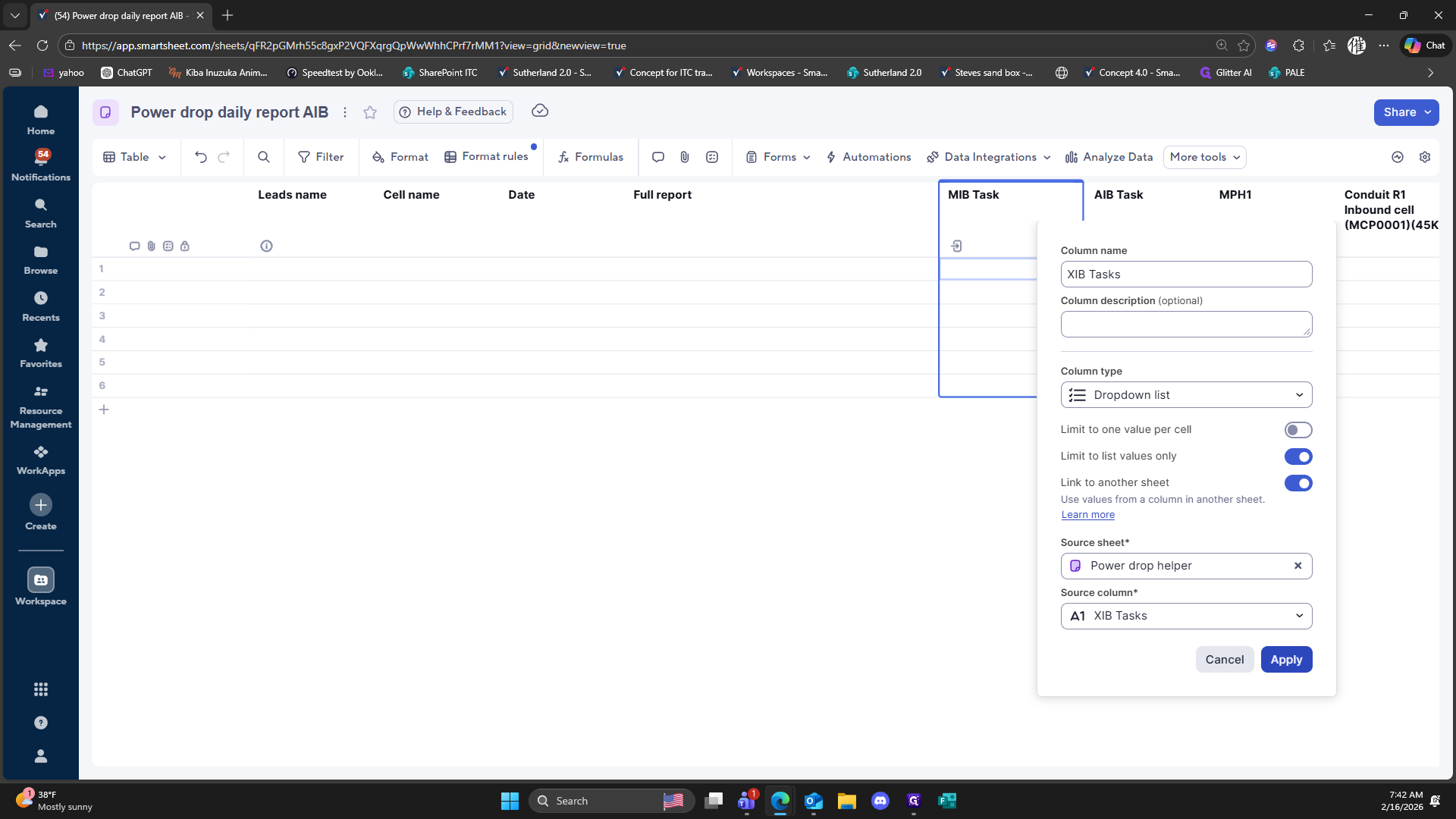
Click on "Apply"
254
Click on "E Forms"
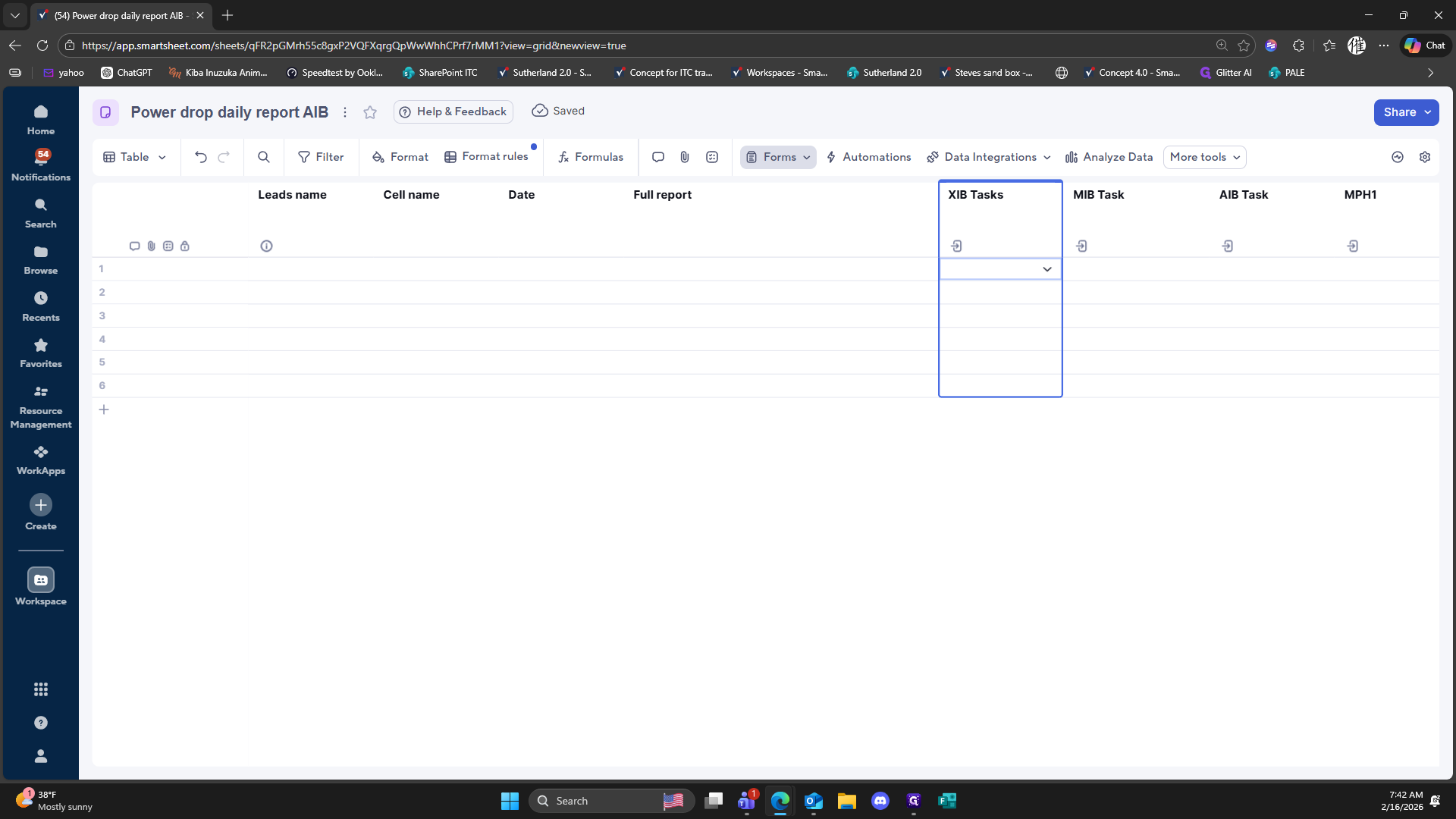
255
Click on "Manage forms"
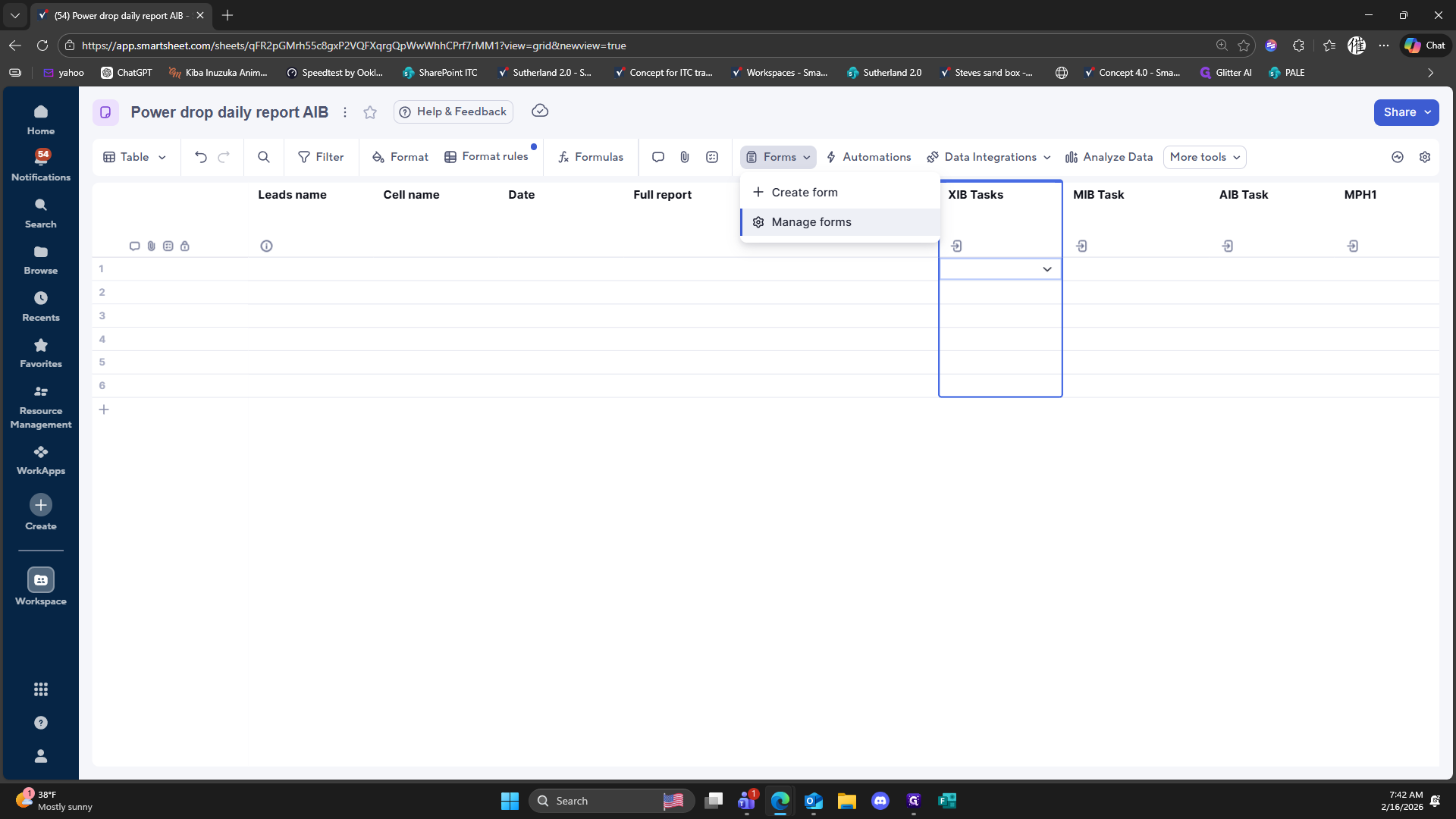
256
Click here
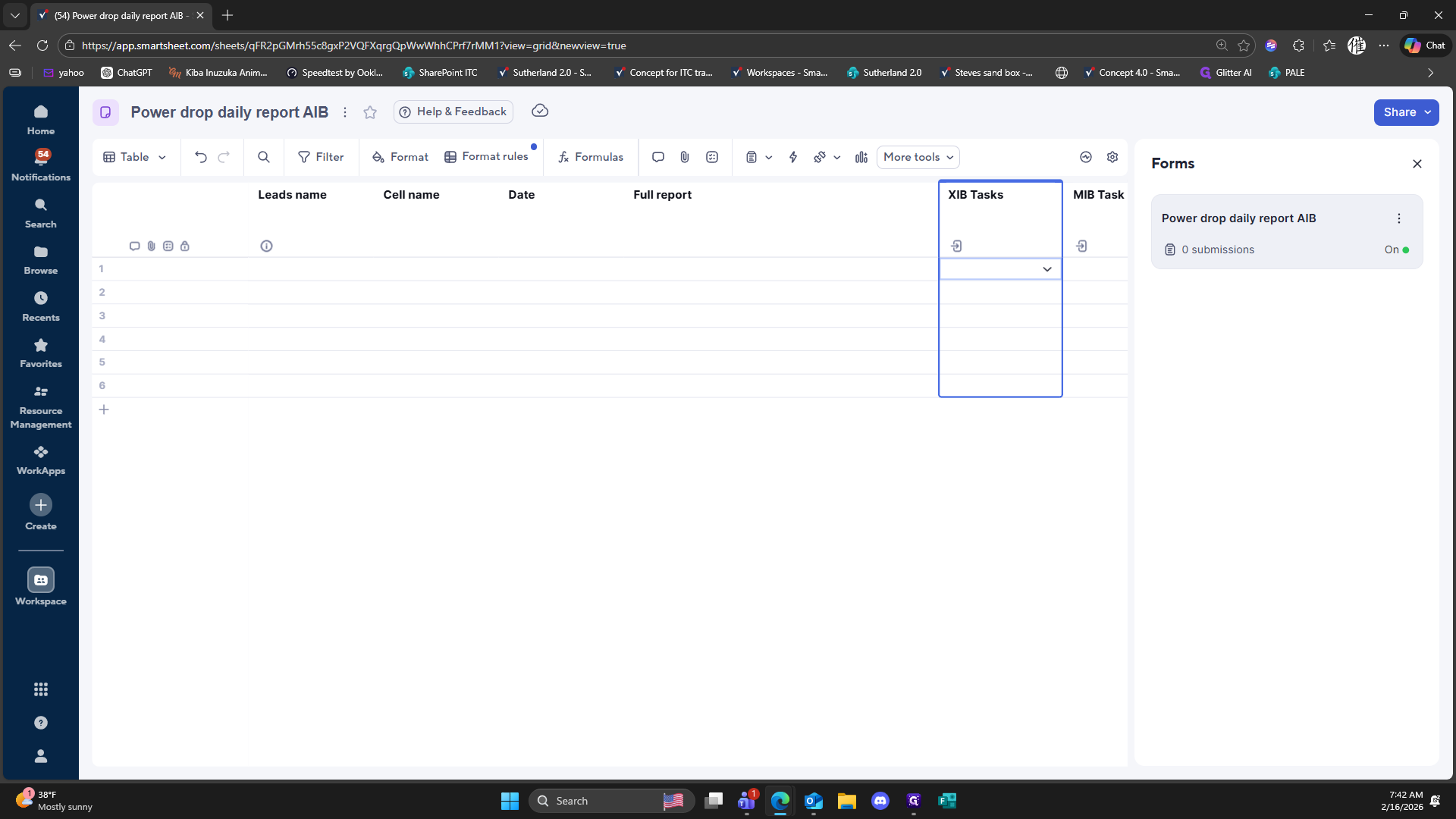
257
Click here
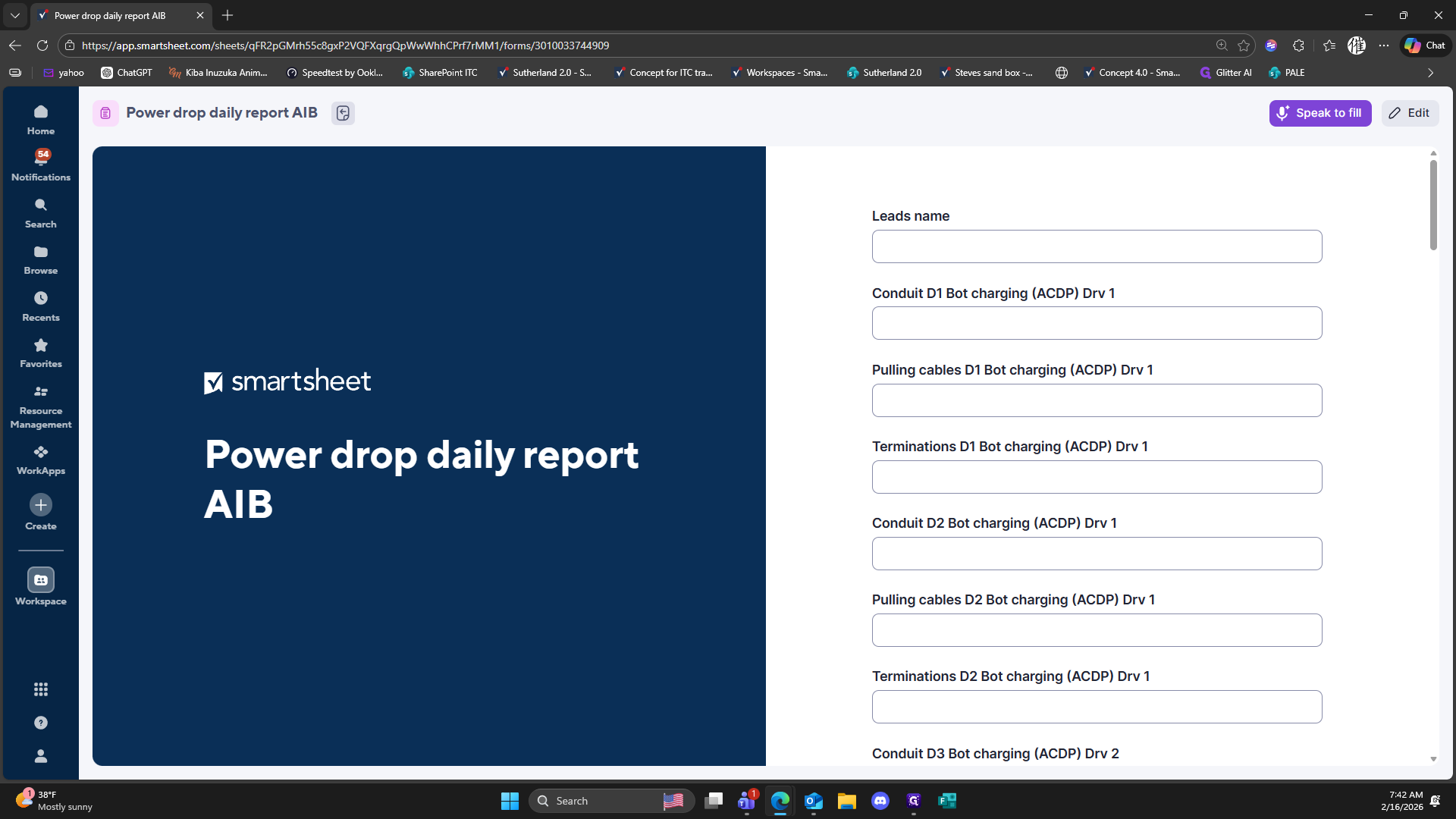
258
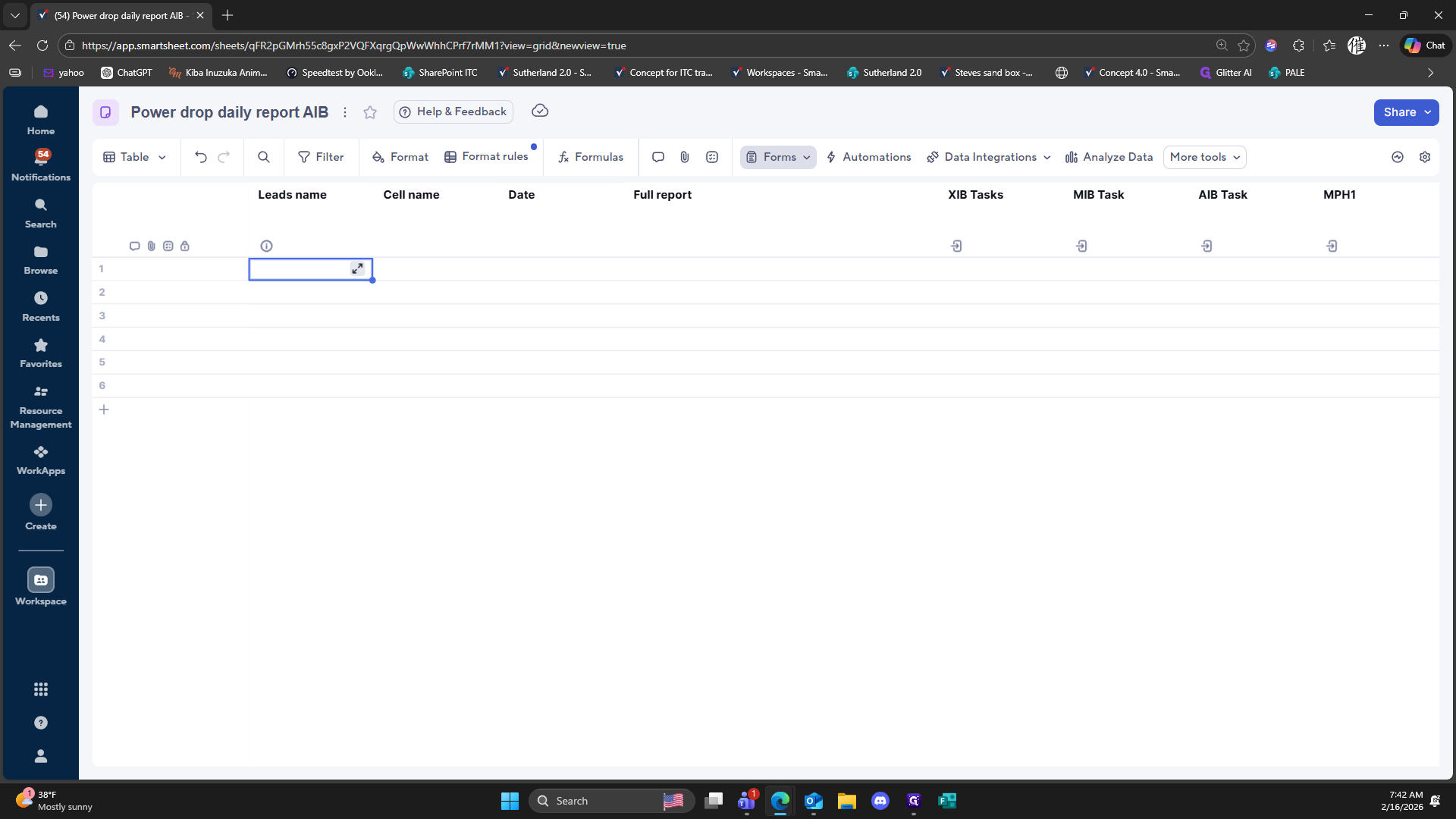
Click on "Forms v"
259
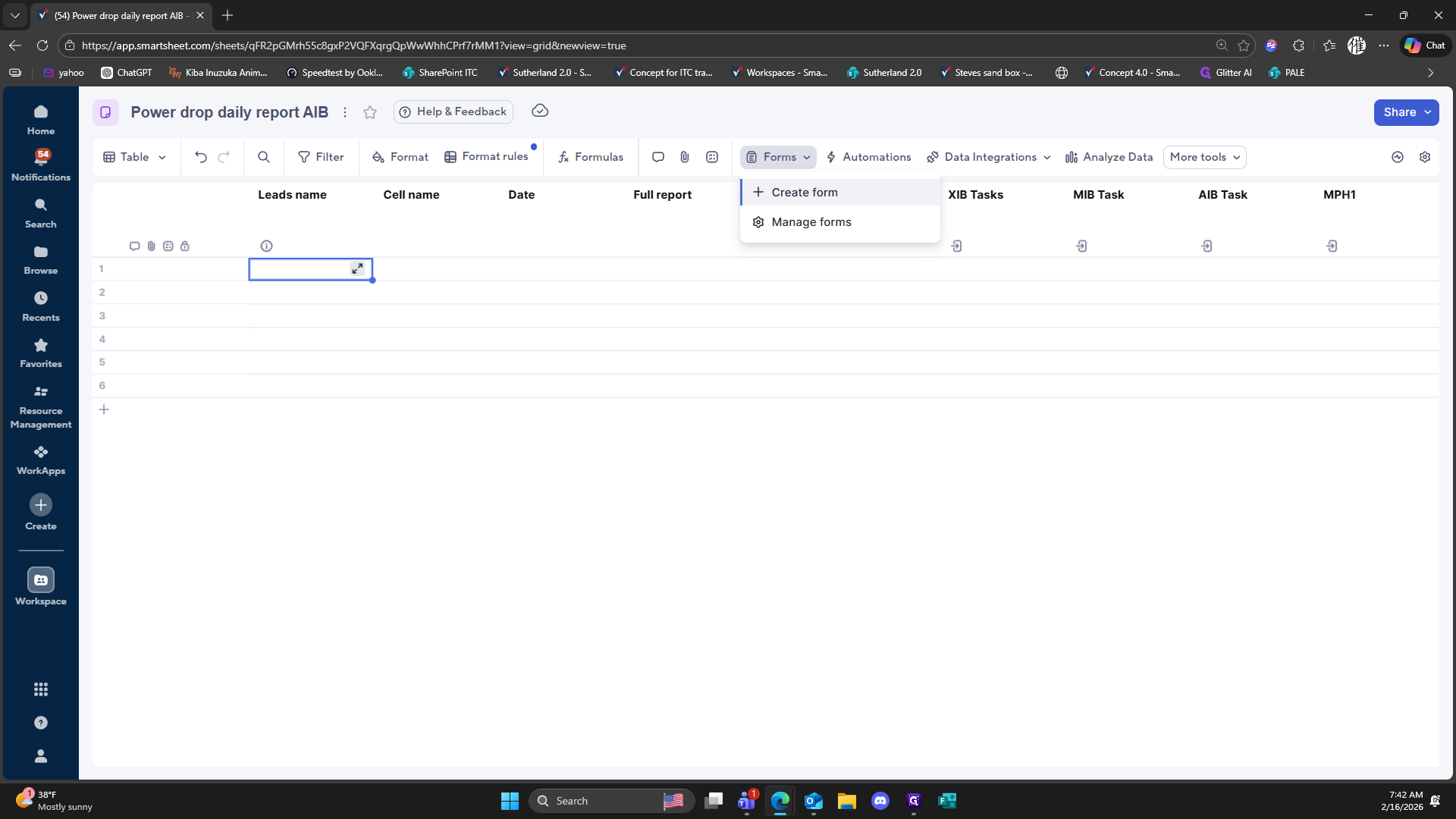
Click on "+ Create form"
260
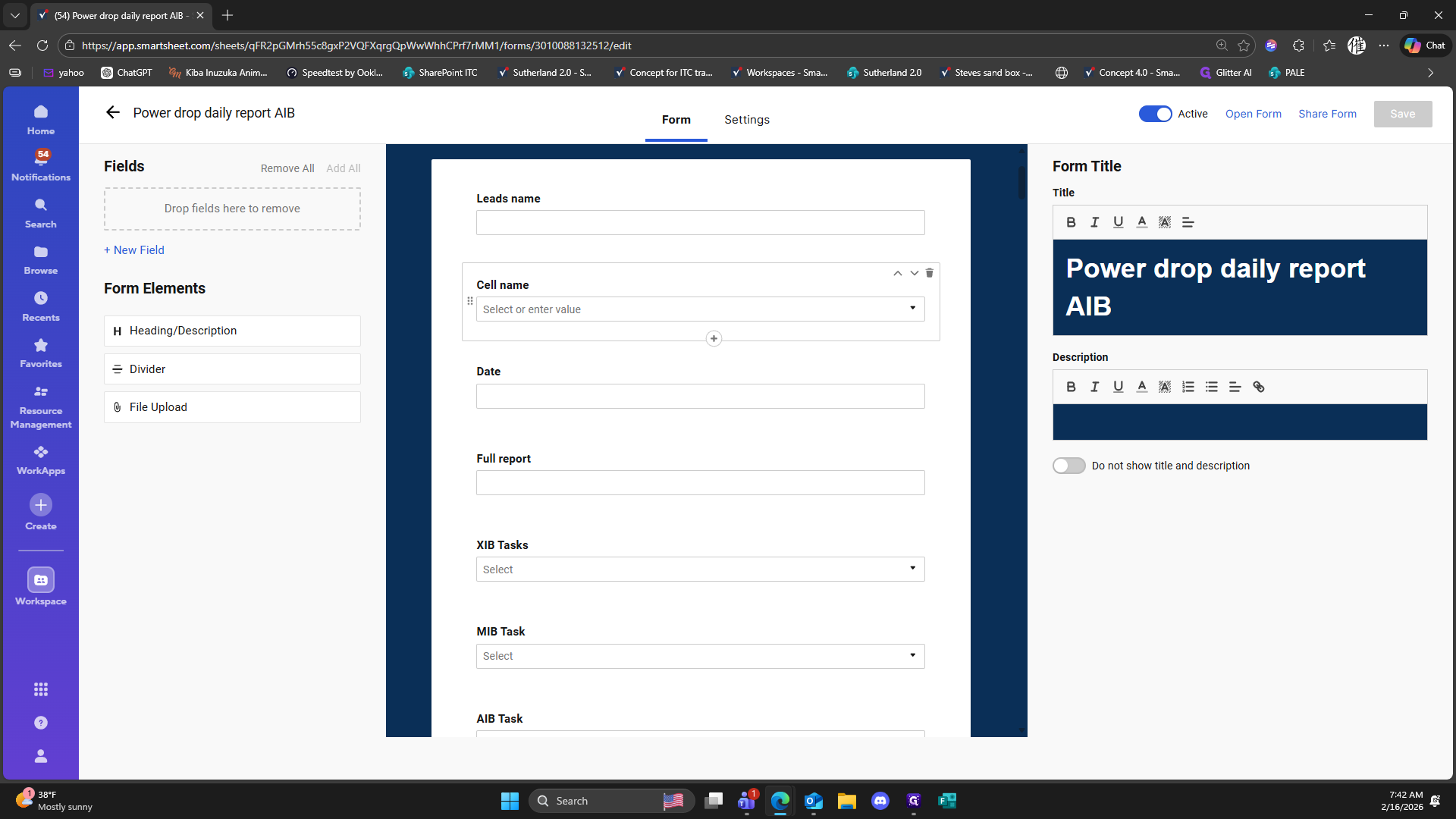
Click here
261
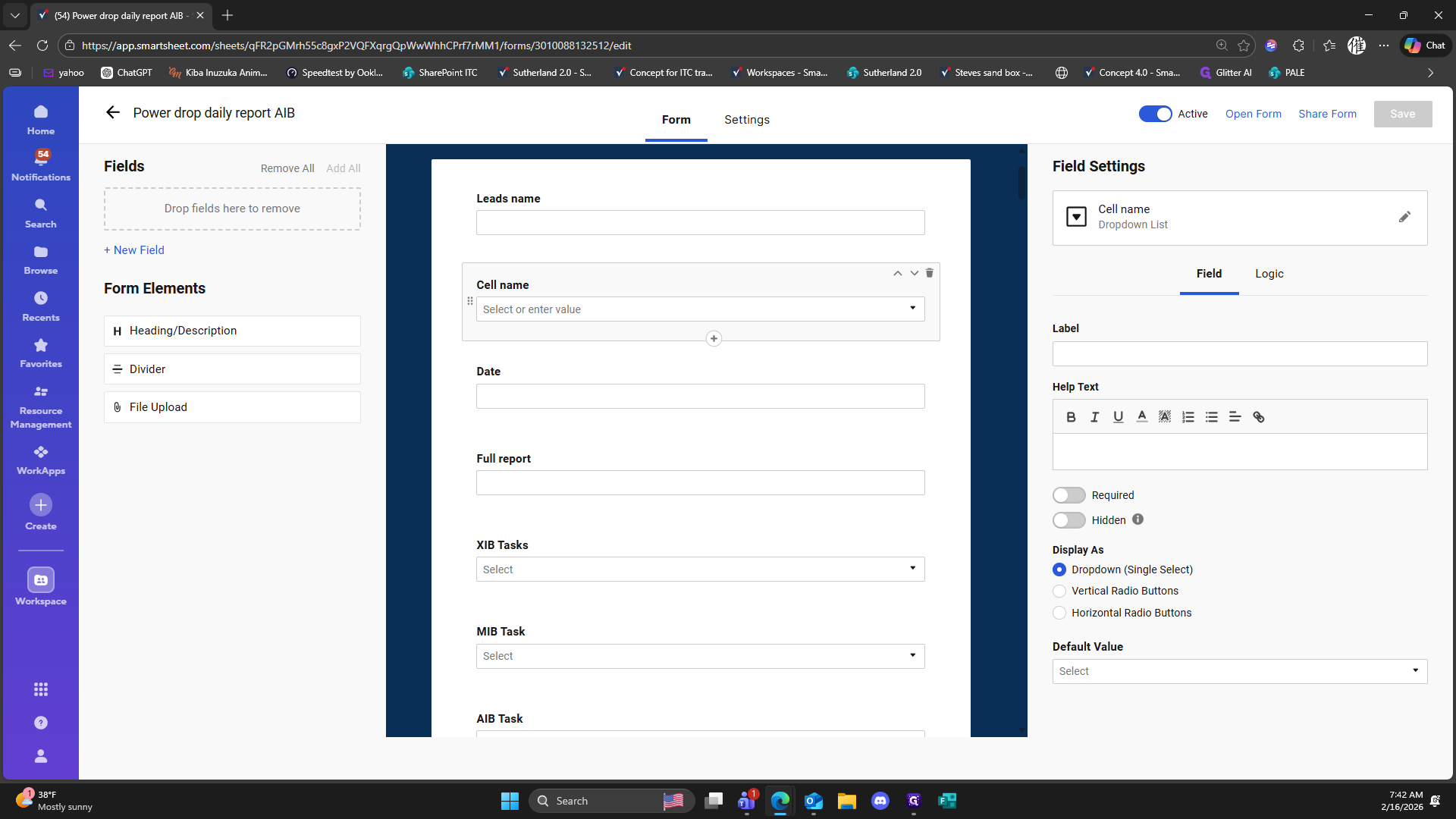
Click on "Logic"
262
Click here
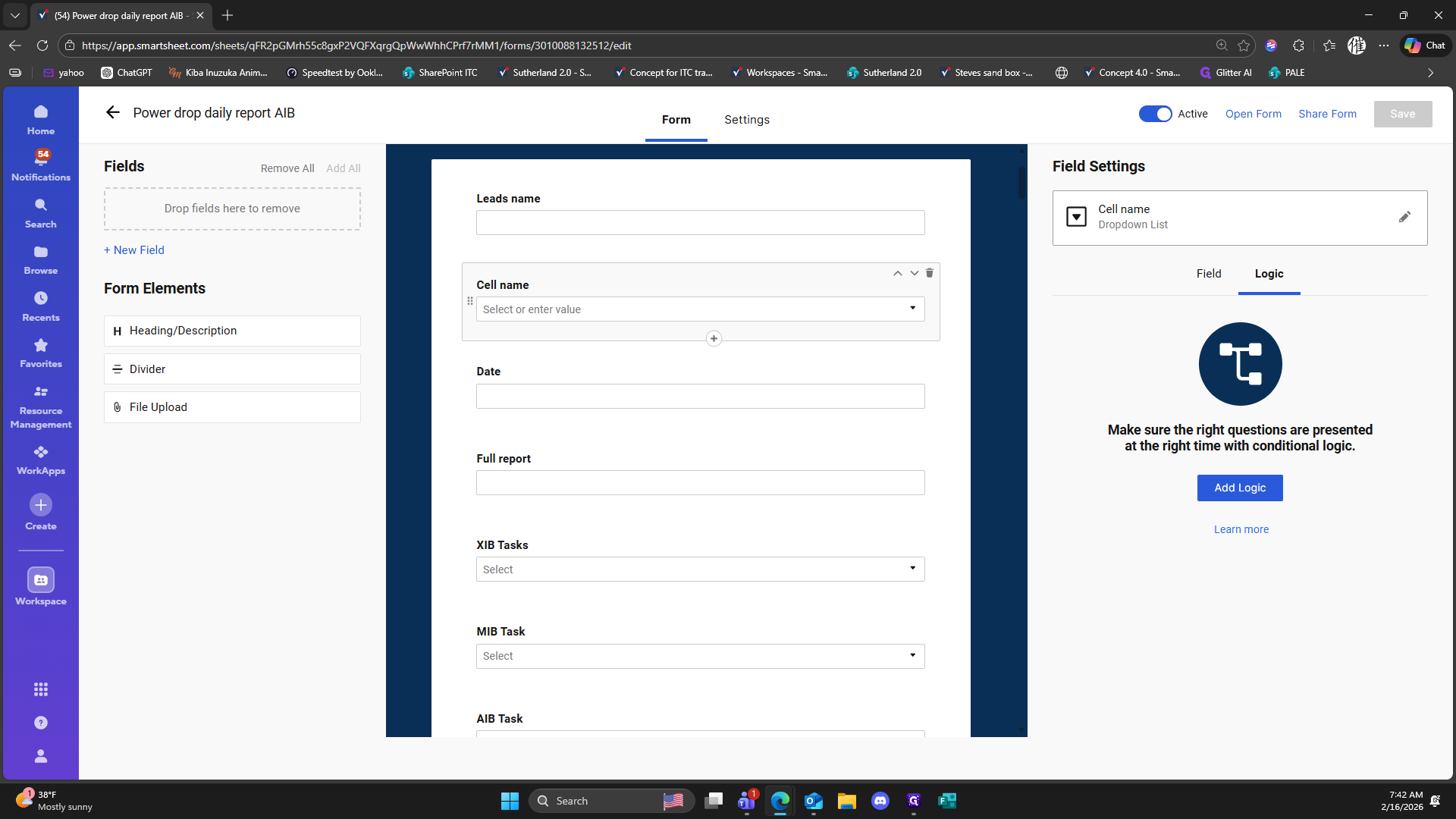
263
Drag "AIB 329"
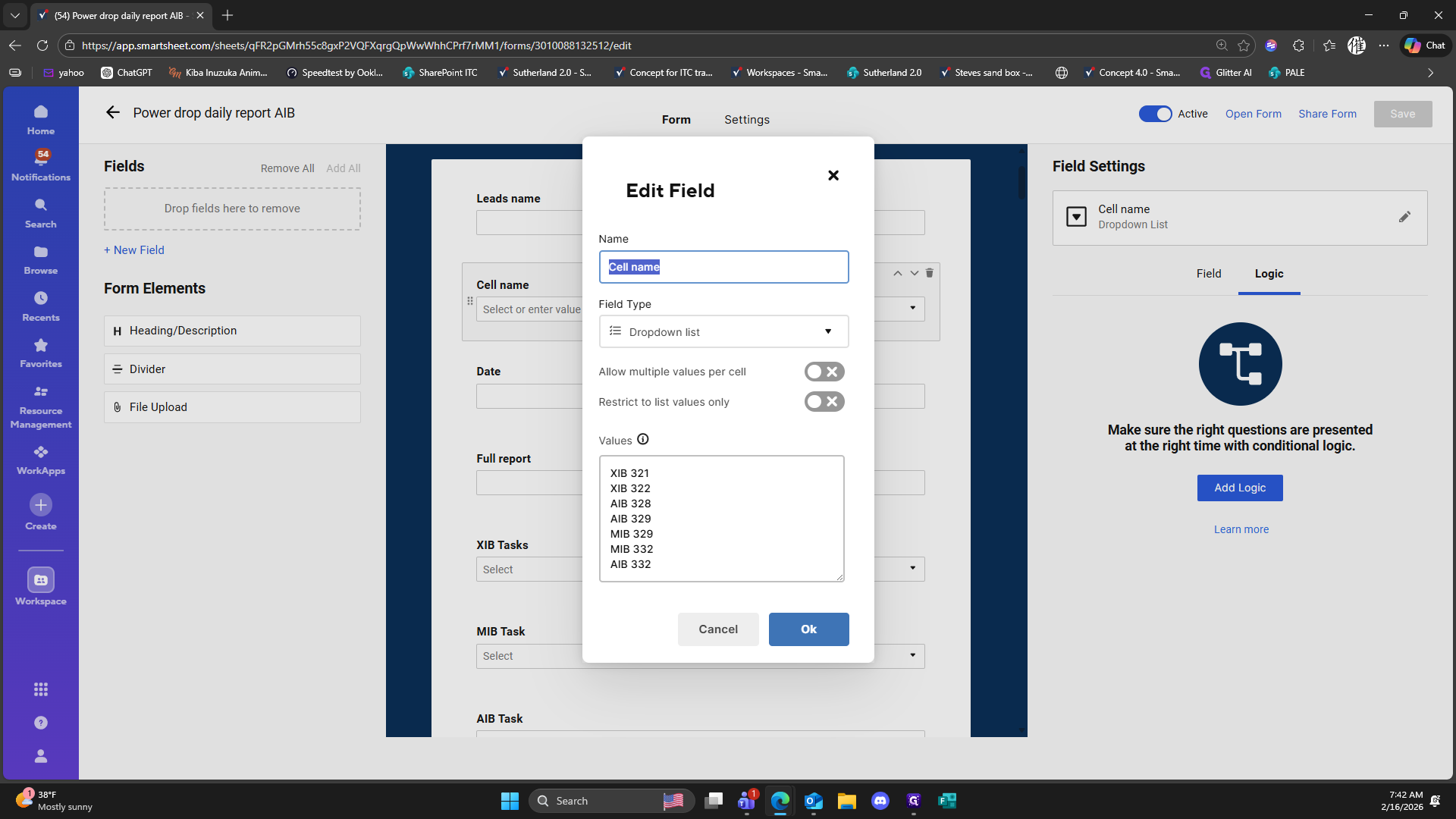
264
Type "Backspace"
265
Drag here
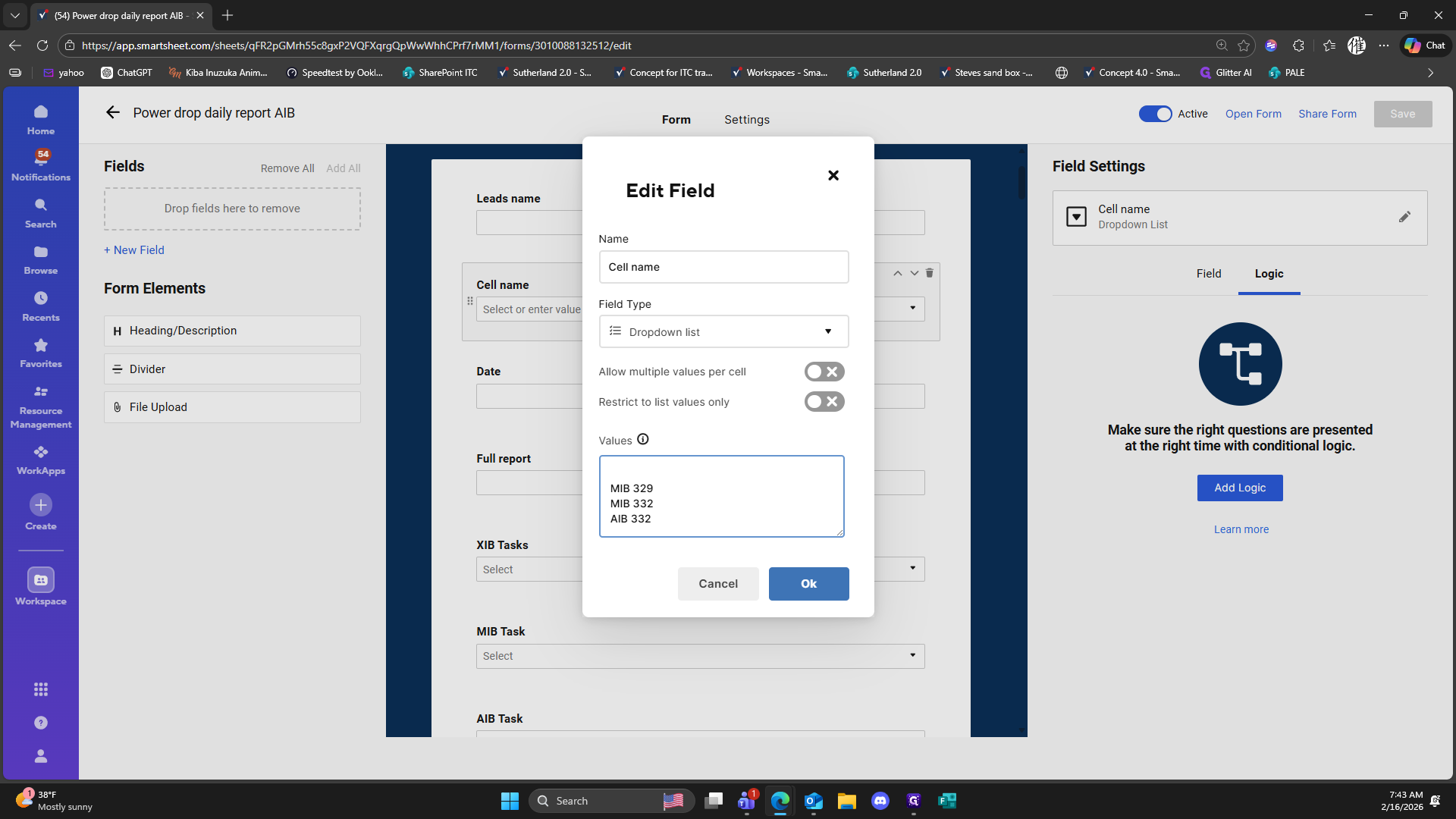
266
Type "Backspace"
267
Click on "MIB 329"
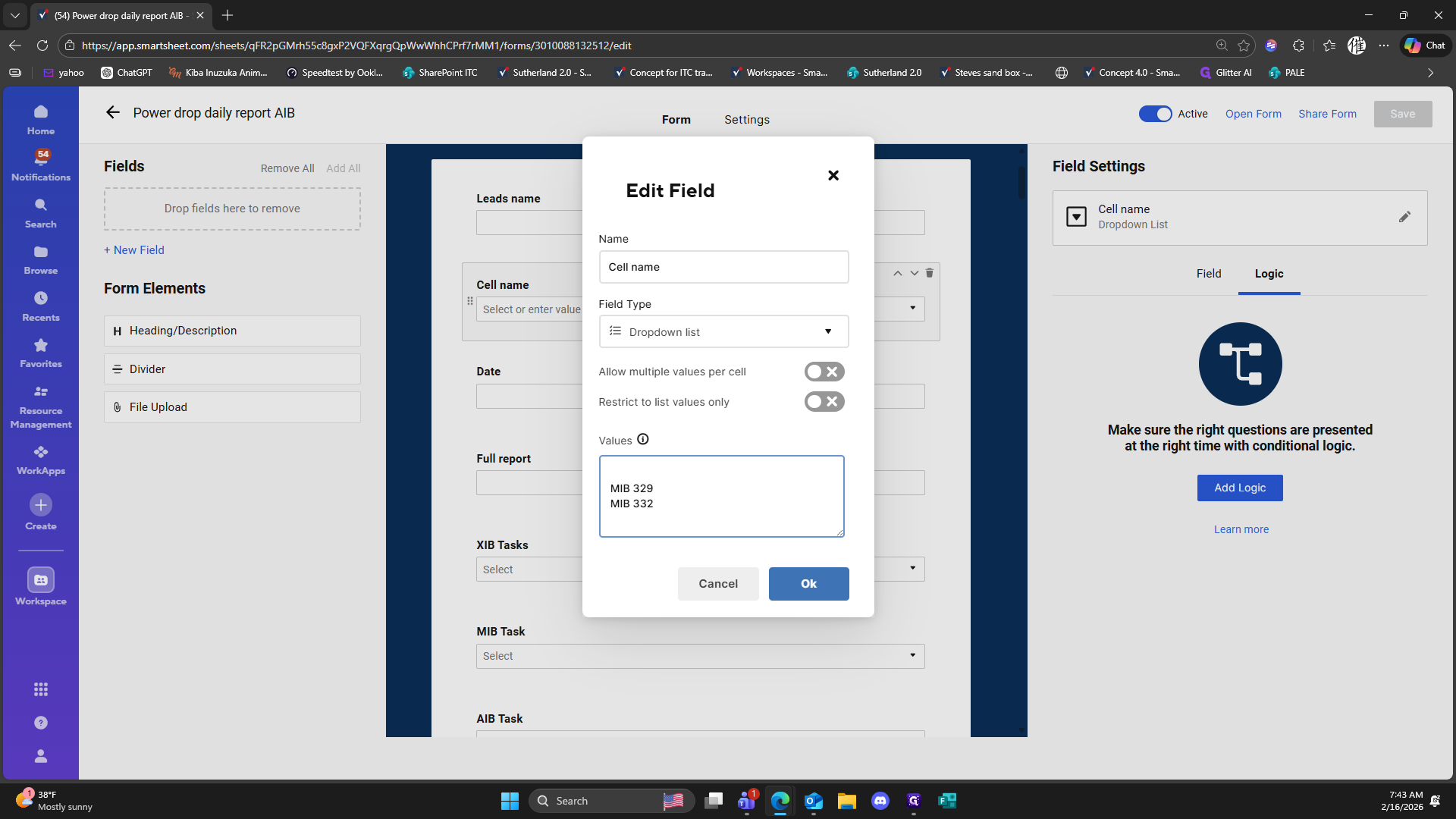
268
Type "Backspace"
269
Type "Backspace"
270
Type "Backspace"
271
Click on "MIB 332"
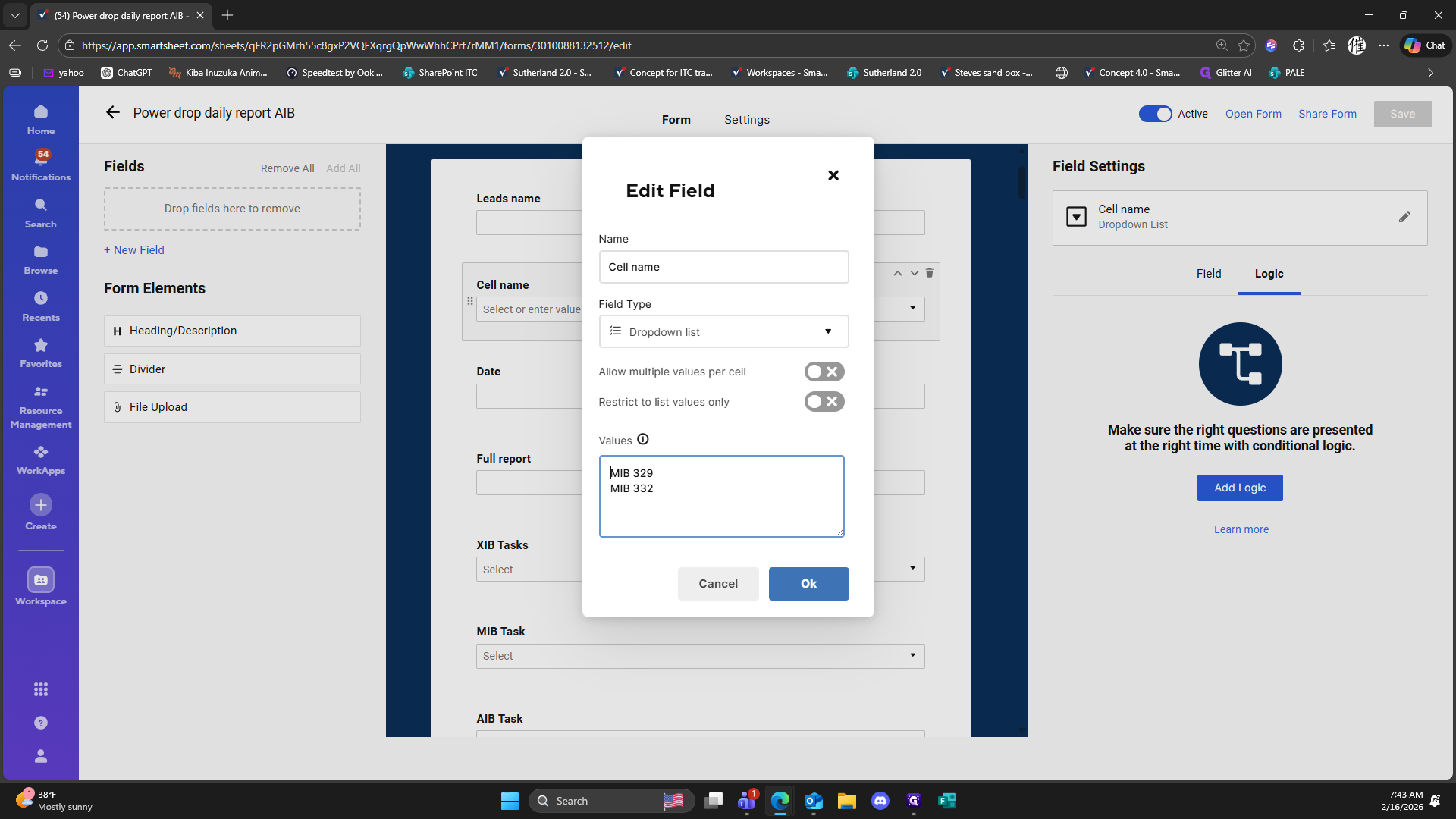
272
Type "Backspace"
273
Type "Backspace"
274
Type "Ctrl + Z"
275
Click here
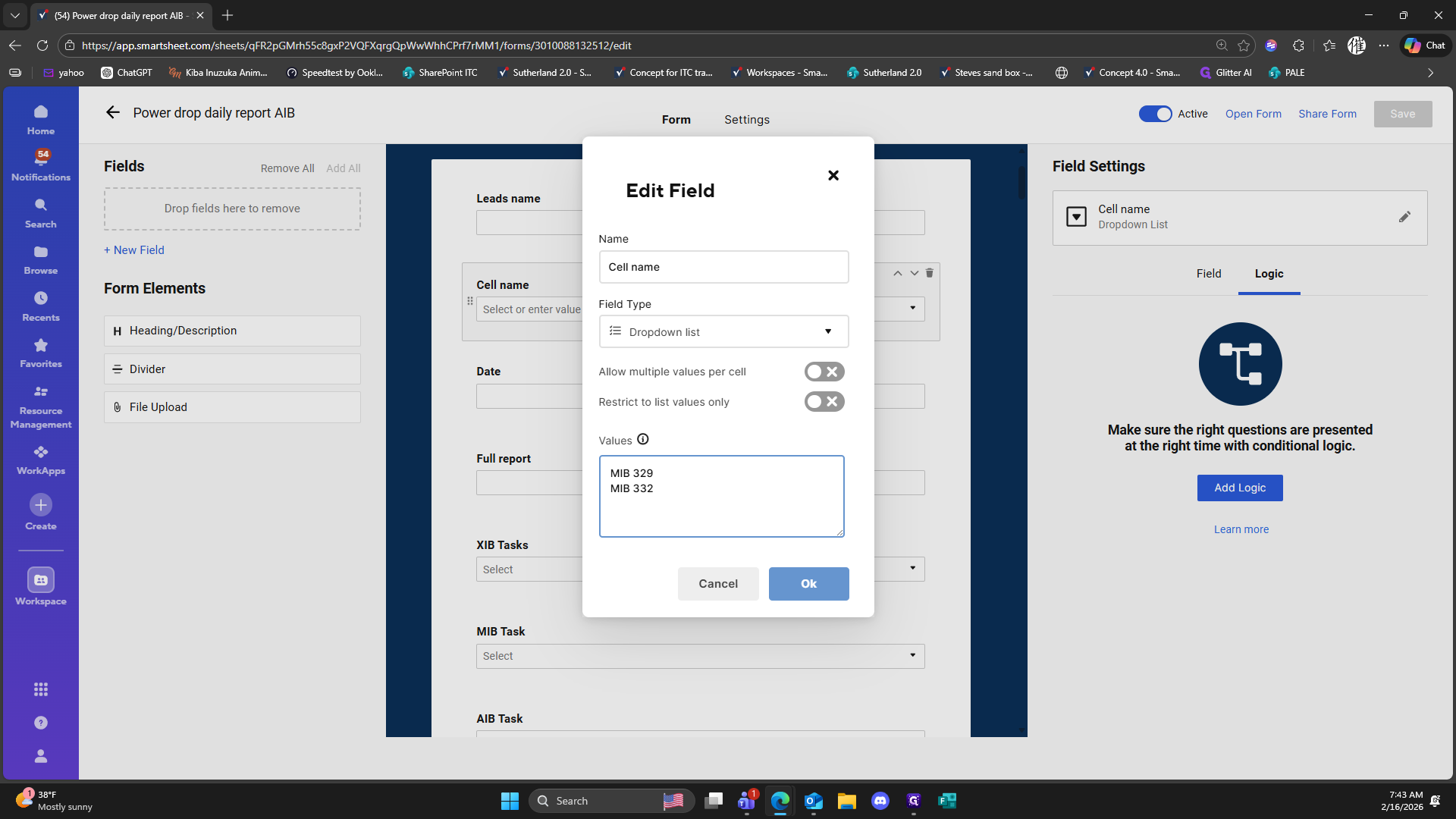
276
Click here
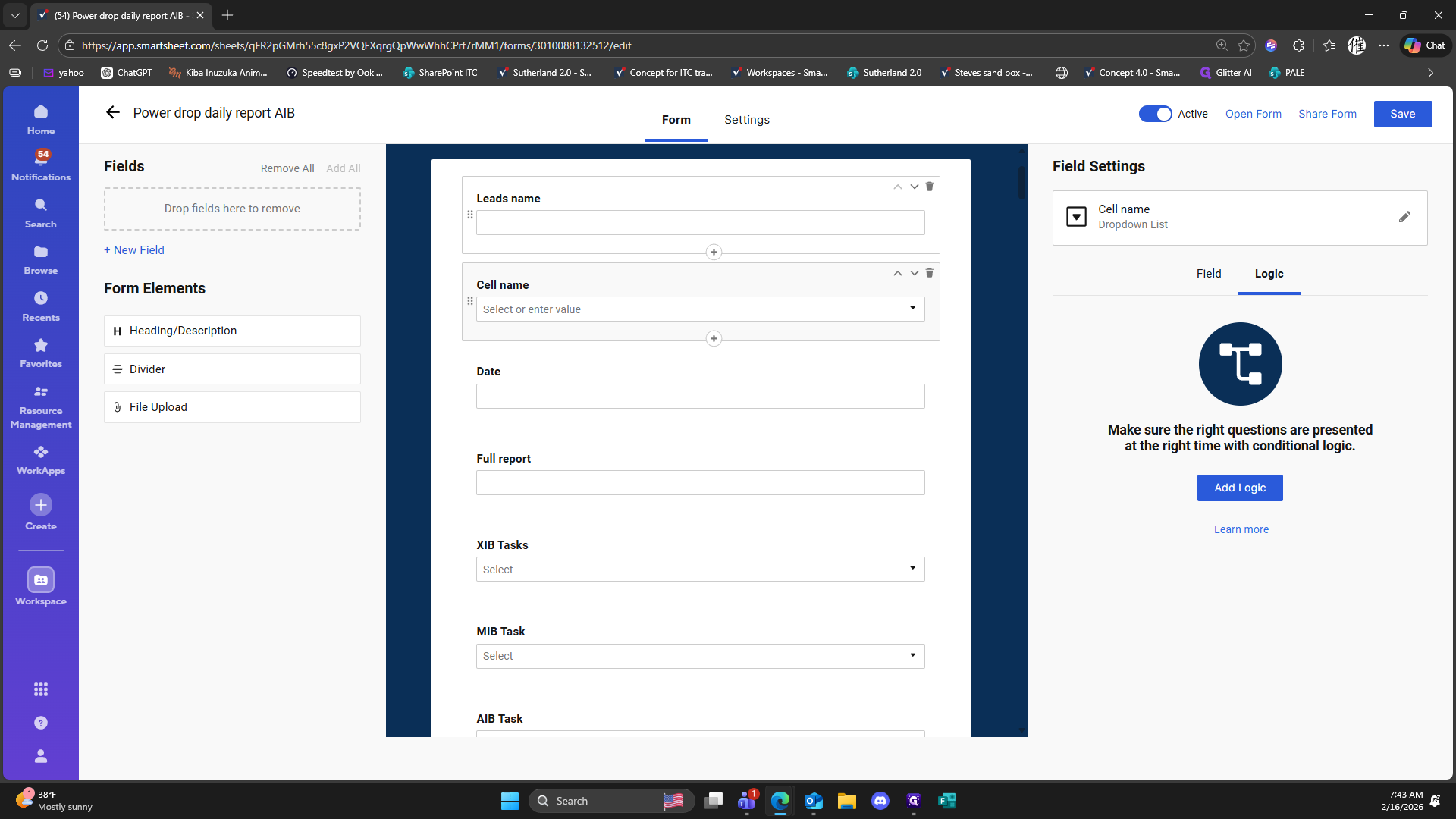
277
Click here
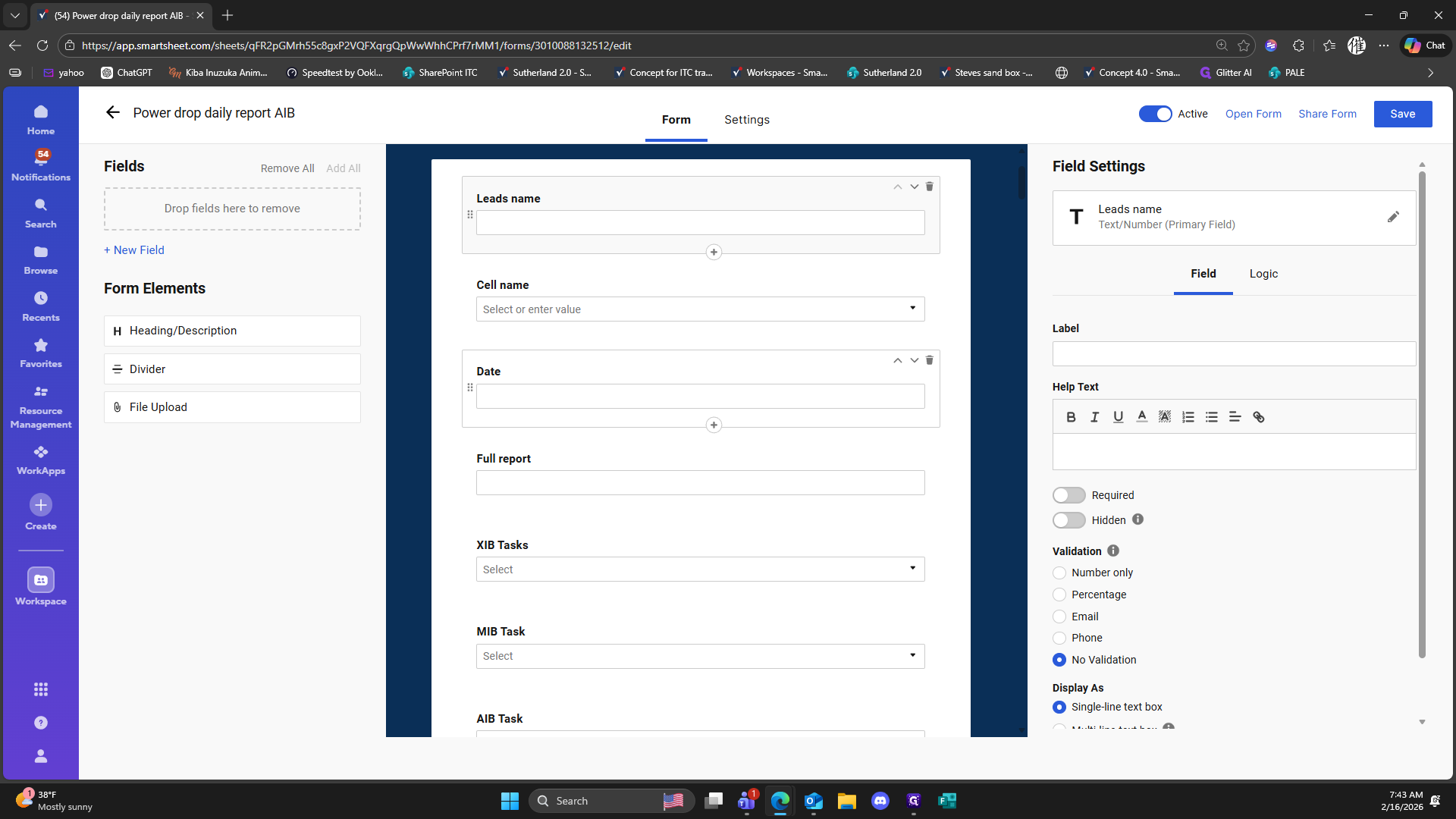
278
Click here
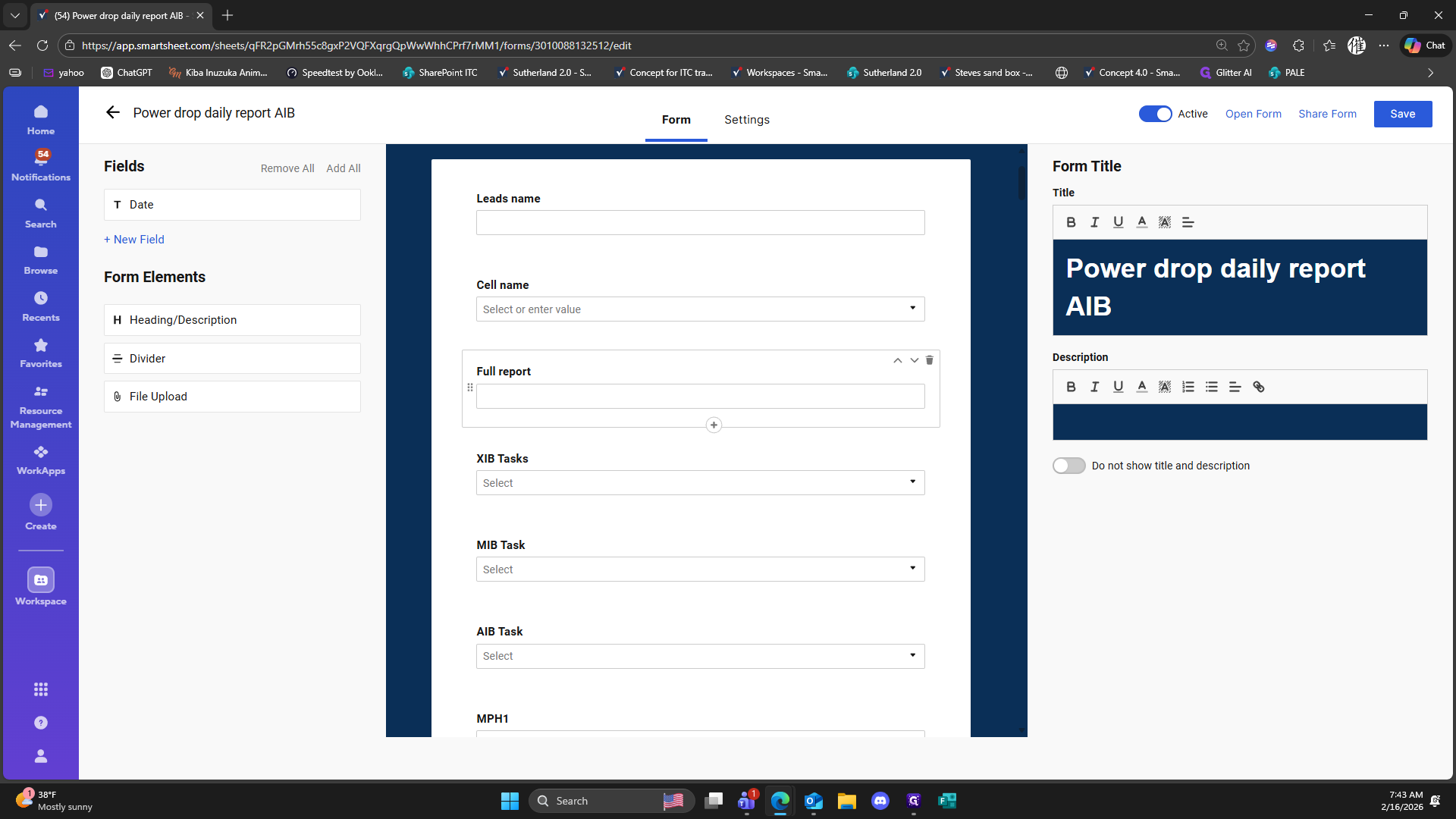
279
Click here
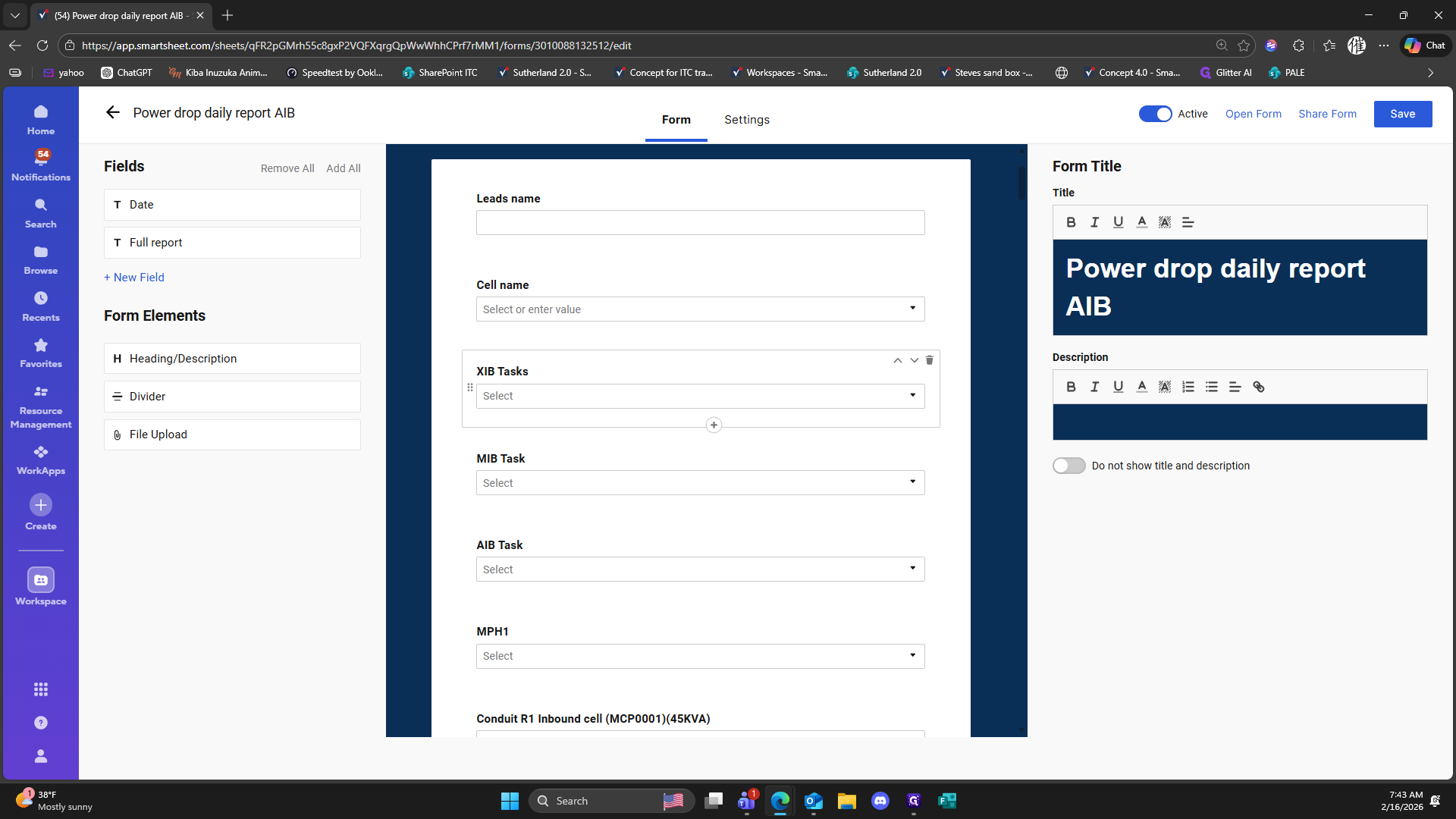
280
Click here
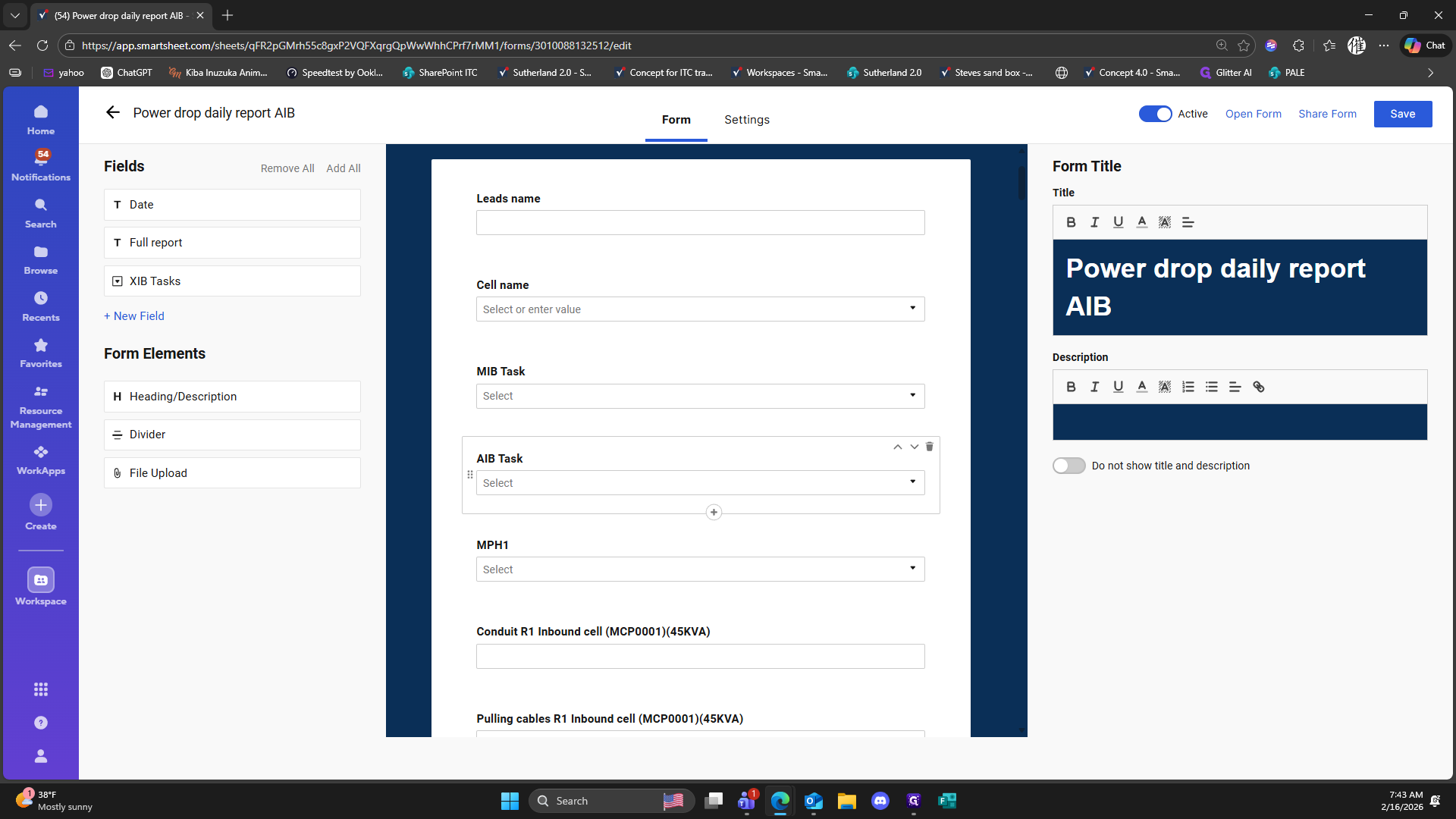
281
Click here
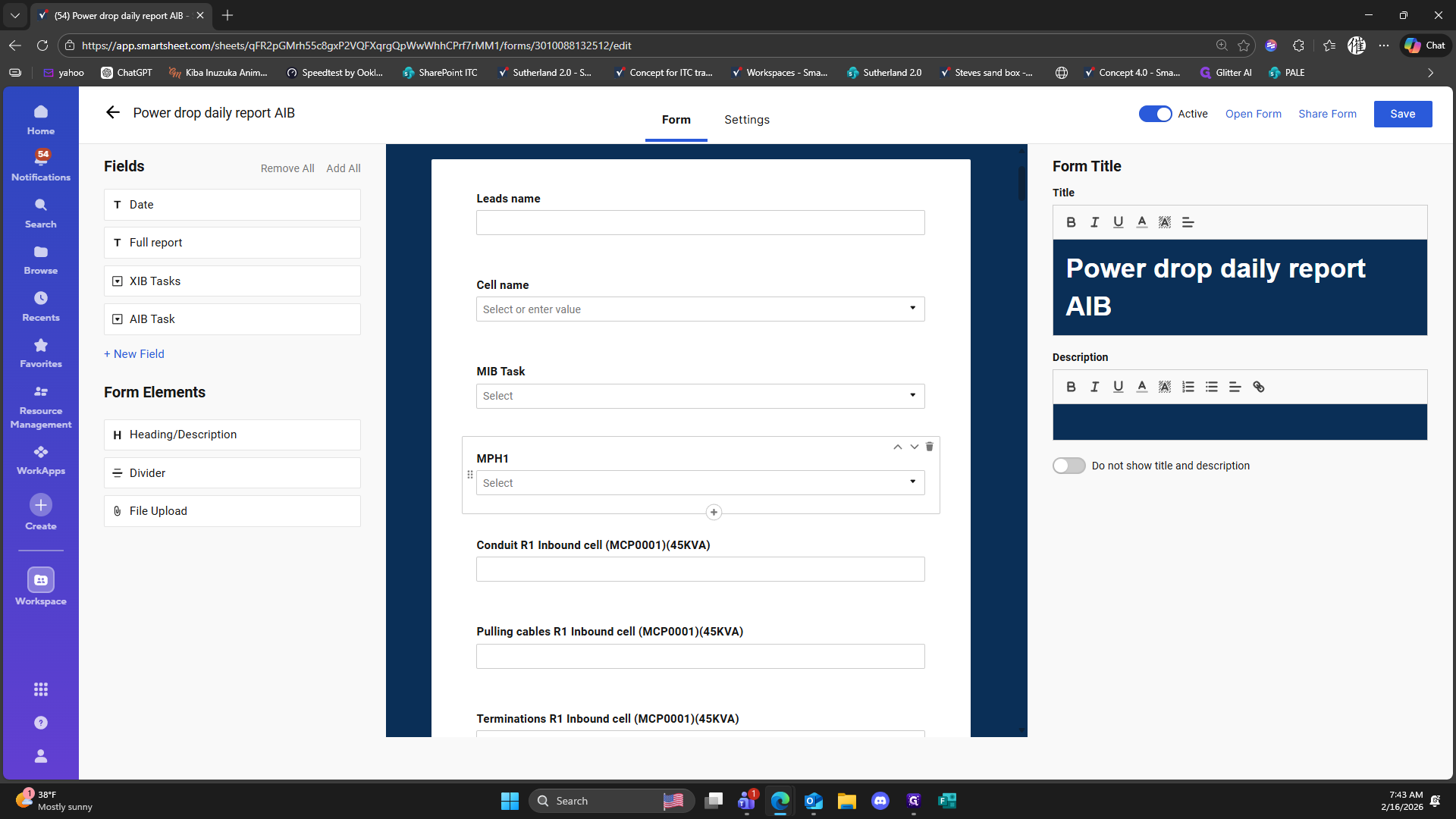
282
Click here
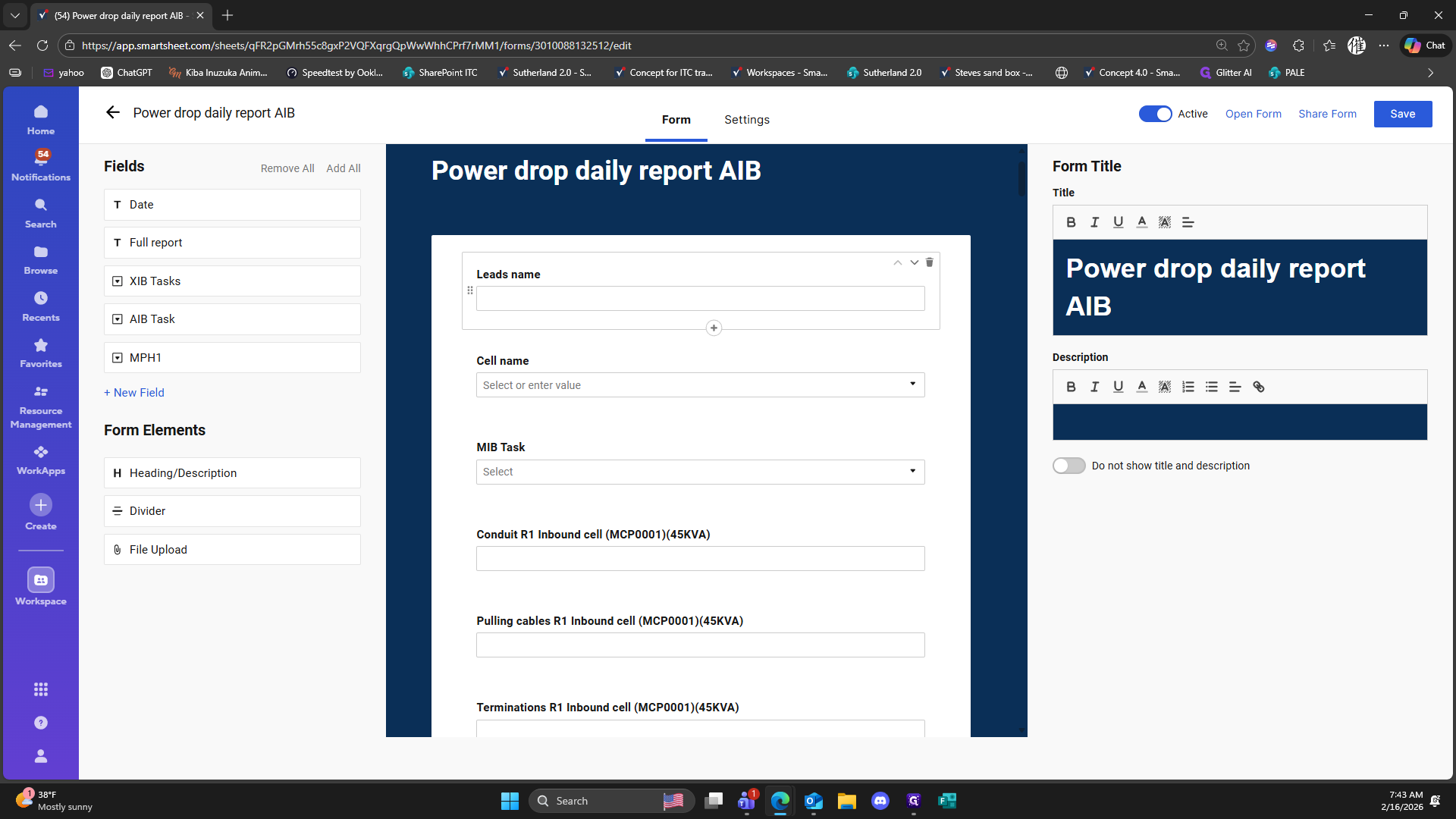
283
Click on "Logic"

284
Click on "Add Logic"
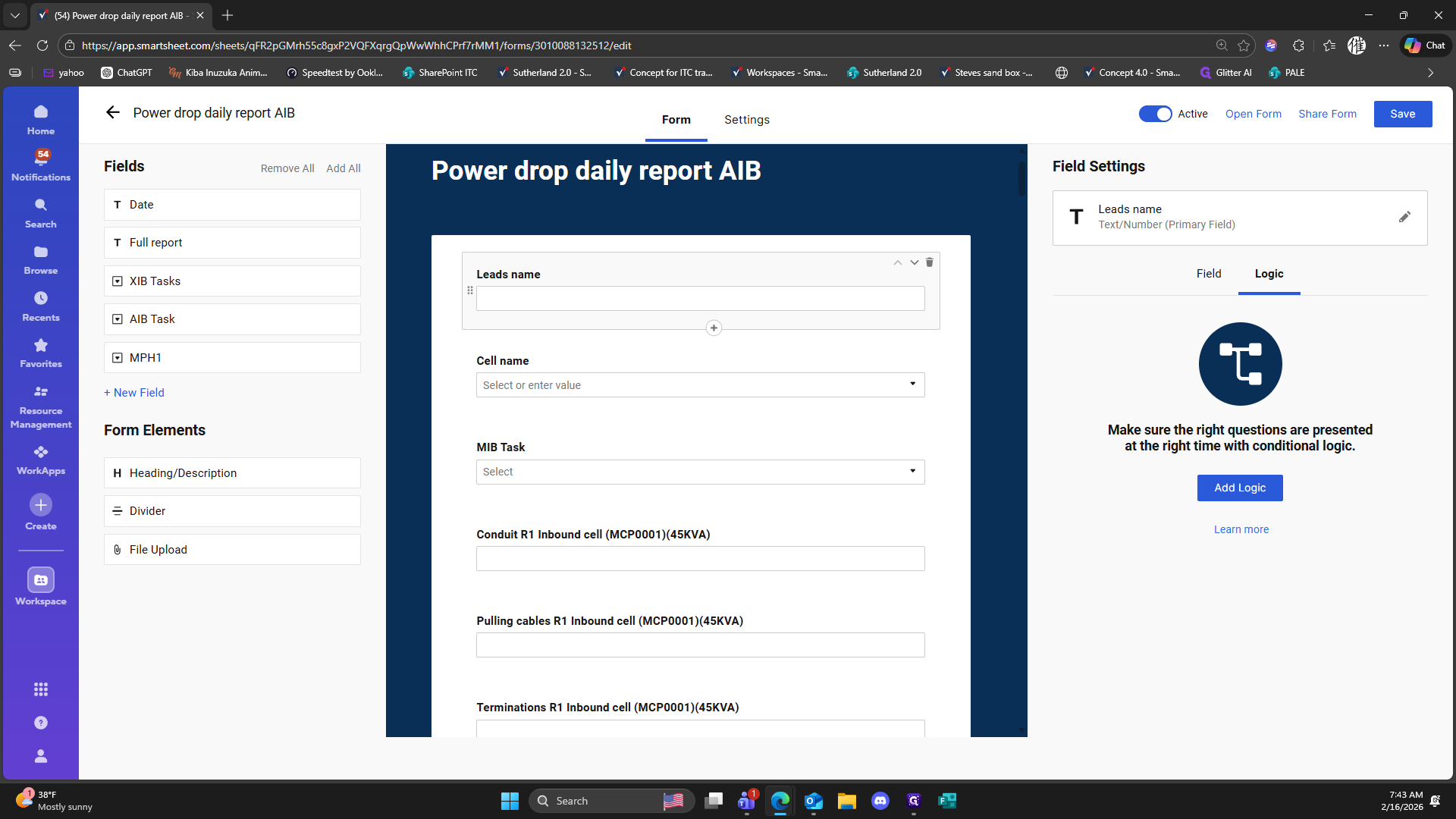
285
Double-click on "When Leads name contains"
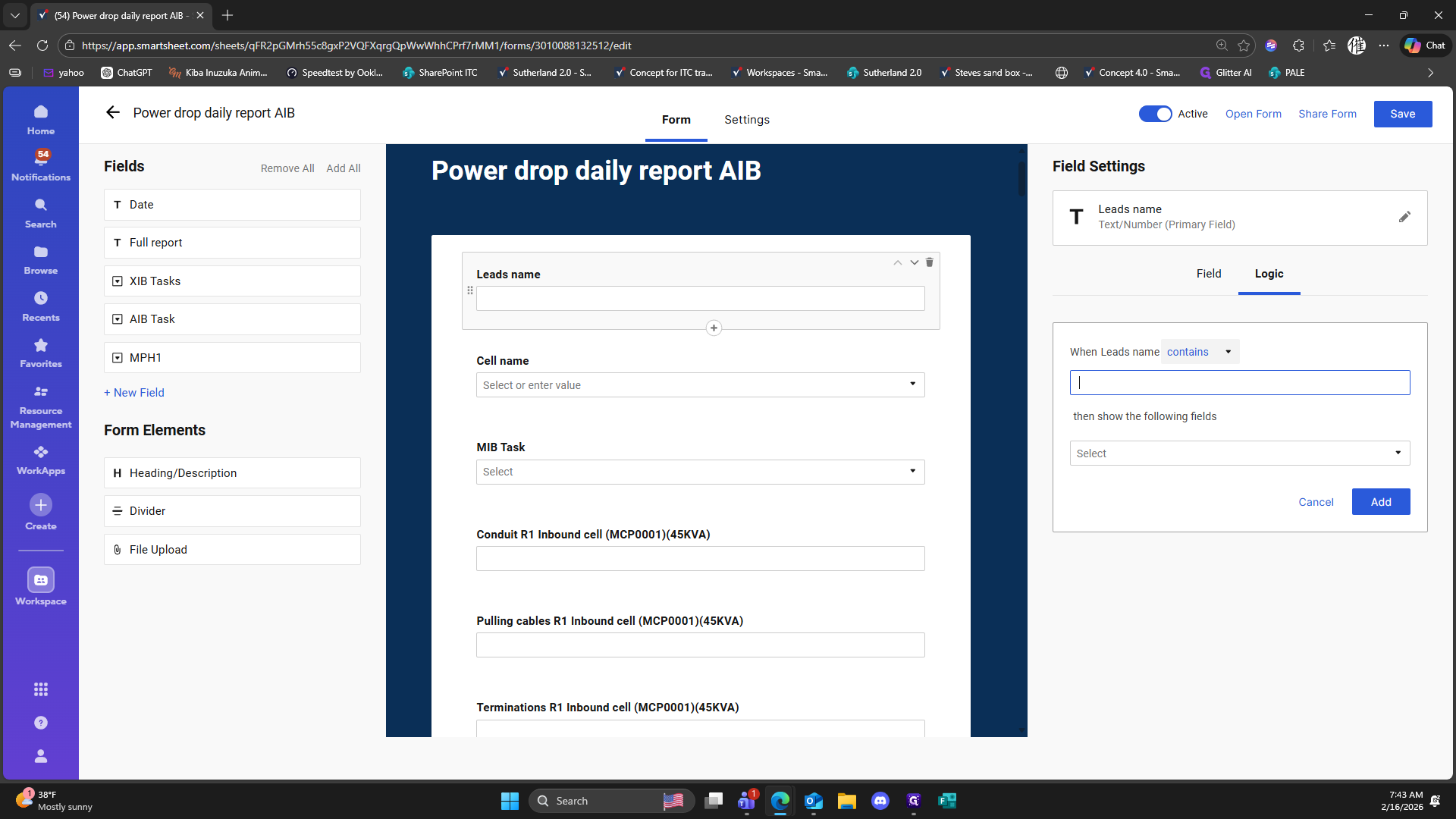
286
Double-click here
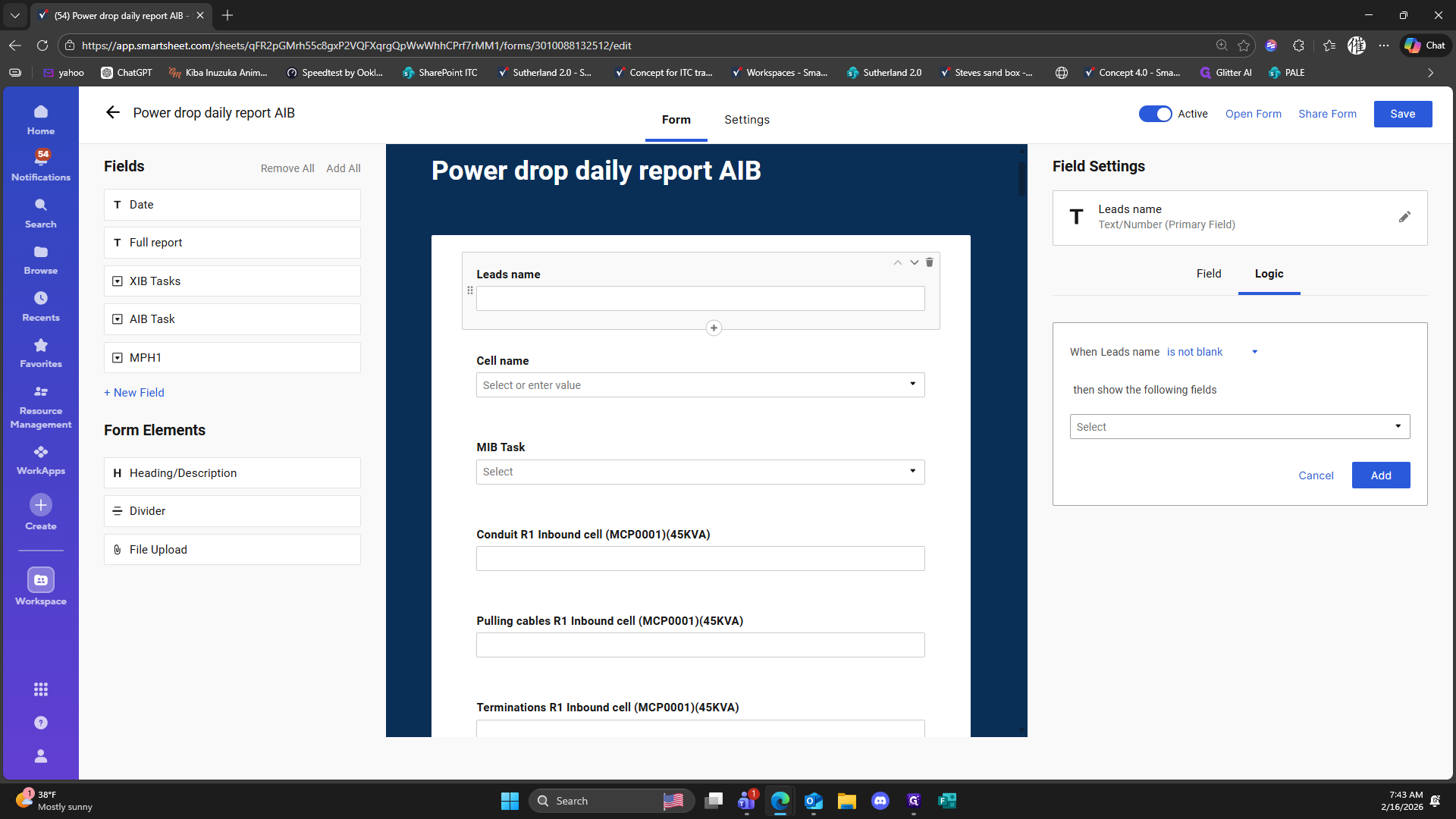
287
Click here
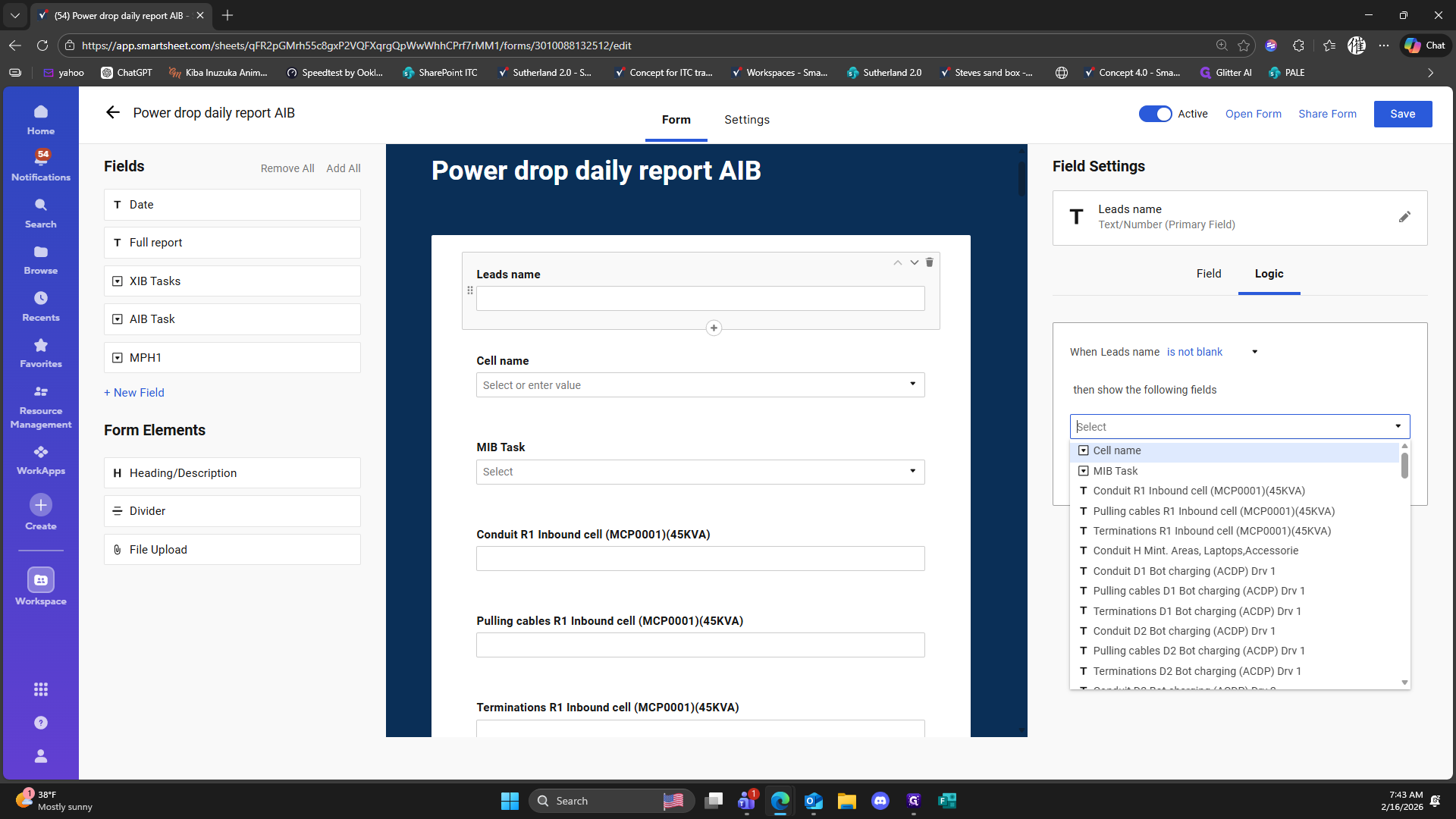
288
Click here
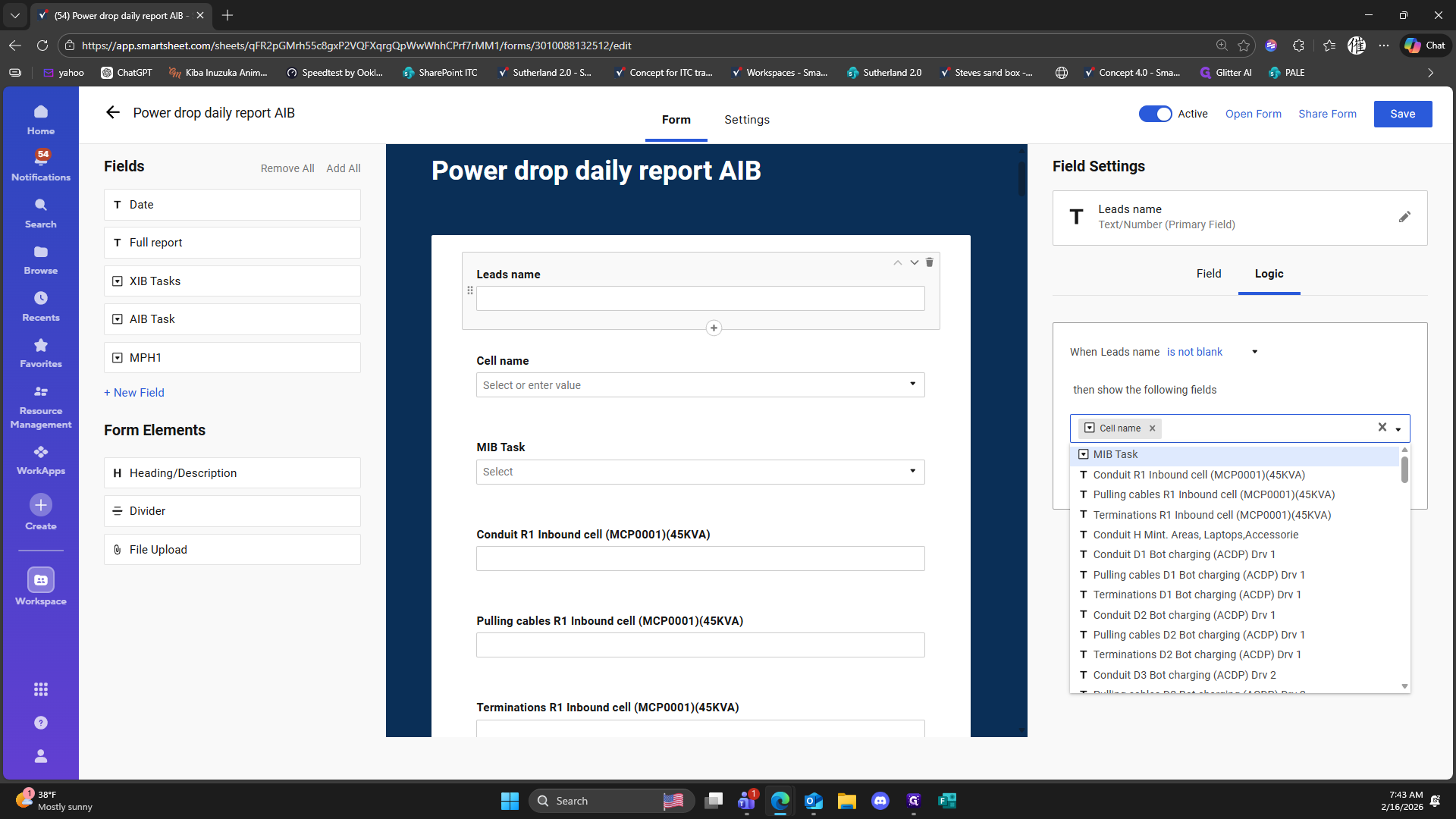
289
Click here
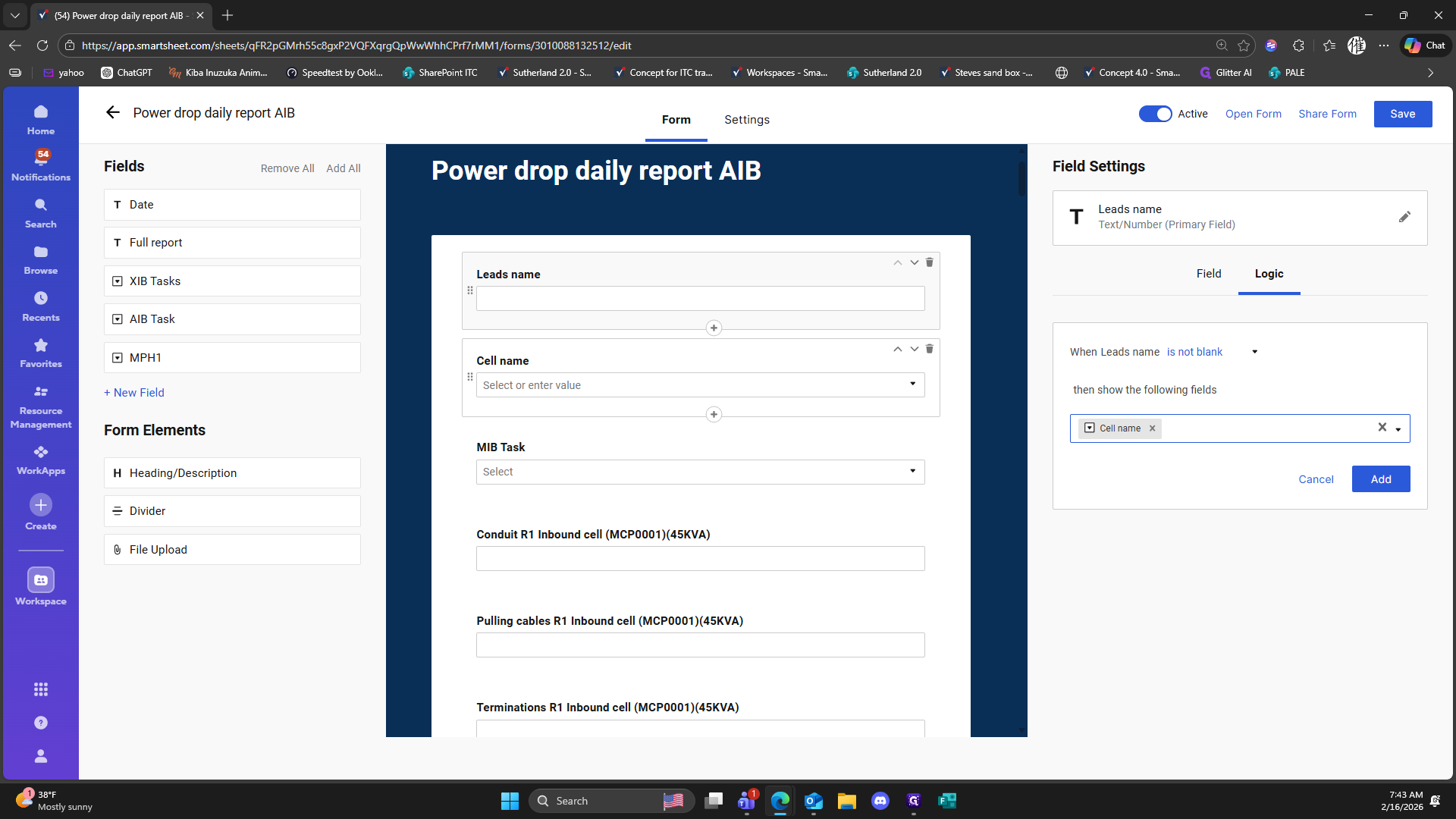
290
Click on "Logic"
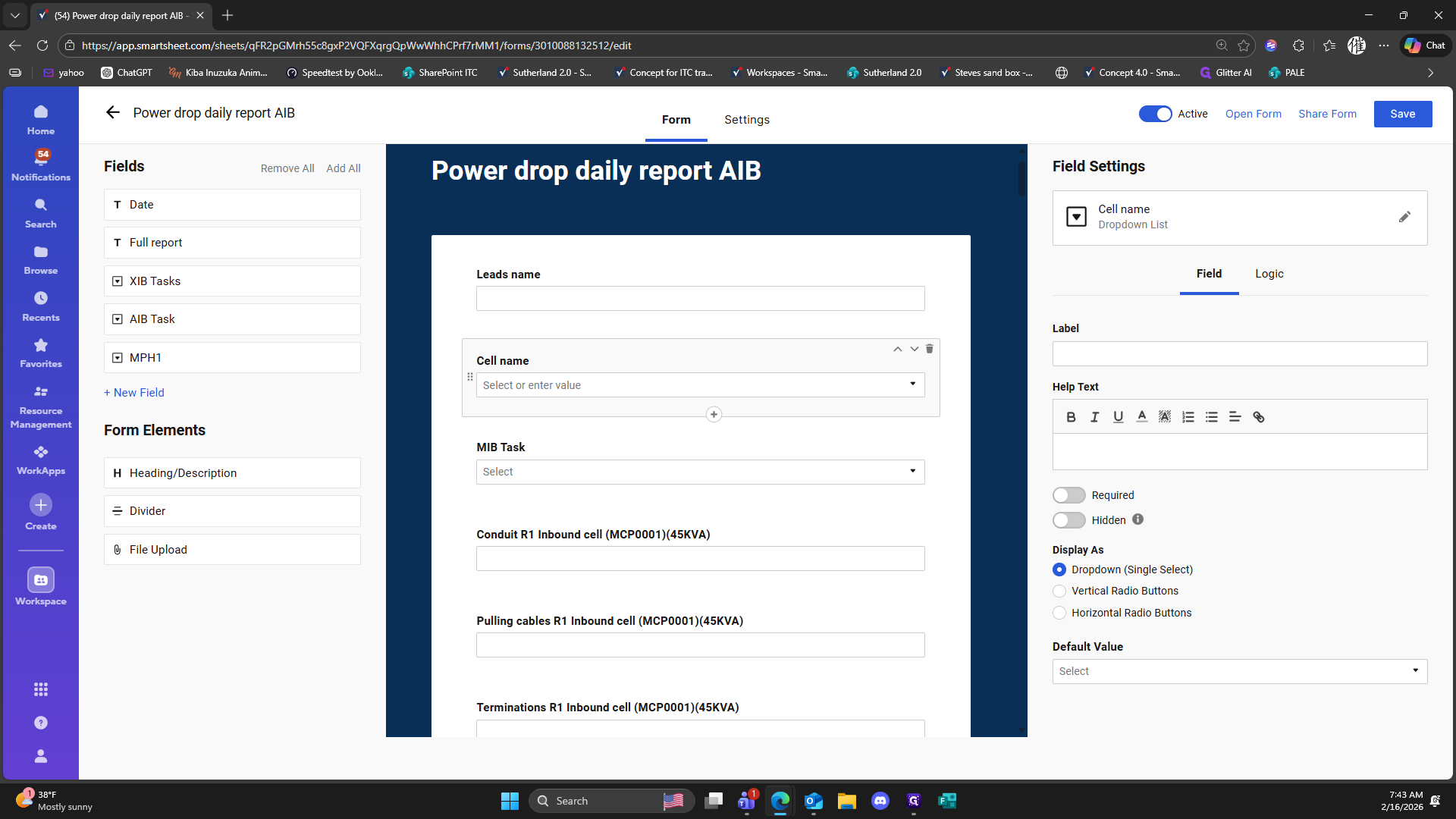
291
Click on "Add Logic"
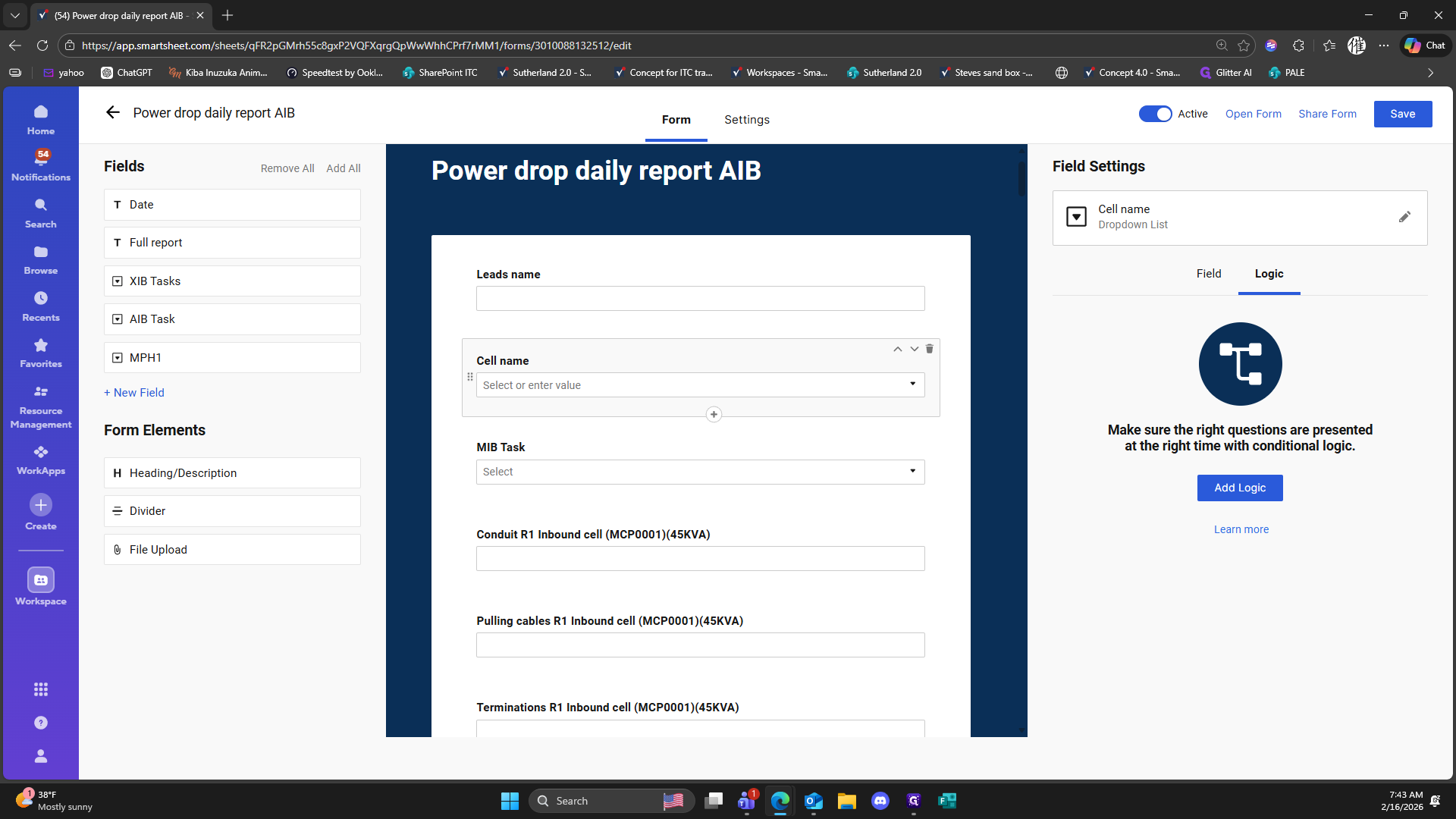
292
Click on "When Cell name is"
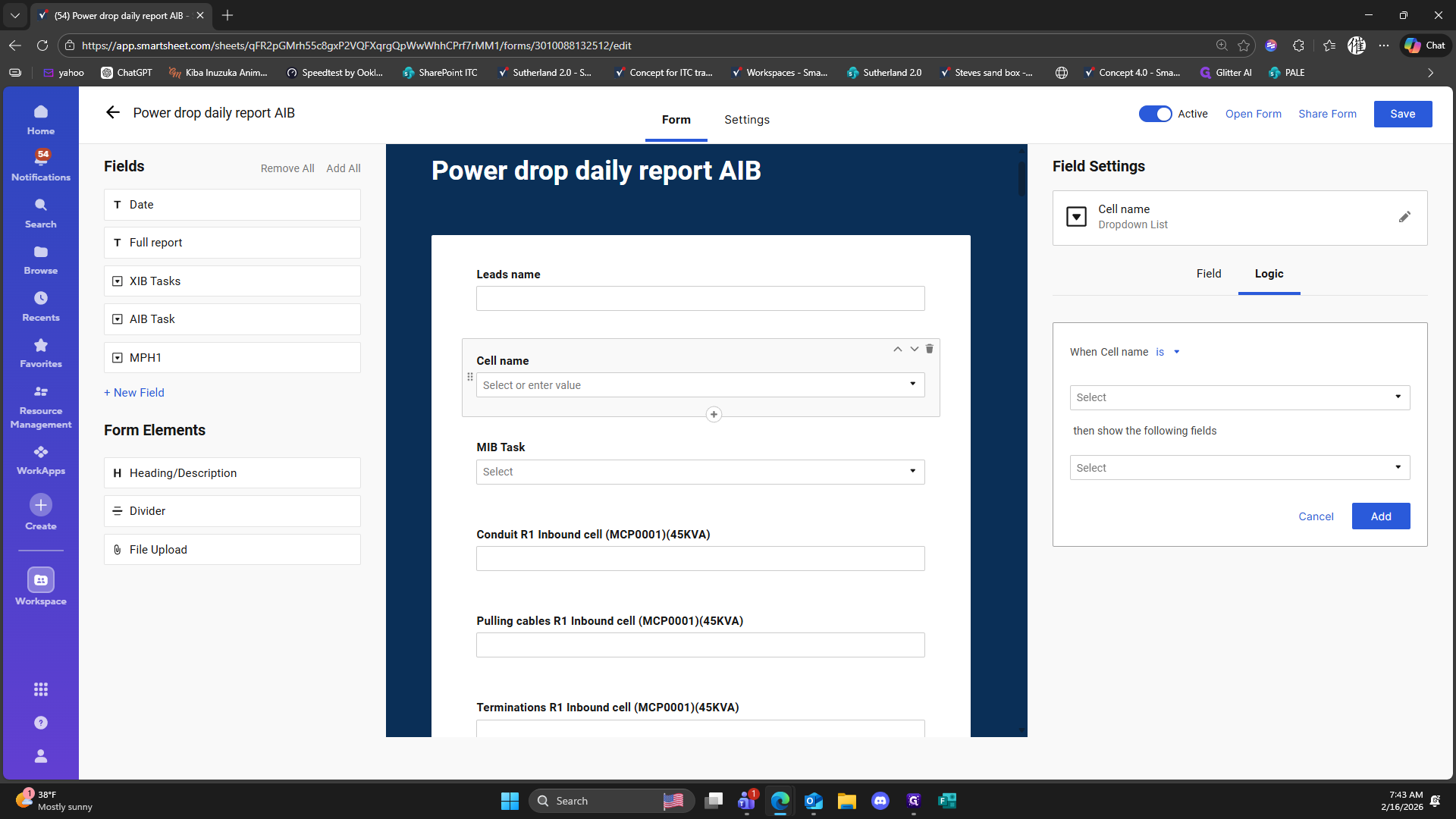
293
Double-click here
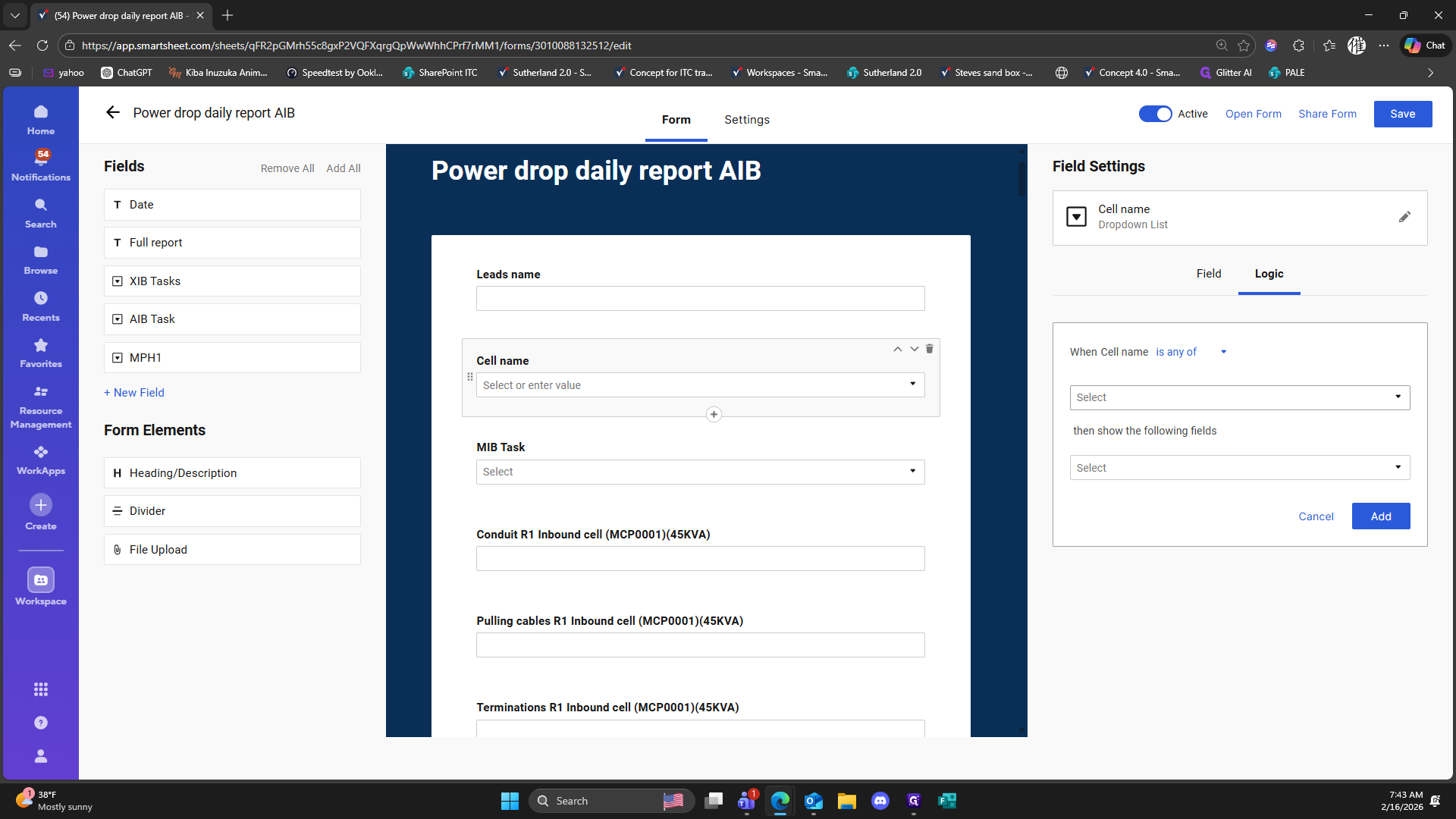
294
Double-click here
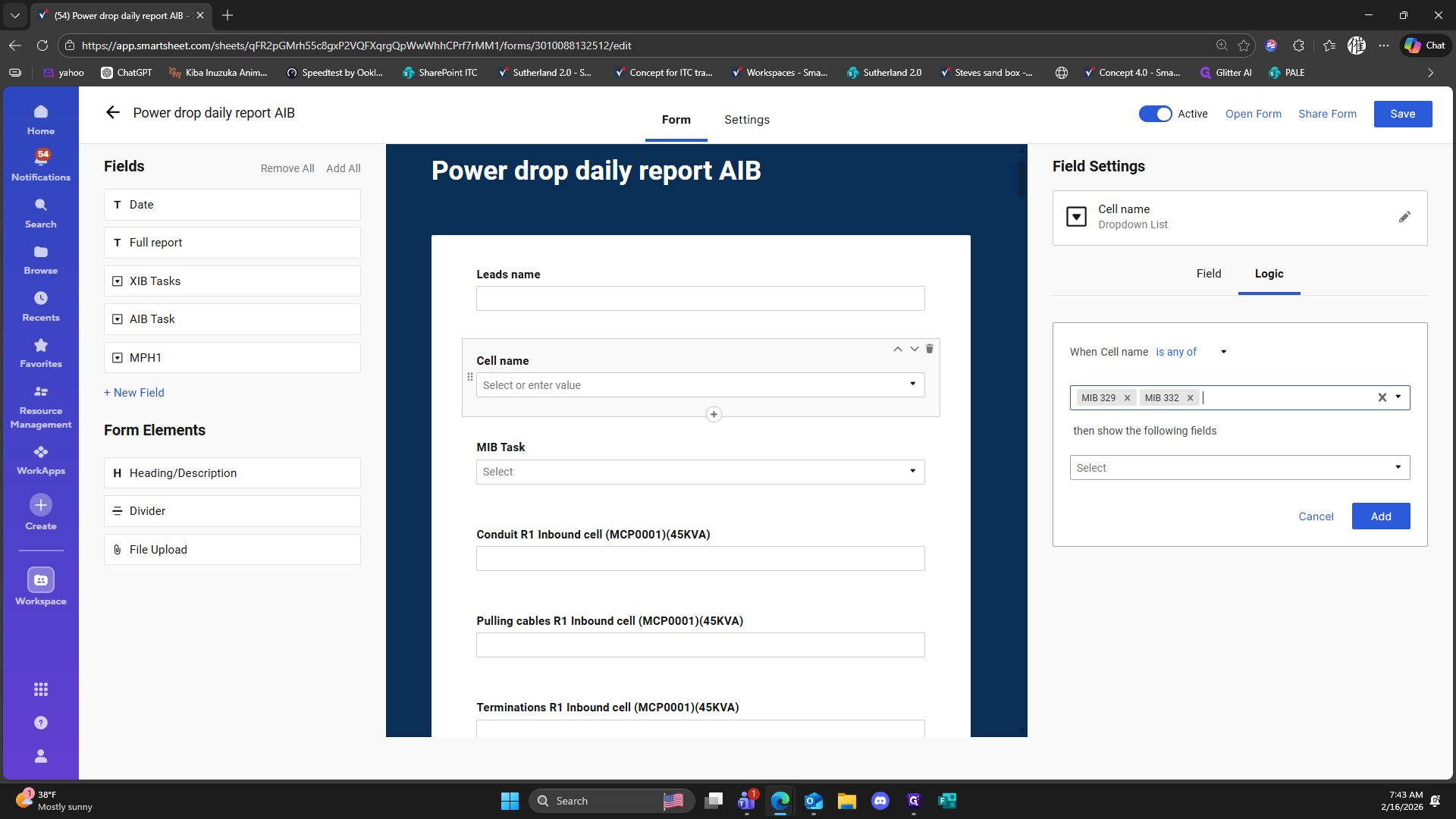
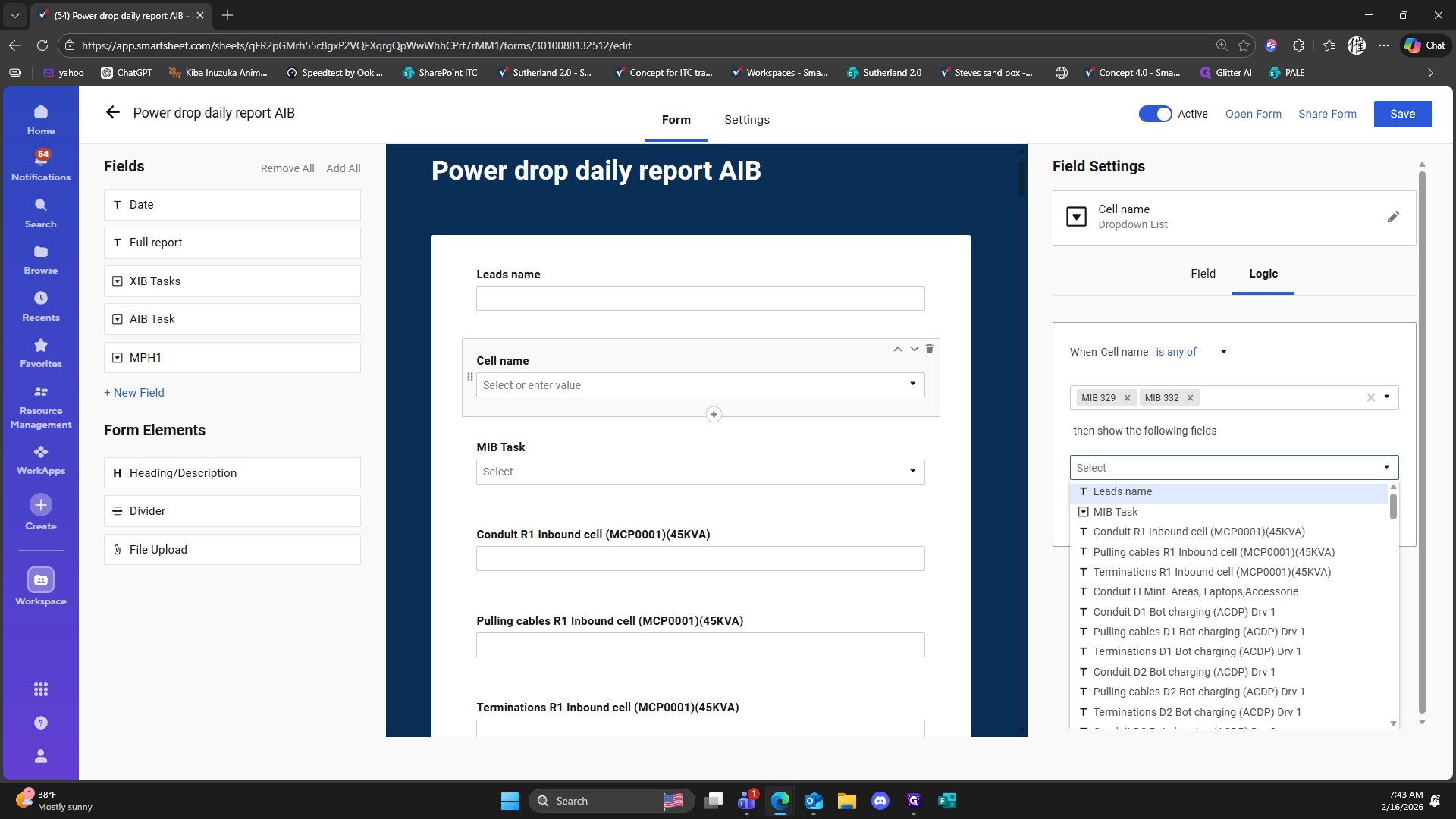
295
Click here
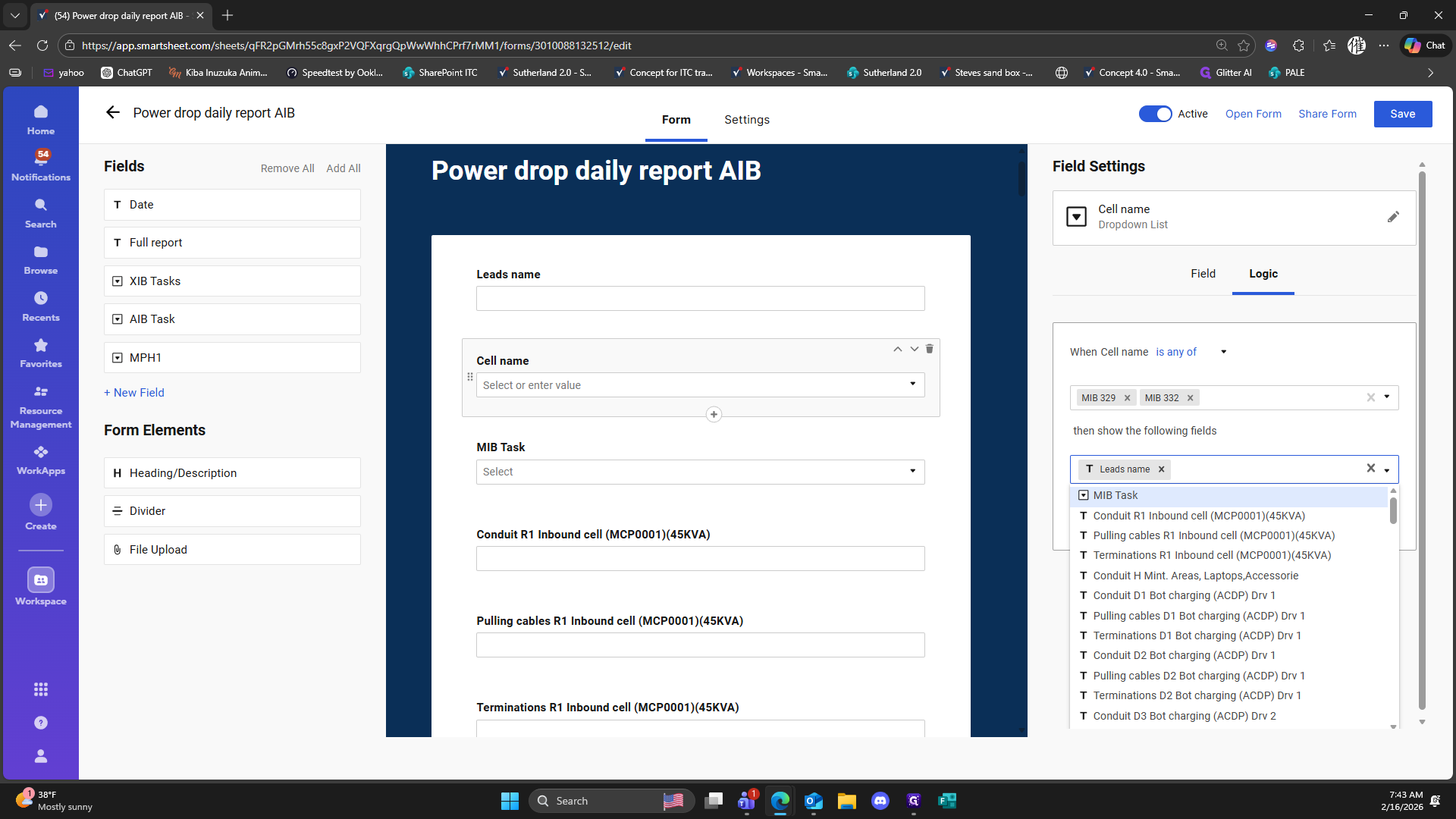
296
Click on "T Leads name x"
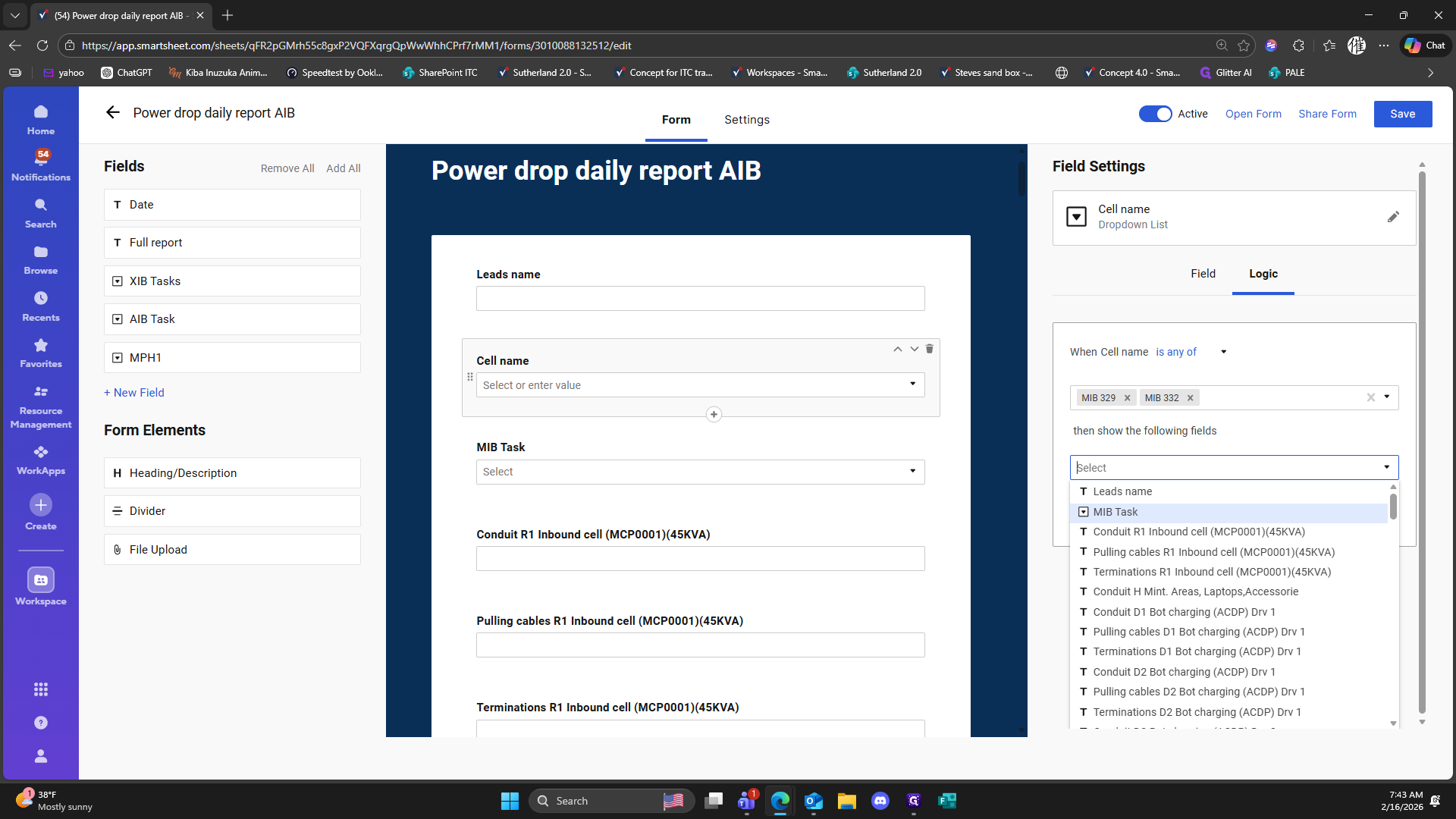
297
Click on "MIB Task"
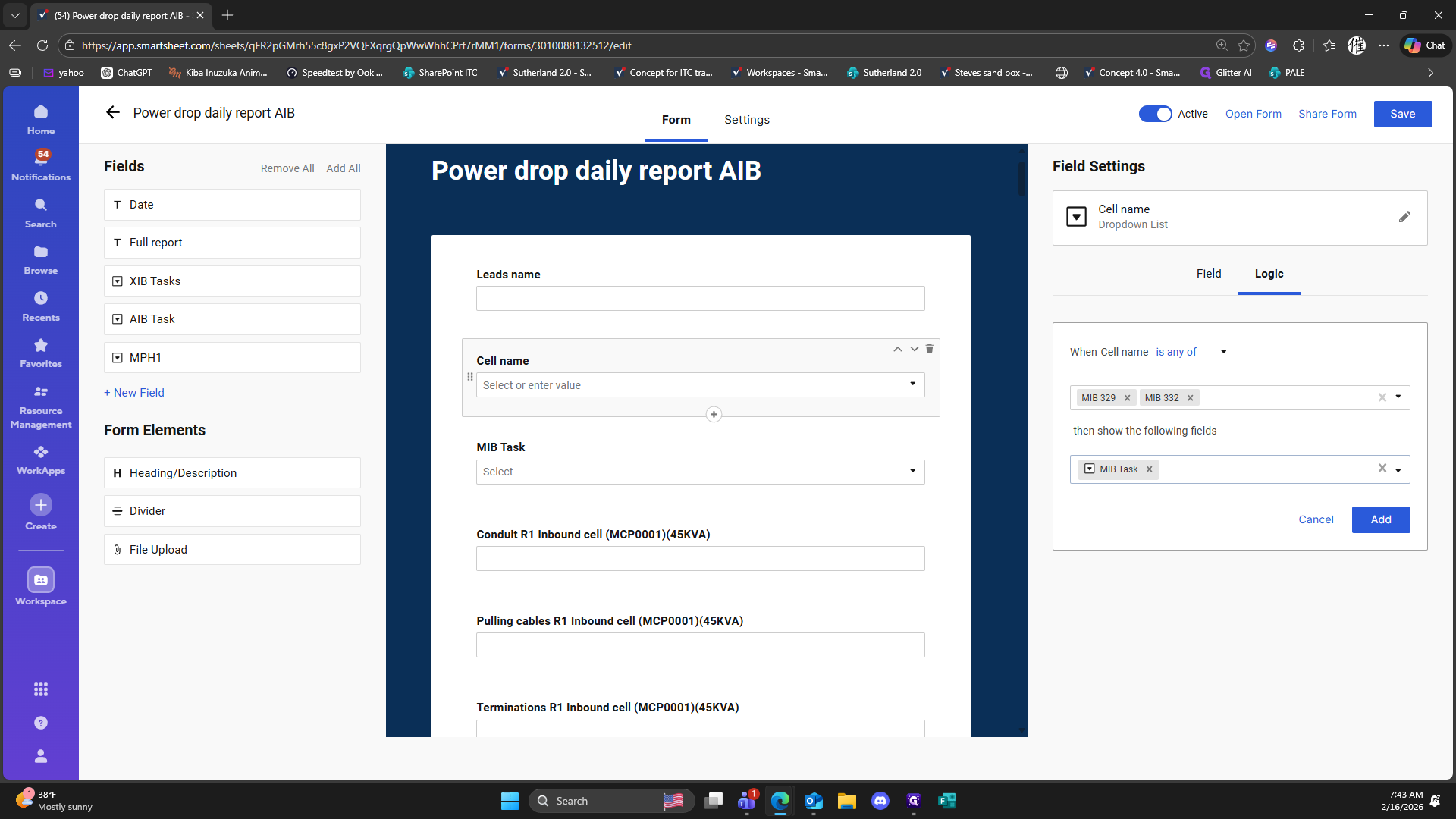
298
Click on "fields"
299
Double-click on "Add"
300
Click here
301
Click here

302
Click on "Add Logic"
303
Click on "Conduit H Mint . Areas , Laptops , Accessories"
304
Double-click on ","
305
Click here
306
Click here
307
Type "H"
308
Click on "Laptops , Accessorie"
309
Click on ","
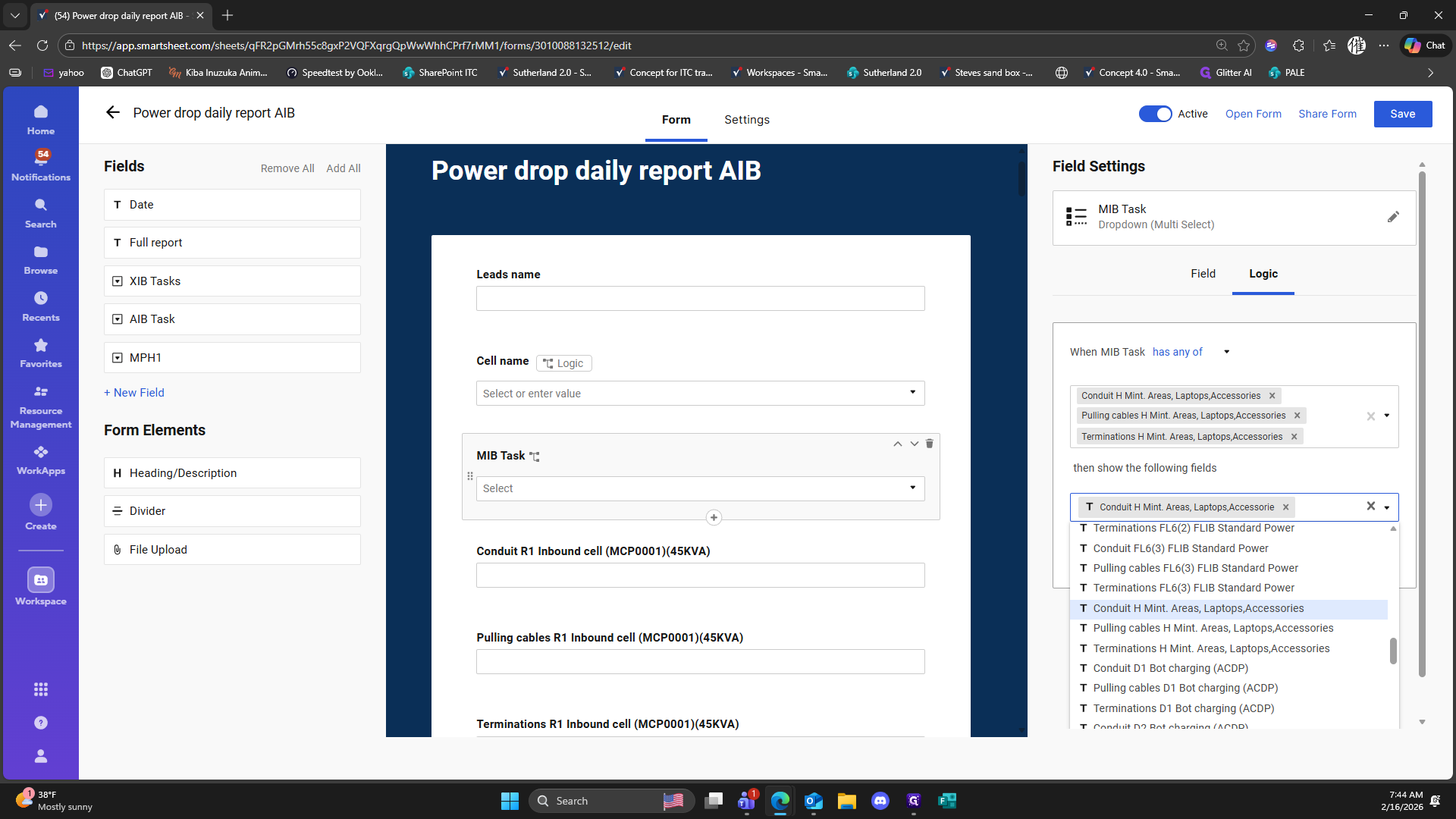
310
Click on "Laptops , Accessories"
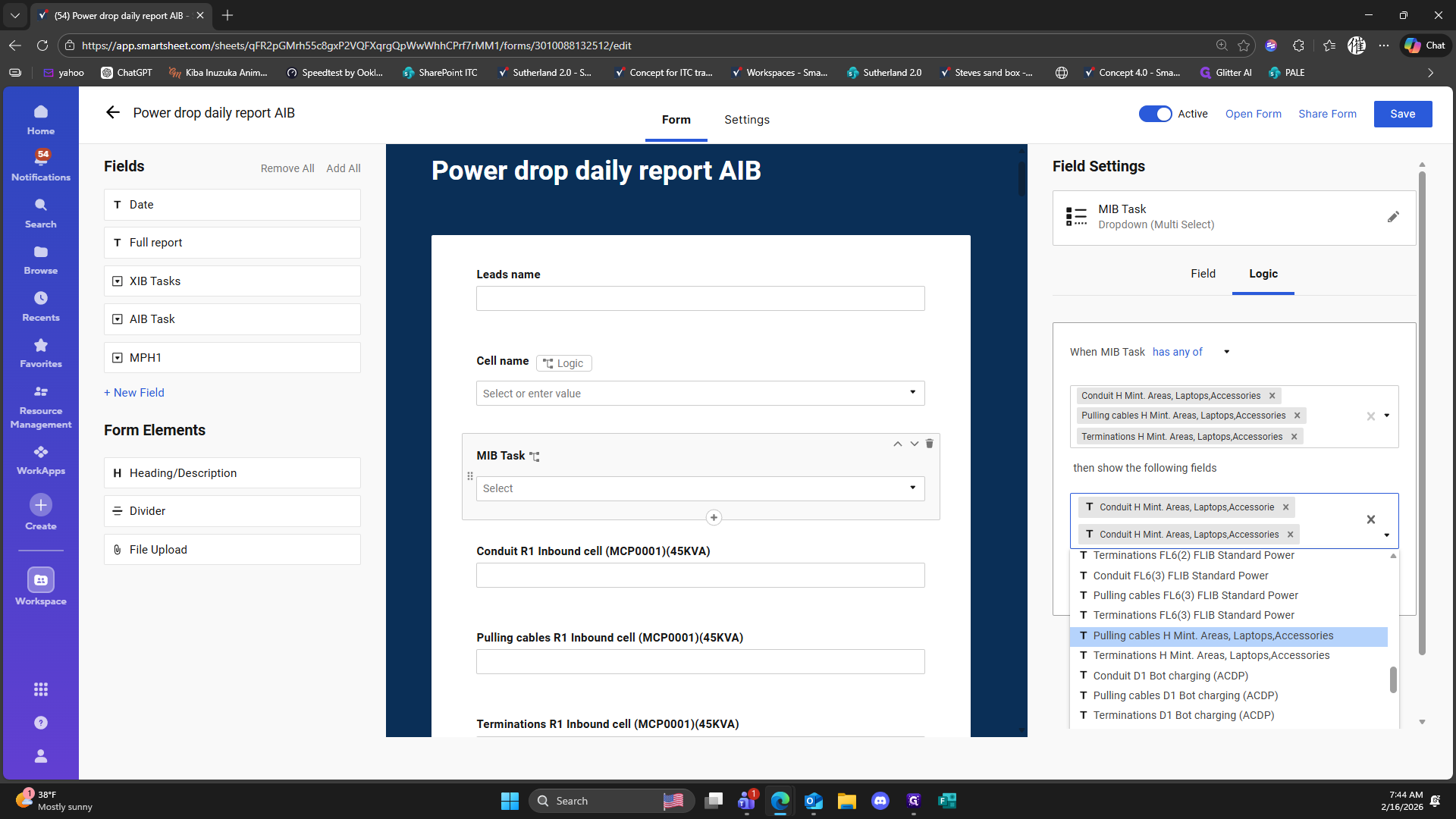
311
Click on "Laptops"
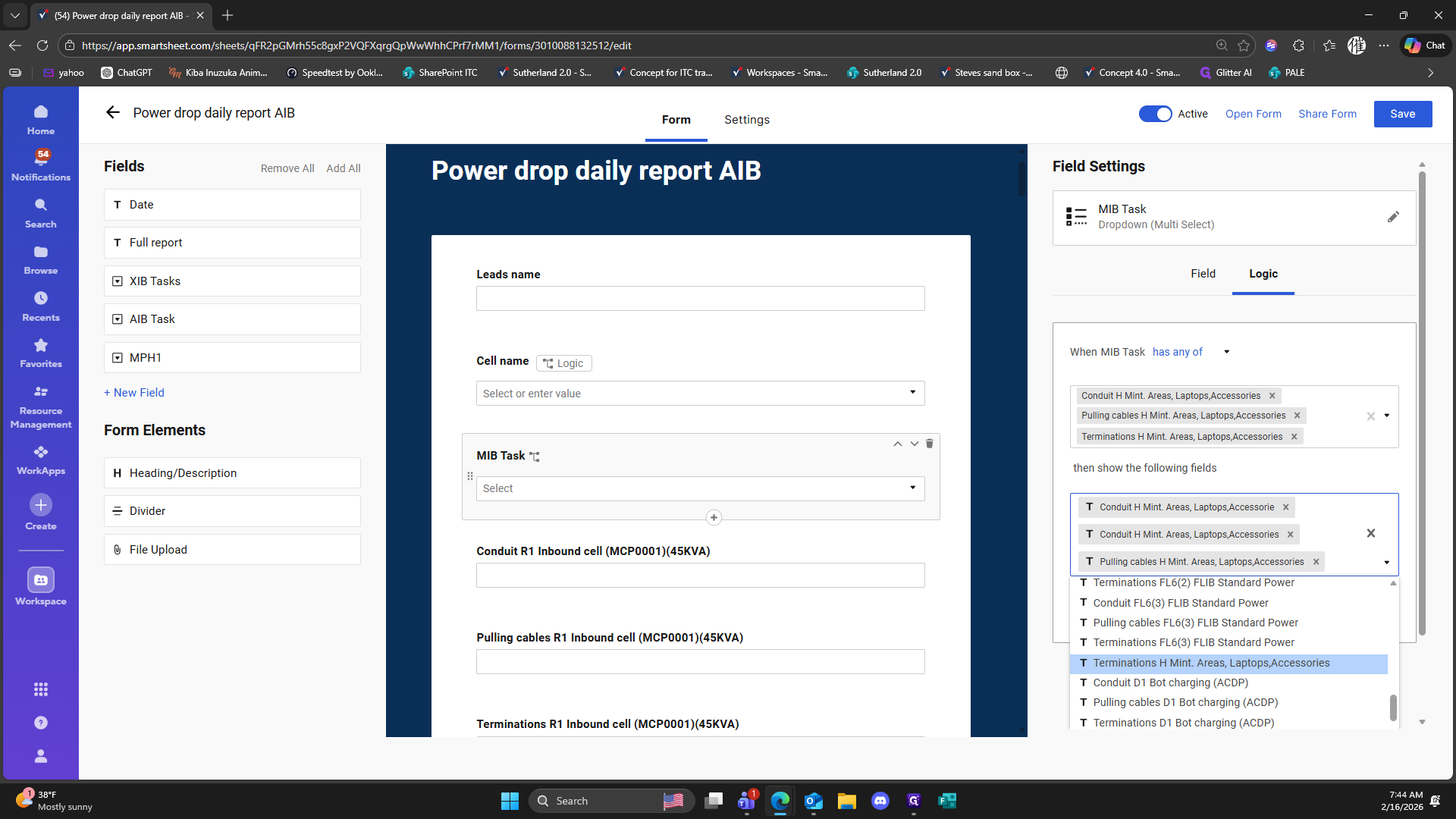
312
Click on "Accessorie x"
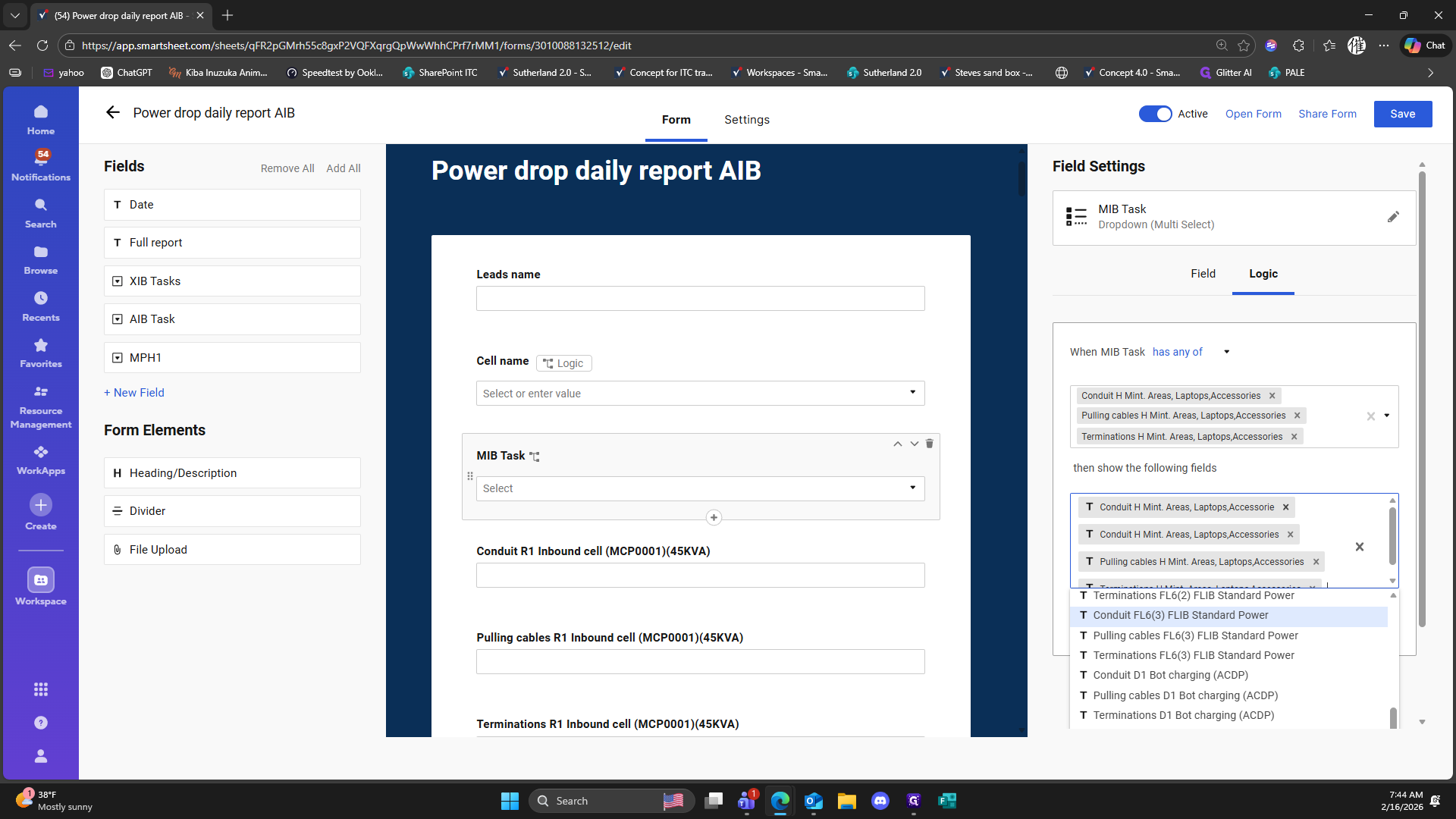
313
Click here
314
Click on "Add"
315
Double-click on "Add rule"
316
Click here
317
Click on "( 45KVA )"
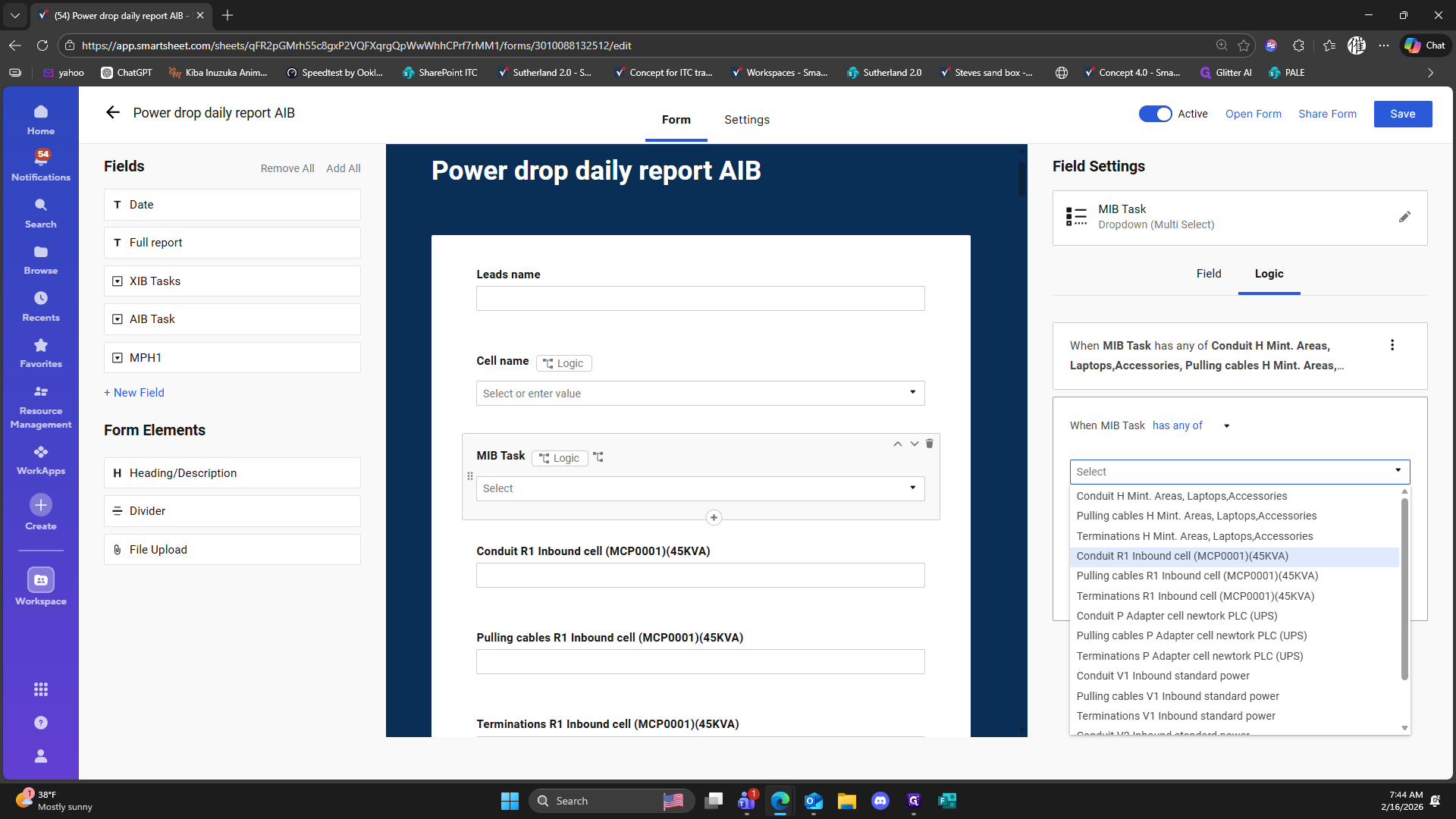
318
Double-click on ","
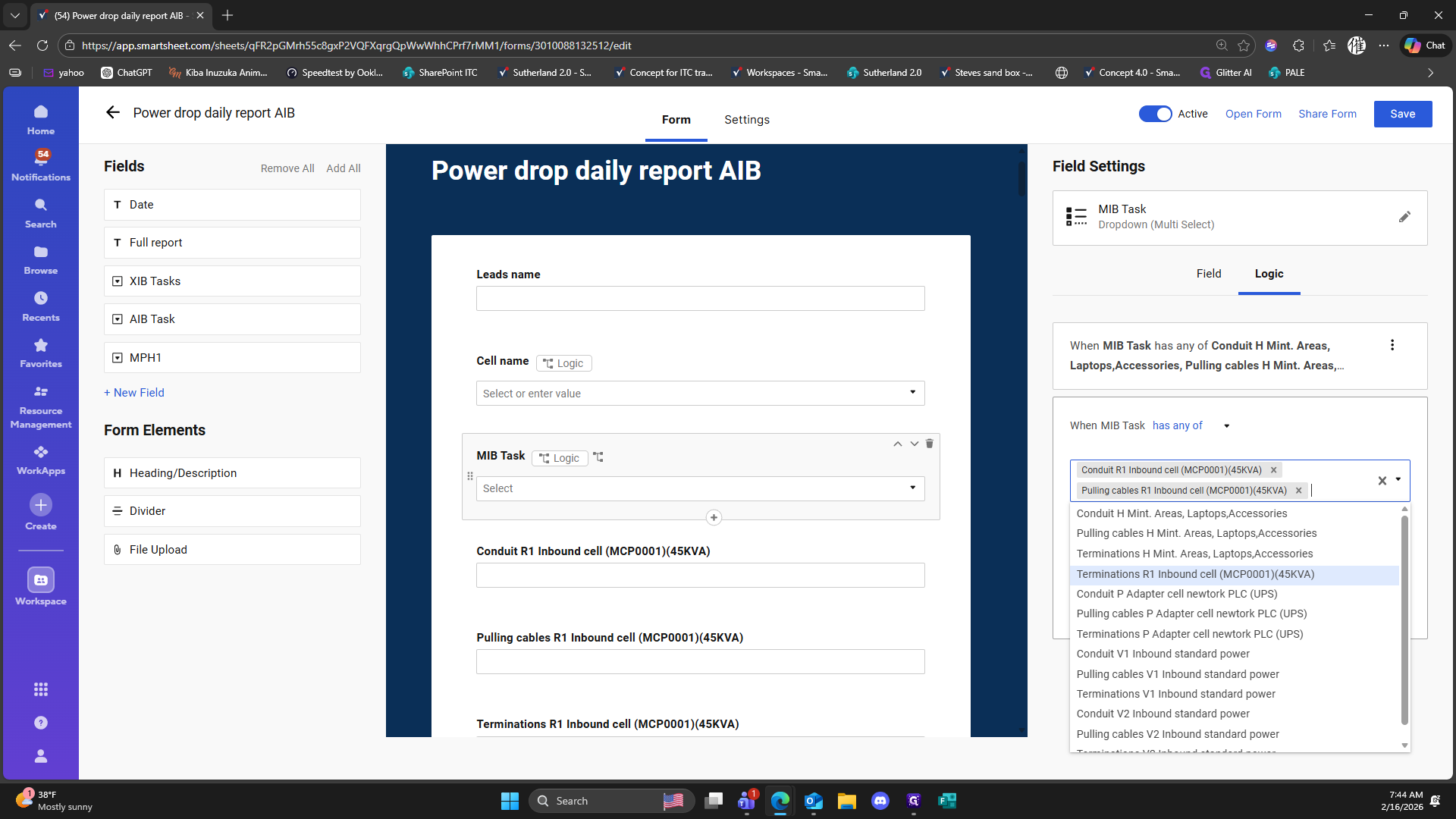
319
Click on ", Accessories x"
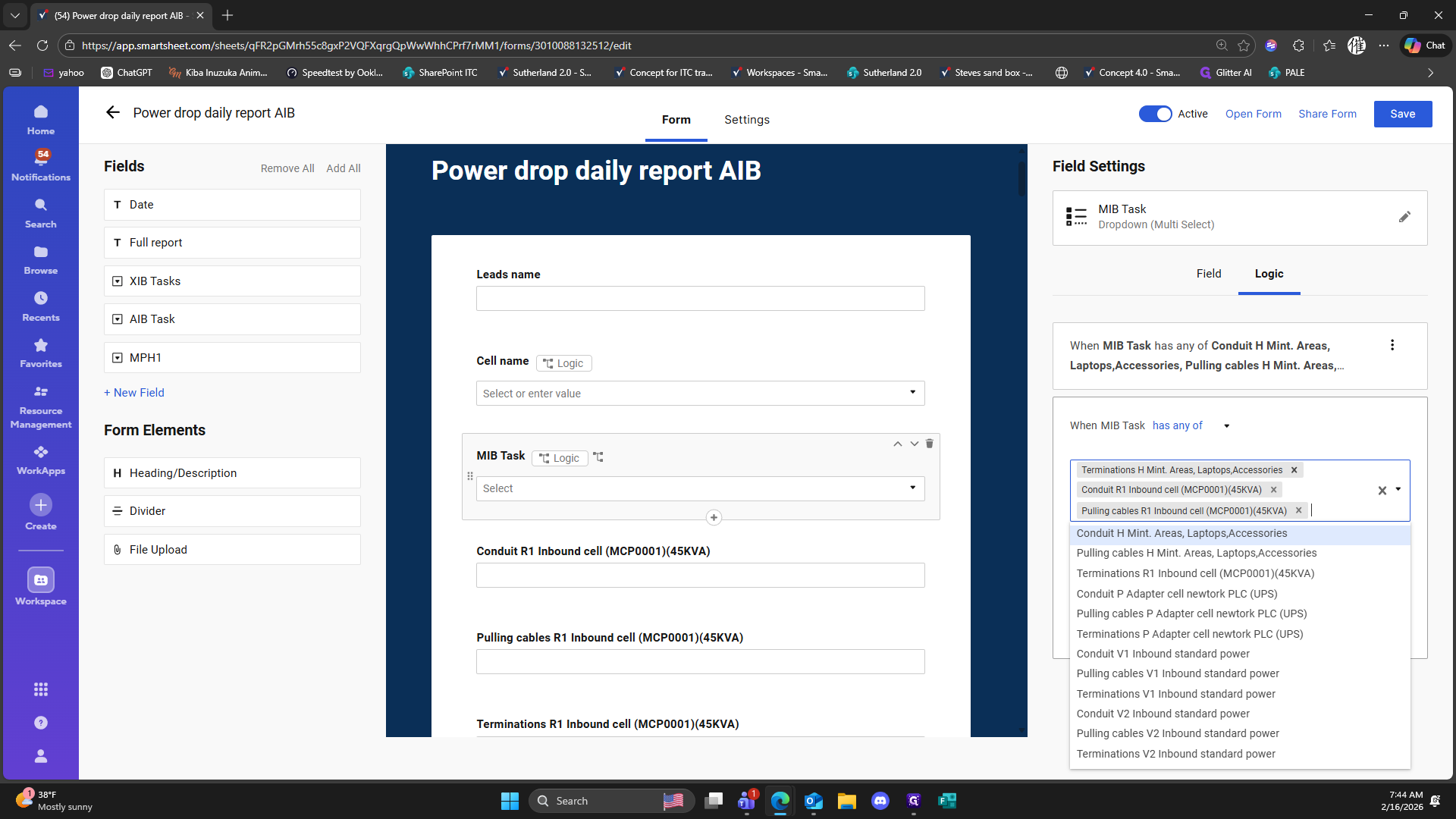
320
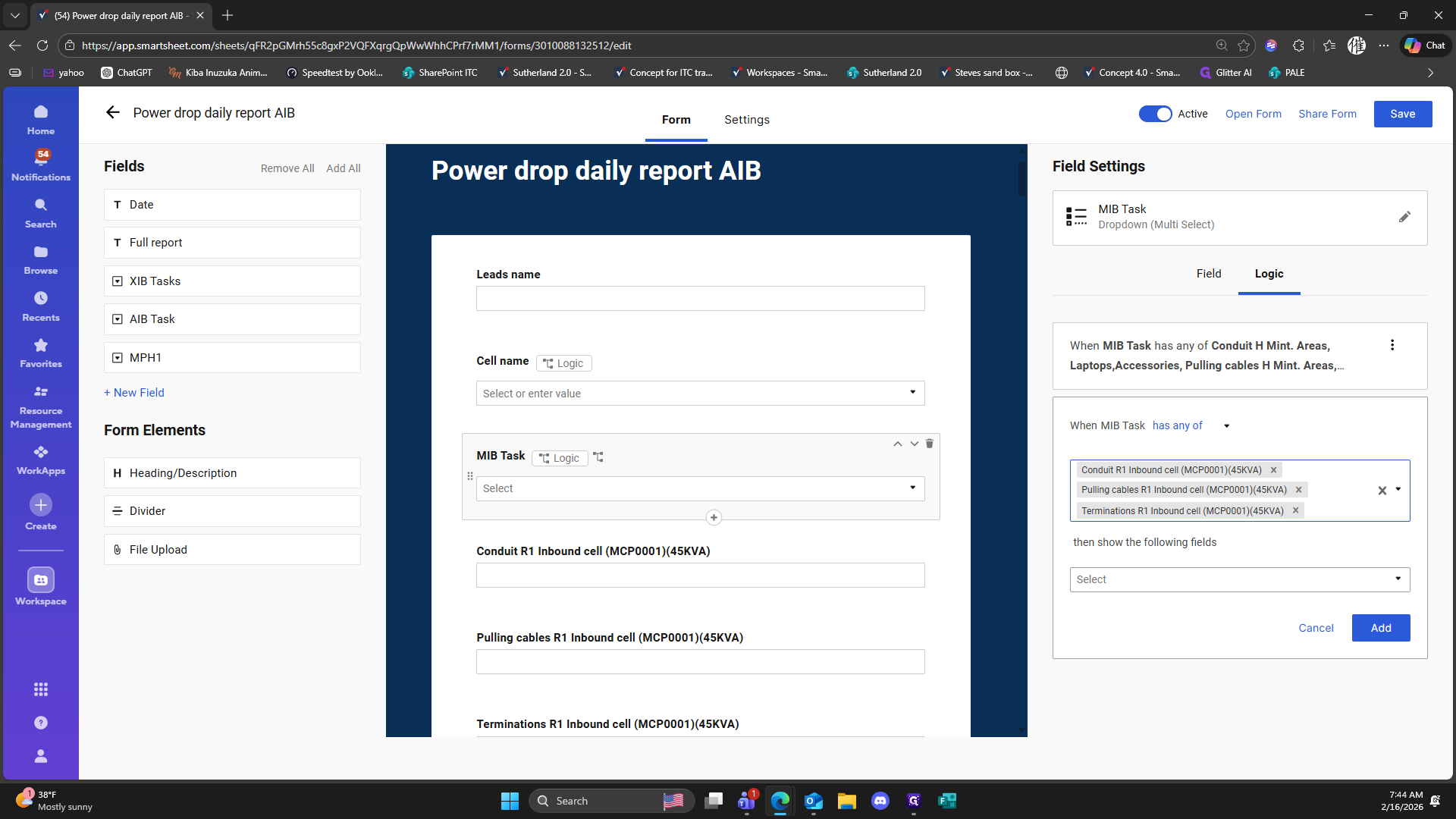
Double-click on "Conduit R1 Inbound cell ( MCP0001 ) ( 45KVA ) x Pulling cables R1 Inbound cell ( MCP0001 ) ( 45KVA ) X Terminations R1 Inbound cell ( MCP0001 ) ( 45KVA ) X"
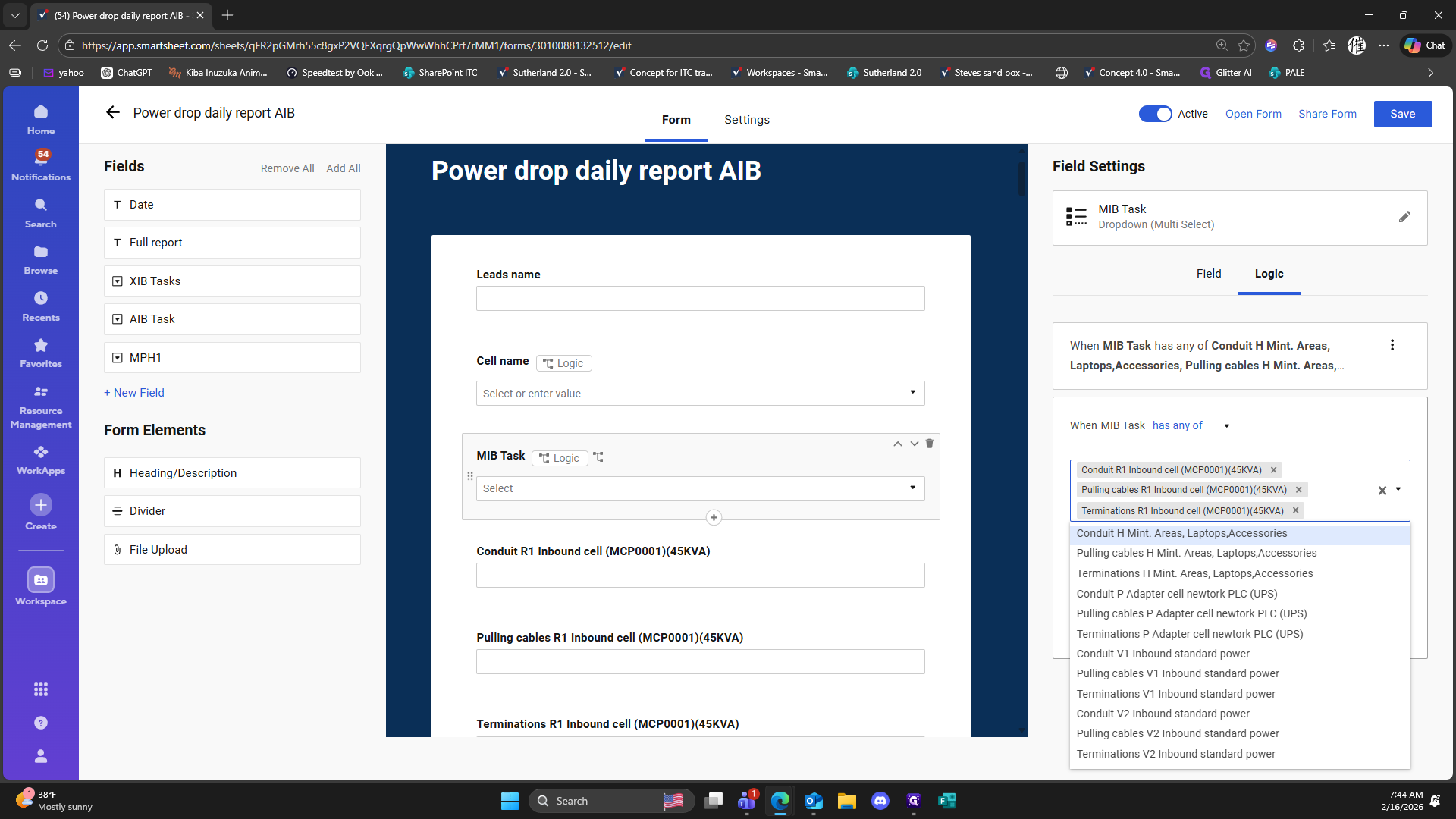
321
Click here
322
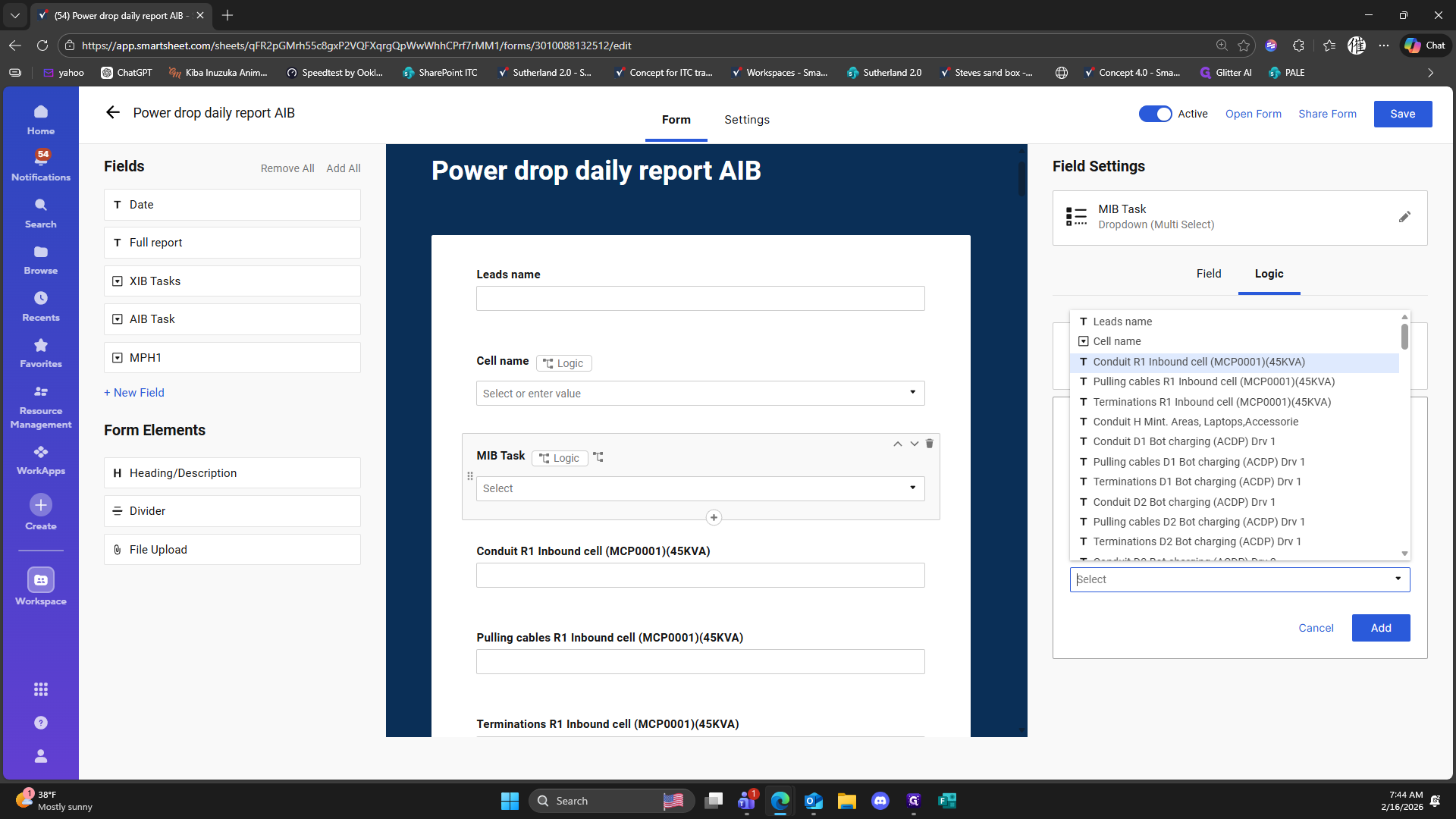
Click on "cell"
323
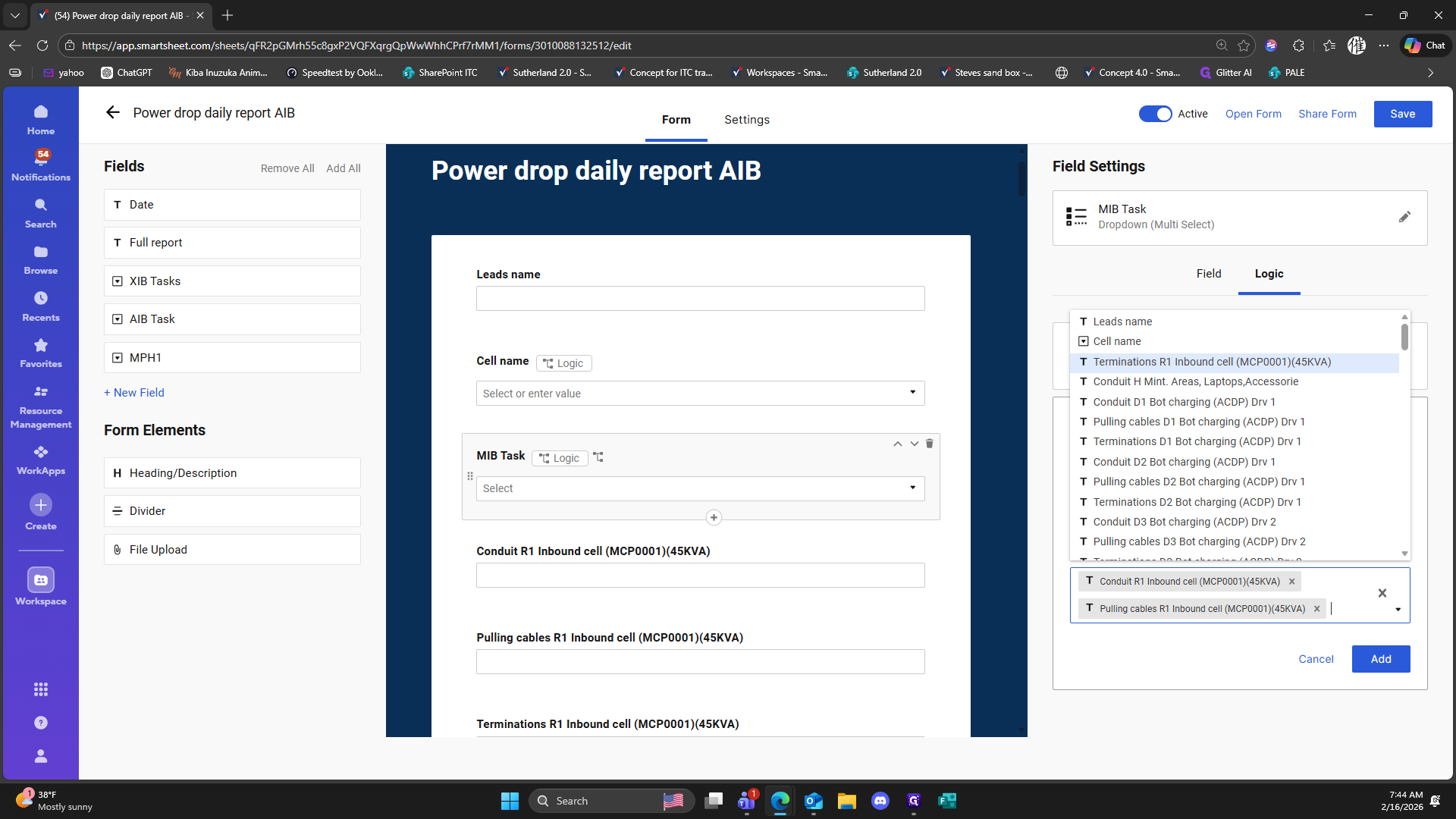
Double-click on "T Terminations R1 Inbound cell"
324
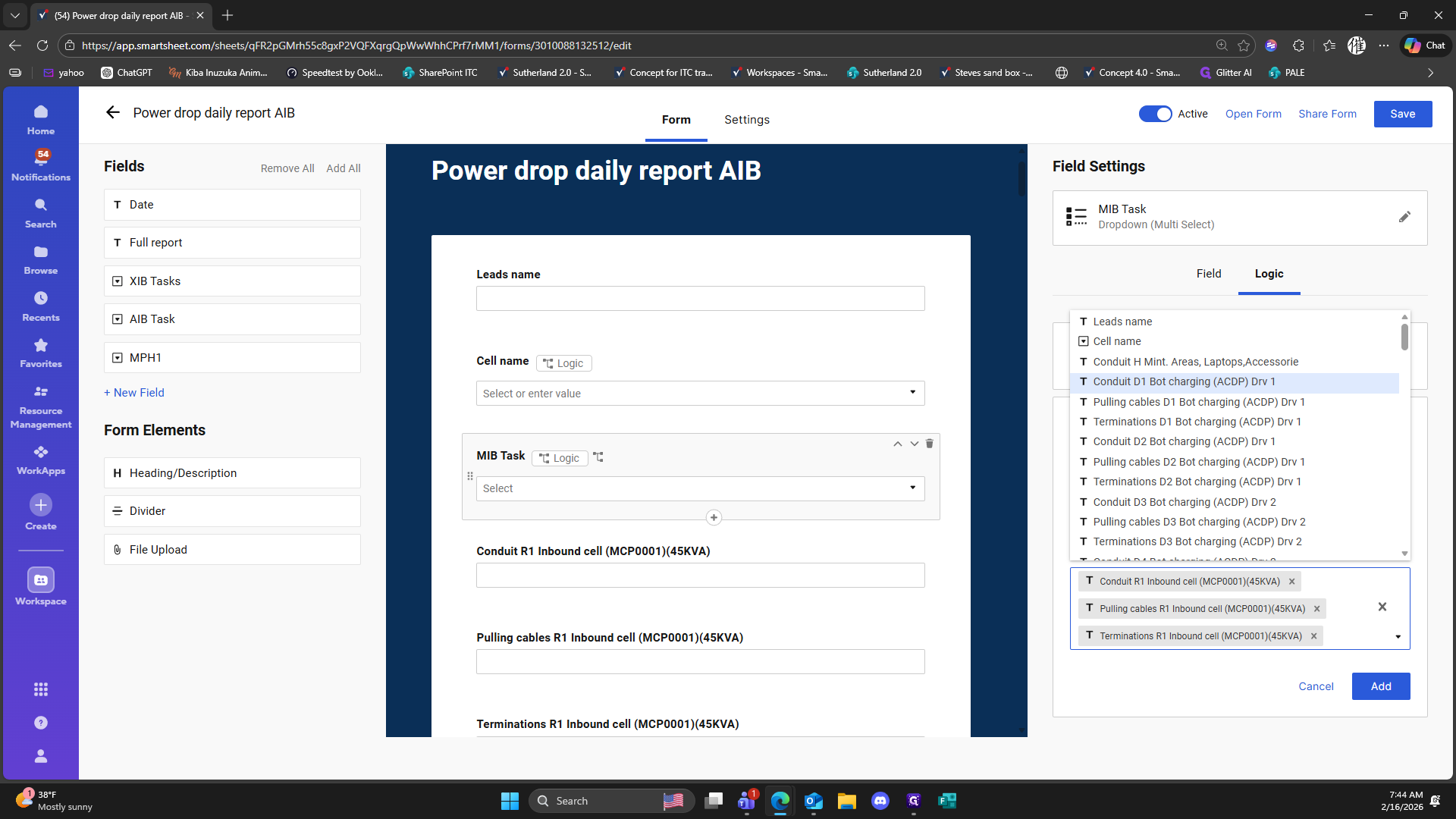
Click here
325
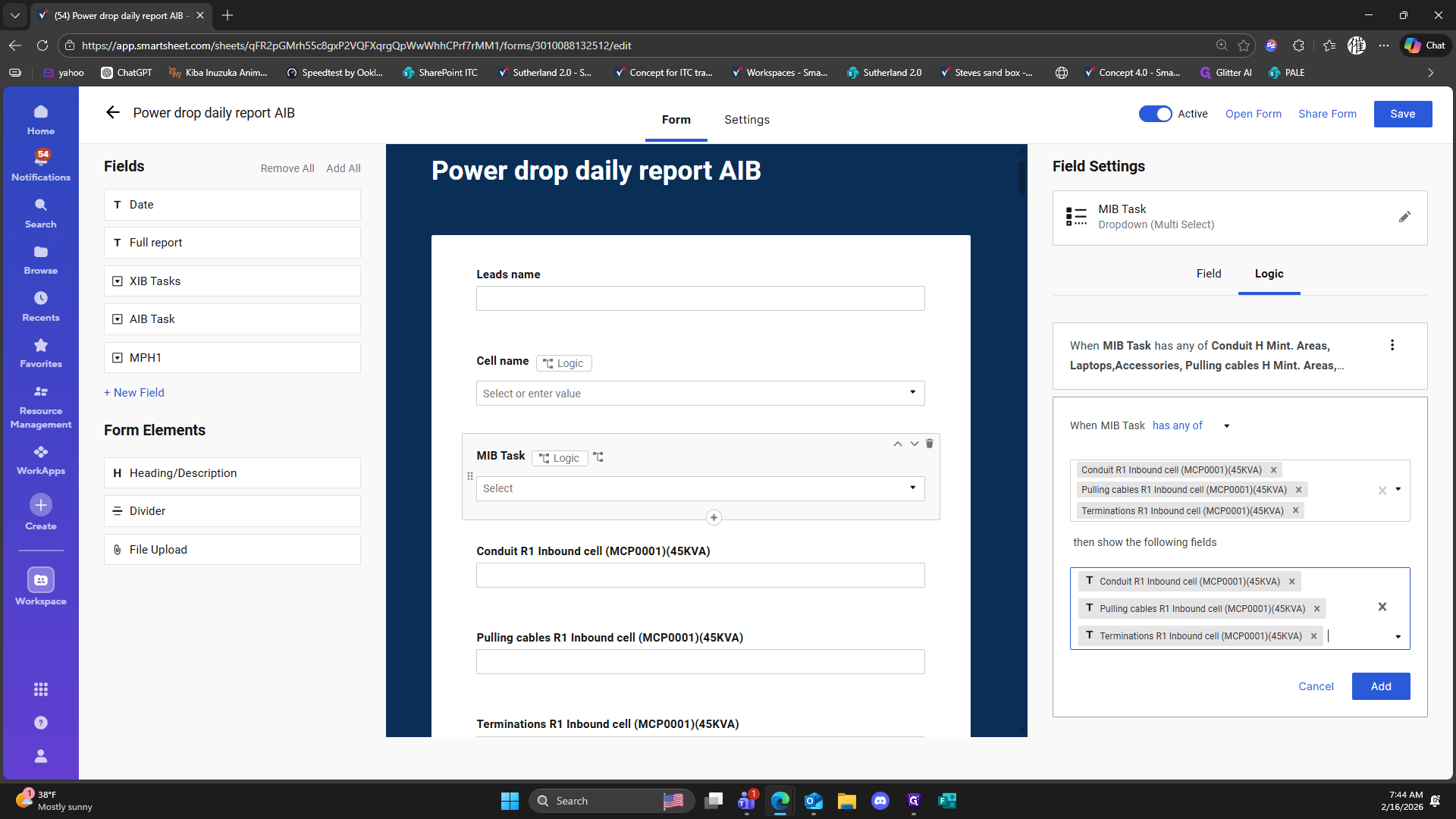
Click on "Add"
326
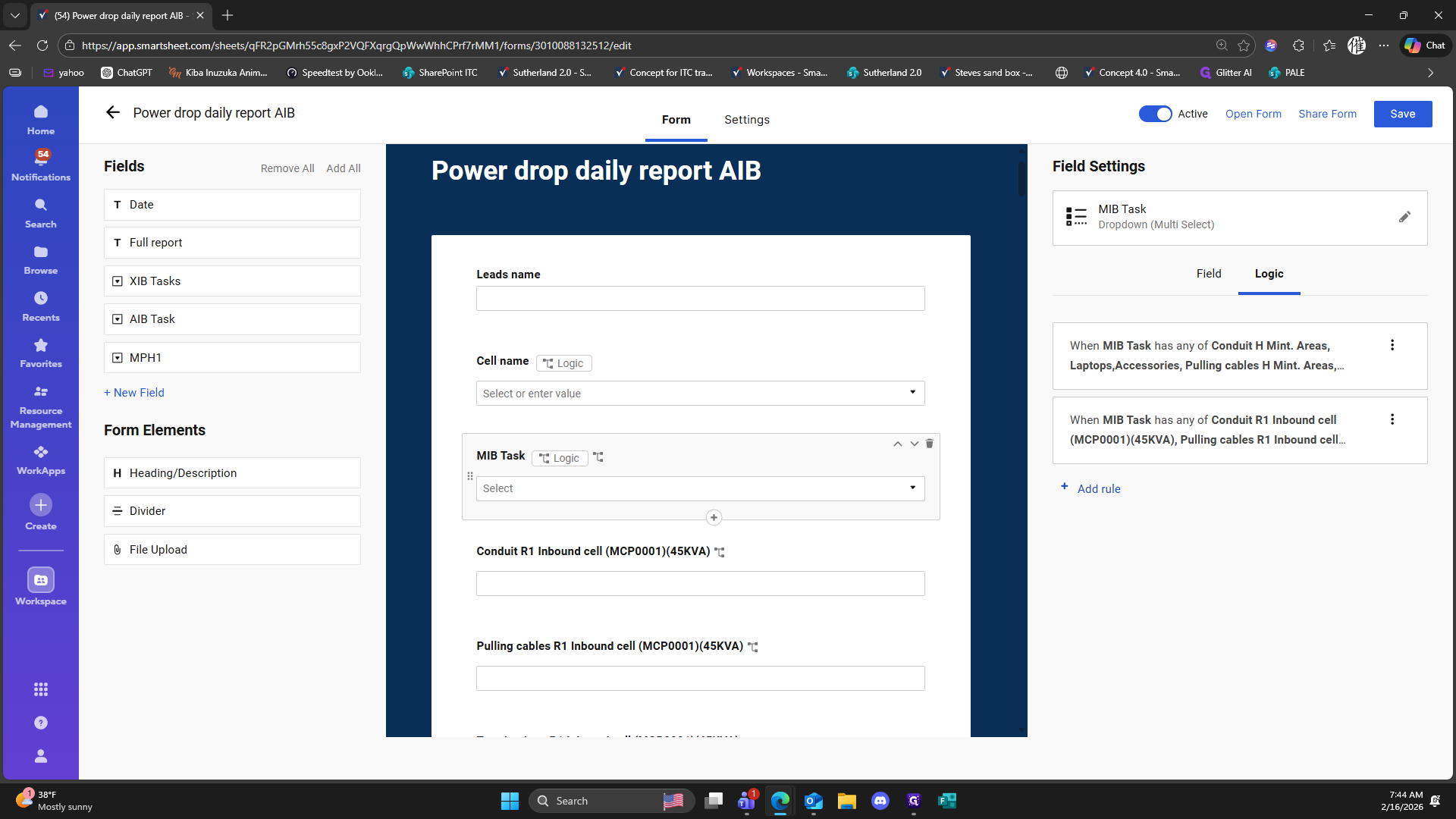
Double-click on "+ Add rule"
327
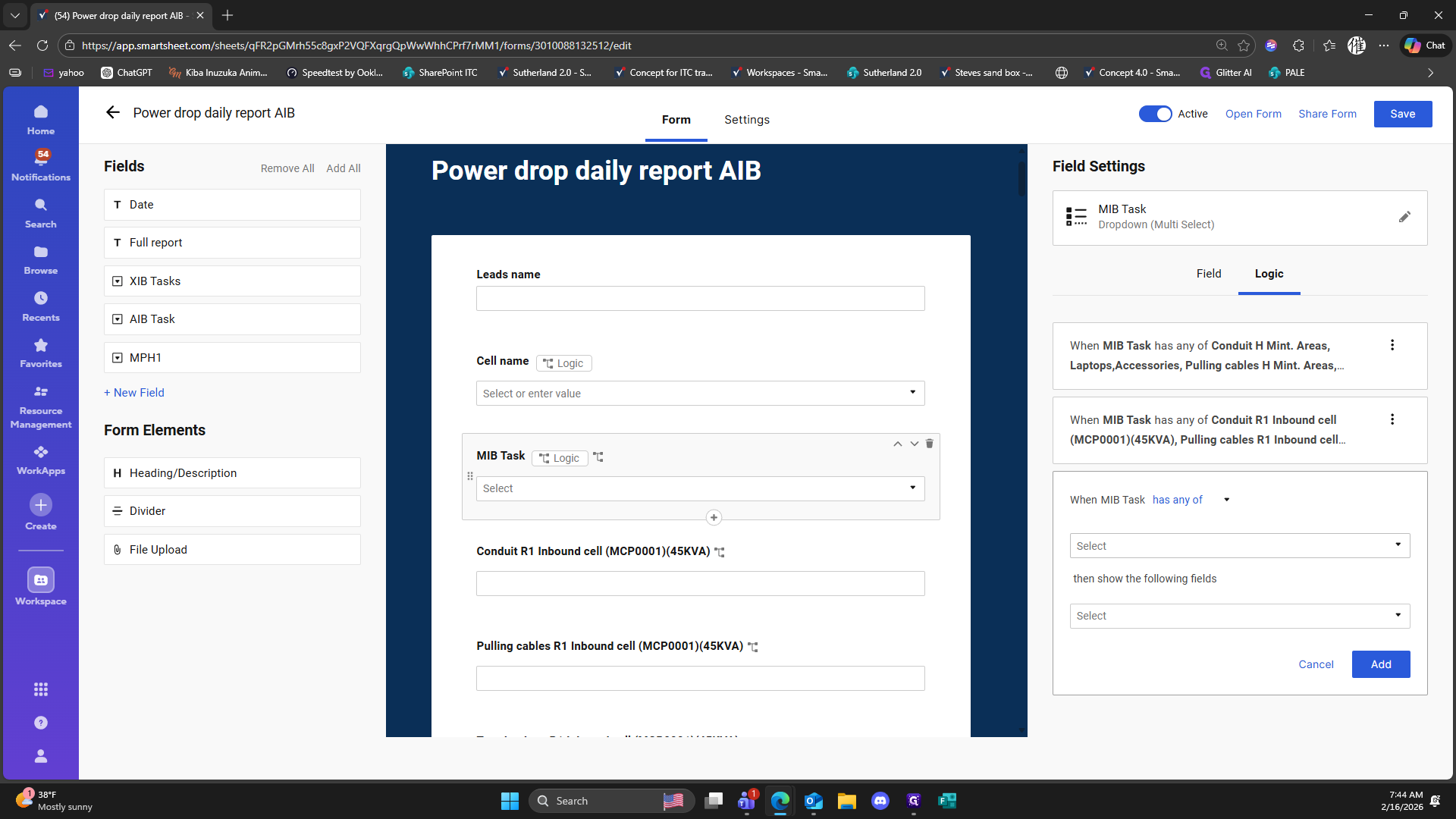
Click here
328
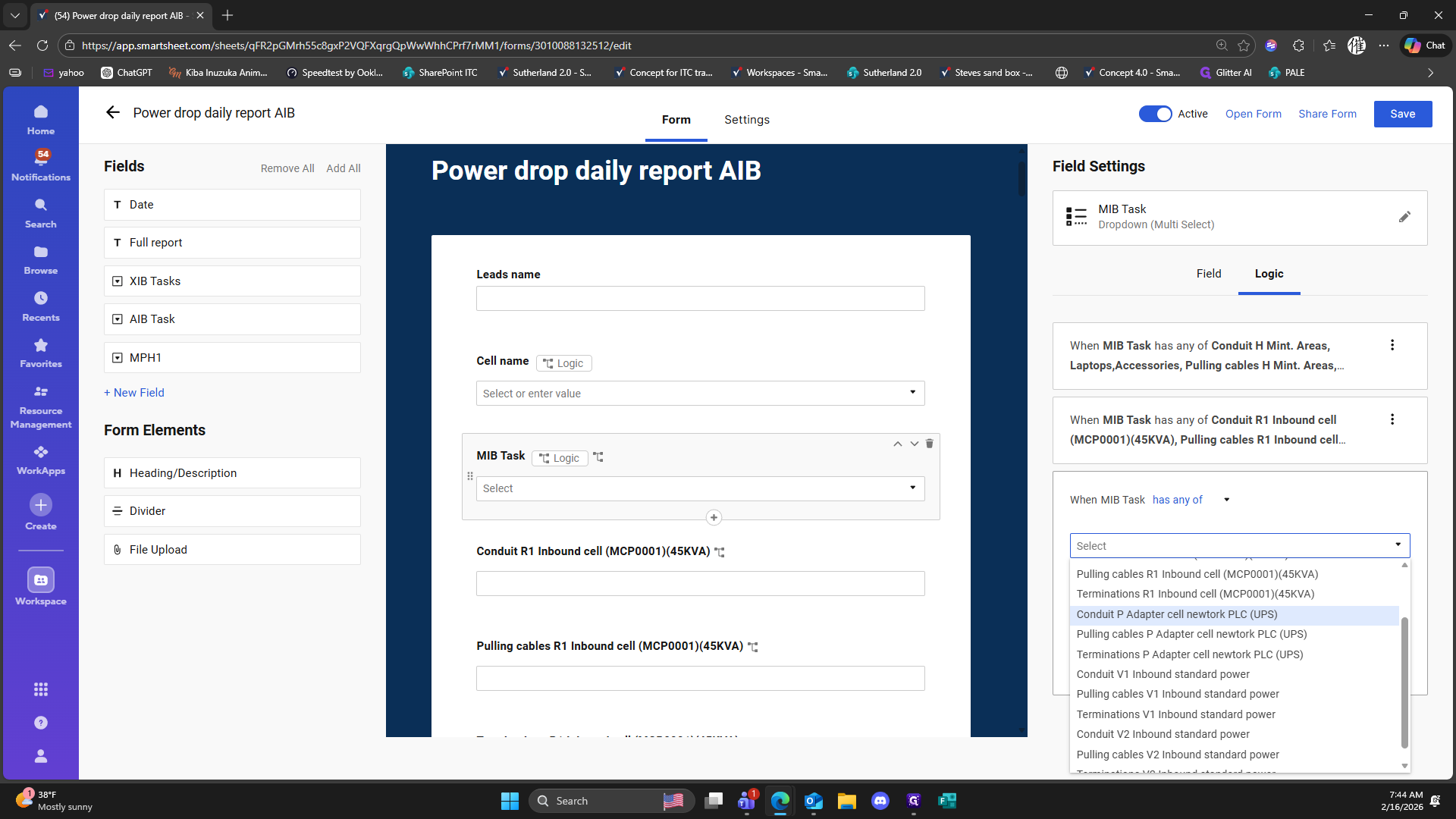
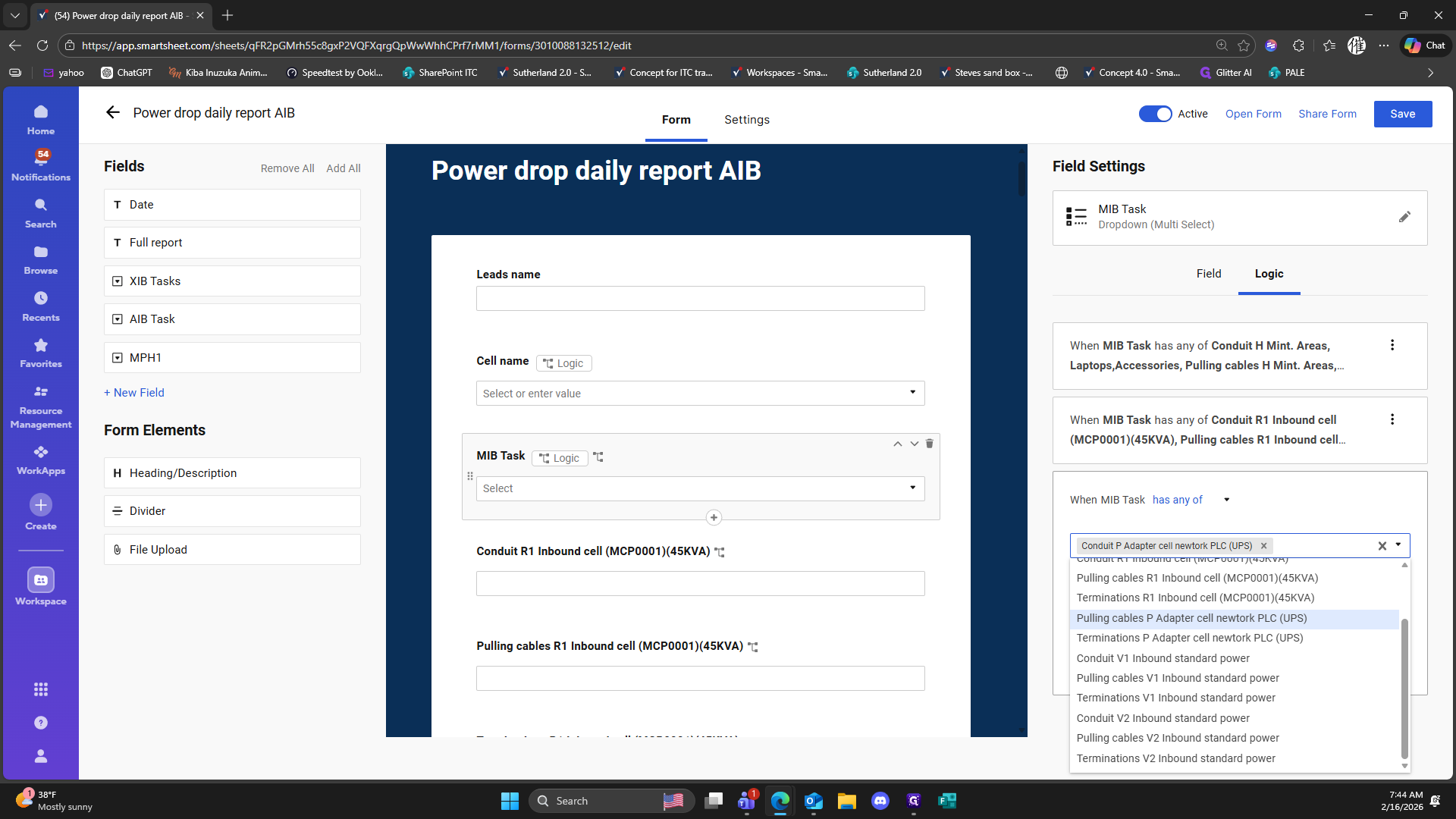
Click on "Conduit P Adapter cell newtork PLC ( UPS )"
329
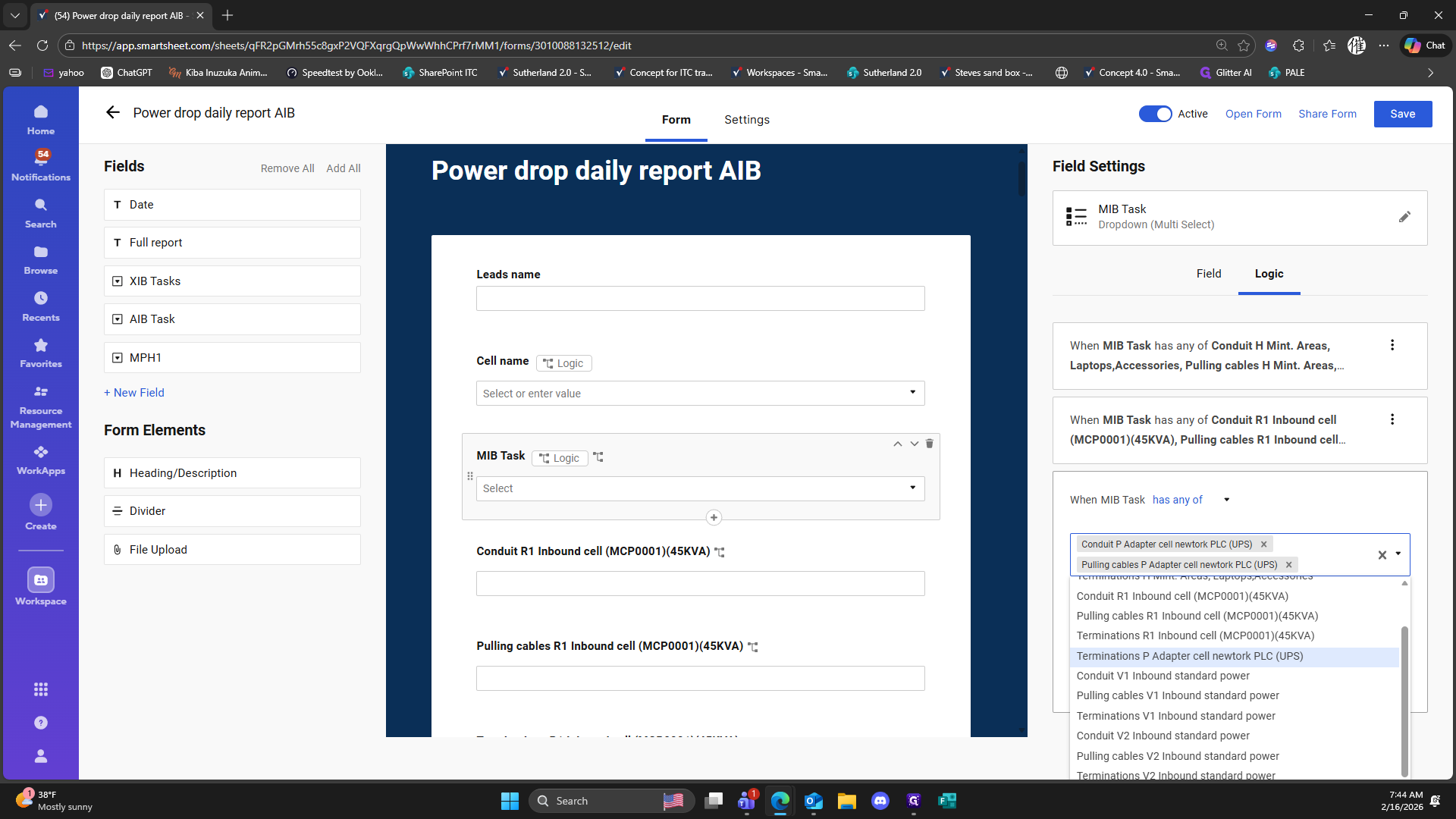
Click on "Pulling cables P Adapter cell newtork PLC ( UPS )"
330
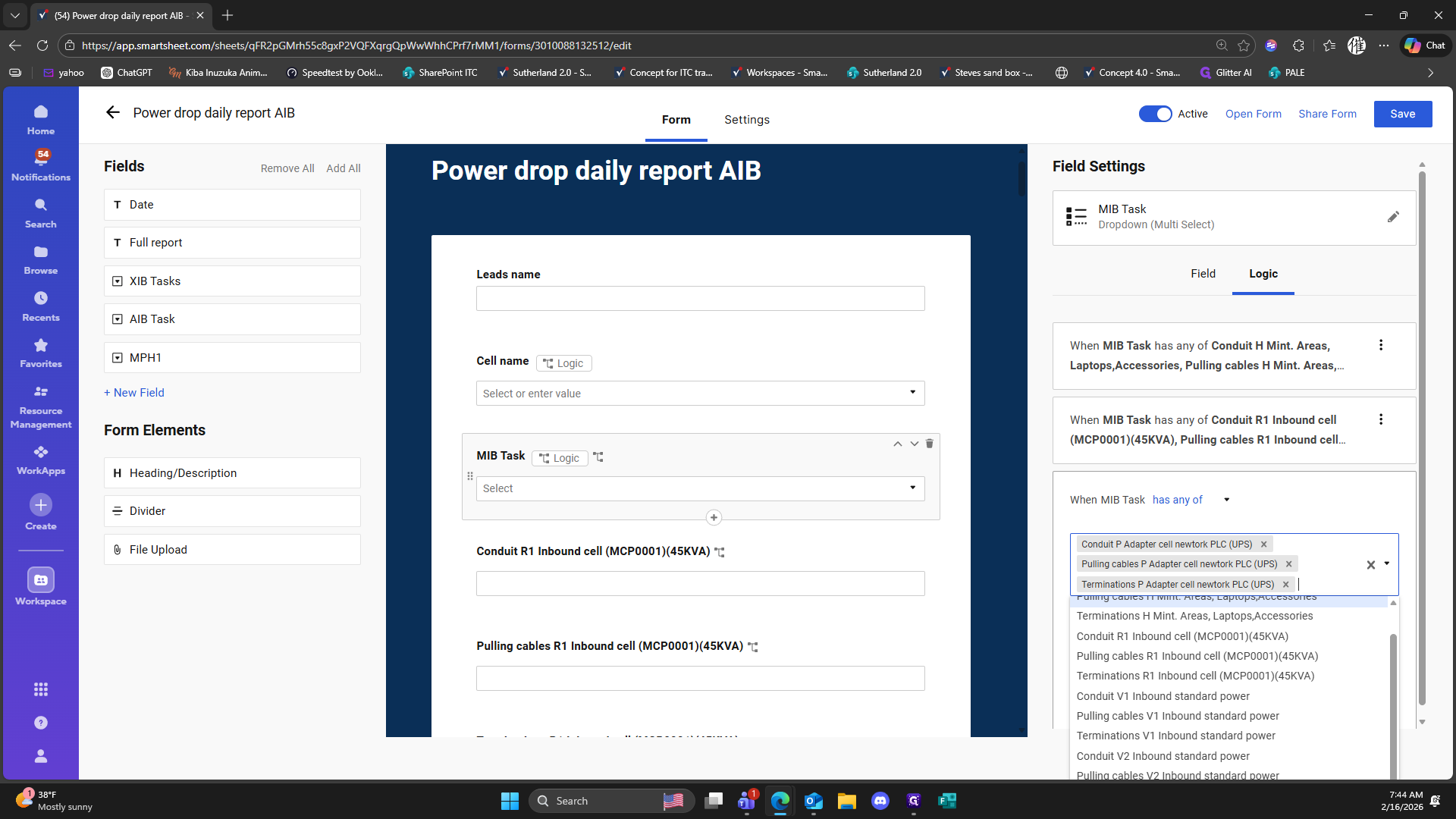
Click on "Terminations P Adapter cell"
331
Click here
332
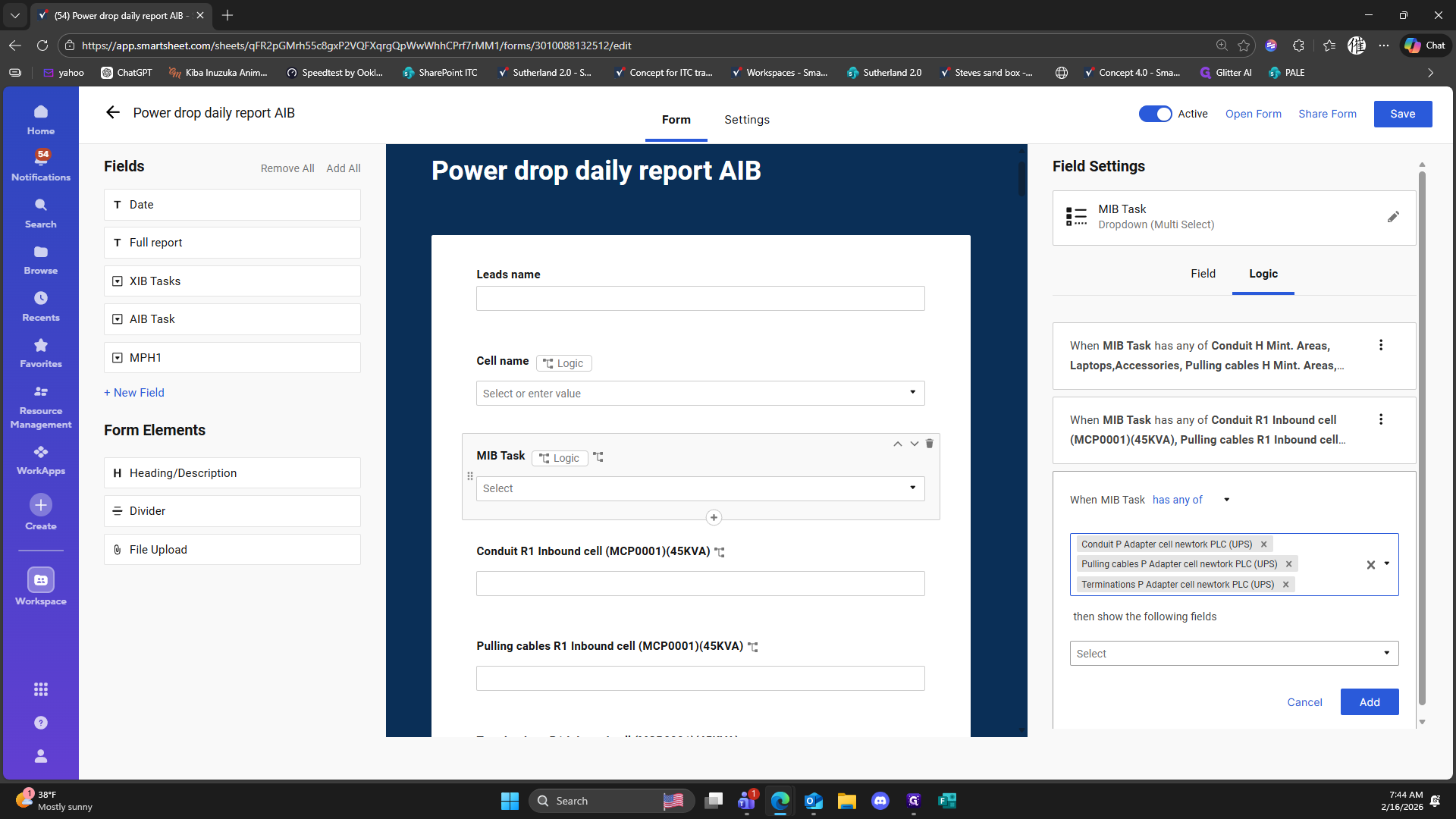
Click here
333
Click on "newtork PLC ( UPS )"
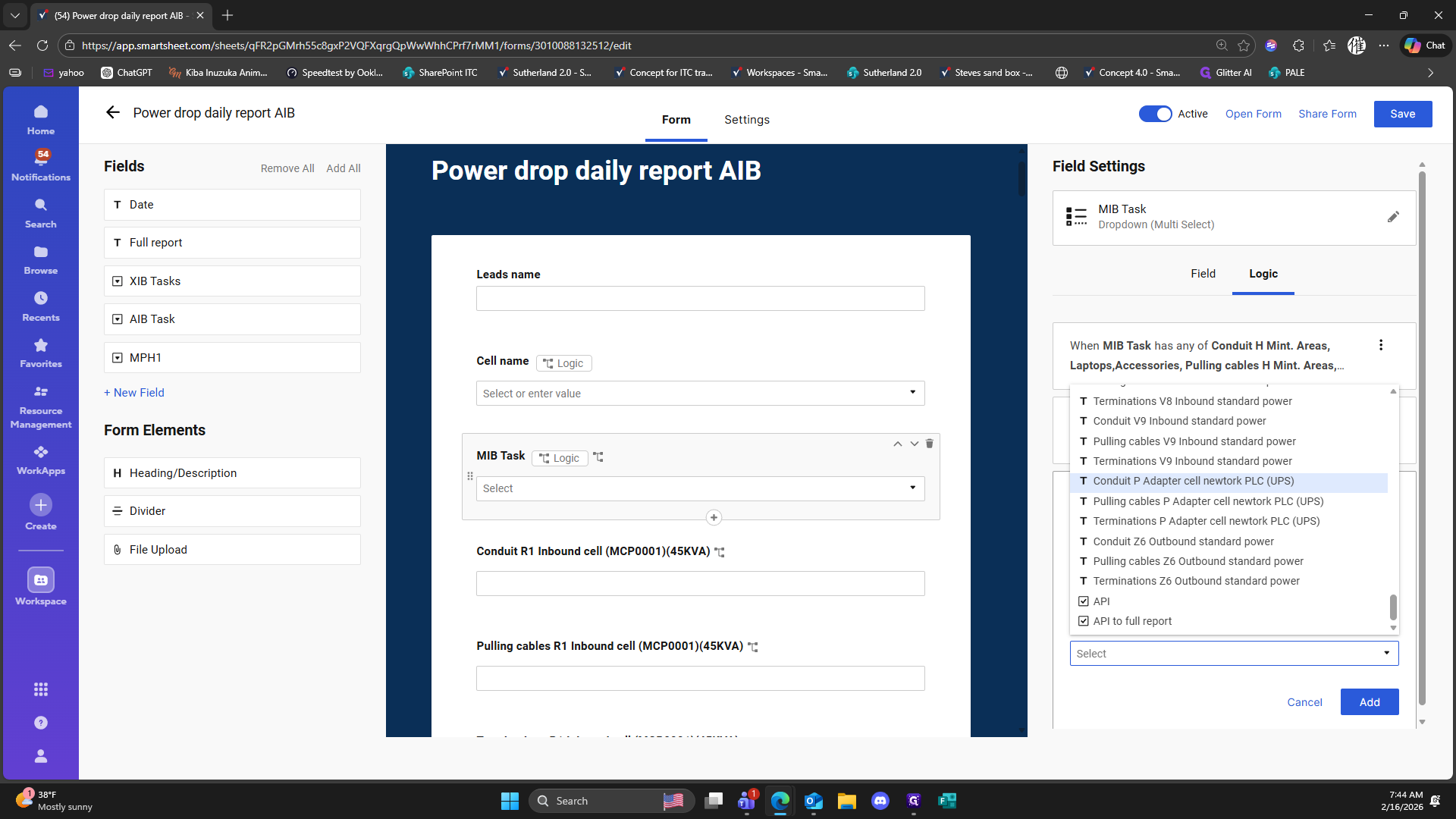
334
Click on "T Pulling cables P Adapter cell"
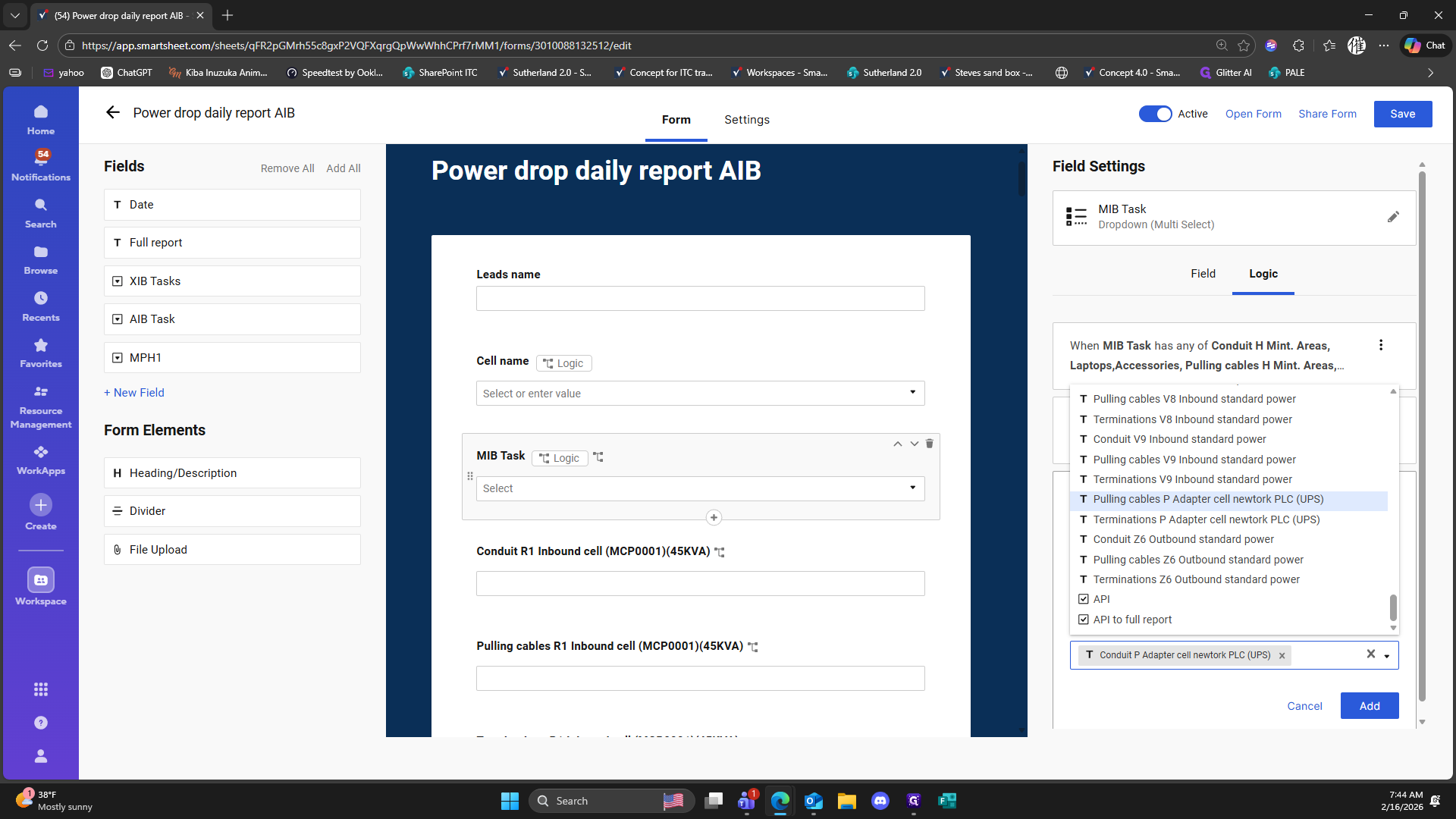
335
Click on "T Terminations P Adapter cell newtork PLC ( UPS )"
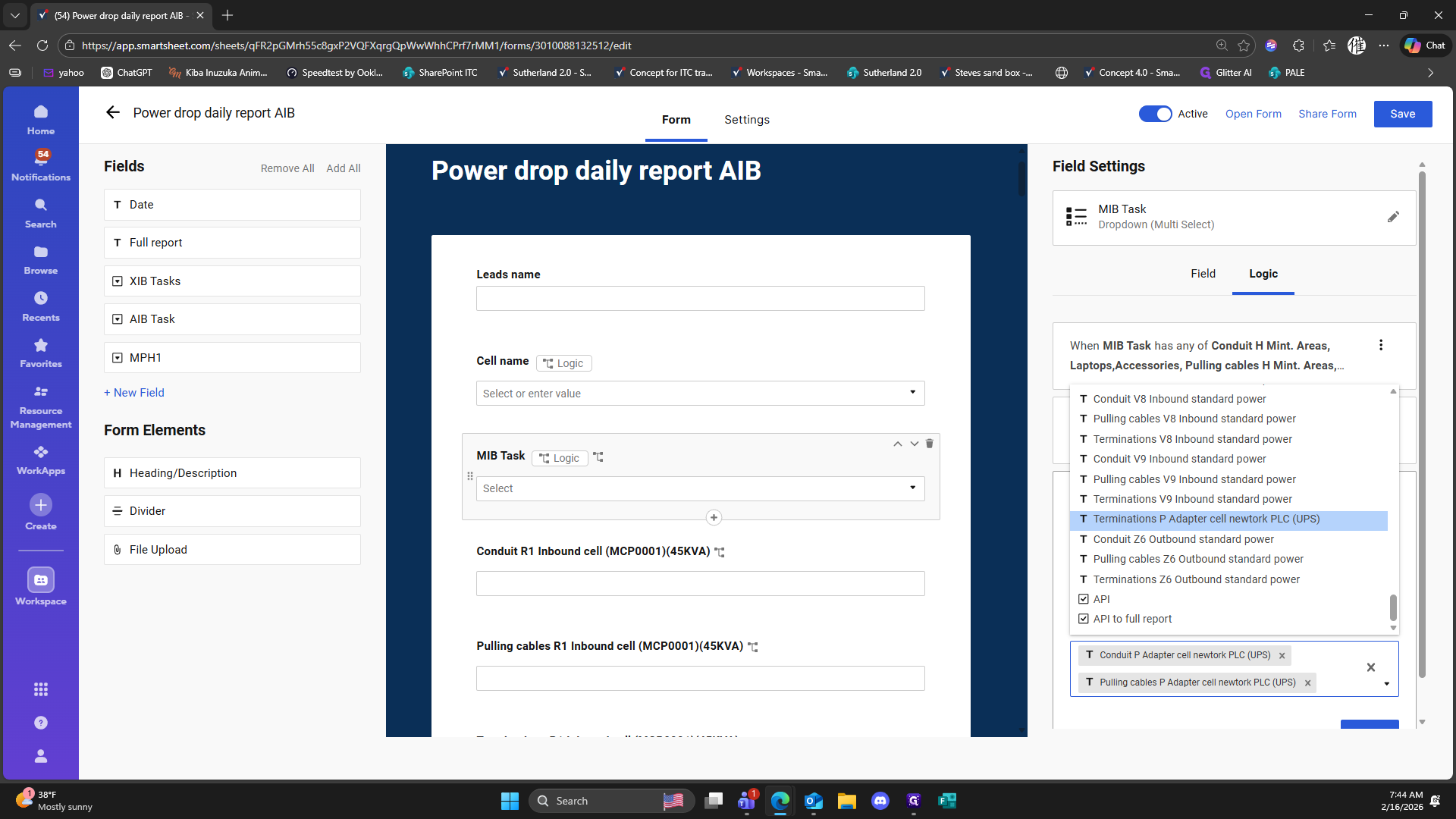
336
Click here
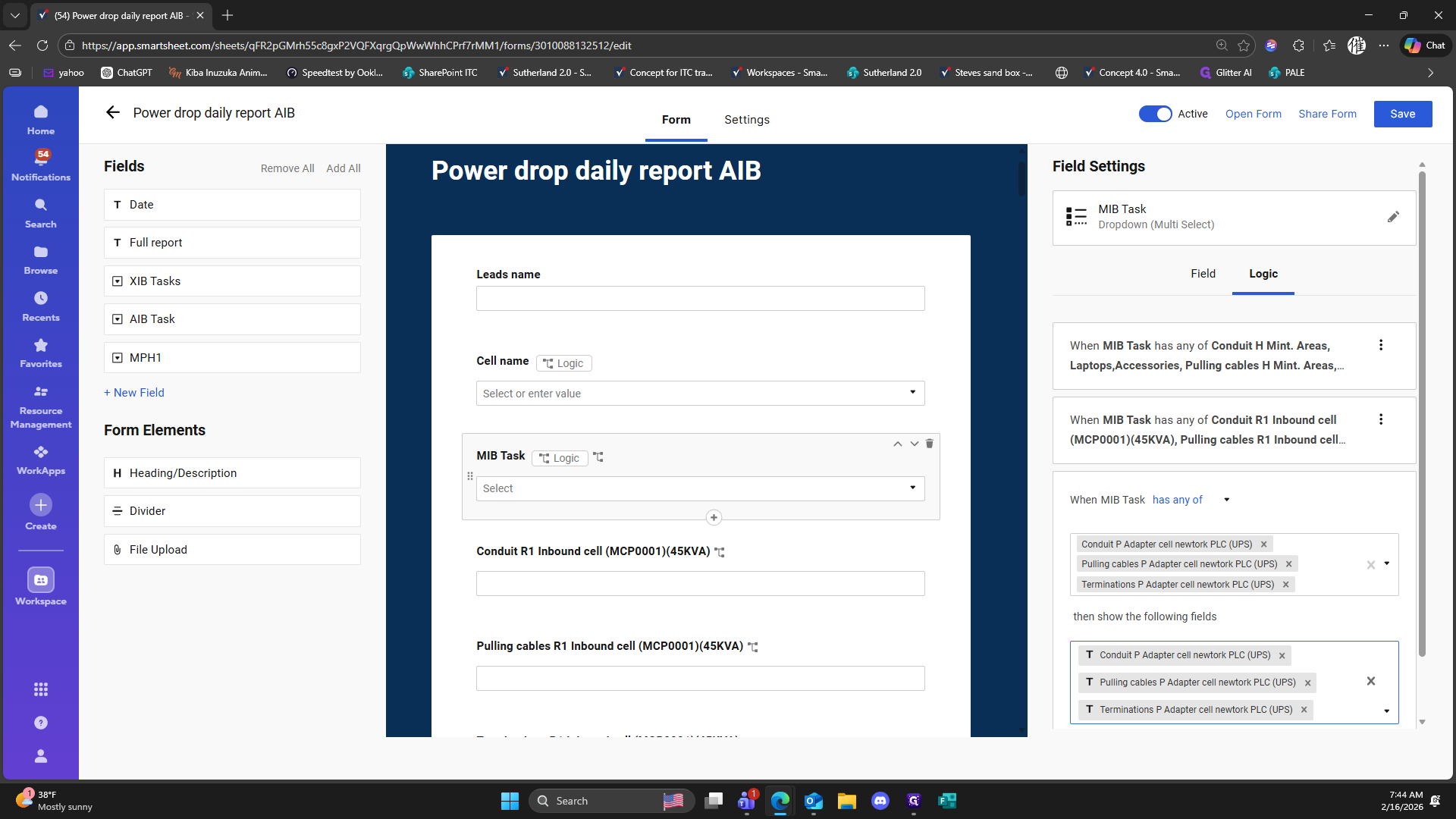
337
Click on "Add"
338
Click on "Add rule"
339
Double-click here
340
Click on "Conduit V1 Inbound standard power"
341
Click on "Pulling cables V1 Inbound standard power"
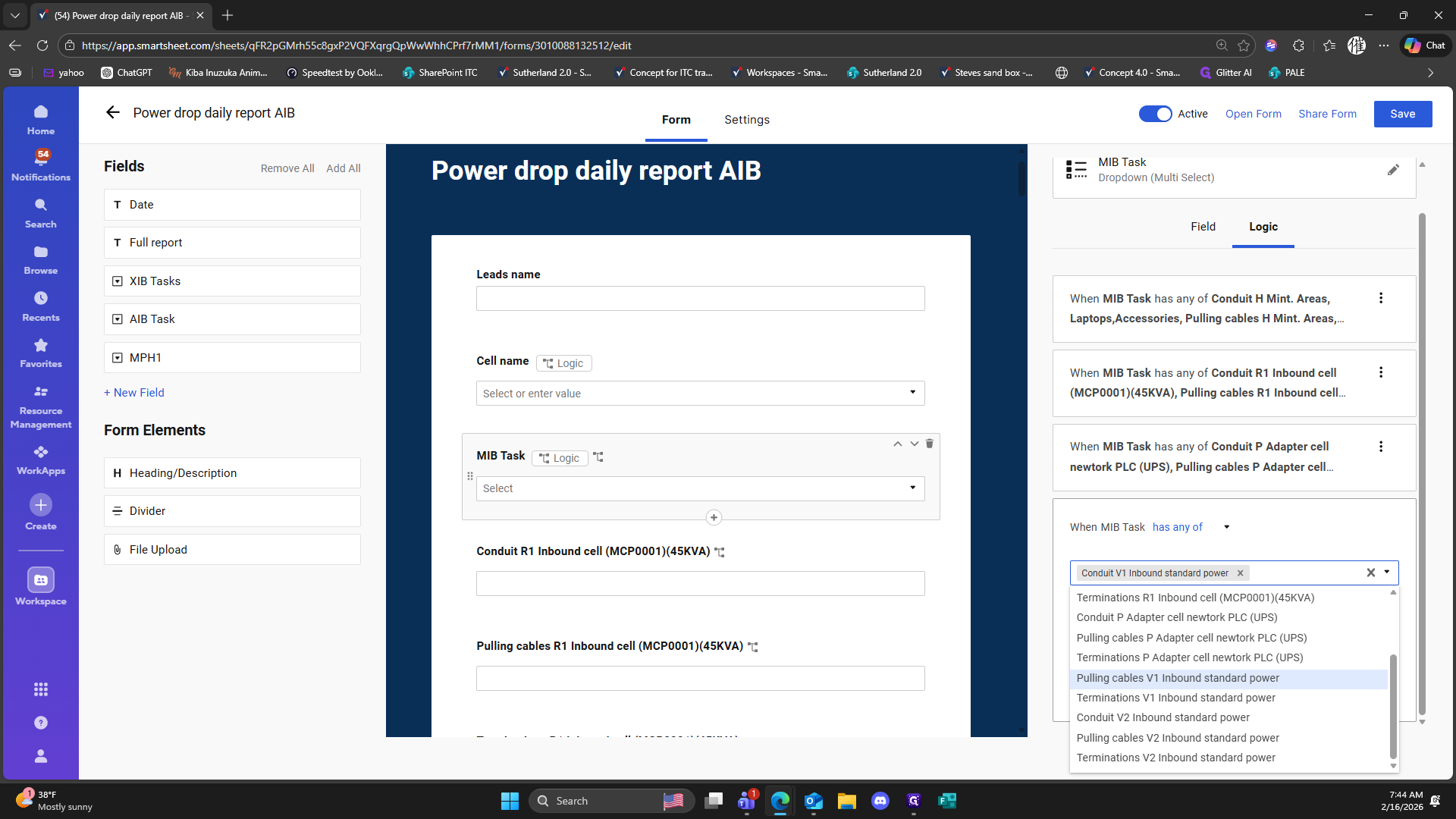
342
Double-click here
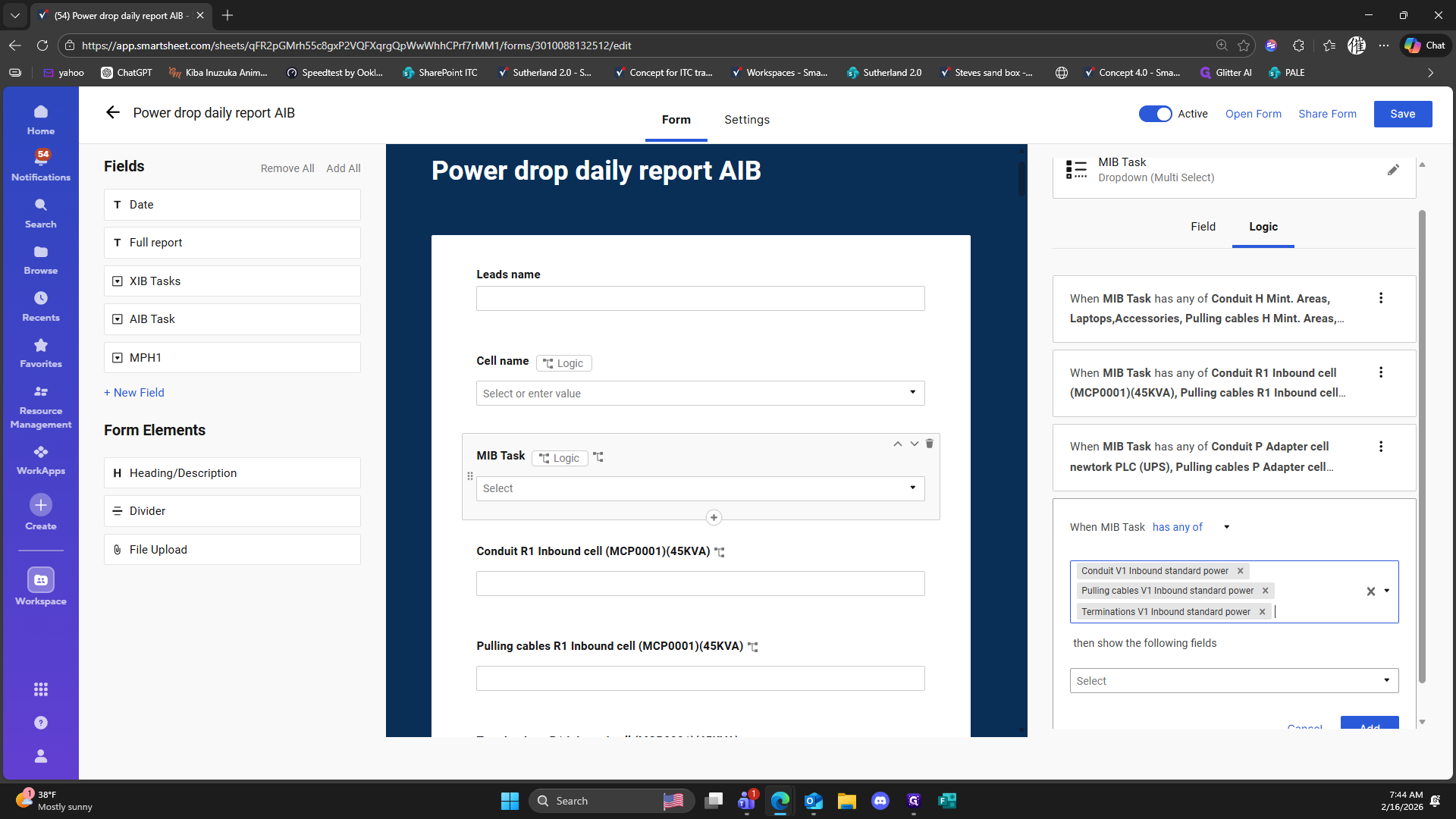
343
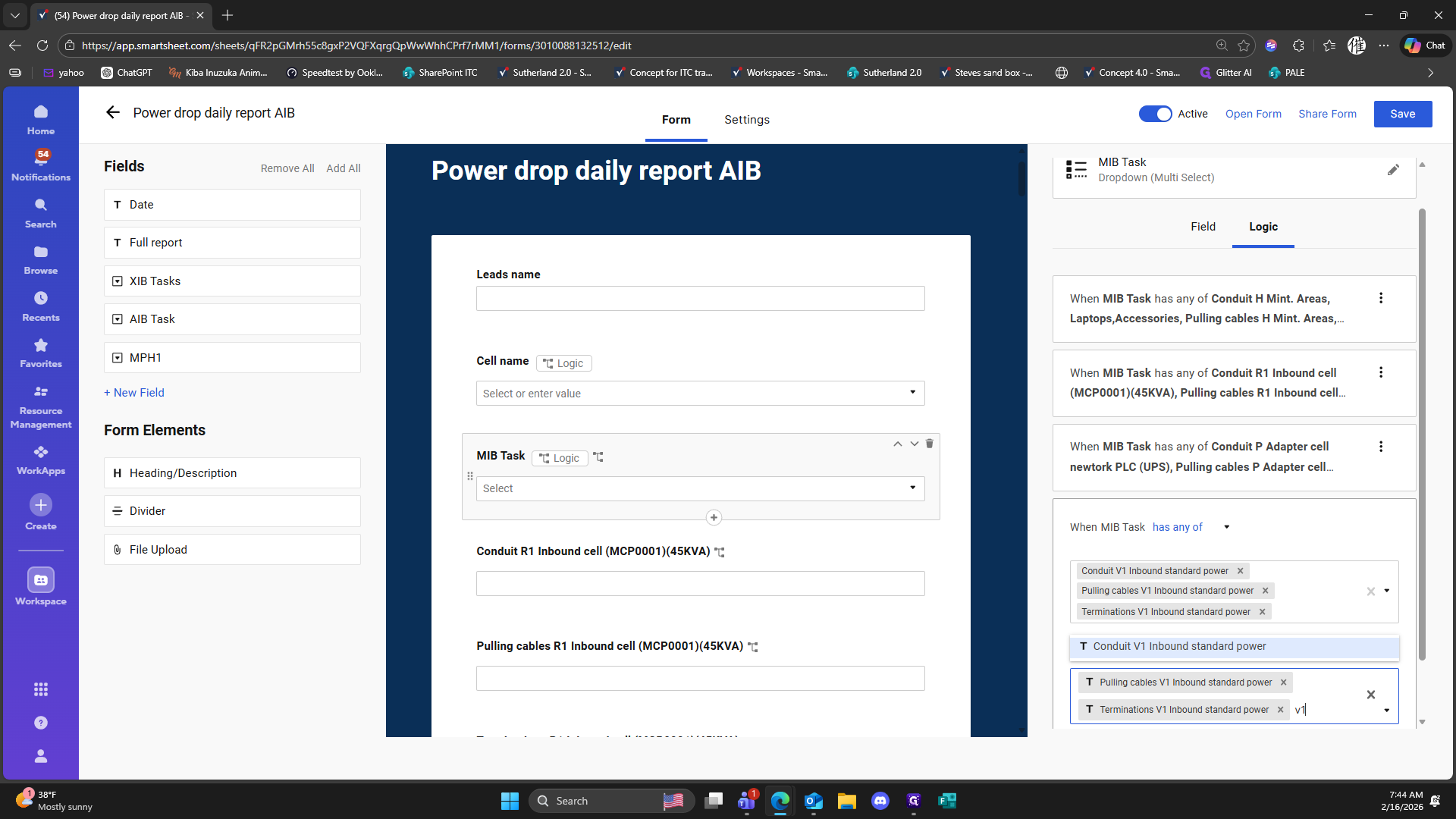
Type "v1"
344
Click on "T Terminations V1 Inbound standard power"
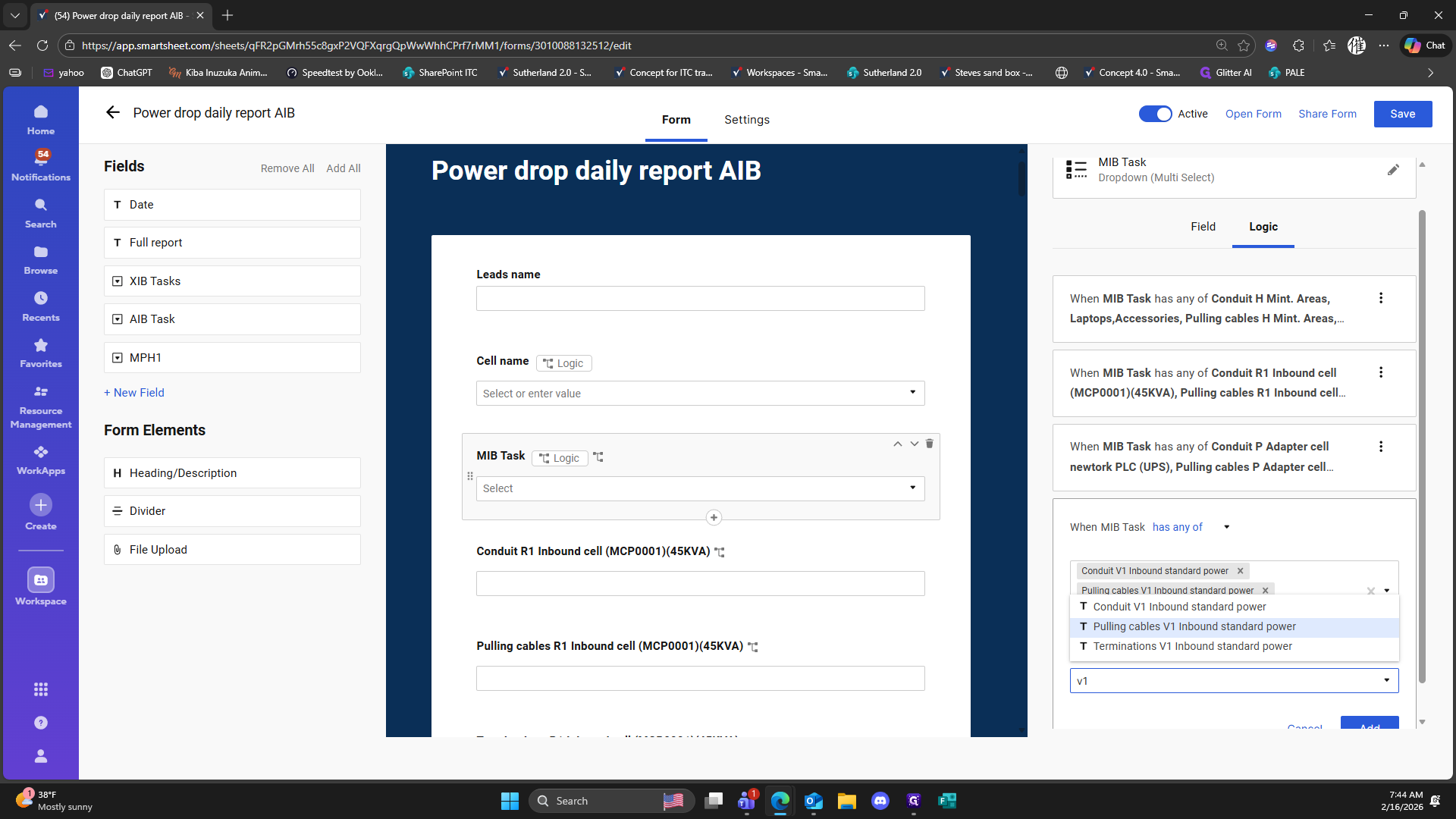
345
Type "v1"
346
Click on "T Terminations V1 Inbound standard power"
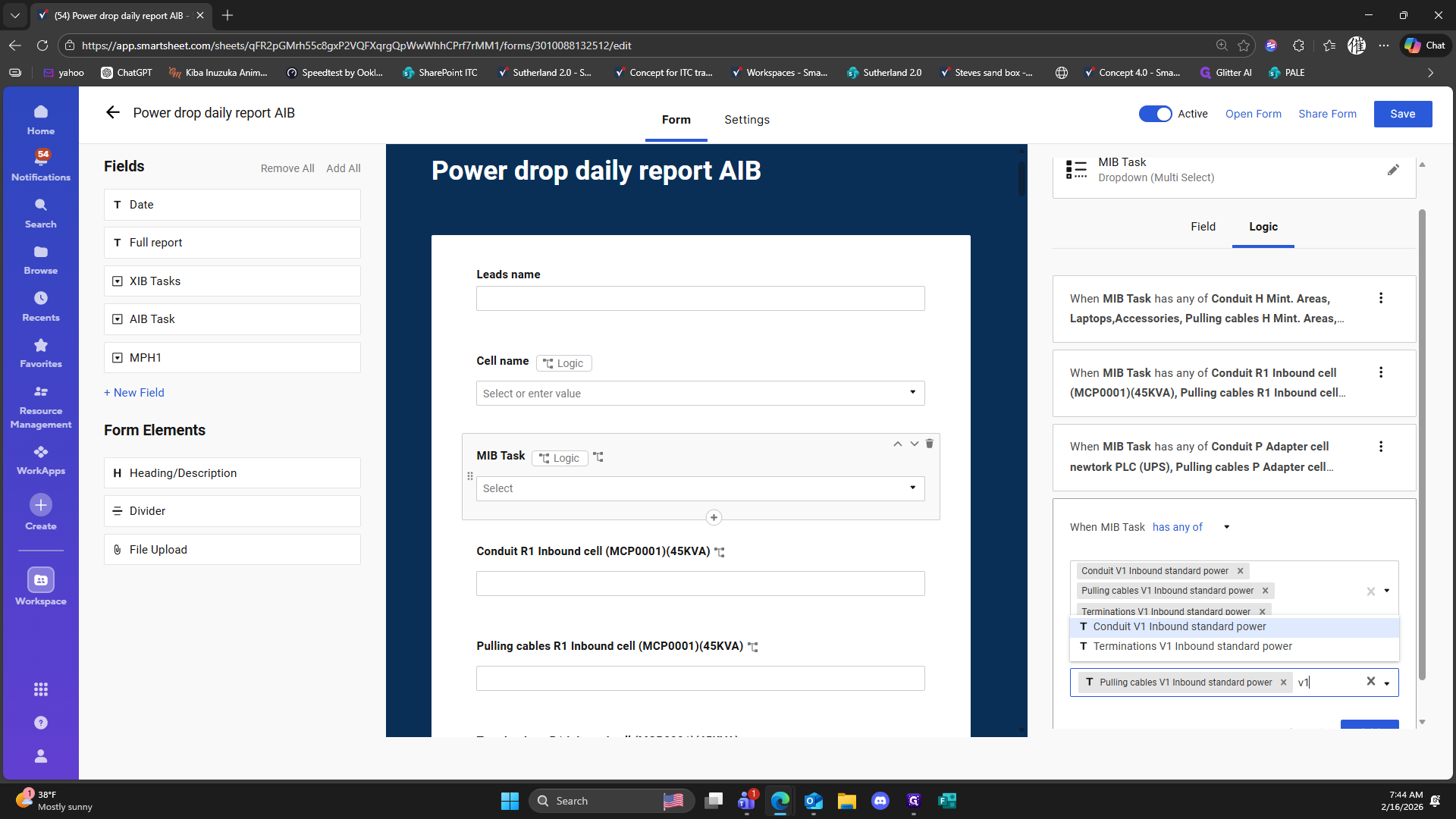
347
Type "1"
348
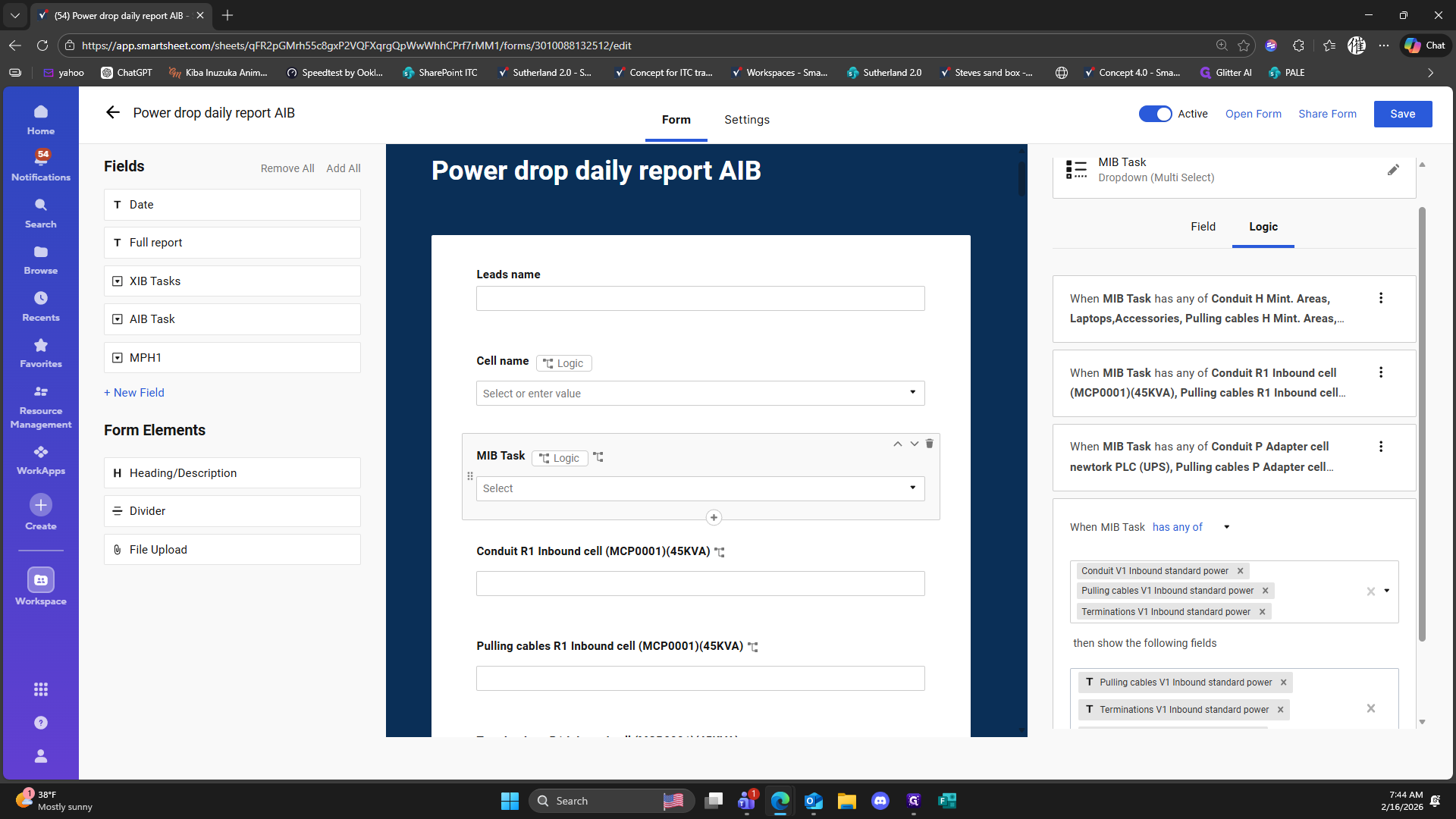
Click on "T Conduit V1 Inbound standard power"
349
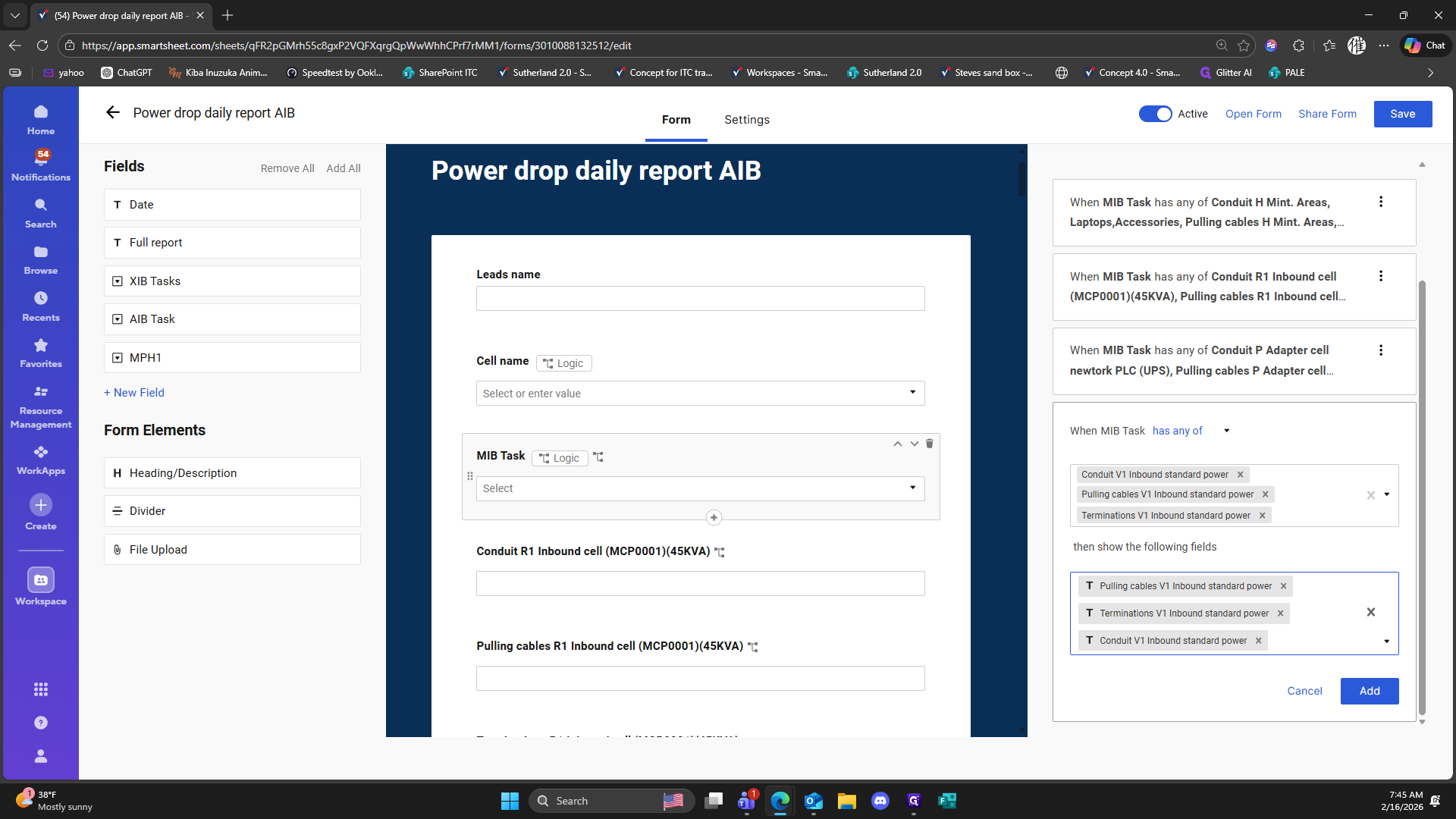
Click here
350
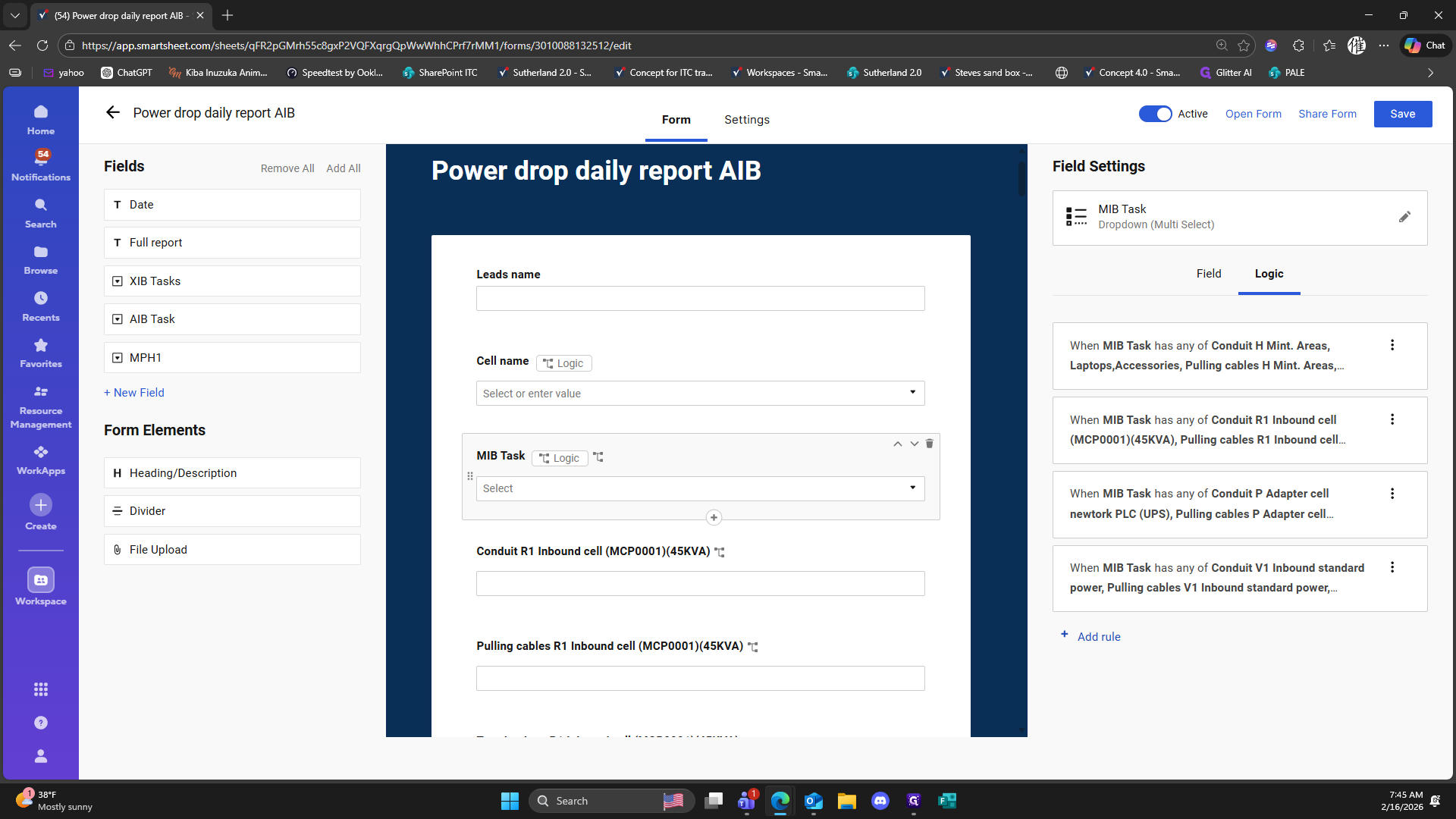
Click on "Add"
351
Click on "Add rule"
352
Click here
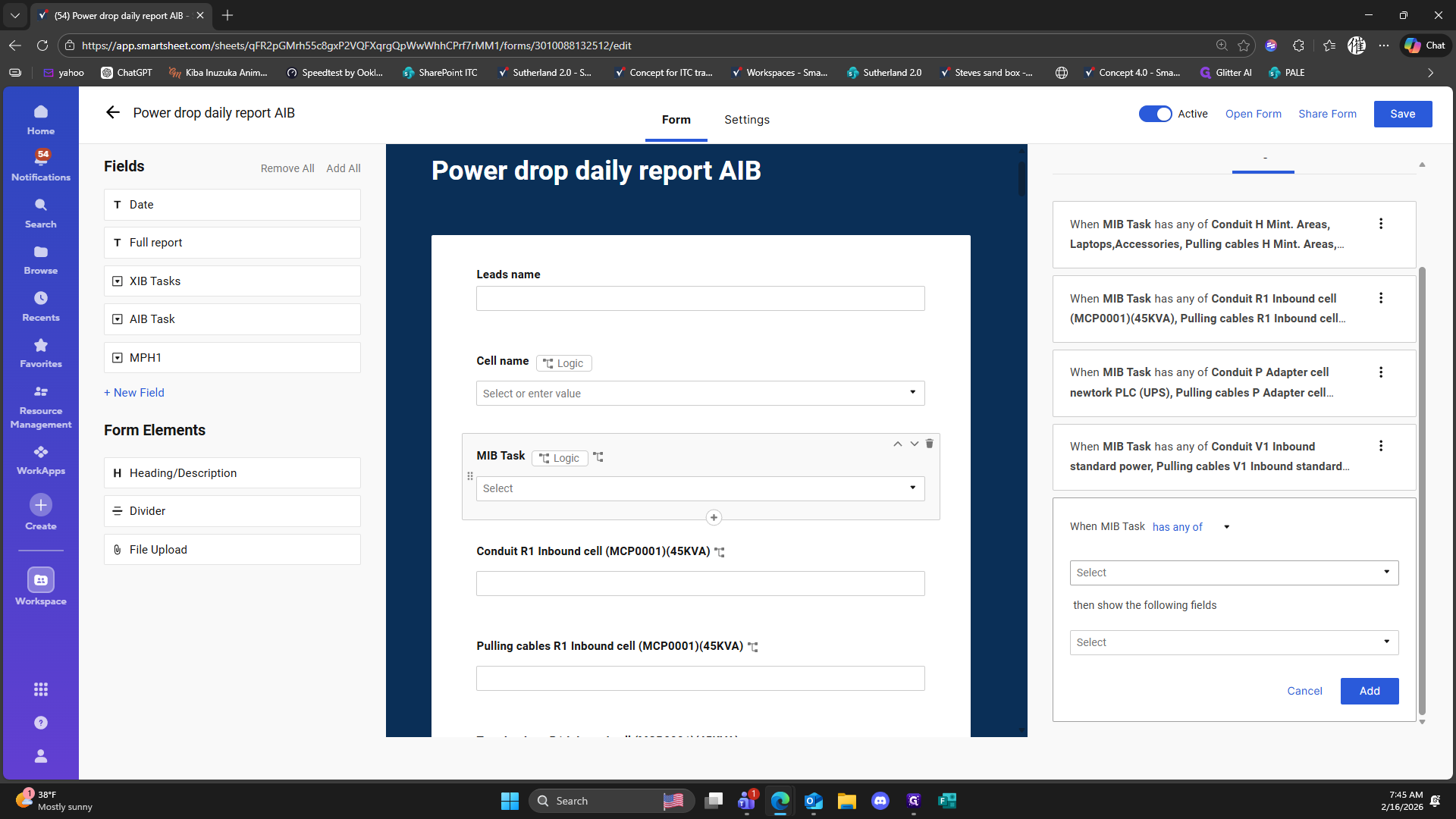
353
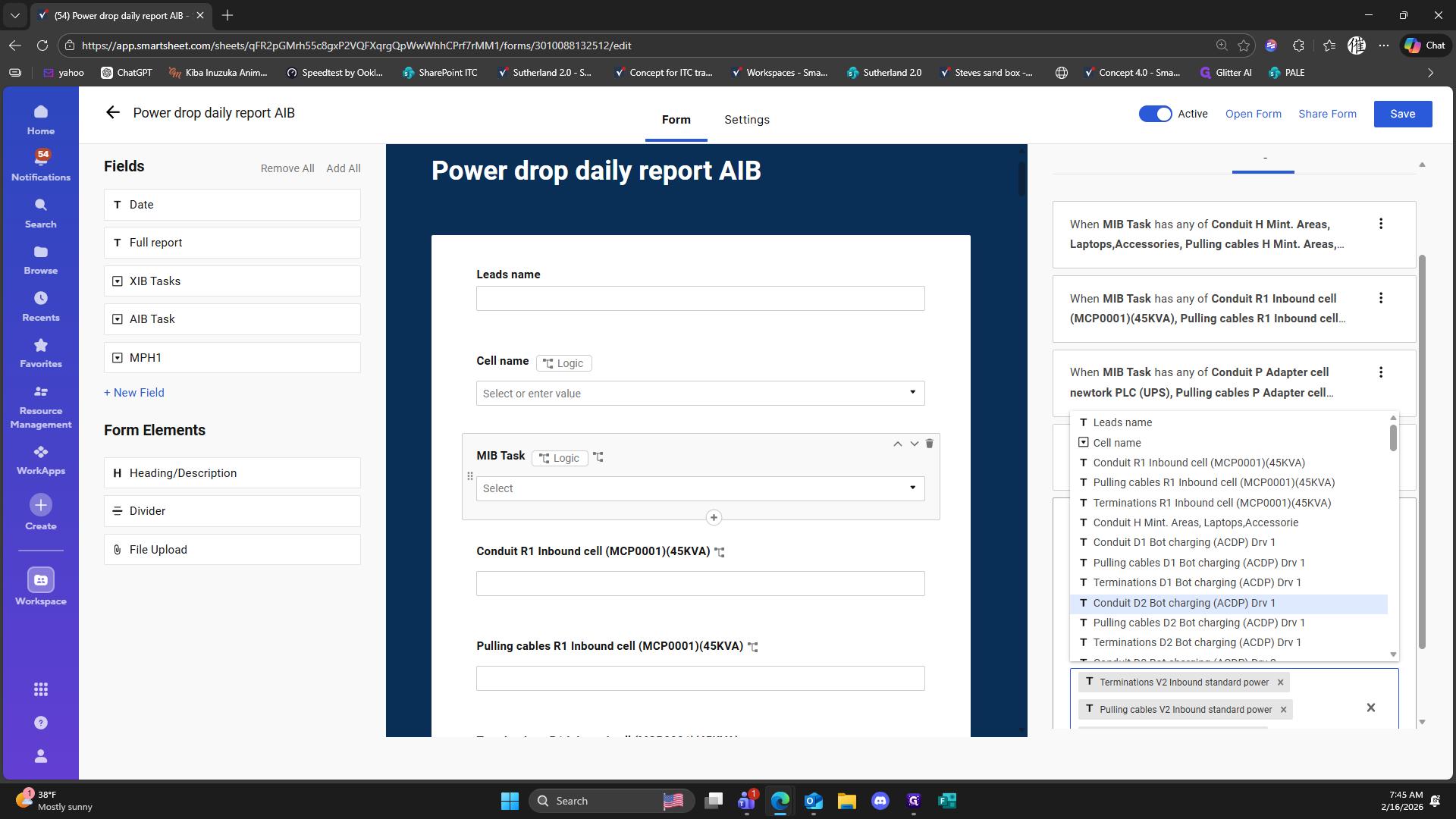
Click on "Pulling cables V2 Inbound standard power"
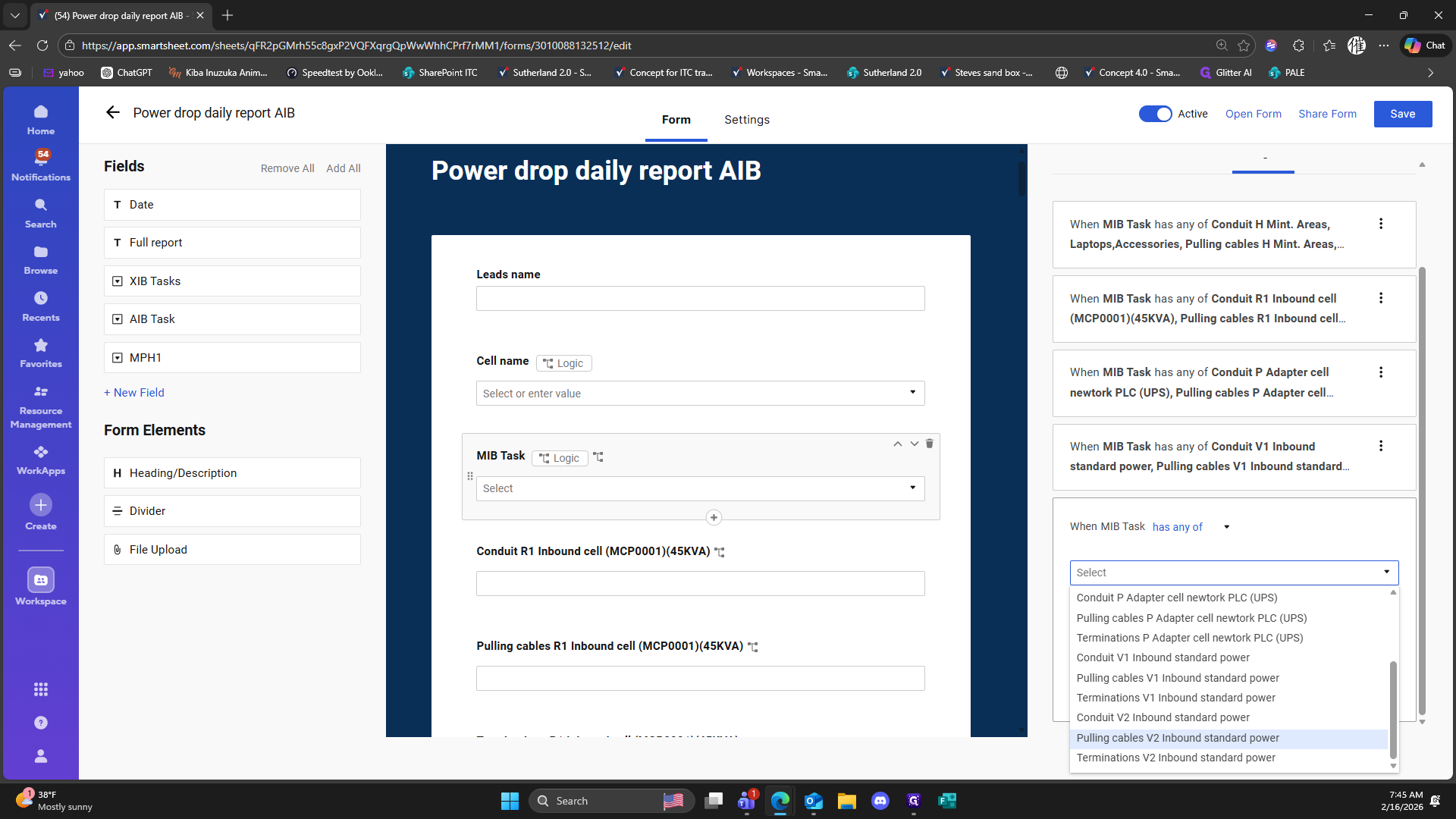
354
Click on "Terminations V2 Inbound standard power"
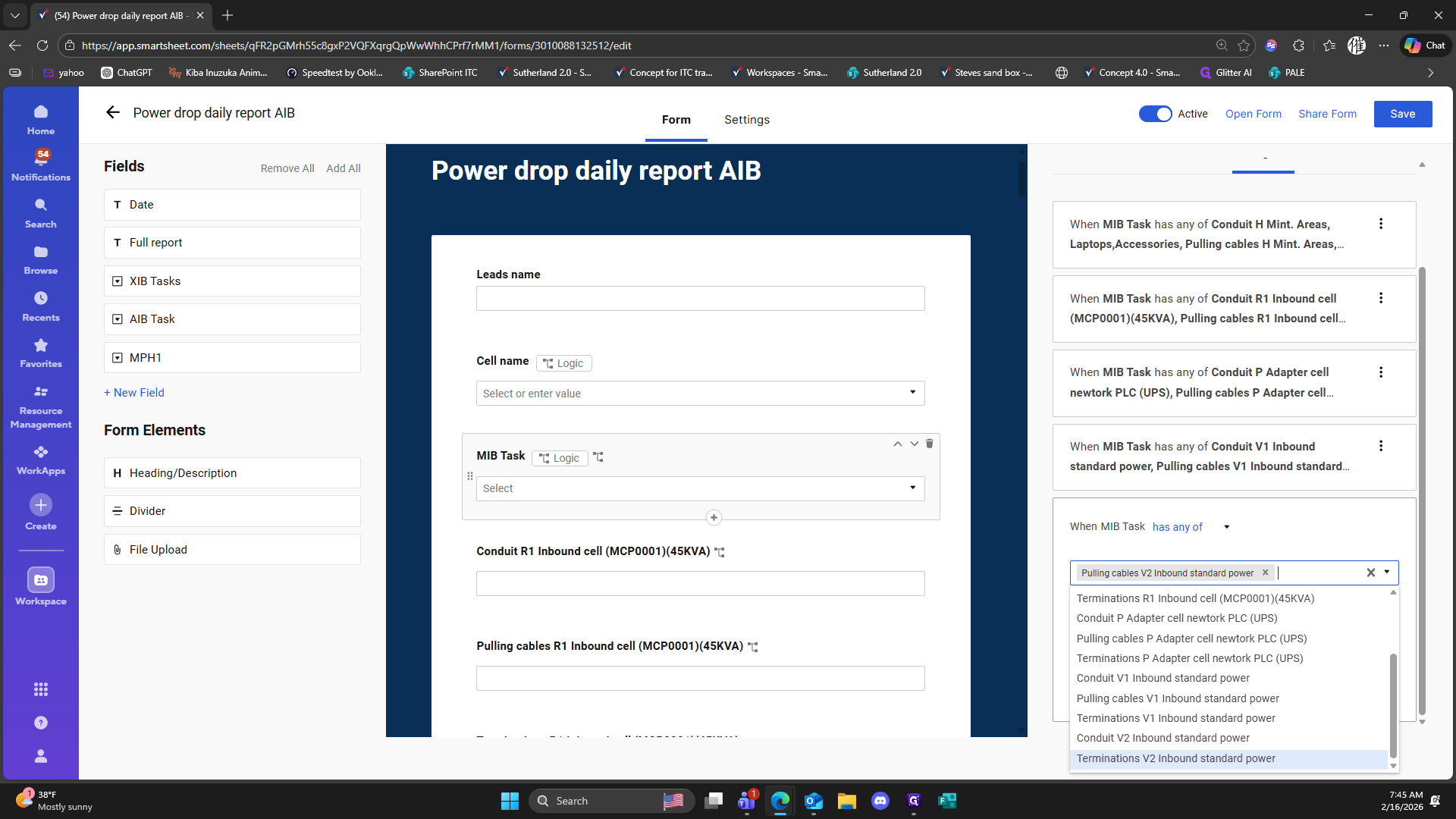
355
Click on "Terminations V1 Inbound standard power"
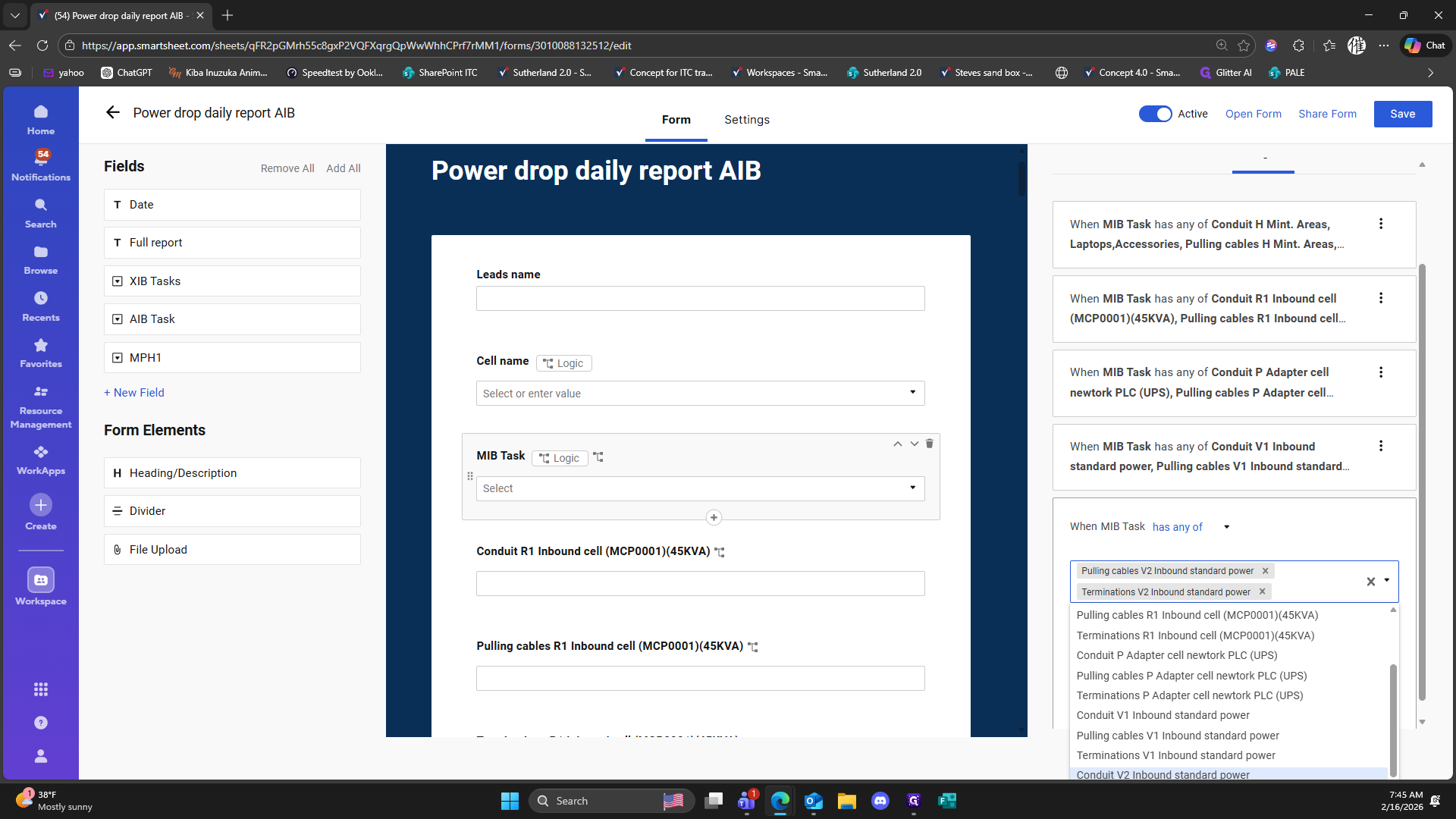
356
Double-click here
357
Type "v2"
358
Click on "T Terminations V2 Inbound standard power"
359
Type "2"
360
Click on "T Pulling cables V2 Inbound standard power"
361
Type "v2"
362
Click on "T Conduit V2 Inbound standard power"
363
Click here
364
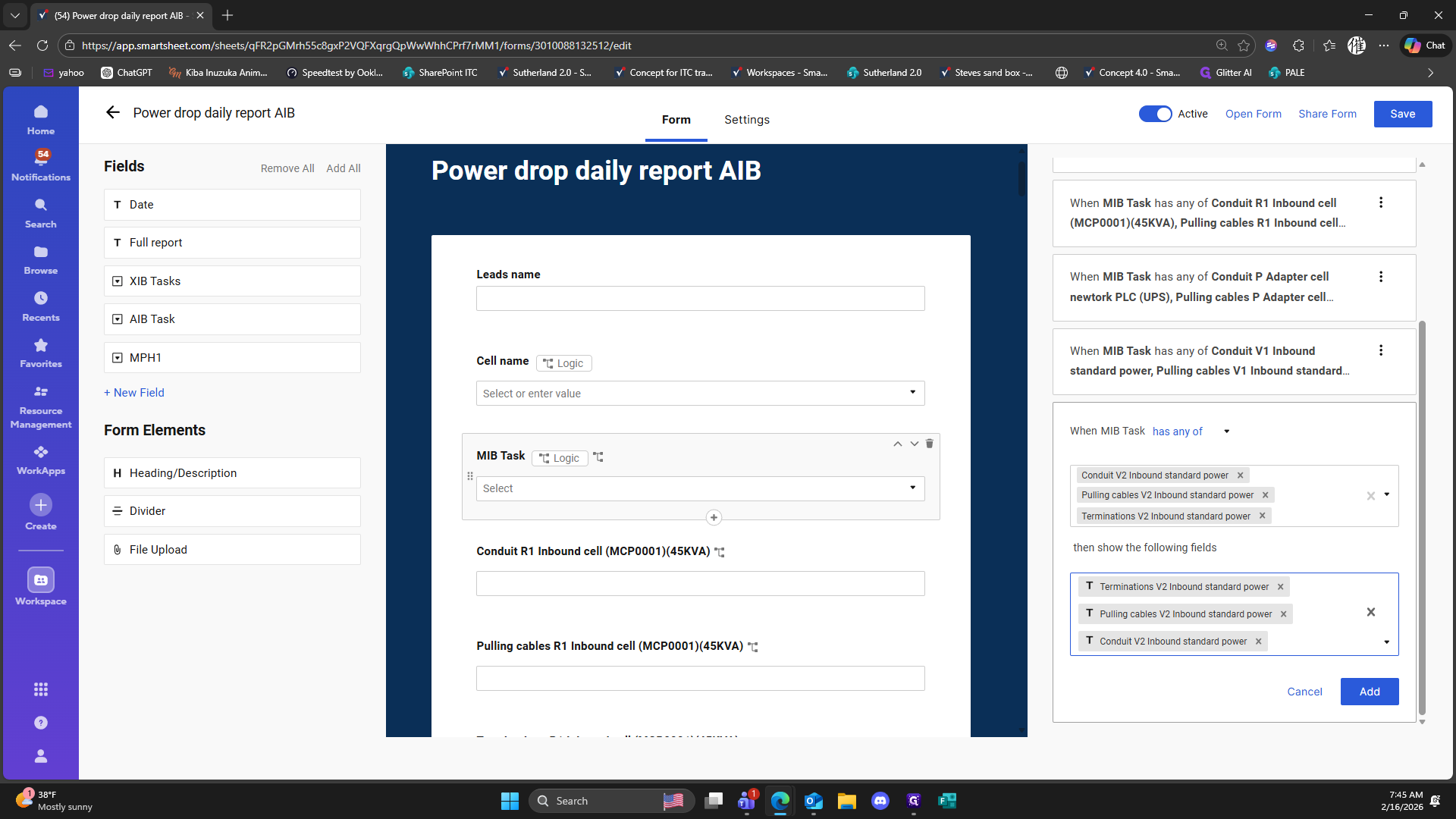
Click on "Add"
365
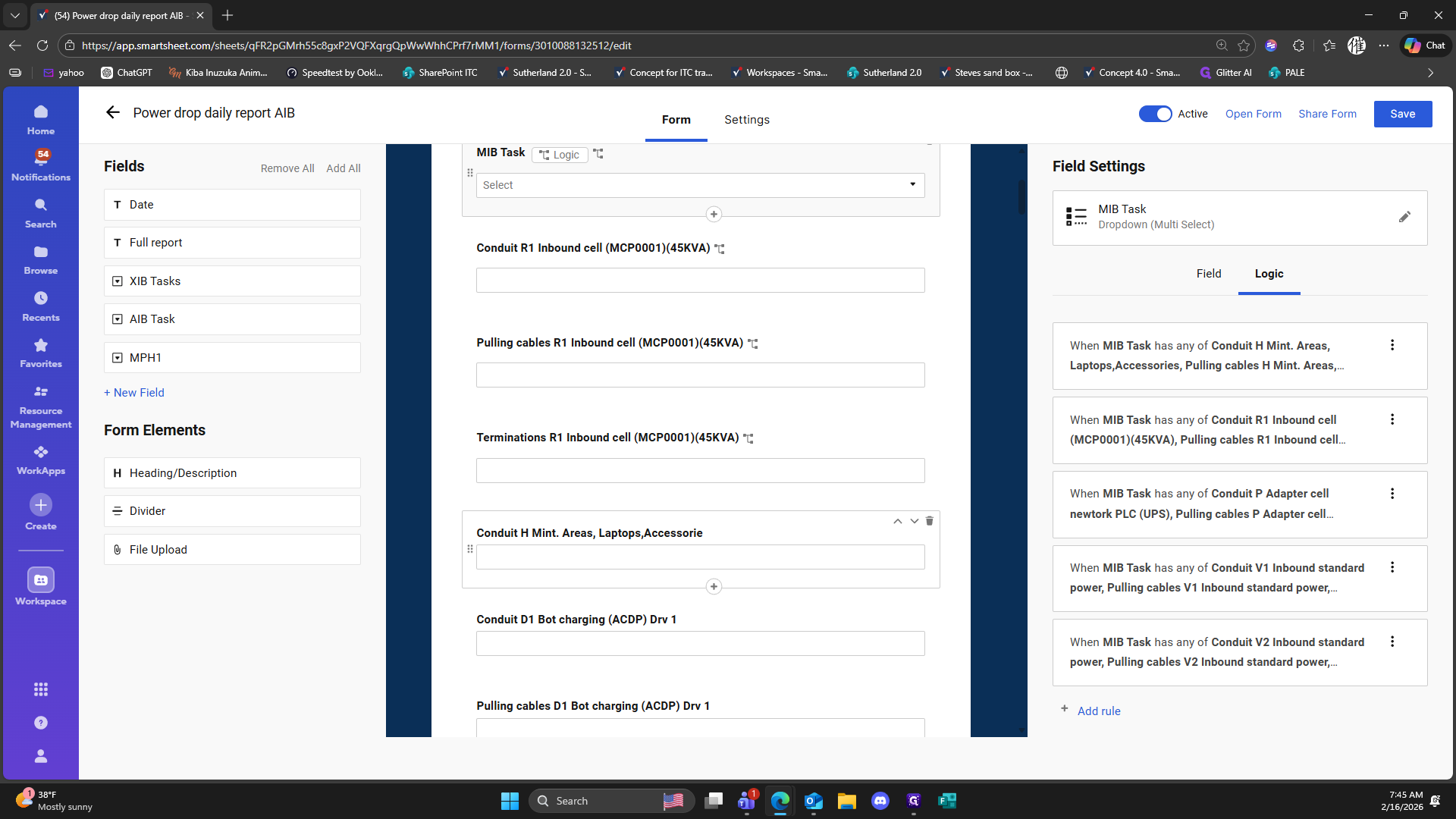
Click here
366
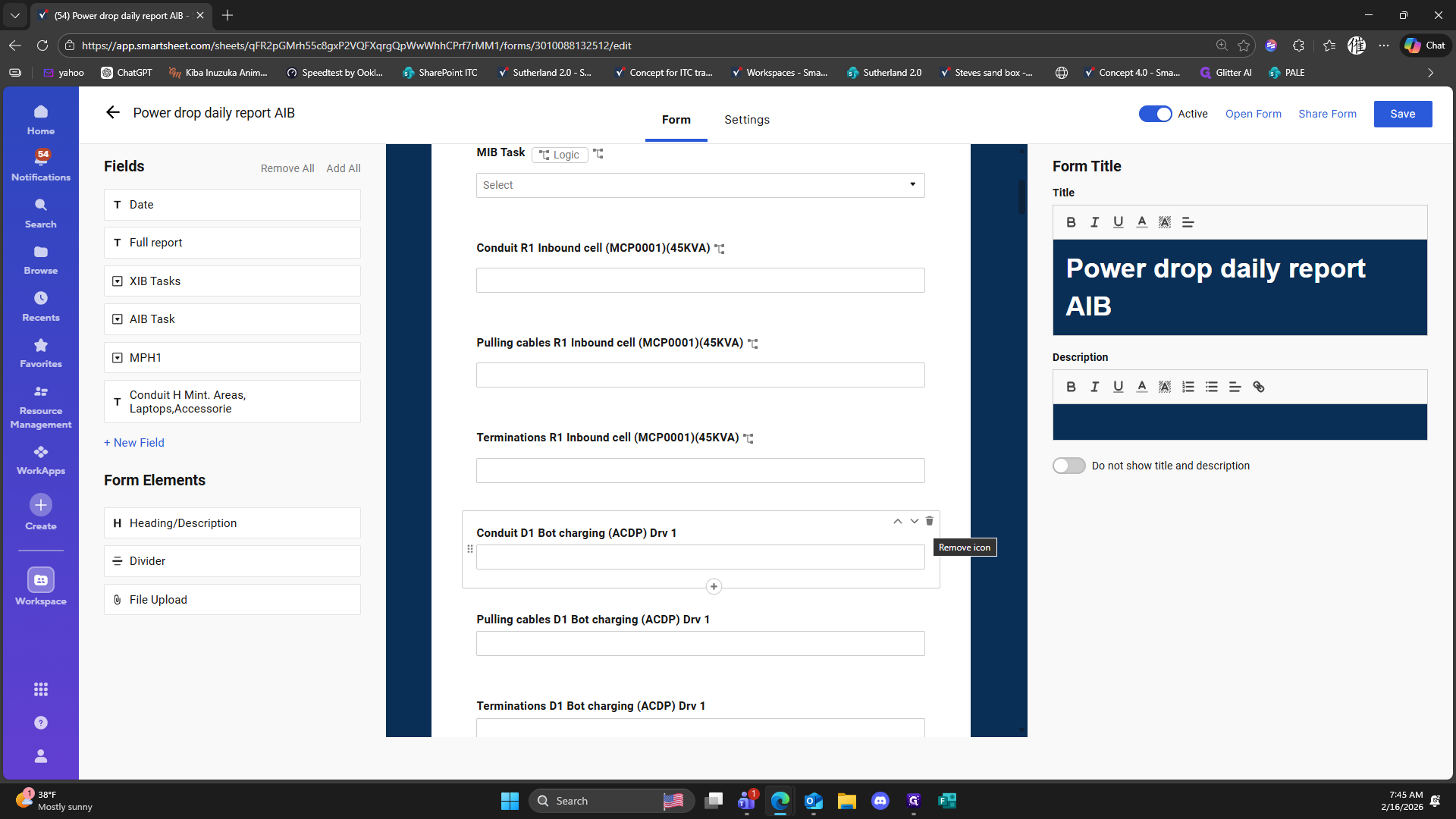
Click here
367
Click here
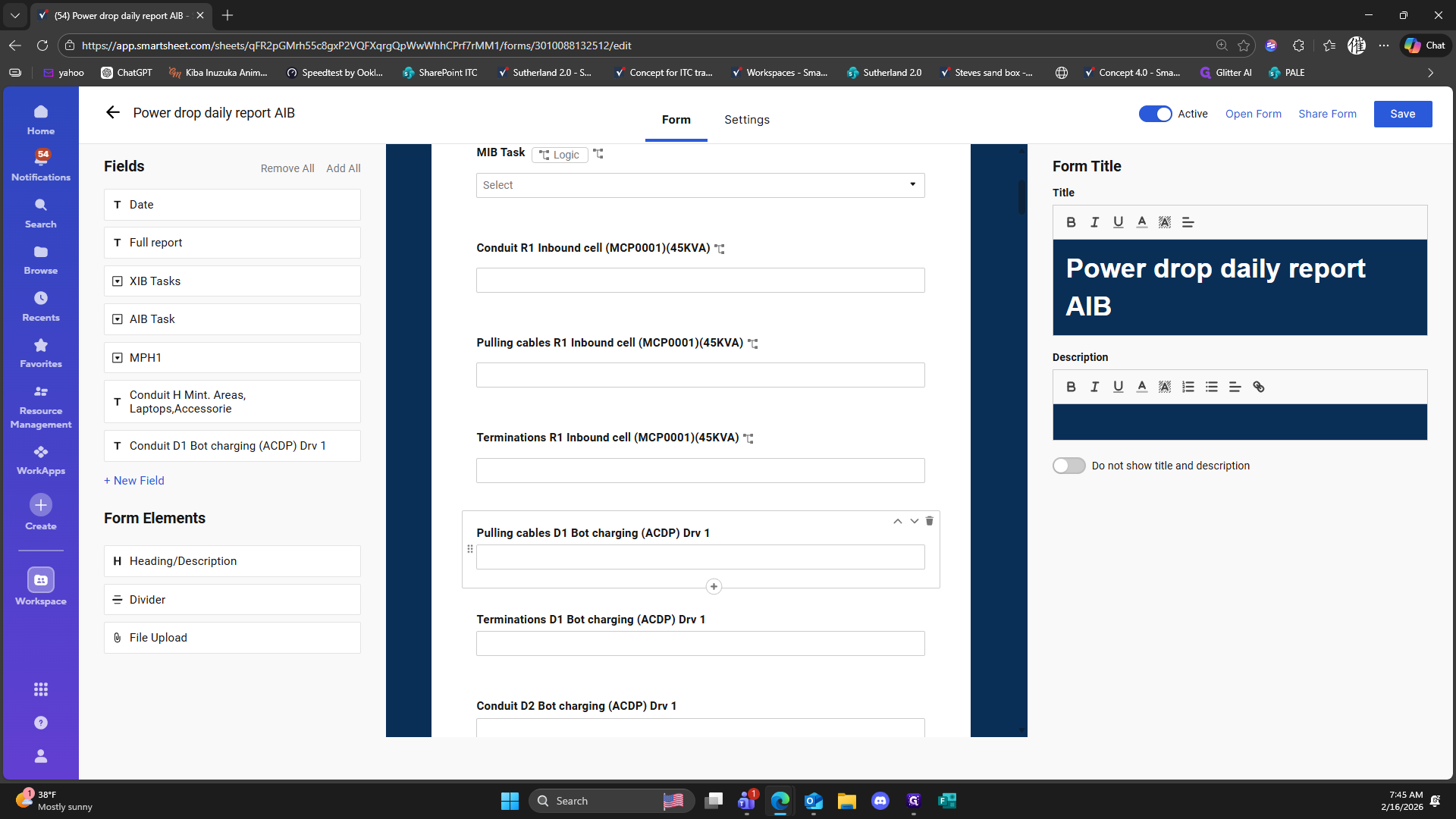
368
Double-click here
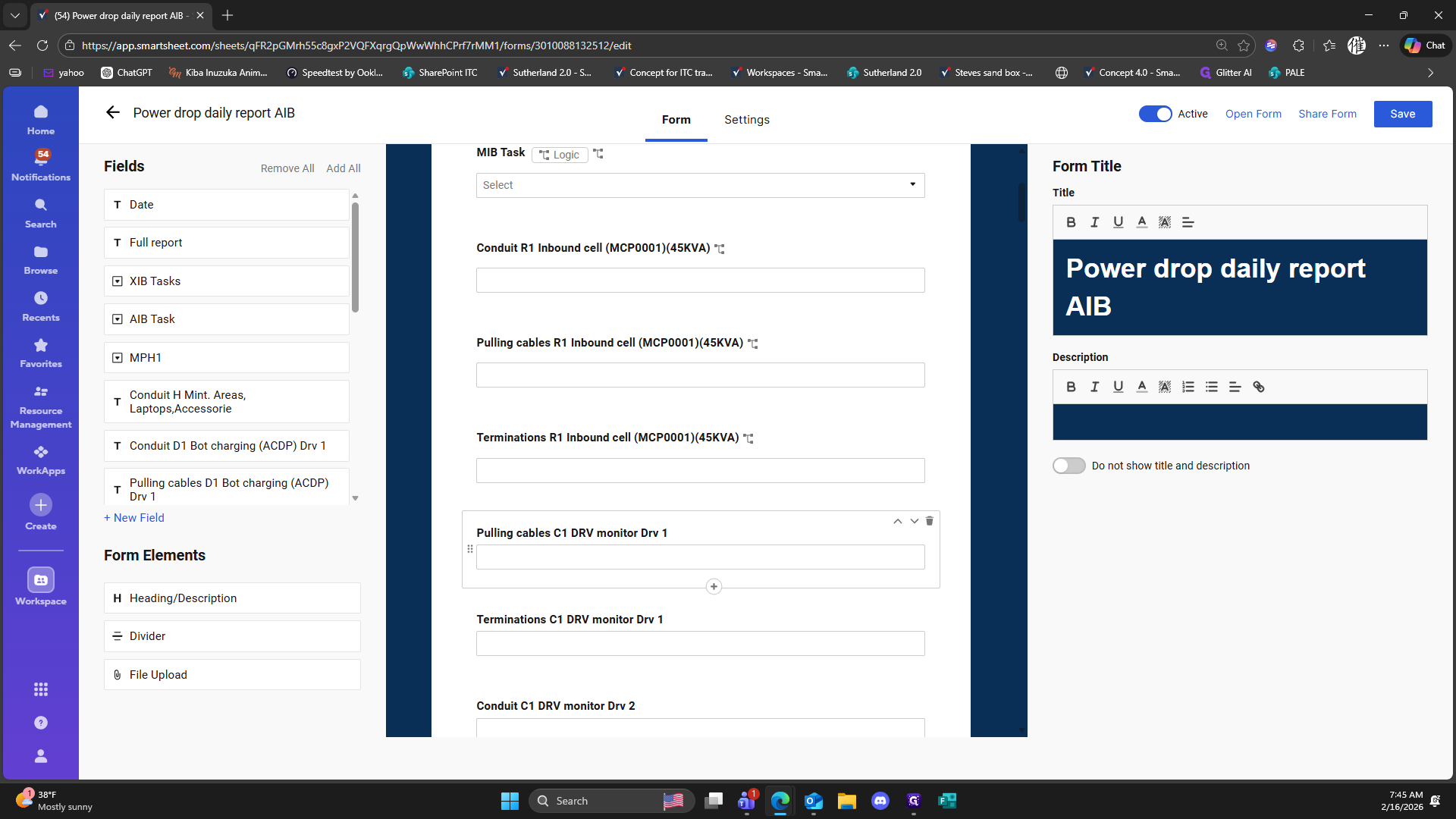
369
Double-click here
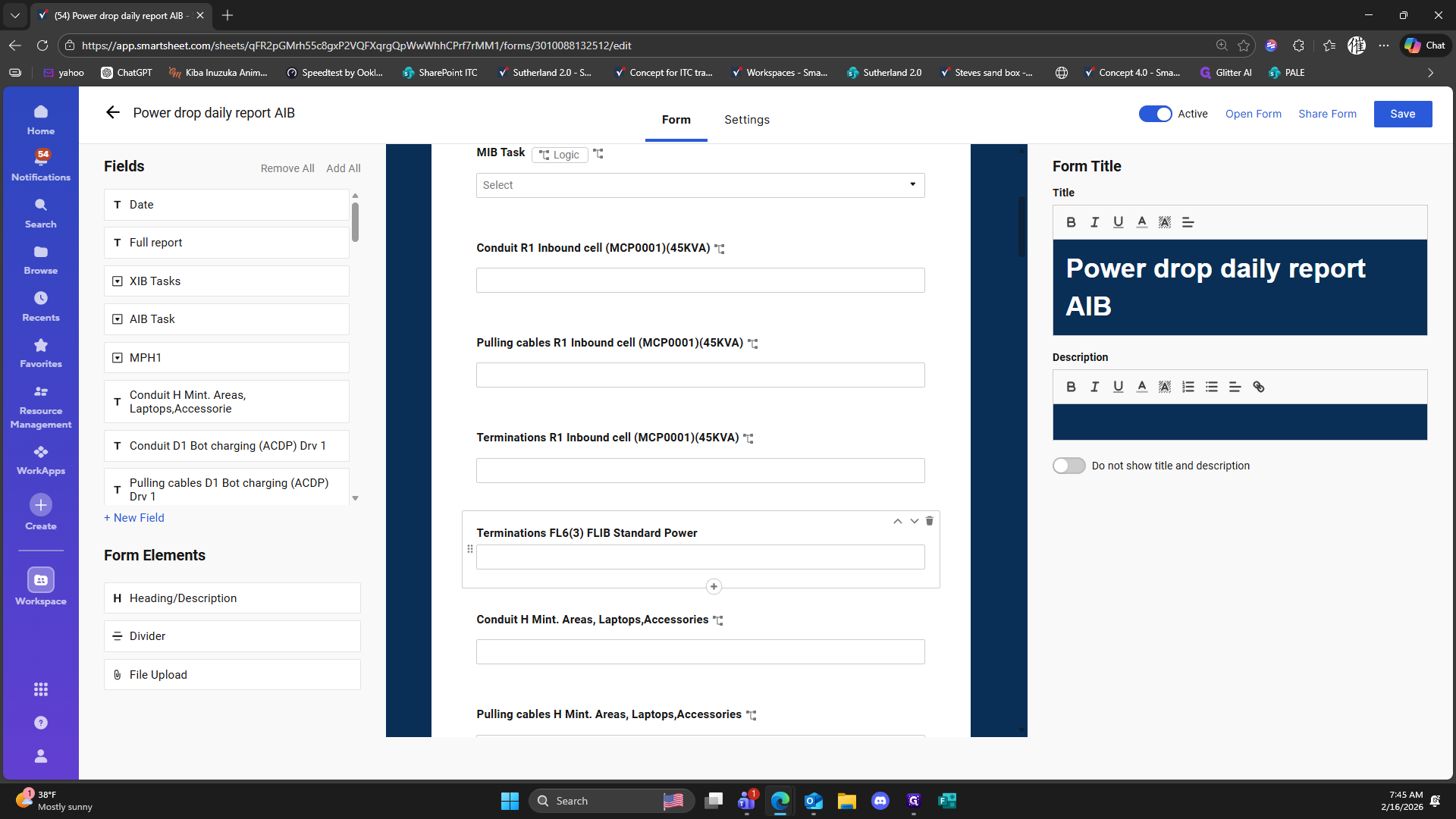
370
Double-click here
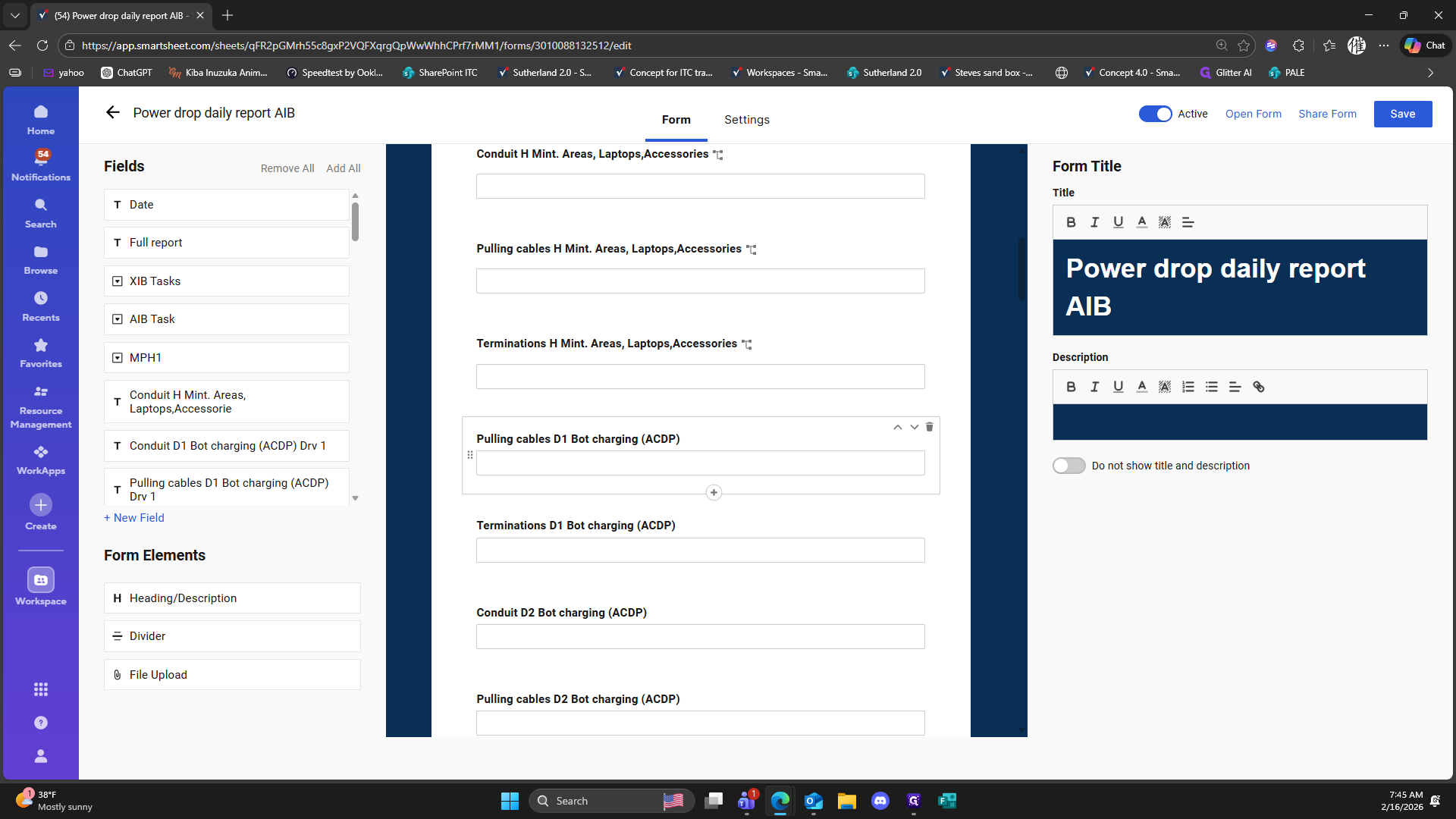
371
Double-click here
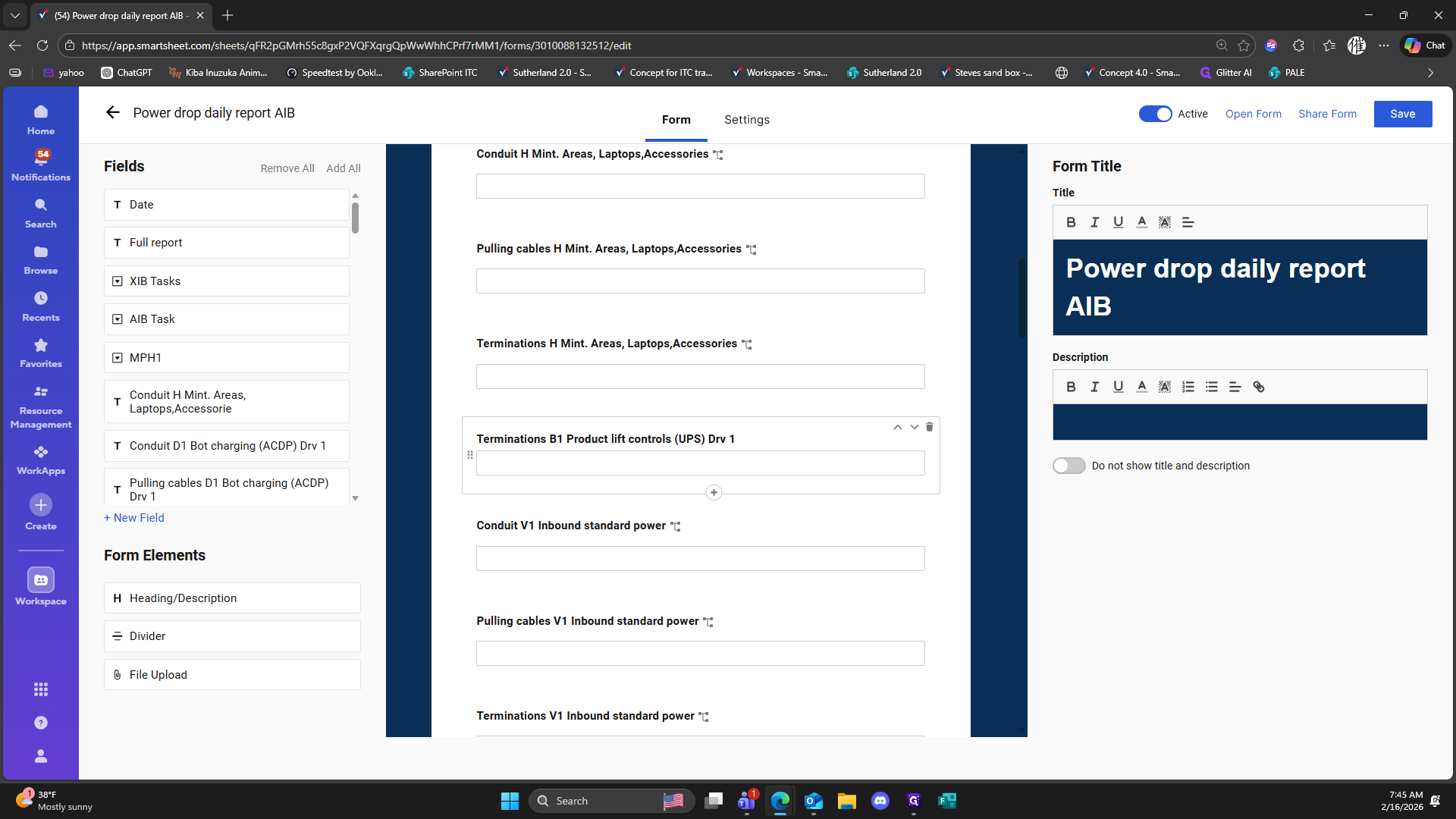
372
Double-click here
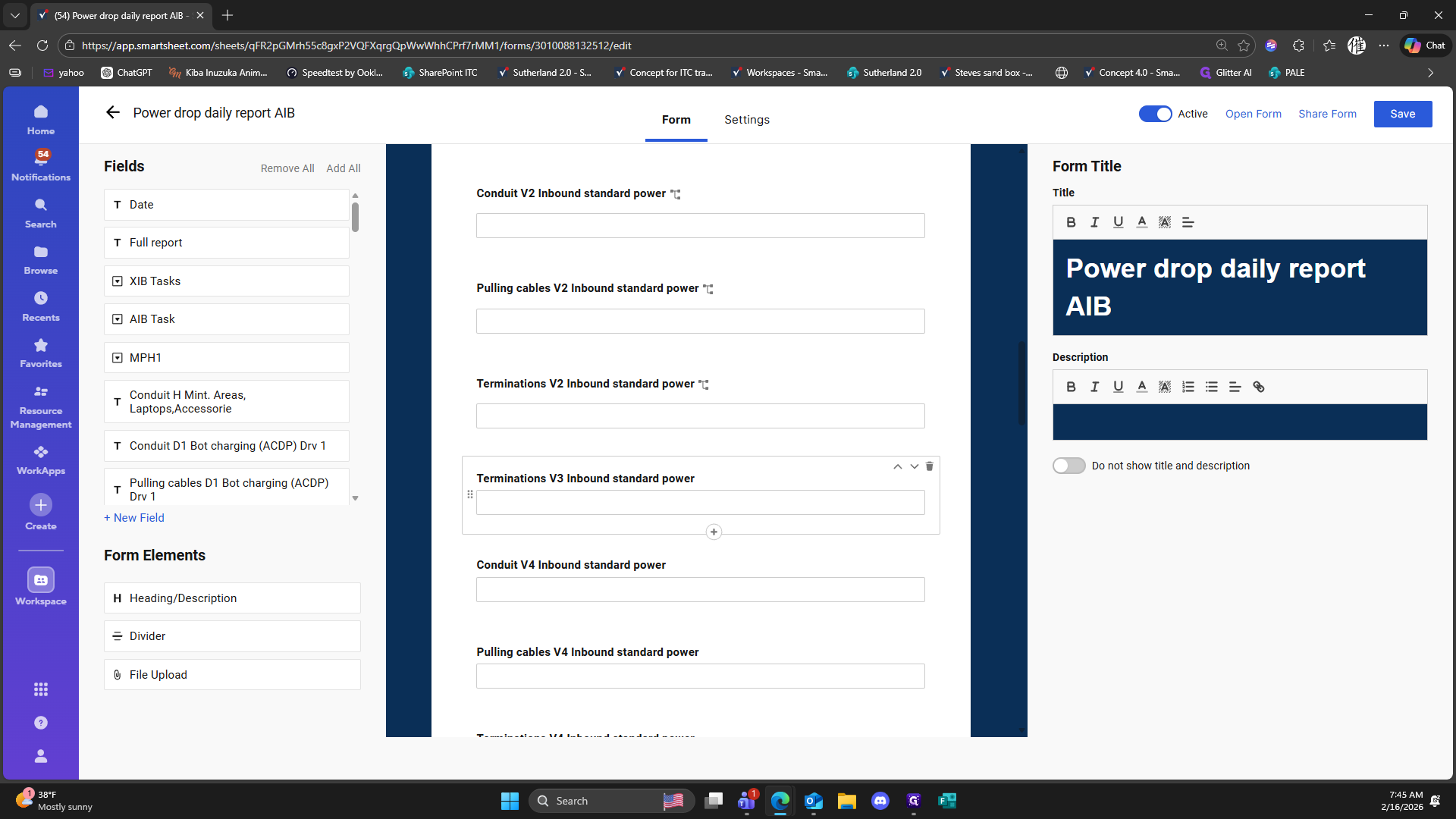
373
Double-click here
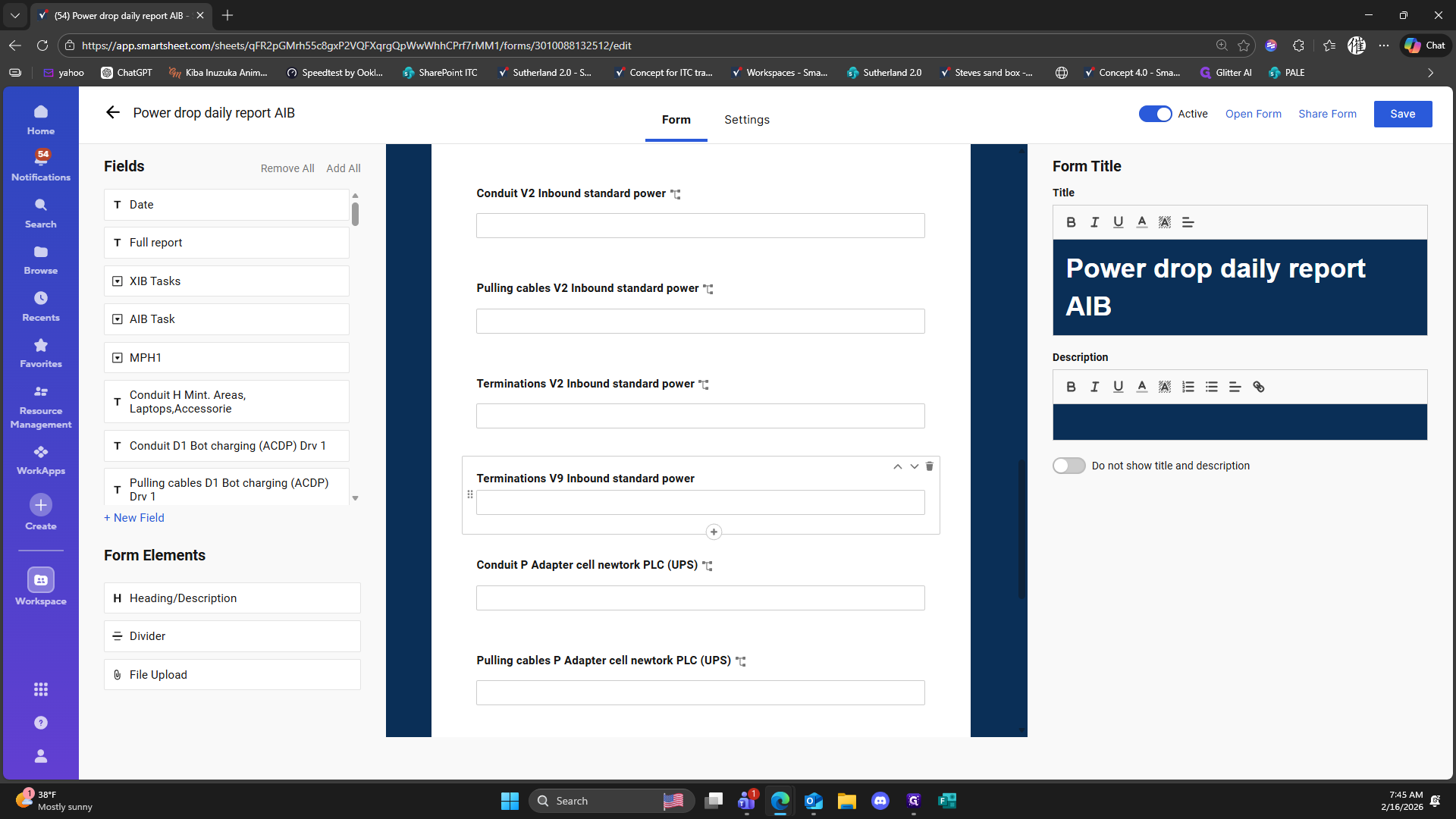
374
Double-click here
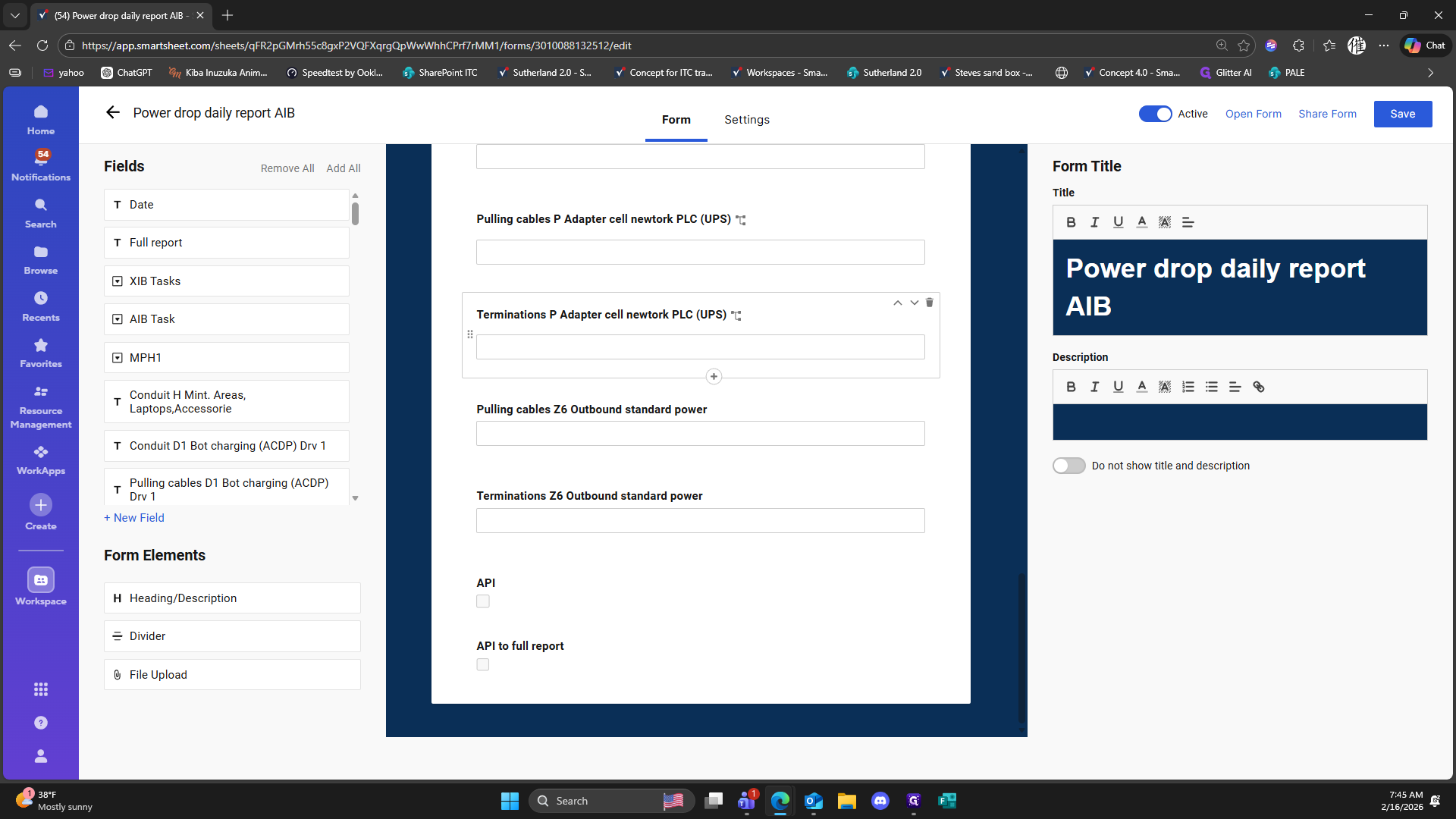
375
Click here
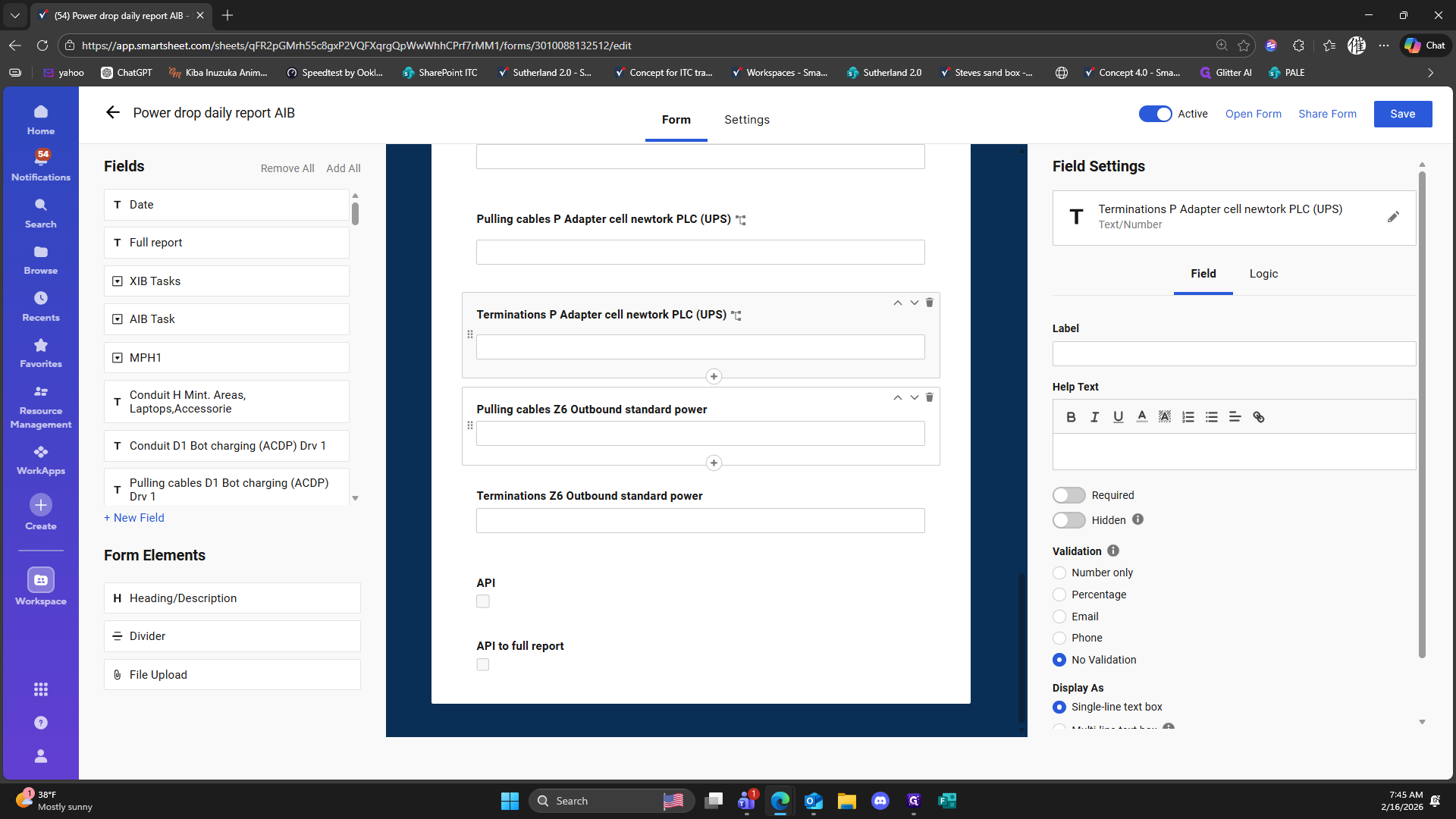
376
Click here
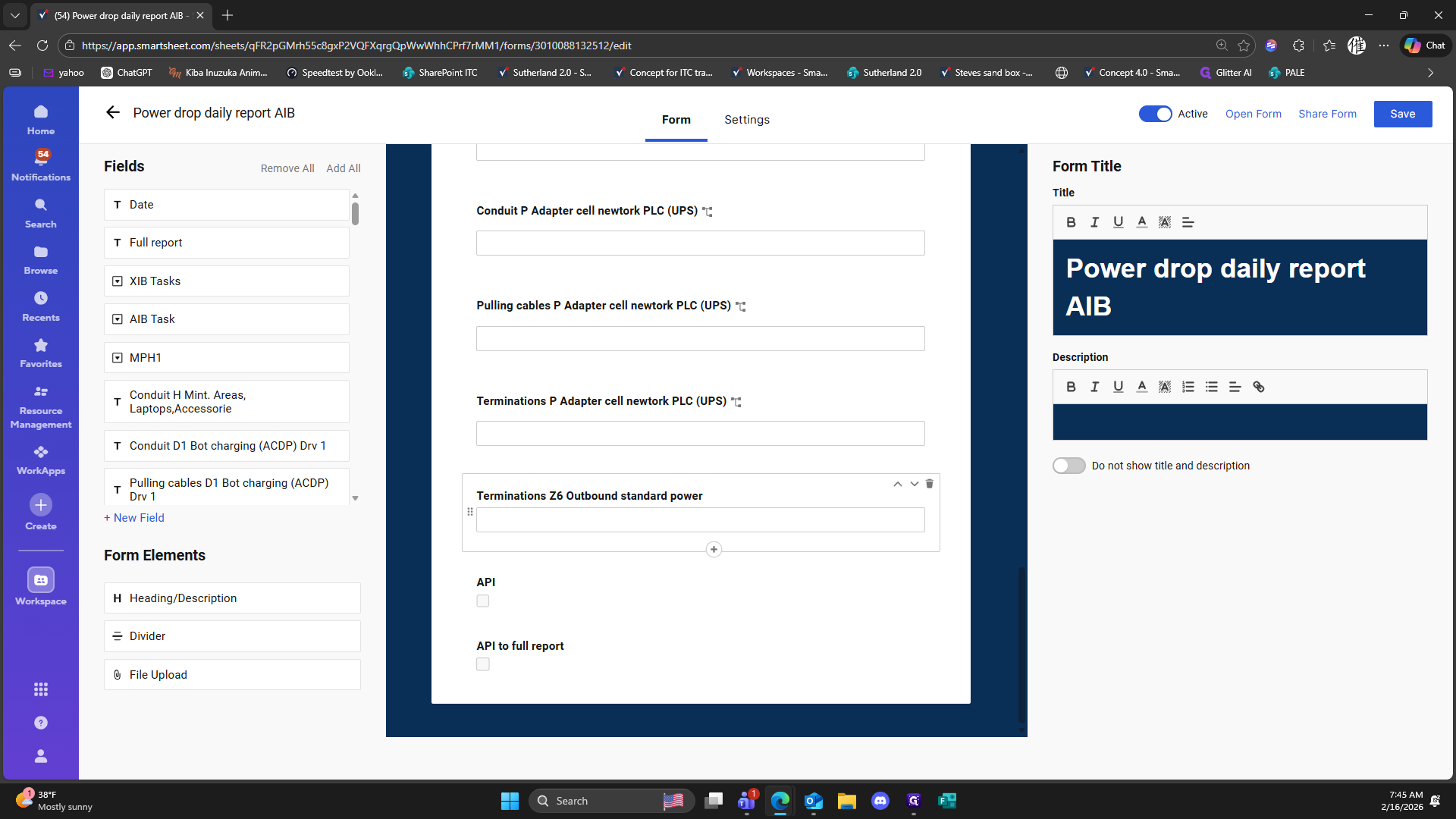
377
Click here
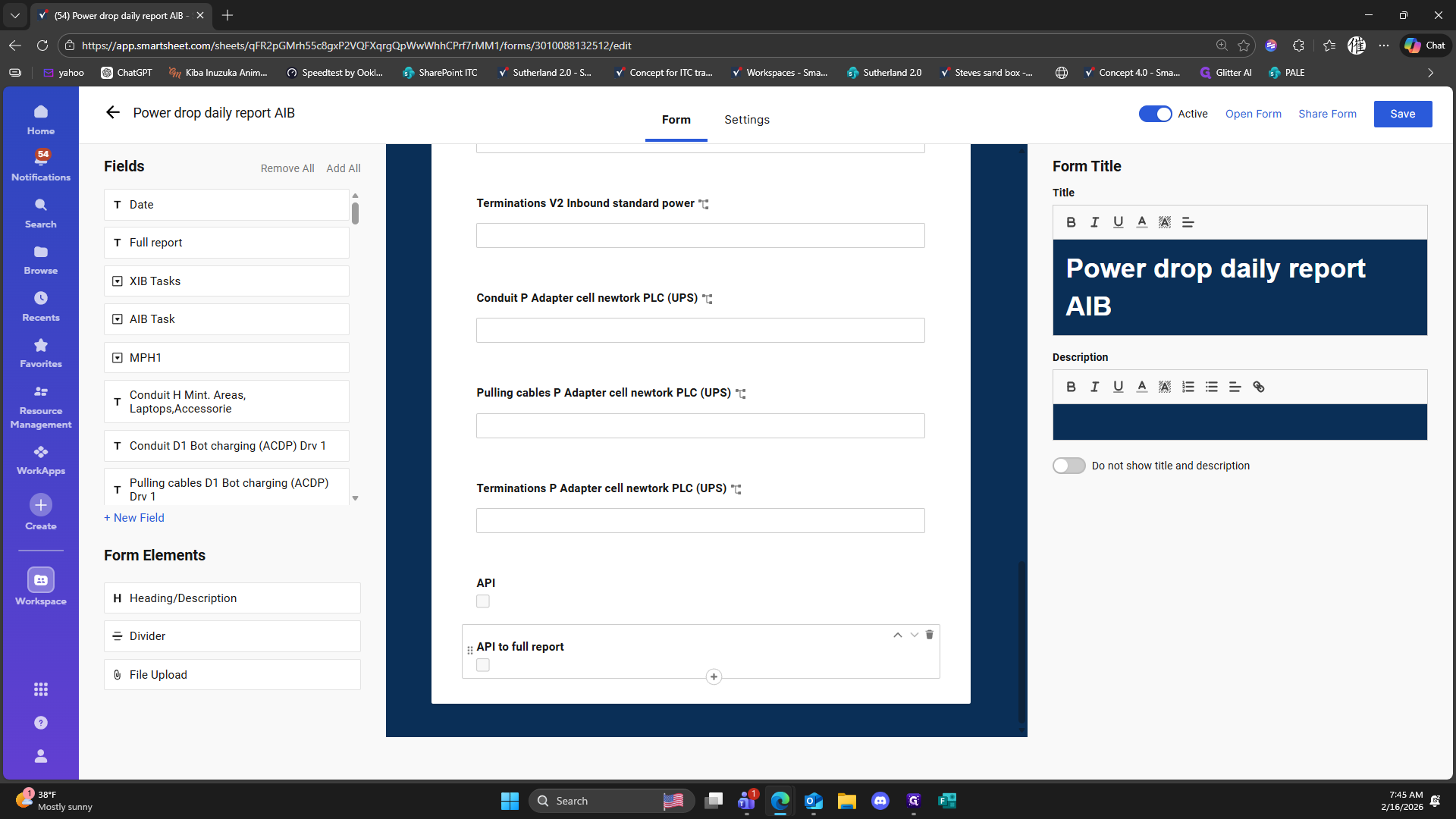
378
Click here
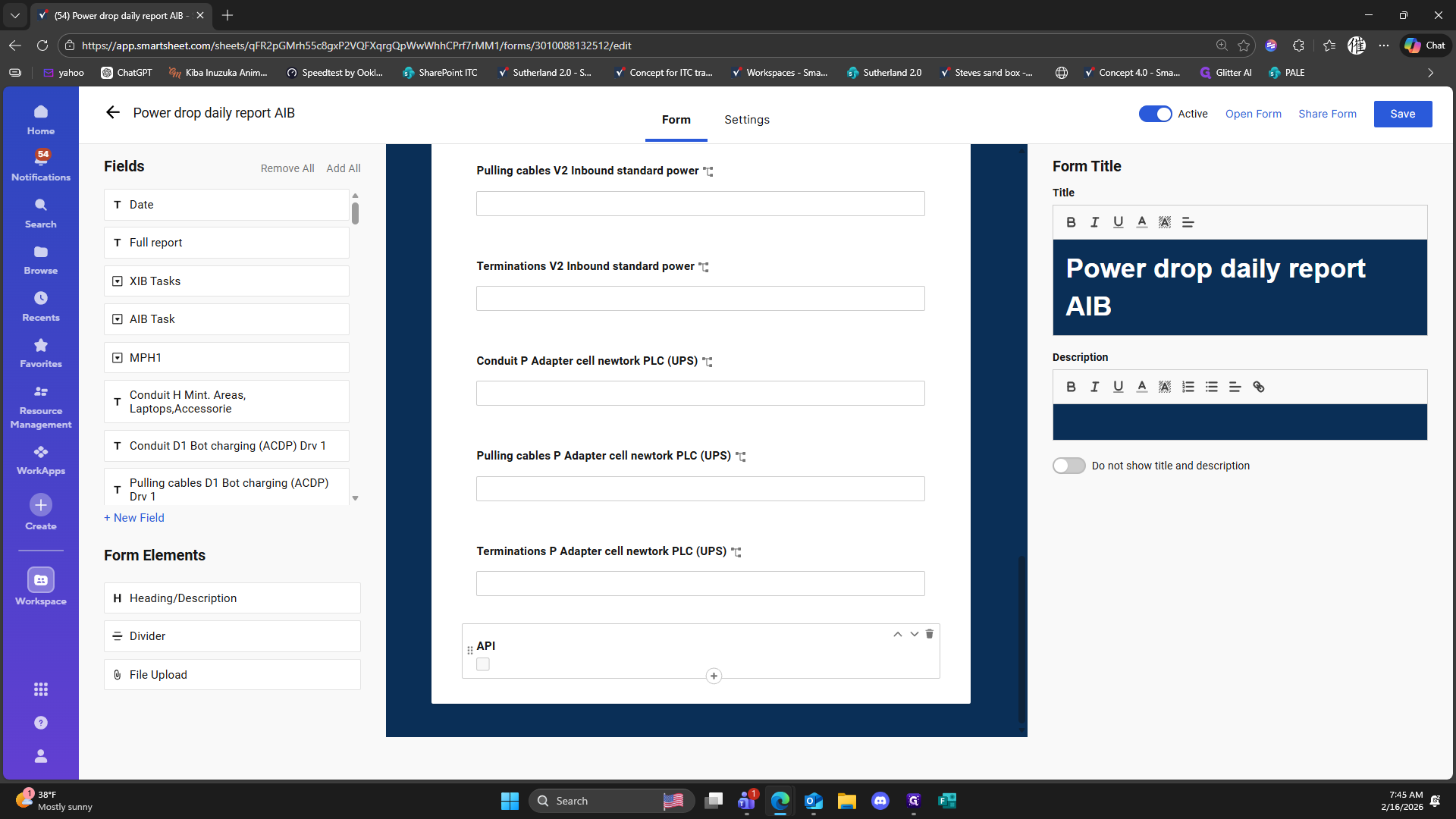
379
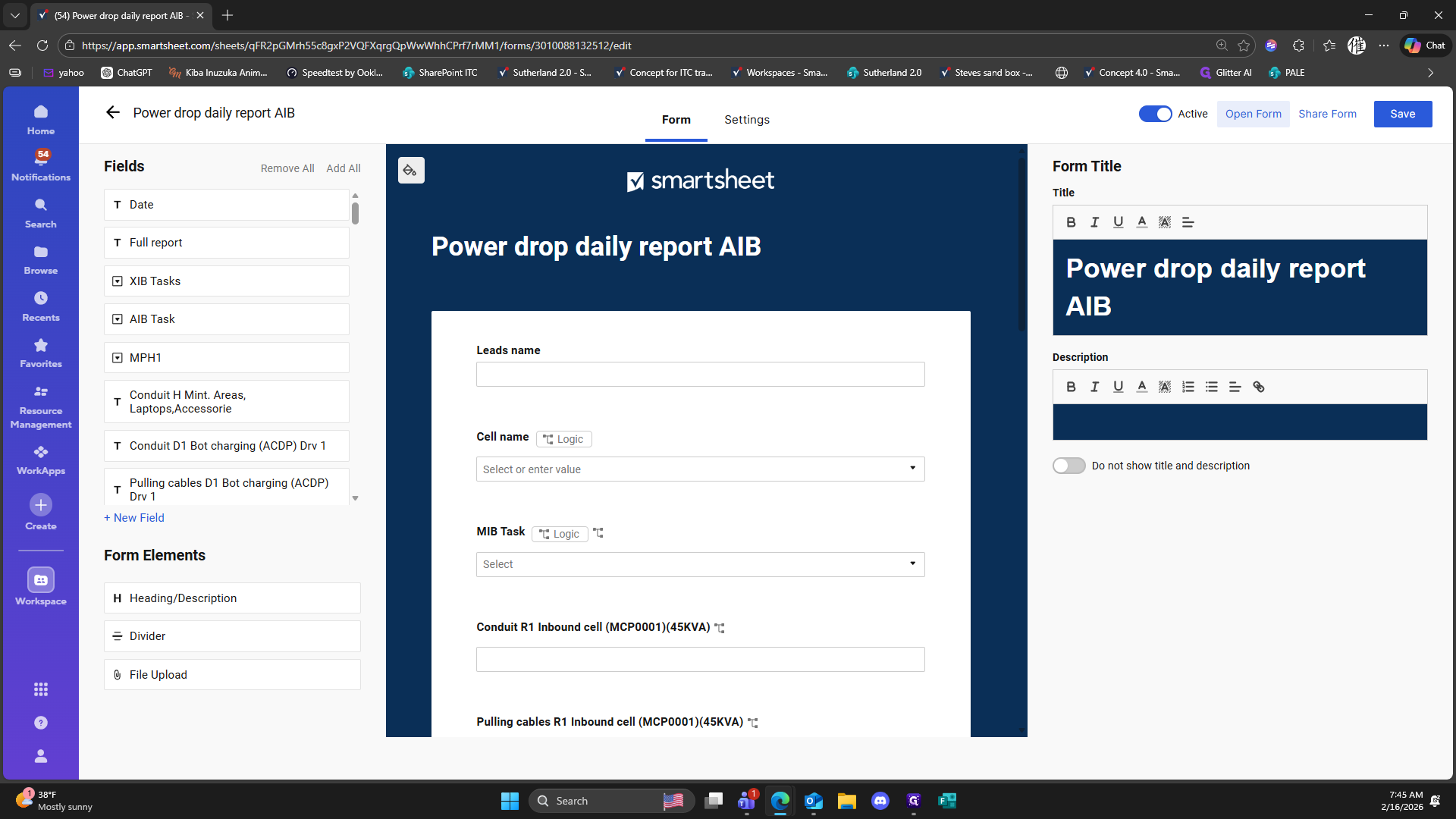
Click on "Open Form"
380
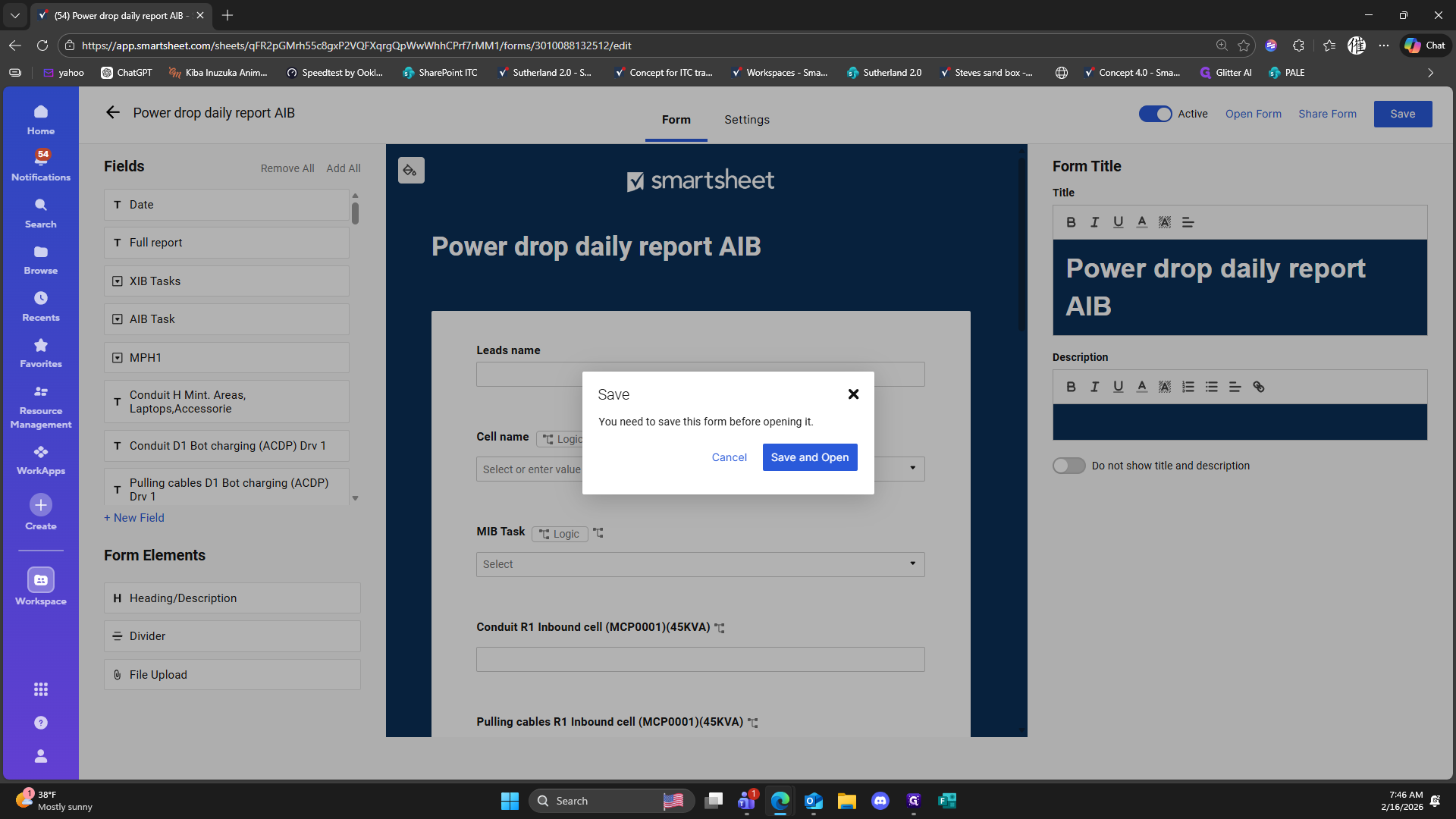
Click on "Save and Open"
381
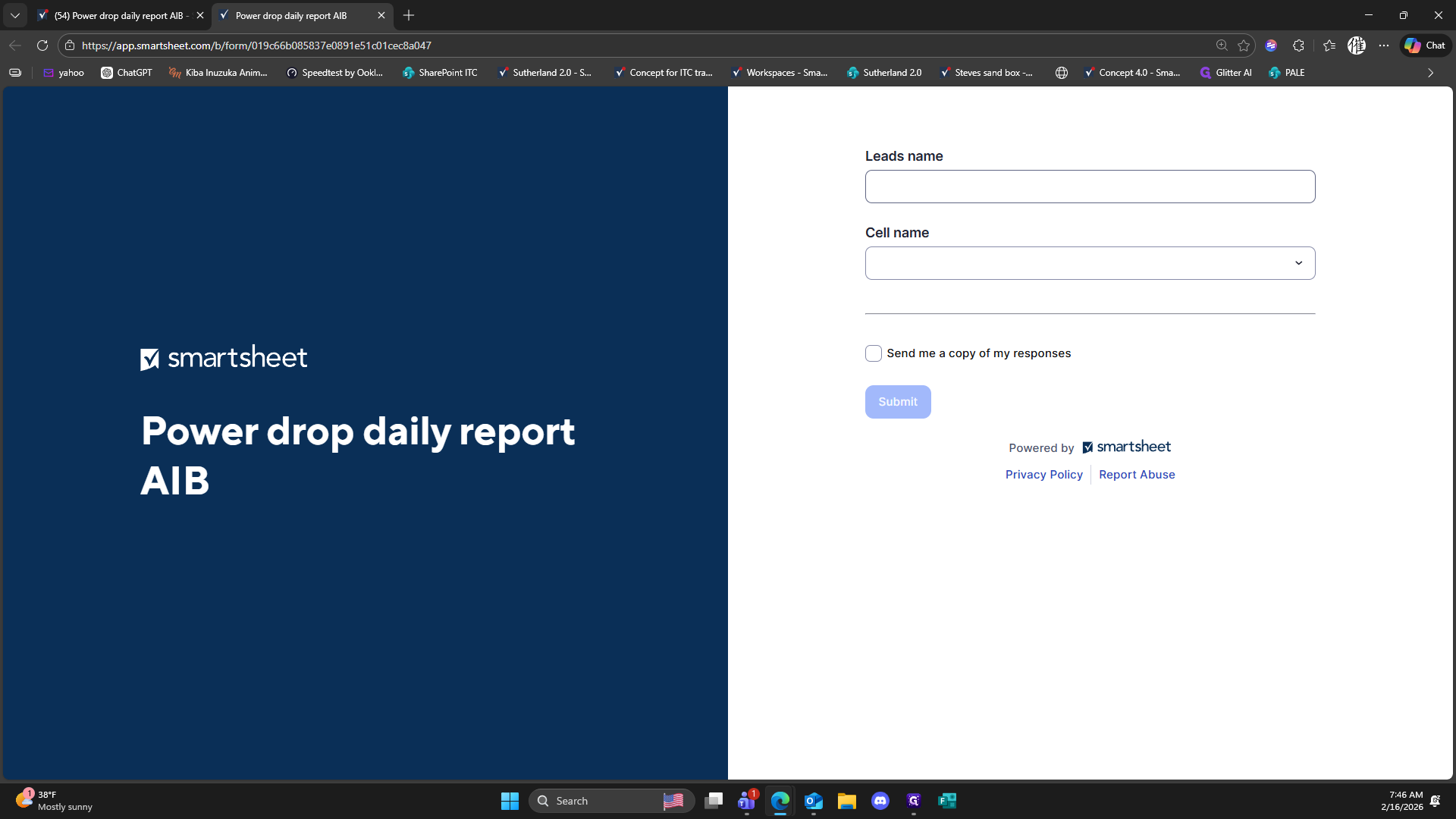
Click here
382
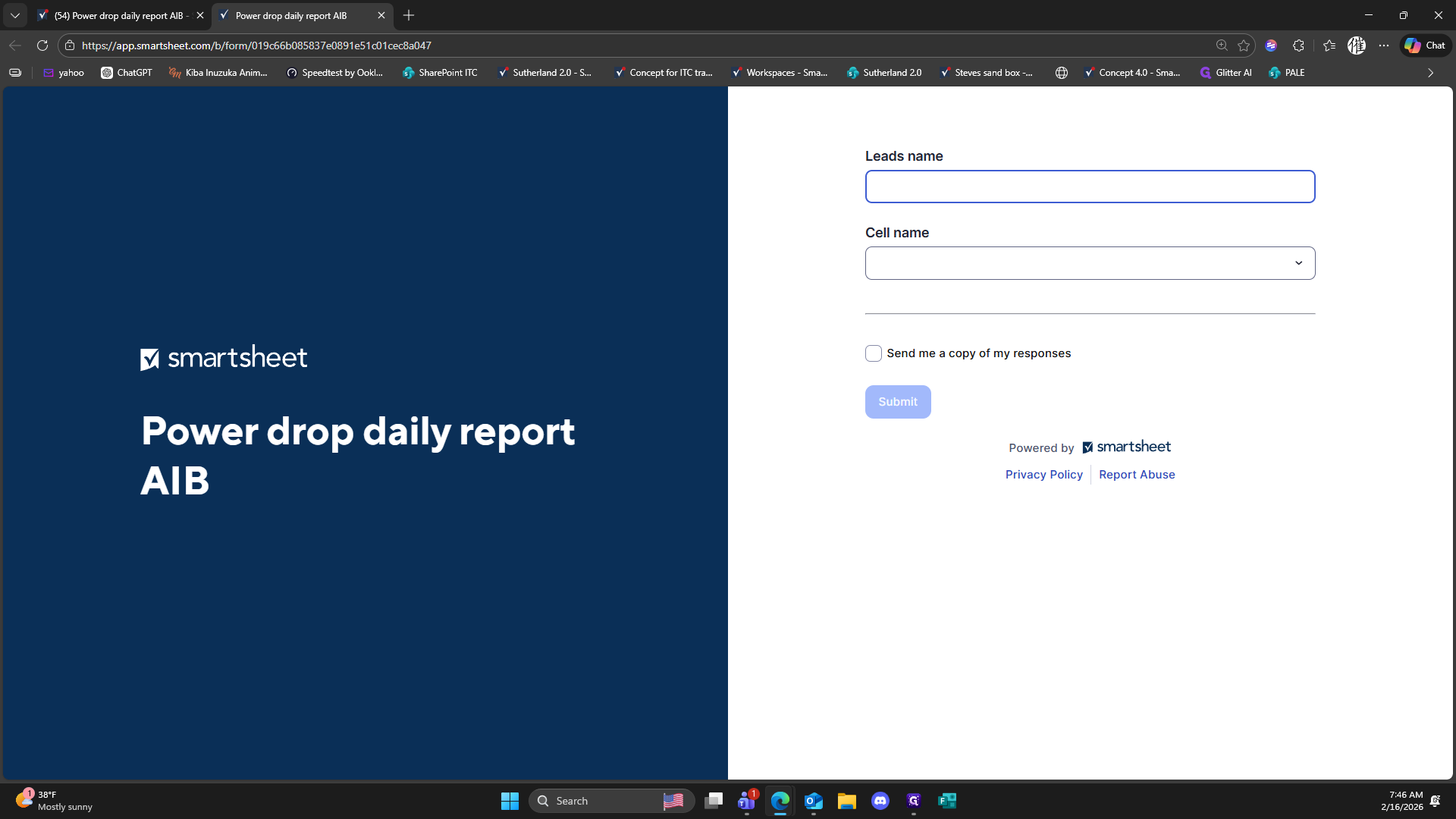
Click here
383
Click here
384
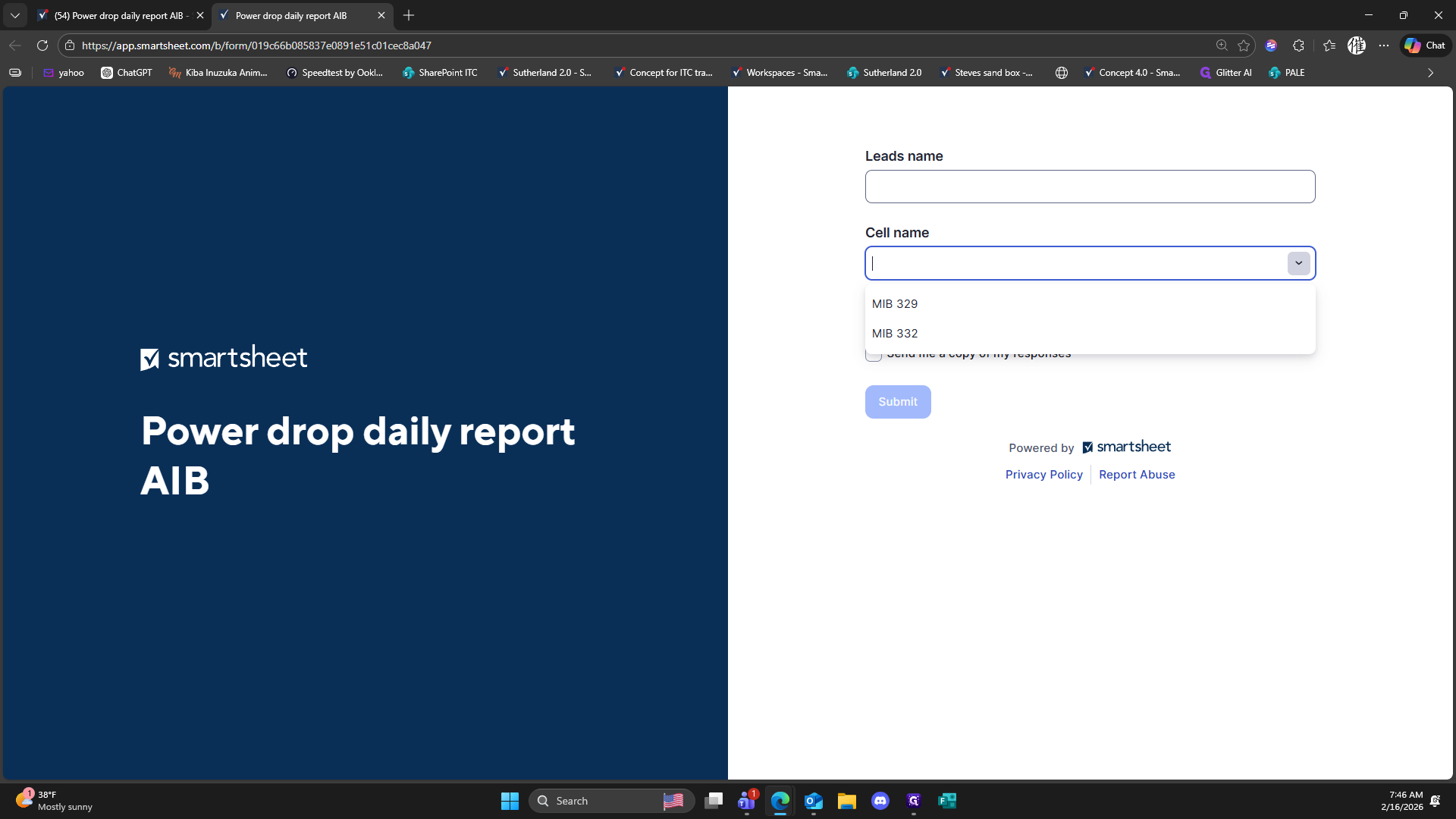
Click on "( 54 ) Power drop daily report AIB"
385
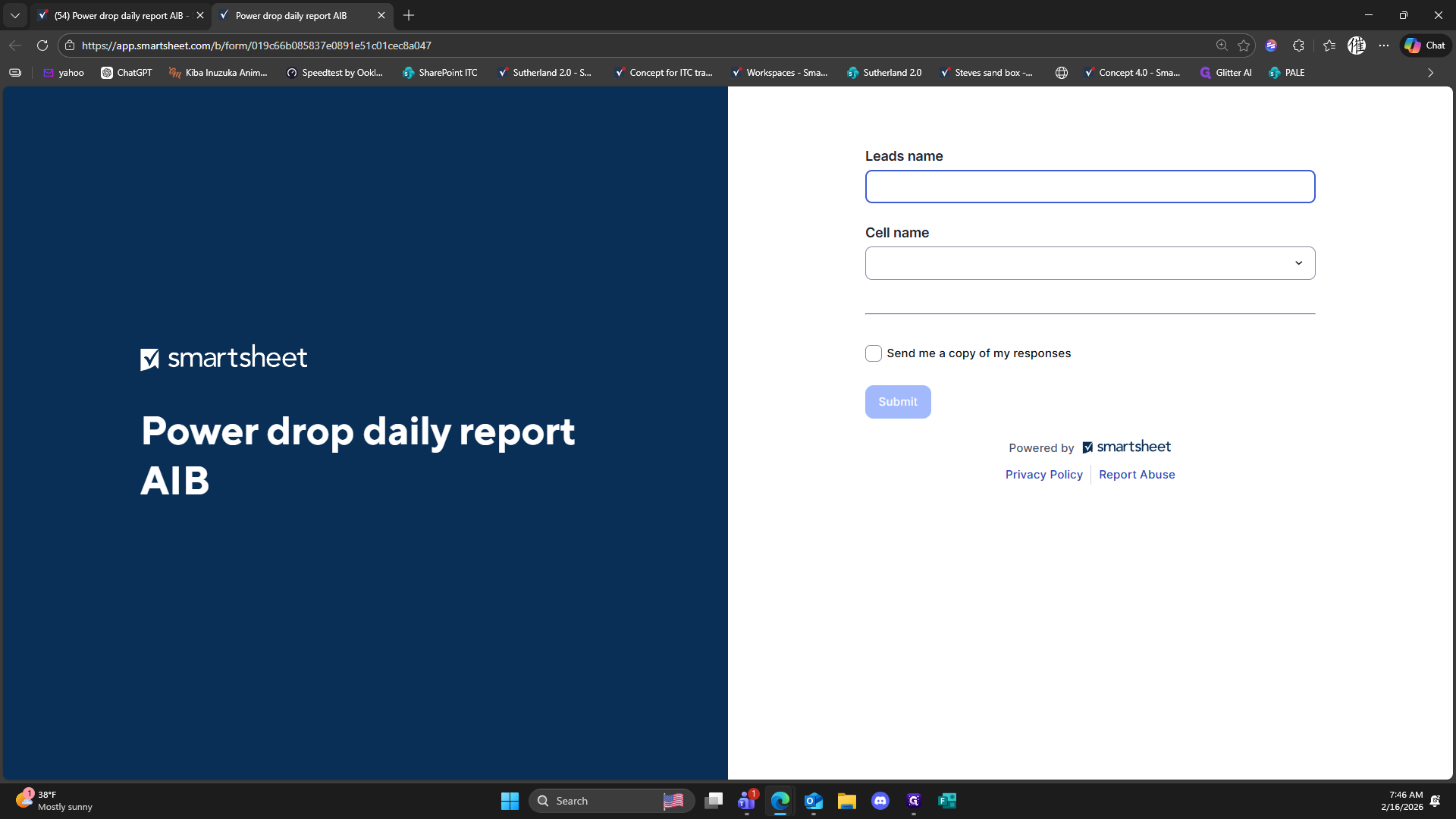
Click here
386
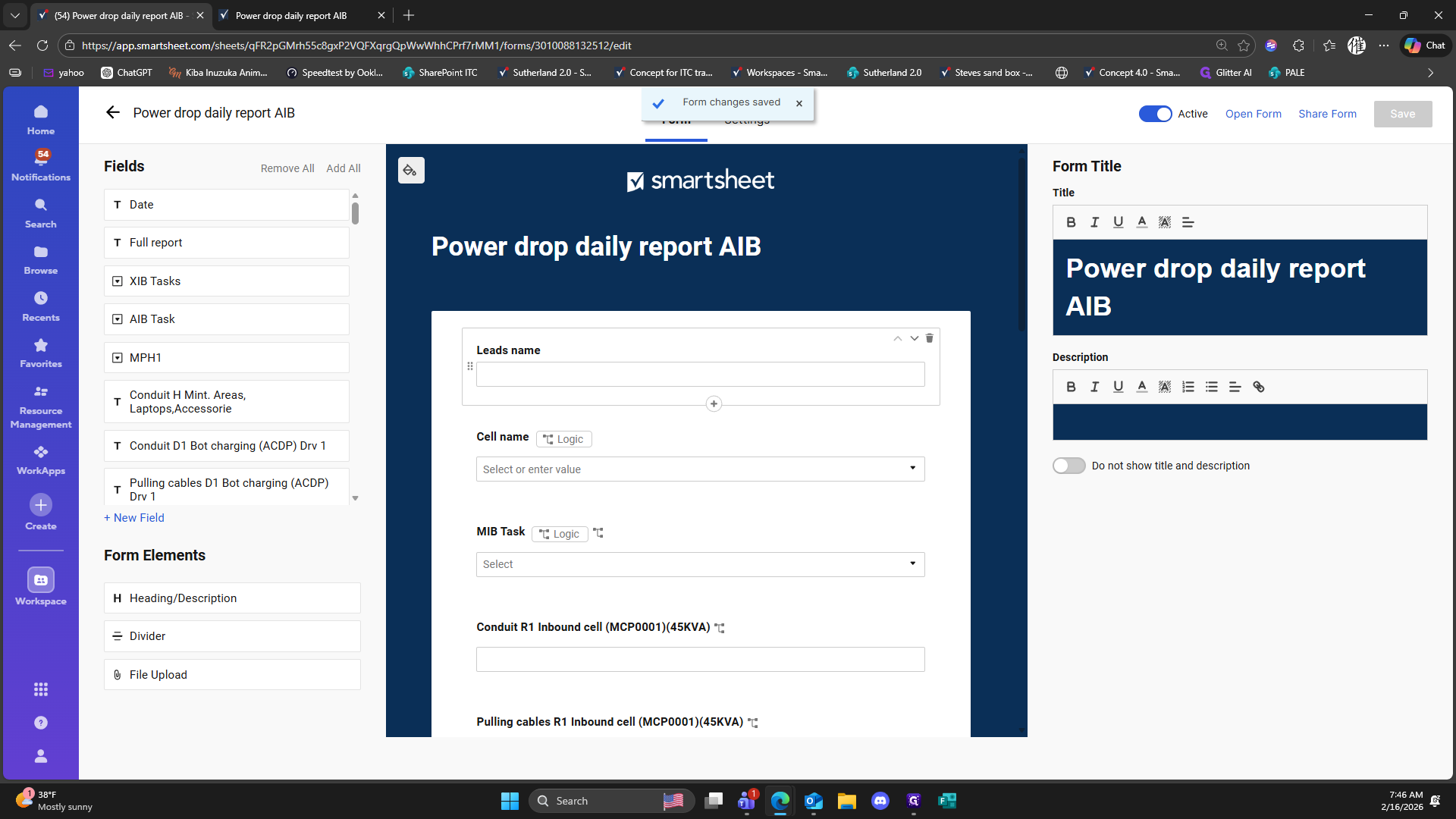
Double-click on "Logic"
387
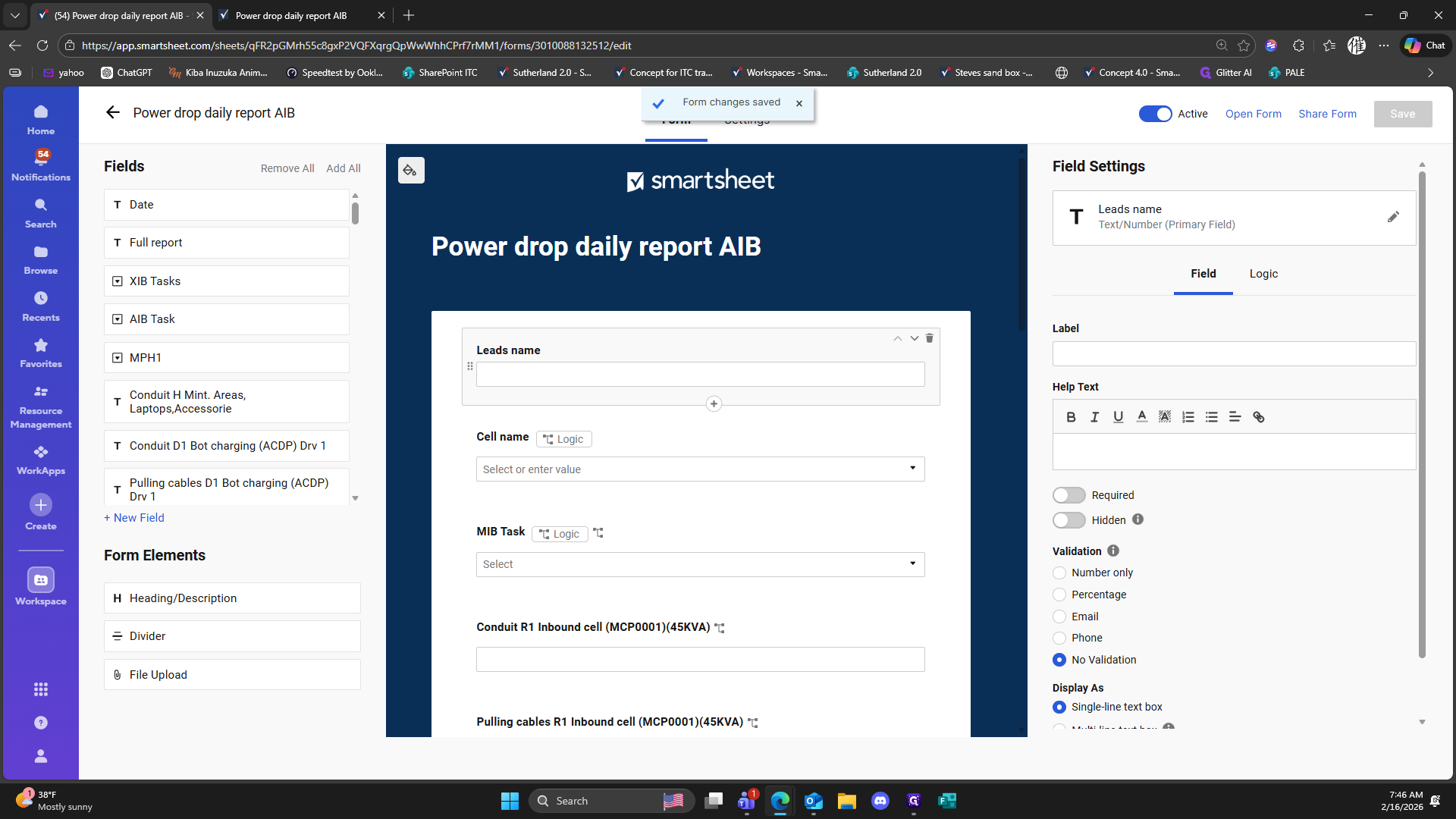
Click on "Add Logic"
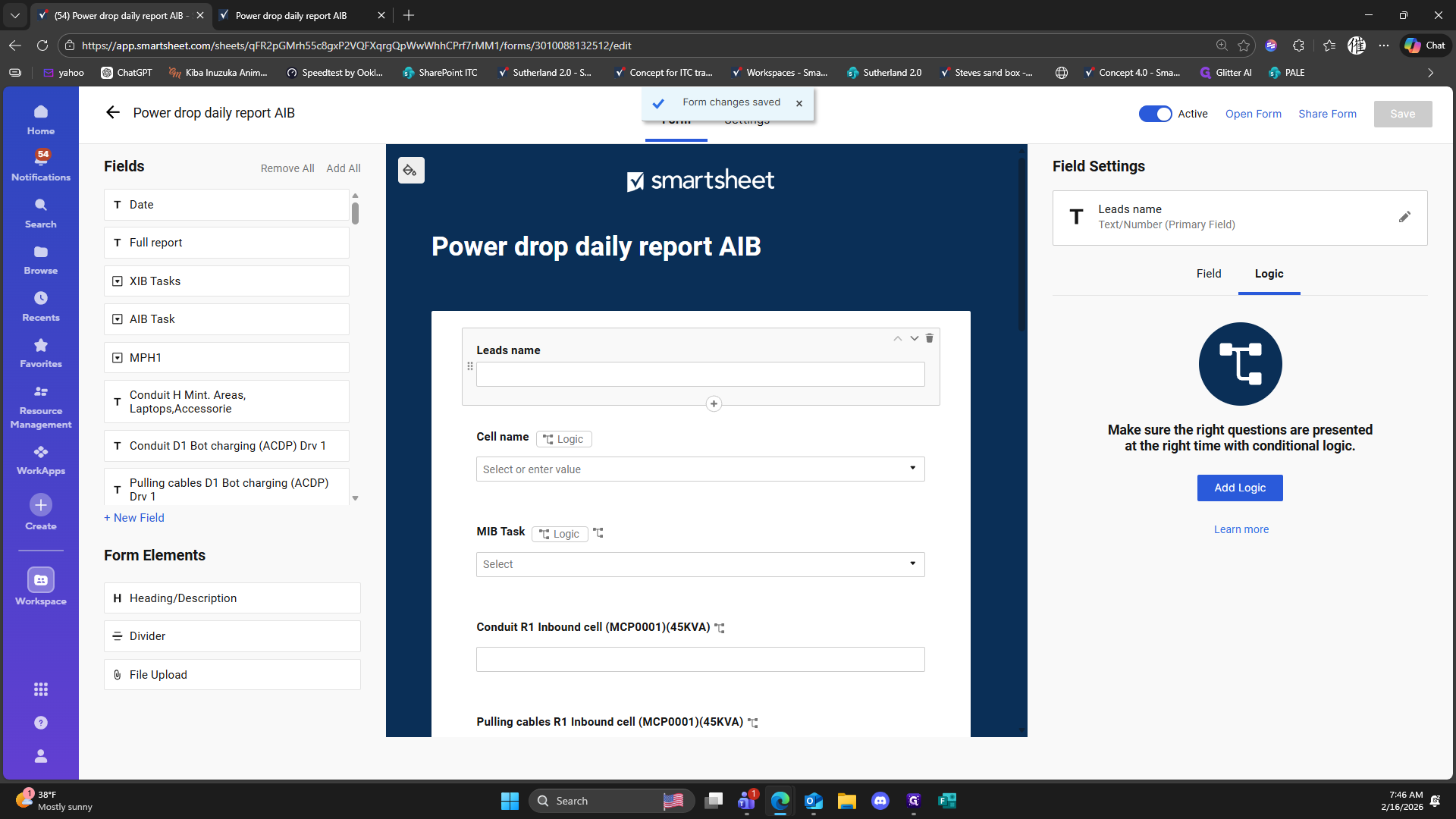
388
Click on "When Leads name contains"
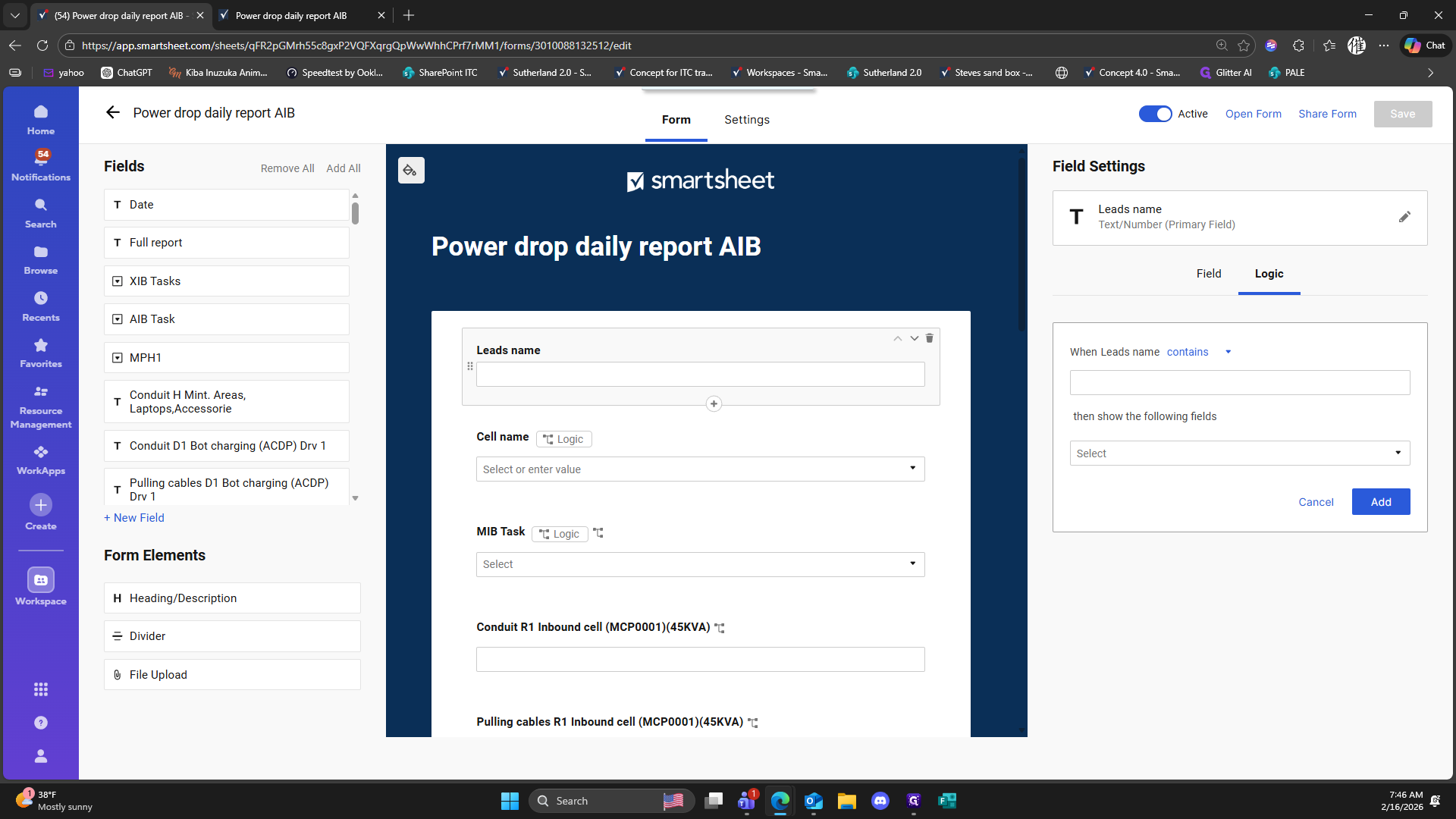
389
Double-click here
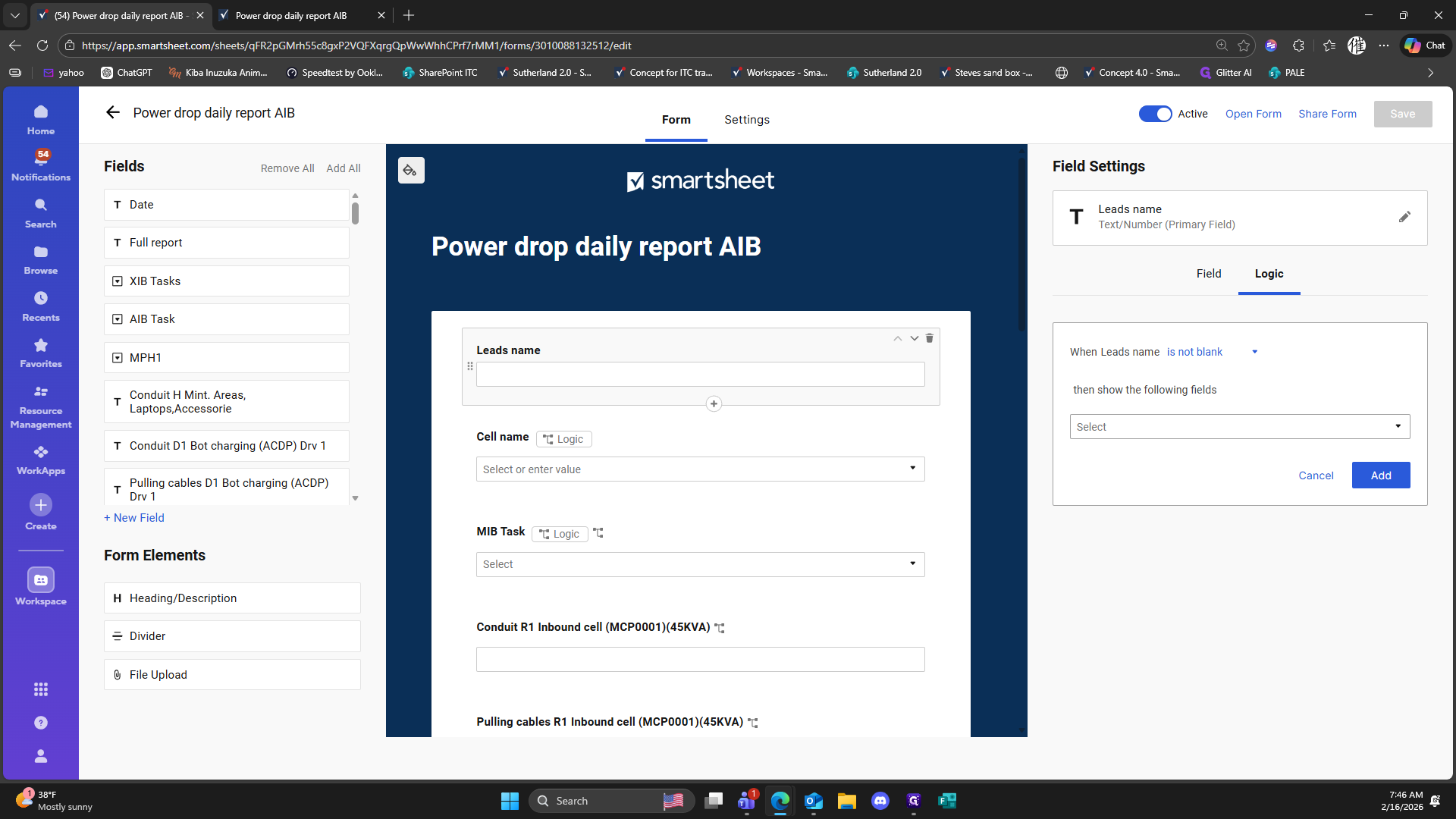
390
Double-click here
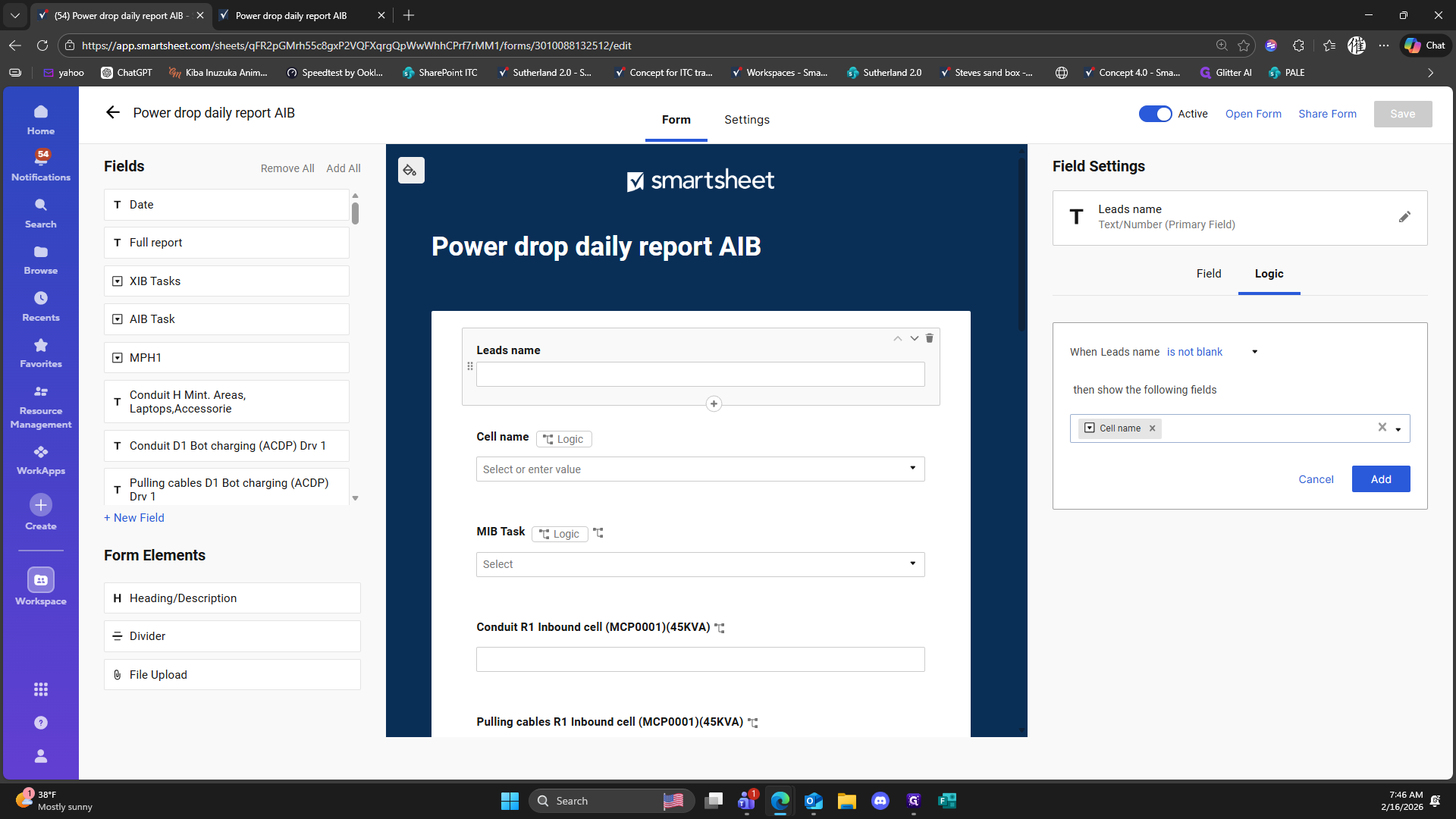
391
Click on "Add"
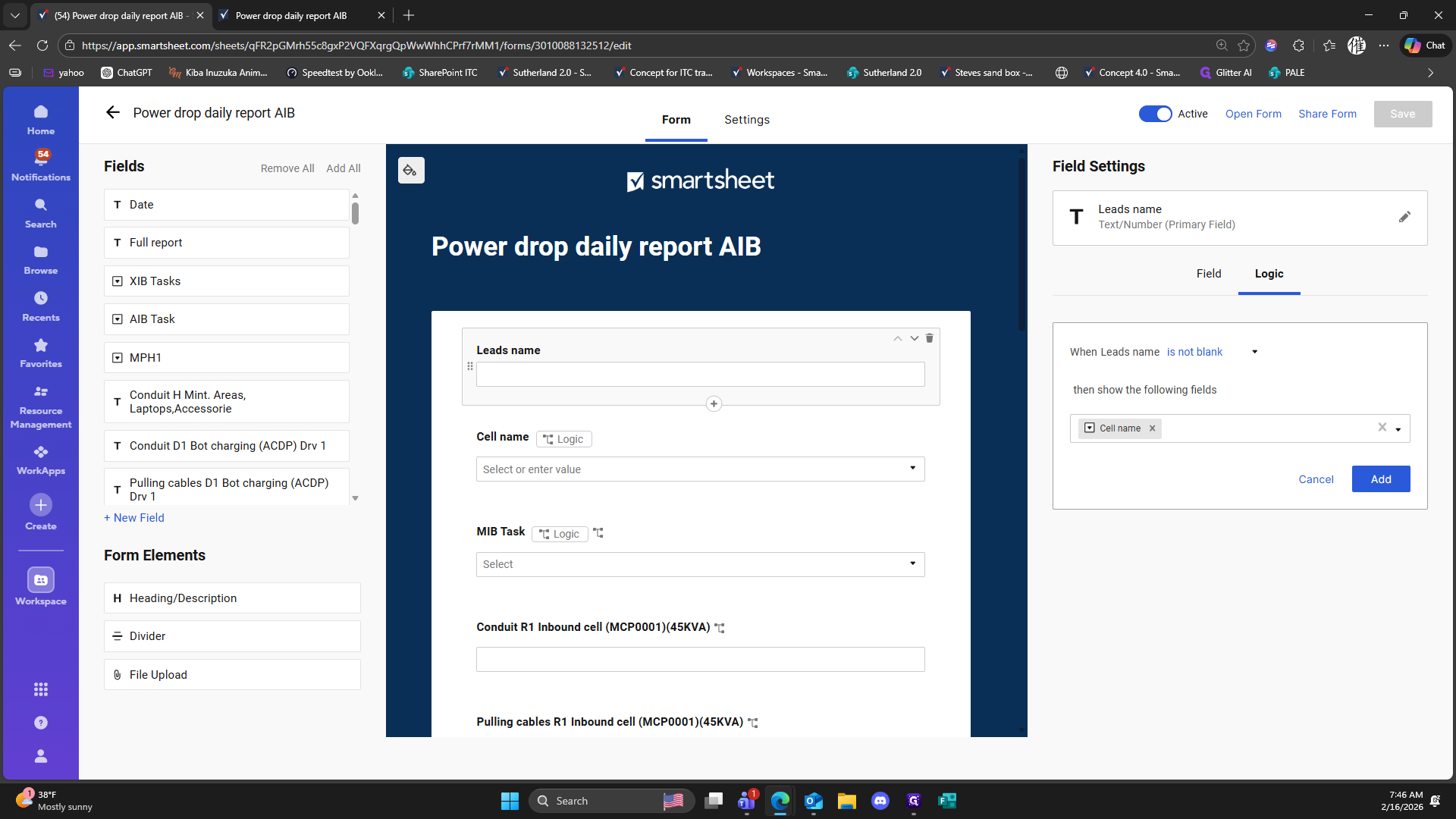
392
Click on "Save"
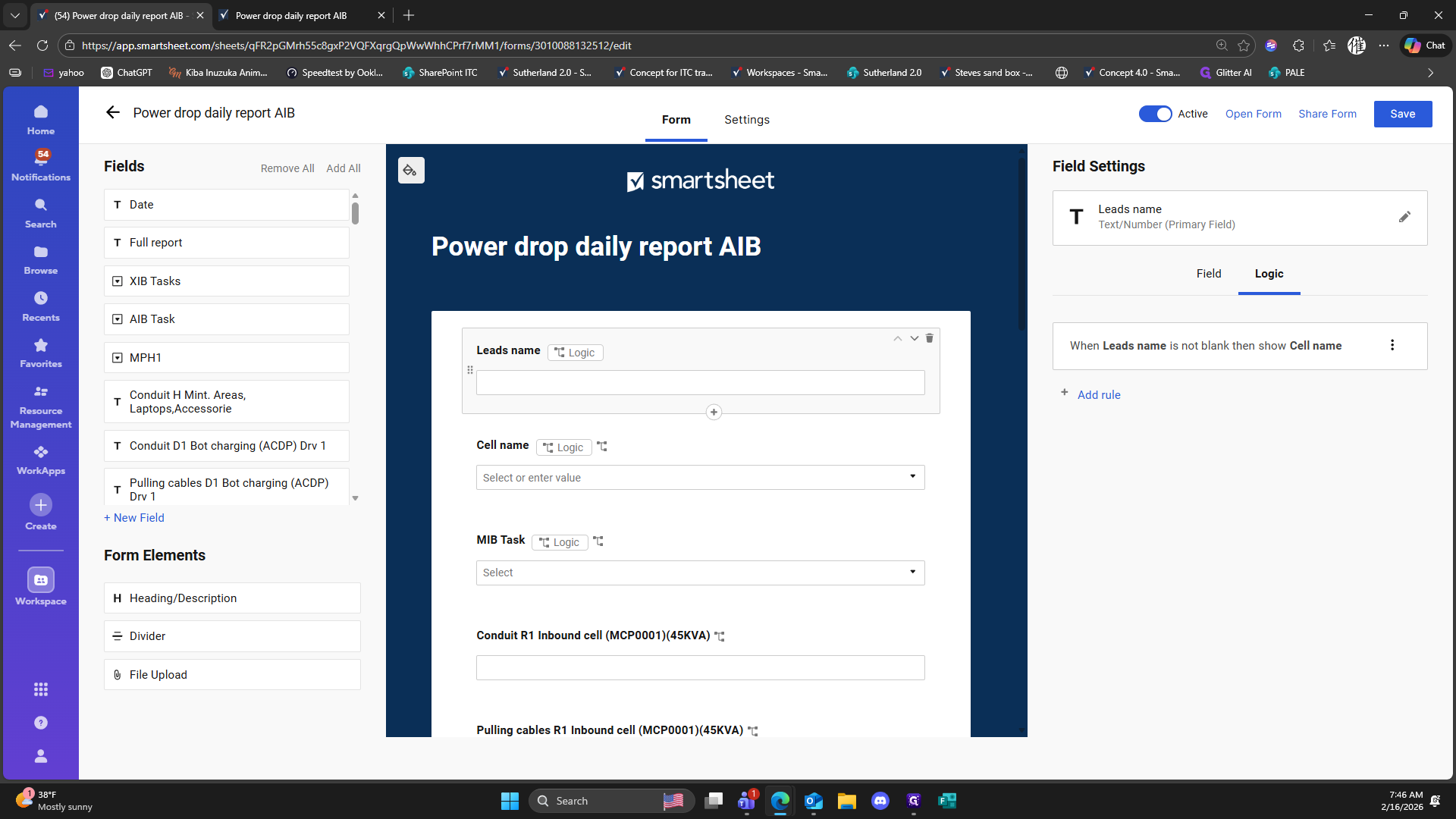
393
Click on "Open Form"
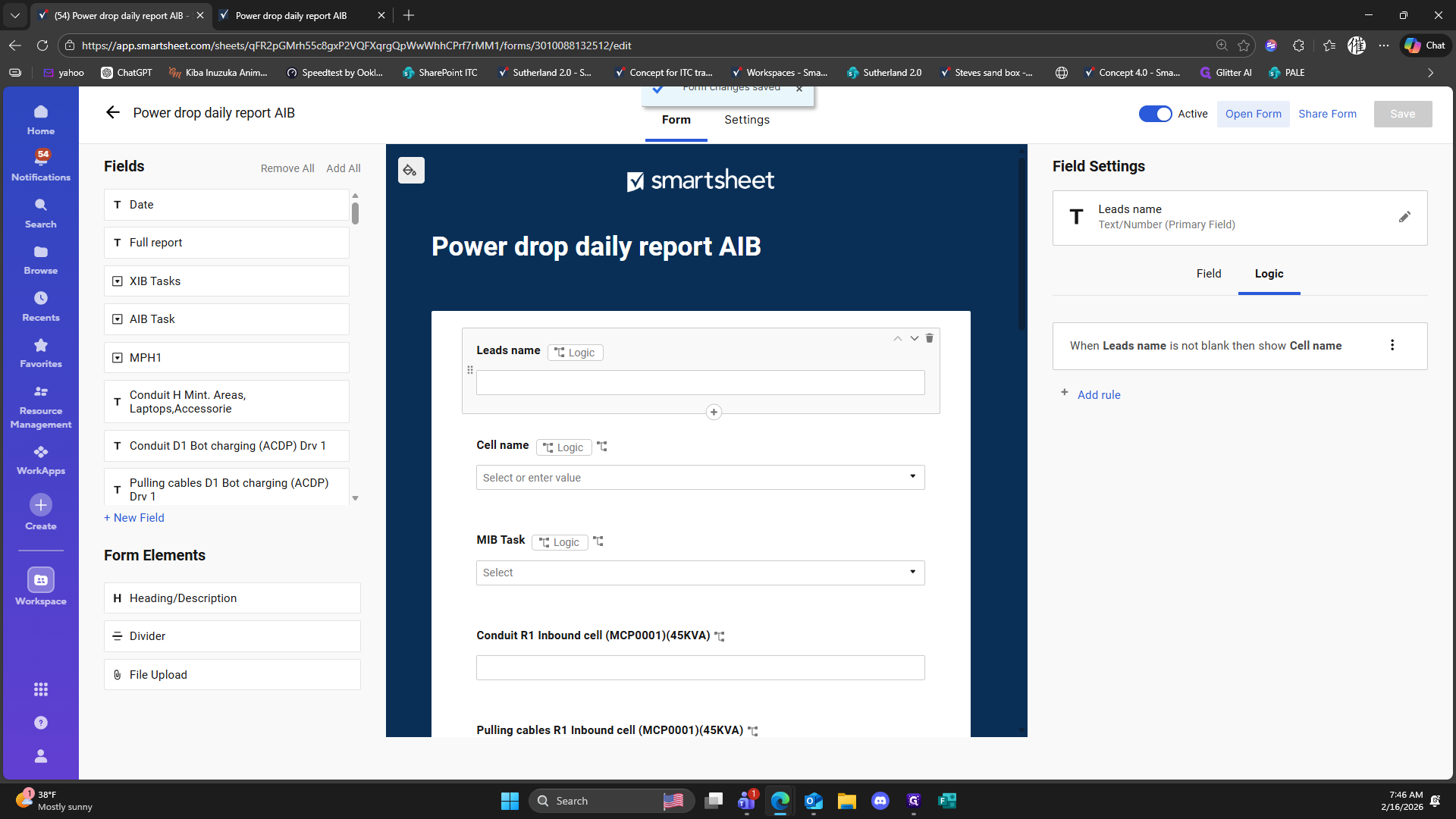
394
Double-click here
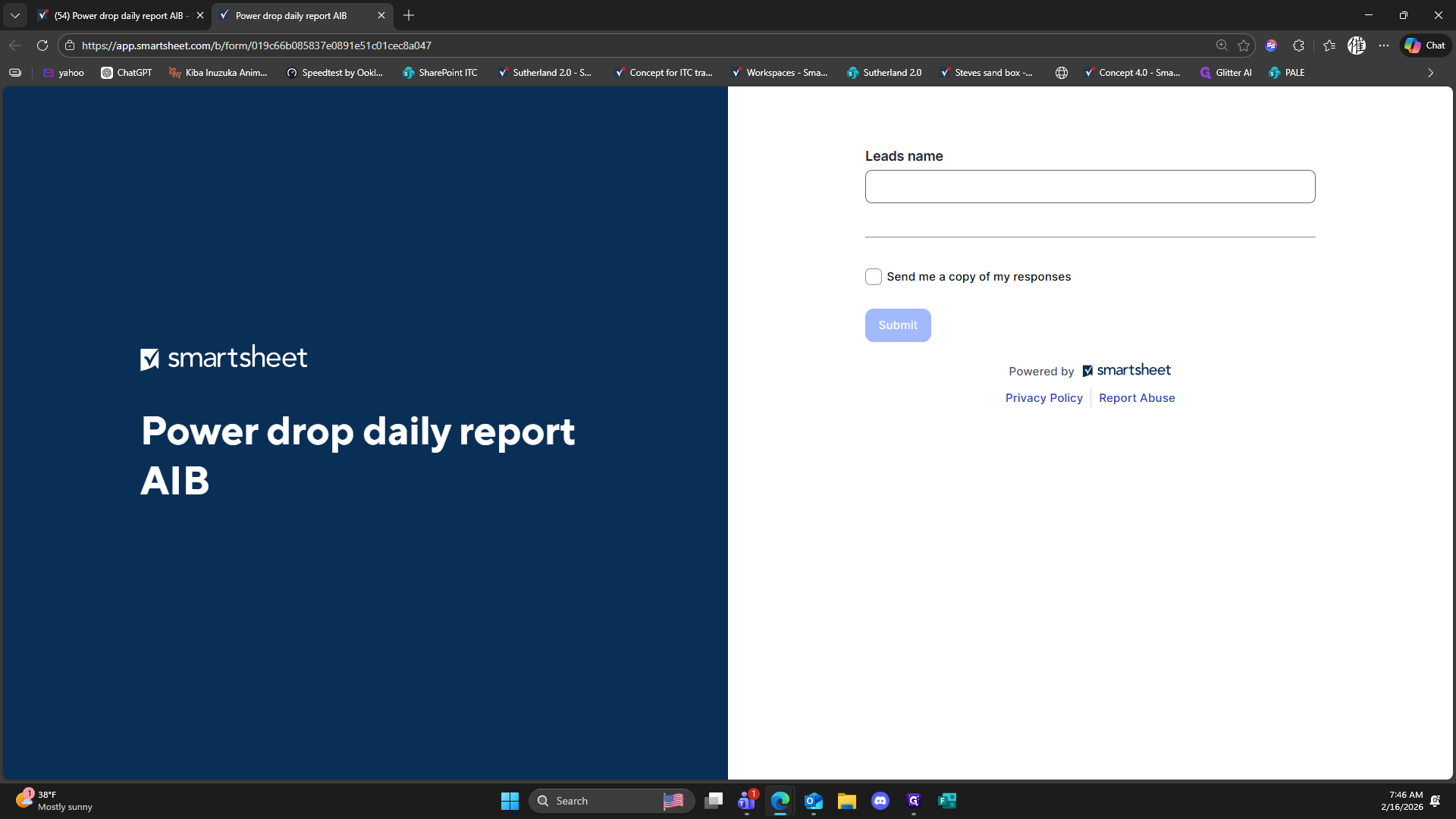
395
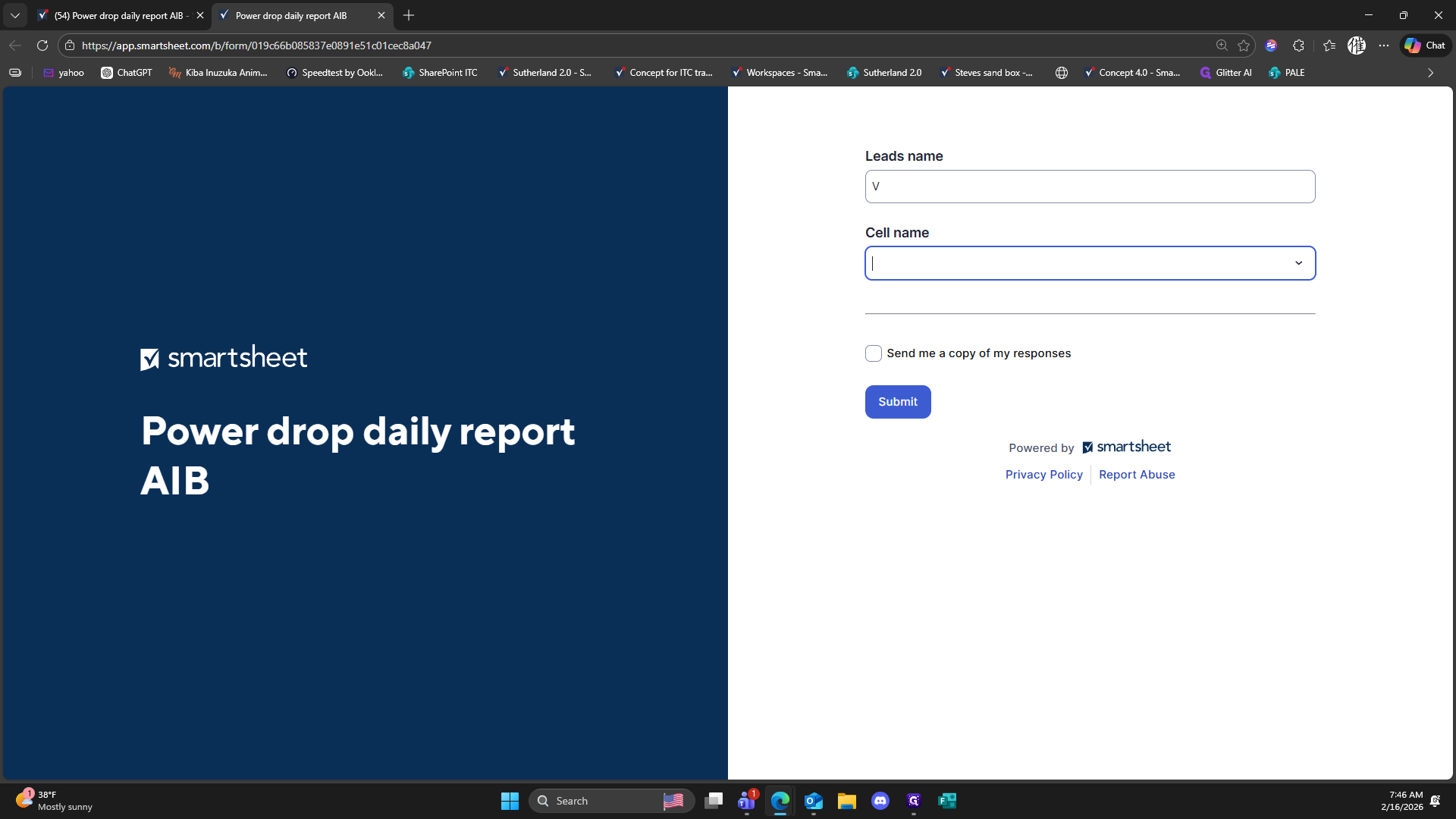
Type "V"
396
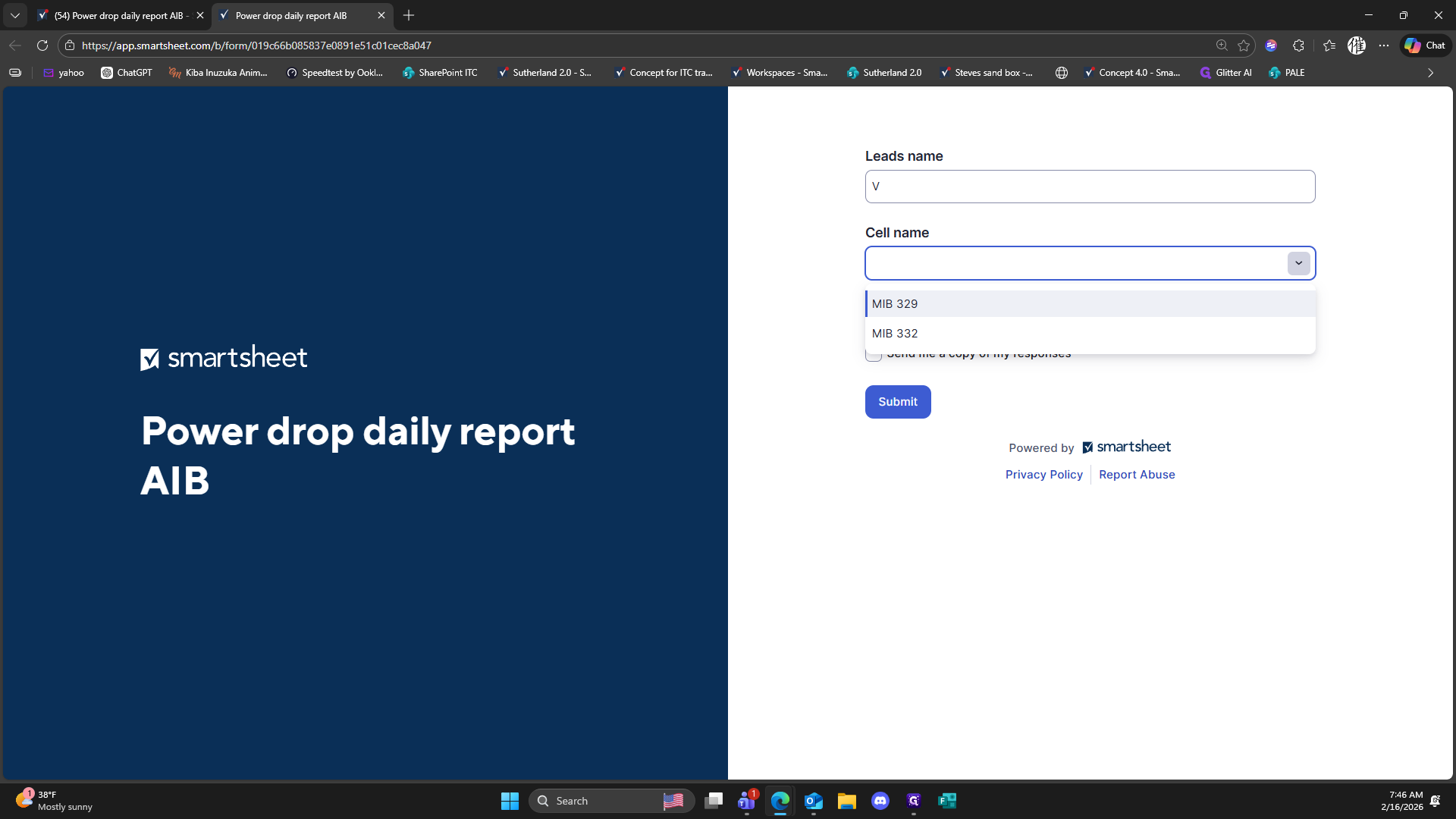
Click here
397
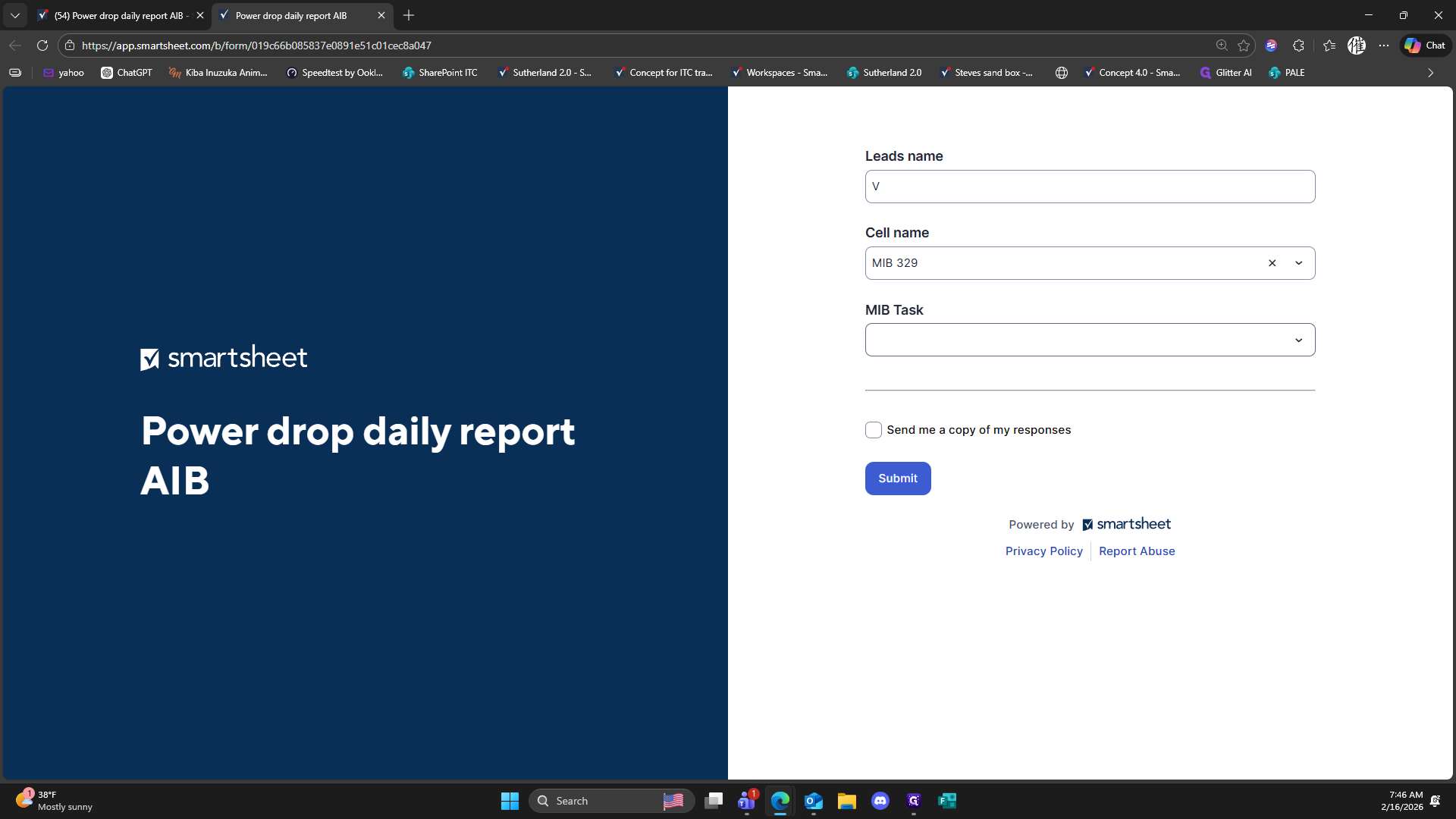
Click here
398
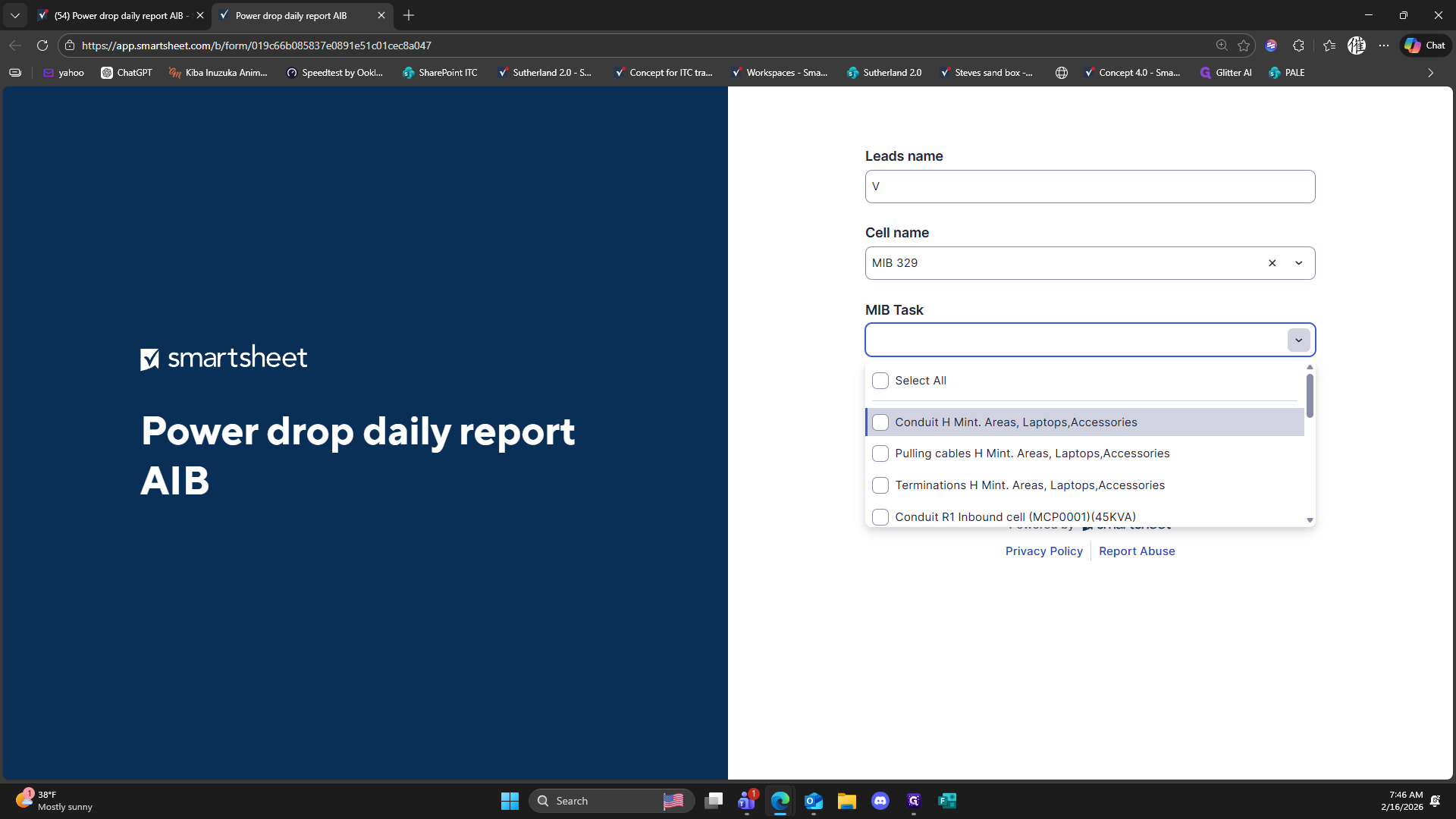
Click here
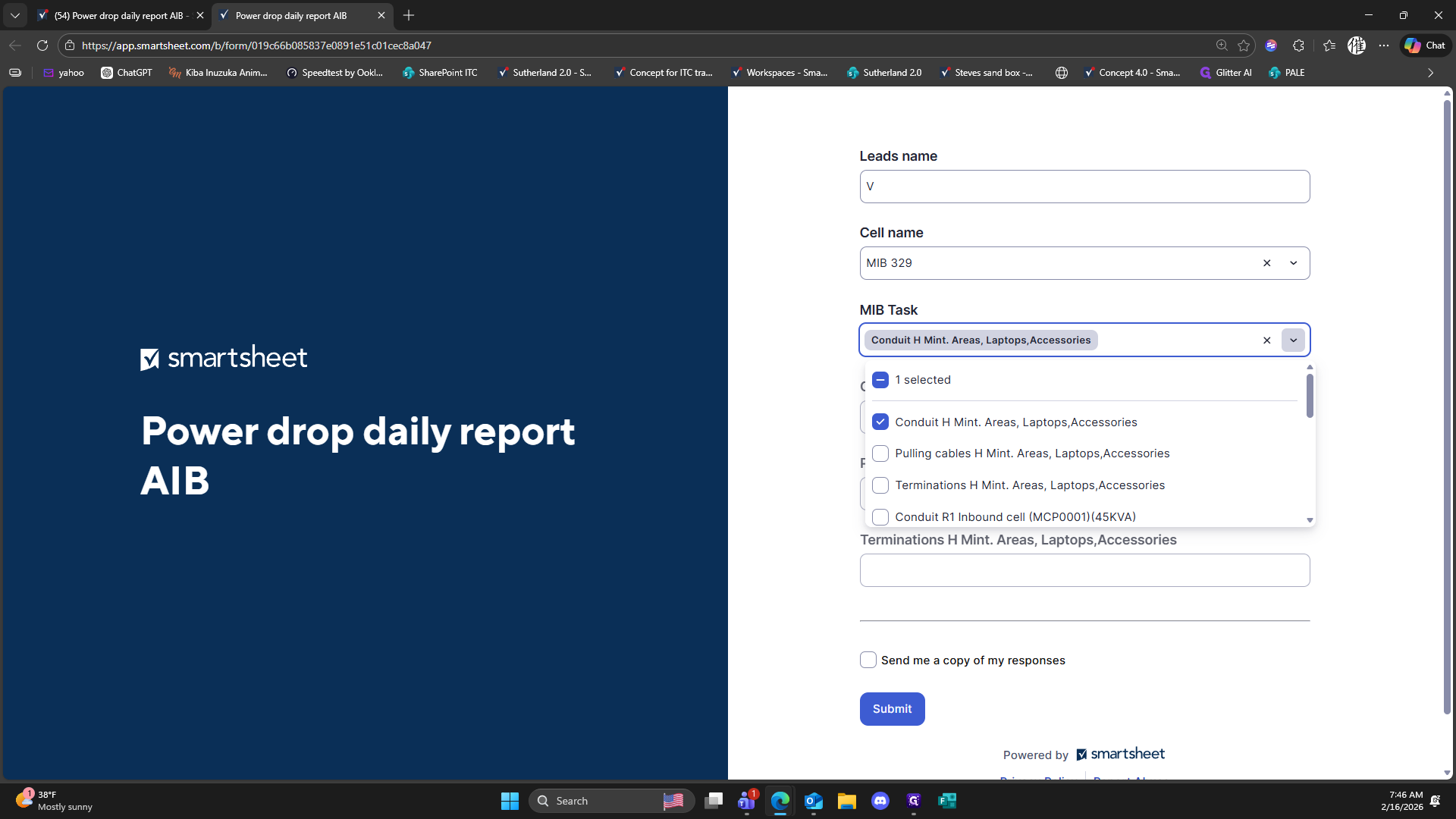
399
Click on "Conduit H Mint ."
400
Click here
401
Click here
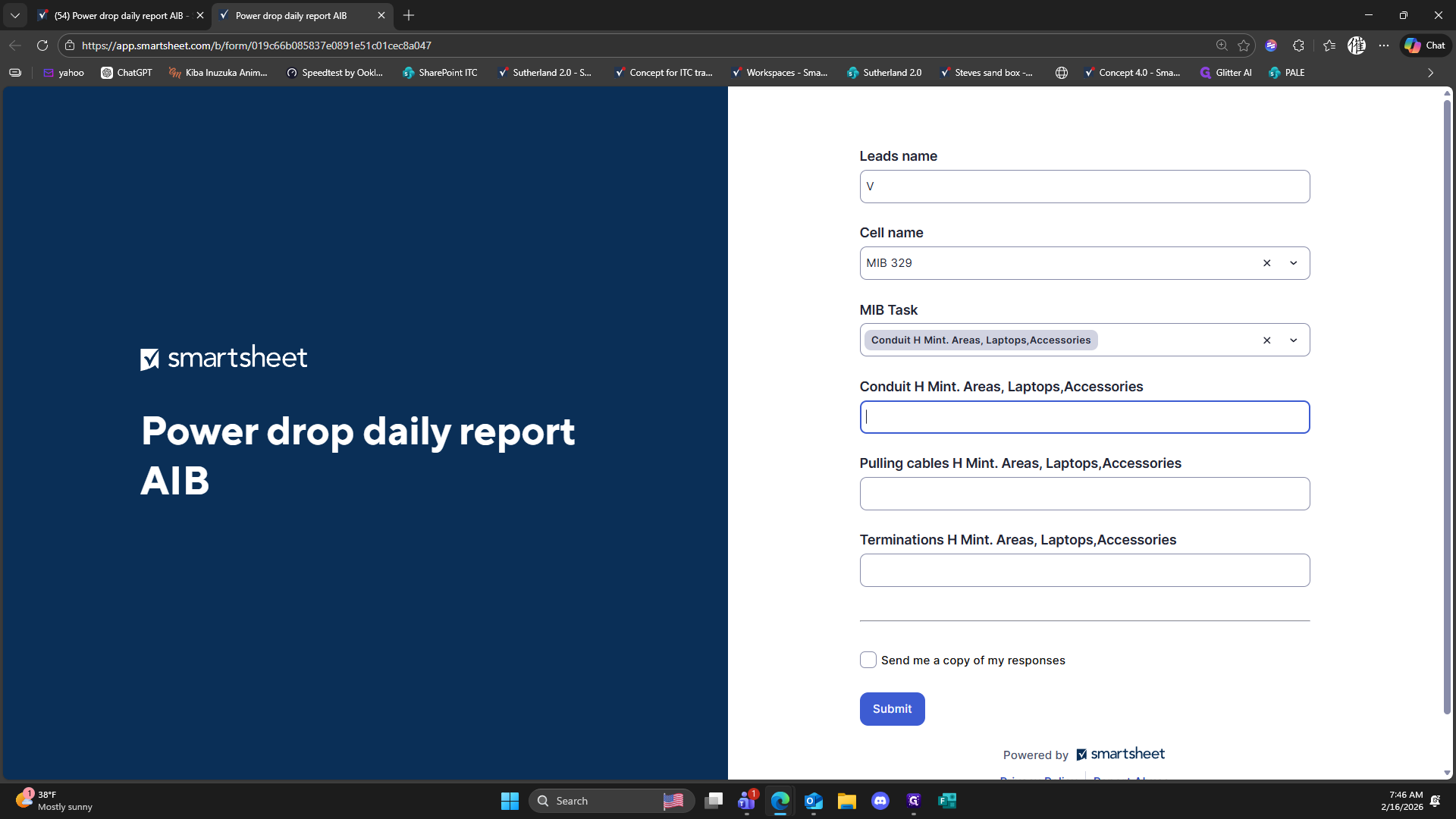
402
Type "80 + Tab + Tab + Tab"
403
Click here
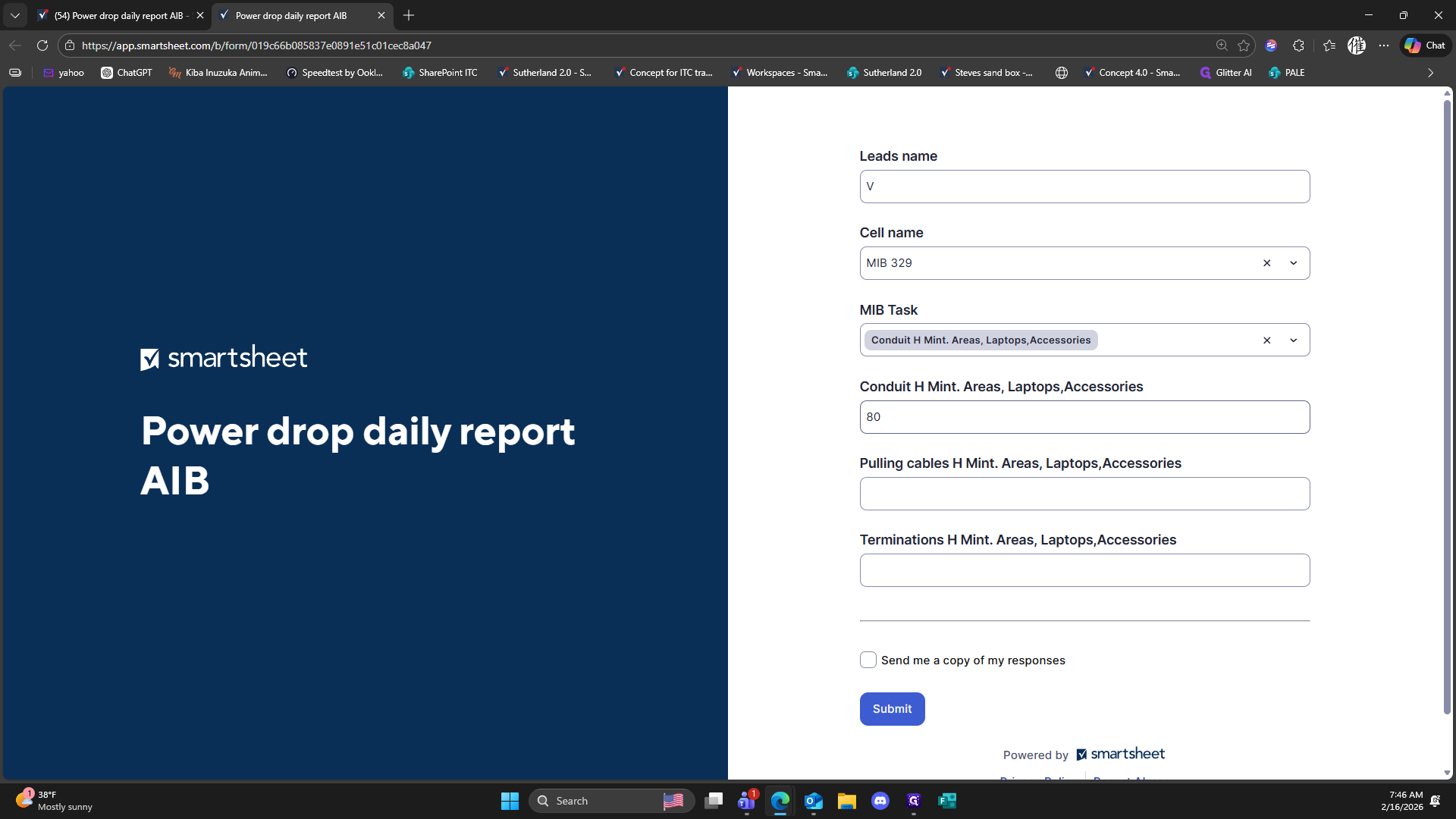
404
Type "Backspace"
405
Type "Backspace"
406
Type "100 + Tab30 + Tab"
407
Click on "Submit"
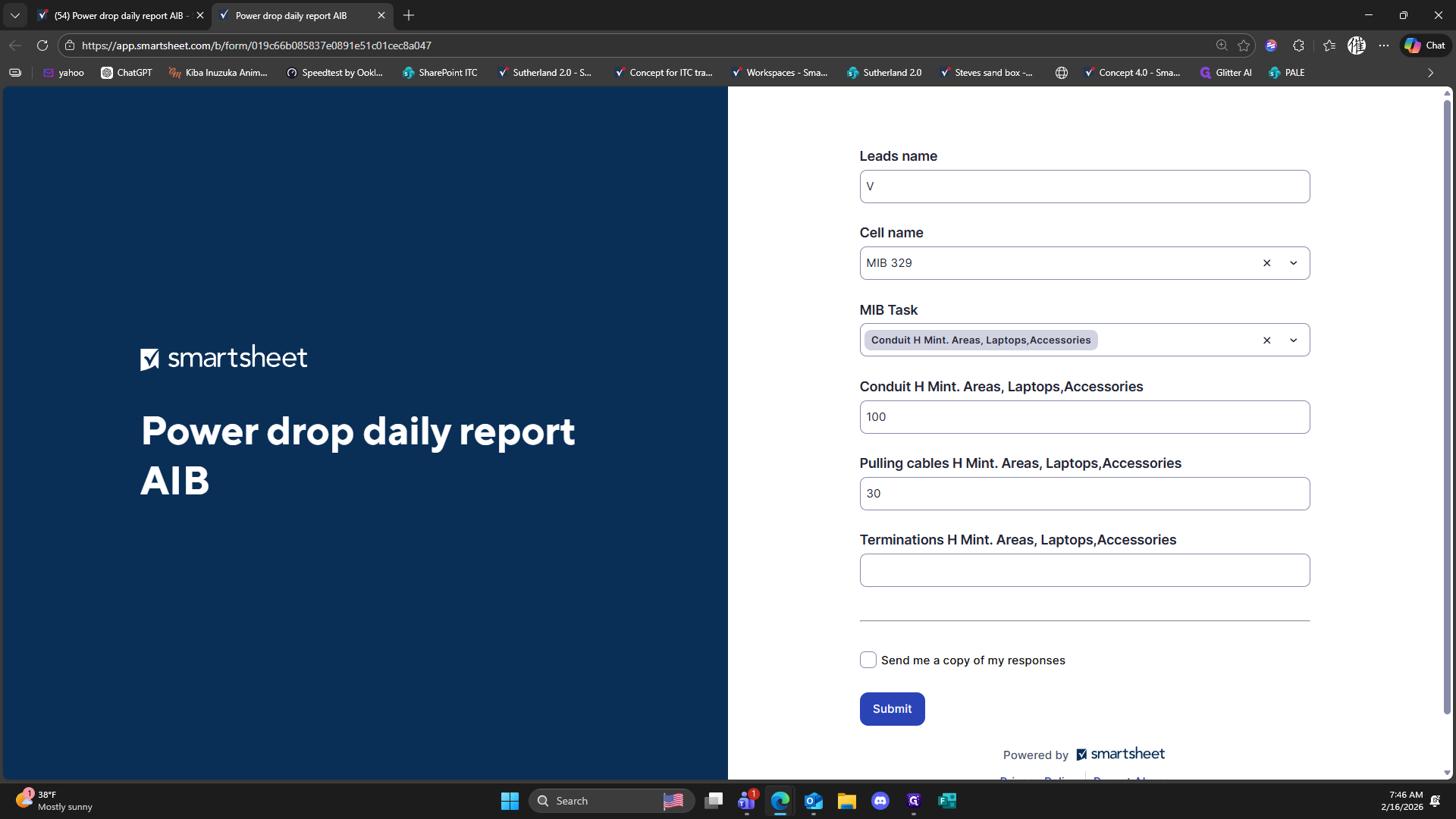
408
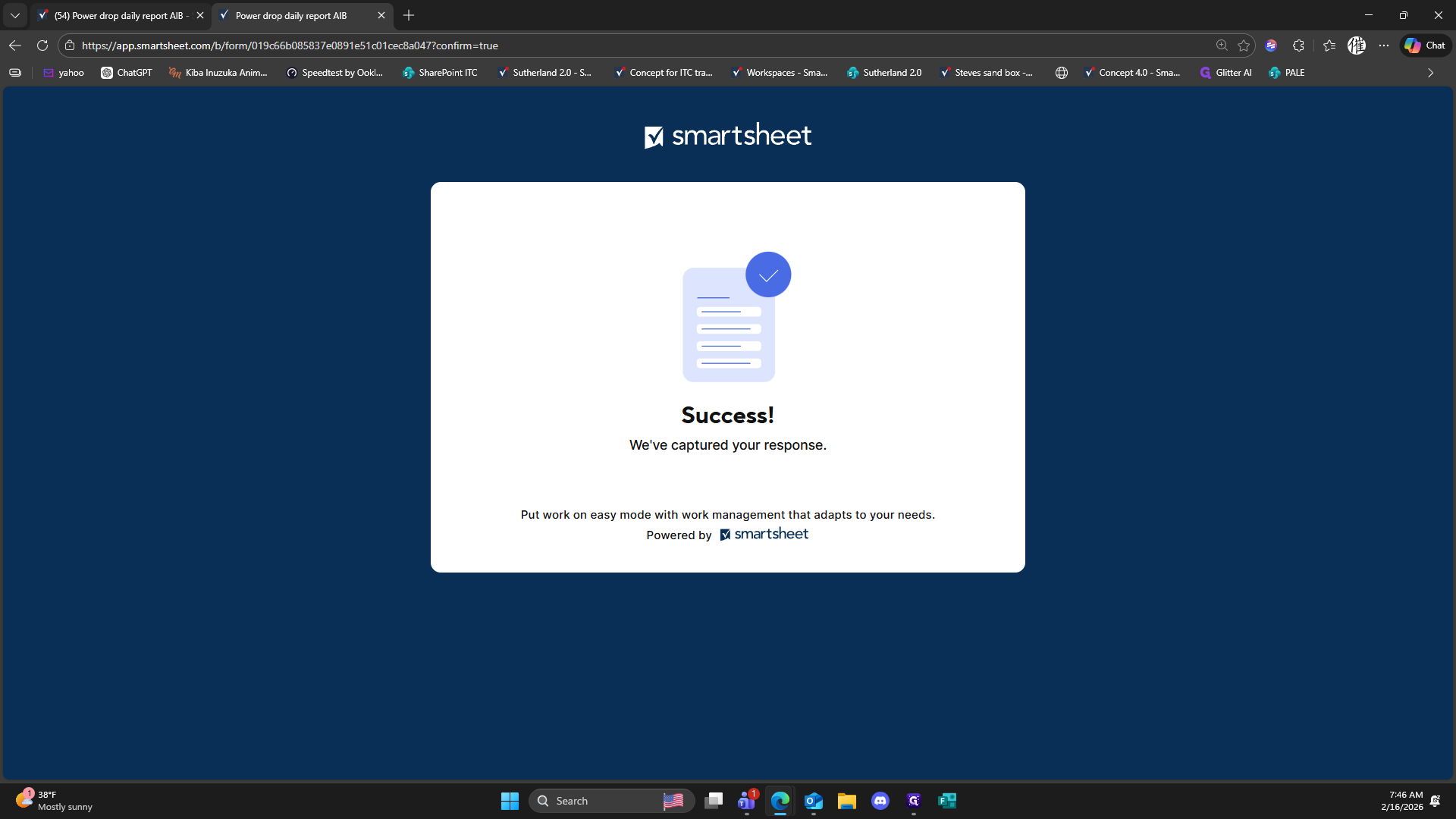
Click on "report AIB"
409
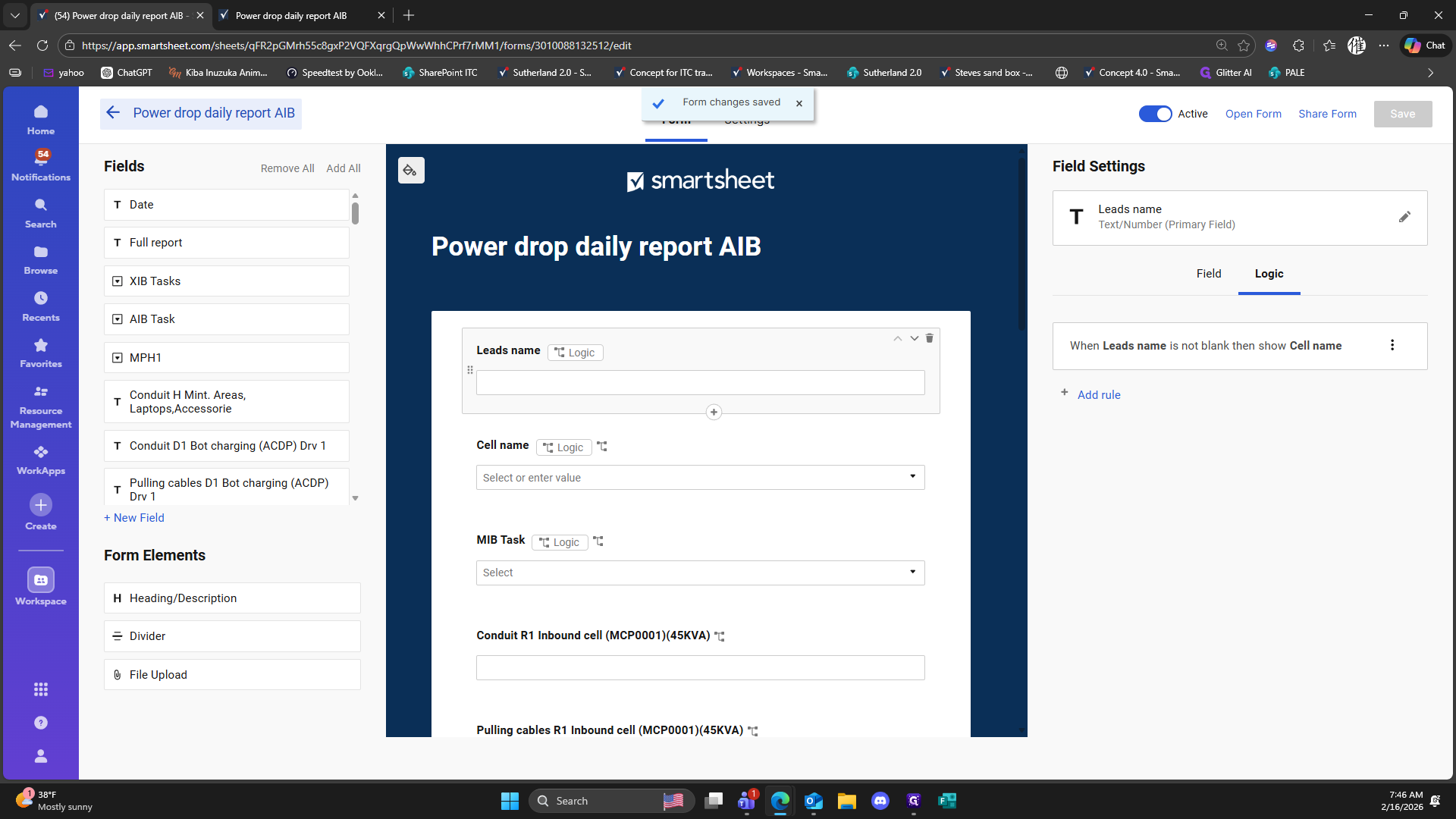
Click on "← Power drop daily report AIB"
410
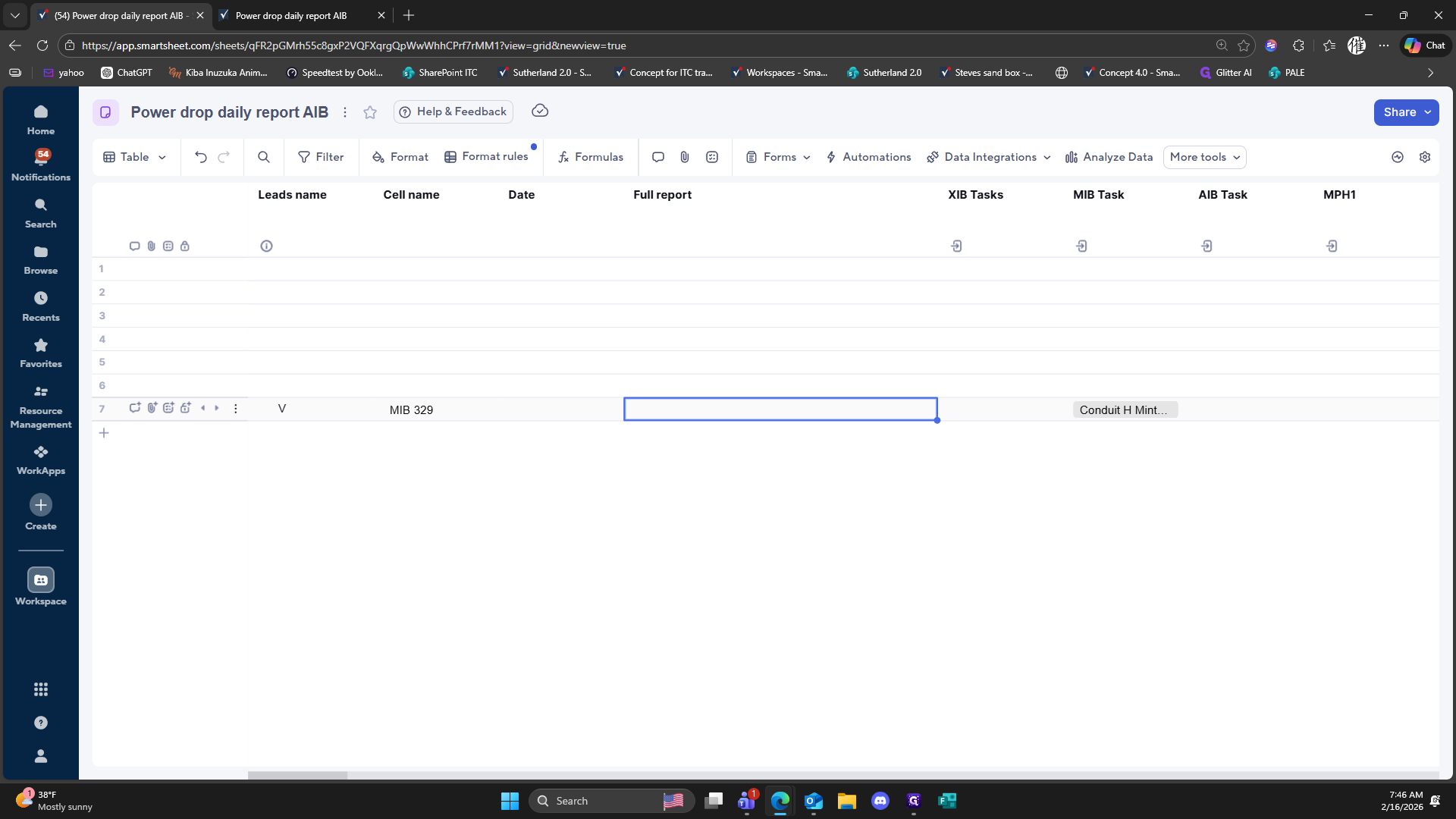
Double-click here
411
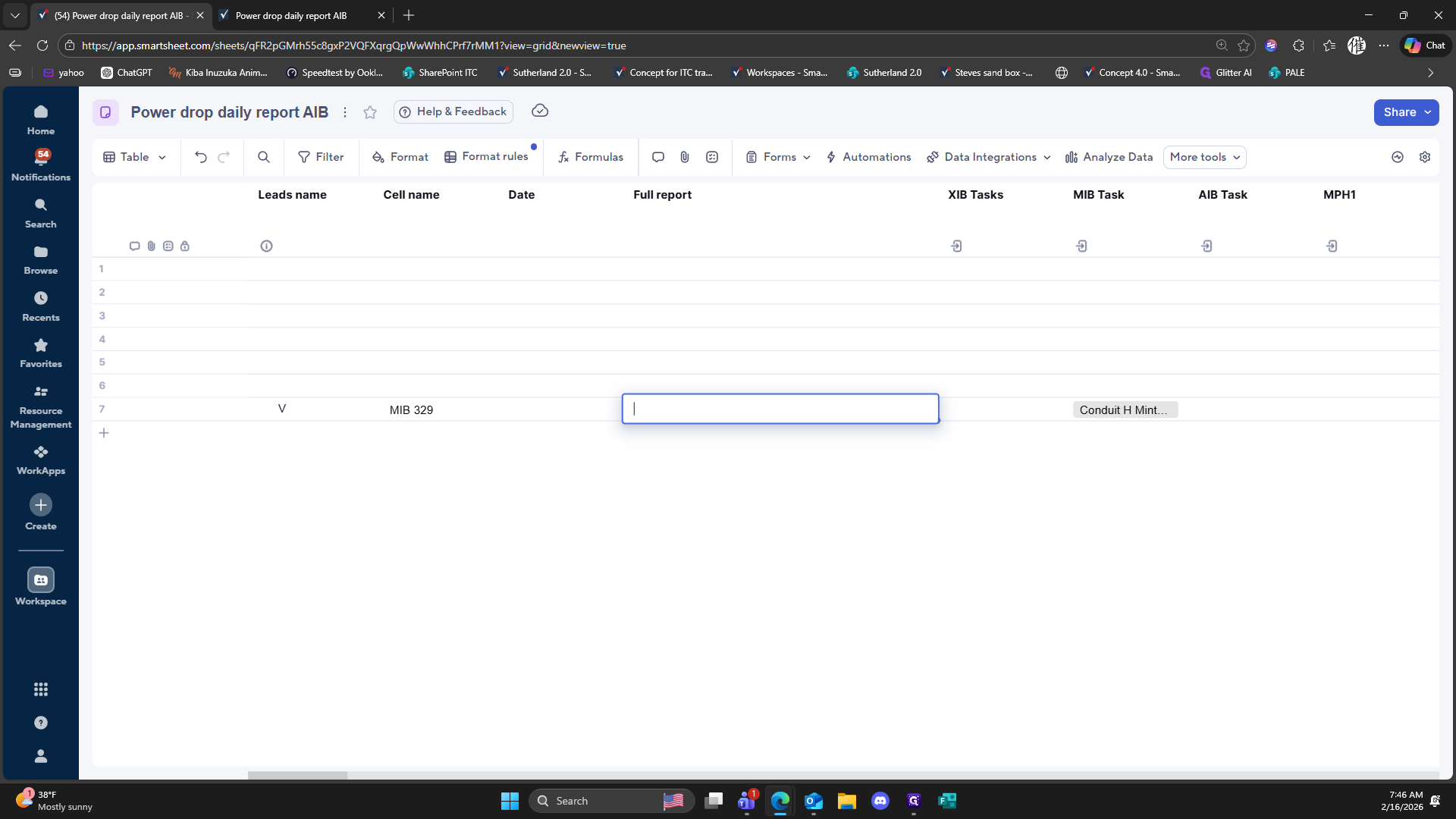
Click here
412
Click here